


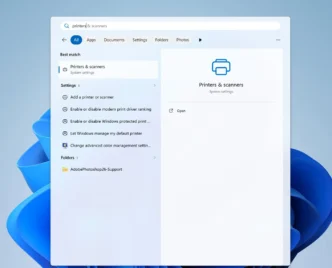
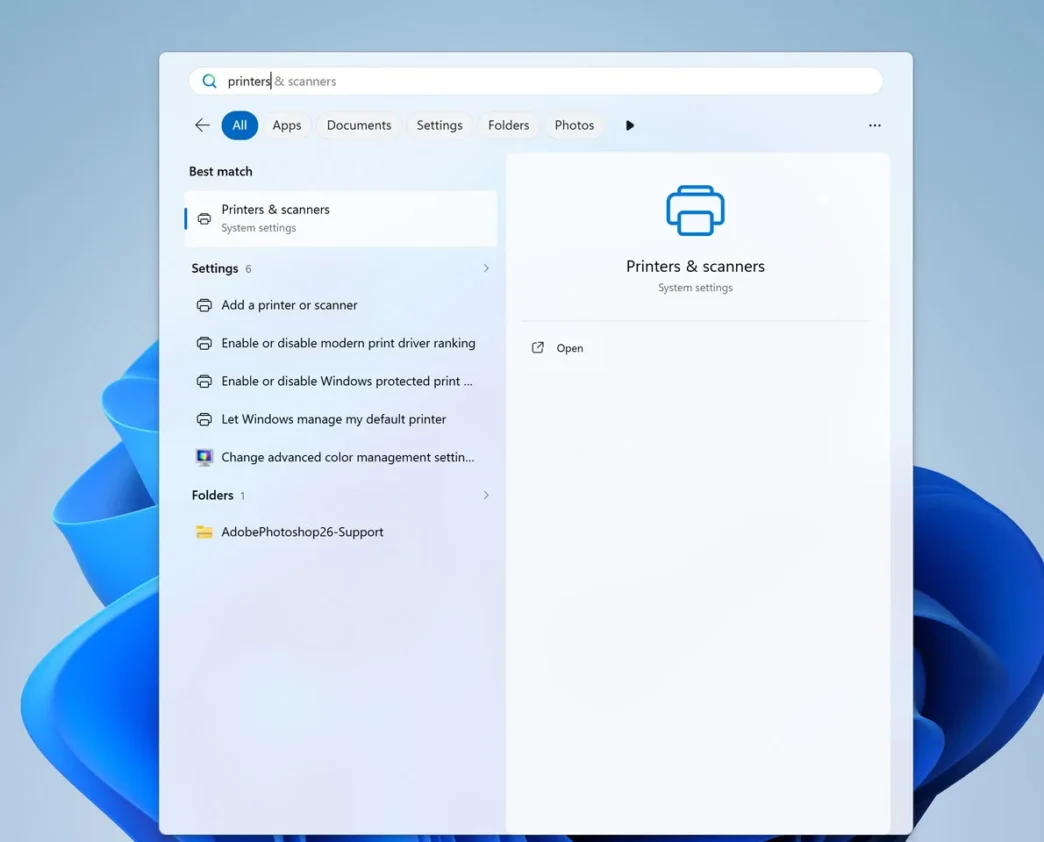
Windows 11 is moving toward built-in, standards-based printer support, changing how the operating system selects and distributes manufacturer drivers. The transition is intended to simplify setup and improve security, but older printers—and workflows tied to vendor software—could encounter compatibility problems. Existing printers are not automatically scheduled to stop working.
Key takeaways
The shift affects driver distribution and setup first; it does not mean every older printer will become unusable. Compatibility depends on the printer, connection, selected driver and features a user relies on.
- Since July 1, 2026, Windows prioritizes its built-in IPP driver when adding compatible printers.
- From July 1, 2027, third-party driver updates through Windows Update are generally limited to security fixes.
- Manufacturer drivers can still be installed separately, while Windows Protected Print Mode blocks third-party drivers when enabled.
- Epson and Brother have documented setup or feature issues under certain configurations.
A gradual transition, not an immediate cutoff
Microsoft’s plan targets the distribution and updating of traditional V3 and V4 printer drivers. Windows began restricting new driver listings in Windows Update in January 2026, with existing driver updates subject to individual review. The July 2026 change gives the operating system’s Internet Printing Protocol (IPP) Class Driver priority when a compatible printer is newly added.
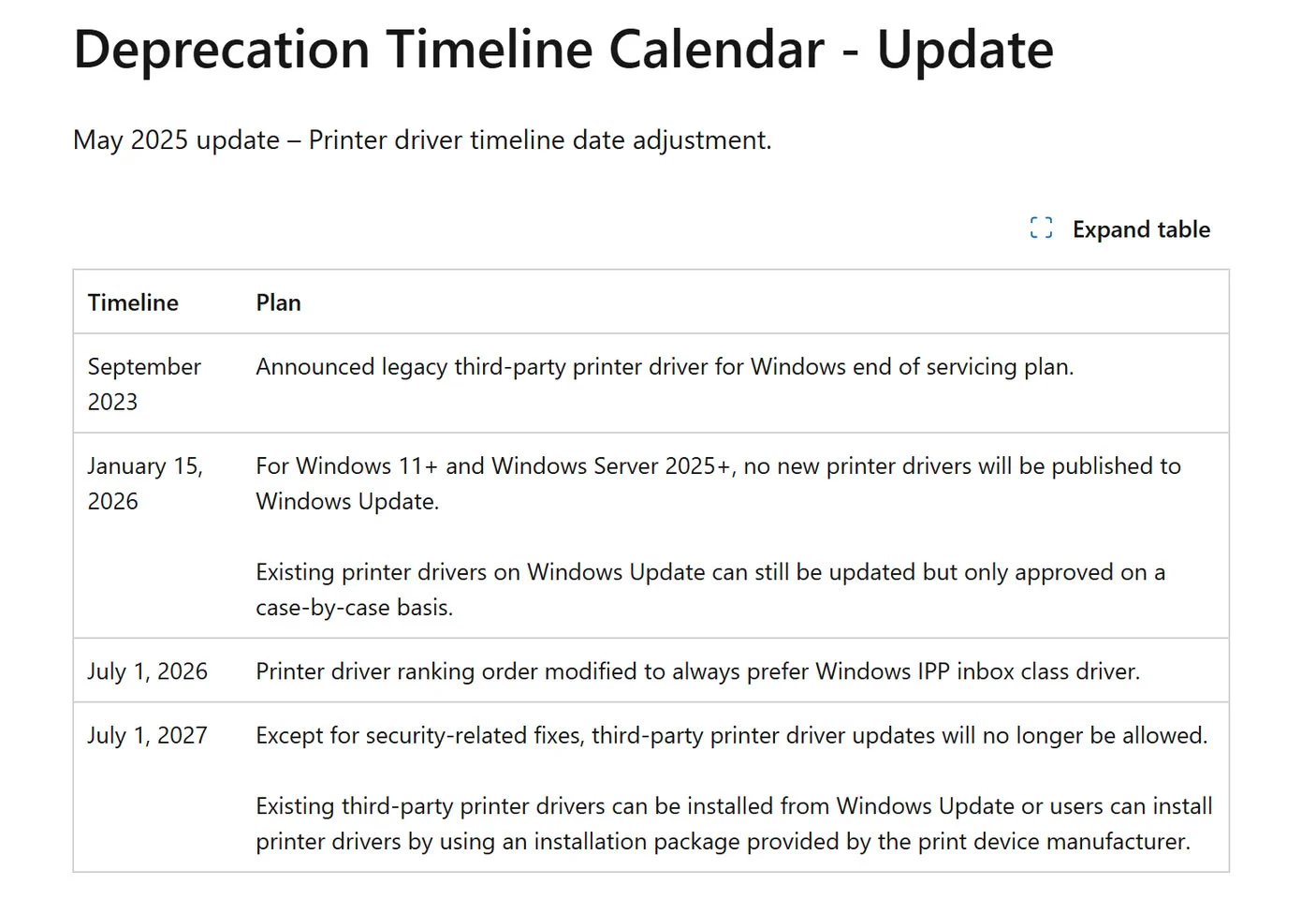
After July 1, 2027, third-party driver updates through Windows Update are expected to be accepted mainly for security fixes. That is not a deadline for existing printers to stop printing: users can still install manufacturer-provided driver packages, if available. The change matters to PC owners and IT teams who depend on older hardware or maintain a fleet of printers with model-specific setups.
Standard drivers bring trade-offs
Microsoft’s Windows Ready Print approach uses IPP and Mopria-certified devices to reduce reliance on separate drivers. A common print stack could make setup more consistent and shrink the security exposure associated with loading third-party code. Microsoft has cited risks in the Windows print infrastructure, including vulnerabilities involving the Print Spooler.
But a successful test page does not guarantee that every part of a workflow will work. Epson has described cases involving USB recognition or installation problems, while Brother has flagged potential issues with dedicated apps, PC-FAX and label-size selection. Multifunction printers may also rely on manufacturer software for scanning and other advanced features. Print Support Apps can provide extra controls, but users should verify support for the features they actually use.
Check before changing a working setup
Windows Protected Print Mode is a separate restriction: when enabled, it blocks third-party printer drivers and removes printers that depend on them. Compatible models can be added again using Windows Ready Print, but unsupported printers may require turning the mode off. Microsoft has said it plans to make the mode the default eventually, but has not announced a date; July 2027 is not a confirmed enforcement date.
Before replacing hardware or changing a managed PC, check the driver name, connection type and manufacturer guidance. Confirm IPP, IPP over USB or Mopria support where applicable, and test scanning, label formats, faxing and vendor apps—not just printing. For enthusiasts and organizations keeping older peripherals in service, saving installers and documenting a working configuration can help avoid a disruptive reinstall.
Via Microsoft