


NVIDIA has added Preset C, a faster performance mode for DLSS Frame Generation, to the beta version of its NVIDIA App. The company says the option can speed up frame generation by as much as 35% on an RTX 5060, with minor image-quality trade-offs. It supports RTX 40- and RTX 50-series GPUs, plus RTX Spark laptops.
Key takeaways
Preset C swaps one of DLSS Frame Generation’s AI models for a lighter, faster alternative. NVIDIA says it works with standard Frame Generation, Multi Frame Generation and Dynamic Multi Frame Generation, and can be enabled through the NVIDIA App beta.
- NVIDIA’s cited maximum gain is up to 35% on an RTX 5060.
- The mode is available on RTX 40- and RTX 50-series GPUs and RTX Spark laptops.
- Image quality may be slightly reduced; broader independent testing has not been provided.
How Preset C changes frame generation
DLSS Frame Generation uses one model to interpret game data, including depth and motion vectors, and another to calculate optical flow for details such as interface elements and ray-traced effects. Preset C replaces the latter model with a faster, lighter algorithm intended to reduce processing overhead.
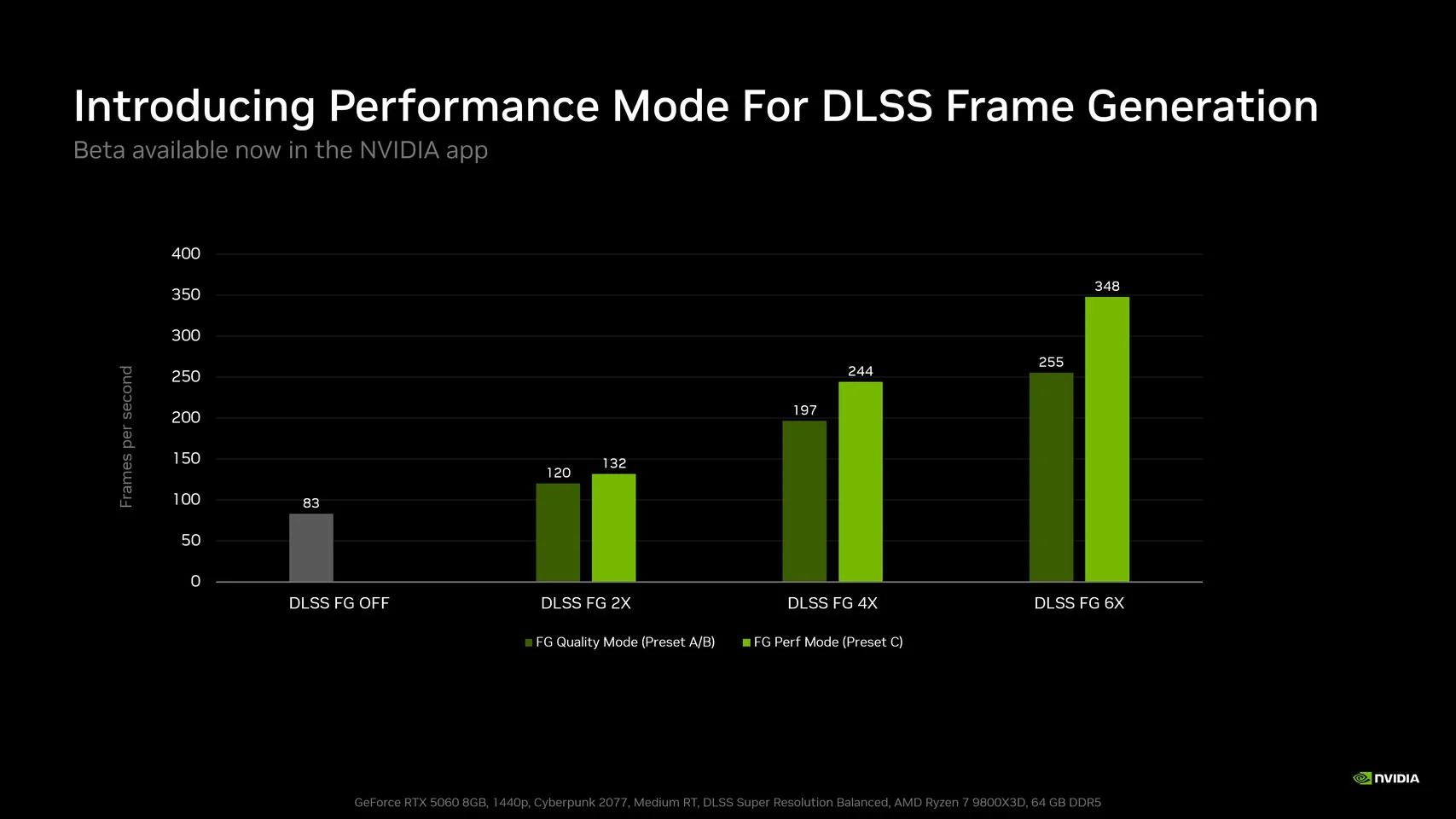
NVIDIA’s example highlights the potential benefit at higher frame-generation multipliers. In a cited RTX 5060 comparison, the generated frame rate at 6X rose from 255 to 348 FPS. That result is specific to the test shown, not a guarantee of the same increase across games or GPUs. The company describes the visual-quality compromise as minor, but has not published detailed comparisons for a range of titles and hardware.
Compatibility and availability
Preset C is a beta feature, not a new GPU or a game-specific update. It applies to DLSS Frame Generation, Multi Frame Generation and Dynamic Multi Frame Generation on supported RTX 40- and RTX 50-series cards, as well as RTX Spark laptops. NVIDIA has not supplied comparable performance figures for other supported GPUs.
How to enable Preset C
Install the latest NVIDIA App beta, then opt in to beta or experimental features under Settings > About. After the update installs, open Graphics, choose a supported game (or Global Settings), and navigate to Driver Settings > DLSS Override – Model Presets. Select Custom, choose Preset C in the Frame Generation menu, and apply the change.
As with other performance options, the practical result will depend on the game, GPU and frame-generation setting. Preset C gives RTX owners another setting to test when they want to reduce frame-generation overhead, but players sensitive to visual artifacts may prefer to compare it with the default model in their own games.
Via NVIDIA