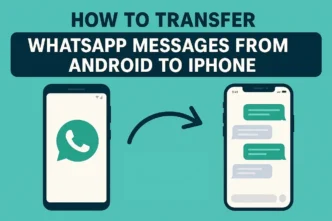
Since many people switch phones, moving WhatsApp chats can feel tricky. When you want all your messages and multimedia to be safe, choosing the right tool is important. Yet, WhatsApp doesn’t offer a simple native way to move chats across devices. That’s why practical tools like Dr.Fone – WhatsApp Transfer help make the process easy and quick. Therefore, this guide explains simple methods anyone can follow.

Part 1. Can I Move WhatsApp from Android to iPhone?
You can absolutely move WhatsApp from Android to iPhone, but it needs care. Many users worry about losing messages and other app data during the switch. This shift can seem tricky because of the differences between Android and iOS systems. WhatsApp uses different backup techniques for both platforms, which prevents direct transfer. Still, several tools and apps are available that let you migrate WhatsApp to a new phone without data loss.
Why Transfer WhatsApp Messages from Android to iPhone
- Chat History: Moving messages preserves all chats, so you don’t lose important personal details. It keeps past discussions intact for easy reference anytime on your new phone.
- Media Files: Photos and videos stay with messages, preventing loss during device switching. You can view, share, or download media without worrying about missing files.
- Business Records: Work chats remain safe to help track clients and project discussions. No need to manually copy messages, saving time and reducing potential mistakes.
- Group Chats: All group conversations stay intact, including shared media and chat history. This prevents missing messages or losing access to active group discussions online.
- Easy Access: Keeping old messages on your new iPhone saves time while searching old chats. You don’t need to switch devices whenever you want to check past details.
Part 2. Transfer WhatsApp Messages from Android to iPhone with 3 Methods
Multiple quick and easy solutions are available to help you move your messages and other data. This section covers 3 ways to learn how to transfer WhatsApp messages from Android to iPhone:
1. Using Dr.Fone – WhatsApp Transfer | Best of All
When you want an effortless solution, Dr.Fone – WhatsApp Transfer offers a smart way to move WhatsApp data. It supports both Android 16 and iOS 26 devices to ensure complete compatibility. Moreover, the program lets users migrate almost all types of WhatsApp data, like chats and photos. It even provides up to 96% faster speed for large WhatsApp data transfers.
This tool also ensures full data integrity to keep all messages and data intact without errors. While migrating, you can selectively transfer chats or call logs instead of everything. In addition, Dr.Fone – WhatsApp Transfer merges old and new WhatsApp data without deleting existing content. Thus, it provides detailed control by allowing a preview of the chosen data before final transfer.
Key Features
- Business Support: Transfers WhatsApp Business chats without even affecting existing data.
- Merge Control: Users can choose whether to merge or replace existing WhatsApp data.
- Secure Connection: Uses a safe USB or computer connection to protect data during migration.
Guide to Transfer WhatsApp Messages from Android to iPhone Using Dr.Fone
Take guidance from the given steps to understand how you can transfer WhatsApp messages from Android to iPhone:
Step 1. Run the Tool to Move WhatsApp Messages
Upon accessing the “Toolbox” tab, navigate to the “WhatsApp Transfer” module. Thereafter, connect both phones to the computer using USB cables and select “Transfer WhatsApp Messages.”
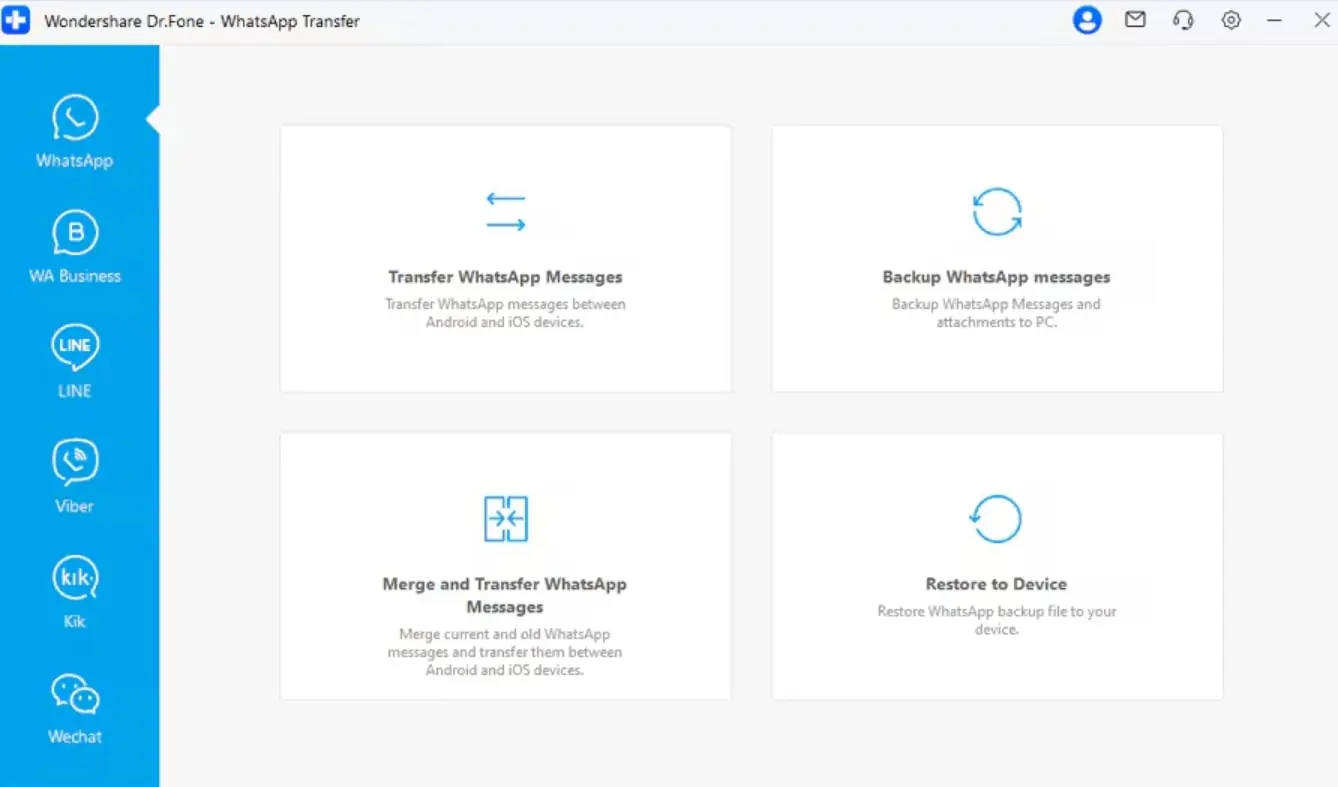
Step 2. Select Your Desired WhatsApp Data to Transfer
As you view the WhatsApp data category, choose your desired data type and hit the “Transfer” button. Dr.Fone also lets you select any specific chat or call log and then press the “Restore to Device” button.
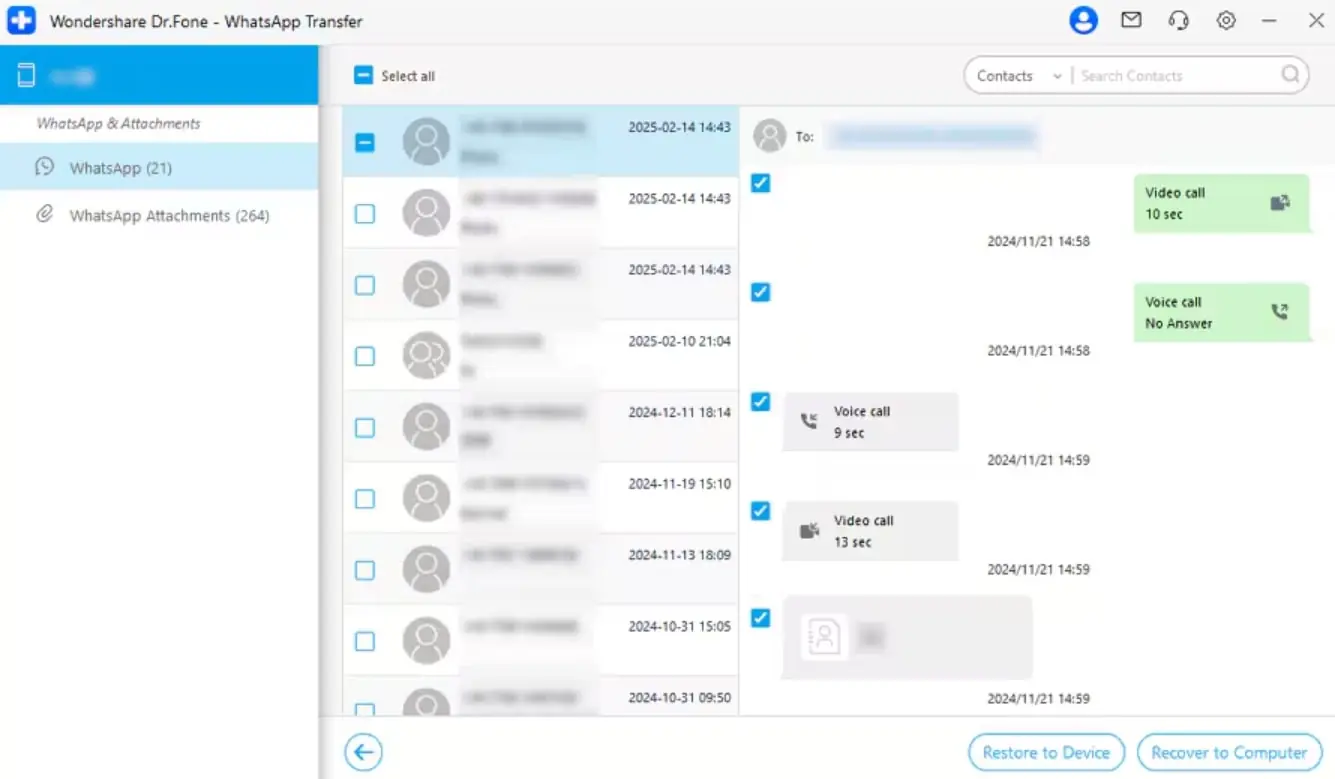
Step 3. Start Migrating Your Chosen WhatsApp Data
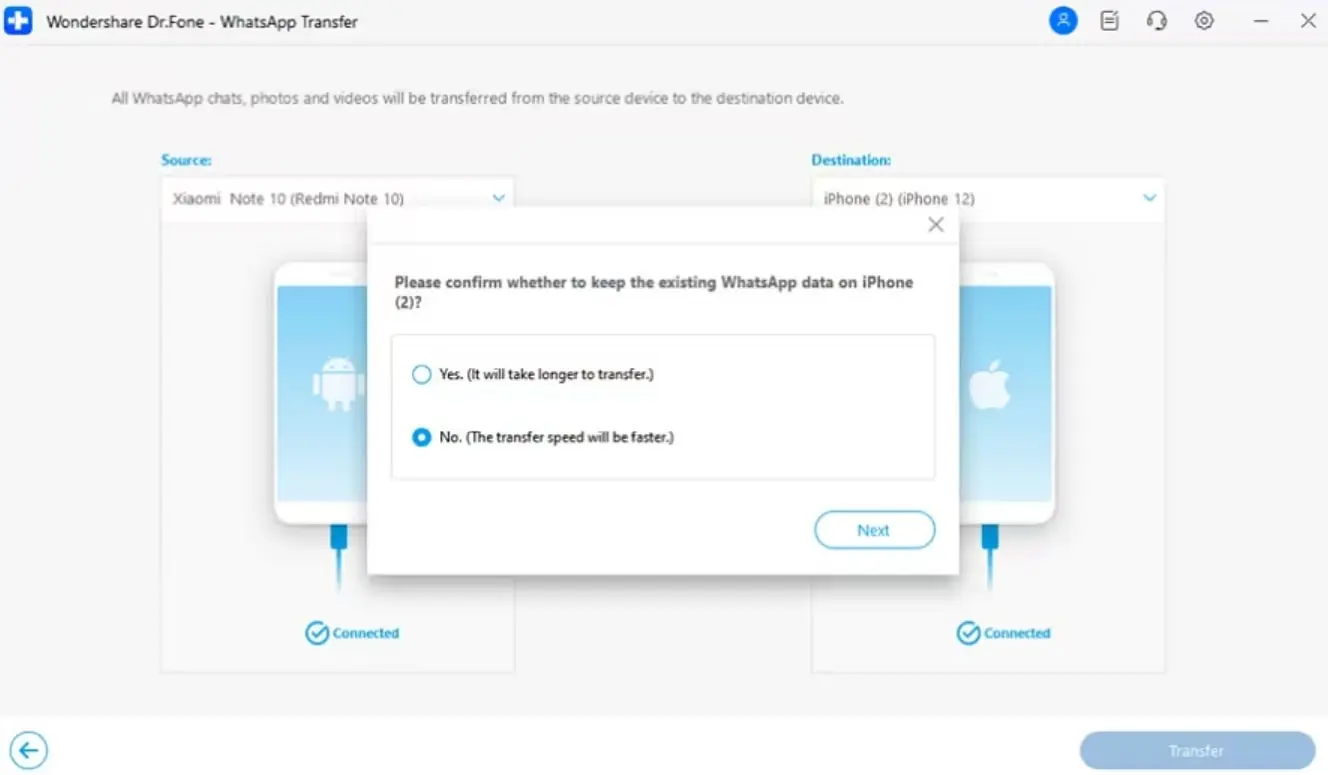
Upon seeing a prompt, click on your desired option and click the “Next” button. The tool will then initiate migrating your selected WhatsApp data to your iPhone.
2. Official Move to iOS App
The official Move to iOS app allows transferring WhatsApp chats directly. The app supports secure chat movement using the same phone number on both devices. Yet, read the following points before proceeding with this option to know what you should start the process:
- Ensure that the smartphones are charged up in order not to be interrupted.
- Connect both phones to the same stable Wi-Fi for an effortless transfer process.
- Your iPhone must be factory reset or used during its initial setup.
- Install the Move to iOS app on your Android before launching the transfer.
- Keep both phones close to maintain a steady connection and transfer stability.
Go through the steps given below to migrate WhatsApp to a new phone using Move to iOS:
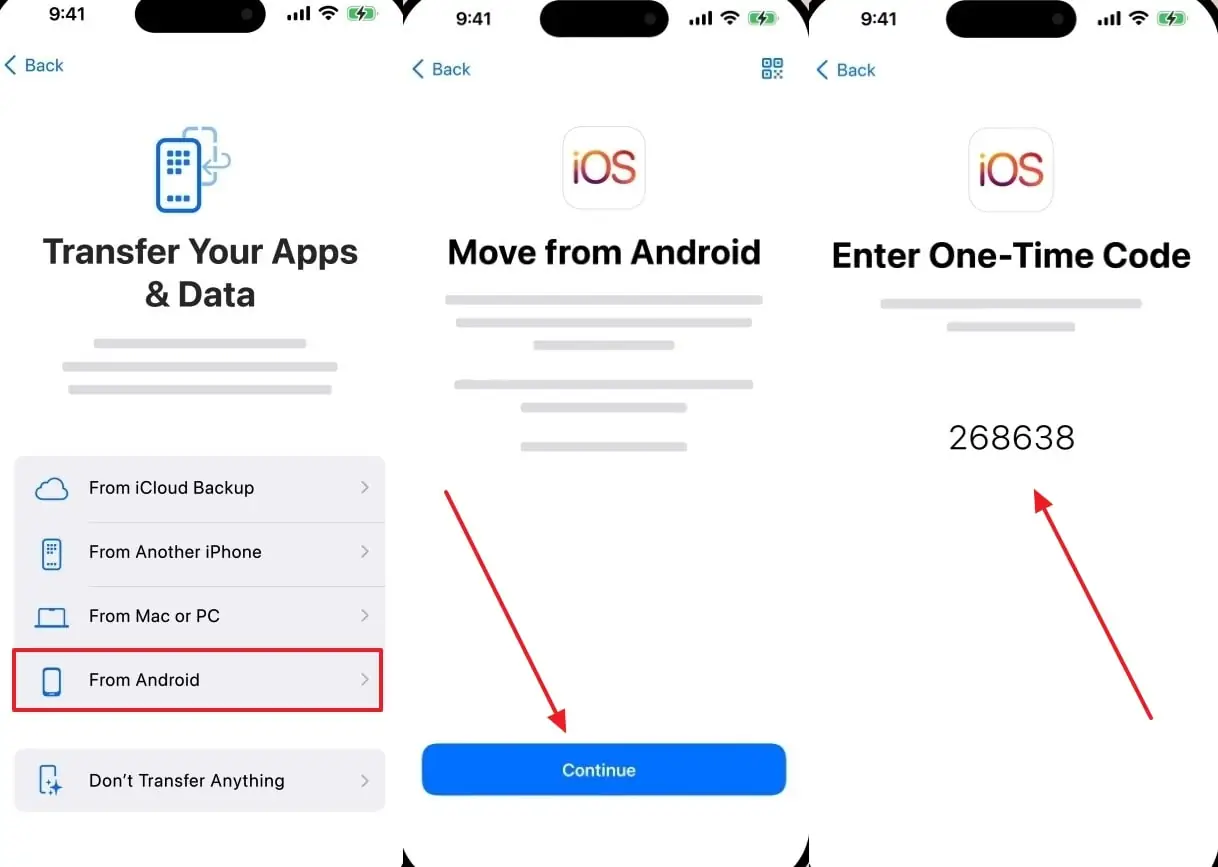
Step 1. During your iPhone setup, choose “From Android” and then hit “Continue” to access the “One-Time” code.
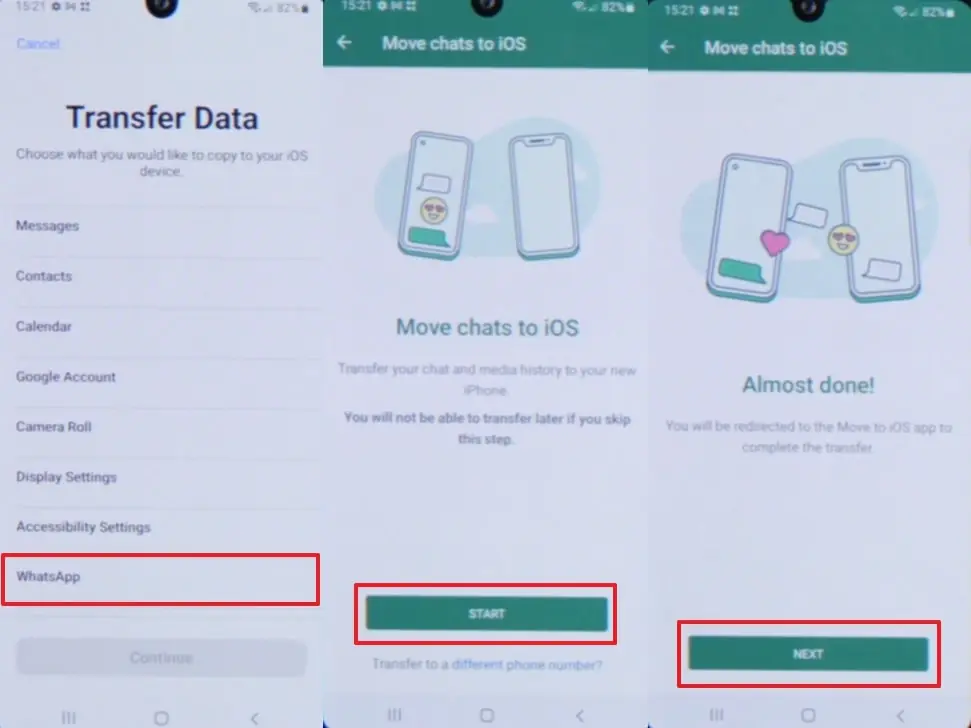
Step 2. On your Android, launch the app and enter the code to connect both devices. Afterward, choose “WhatsApp” and hit the “Start” button. When the app prepares your WhatsApp data, hit “Next.”
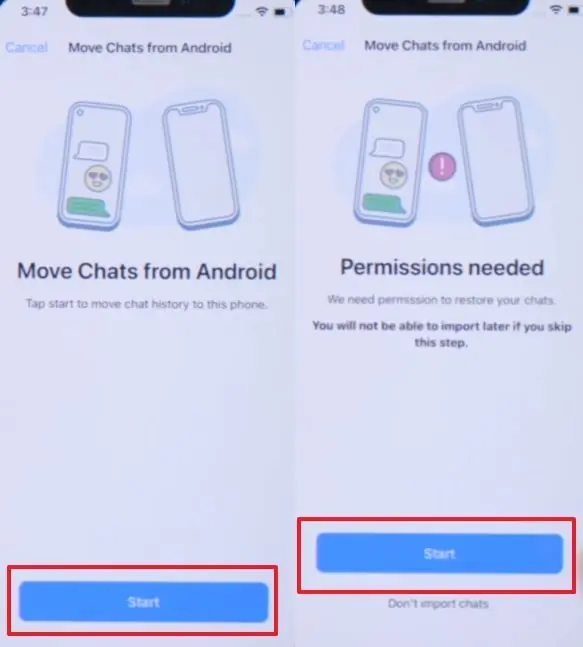
Step 3. Following this, complete the setup of your iPhone, then install and launch the WhatsApp app. Upon entering the same phone number, tap “Start” from the “Move Chat From Android” screen and then press “Start.”
3. Manual Chat Export via Email (Partial Transfer)
Manual chat export via email allows transferring WhatsApp messages partially to an iPhone. Each conversation is saved as a readable text file for viewing only. Yet, these chats do not appear within the WhatsApp app after transfer. This option works best for keeping specific or important messages as reference copies only. You can follow the steps below to migrate any specific chat manually:
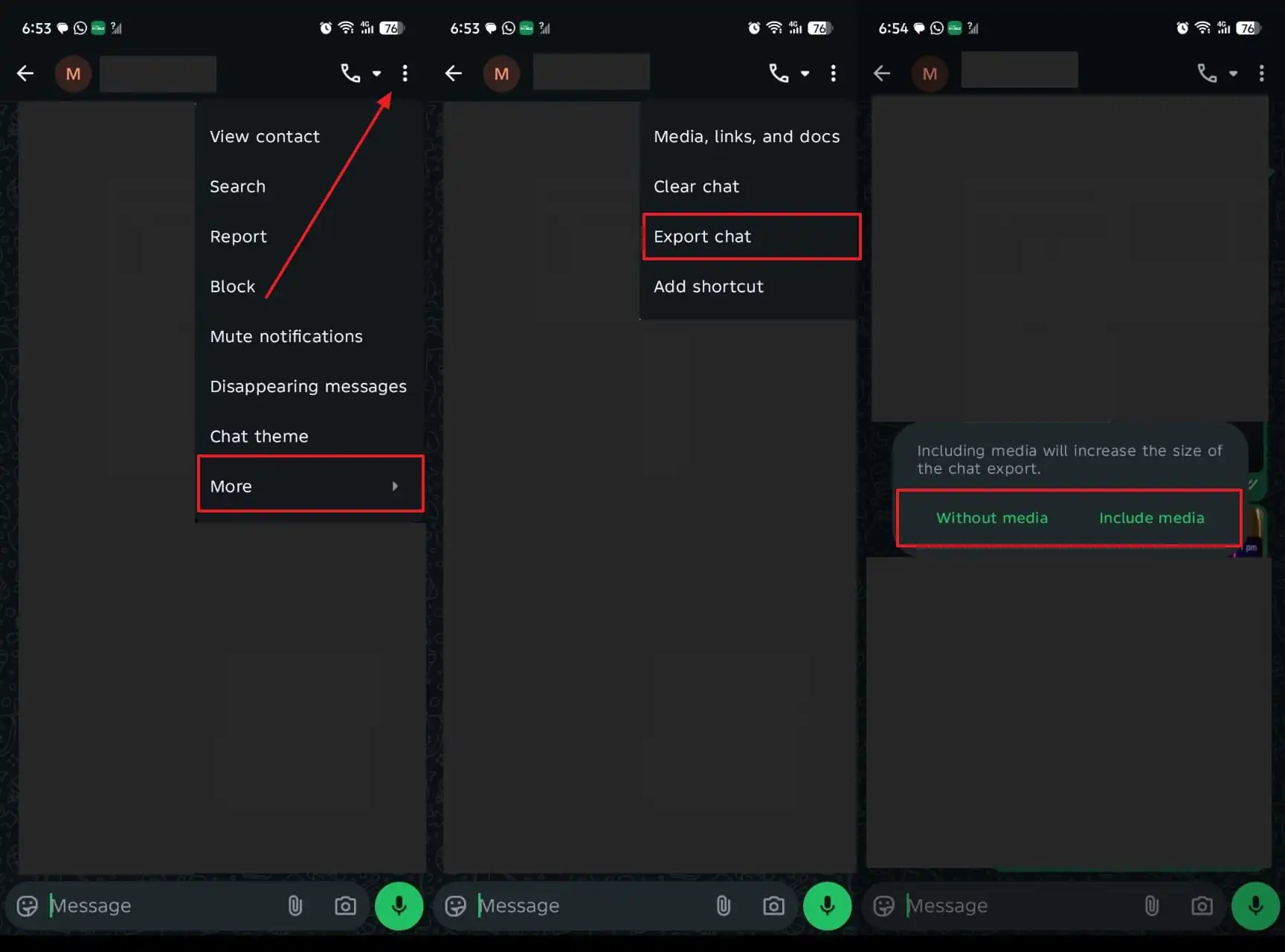
Step 1. Tap the “Three Dots” icon as you access the specific chat to choose “More” and then “Export Chat.” Afterward, opt for either “Without Media” or “Include Media” to move forward.
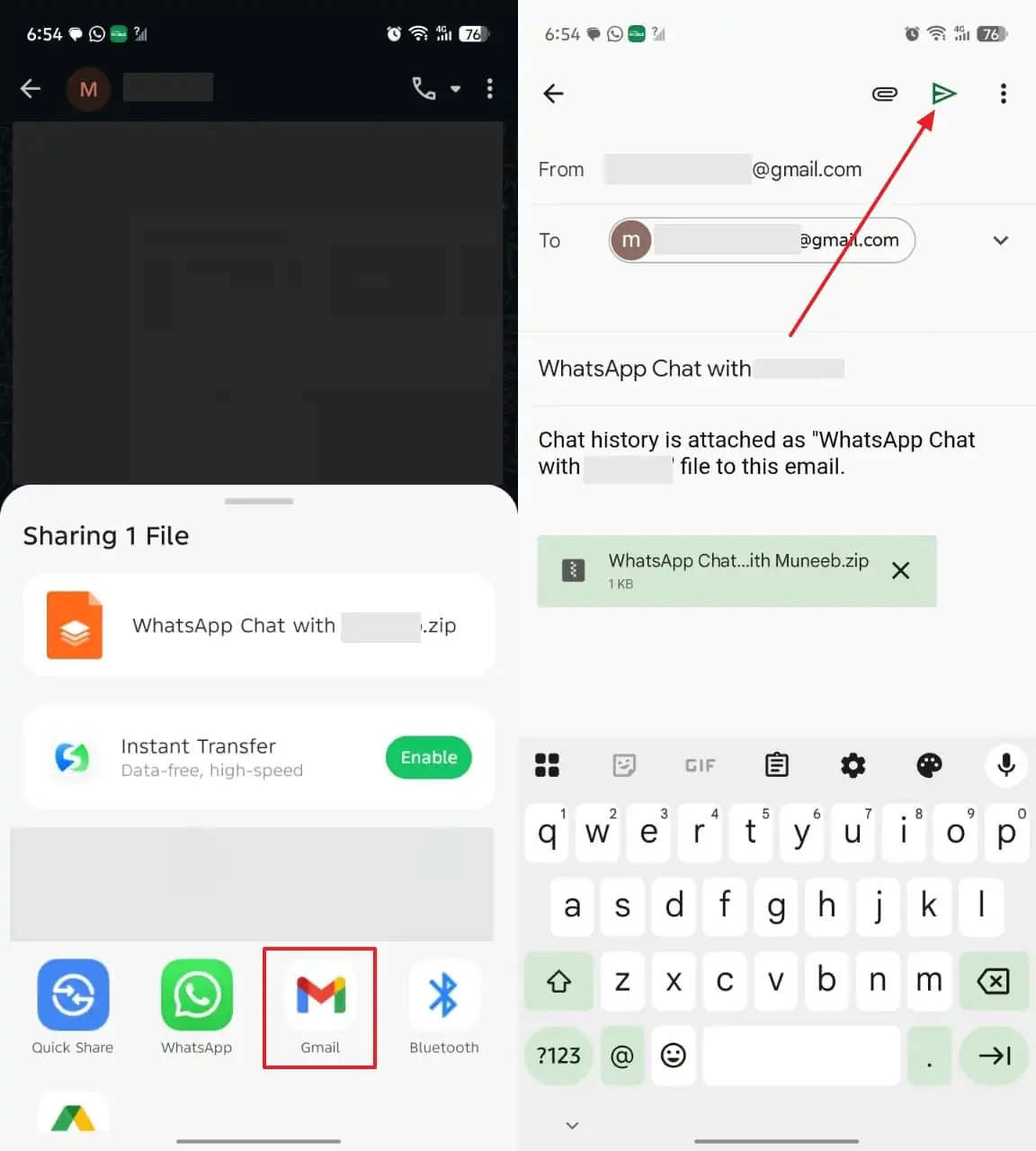
Step 2. Here, select “Gmail,” to enter your email address, and press the “Send” button.
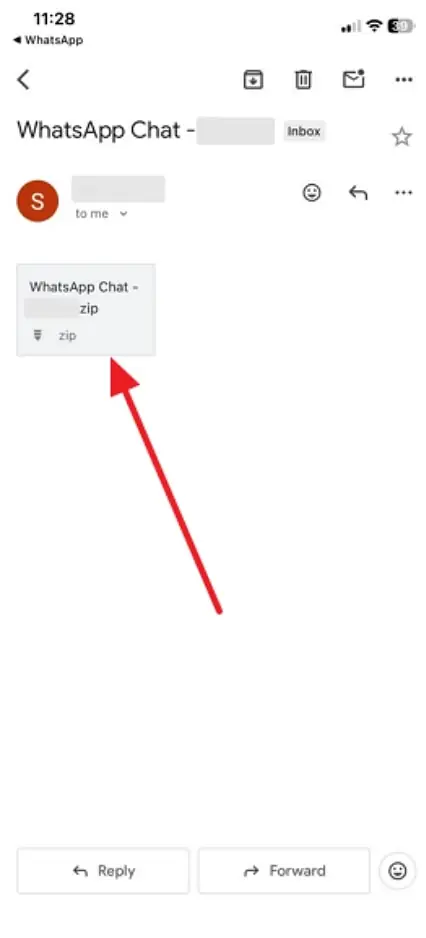
Step 3. When you access the email, tap on it to save it to your iOS device.
Cons
- Exported messages cannot be imported back into WhatsApp.
- Cannot preserve WhatsApp stickers or reactions in exports.
Part 3. Best Ways to Transfer WhatsApp: Dr.Fone vs Move to iOS vs Other Methods
Each option offers unique advantages, but one stands out for reliability and full data support. Below, you will compare the above-discussed methods in a comparison table:
| Feature | Dr.Fone – WhatsApp Transfer | Move to iOS App | Manual Email Export |
| Data Types | All chats, media, attachments, and call logs | Only unencrypted chats, limited media | Only chat text, optional media |
| Transfer Speed | Very fast, up to 96% faster than others | Moderate speed, depends on Wi-Fi | Slow, depends on email size |
| Cross-Platform Support | Android to iOS, vice versa, or the same operating system | Android to iOS only | Any device via email, partial only |
| Partial Transfer | Select specific chats or media | Full migration only | Individual chats only |
| Ease of Use | Simple interface, step-by-step guidance | Moderate, requires iPhone reset | Easy but time-consuming |
| Setup Requirement | Works anytime, no reset needed | iPhone must be factory reset | Works anytime |
| Preview Option | Yes, preview chats and call logs | No | No |
As explored, Dr.Fone – WhatsApp Transfer offers the most complete and flexible WhatsApp migration solution. It supports full data transfer and faster speed, which makes it the best choice among all methods.
Conclusion
In conclusion, moving WhatsApp from Android to iPhone can be confusing for many users. Different methods offer varied results, but some limit data types or require a factory reset. Manual exports are useful for saving specific chats only. For a fast, complete, and secure transfer, users should use Dr.Fone – WhatsApp Transfer. It ensures effortless migration to keep all chats safe without errors or data loss.