Corsair Nautilus 360 RS Installation
As we have mentioned in our most recent AIO reviews, we have taken on a brand new test bench platform in 2025, which we will go into more detail about later on. That said, the change from AMD’s AM4 to their AM5 platform really doesn’t change things up as far as installations go, so let’s get right into it.
Like most AIOs, the installation of the Corsair Nautilus 360 RS is a very straightforward process. As DIY PC building seems to be getting more popular each and every day, the option of AIO liquid coolers is sure to entice those wanting to have a more advanced build, and easy installation will go a long way towards not scaring off first-time builders. As I mentioned when I covered the included accessories, Corsair has included all of the necessary mounting hardware for modern AMD and Intel platforms. Corsair provides access to a digital version of their installation guide via a not-so-obvious QR code on the box, and while I appreciate their reduced waste, I still prefer a physical copy of installation instructions.
Our testing is performed with the fans in a push configuration, and as Corsair did not install the fans at the factory, that was the first step. As expected, all went as planned, though I wish these fans had rubber pads at their corners to provide a nice buffer between the fan frames and the radiator body. I do appreciate when fans come pre-installed, as it saves a decent amount of time during the installation process, but there are certainly times when you will want to reorient the fans from their factory installations.

Wiring up the fans is as simple as male and female connectors, and the included PWM extension will make connecting the fans to the motherboard a simple task.

The Nautilus 360 RS comes from the factory with the Intel mounting bracket already attached to the pump body, so I had to first slide it off and replace it with the AMD version. This is a very easy process and sets us up for the next steps.
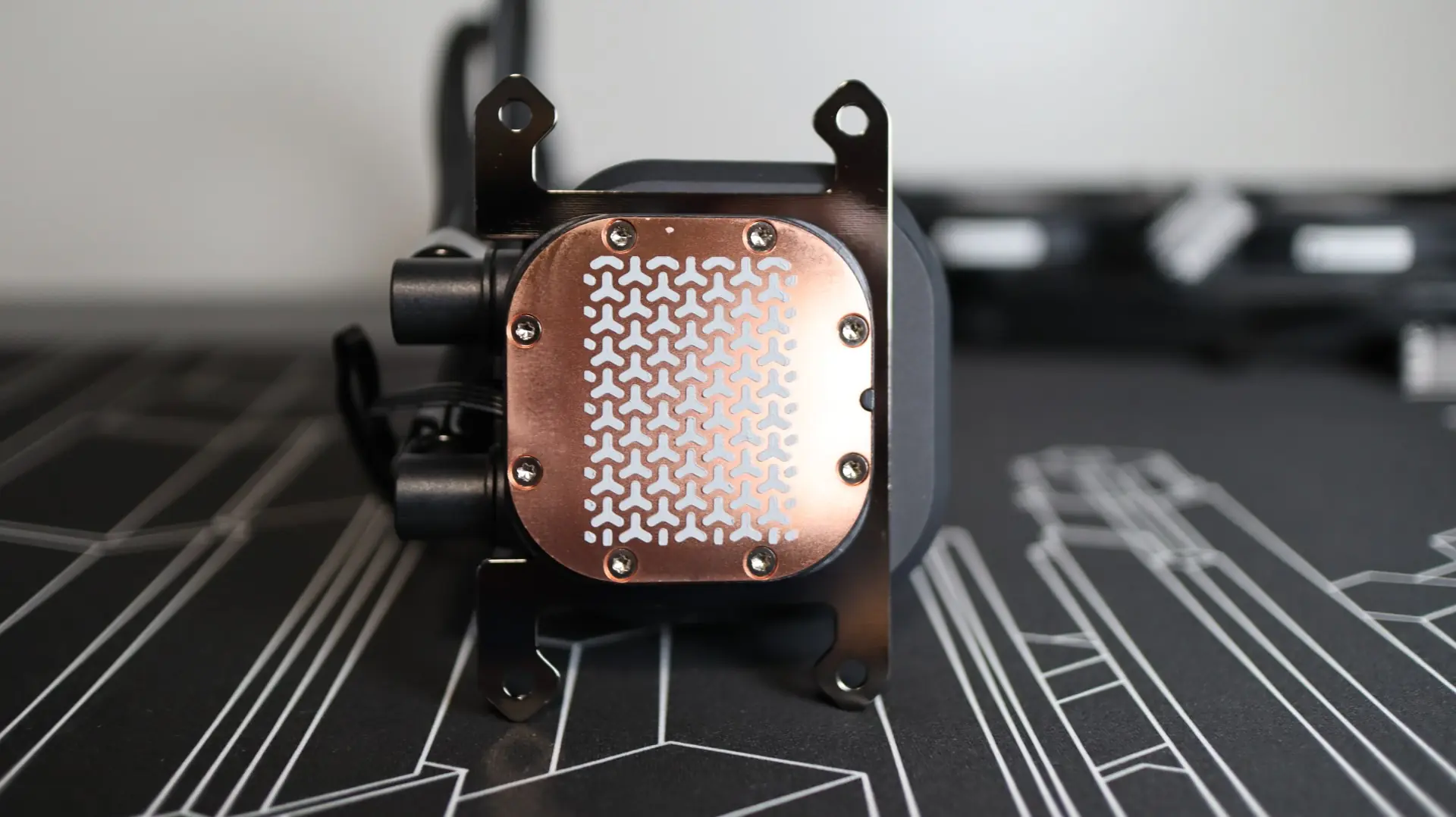
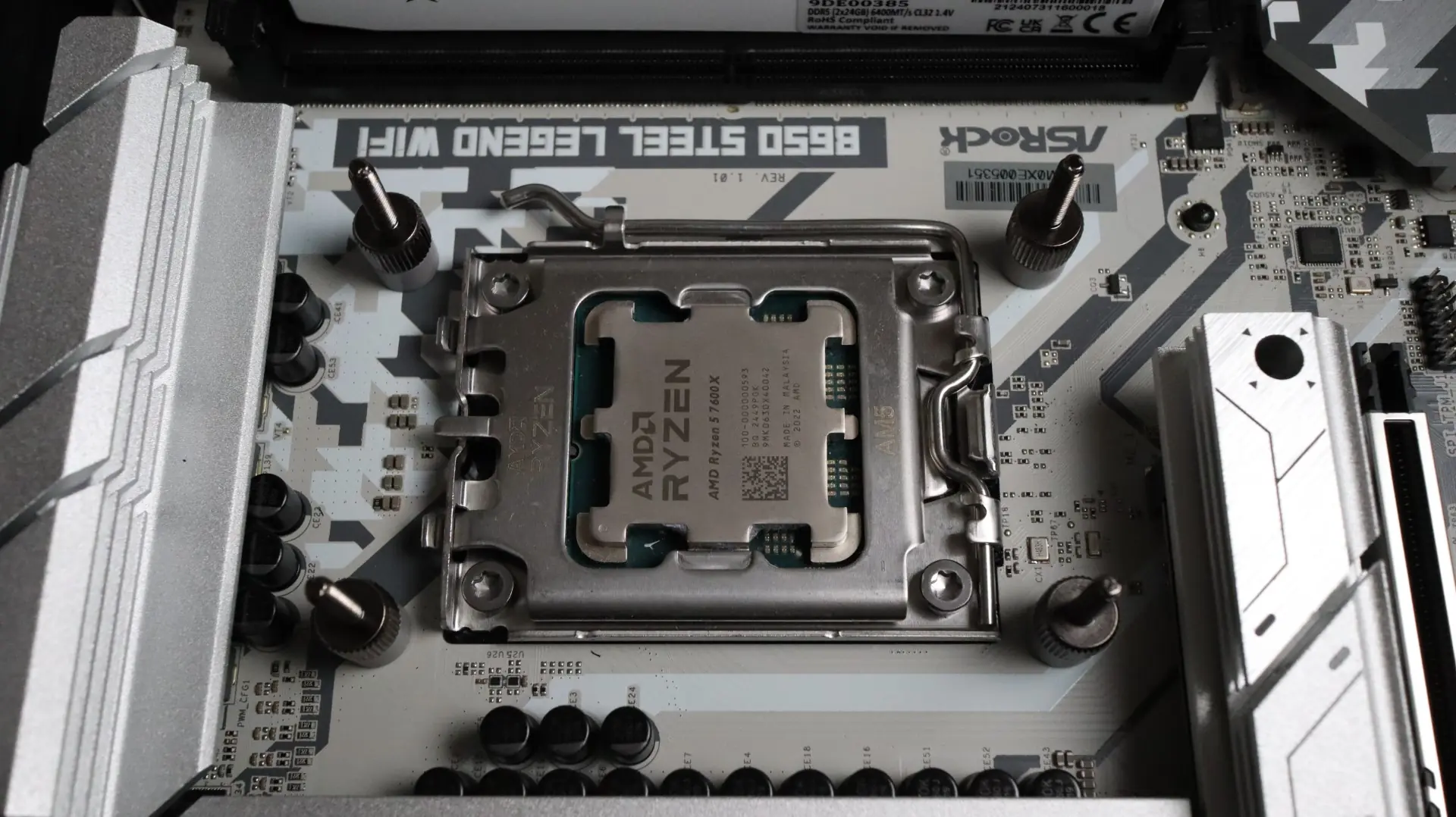
The Nautilus 360 RS does not use the factory AMD mounting clips for securing the cooler to the motherboard, so I did have to remove the plastic mounting brackets in order to secure the cooler to the motherboard. Instead, small standoffs are placed over the CPU backplate threads, and act as a base for the cooler to be laid upon and then tightened down with.
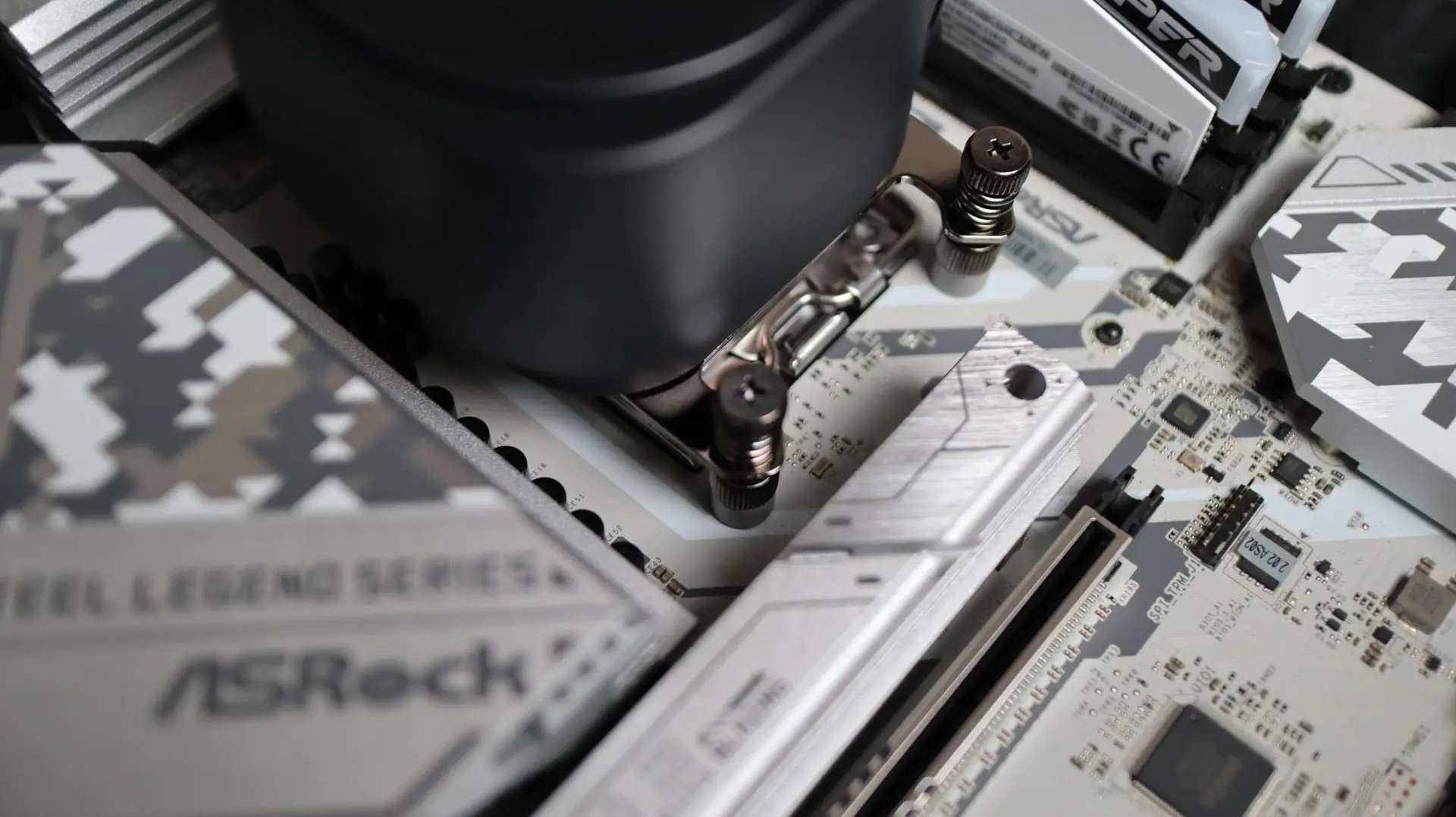
With the mounting hardware in place on the motherboard, it is time to simply line up the cooler with the brackets and tighten everything down via the four included spring and nut combos.
Next up is attaching the radiator to the top of our case. Using the twelve included screws, simply align them with the appropriate mounting points on your case, and tighten. I also made sure to thread the PWM cables from the pump housing and radiator to their respective motherboard standoffs.
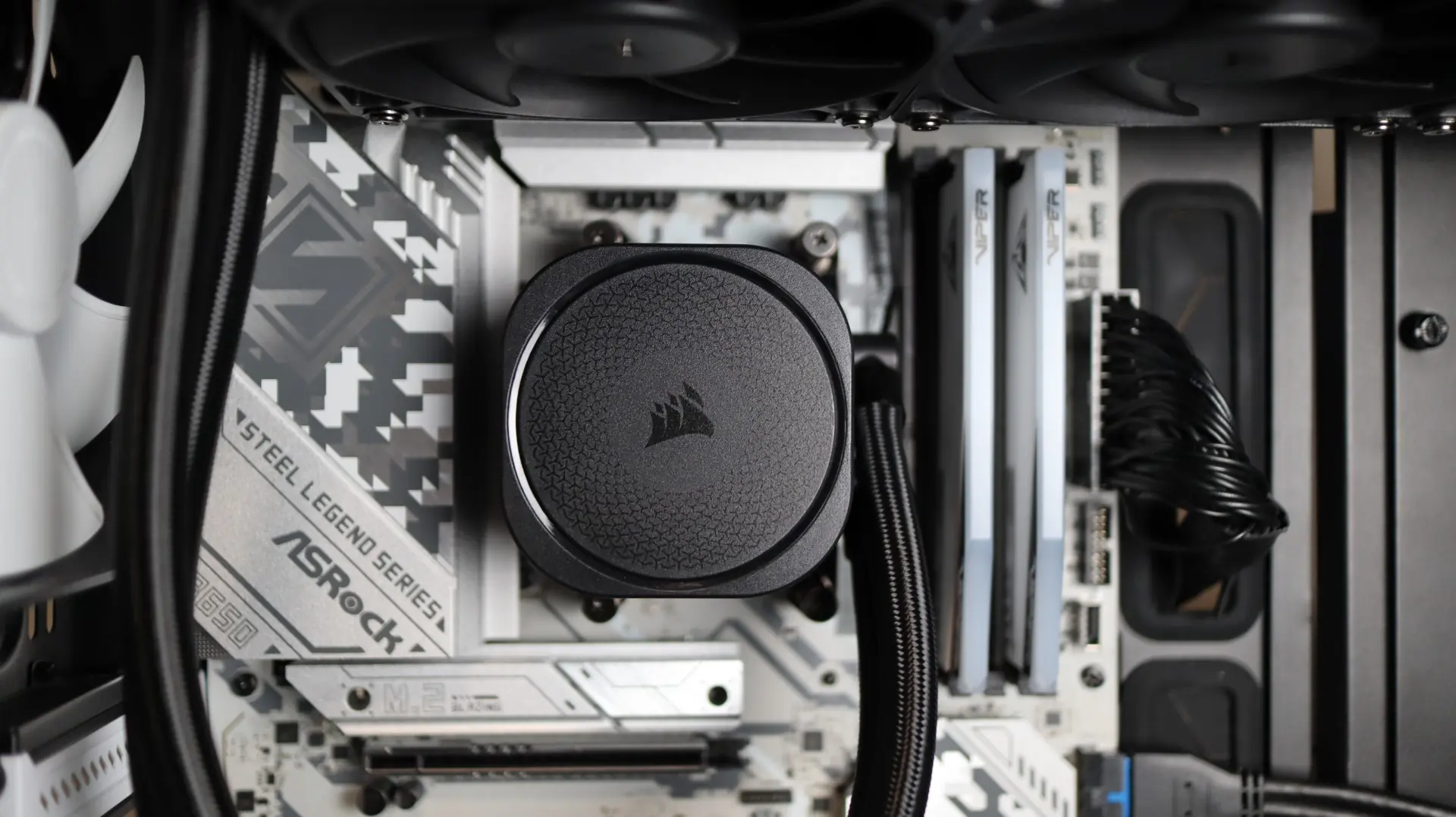
With everything installed, it was time for testing.