Installation
Installation of this cooler is pretty easy and I have to say the instructions DeepCool provides are some of the easiest to understand and follow.
We will be doing our installation on an Intel Z490 system so this installation would be pretty much the same for Intel LGA 1200, 1150, 1151, and 1155 sockets.
The first thing you are going to want to do is find the Intel backplate and attach it through the backside of your motherboard holding it into place with the included Intel standoffs. On thing that is new is that DeepCool has added those little design elements on the actual Intel backplate.


Now install the Intel mounting bars, securing them in place with the included thumbscrews. These bars need to be installed on the top and bottom of the socket if you want air coming in from the front of your case and being exhausted out of the back.


Apply the included thermal paste and then remove the fans and top cap from the cooler. The top cap simply pops off. Then very carefully install the cooler on to your CPU, lining up the screws on the cooler with the standoffs on the mounting bars. Using the included screwdriver secure the cooler.


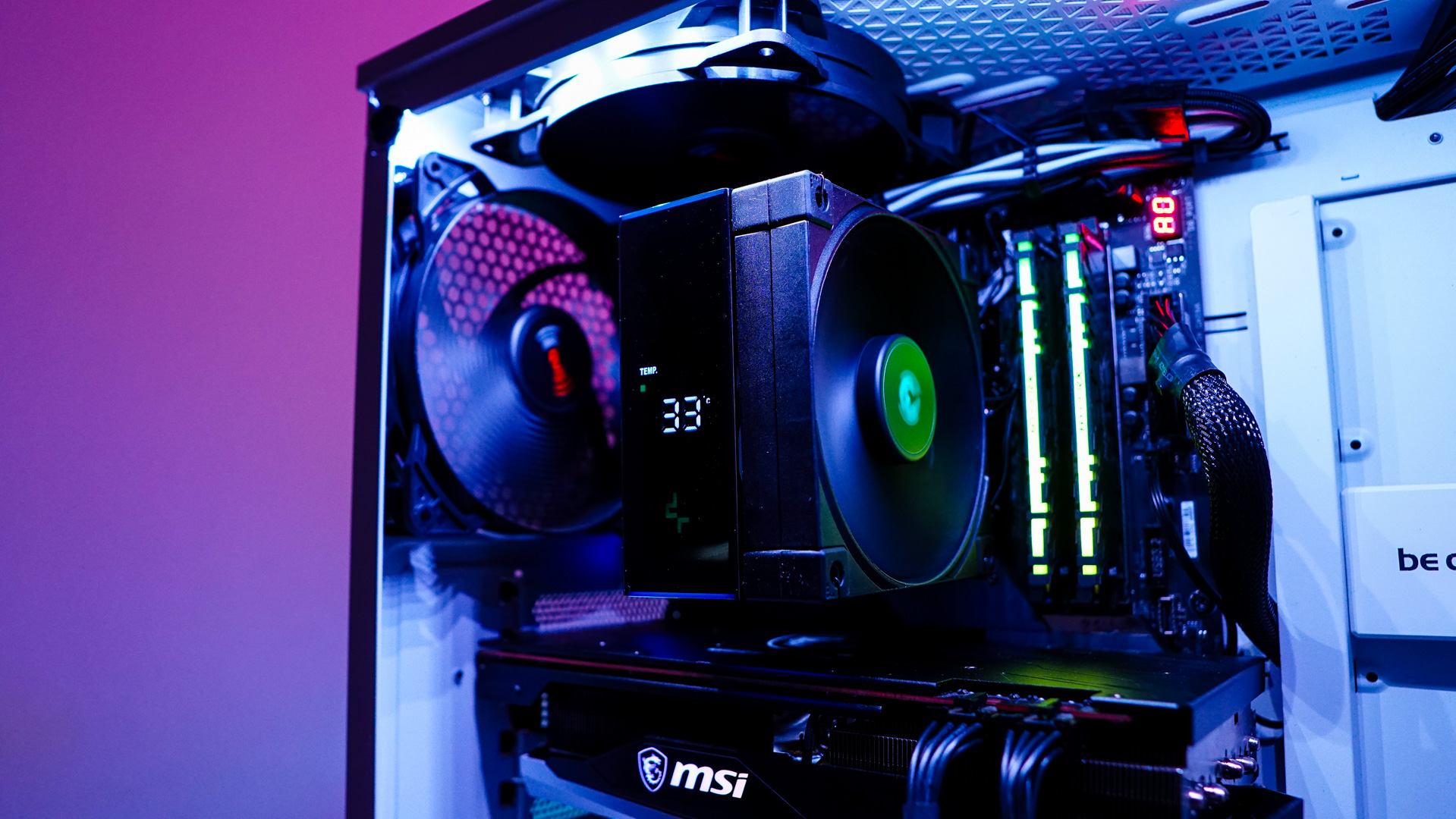
Go ahead and reinstall your fans as well as the top cap. You can see that even with the fans installed the front fan does cover at least one of our memory modules so keep clearances in mind.


You are going to to want to connect the fans to the Y-connector then to the CPU fan header on your motherboard. You’ll have an internal USB 2.0 header and ARGB header that comes from the top cap. These need to be connected to your motherboard as well. We had no problem routing the USB 2.0 connector behind our motherboard tray and connecting it to the header on the bottom of our motherboard. For reference our case is the be quiet! Pure Base 500DX.