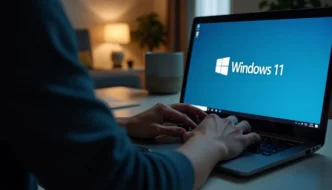

Many users struggle to set up Windows 11 because Microsoft requires an internet connection during installation. Microsoft made this change starting with Windows 11 version 22H2 to ensure users get the latest security updates.
You can still install Windows 11 without internet using simple tricks like Command Prompt commands or offline installation media. Ready to learn these easy methods?
Why Bypass the Internet Requirement in Windows 11 Setup
Microsoft forces users to connect to the internet during Windows 11 setup. This rule applies to both Home and Pro editions in version 22H2. Users need to create a Microsoft account and download updates during installation.
The forced internet connection blocks people without stable internet from using their computers.
Local account setup gives users more control over their privacy and system usage. People want to skip online requirements for faster installation or poor internet areas. The next section shows practical methods to set up Windows 11 without an internet connection.
Methods to Set Up Windows 11 Without Internet

You can set up Windows 11 without an internet connection through four proven methods. Each method offers a simple way to bypass Microsoft’s online requirements during installation – from using offline media to quick keyboard shortcuts.
Using Offline Installation Media
Offline installation media offers a direct path to set up Windows 11 without internet access. EaseUS Partition Master stands as a reliable tool for this process, earning a strong 4.7/5 TrustScore from 49 reviews.
The software helps create bootable USB drives for Windows 11 installation – users need an 8GB USB drive formatted in FAT32 format.
A clean Windows 11 installation starts with the right tools and proper media preparation.
Creating bootable media takes about 15-20 minutes through Rufus, a free alternative to EaseUS. The process needs careful attention to partition management and ISO burning features.
The next step focuses on bypassing the OOBE internet requirement through Command Prompt.
Bypassing OOBE Internet Requirement with Command Prompt
The Command Prompt offers a quick fix to skip Windows 11’s internet setup. Press Shift + F10 during the “Let’s connect you to a network” screen to launch Command Prompt. Type “OOBE\BYPASSNRO” and hit Enter.
This command skips the network setup phase right away.
Microsoft’s setup screen changes to show an “I don’t have Internet” option. Pick this choice to make a local account without going online. The setup moves forward with basic features, letting you finish the Windows 11 install fast.
This method works great for both Windows 11 Home and Pro versions.
Disconnecting Network Connection During Setup
A quick way to skip internet setup in Windows 11 involves using network connection settings. Users can disable their WiFi or unplug their ethernet cable right before starting the installation process.
This simple step forces Windows 11 to bypass the online requirements and allows local account creation.
Task Manager offers another reliable method to disconnect network flow during setup. Press Shift + F10 to open Command Prompt, then launch Task Manager with Ctrl + Shift + Esc. Find and end the “Network Connection Flow” process to continue setup offline.
You can also type IPCONFIG /RELEASE in Command Prompt to cut network access completely.
Using the Alt + F4 Shortcut to Skip Internet Setup
The Alt + F4 shortcut offers a quick way to bypass Windows 11’s internet setup screen. Users can press this keyboard combo during the network connection page to skip straight to local account creation.
This method works best for fresh installations where internet access isn’t needed right away.
Multiple users report success with this simple shortcut trick on both Windows 11 Home and Pro editions. The method helps create a local user account without Microsoft authentication – perfect for offline setups.
Justin Strickland used this shortcut to complete his setup on a new motherboard that lacked network drivers.
Steps to Create a Local User Account During Installation
Setting up Windows 11 without a Microsoft account gives you more control over your system. Local accounts work great for users with limited or no internet access, such as those running an Intel i5-12400F or AMD Ryzen setup.
- Press Shift + F10 during setup to open Command Prompt
- Type “OOBE\BYPASSNRO” and hit Enter to restart the setup process
- Click “I don’t have internet” on the network connection screen
- Select “Continue with limited setup” from the options menu
- Pick a username for your local account – avoid spaces or special characters
- Create a strong password with letters, numbers, and symbols
- Choose three security questions and provide answers
- Set your device name – this helps identify your PC on networks
- Pick your privacy settings for features like location and diagnostics
- Wait for Windows to finish the setup process
- Sign in with your new local account credentials
- Install network drivers from USB if needed for internet access
- Update Windows offline using the installation media
- Create system restore point after completing basic setup
- Test your local account login works properly
Troubleshooting Common Issues

Common setup problems can stop you from installing Windows 11 without internet. Our guide tackles key issues like broken keyboard shortcuts and missing network drivers to help you finish the setup process.
Shift + F10 Not Working
The Shift + F10 shortcut opens Command Prompt during Windows 11 setup. Users might face issues with this shortcut due to keyboard layout problems or hardware limitations. A quick fix involves pressing the Function (Fn) key along with Shift + F10 on laptops.
The command OOBE\BYPASSNRO must use the correct forward slashes to work properly.
Physical keyboard connections through USB ports offer better results than wireless keyboards for this shortcut. Try different USB ports if the first attempt fails. The Command Prompt window needs admin rights to work during setup – check if your account has proper permissions.
Make sure your keyboard drivers load correctly during the Windows 11 installation process.
Network Drivers Missing
Missing network drivers block internet access during Windows 11 setup. Justin Strickland faced this exact problem with his new motherboard – a common issue for fresh Windows 11 installations.
Users must download network drivers on a separate computer and transfer them via USB to fix connection problems.
Your PC needs the right network adapter drivers to connect to WiFi or Ethernet. Most modern computers come with built-in network support, but some need manual driver installation. Moving on to common questions about setting up Windows 11 without internet….
Conclusion
Setting up Windows 11 without internet is possible through several proven methods. Local account creation and offline installation give users full control over their setup process.
Microsoft’s internet requirements should not stop you from installing Windows 11 your way. These tricks work for both Windows 11 Home and Pro editions, making offline setup a breeze for all users.