General Usage on the ThinkPad X1 Fold 16
There are many different ways to use the ThinkPad X1 Fold 16. The first two are using the included stand. So you can orient the screen either in landscape or portrait mode and then use the included keyboard / trackpad. I find these modes are really great when I am multitasking. In either mode I can have two windows open at once. In landscape they are side-by-side and in portrait they are on top of each other. Portrait mode is also great for scrolling long web pages and reading articles. Landscape is of course great for watching media or playing games.
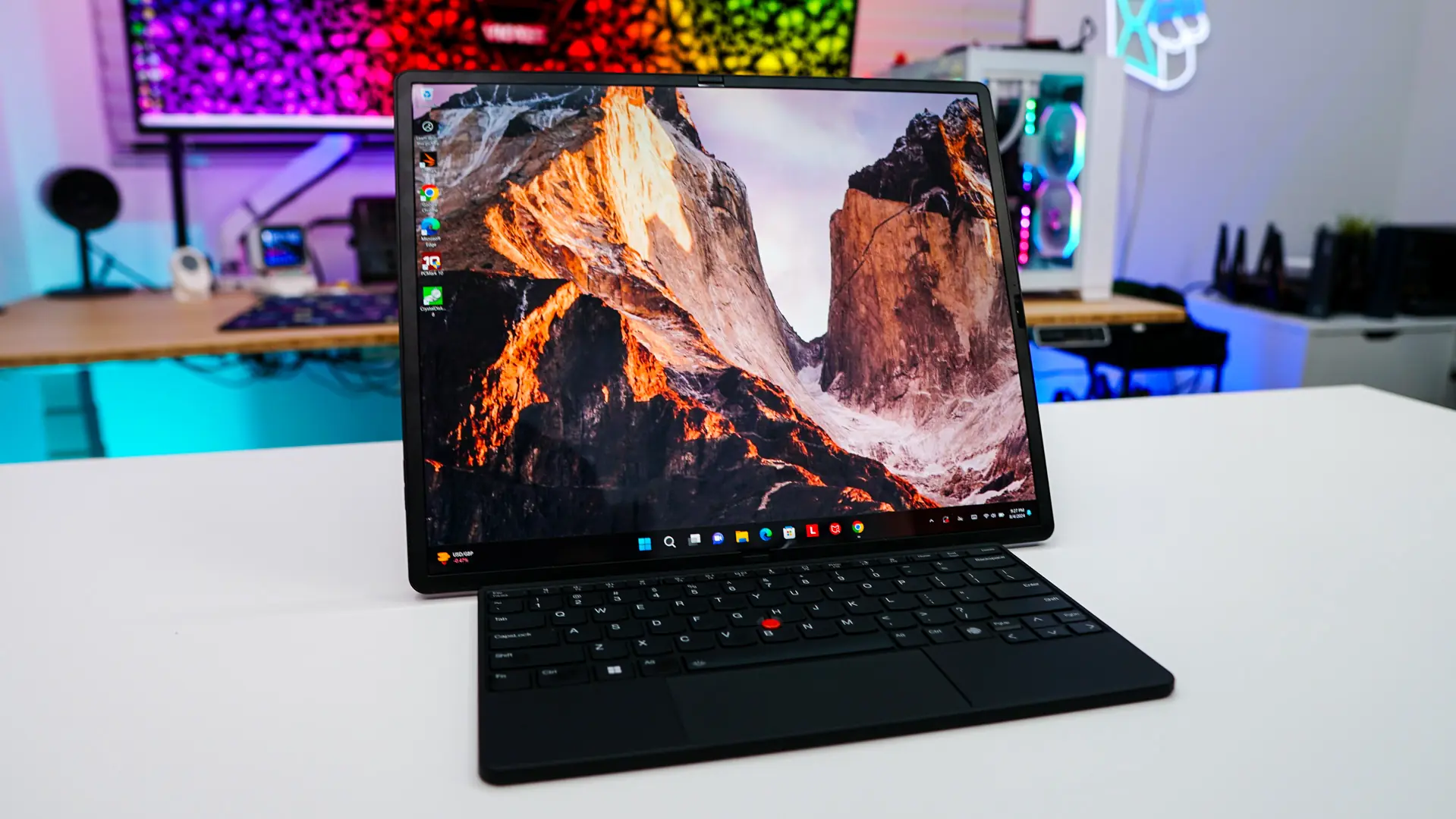
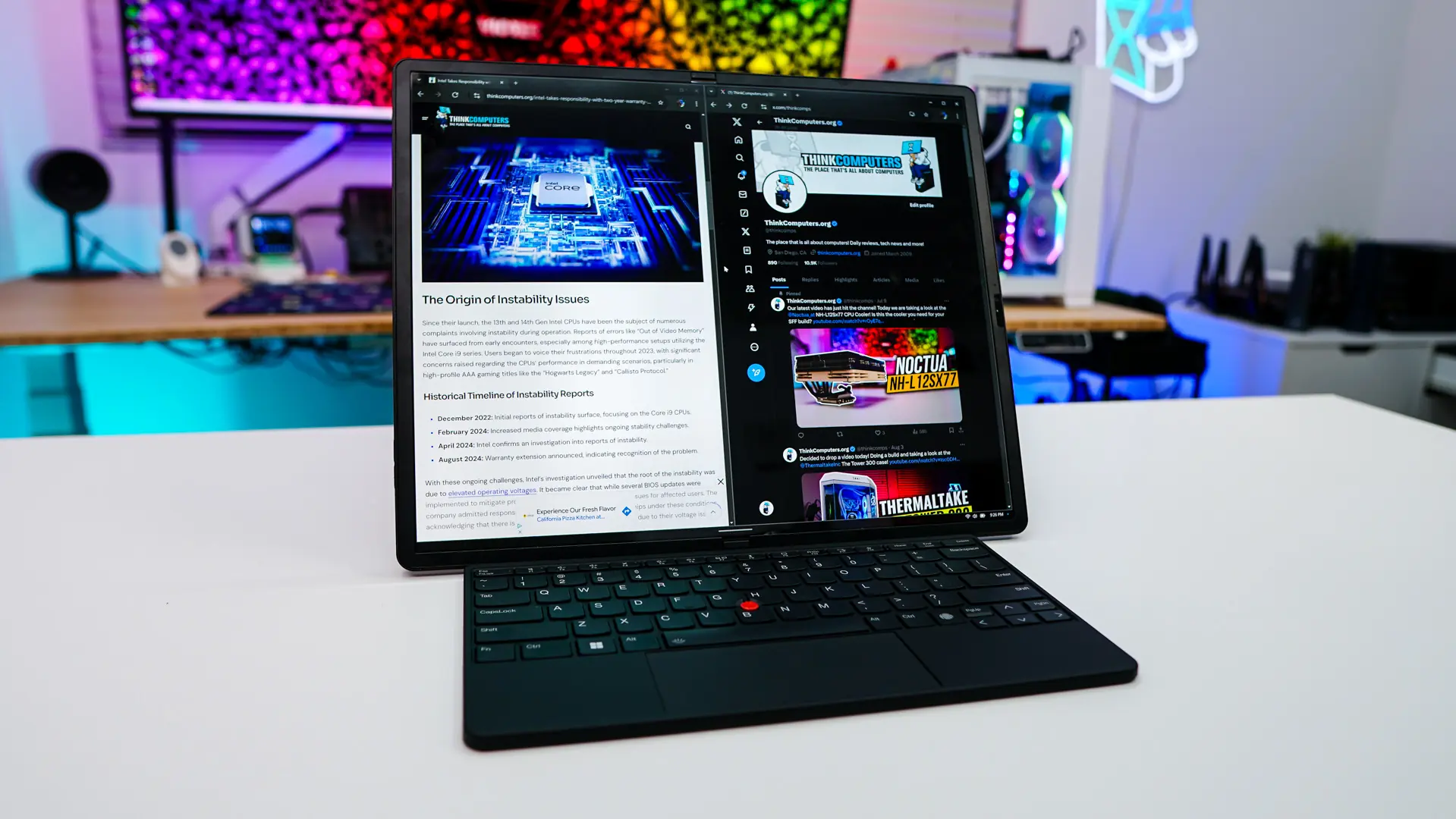
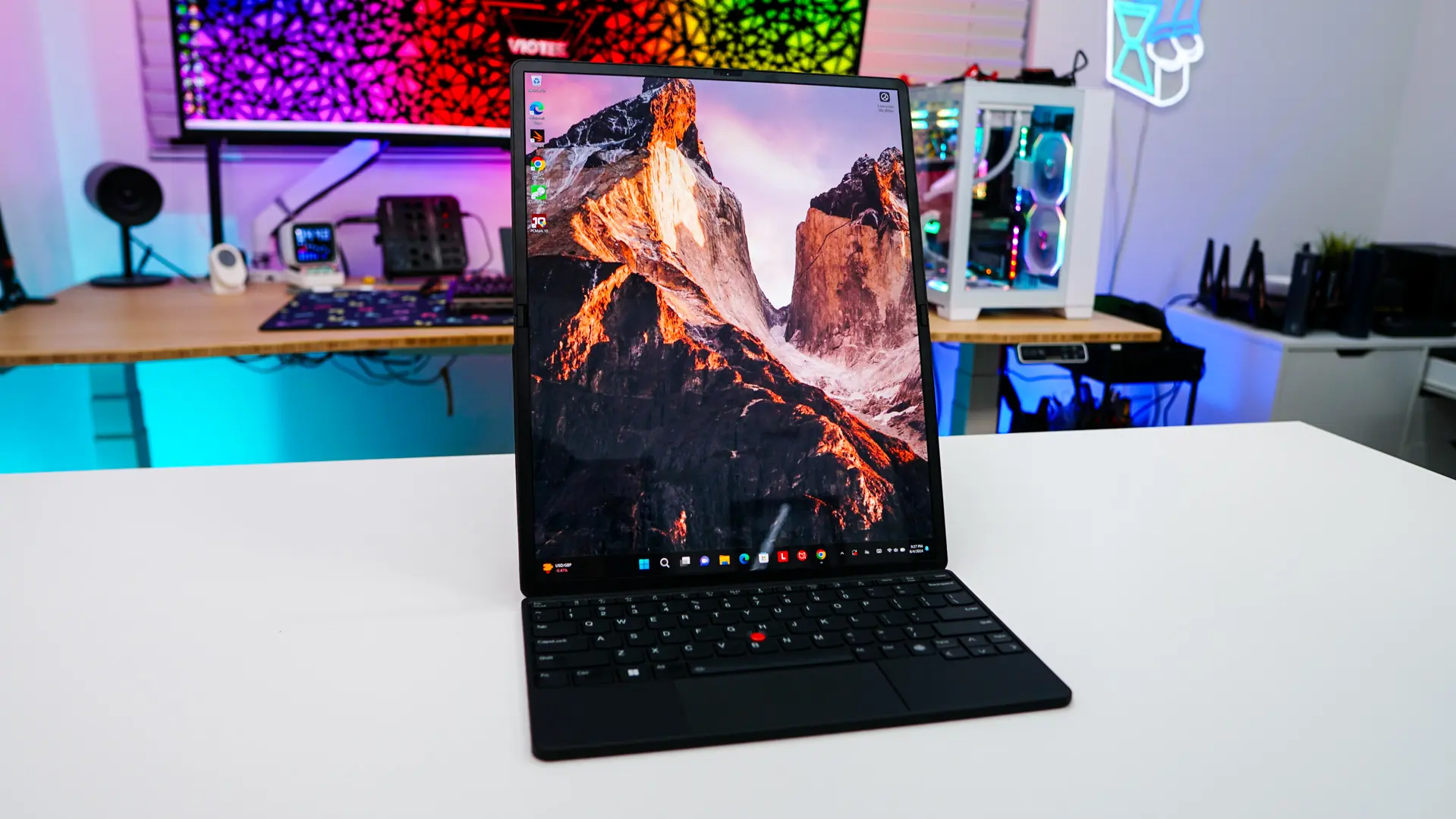
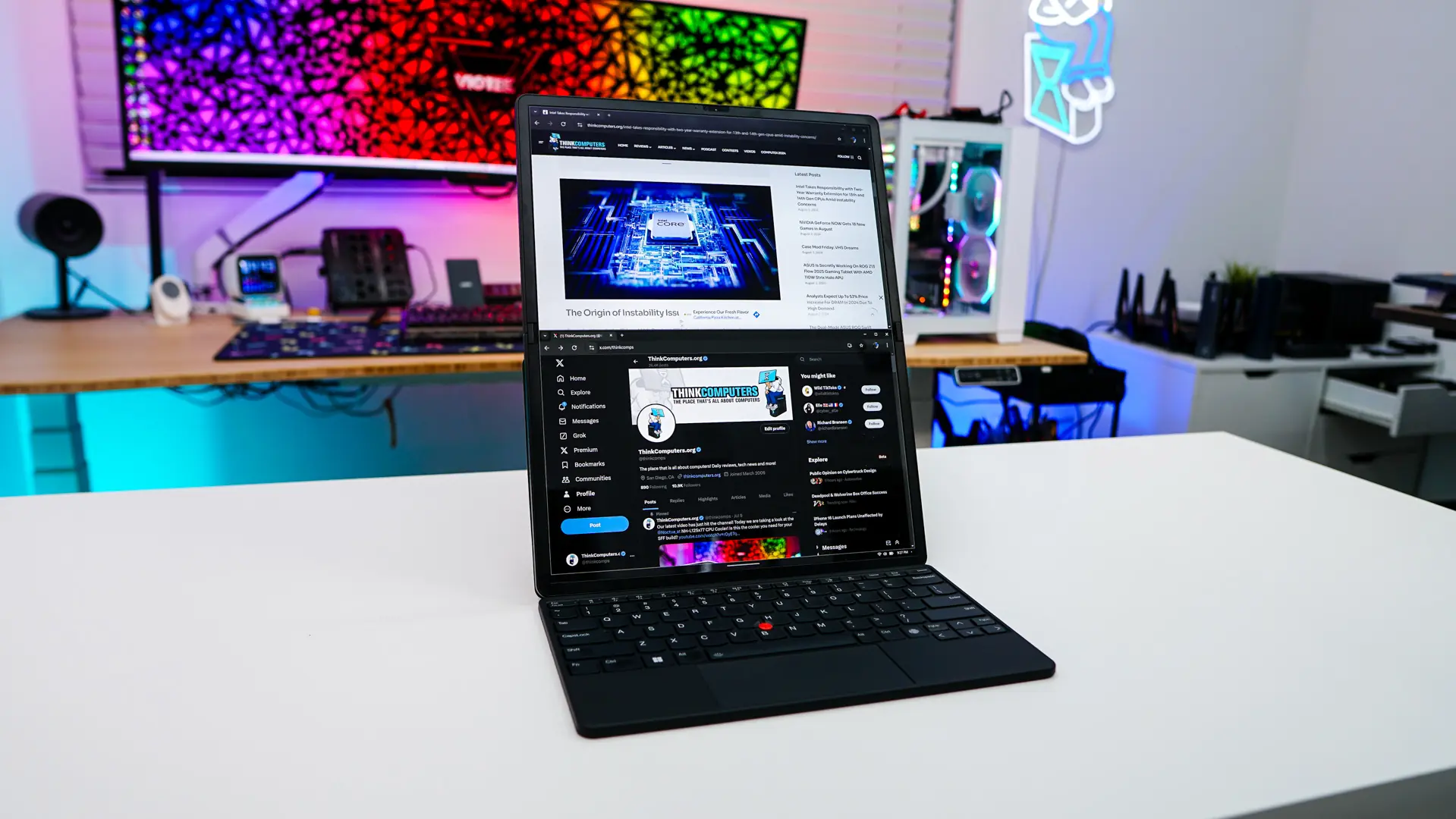
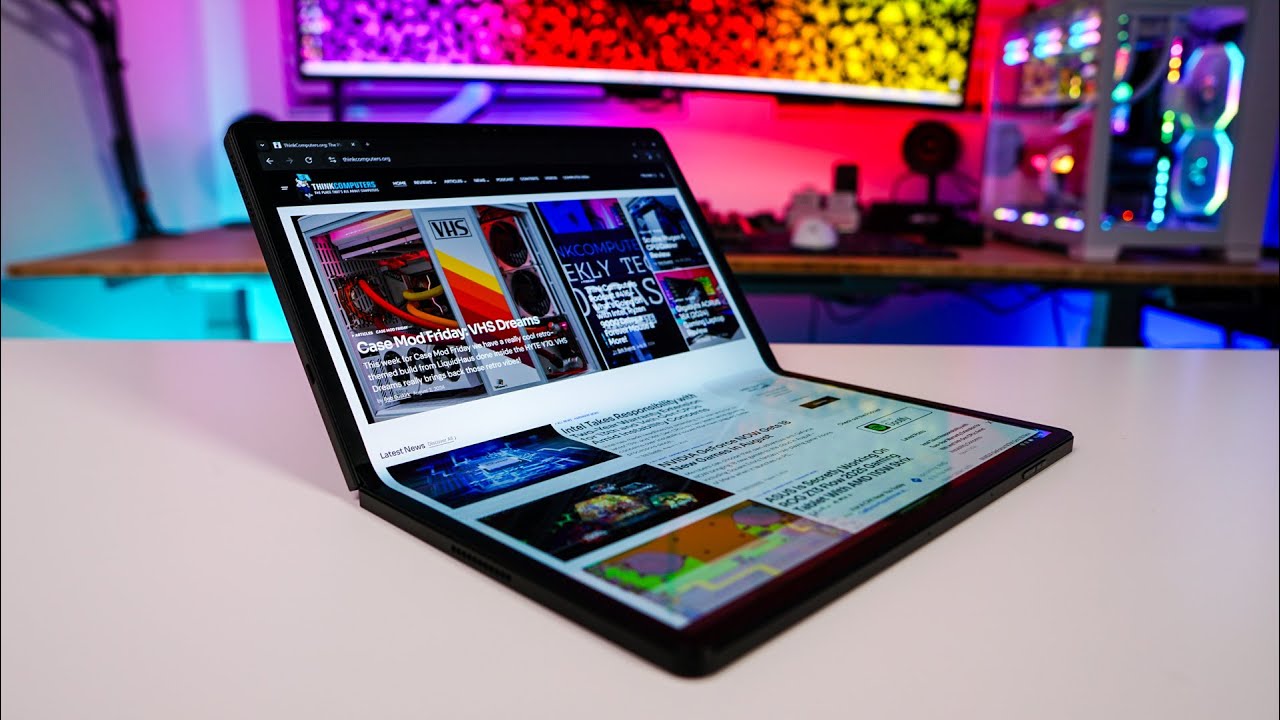
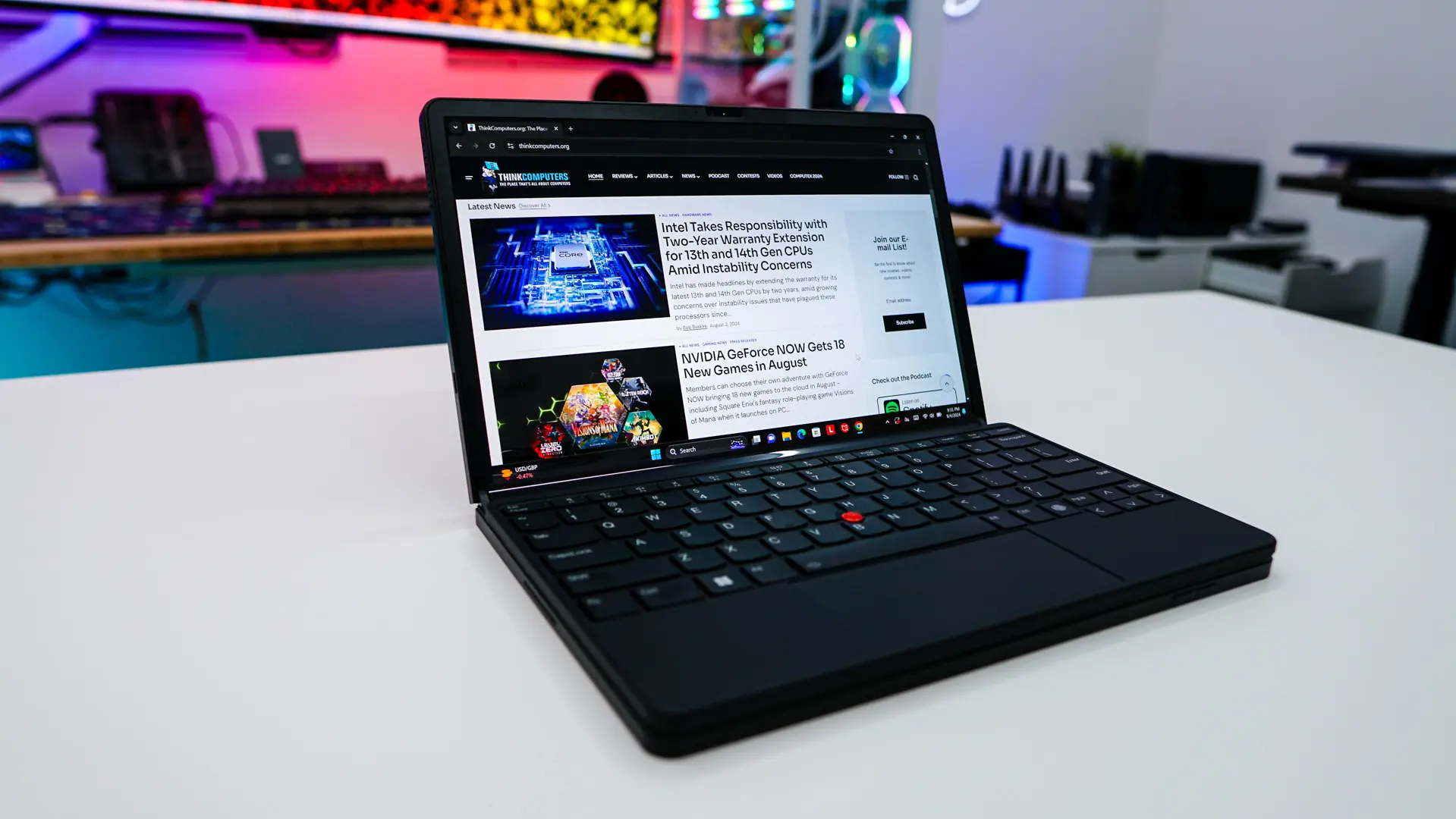
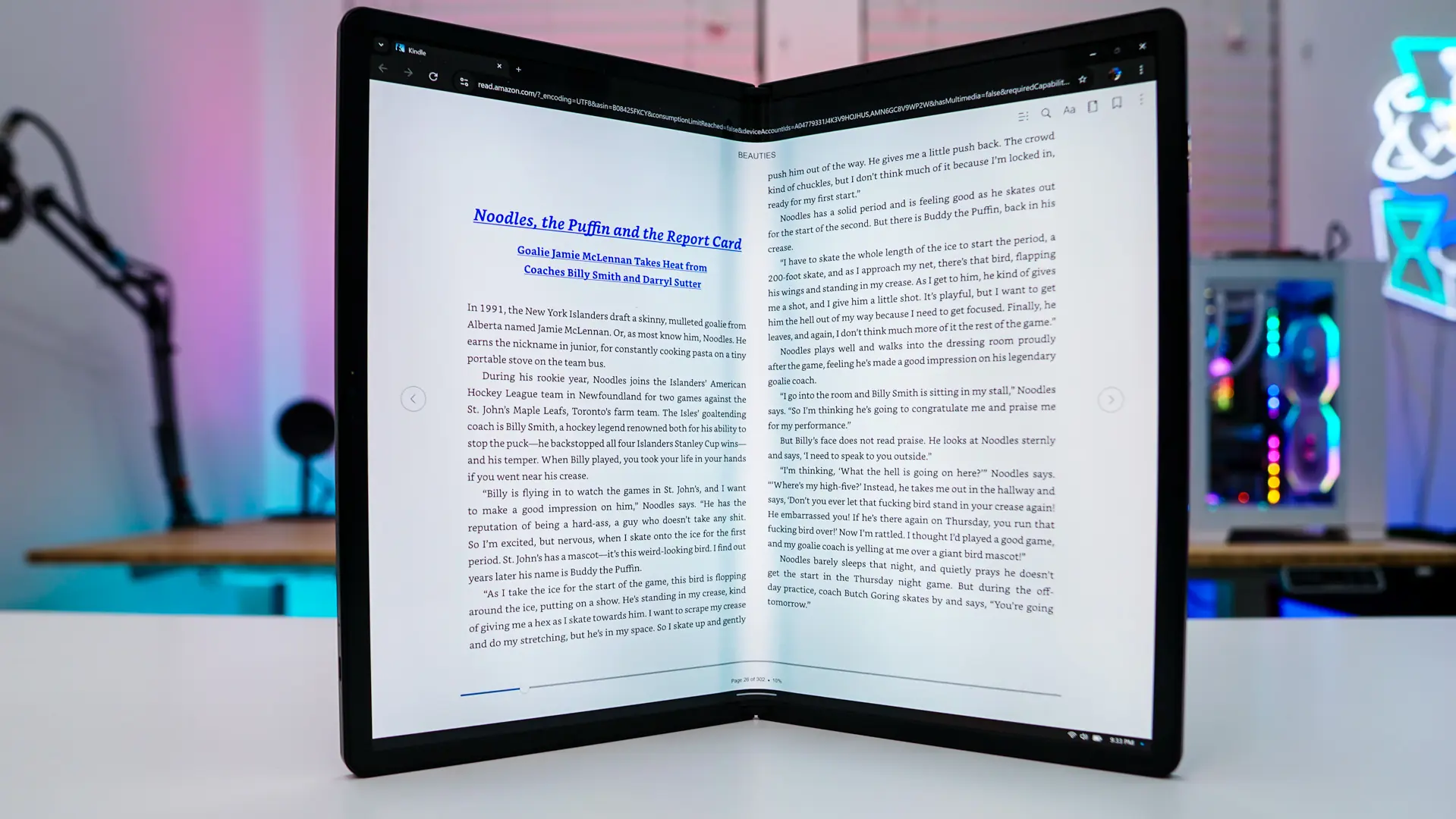
When you fold the laptop down into “laptop” mode you essentially have two different options. The first is taking advantage of both the parts of the screen so you have a part of the screen in front of you and the other half where your normal keyboard would be. The bottom-half is a bit harder to read because of the viewing angle, but is quite useful. Anytime you need to type anything in, an on-screen keyboard pops up from the bottom of the screen. If you purchased the keyboard you can set it on the bottom half of the of the screen and it will turn that part of the screen off and give you a 12-inch 2024 x 1240 display. This mode is used best when you don’t have a whole lot of space, but want to still take advantage of an actual keyboard. You can also fold the laptop and sort of use it like a book. This did work quite well with Amazon’s Kindle Cloud Reader, but the X1 Fold is not all that comfortable to hold like that.
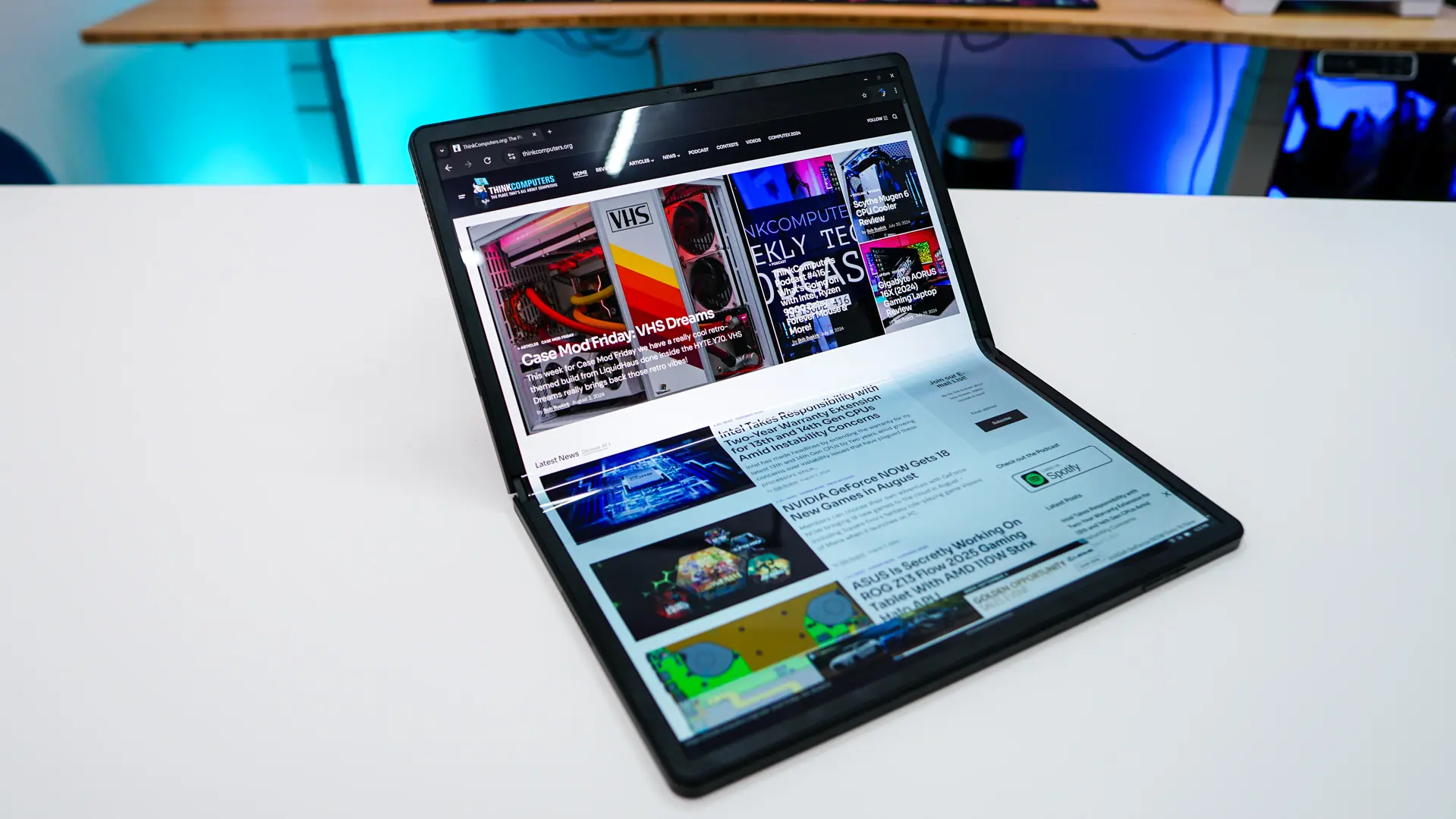
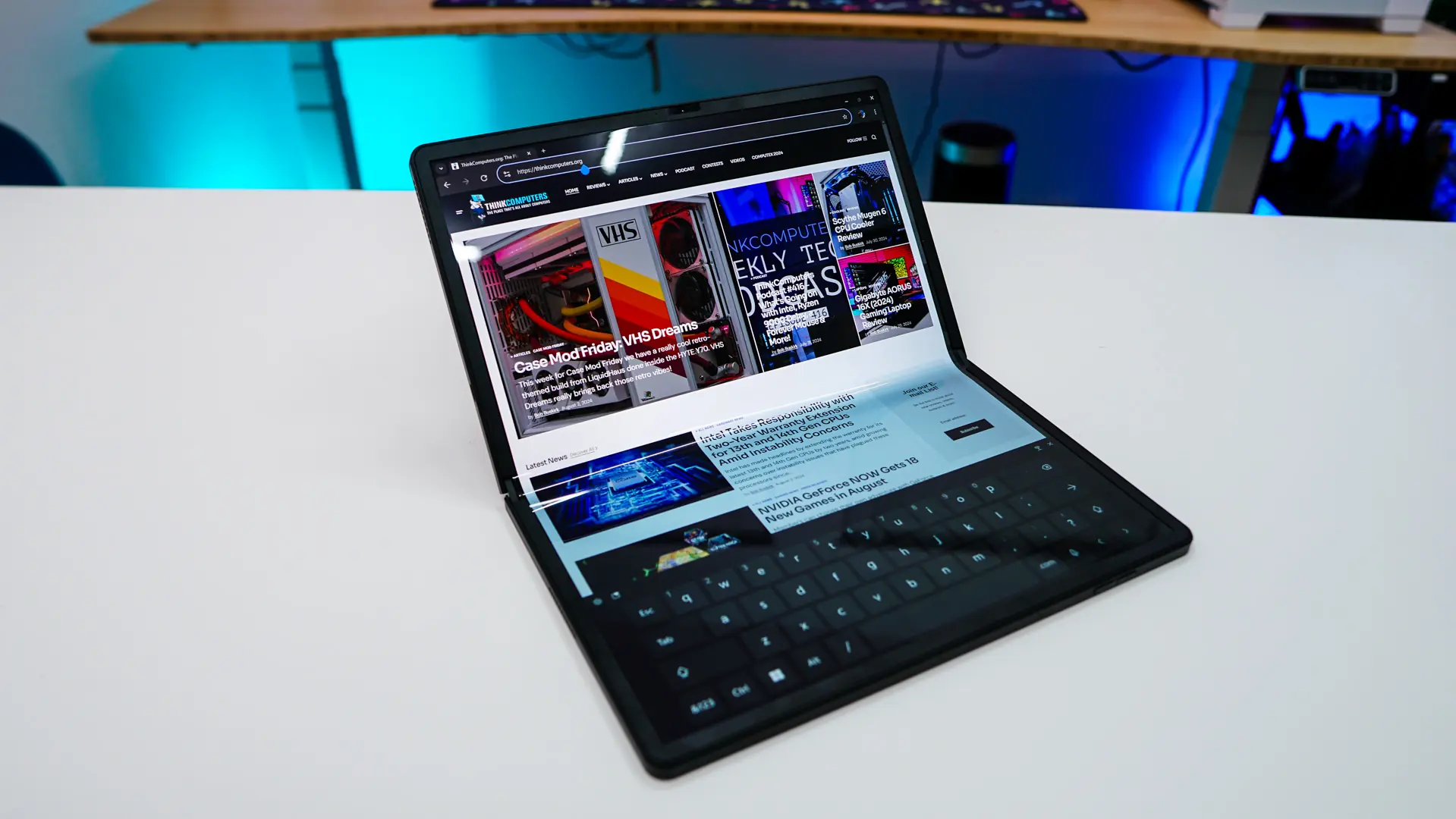
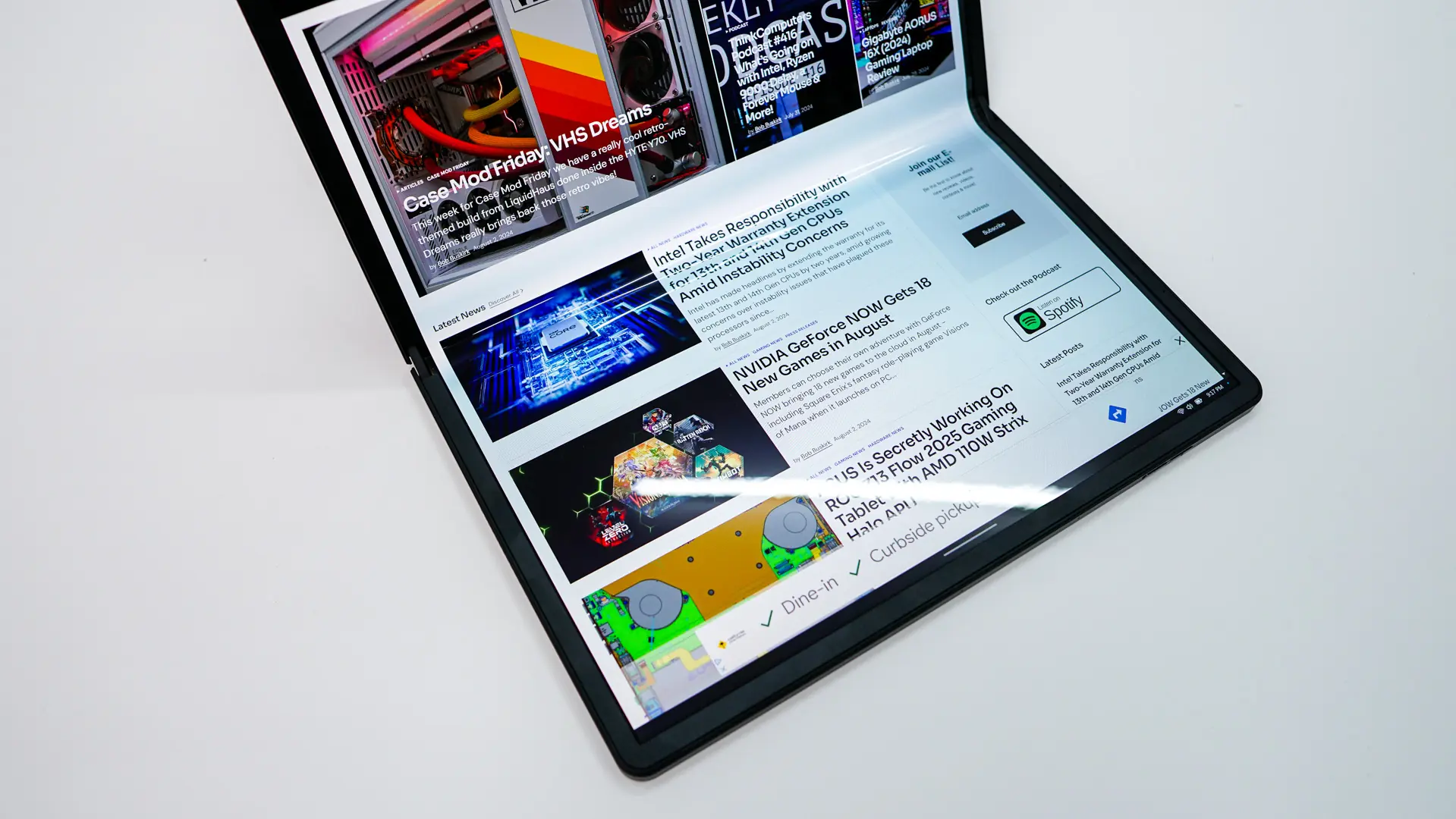
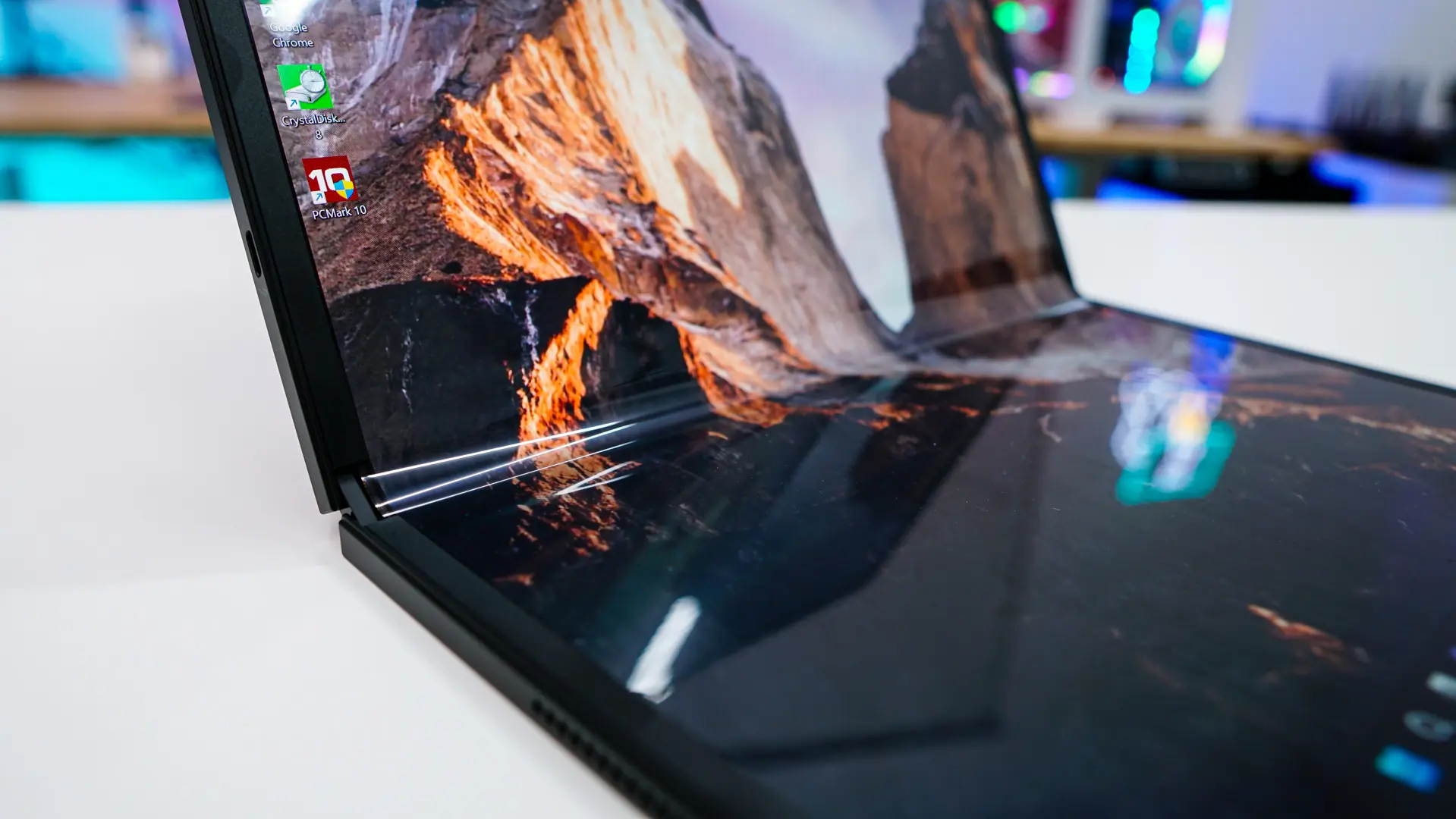
Now let’s talk about the screen. The 16.3-inch OLED display runs at 60 Hz and is absolutely beautiful with its rich and vibrant colors. Like most OLEDs it does have a glare problem. Using it in the office we can easily see our overhead lights. You are also going to notice a glare on the part of the screen that is in the fold.
We definitely need to talk about the keyboard and trackpad. I think that the keyboard itself is pretty comfortable, but the trackpad not only is small, but has almost no travel at all. A lot of times it leaves you wondering if you are actually registering a mouse click or not. Most of the time I really preferred to use the touchscreen instead of the trackpad.
When it comes to the built-in webcam it is capable of 1440p video at 30 FPS. Below is a test to give you a good idea of what the video and audio from the laptop is like.