Is Installing the MSI MEG CoreLiquid E15 360 Liquid CPU Cooler Easy?
Getting the MSI MEG CoreLiquid E15 360 installed is quite easy. Now we will be doing our installation on an AMD B850 motherboard so this installation will be for the AM5 socket.
It is worth noting that if you are installing this cooler on the top cooling mount in your case you need to have it installed with the tubing towards the back of your case. Even though MSI shows it the other way in their installation guide, the breakout cable is not long enough to connect to our bottom USB 2.0 header on our motherboard. We installed the radiator with the tubing towards the front initially, only to find out the cable was not long enough.
To get started with installation you are going to want to prep your motherboard. First you want to remove the default AMD mounting brackets, but be sure to keep the screws. With the default AMD mounting brackets removed go ahead and install MSI’s AMD mounting brackets. These have a little indication on them letting you know which side the CPU should be on so you don’t install them backwards.
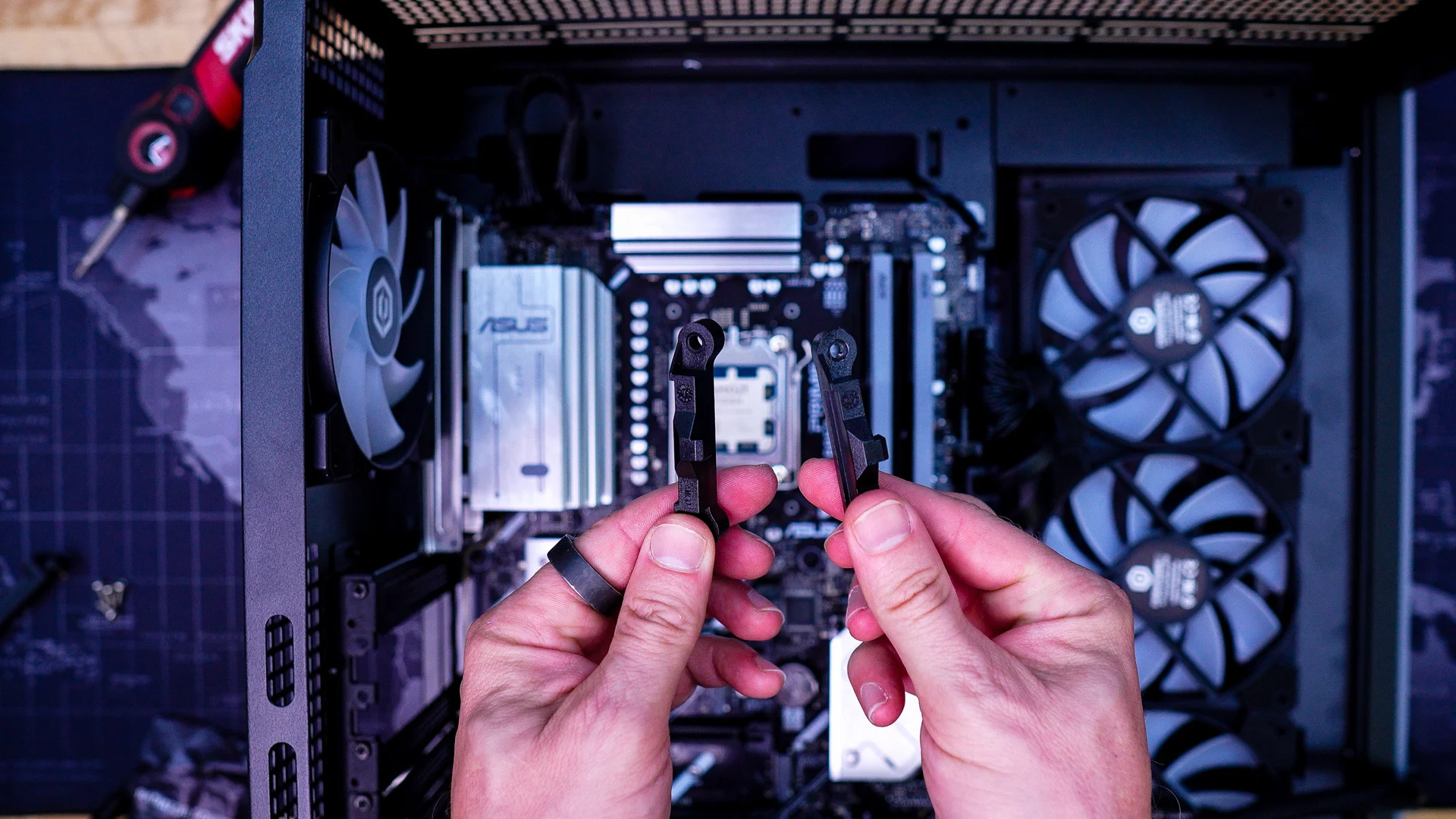
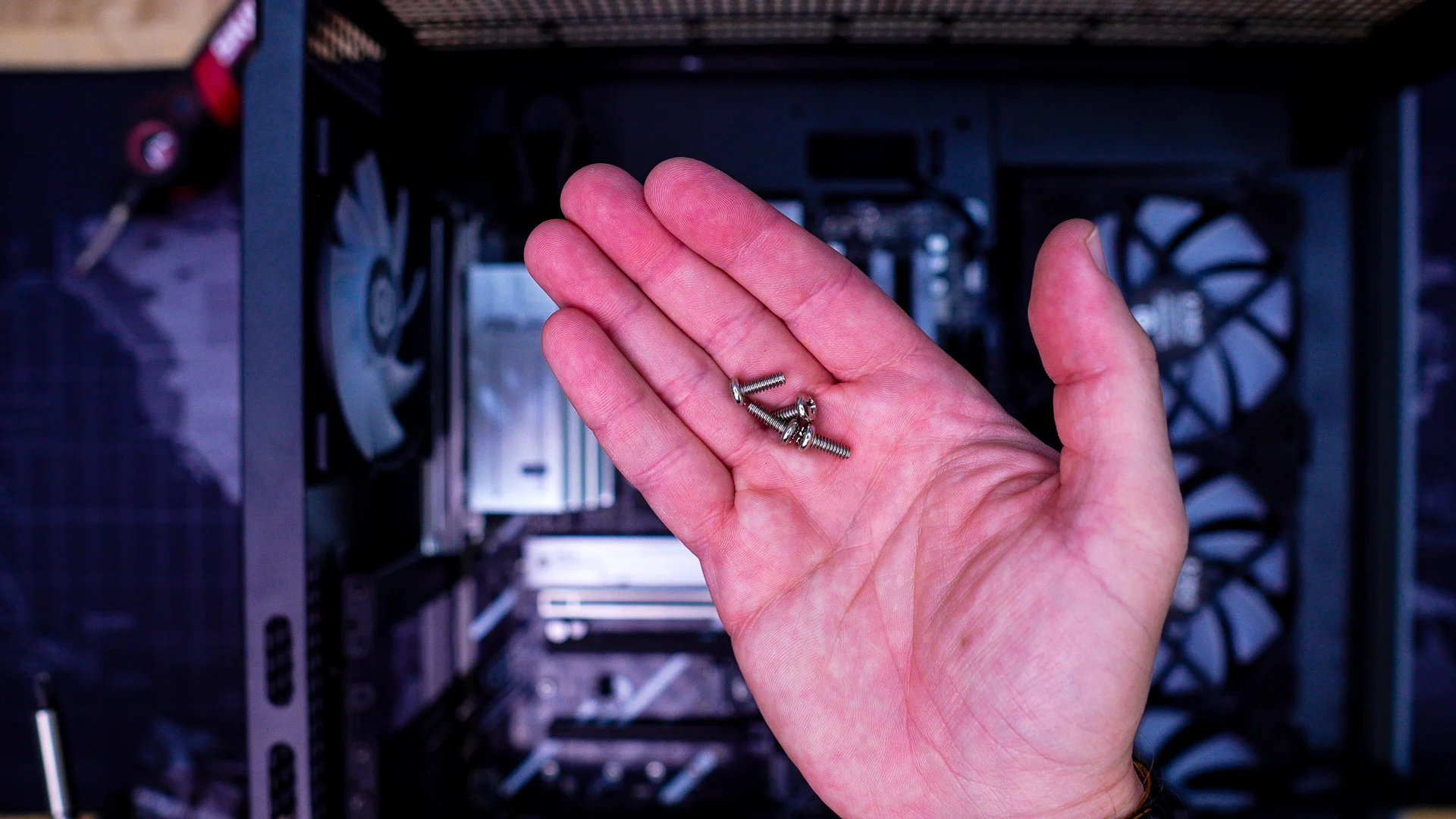
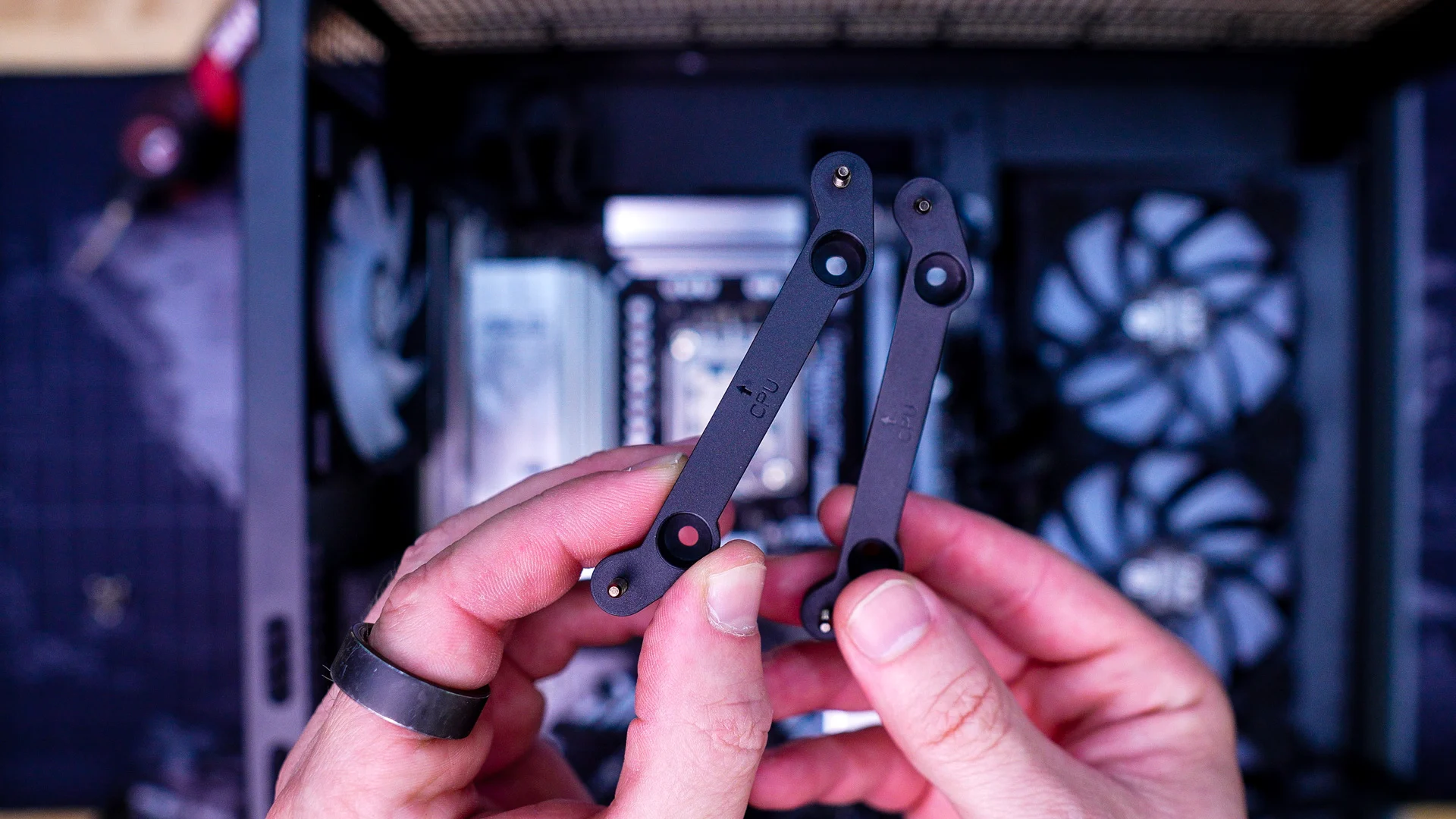
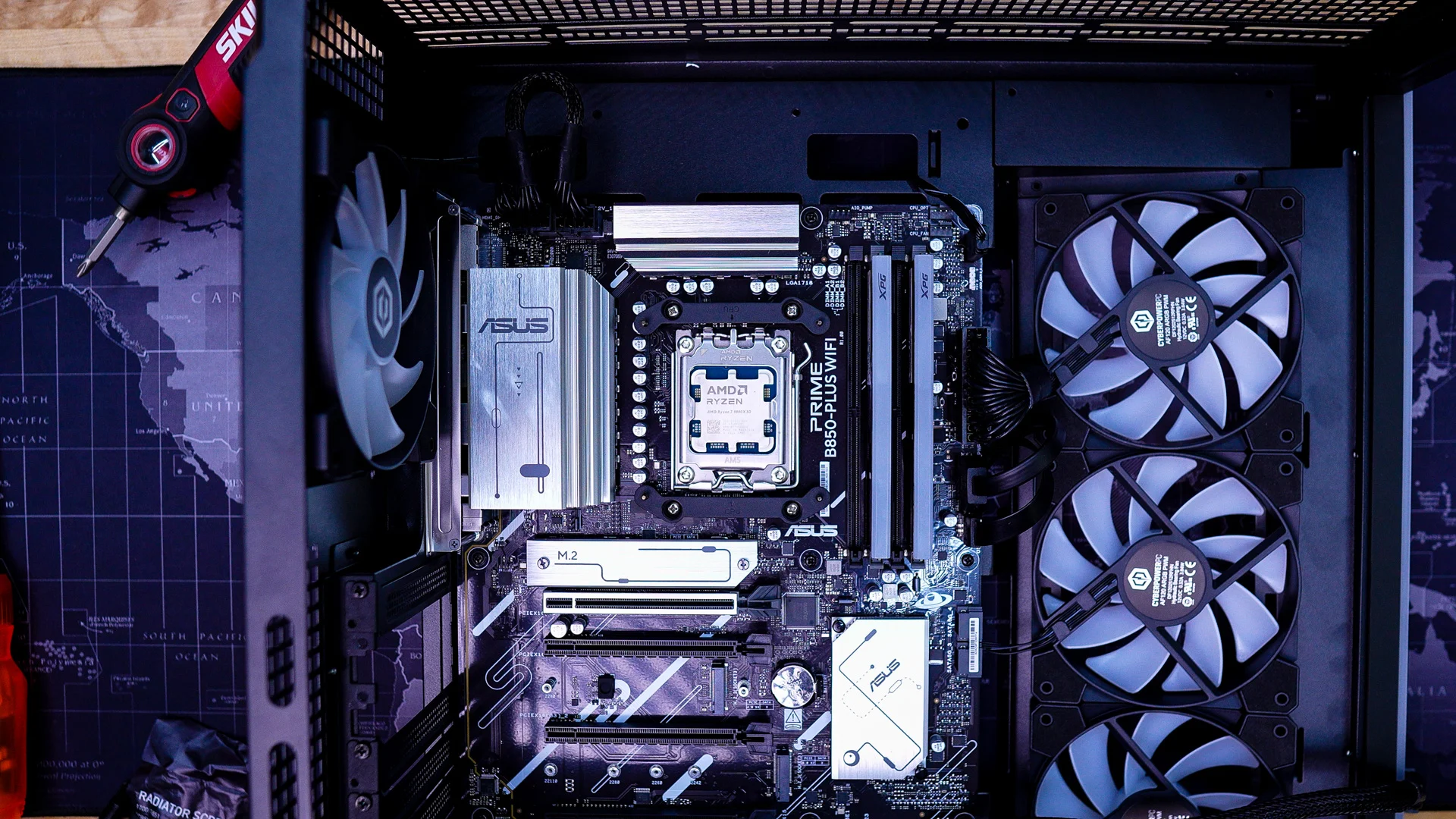
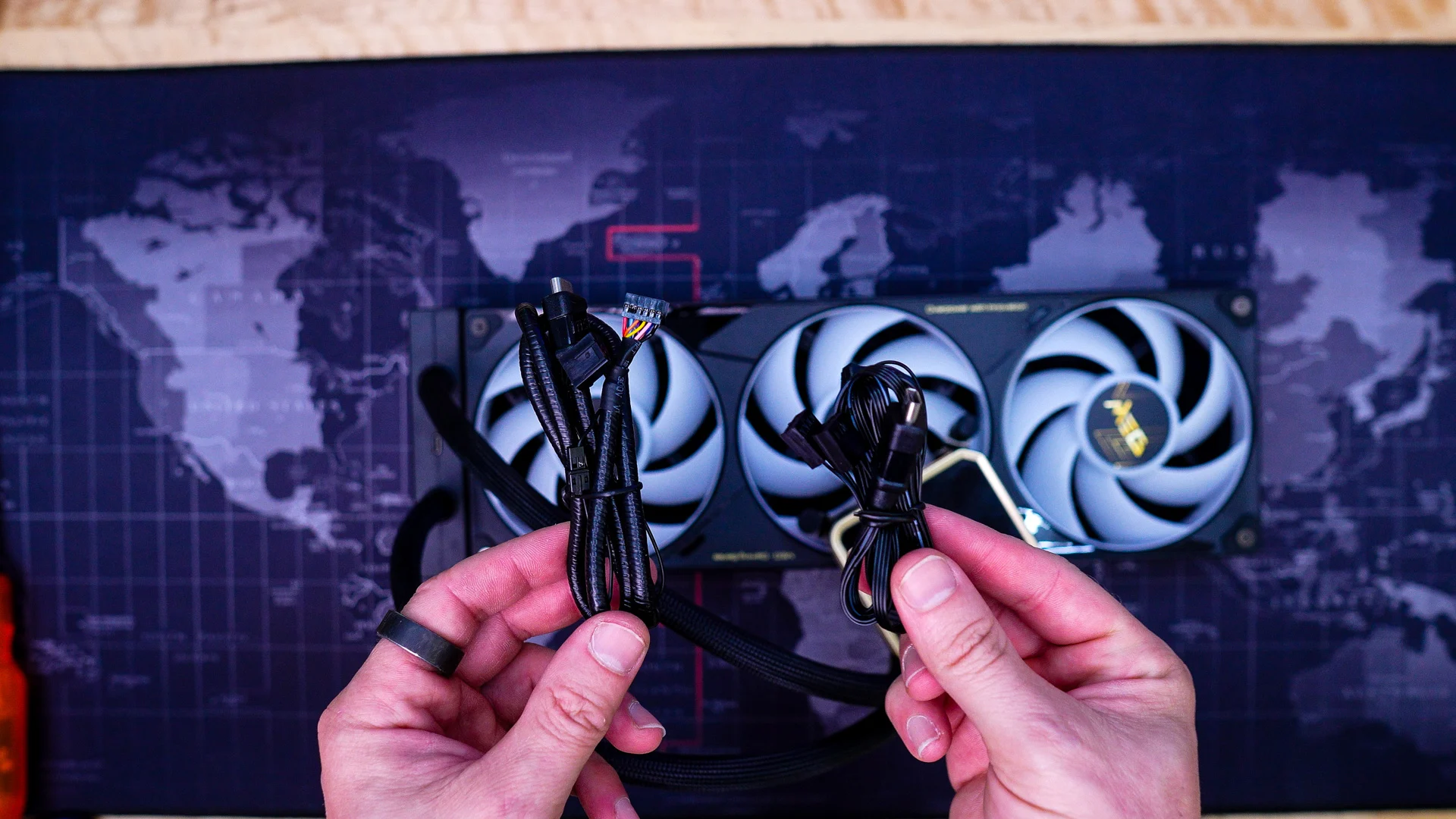
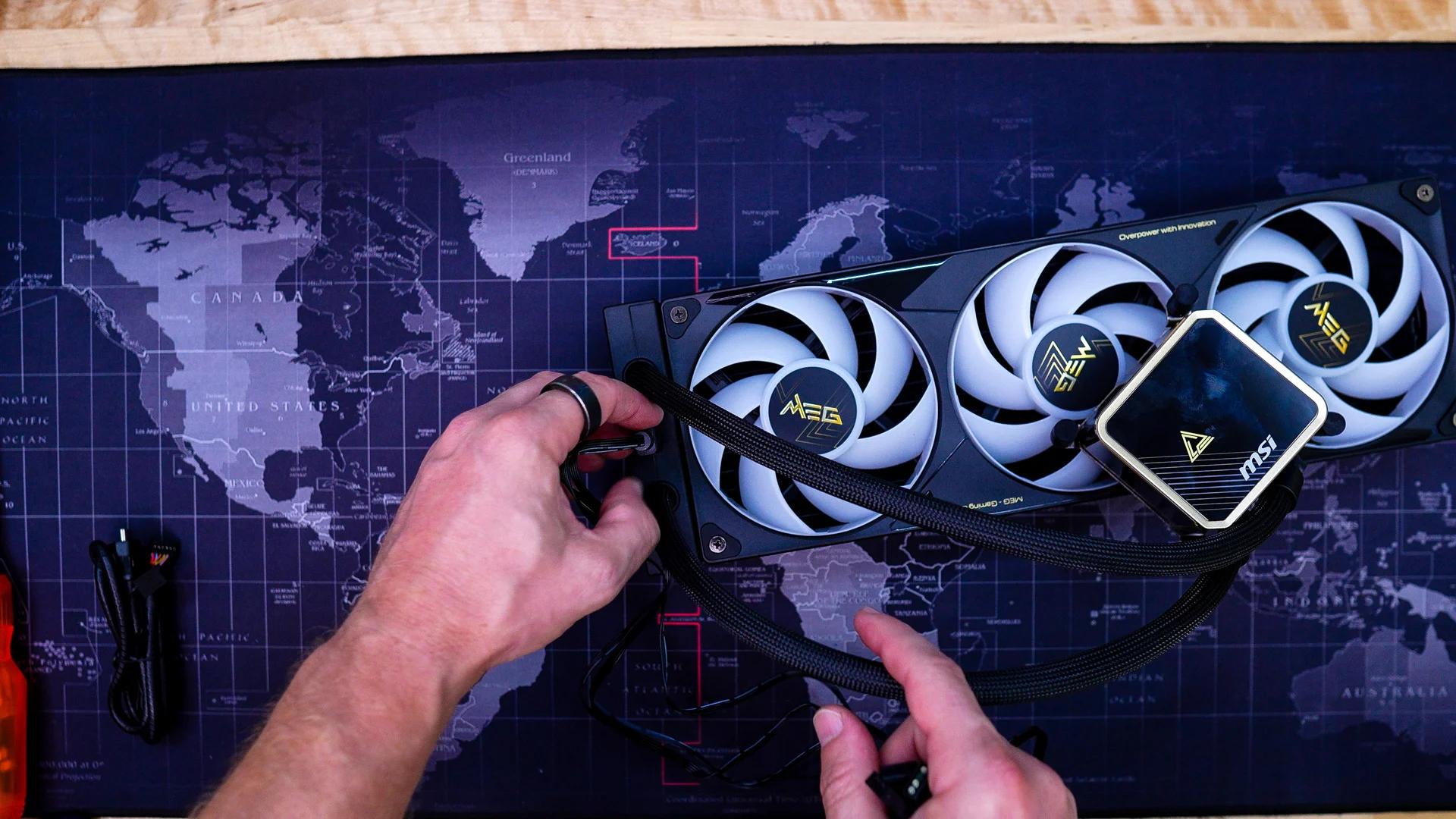
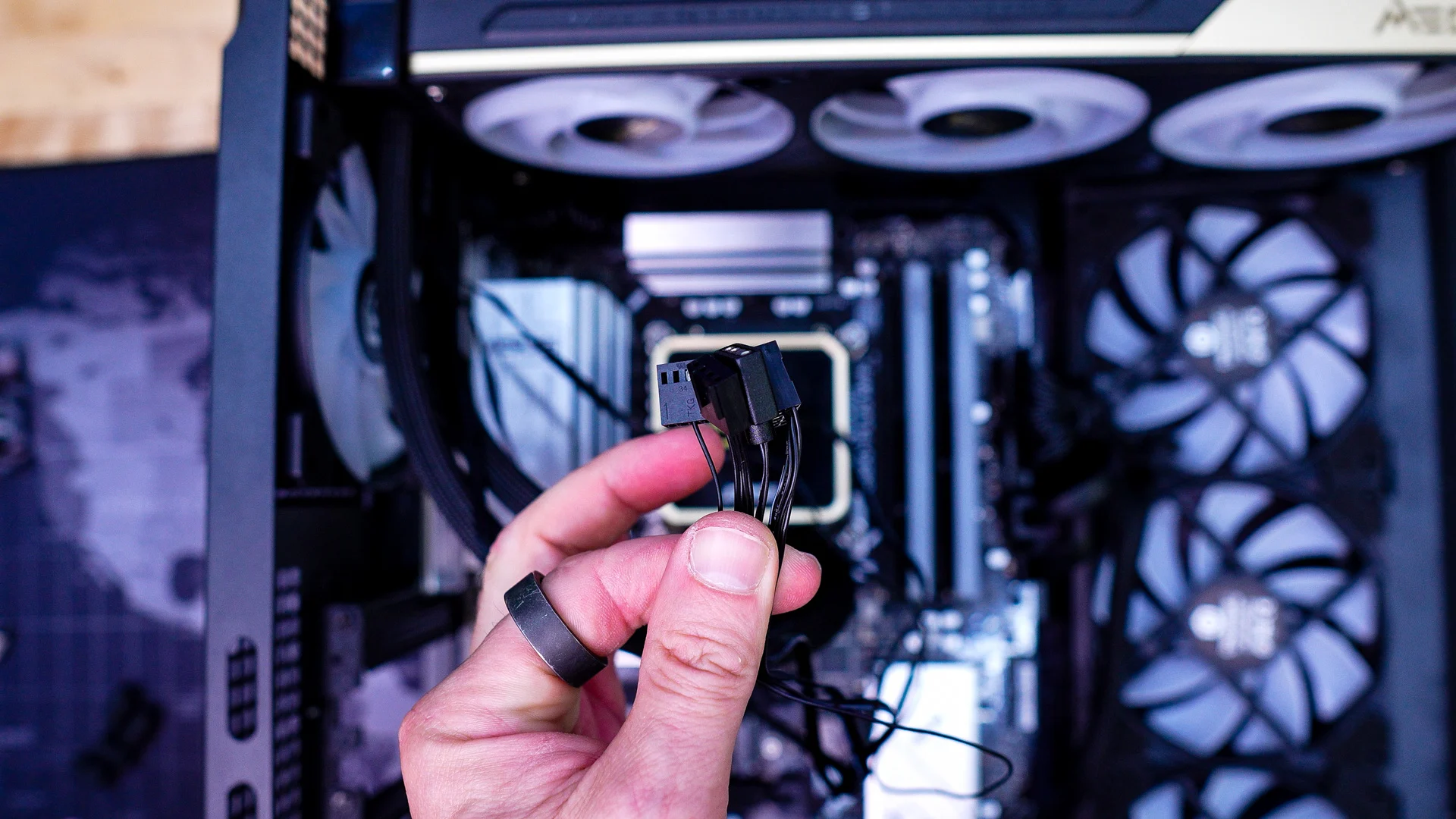
Next you’ll want to decide which cable you use to connect to your radiator. There is one cable made specifically for MSI motherboards and the other is a breakout cable that has a USB 2.0 header, 3-pin addressable RGB header, CPU fan header, and AiO pump header. The thing that is great is that these cables connect to the unit via a single USB-C connection which makes things so easy!
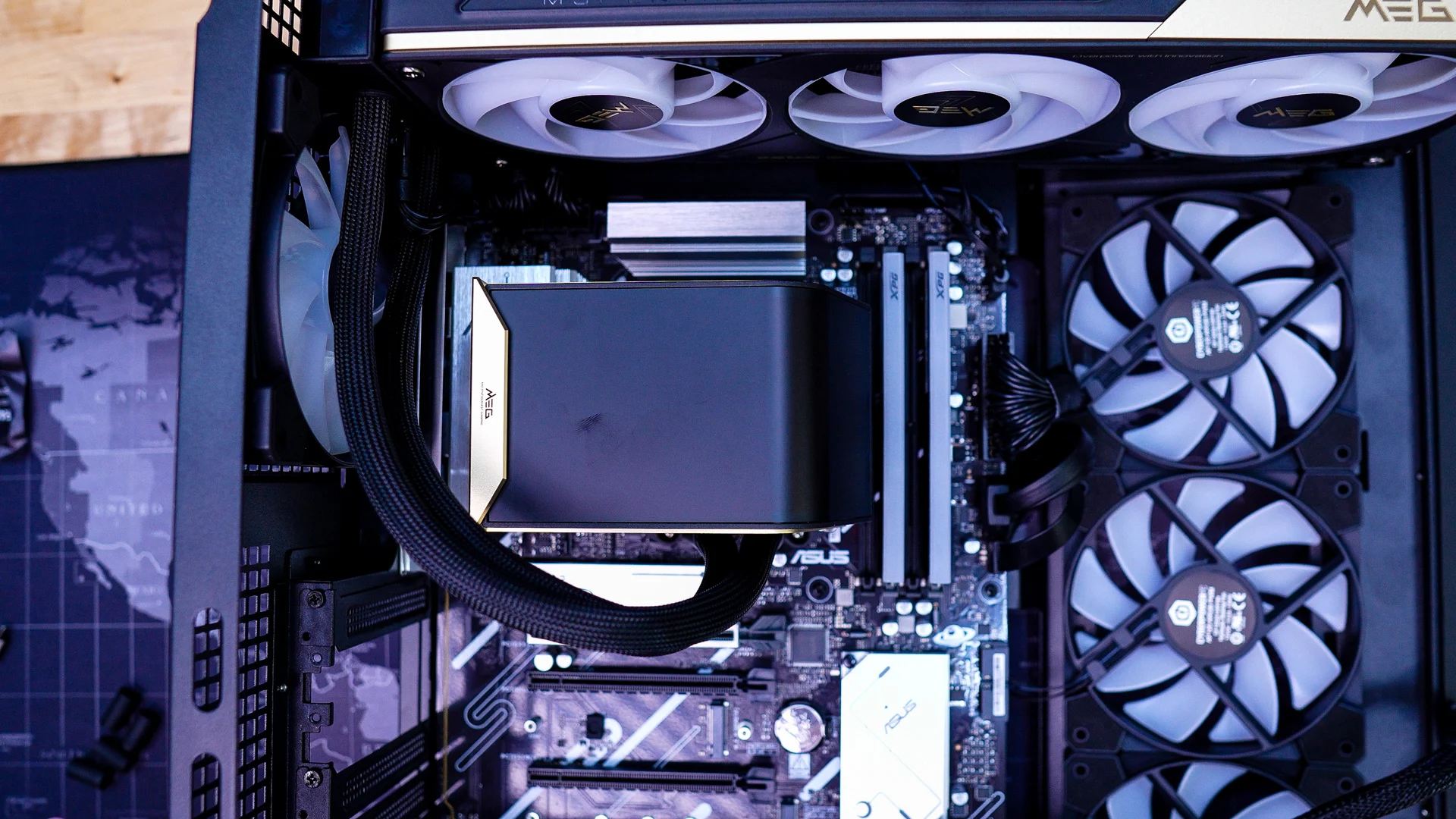
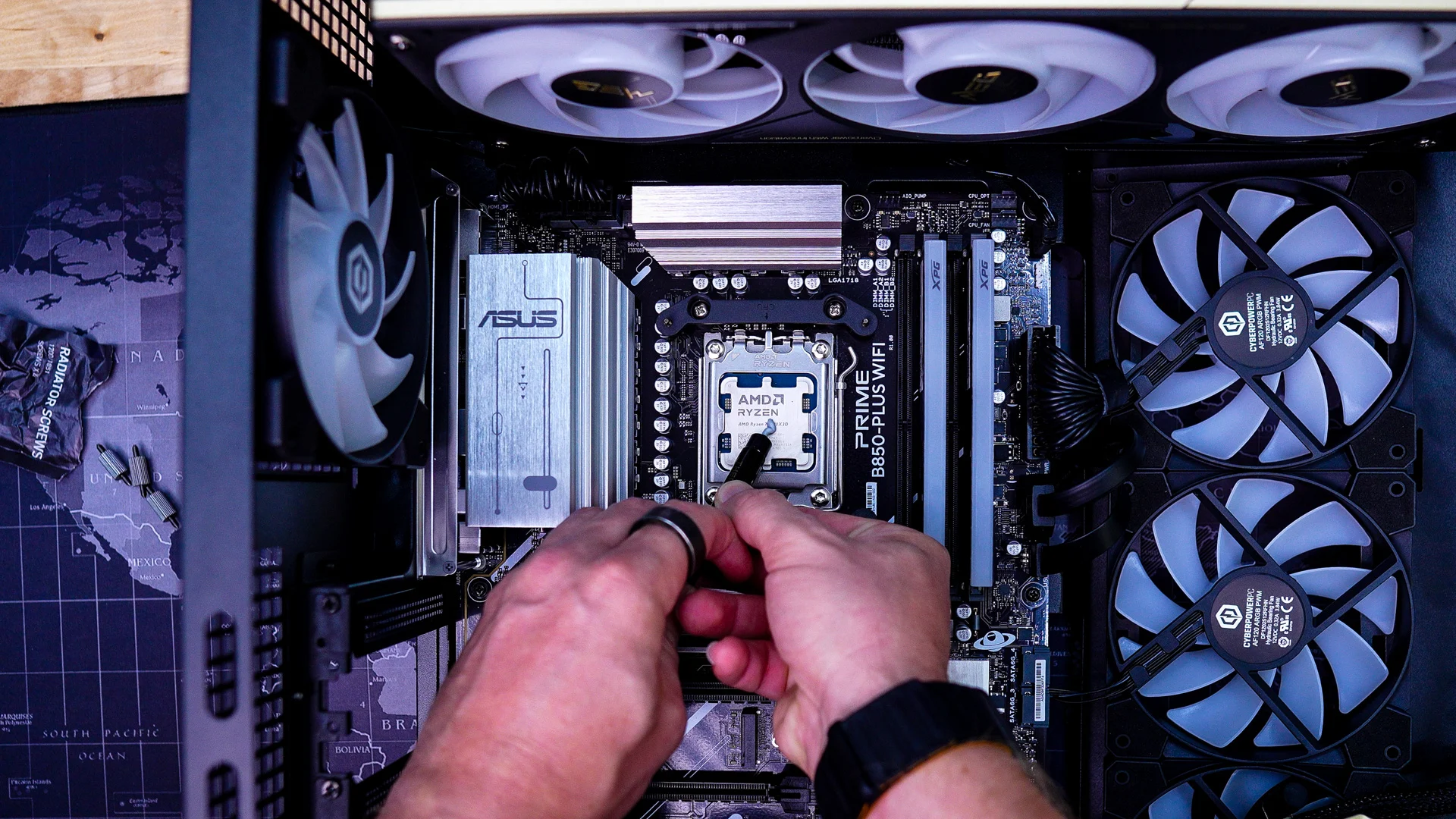
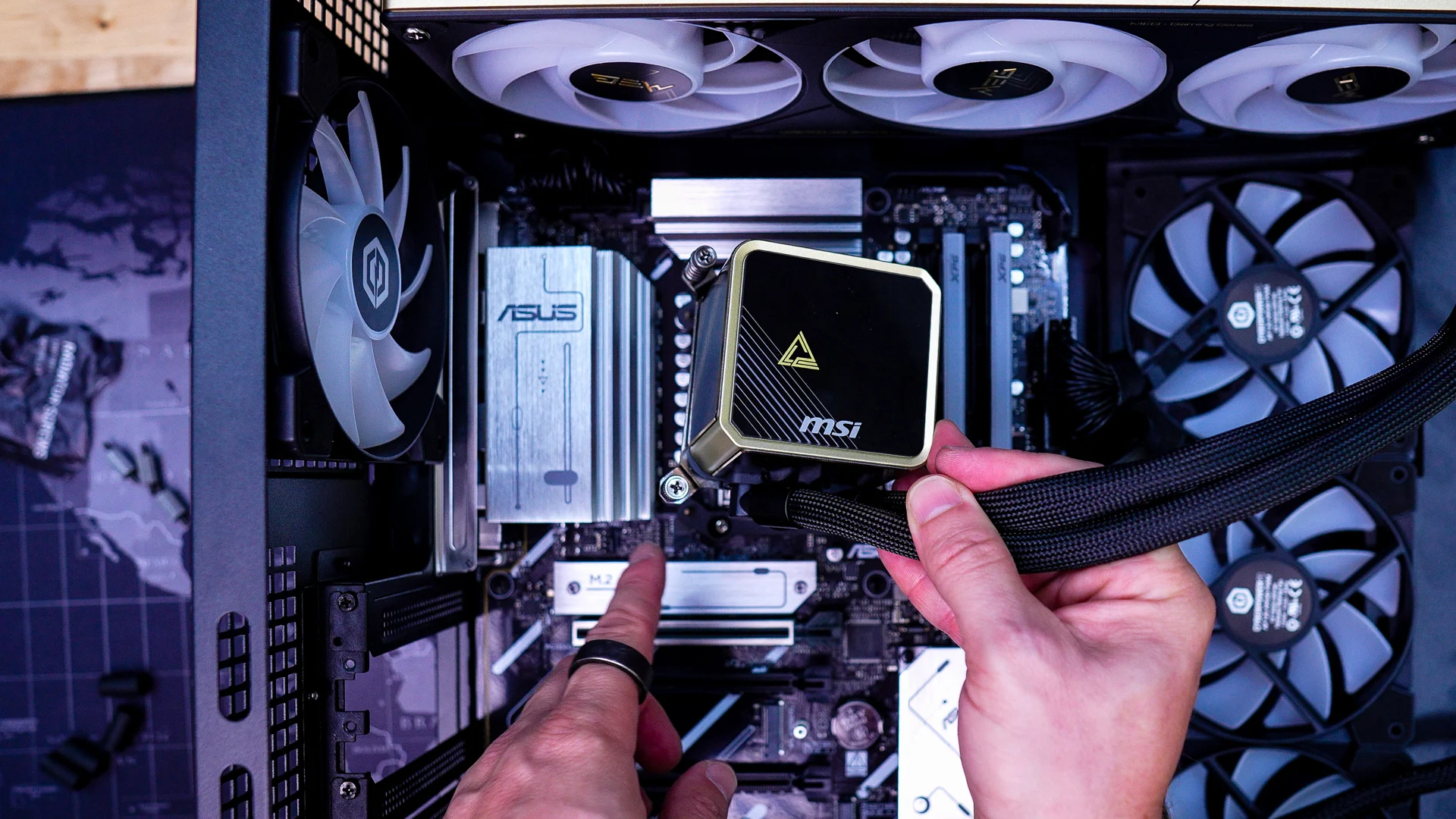
Now apply the included thermal paste and carefully attach the CPU block to the CPU socket by lining up the screws on the CPU block with the pegs in the AMD mounting brackets. Using a screwdriver go ahead secure everything.
With everything mounted corrected go ahead and connect all of the cables to your motherboard.
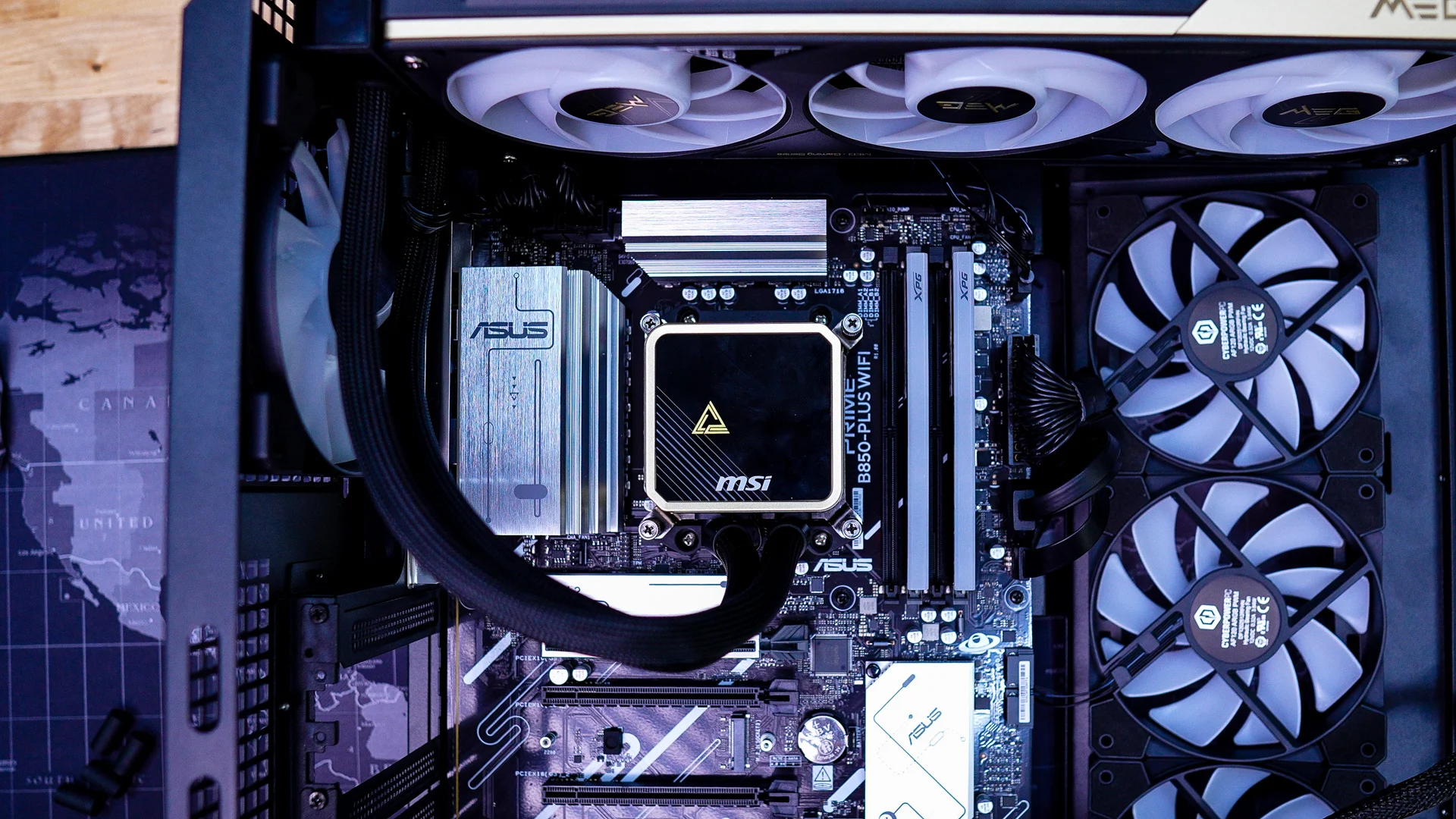
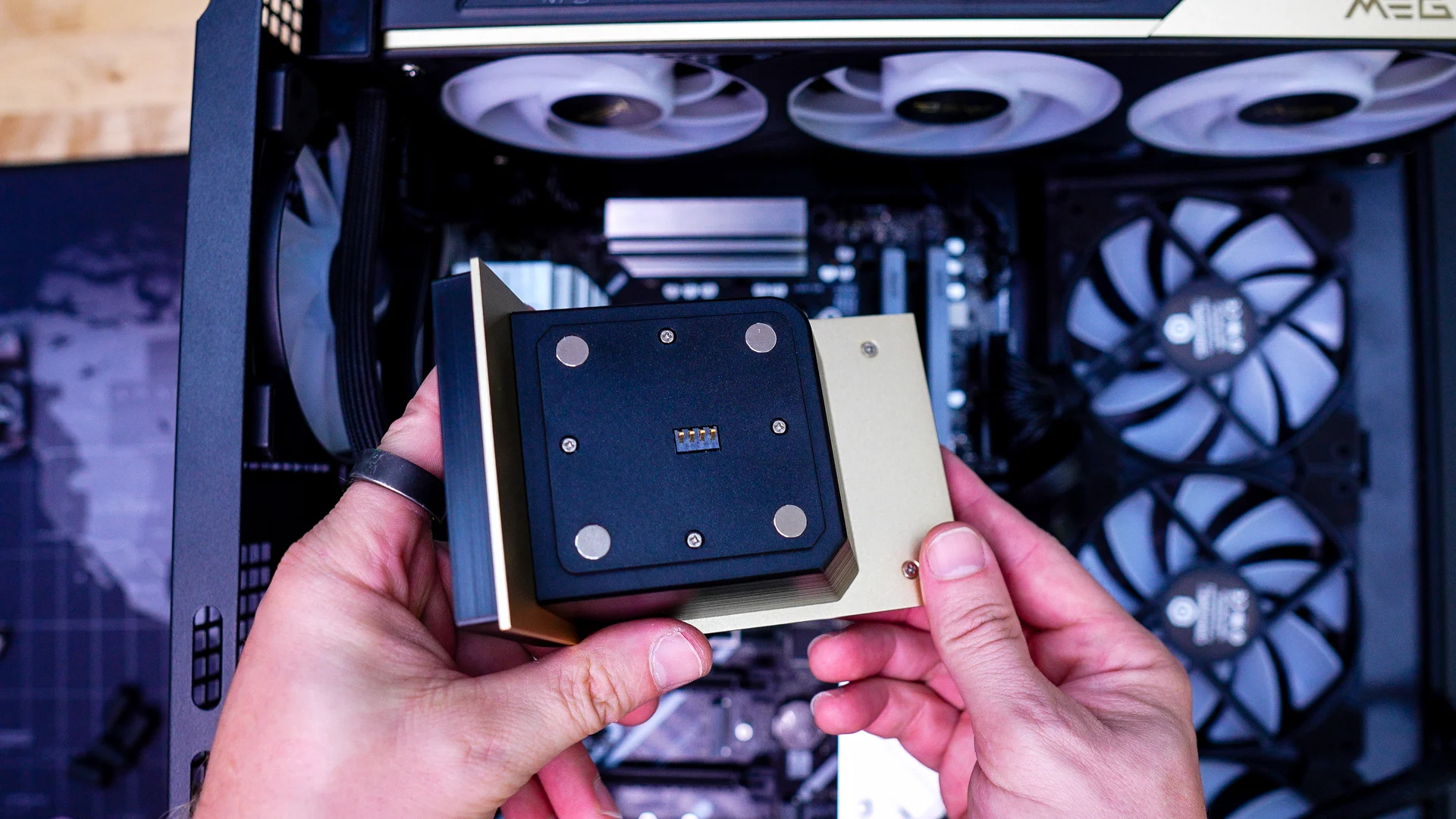
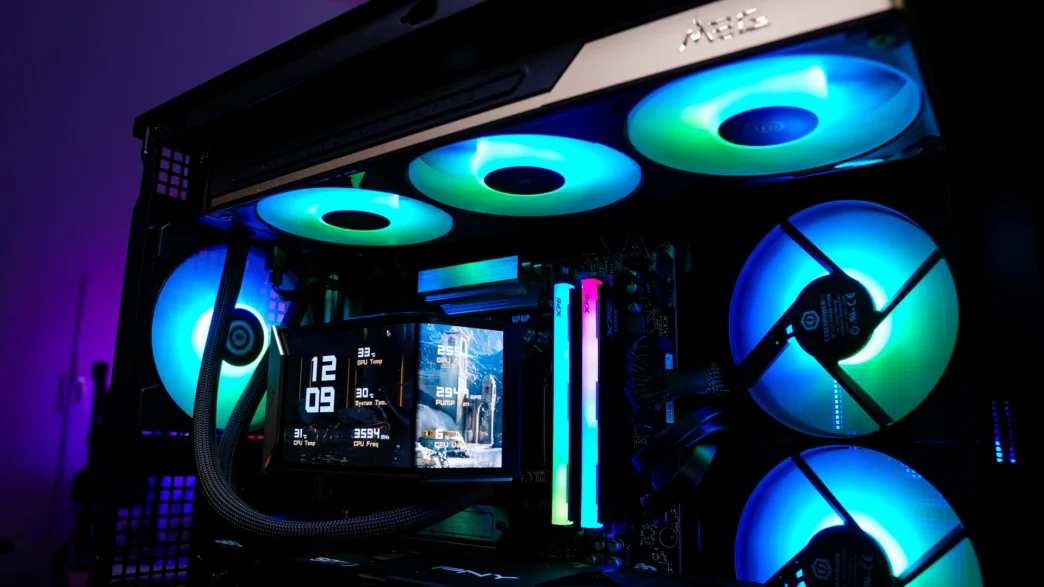
Finally remove the top-cap from the CPU block and attach the screen. The screen simply goes right on as it has magnets and there are no wires to attach at all since it is pogo-style connections.