


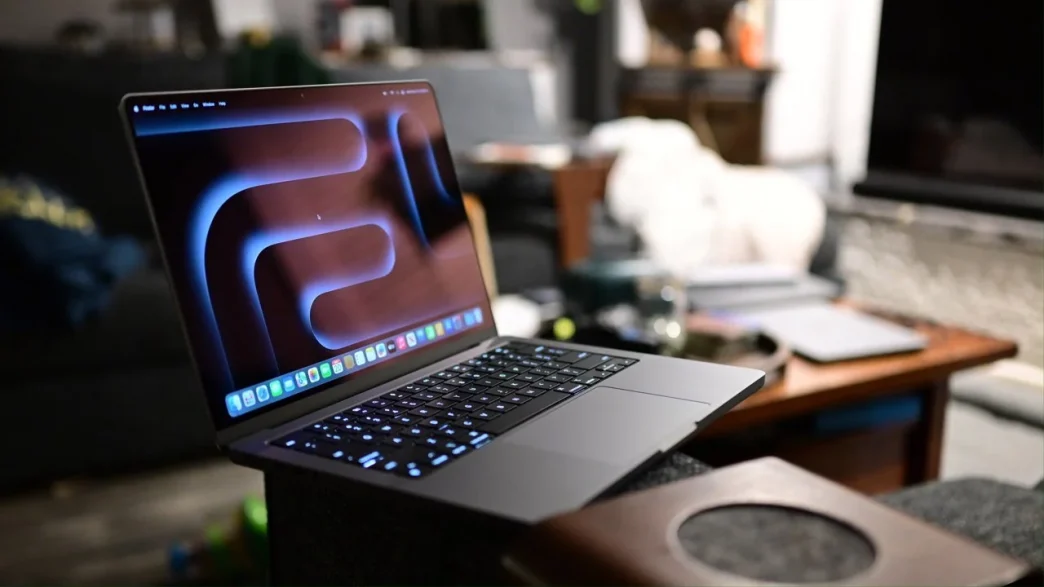
The display is one of the most critical components of a laptop, as it serves as our primary interface with the device. Unfortunately, the MacBook screen is not immune to various issues. This guide will explore different display types, help diagnose problems, and explain how to replace a damaged screen.
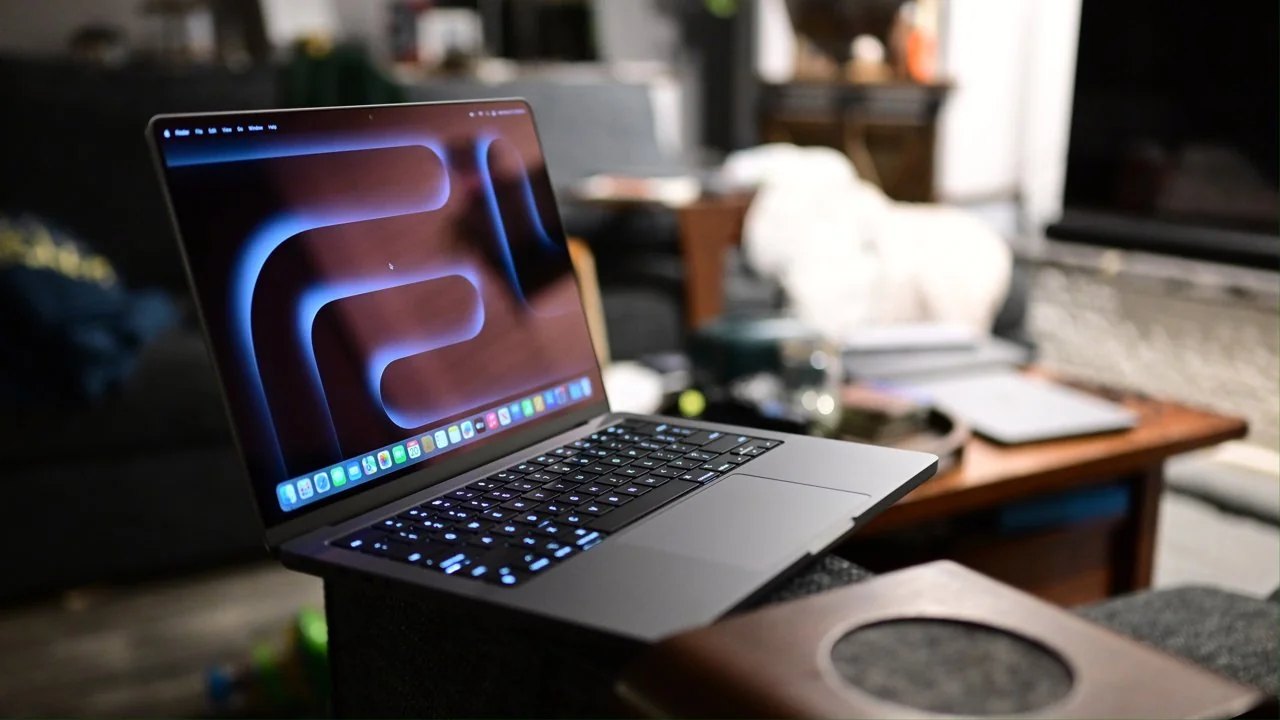
IPS and Mini-LED Displays
MacBooks use two main display technologies: IPS and Mini-LED. IPS offers wide viewing angles and accurate color reproduction, found in most models. In 2021, Apple introduced Mini-LED with the MacBook Pro, offering higher contrast, deeper blacks, and up to 1600 nits of brightness for superior image quality.
Common MacBook Display Issues
Owners may encounter:
- Dead or stuck pixels: Bright or dark spots on the screen.
- Cracks and chips: Physical damage from drops.
- Backlight issues: Flickering or uneven illumination.
- Blurry images: Loss of clarity.
- Lines and artifacts: Visual distortions like horizontal or vertical lines.
These issues result from damage, wear, or defects. Diagnosing them early helps determine if a screen replacement is needed.
Diagnosing Display Problems
To diagnose issues:
- Visual inspection: Check for cracks or scratches.
- Dead pixel test: Use tools to identify dead pixels.
- Cable verification: Ensure the display cable is secure.
- Backlight assessment: In a dark room, check for flickering or uneven lighting.
When Screen Replacement is Needed
Replacement is necessary if:
- Extensive physical damage: The screen has cracks, chips, or deep scratches.
- Multiple dead pixels, light bleeding, or artifacts: These make the screen unusable.
- Severe backlight issues: Persistent flickering or uneven backlighting. Minor issues, like isolated dead pixels, might not justify replacement.
Screen Selection
When selecting a replacement:
- Ensure compatibility with your MacBook model.
- Choose between an original Apple display or a third-party option.
- Match the display type (IPS or Mini-LED) with the original.
Display Damage Prevention
- Handle the MacBook carefully to avoid damage.
- Use protective covers to prevent scratches.
- Adjust screen brightness to reduce wear.
- Clean the screen with a lint-free cloth.
Seek Professional Assistance
The display is a sensitive part of your MacBook. Proper care and professional help ensure long-term, trouble-free performance.


