Over time, I noticed that my browser was slowing down, and some extensions were collecting more data than I was comfortable with. Browser extensions in Chrome, Edge, and Firefox can be very helpful, adding features and boosting productivity—but too many or unsafe ones can hurt performance and privacy. From my experience, regularly removing unnecessary extensions keeps my browsers fast, secure, and clutter-free.
But checking extensions across multiple browsers one by one is also time-consuming. To help us solve uninstalling all unwanted browser extensions in one tool, we’re featuring IObit Uninstaller to highlight how its specific features handle this task.
What Browser Extensions Are
I like to think of browser extensions as small apps that run inside my browser. Built with HTML, CSS, and JavaScript, they add functionality like password management, ad-blocking, content editing, and more. Popular examples I’ve used include Grammarly, uBlock Origin, and LastPass. While most extensions are designed for Chromium browsers (Chrome, Edge, Brave, Opera), many work on Firefox too. Because extensions can access website data, I always make sure to use trusted sources for installation to keep my data secure. Compared to older plugins like Flash, extensions run in a sandboxed environment, which makes them safer and limits direct system access.
Why I Want To Remove Browser Extensions
From my experience, removing unnecessary extensions is important for several reasons:
- Performance Issues: Too many active extensions slow my browser and computer, causing longer load times and occasional crashes.
- Privacy Concerns: Many extensions track user activity for marketing, which I prefer to avoid.
- Security Risks: Some extensions can expose my personal data or even carry malware.
- Outdated Extensions: Extensions that aren’t updated regularly can introduce security gaps.
- Browser Clutter: Conflicting or redundant extensions sometimes cause glitches, display errors, or slowdowns.
How to Manually Remove Extensions from Google Chrome
Google Chrome is one of the most widely used browsers. As such, it’s also a common target for malicious extensions. Also, due to the sheer number of Chrome extensions, some are poorly built.
Here are quick instructions for safely uninstalling extensions from Chrome.
Step 1. Start Google Chrome. And tap the three-dot icon (⋮) in the top-right corner. Access the menu, select “Extensions,” then click “Manage Extensions” to see all extensions and modify their settings.
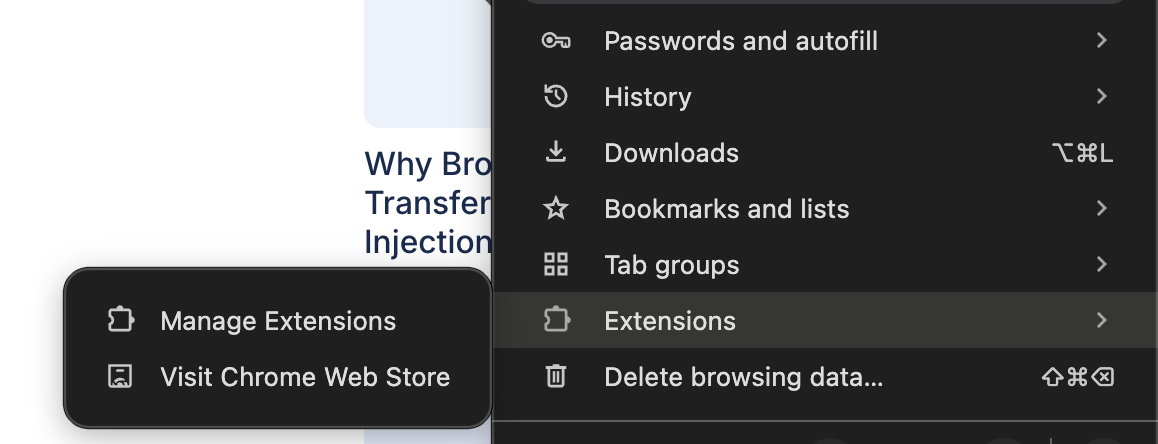
Tip: Access all Chrome extensions directly by entering chrome://extensions/ in the browser bar.
Step 2. On this page, every extension—enabled or not—is listed with its permissions and current settings.
Step 3. To remove an extension, click Remove under its description. Confirm by clicking Remove again in the pop-up dialog.
Optional. When in doubt about removing an extension, use the switch to disable it for the time being.
Step 4. Restart your browser to ensure all changes are applied.
How to Manually Remove Extensions from Microsoft Edge
Microsoft Edge combines Chromium’s features with unique management capabilities available through its enterprise settings.
Learn how to remove browser extensions from Microsoft Edge in just a few easy clicks.
Step 1. Open Microsoft Edge. Click the three-dot menu (⋮) in the top-right corner.
Select Extensions from the dropdown. And choose Manage Extensions to view installed add-ons.
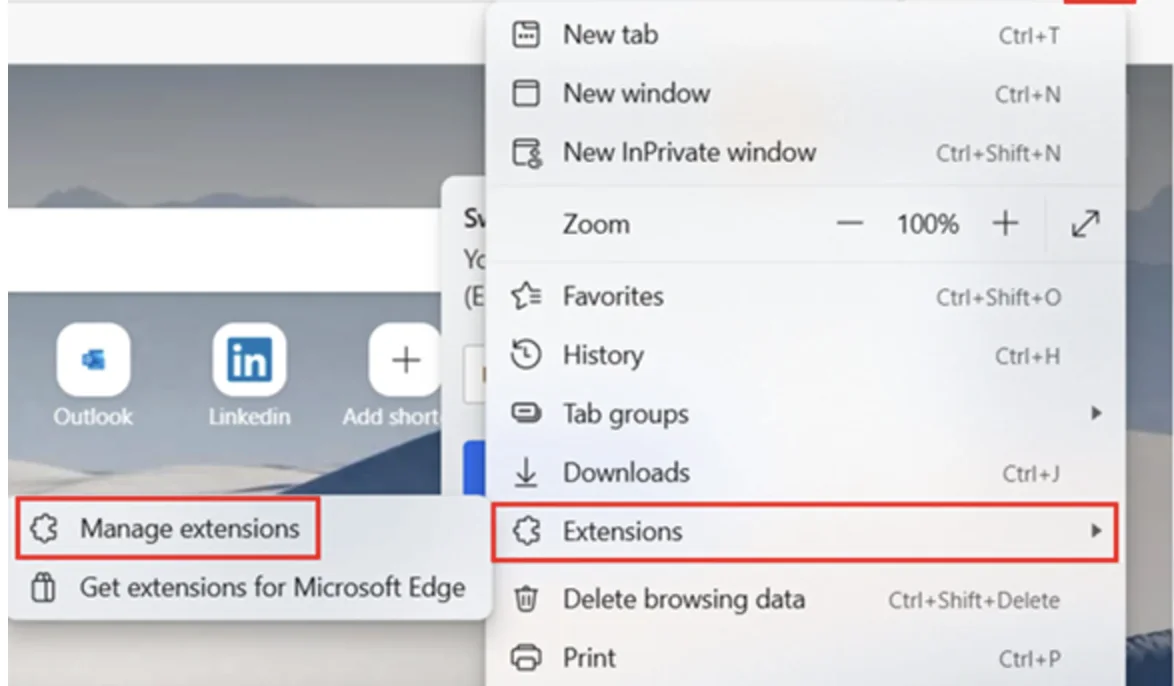
Note. You can also directly access all the extensions installed in Microsoft Edge by typing this in your browser: edge://extensions.
Step 2. Look through your extensions to identify which are on or off and view their permissions.
Step 3. Select the desired extension,
then click Remove to uninstall or disable it. And select Turn off to temporarily disable it.
Step 4. Click confirm to remove the extension, then restart your browser.
How to Manually Remove Extensions from Firefox
Firefox extensions, known as add-ons, can be managed through the Add-ons Manager interface. Here’s how to remove extensions from Firefox.
Step 1. Launch Firefox. And click the menu button (☰) in the top-right corner. Then select Extensions and themes.
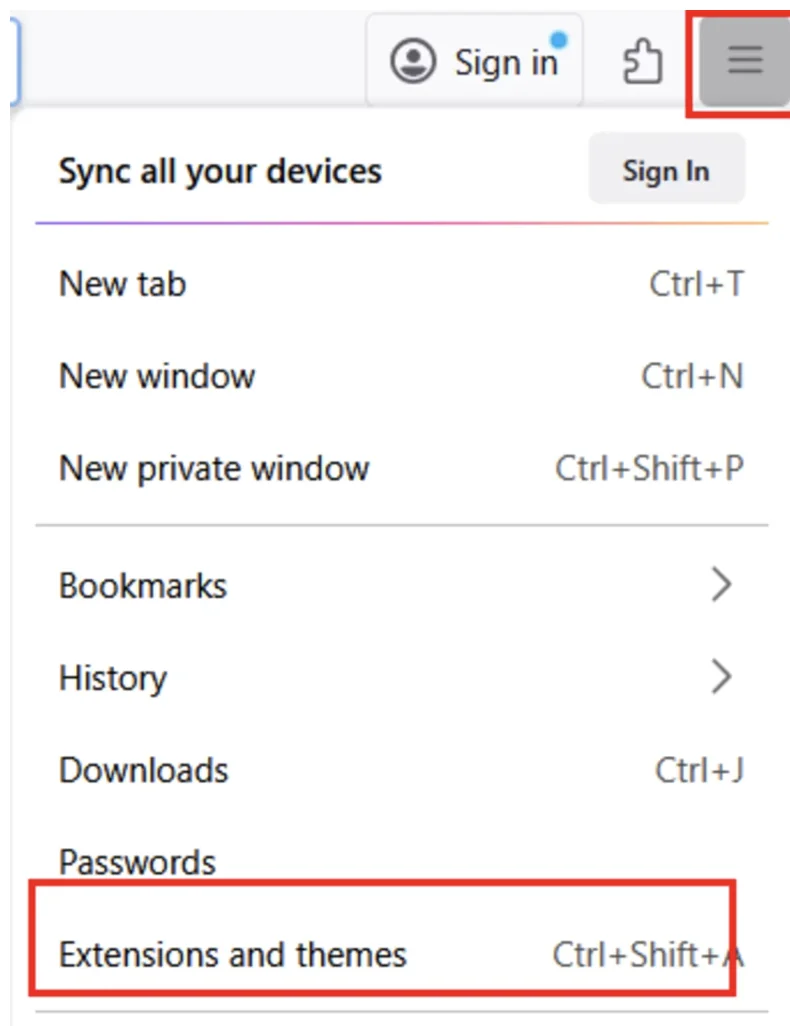
Pro Shortcut: Enter about:addons in the address bar to manage all Firefox extensions.
Step 2. In the sidebar, select Extensions to view every installed add-on.
Step 3. Identify the extension you want to delete. And click the three-dot icon beside it.
Next, choose Remove and confirm.
Step 4. Restart Firefox to make sure all changes are implemented.
All in one: I Found The Best Method to Batch Remove Extensions Across Chrome, Edge, and Firefox
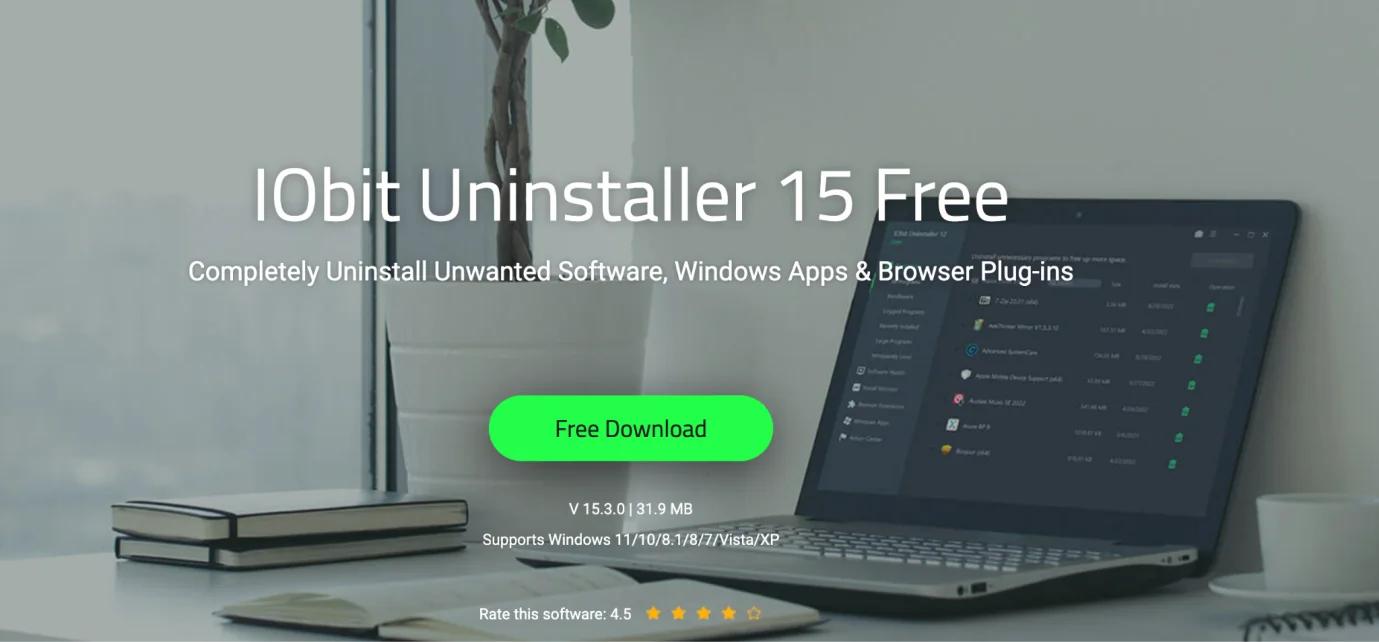
Keeping multiple browsers clean can be tedious, so I rely on IObit Uninstaller 15 Free to make it fast and simple. This tool allows me to remove several extensions at once, across different browsers, while also clearing leftover files and improving overall browser performance. It’s intuitive enough that I don’t have to spend extra time figuring it out.
Key Features I Found Most Helpful
- Deep Extension Removal: It detects and deletes malicious add-ons, toolbars, and plug-ins.
- Leftover Cleaning: Automatically removes leftover files, folders, and registry entries after uninstalling extensions.
- Browser Support: Works with Chrome, Edge, Firefox, and Opera, which covers all the browsers I use.
How I Use IObit Uninstaller 15 Free to remove all useless extensions
Step 1. Downloaded and installed this uninstaller for Windows from the official website.
Step 2. Opened the program and clicked the Browser Extensions tab on the left.
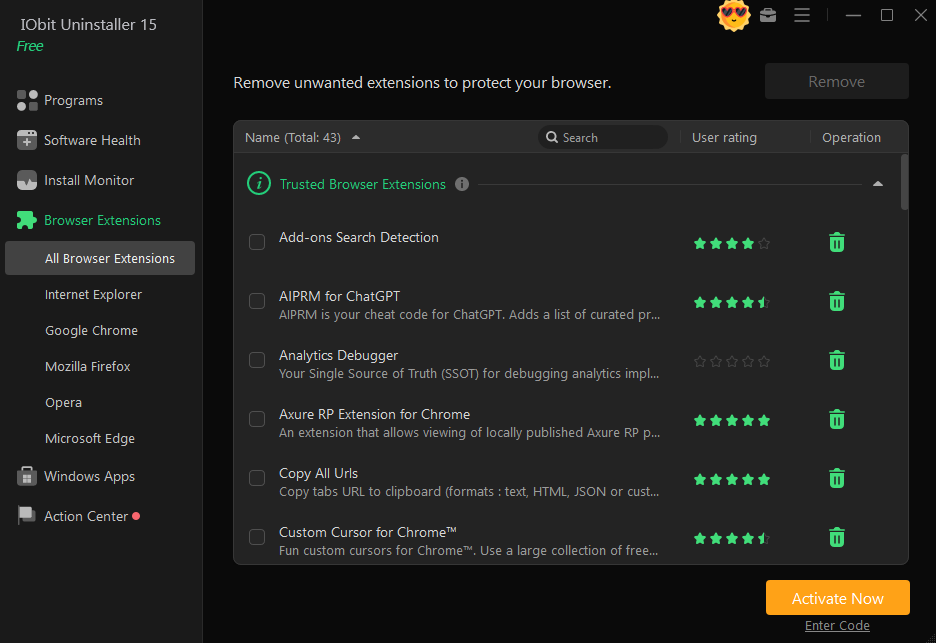
Step 3. Reviewed all my installed extensions, sorted by browser.
Step 4. Selected unwanted extensions and clicked the trash icon to remove them.
Using this method, I can clear multiple extensions in just a few clicks, saving a lot of time compared to manual removal.
The Reason I Recommend Professional Uninstaller
Advantages
Saves Time: Can remove multiple extensions at once across different browsers, making cleanup much faster.
Complete Cleanup: Deletes leftover files, folders, and registry entries that browsers usually leave behind.
Detects Hidden or Malicious Extensions: Scans for potentially harmful or ad-supported extensions that you might miss manually.
Supports Multiple Browsers: Works with Chrome, Edge, Firefox, and Opera, so you can clean everything from one interface.
Extra Features: Includes tools like notification blocking, permission management, and leftover cleaning for better browser and system health.
Disadvantages
Requires Installation: You need to download and install IObit Uninstaller on your PC.
Learning Curve: Beginners may need a few minutes to get familiar with the interface and settings.
Conclusion
From my personal experience, removing unwanted extensions significantly improved my browser’s speed, security, and overall usability. Unlike removing extensions one by one, using IObit Uninstaller 15 Free not only simplifies the process but also ensures leftover files and registry entries are removed, keeping my PC optimized. Regular maintenance has prevented slowdowns and protected my data, making browsing safer and smoother. I highly recommend taking control of your browser extensions—it’s a small effort that makes a noticeable difference in performance and privacy.