


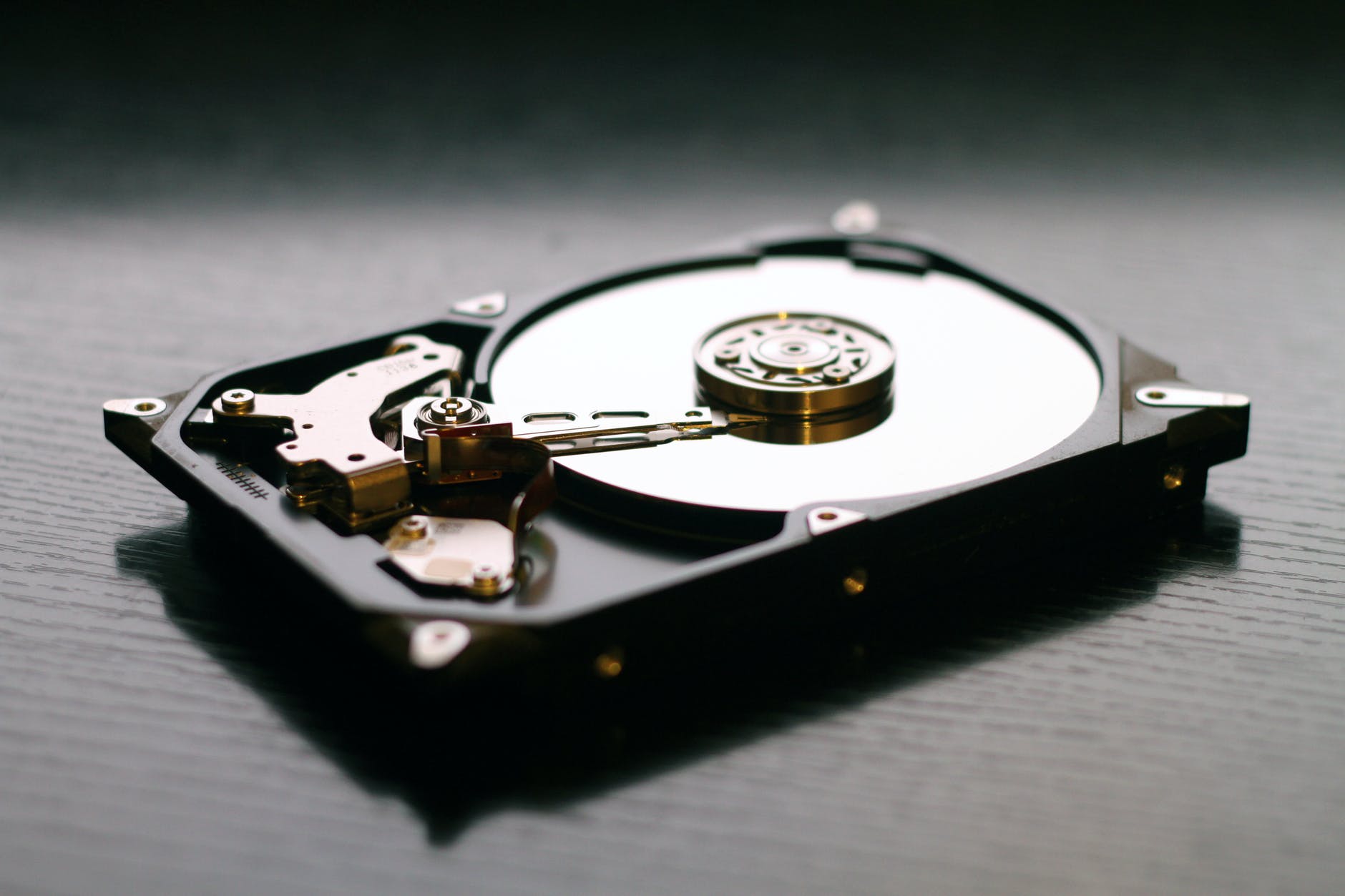
The issue of losing a partition is probably the most frustrating among other hard disk storage problems. While accidental loss of some files might result in losing a file or two, losing a whole partition could mean the disappearance of a huge amount of data. One’s family pictures, documents, project files, video materials, software, and many other valuable files may simply vanish, giving a false impression that the whole drive is wiped out completely.
However, losing a partition does not necessarily mean losing all your data permanently. Often times, the data may remain intact; however, due to a failure to detect a particular partition structure, a user would be unable to access it. The difficulty lies in the need to restore the structure of the partition or retrieve its data without it.
To find out what software really manages to do a good job, I conducted a test using five popular partition recovery applications in 2026. To provide equal conditions for my research, I created a 500 GB NTFS partition on a Windows 11, filled it with various files (documents, videos, photos, archives, and software), and erased it using Disk Management.
The objective was fairly straightforward: to figure out which program could recover the partition and restore its contents in the most accurate way possible while still being user-friendly.
Understanding Partition Recovery
Prior to analyzing the findings, it is necessary to comprehend how partition recovery software works.
Once a partition is deleted in Windows OS, the operating system normally deletes the partition information but not the actual files stored there. In most cases, file information stays intact until another set of information replaces it. This process involves searching the disk for indications that can help identify the former partition and file system, along with boot sectors and file signatures.
Some software solutions seek to restore the lost partition in order to be able to mount it. There are software programs that are specifically geared towards restoring particular files and folders on the partition. The choice will depend on the level of damage sustained by the drive in question.
It is important to observe one crucial point no matter what partition recovery software you choose – stop using the drive immediately.
1. Stellar Data Recovery Professional
Of all the programs used in testing, Stellar Data Recovery Professional offered the best overall recovery experience.
The program has an option that can be used if a drive/partition cannot be located. Once I selected the problematic physical drive, I started scanning the free sectors. The scanning took some time, which should be considered normal, as the scan of multiple gigabytes takes a while, but the program easily detected the lost partition and rebuilt its structure.
The most exciting feature about the whole procedure was that the original hierarchy was maintained. The majority of the directories appeared exactly as they were before the loss. Video files, ZIPs, documents, and photos were restored together with their names. Even nested directories were maintained during recovery.
About 99% of the data stored in the computer was successfully restored. Only a few files suffered from corruption; however, this is a common problem for partition recovery, which means that the efficiency level is very high compared to other tools.
The user interface is simple and requires no advanced technical skills. The users need not worry about partition tables or boot records when restoring data since they are guided by the software through the entire process.
The most obvious limitation associated with the product is its high price. While the software functions efficiently, you will have to spend some money for the license. However, it may pay off if you restore important information.
Strengths
- High recovery success rate
- Preserves folder structure effectively
- User-friendly interface
- Reliable deep scanning capabilities
Weaknesses
- Paid software
- Deep scans can take time on large drives
2. Disk Drill
Disk Drill continues to be one of the easiest-to-use data recovery utilities on the market.
The first thing the user will notice is the clean and modern look of the program’s interface. In contrast to other recovery tools filled with technical jargon, Disk Drill manages to provide an intuitive and easy-to-understand process.
In terms of functionality, Disk Drill detected the deleted partitions right away and started searching for the possible files in the area.
Overall, recovery performance was quite high. Nearly all kinds of documents and multimedia were effectively restored by the software. It managed to detect numerous files in standard formats almost automatically.
As for the completeness of recovery, Disk Drill wasn’t as effective in recreating folders. Some files had to be placed manually after their detection.
The free version is another drawback since while it provides the opportunity to use the product, limitations on recovery limit the number of people who can make good use of it without buying the product.
For people without much technical knowledge, Disk Drill is one of the simplest recovery tools available today.
Strengths
- Excellent user interface
- File preview functionality
- Easy for beginners
- Reliable recovery performance
Weaknesses
- Limited free version
- Folder reconstruction is inconsistent
3. EaseUS Data Recovery Wizard
EaseUS Data Recovery Wizard has long been a leading competitor in the recovery market and it continues to maintain a high level of speed.
EaseUS performed better than any of the other applications tested in terms of the speed of completing the first scan. The deleted partition was located almost instantly and recovery could be initiated immediately.
This feature could be particularly advantageous in cases involving the use of extremely large hard drives that would normally require several hours for full scans. EaseUS’ ability to locate files for recovery in such conditions could be especially helpful.
EaseUS also features an easy-to-use interface and navigation system. For most users, the process of locating and recovering their data should be relatively quick and efficient.
EaseUS managed to provide satisfactory recovery results, but failed to perform at its best in this regard. Though most files were successfully restored, some fragmented data suffered during the process. Video and archive files in particular were occasionally corrupted upon recovery.
Despite being fairly common in recovery operations, this limitation hindered the application’s ability to achieve the same levels of accuracy demonstrated by the best tools.
Strengths
- Very fast scanning
- Easy-to-use interface
- Good overall recovery rates
- Suitable for large drives
Weaknesses
- Less effective with fragmented files
- Full functionality requires payment
4. MiniTool Power Data Recovery
MiniTool Power Data Recovery excelled when it came to handling storage devices with problems or damage.
Apart from testing my main scenario – data recovery after a partition delete – I tested the program on drives with file system errors and corruption. The performance of MiniTool under these conditions seemed quite stable.
A considerable volume of data was recovered from my test drive by MiniTool, and it performed much better in this regard compared to some competitors. The scanning process of this software is well-optimized for damaged storage media.
Nevertheless, its user interface seems outdated when compared to today’s competing solutions. It works fine, but it lacks the elegance of newer programs such as Disk Drill and EaseUS.
The results of data recovery with MiniTool were quite good, but not outstanding. All files could be recovered; still, partitions were not reconstructed perfectly.
Users working with older external drives or having problems with storage media may consider this product.
Strengths
- Stable on damaged drives
- Good recovery capabilities
- Handles file system corruption well
Weaknesses
- Older-looking interface
- Recovery accuracy slightly behind top competitors
5. TestDisk
The uniqueness of the program in the field of data recovering software lies in the fact that it is totally free and open-source.
Unlike most programs aimed at data copying from a damaged partition, TestDisk attempts to repair the partition table and allow users access to the partition without dealing with thousands of separate files.
Technically, the software is rather strong and powerful. During my test, I managed to get the program to recognize the lost partition and offer me options for recovery.
Nonetheless, there are several cons associated with the product, as well.
Firstly, it is rather hard to use by novices due to the necessity to work with text-based menus.
A user needs to be aware of such notions as partitioning and disk structure to operate the program properly.
What is more, one can easily make a mistake leading to the worsening of the situation.
At the same time, the program is extremely effective and powerful.
More importantly, it is better than commercial solutions when it comes to efficiency and effectiveness, yet totally free.
Strengths
- Completely free
- Open source
- Powerful partition repair capabilities
- Excellent for advanced users
Weaknesses
- Steep learning curve
- Text-based interface
- Greater risk of mistakes
What I Learned From Testing
One of the main things revealed during this comparison is the fact that there is no universal software that can be used in all cases effectively.
The efficiency of the partition recovery greatly depends on the state of the drive, its damages, and the presence or absence of any data written after the partition had disappeared. A program that works perfectly in some situations can fail to deliver decent results in others.
Another main lesson is the necessity of deep scanning since fast scanning can help detect only recently deleted partitions or files, whereas in other cases deep scanning helps.
It turned out that sometimes file recovery is different from partition recovery; some tools have better performance when it comes to restoring the structure of partitions, while other tools excel in recovering files from damaged volumes.
Finally, one should be patient when working with large disks.
Final Verdict
For the best total rate of success and simplicity, Stellar Data Recovery Professional proved to be the best choice in the current comparison since this product managed to restore almost all deleted data, keeping original directory structure and filenames intact.
Disk Drill can be recommended for those who are looking for simplicity since this program provides modern interface and smooth workflow. For fast recovery EaseUS Data Recovery Wizard can be recommended. MiniTool Power Data Recovery works perfectly when dealing with faulty or unstable disks and is still one of the best free tools.
The main thing to remember about partition recovery is that it requires prompt actions and the correct choice of tools. As soon as you notice your data partition is missing, stop using this disk and start the recovery process right away, saving the retrieved files to another storage media.
In such a way it is possible to recover deleted partitions without problems.