ASRock Phantom Gaming 360 LCD Installation
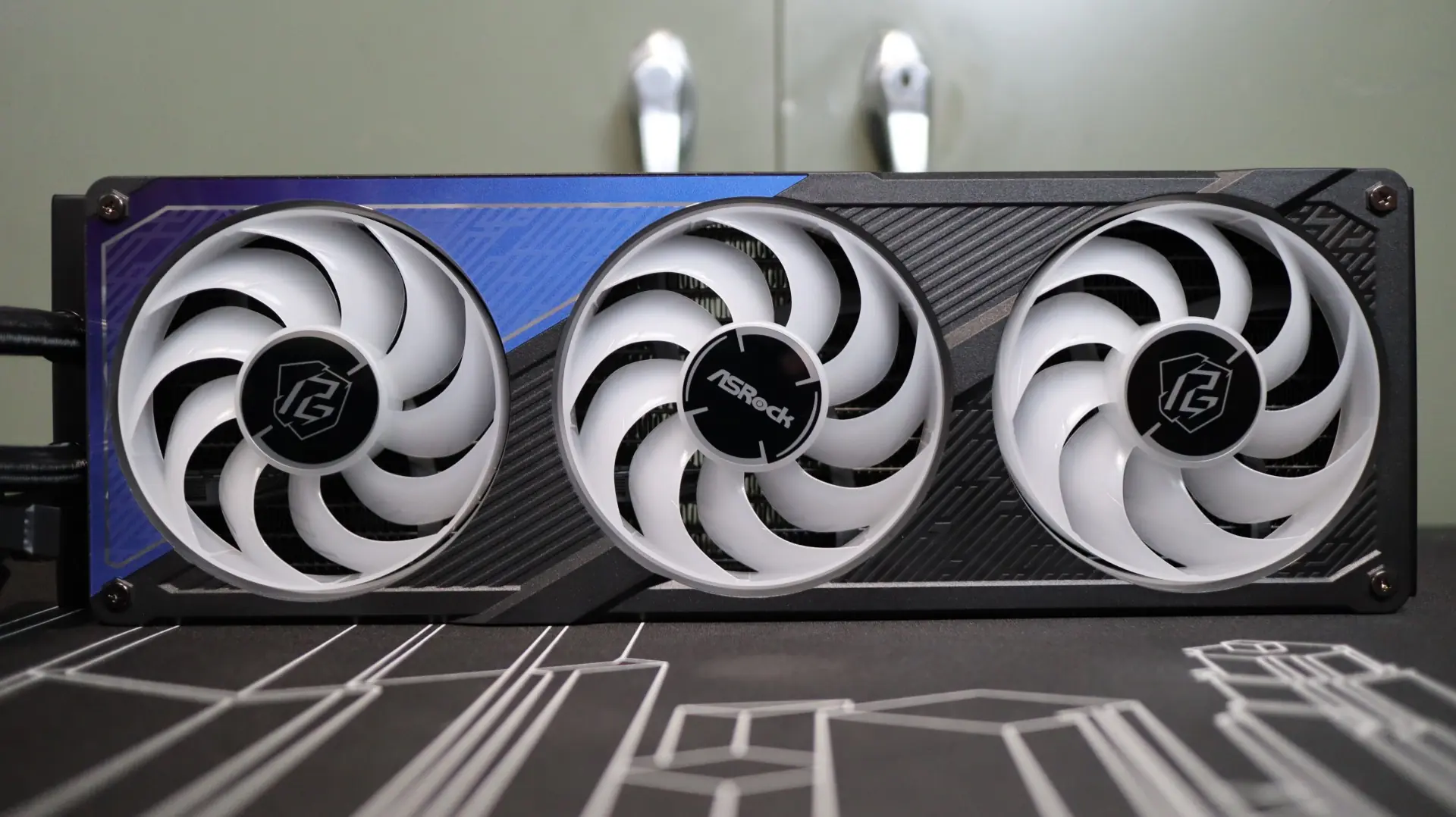
Like most AIOs, the installation of the be Phantom Gaming 360 LCD is a very straightforward process. As DIY PC building seems to be getting more popular each and every day, the option of AIO liquid coolers is sure to entice those wanting to have a more advanced build, and easy installation will go a long way towards not scaring off first-time builders. As I mentioned when I covered the included accessories, ASRock has included all of the necessary mounting hardware for modern AMD and Intel platforms, as well as a physical installation guide. We are seeing more companies move to digital versions of their product manuals, and while I appreciate their reduced waste, I still prefer a physical copy of installation instructions.
Our testing is performed with the fans in a push configuration, and since the PG 360 LCD comes with the 360mm fan array already attached to the radiator in that orientation, this is a step that we can skip.
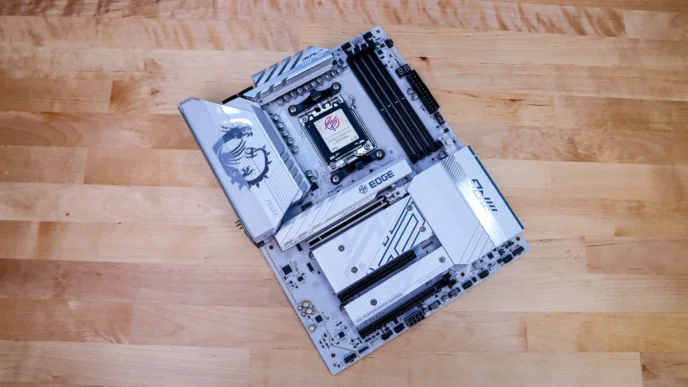
To make things a bit easier during installation, I recommend removing the pump housing display. Not only does this make the pump smaller and easier to work with, it also helps protect the LCD display from getting damaged by an errant screwdriver or other components. The PG 360 LCD comes with a universal mounting bracket that is used for both Intel and AMD installations, so there was not need to swap out any mounting hardware on the pump itself to support my Ryzen 7 7600X test system. The PG 360 LCD does not use the factory AMD mounting clips for securing the cooler to the motherboard, so I did have to remove the plastic mounting blocks in order to secure the cooler to the motherboard. Instead, replacement blocks are attached to the board via the CPU backplate threads.
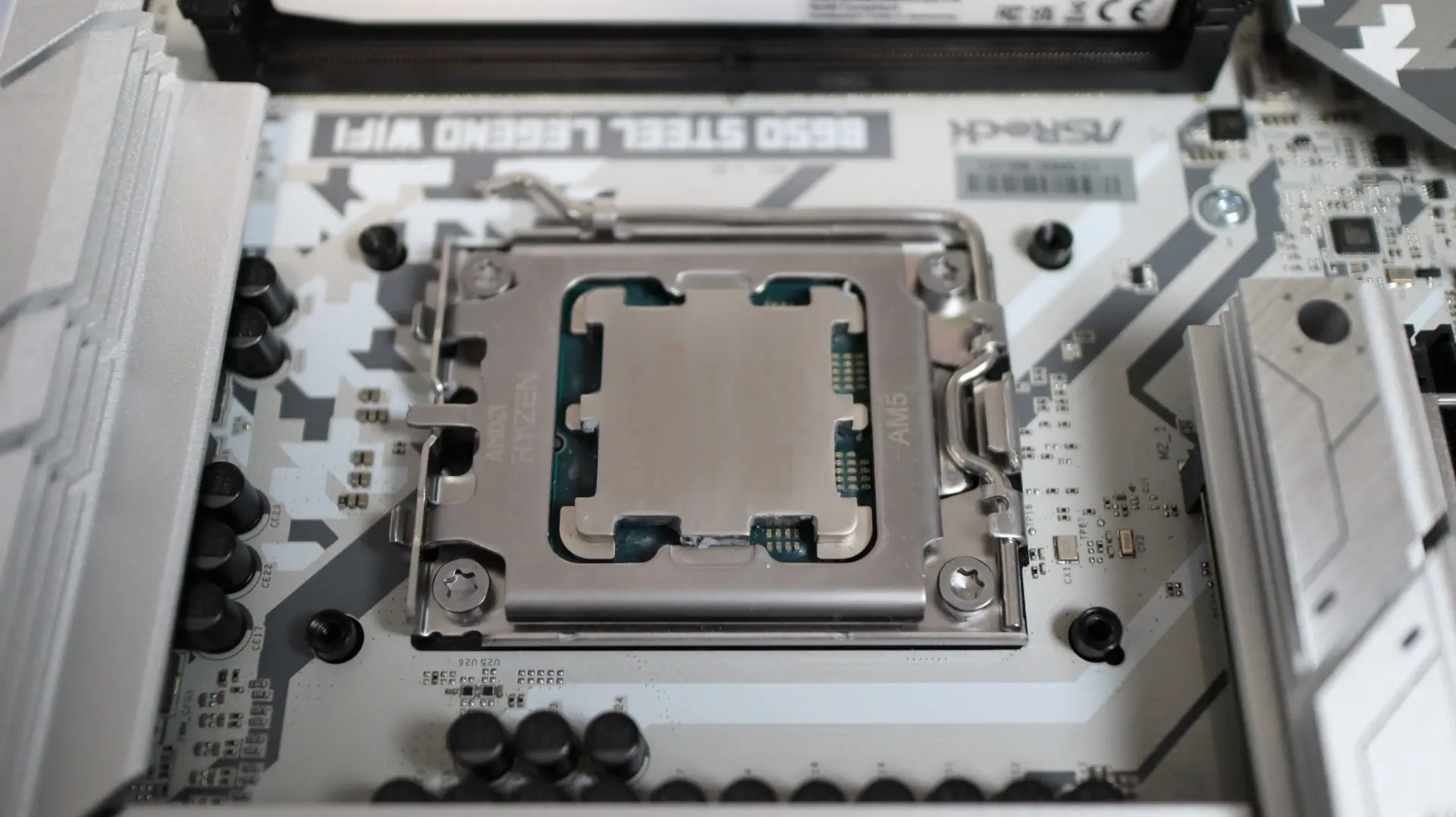
With these blocks in place and the universal bracket attached to the pump housing, the next step was to apply thermal paste to the CPU, line up the holes in the pump bracket with the motherboard blocks and place the block onto the CPU.
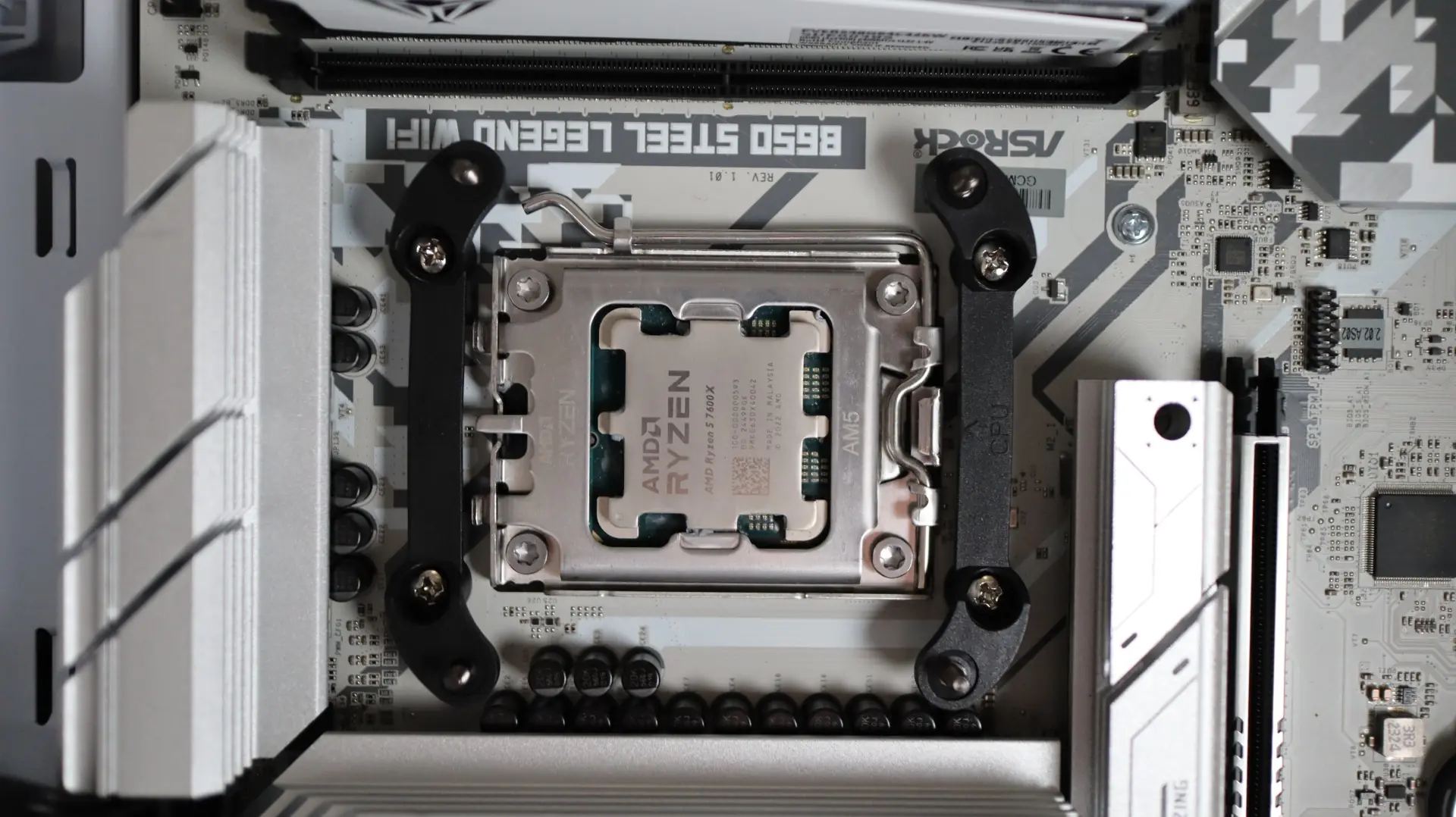
With the block in place, four crews were then tightened down onto the blocks to keep everything in place.
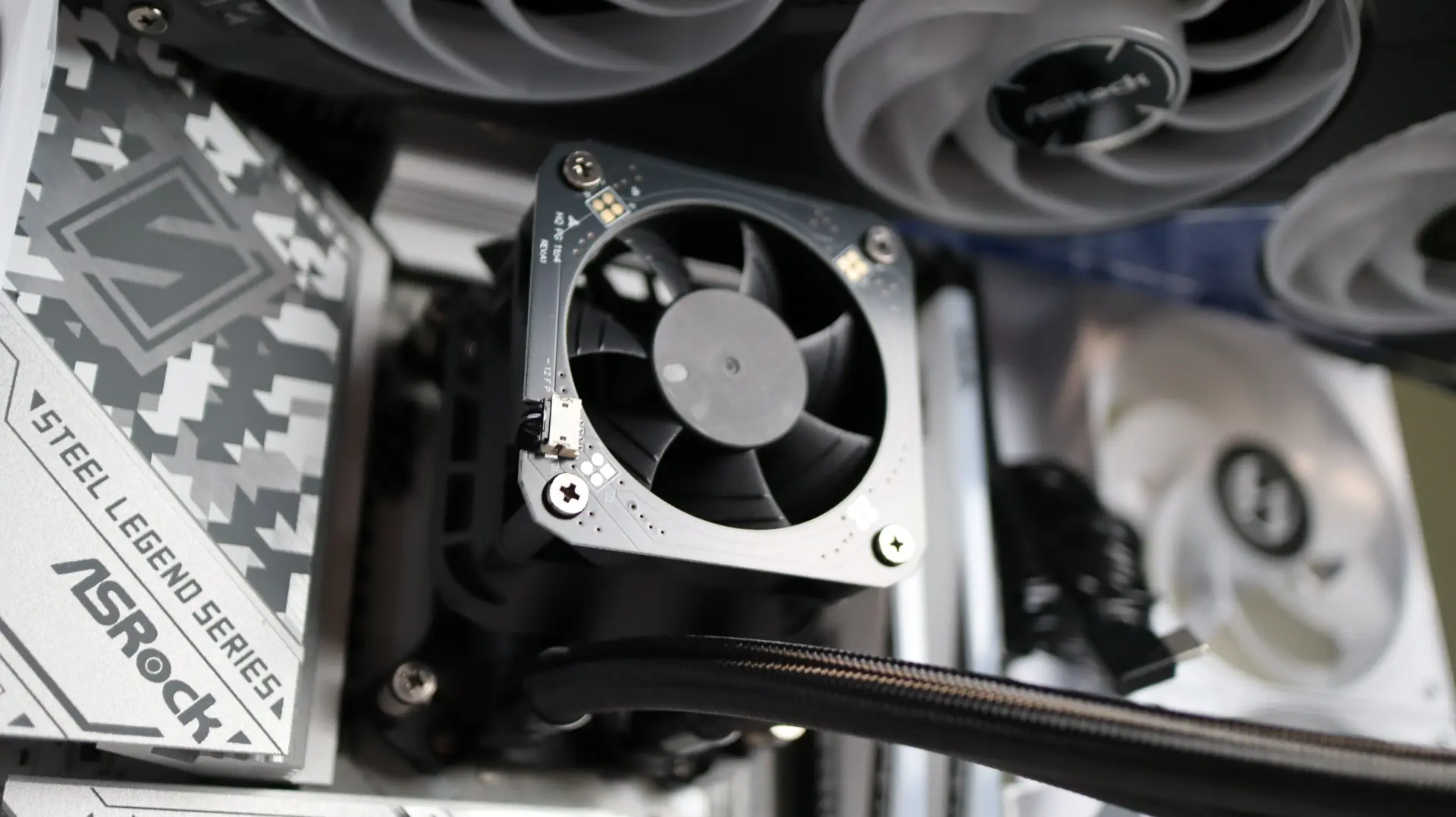
Next up is attaching the radiator to the top of our case. Using the twelve included screws, simply align them with the appropriate mounting points on your case, and tighten. I also made sure to thread the PWM and RGB cables from the fan through the cable openings in my case in preparation of wiring everything up.
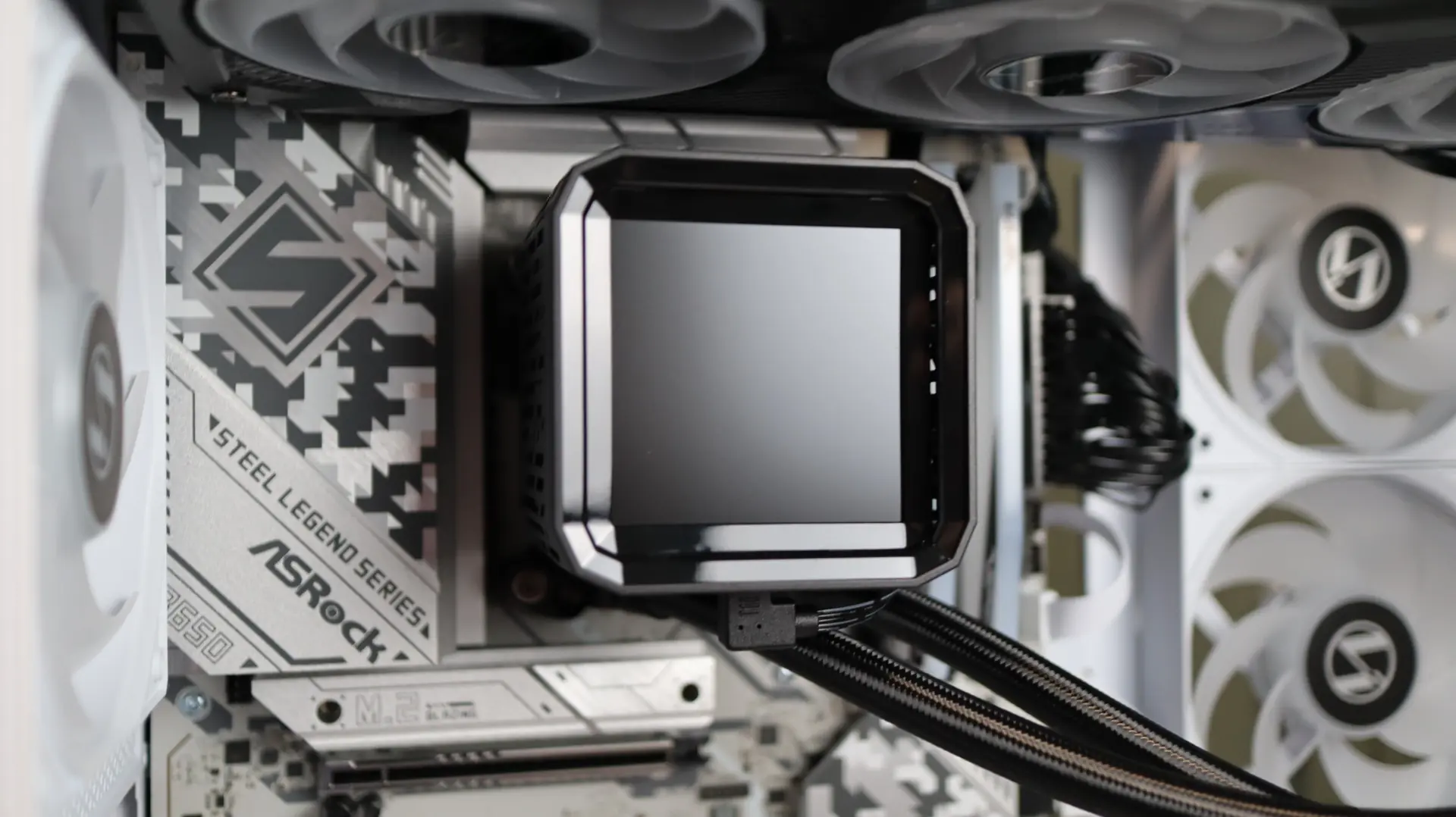
After reattaching the display onto the pump housing, next up was connecting the pump’s 4-pin PWM cable to my motherboard. Next was connecting the USB Type-C breakout cable to the display and routing the cable to the appropriate USB 2.0, PWM, and ARGB headers on the motherboard. Once that was finished it was time to fire up the system and get to testing.
Polychrome Display Software
The Phantom Gaming 360 LCD is fully compatible with ASRock’s Polychrome Display and Polychrome Sync applications for AIO control. Polychrome Sync is used to control all of the ARGB lighting on the pump and fan, while Polychrome Display is used to control the 3.4″ LCD display, and that is what we will be focusing on here. That said, neither of these applications is used to control the pump or fan, and you will need to utilize yet another application or discreet controller to adjust those settings.
Overview
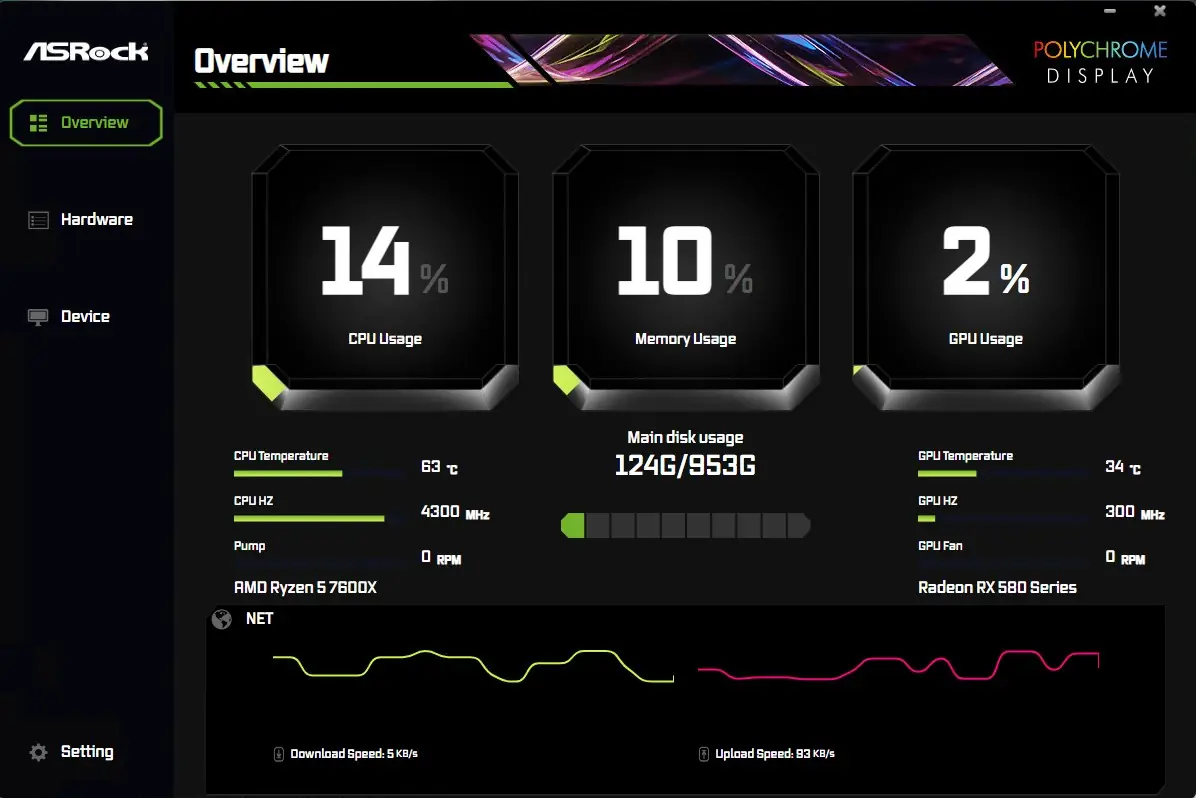
The Overview menu gives a Task Manager-esque display of CPU, Memory, and GPU usage, as well as some temperature information, storage capacity, and network utilization. Of note on this screen is that I could not get the pump speed to display in this application or on the AIO display. While other applications like Fan Speed and AIDA64 were able to read the speed of this motherboard header, Polychrome Display was unable to show it. It is most likely that this reading is configured to use a certain motherboard header that I am not using, but this should be something that can be configured via software.
Hardware
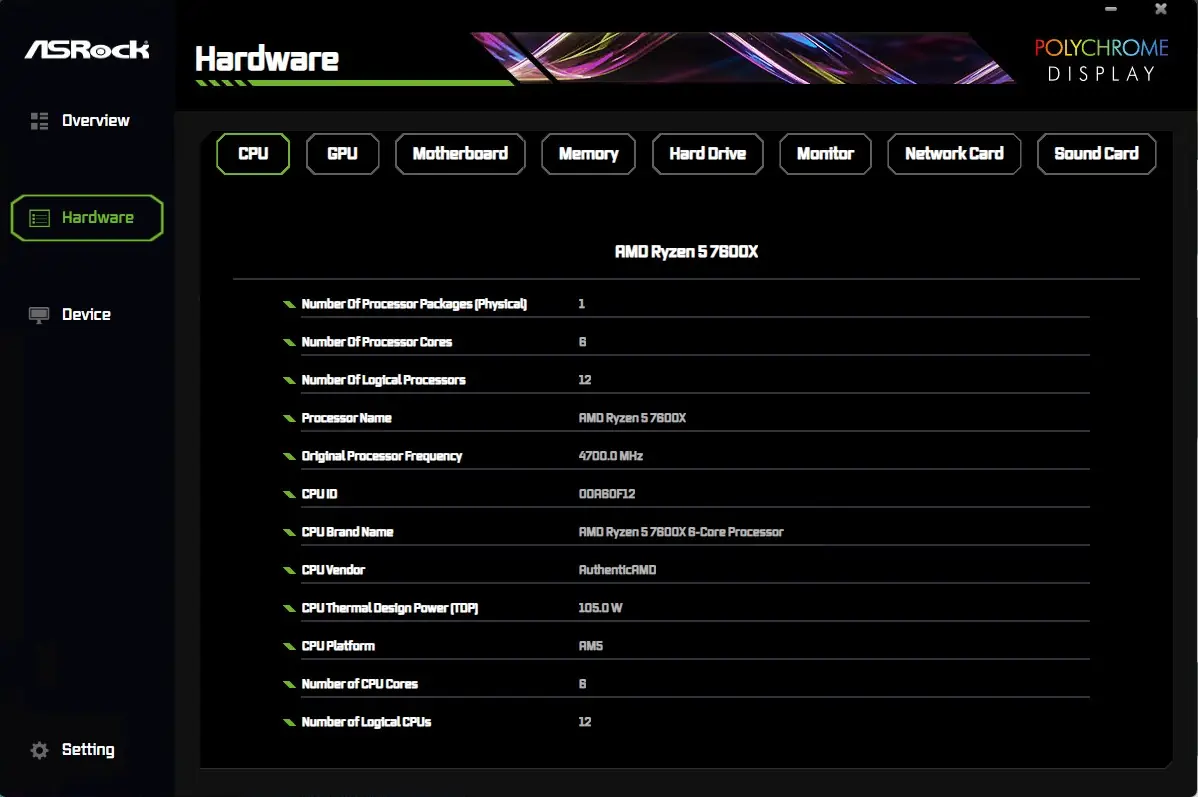
The Hardware menu shows more detailed information of your system components, separated by additional tabs at the top. This is a nice collection of system information in one location.
Device
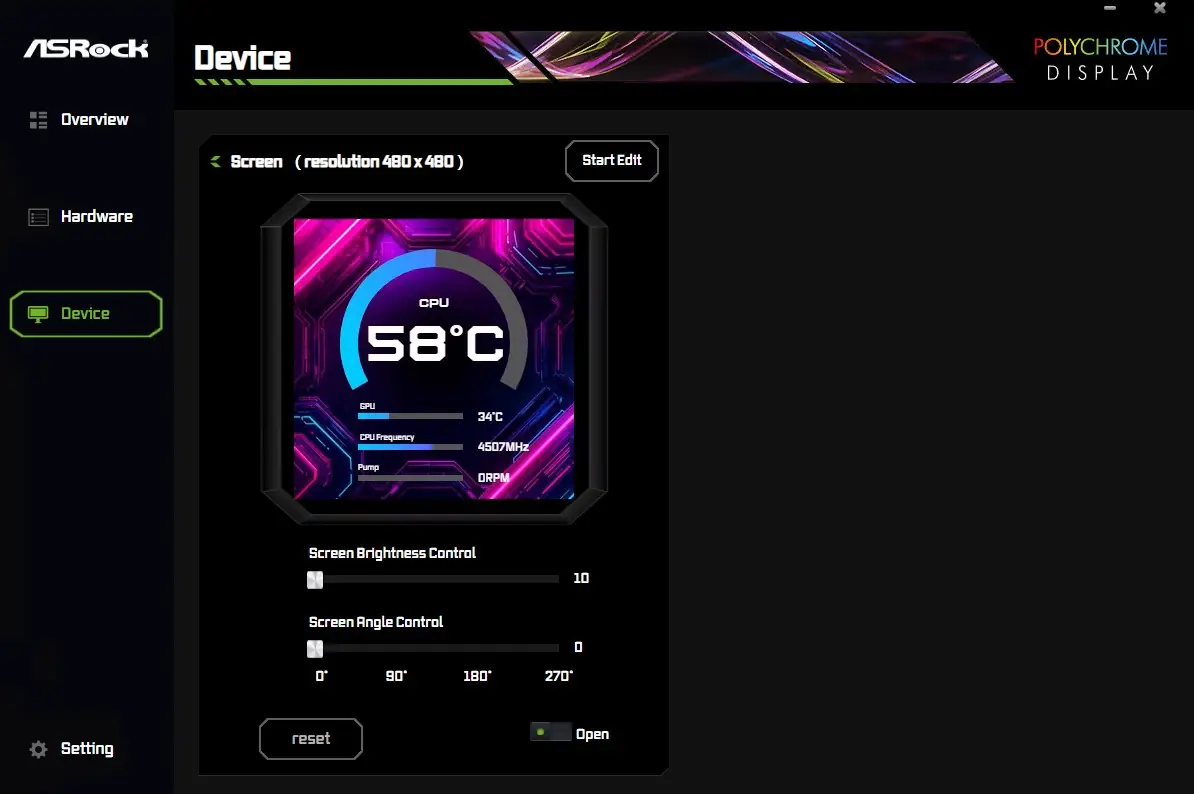
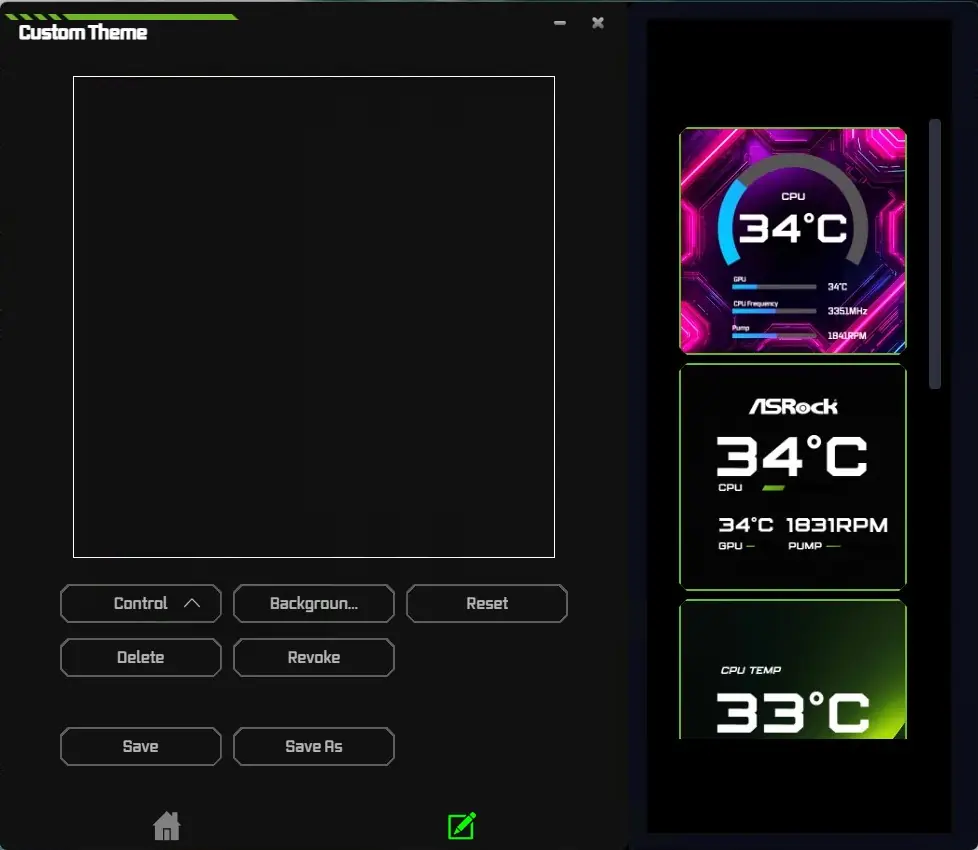
The Device menu is where you can adjust the LCD display of the Phantom Gaming 360 LCD. There are six pre-configured designs that you can choose from, and you can also create your own with custom backgrounds, text, and imagery. While the screen does support images and gifs, video files are limited to just 20MB in size, and must be 1080p or smaller. You can also import custom themes or export your own designs to shar with others.
Gallery
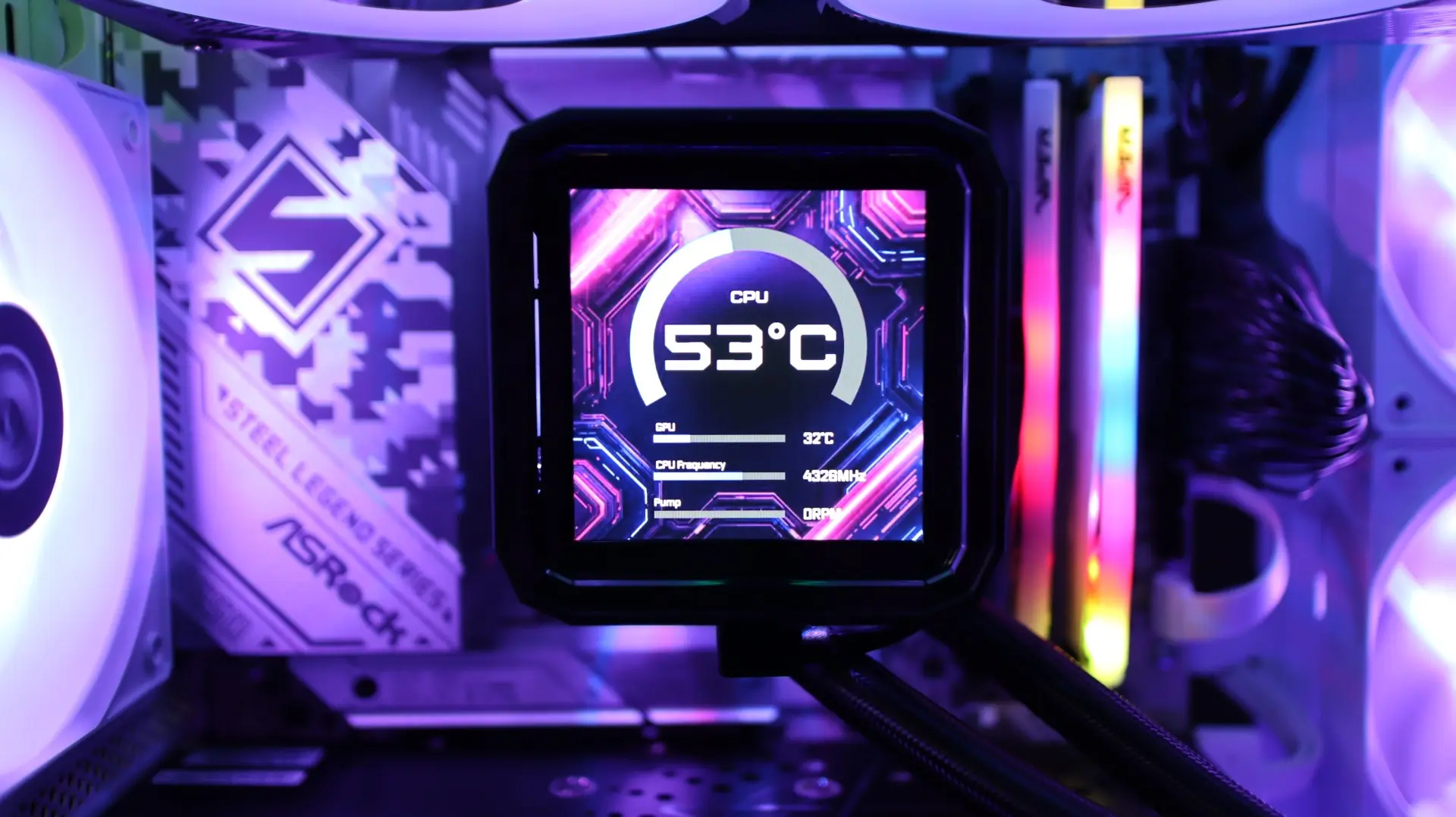
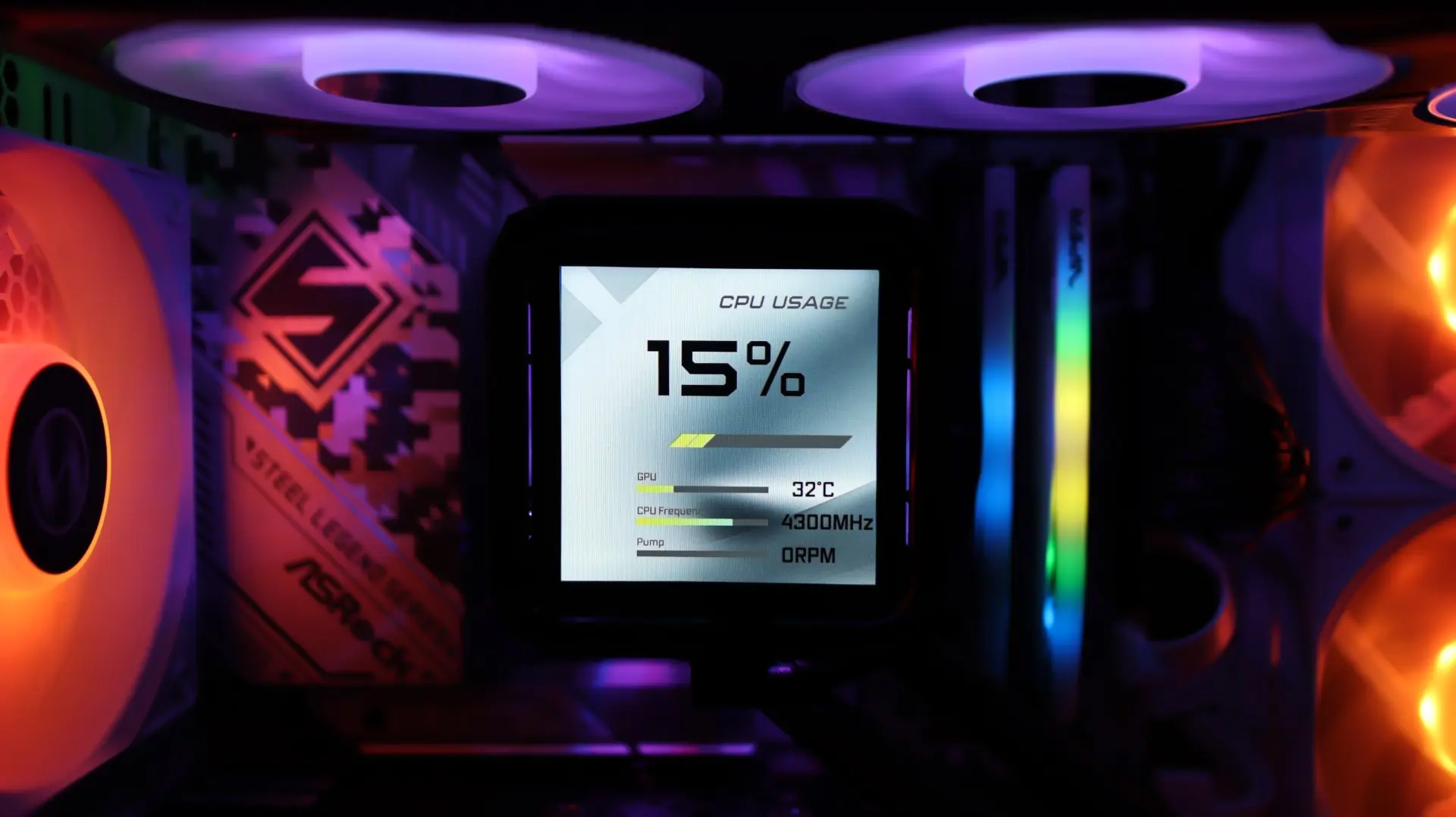
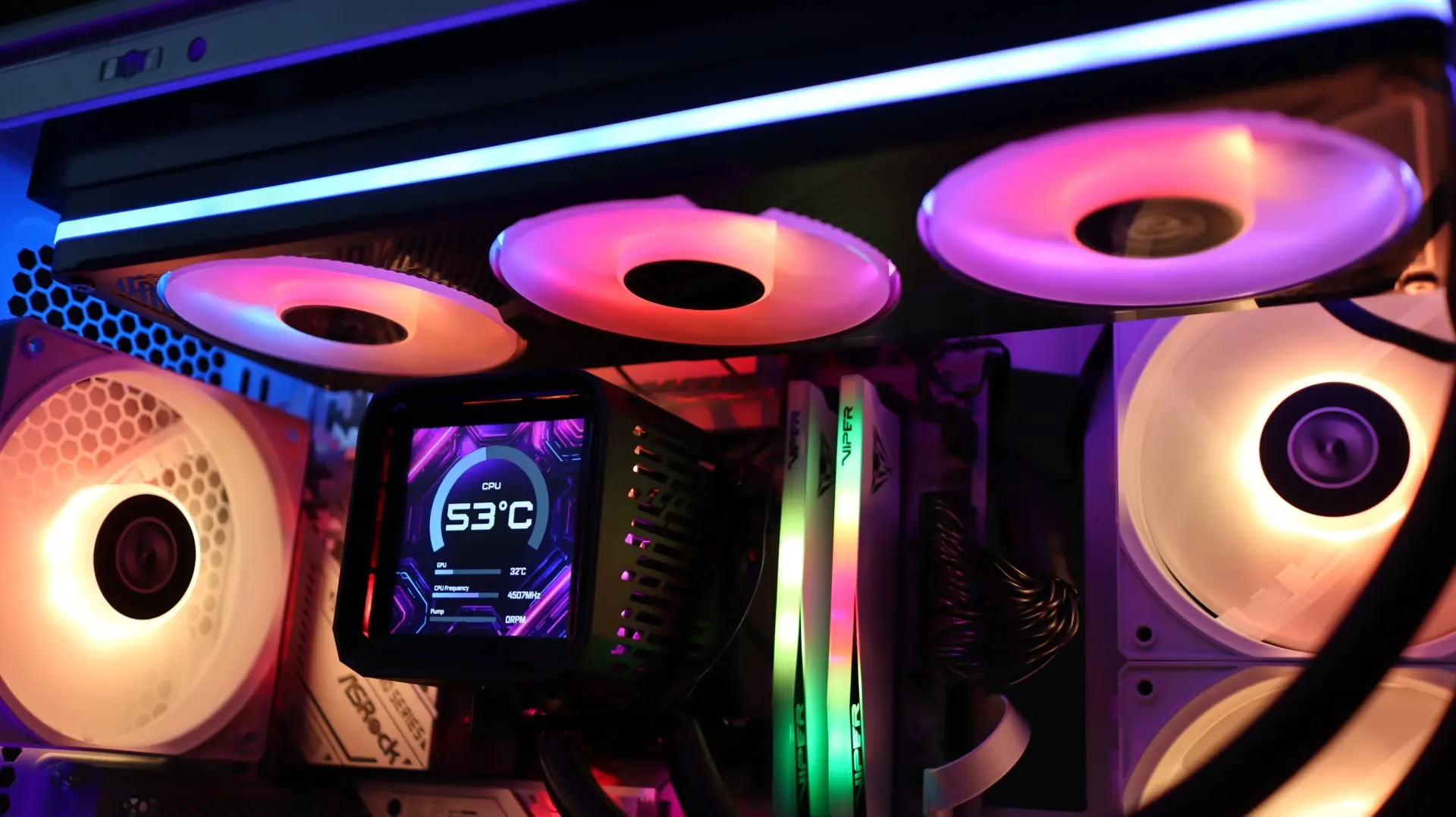
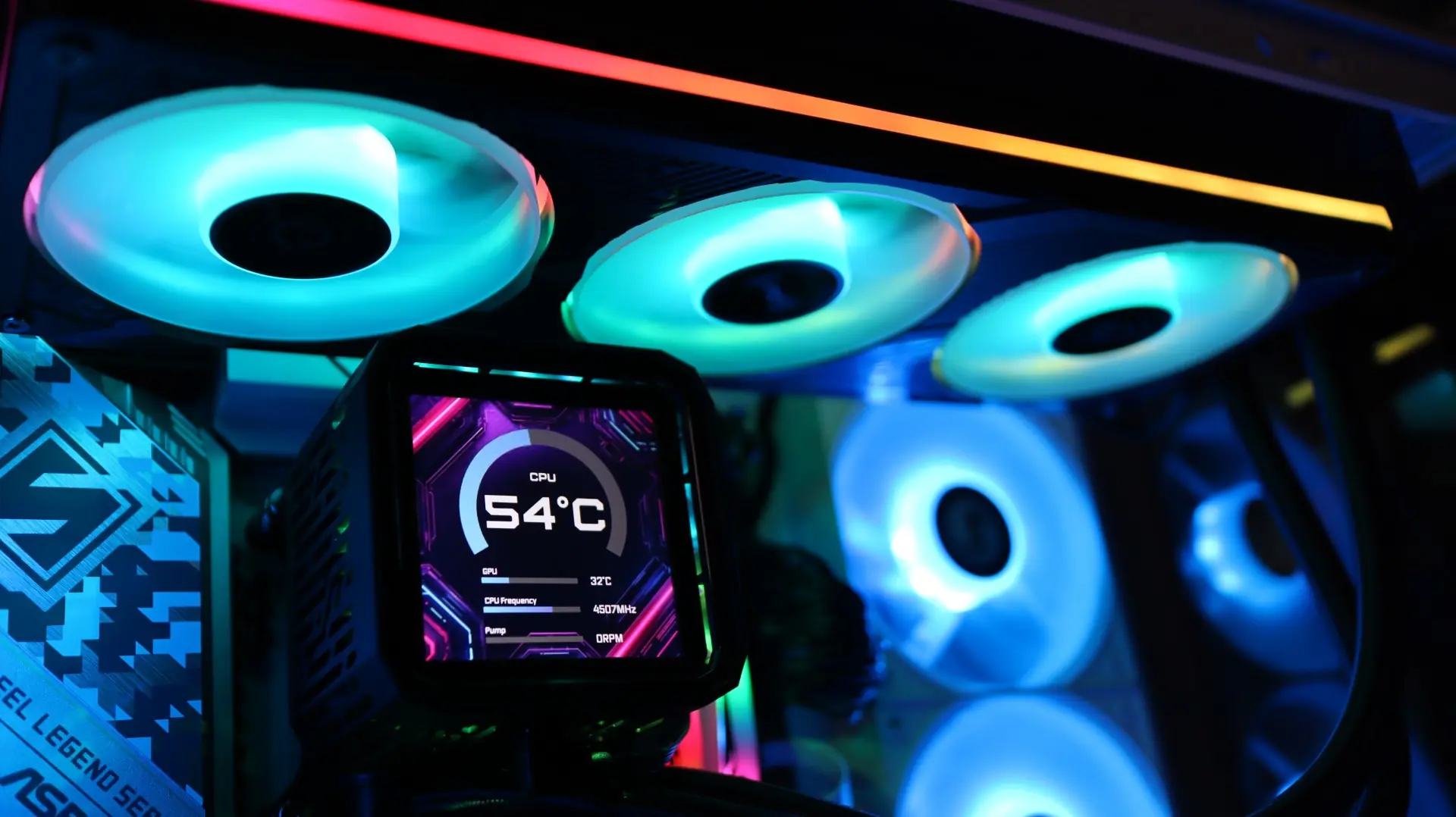
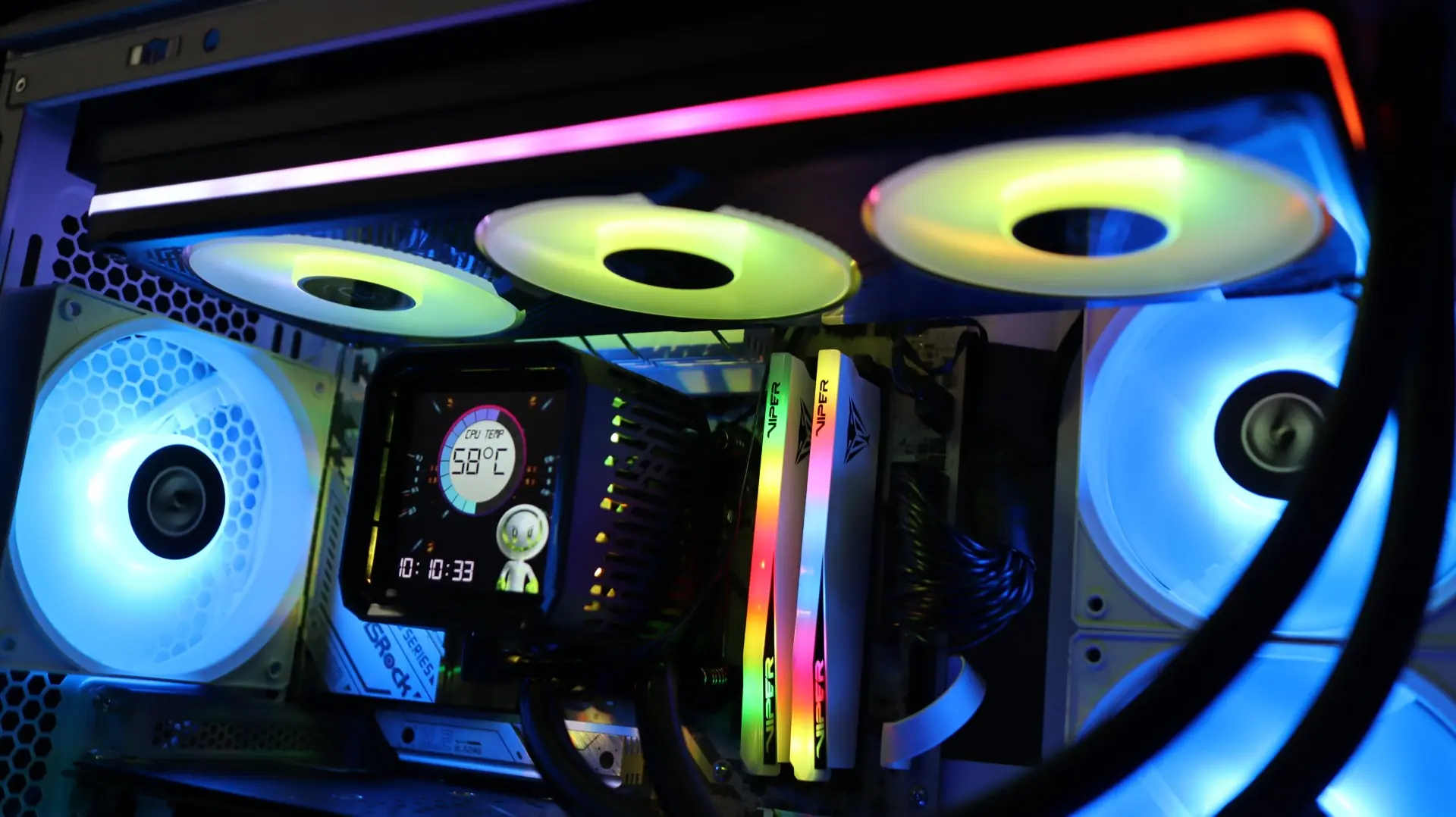
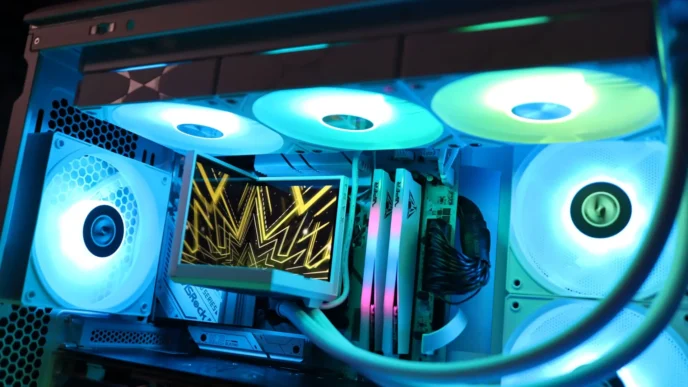
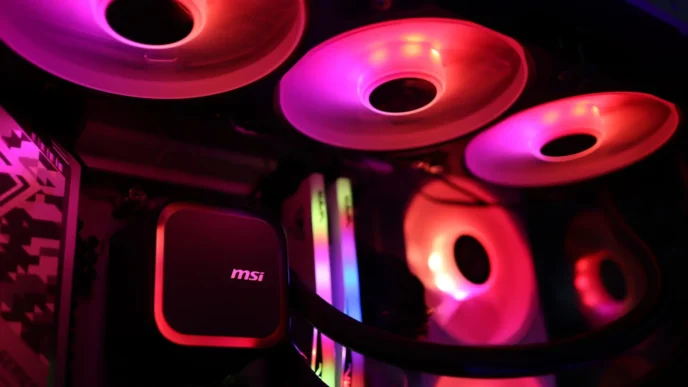
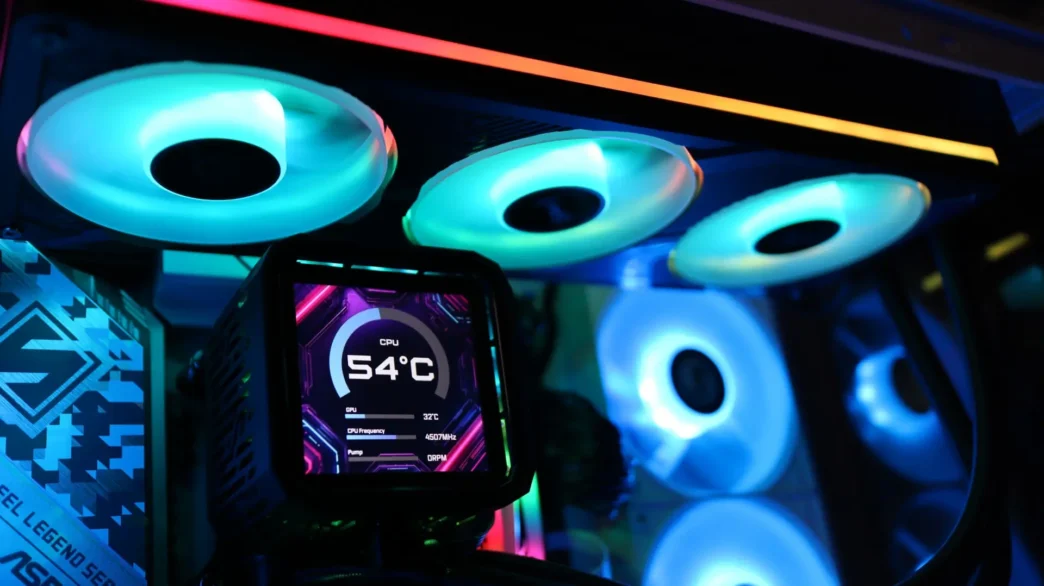
Here are a few shots of the ASRock Phantom Gaming 360 LCD up and running.