Lighting on the ASUS ROG Maximus Z890 Hero Motherboard
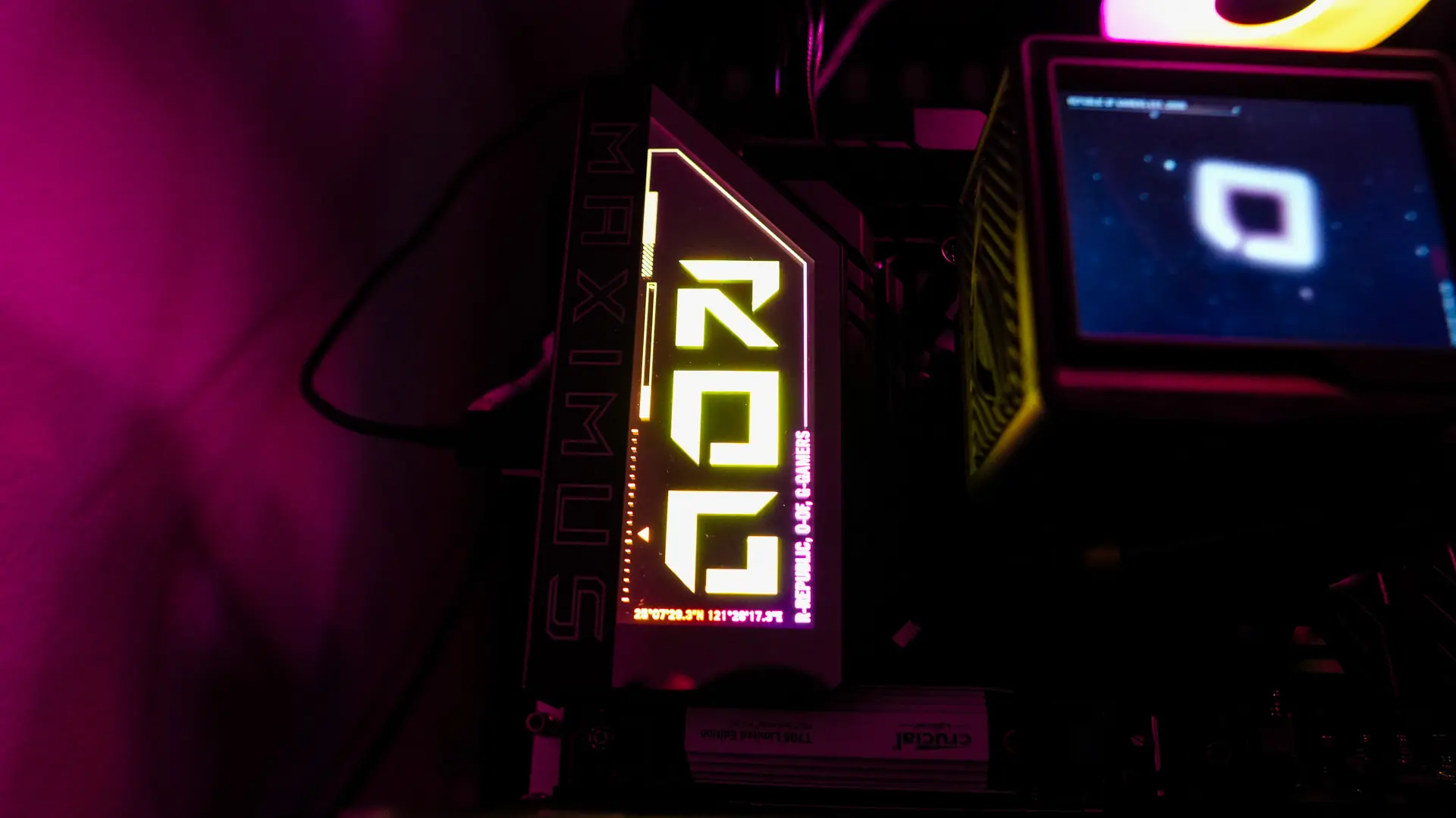
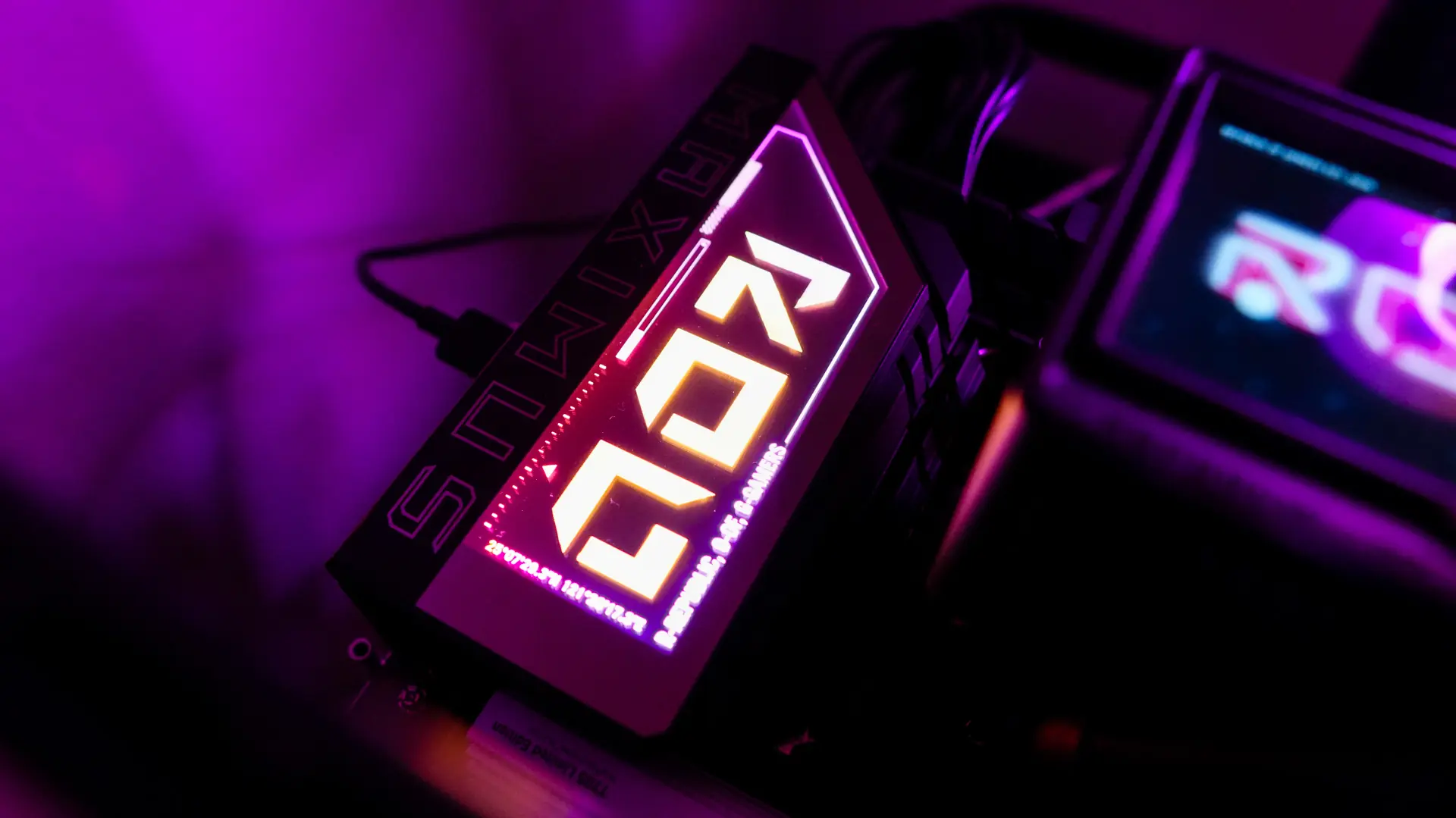
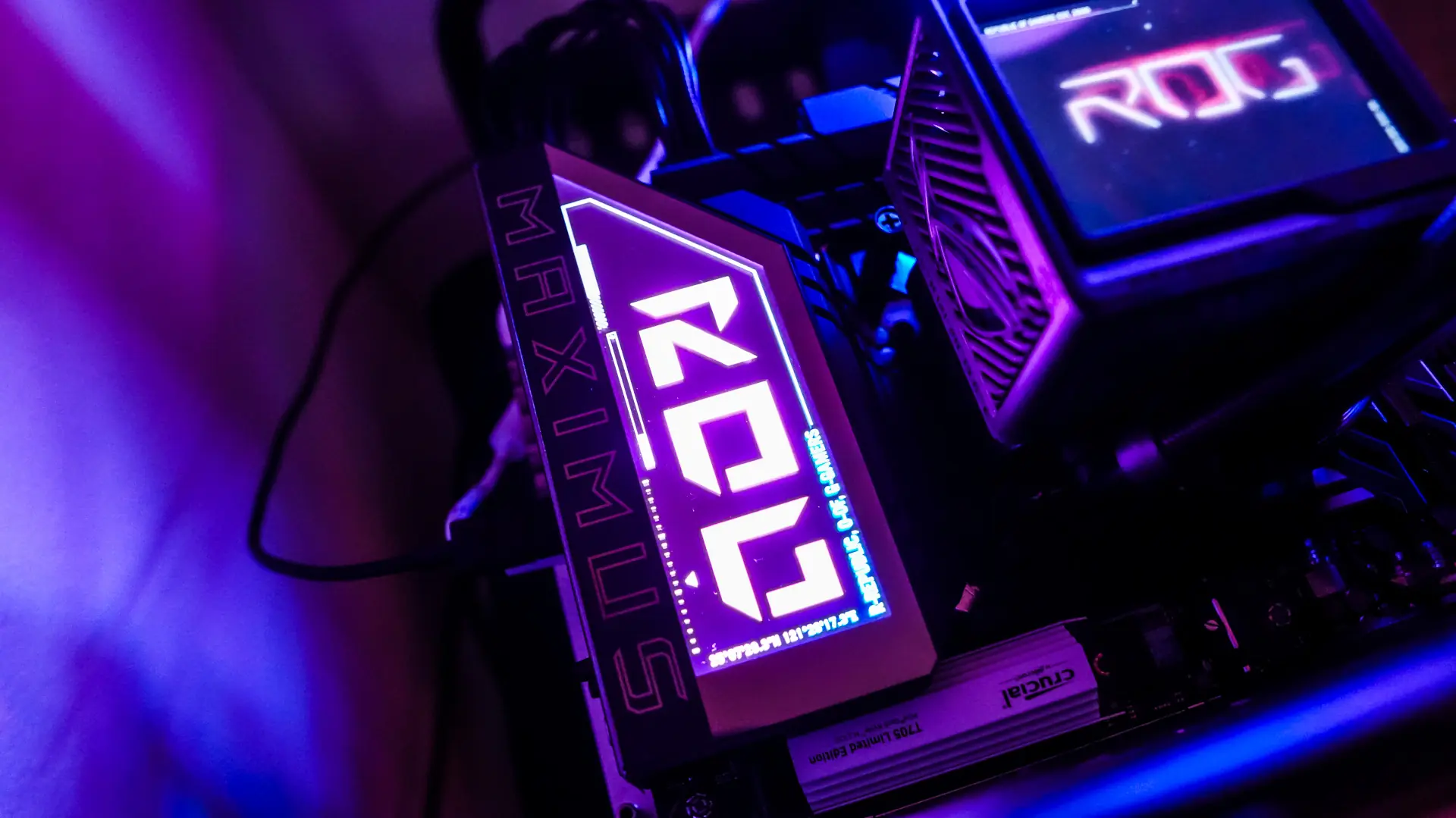
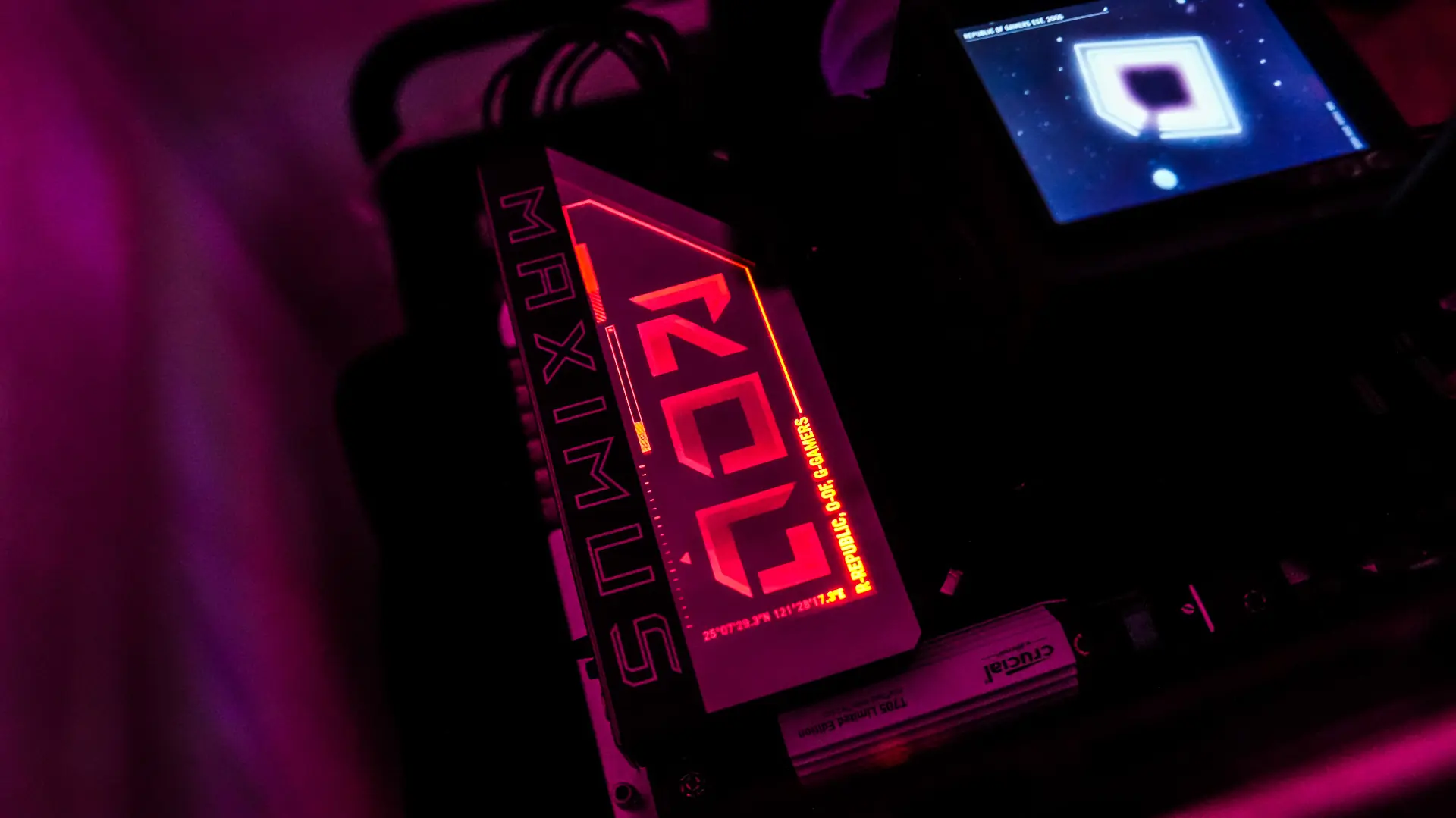
The only lighting you are going to find on the ROG Maximus Z890 Hero is going to be the Polymo II lighting on the I/O cover. It essentially shows a large ROG logo and then the lighting behind it can be configured.
ASUS ROG Maximus Z890 Hero Motherboard Companion Software
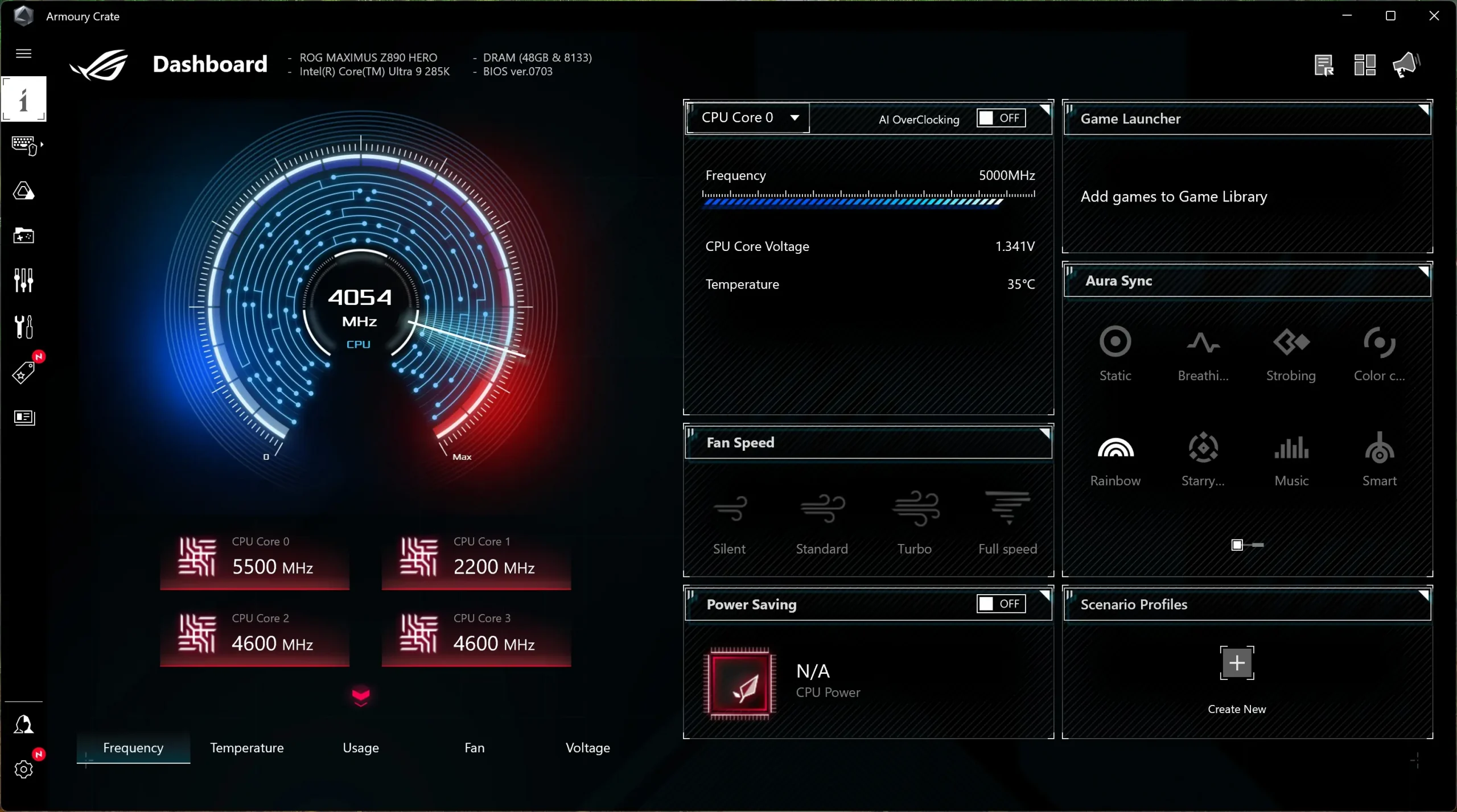
Like most ASUS products these days your companion software is going to be Armoury Crate. When you first open it up you are going to get an overview of your system with the ability to cycle through frequency, temperature, usage, fans, and voltages.
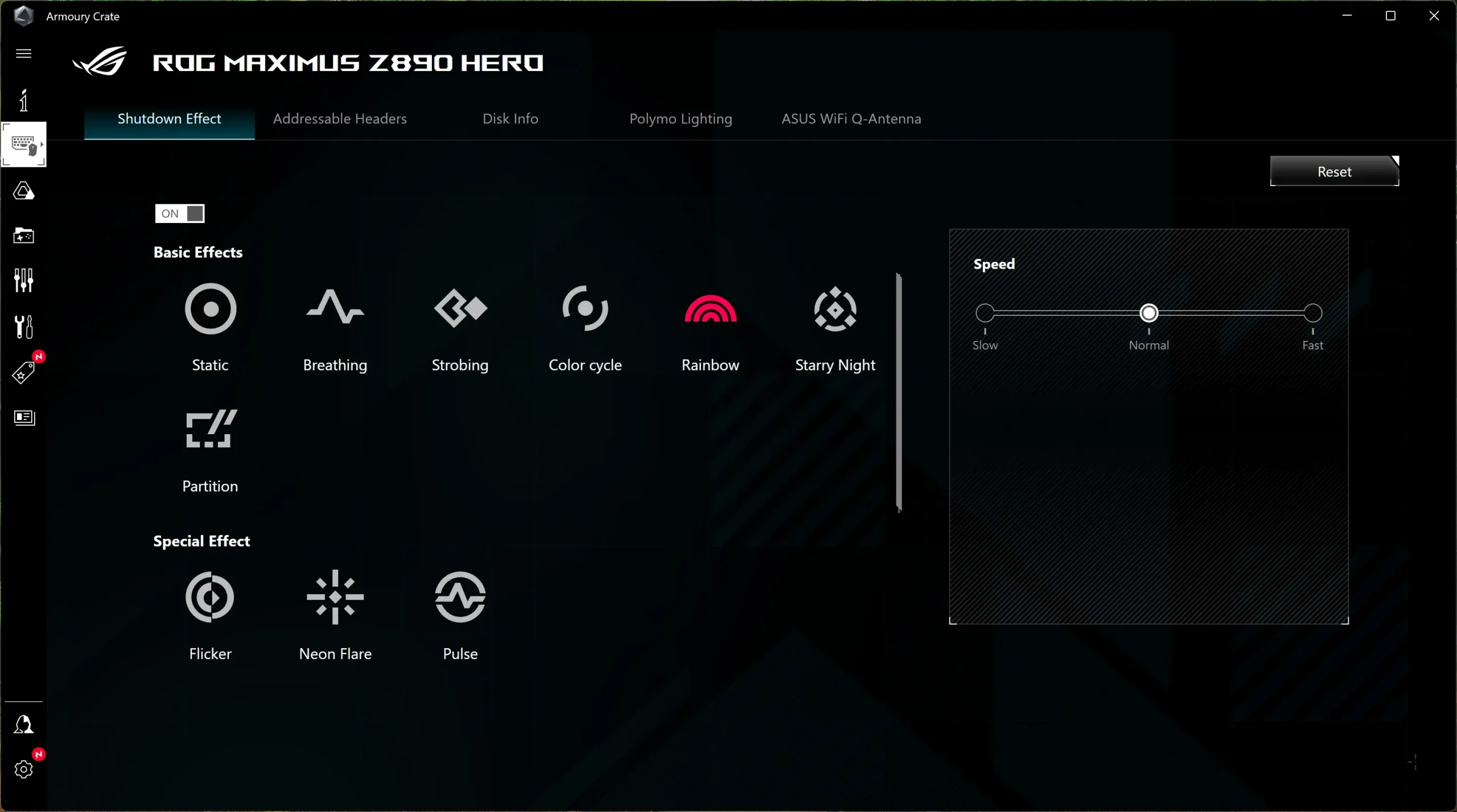
When we actually go into the settings for the motherboard itself we have a few options. First is to set the shutdown effect, thus will keep the lighting on the board and headers on when you power your system off. You can of course completely disable it.
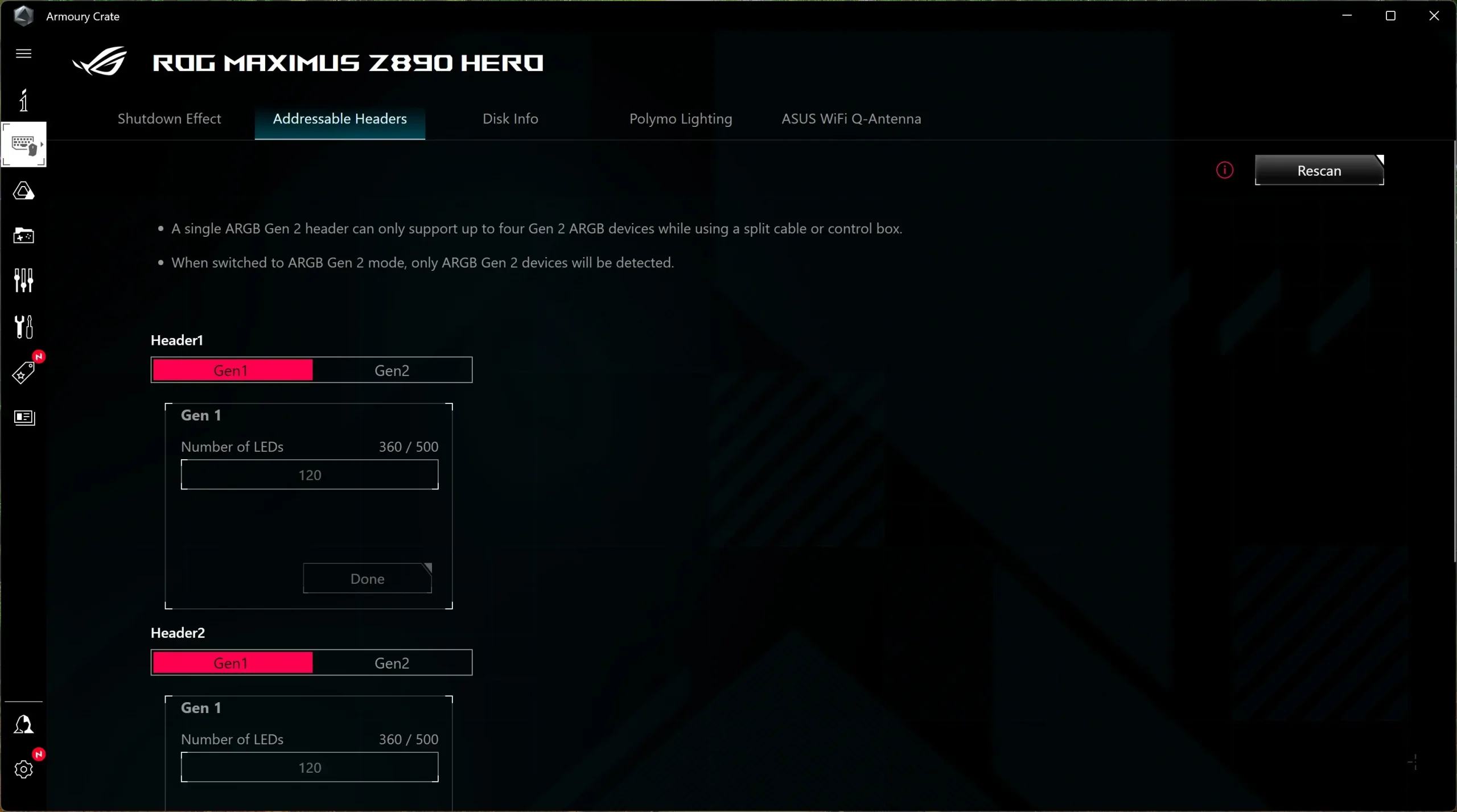
The next tab is for the addressable RGB headers.
After that we have Disk Info which will give us information on the drives we have installed.

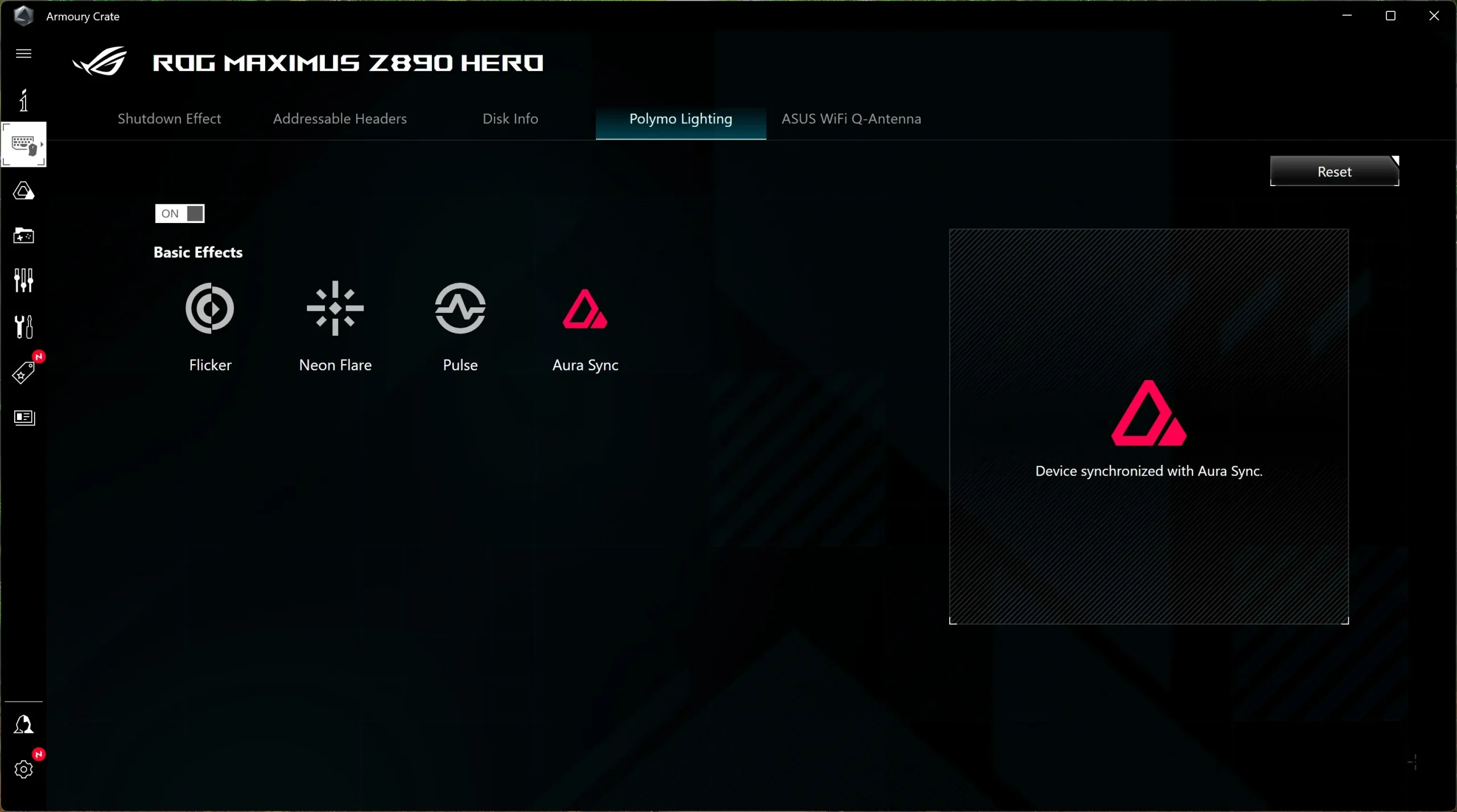
Polymo Lighting allows you to set the effects for the Polymo Lighting section of the motherboard.
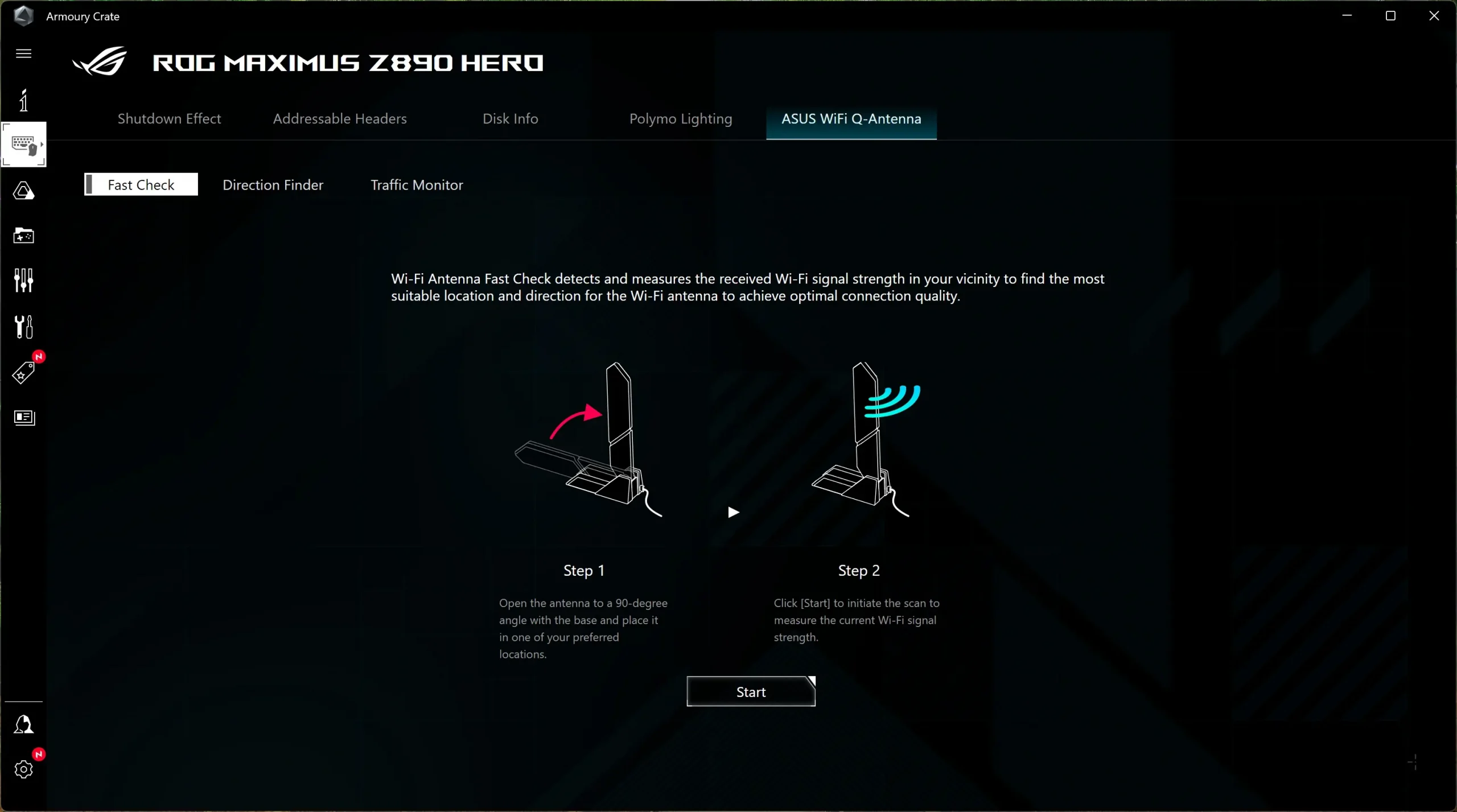
WiFi Q-Antenna is where you can do a speed check on your WiFi connection, run the direction finder, and it has a traffic monitor as well.
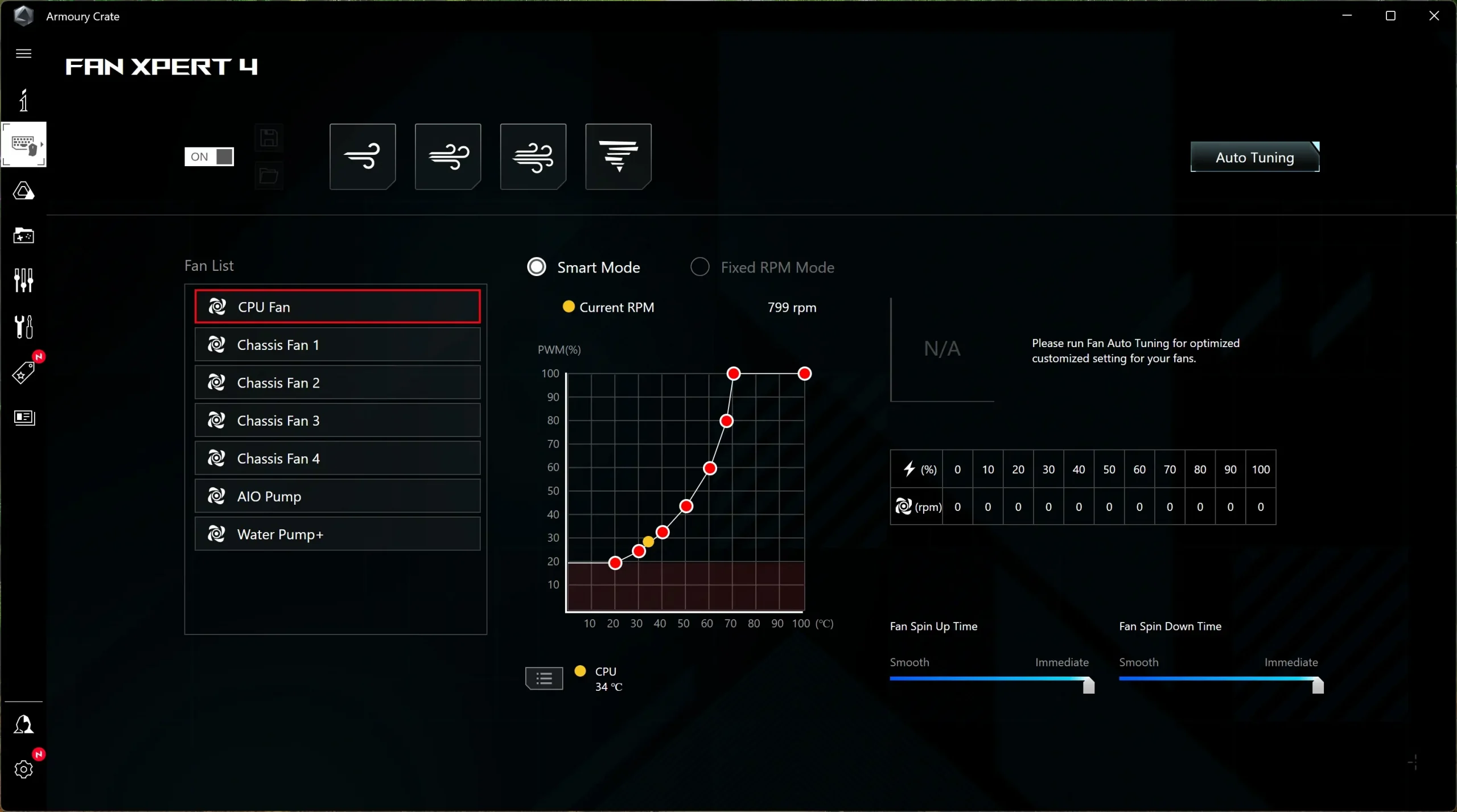
Also Fan Xpert 4 is in the Armoury Crate, which allows you to configure each fan header on the board as well as auto-tune your fans.