Installing the Enermax ETS-TD60 Digital CPU Cooler
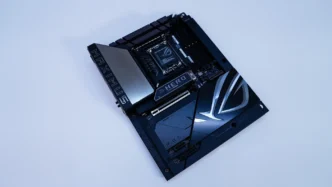
We will be installing the ETS-TD60 Digital on an AMD X870 motherboard so this installation will be for the AM5 socket.
The first thing you are going to want to do is remove the AM5 mounting brackets that are on your motherboard. You will keep the backplate in place though.
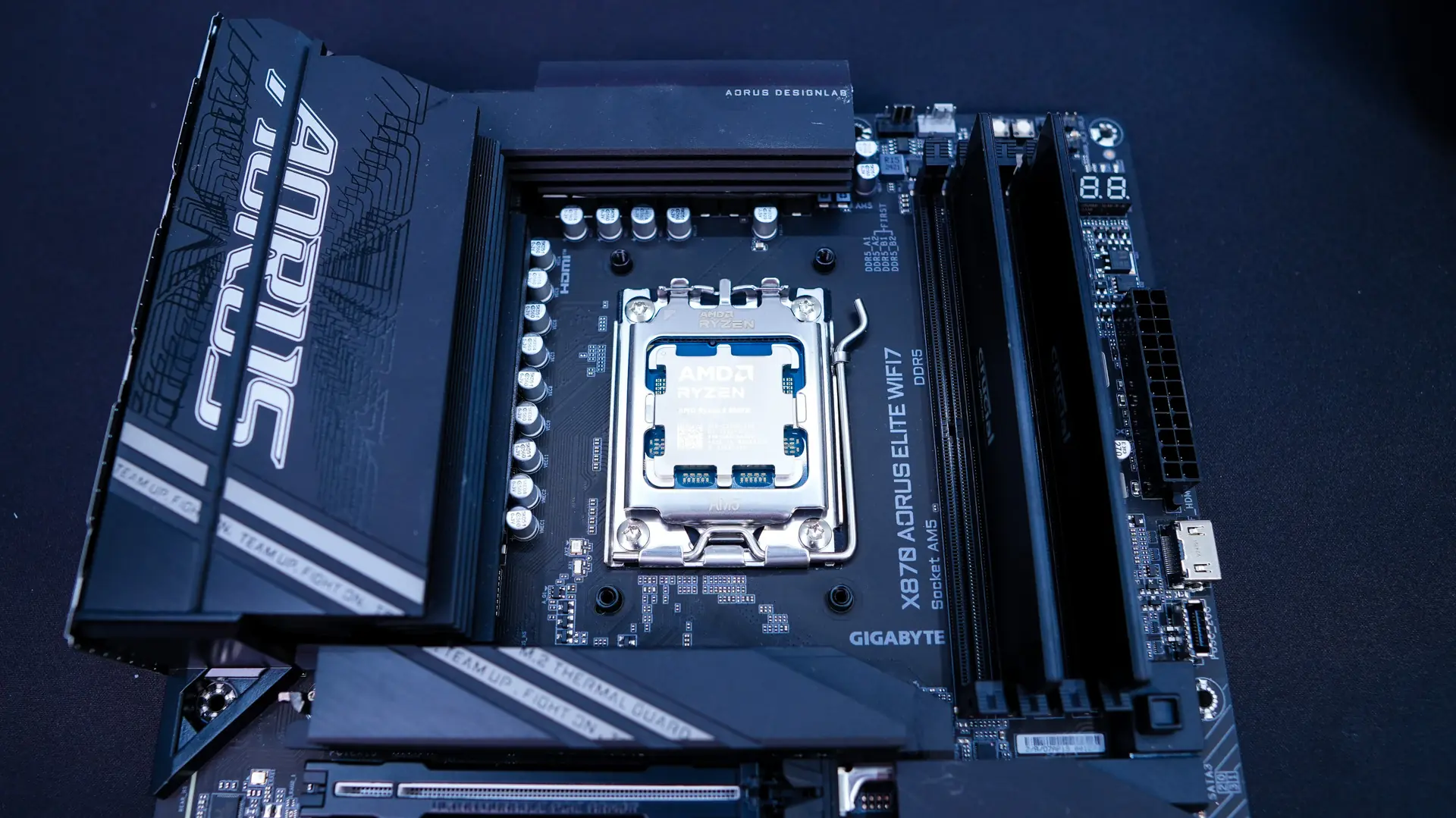
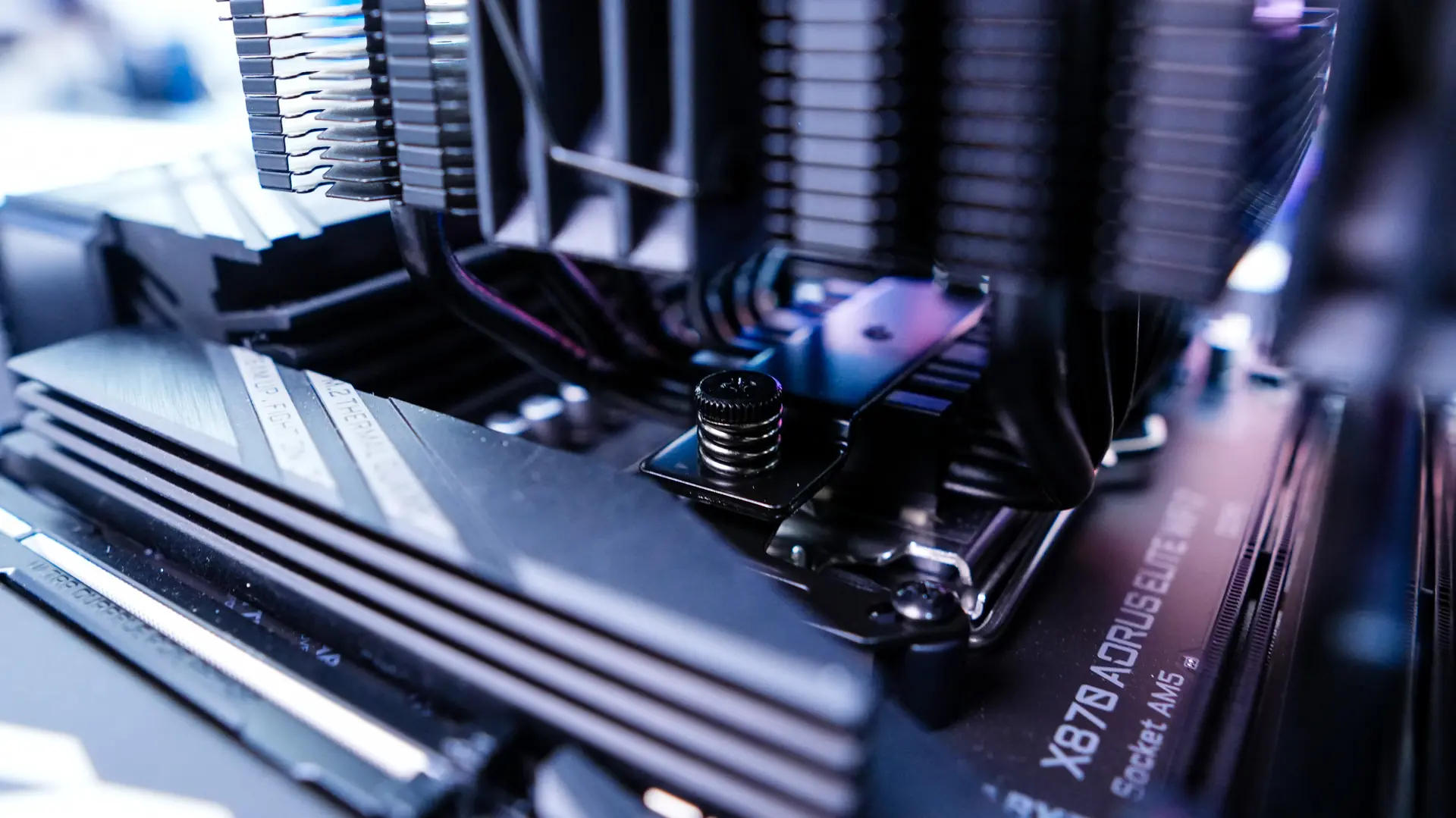
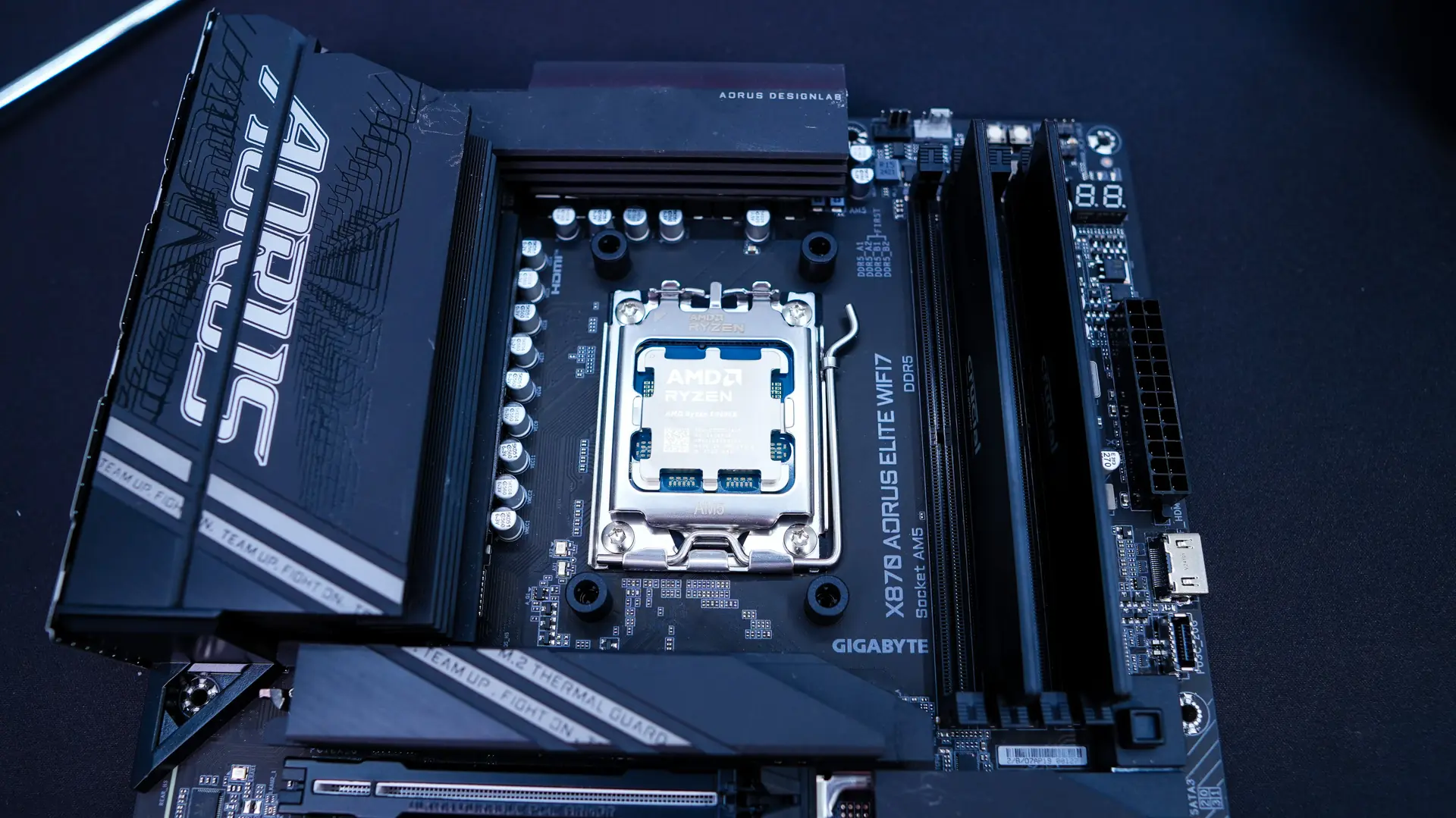
Next take the AMD spacers and place them on the pegs from the AM5 backplate. From there install the AMD brackets. These need to be installed on the top and bottom of the socket and can only be installed that way.
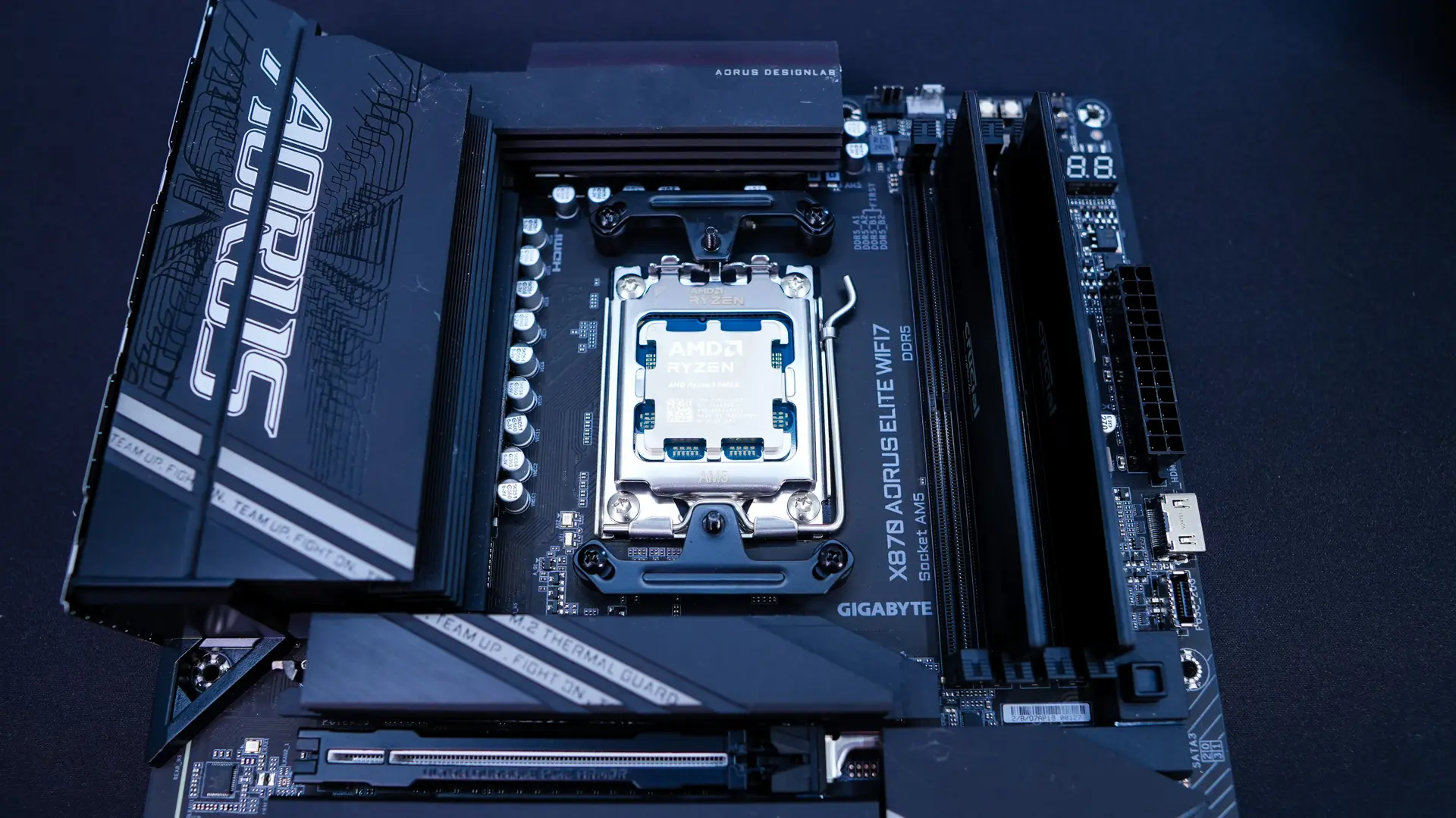
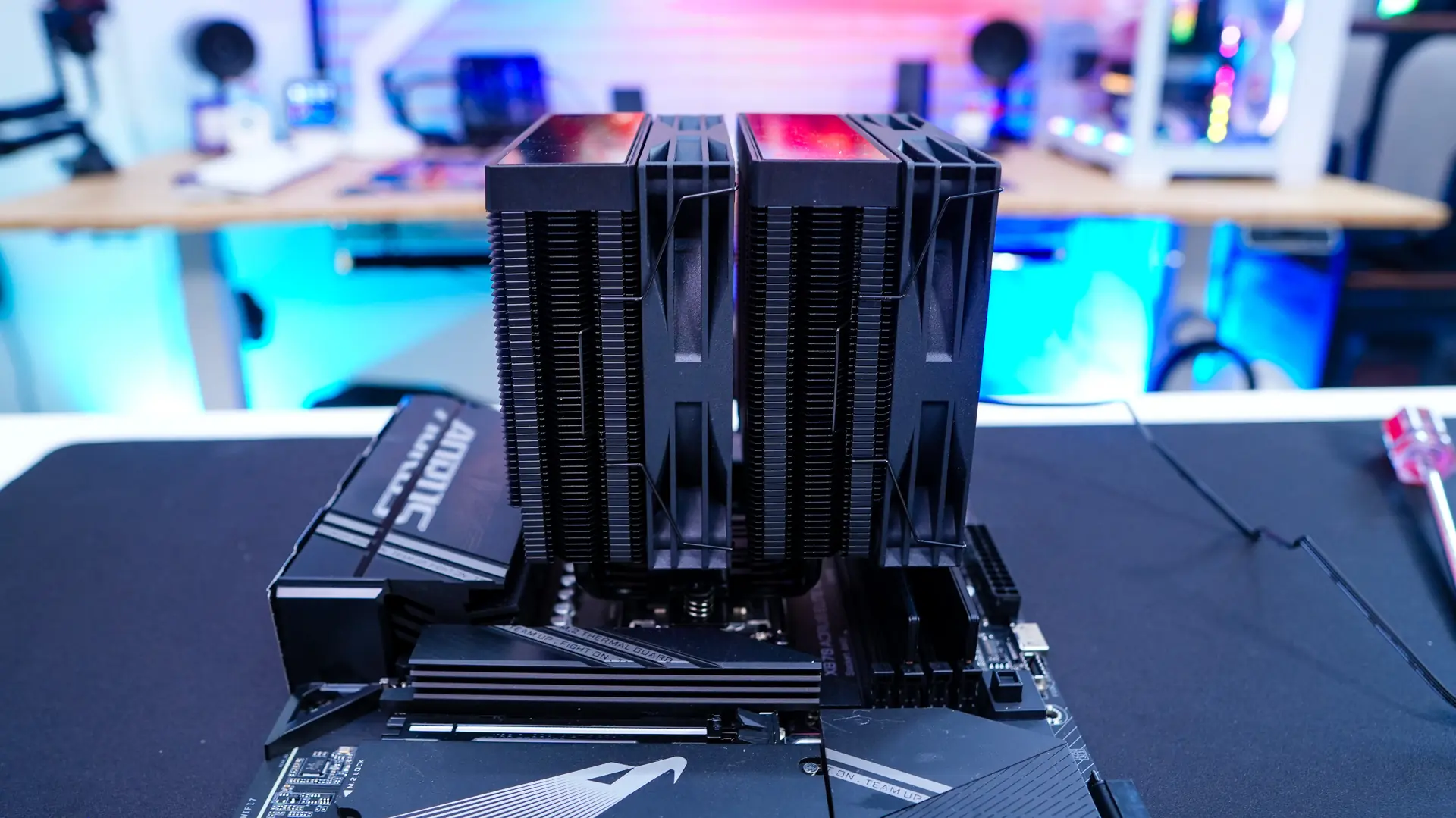
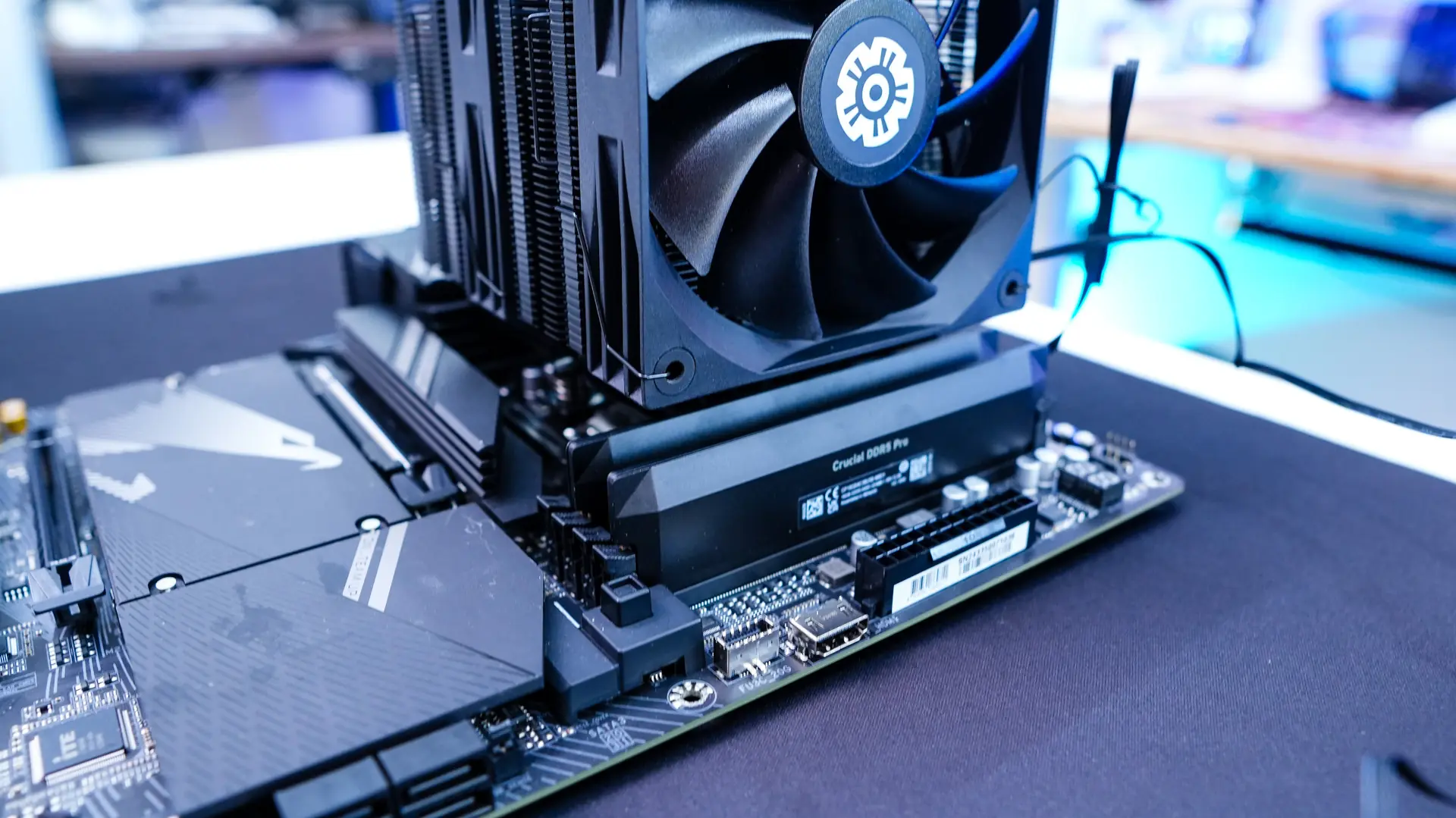
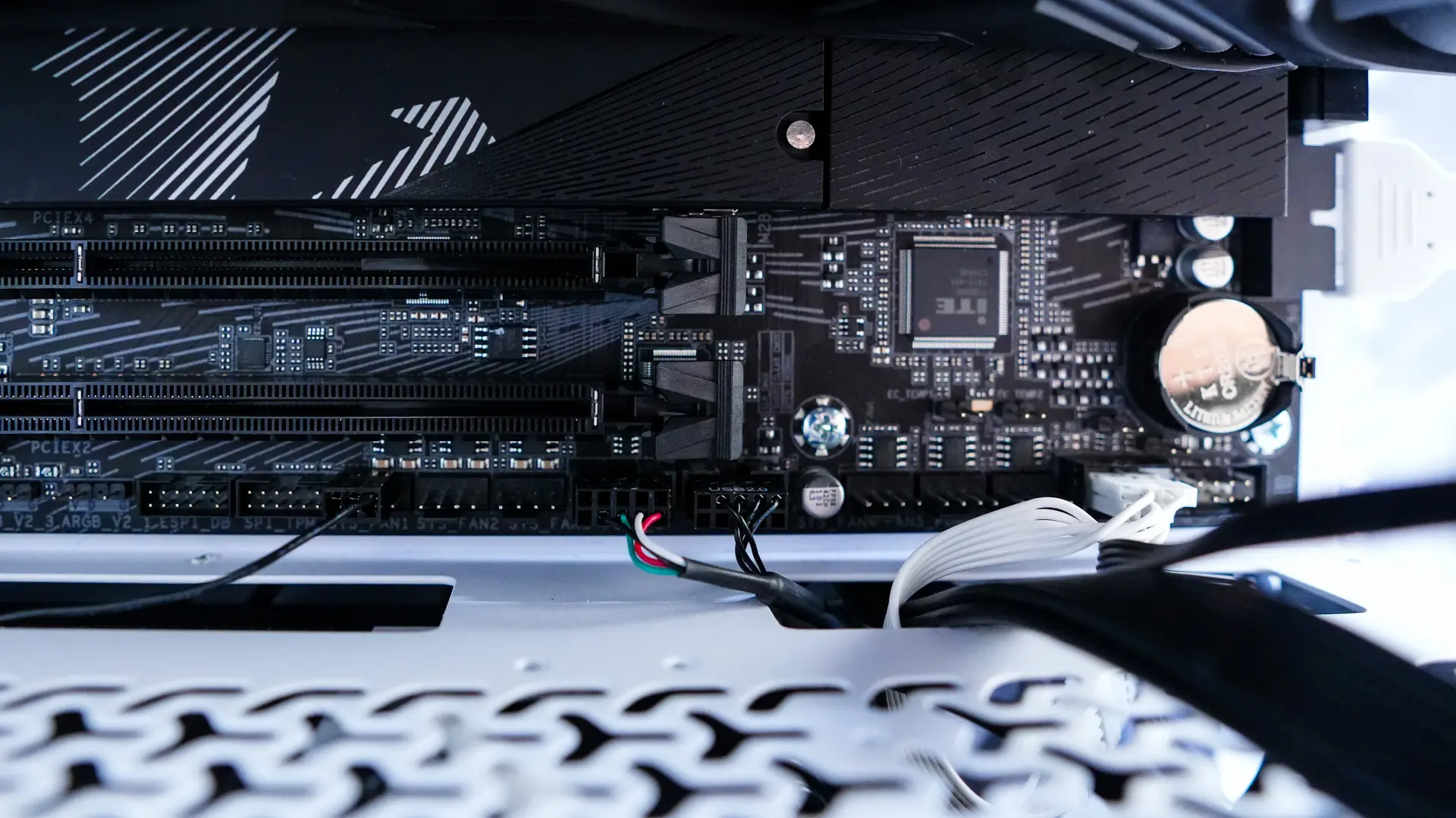
Remove the center fan from the cooler, install the thermal paste, and then carefully place the cooler on top of your CPU, lining up the screws with the holes in the AMD brackets. Using a screwdriver go ahead and secure the cooler. With the cooler installed you can see the fan clears our memory no problem. Be sure to re-install the center fan, connect the fans to the fan splitter, and then plug the splitter into your CPU fan header. You’ll also need to connect the USB 2.0 header coming off the cooler. I was able to route it around the backside of my motherboard tray and connect it to the the USB 2.0 header on the bottom of my motherboard.