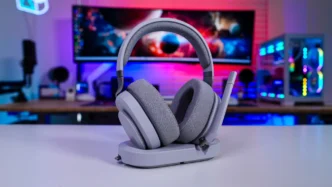

Setup and Software for the Fractal Design Scape Gaming Headset
Getting the Scape setup is really easy. Just plug the dongle into the docking station then using the included USB cable plug that into your PC. It will automatically be detected and you’ll see “Headset Earphone (Fractal Scape Dongle)” in your audio devices.
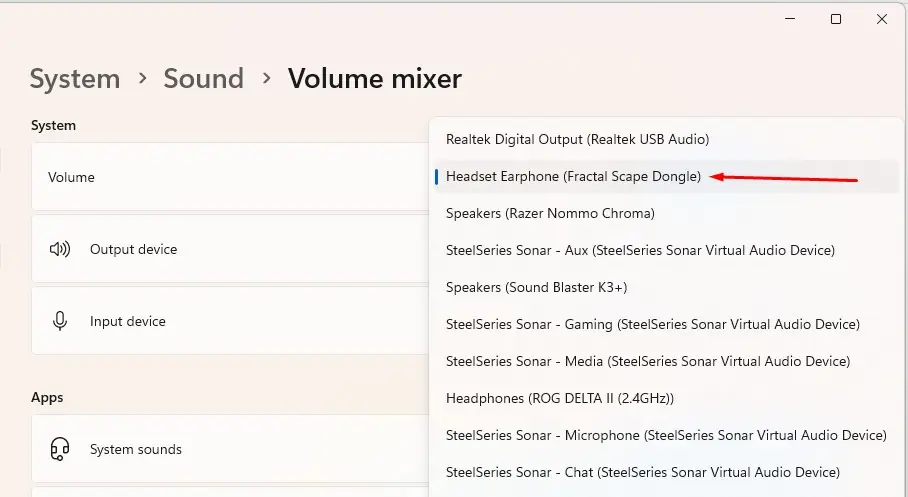
Select it, power on the headset, and you’ll be good to go!
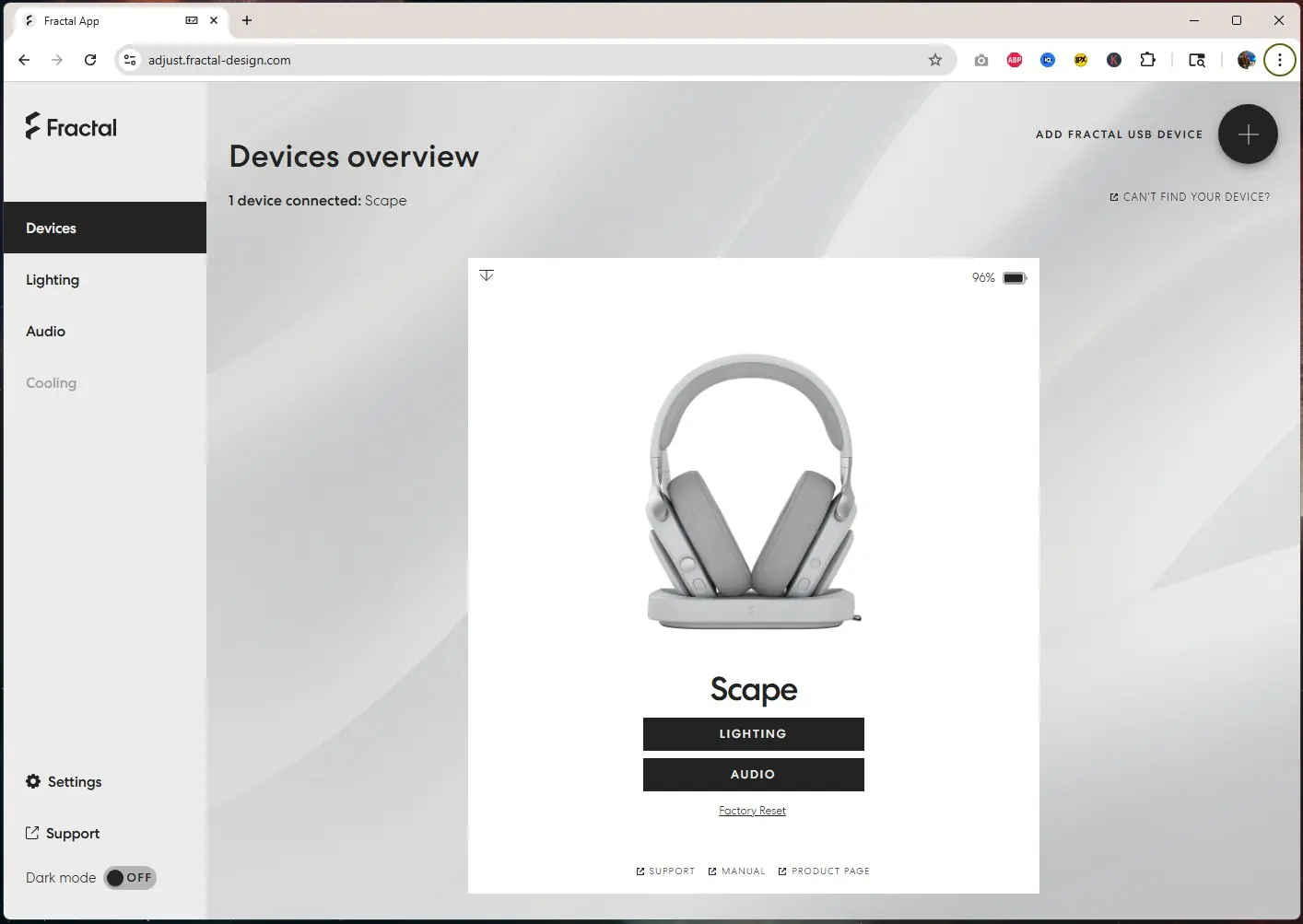
Now if you want to do any sort of customization you can open your browser and head to adjust.fractal-design.com. This is the same web-based customization we saw for the Meshify 3. The thing I love is that this is actually not a piece of software you download, but actually a web-based app. No one wants extra software on their system and we’ve seen how bloated certain companion apps have got. Before we get into the app any changes you make on the web app are saved to the Scape itself. Also if for some reason you don’t have an internet connection Fractal will offer an offline version of the Fractal App which will allow users to configure the Scape without an internet connection.
Once you’ve added the Scape it will pop-up. On the main screen it shows the headset, its battery level, quick-links to lighting settings, audio settings, factory reset, support, the manual, and product page.
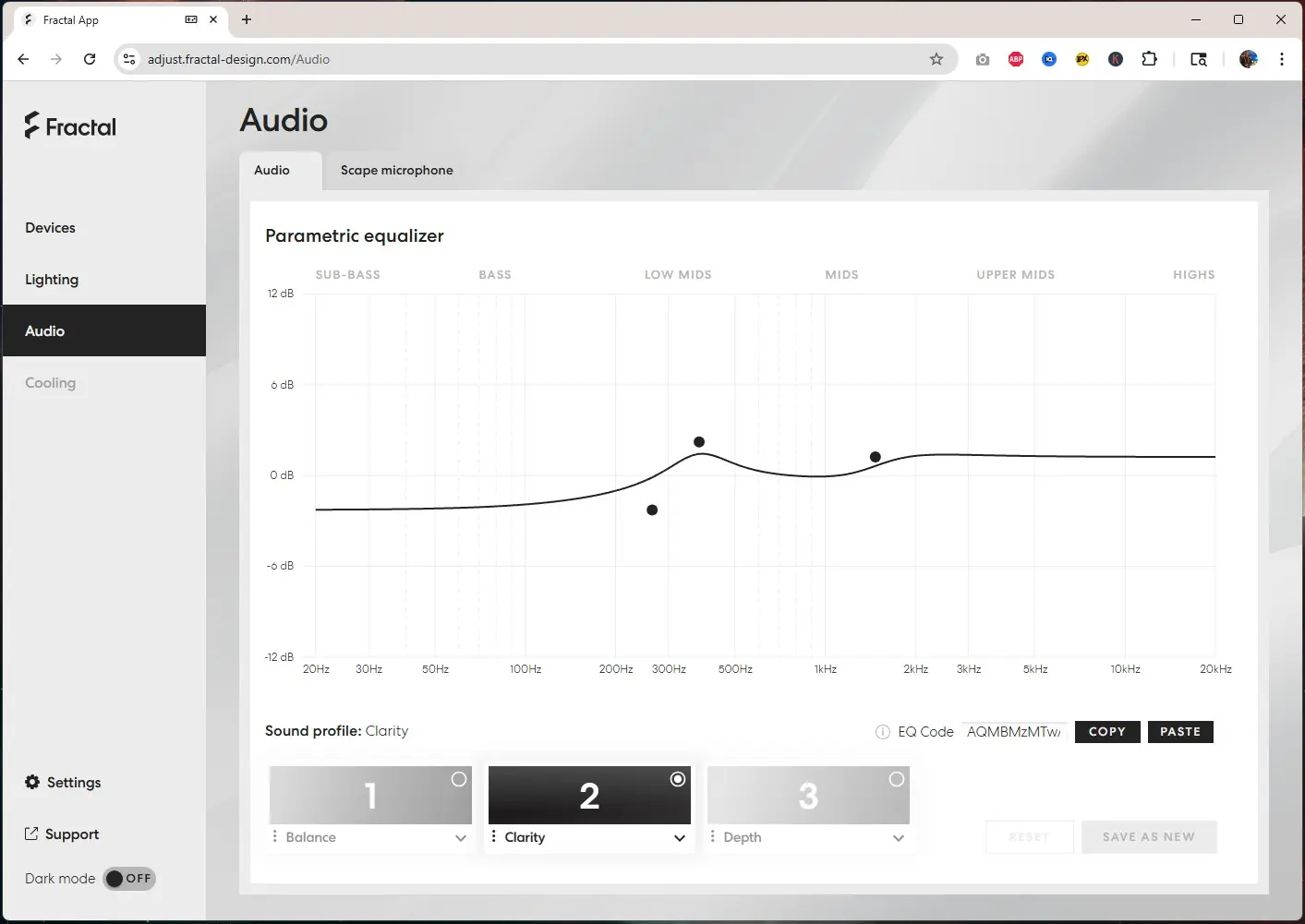
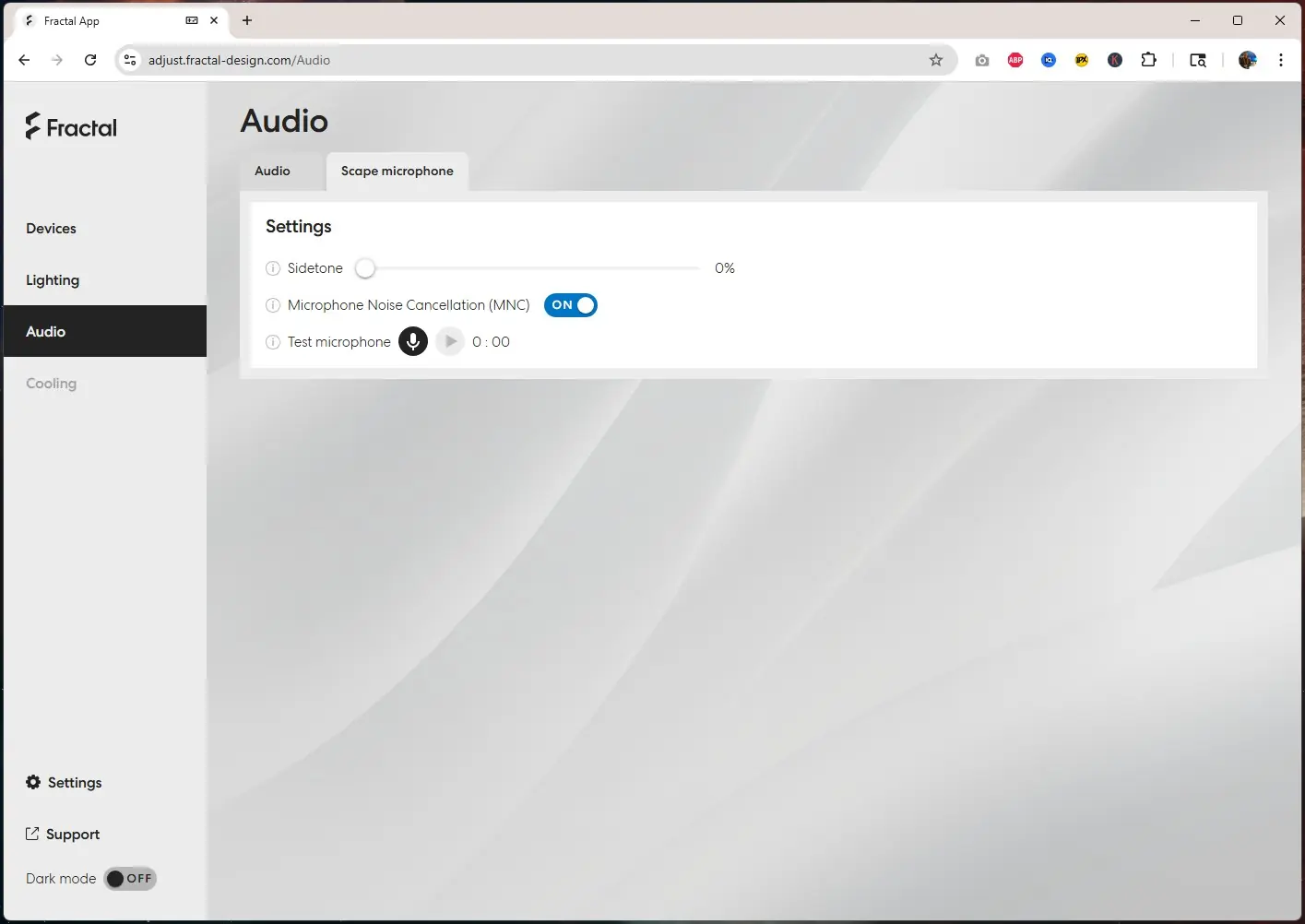
Clicking into the audio settings we have a parametric equalizer with three preset sound profiles. You can easily edit these profiles and set them back to their default if you happen to mess them up. At the top there is a Scape microphone tab. Here you can set the sidetone, turn on microphone noise cancellation, and test the microphone.
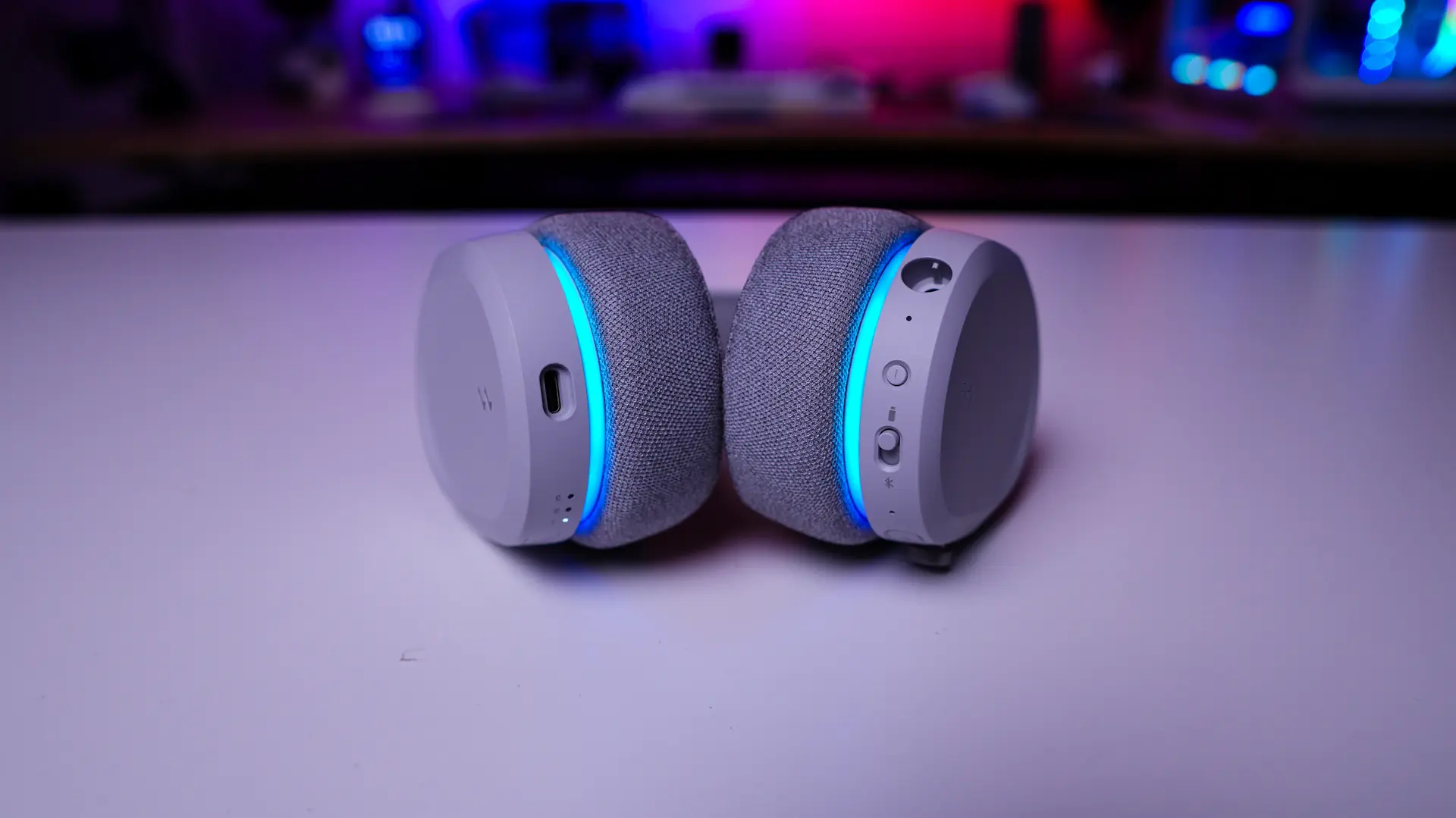
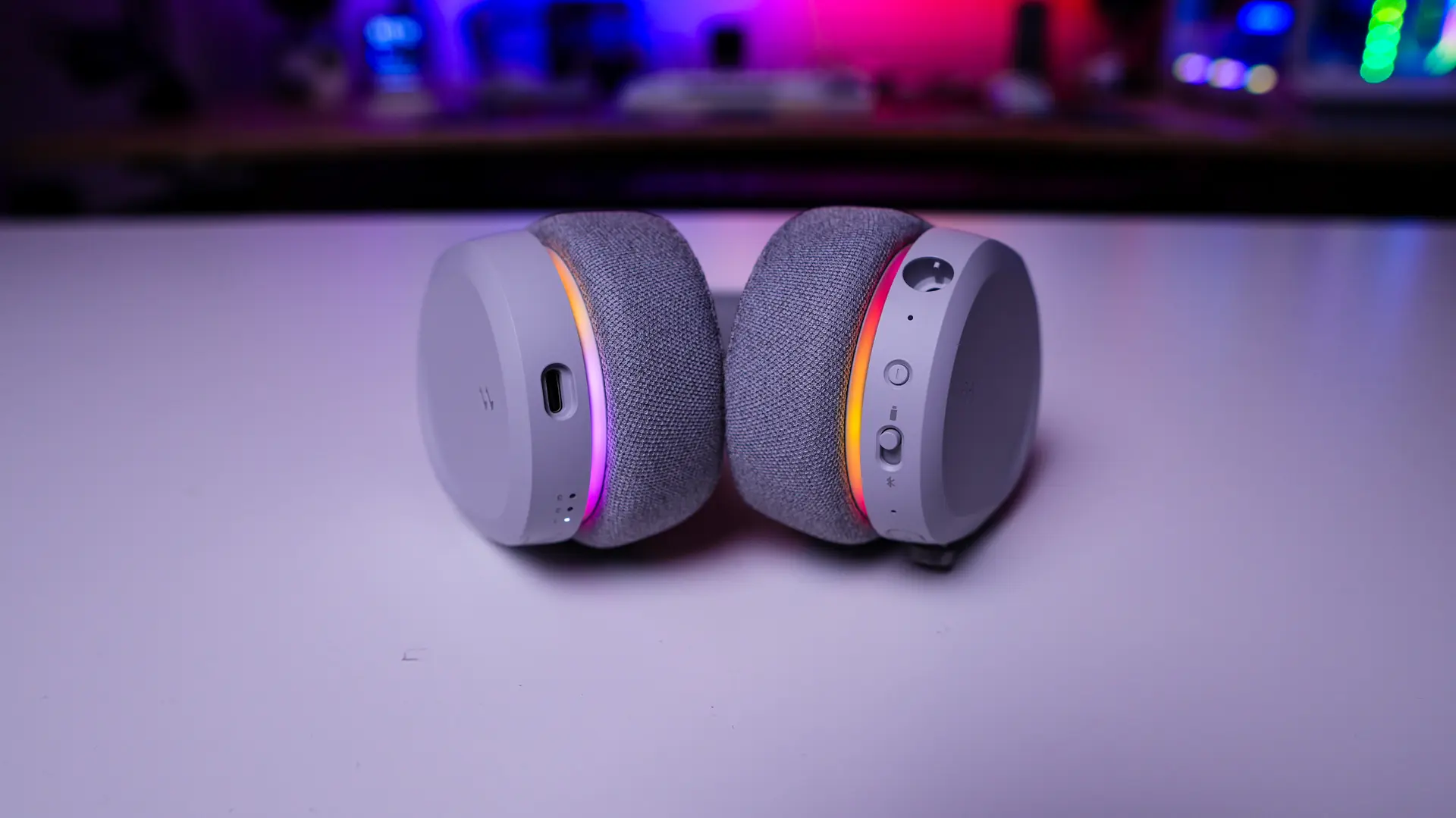
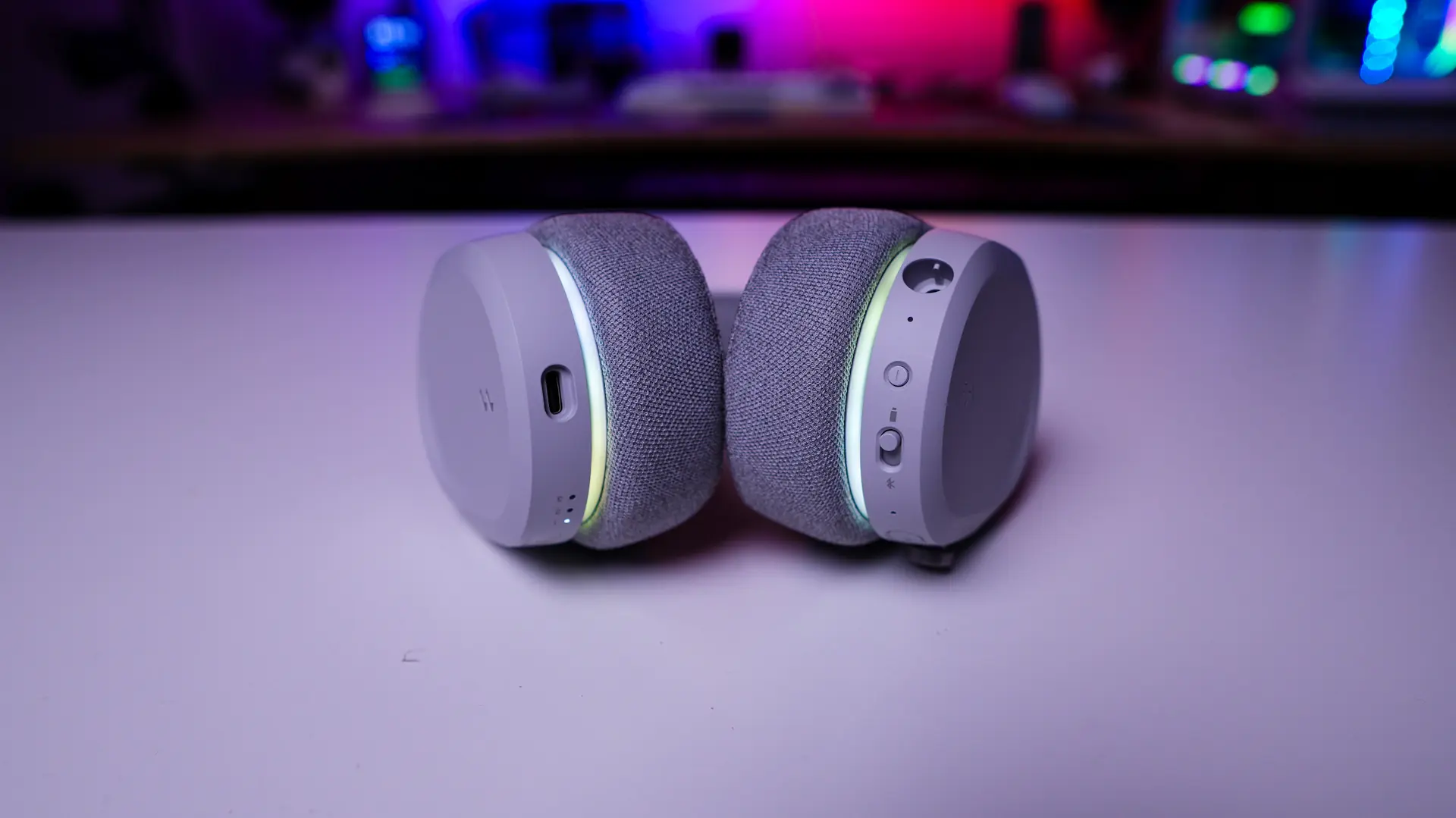
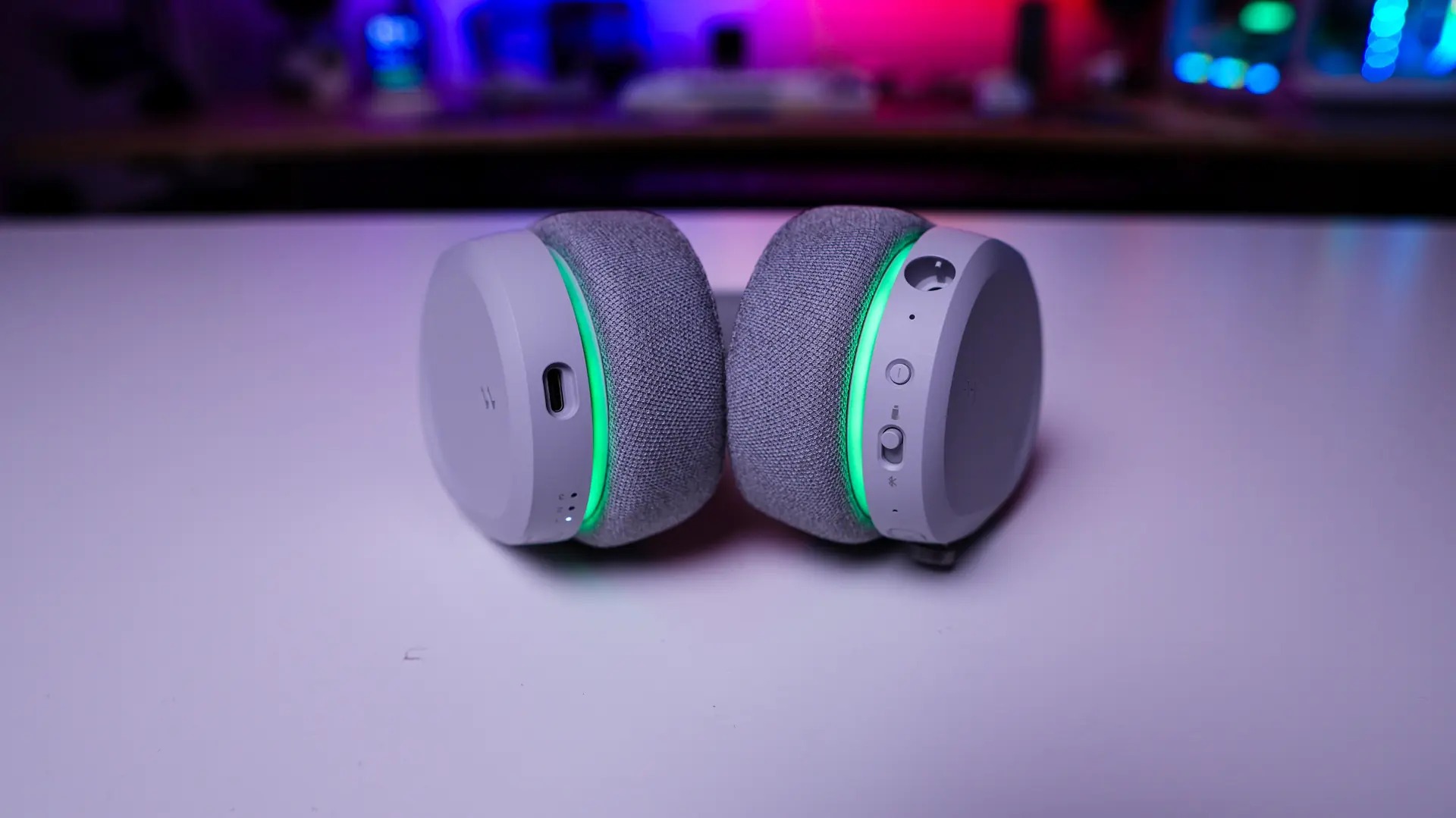
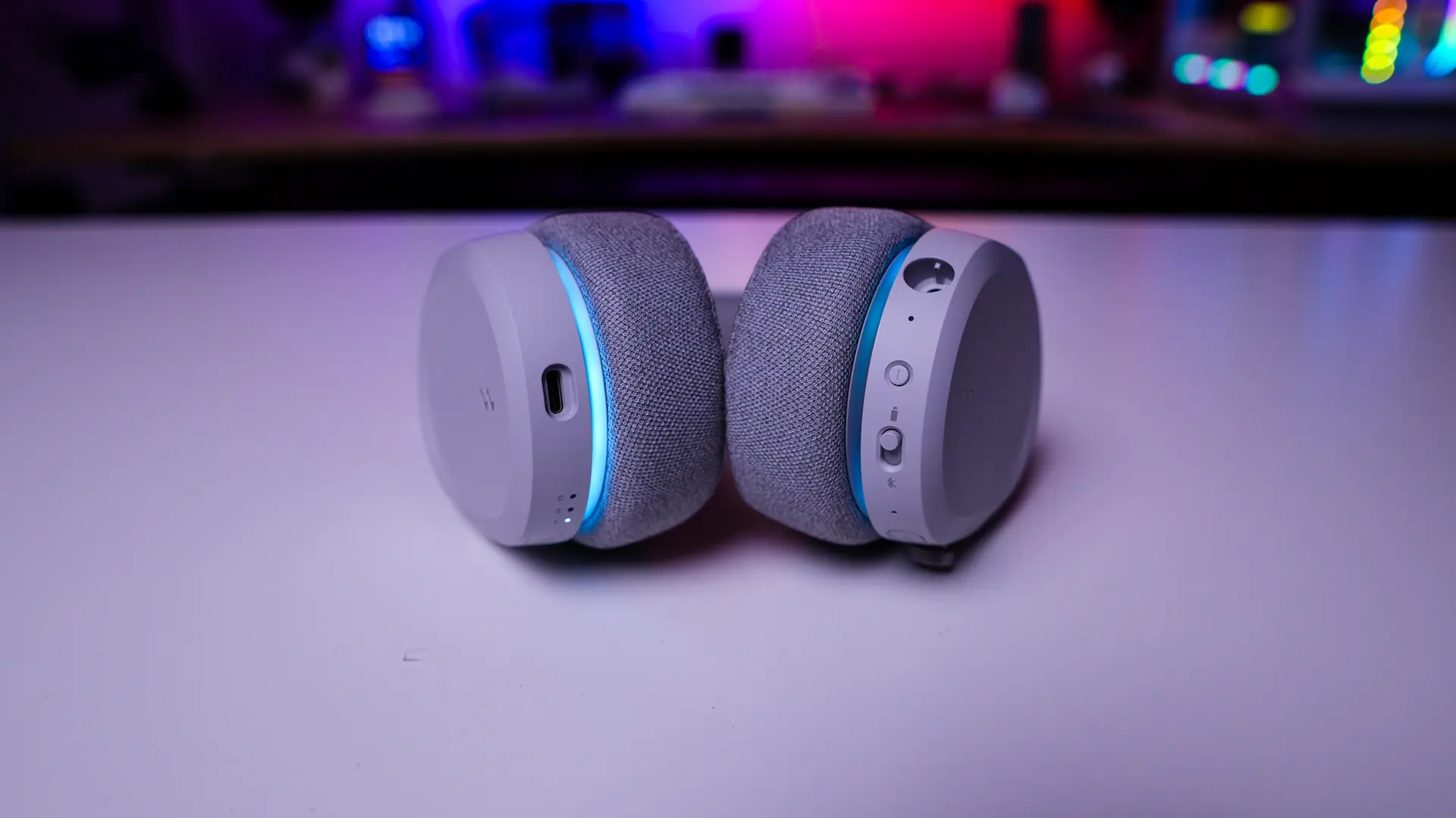
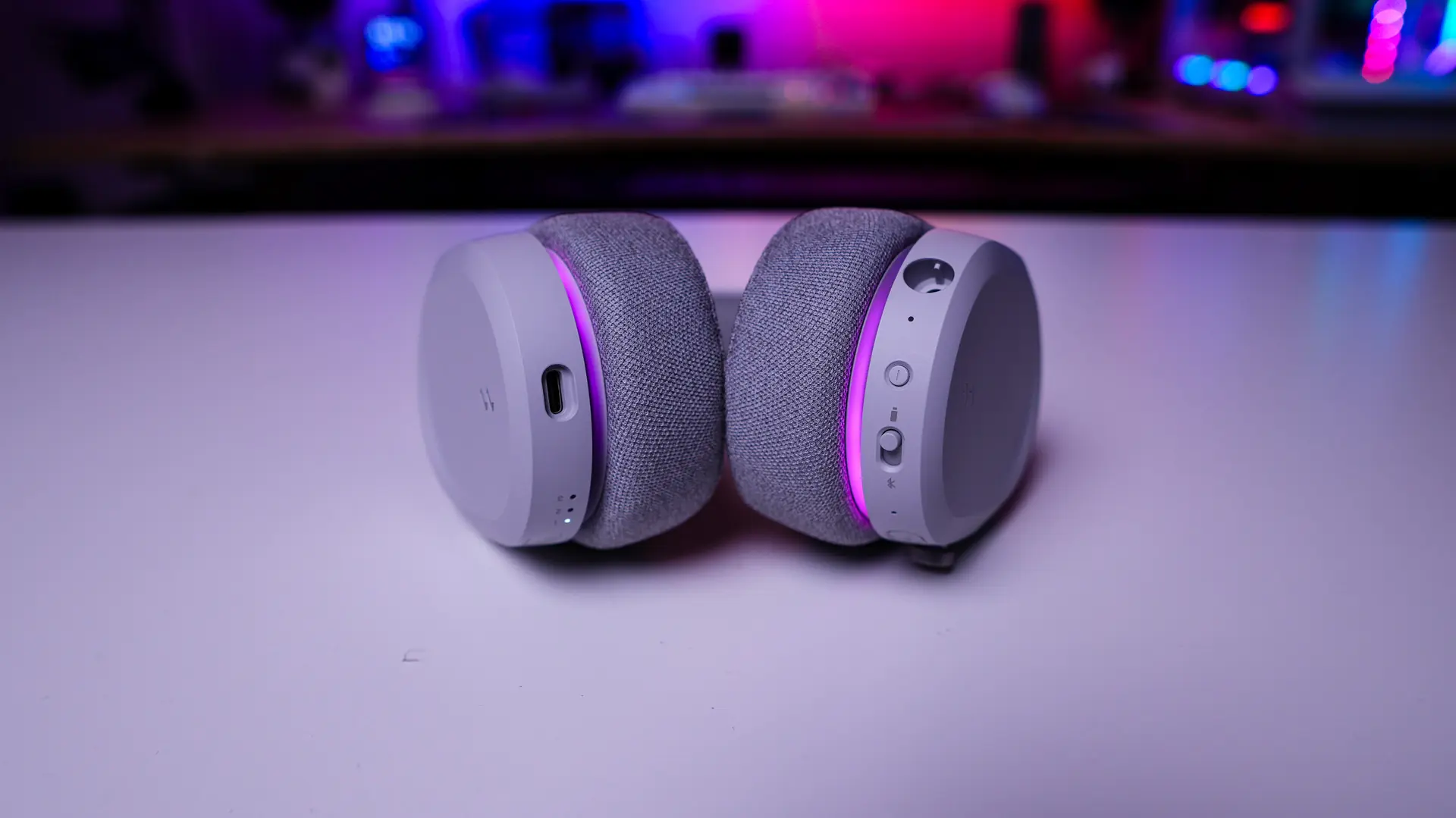
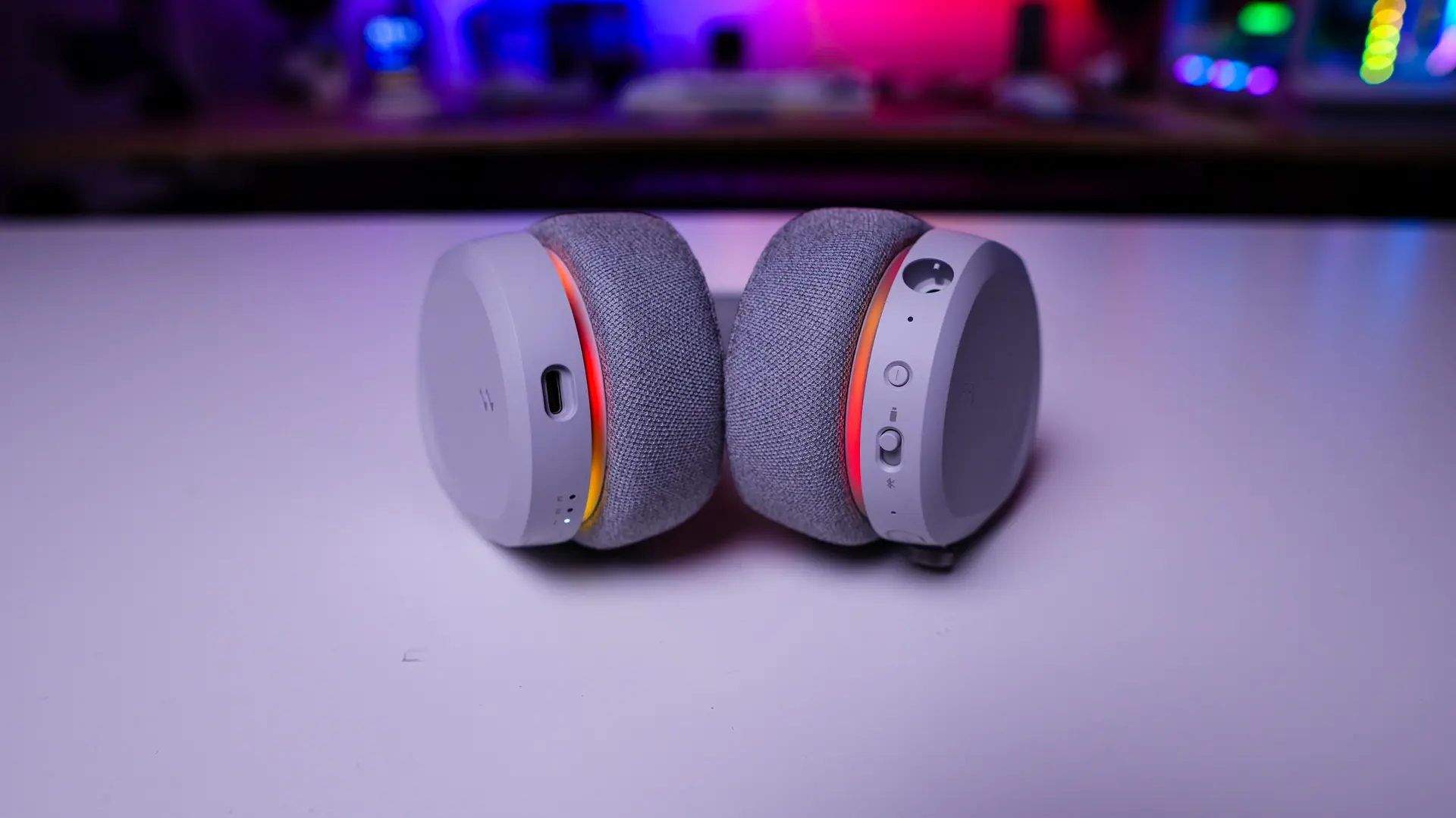
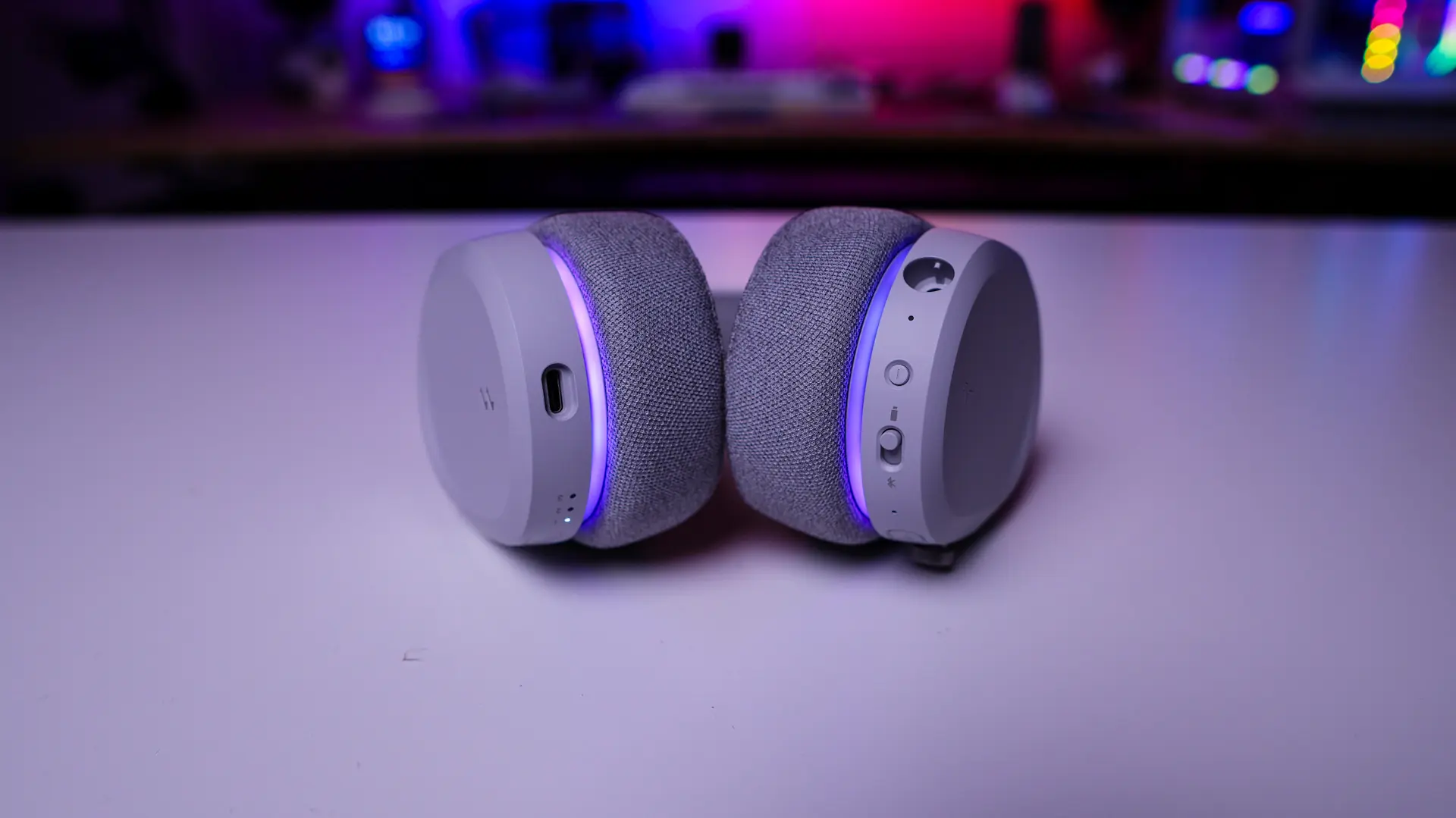
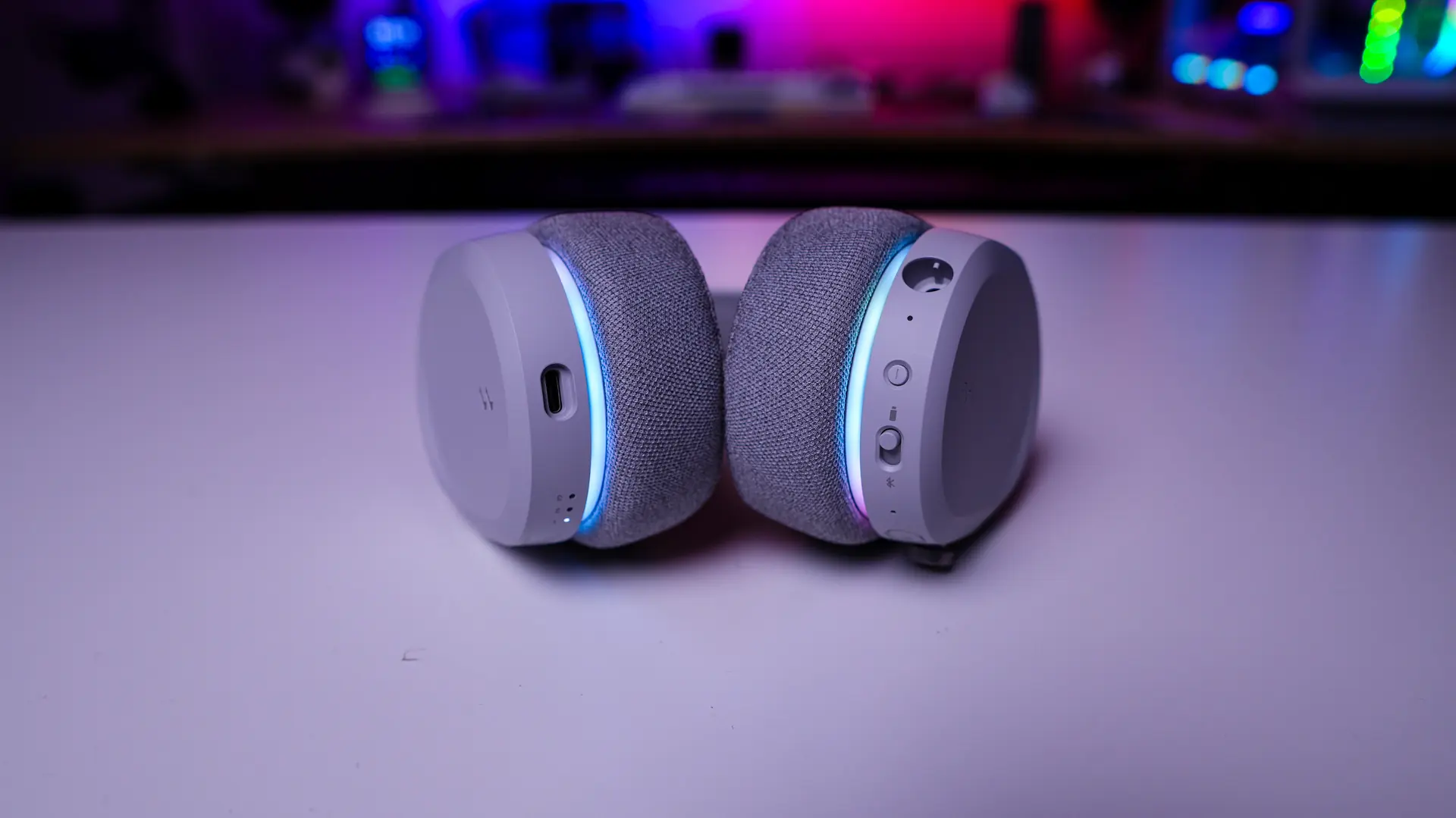
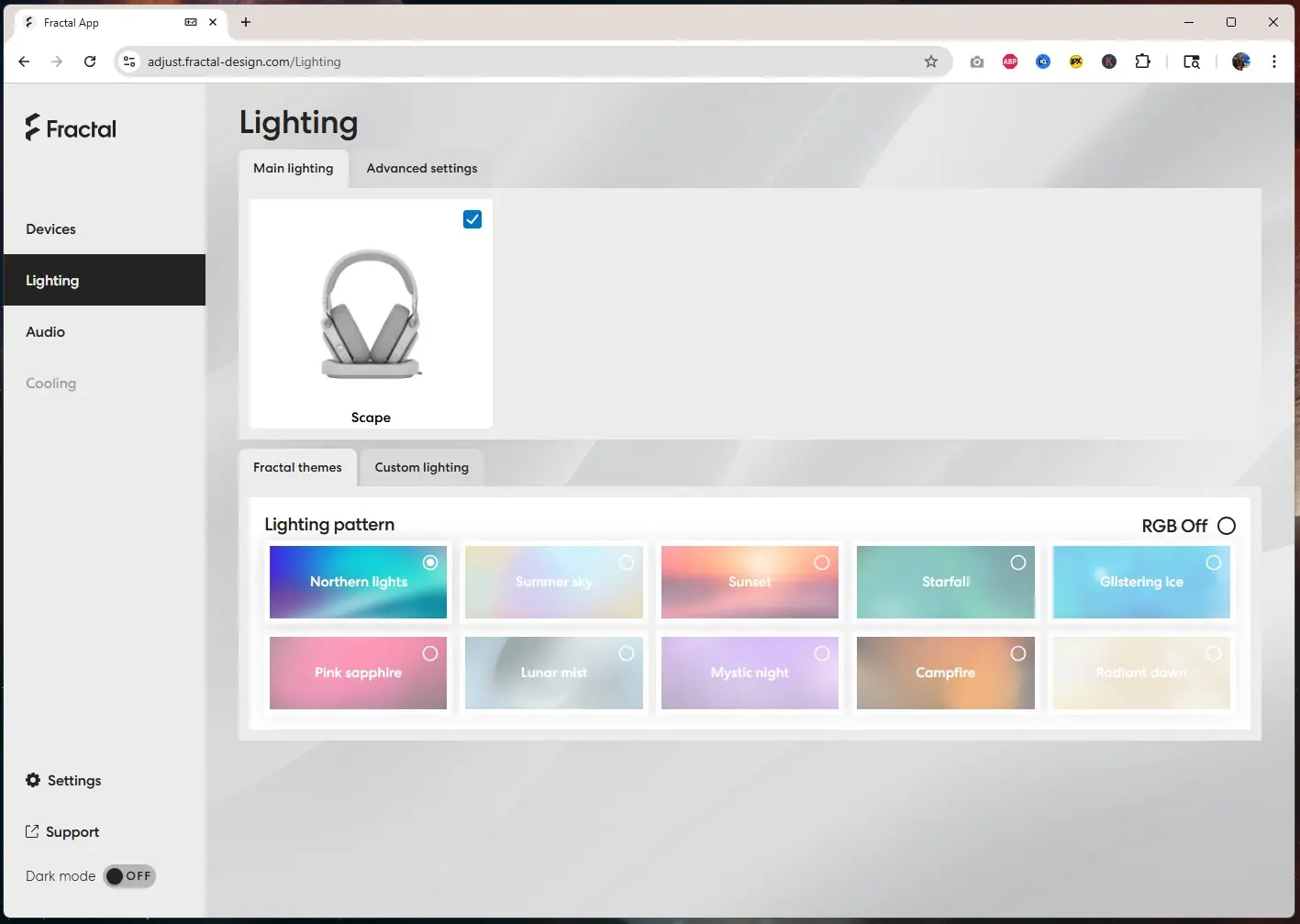
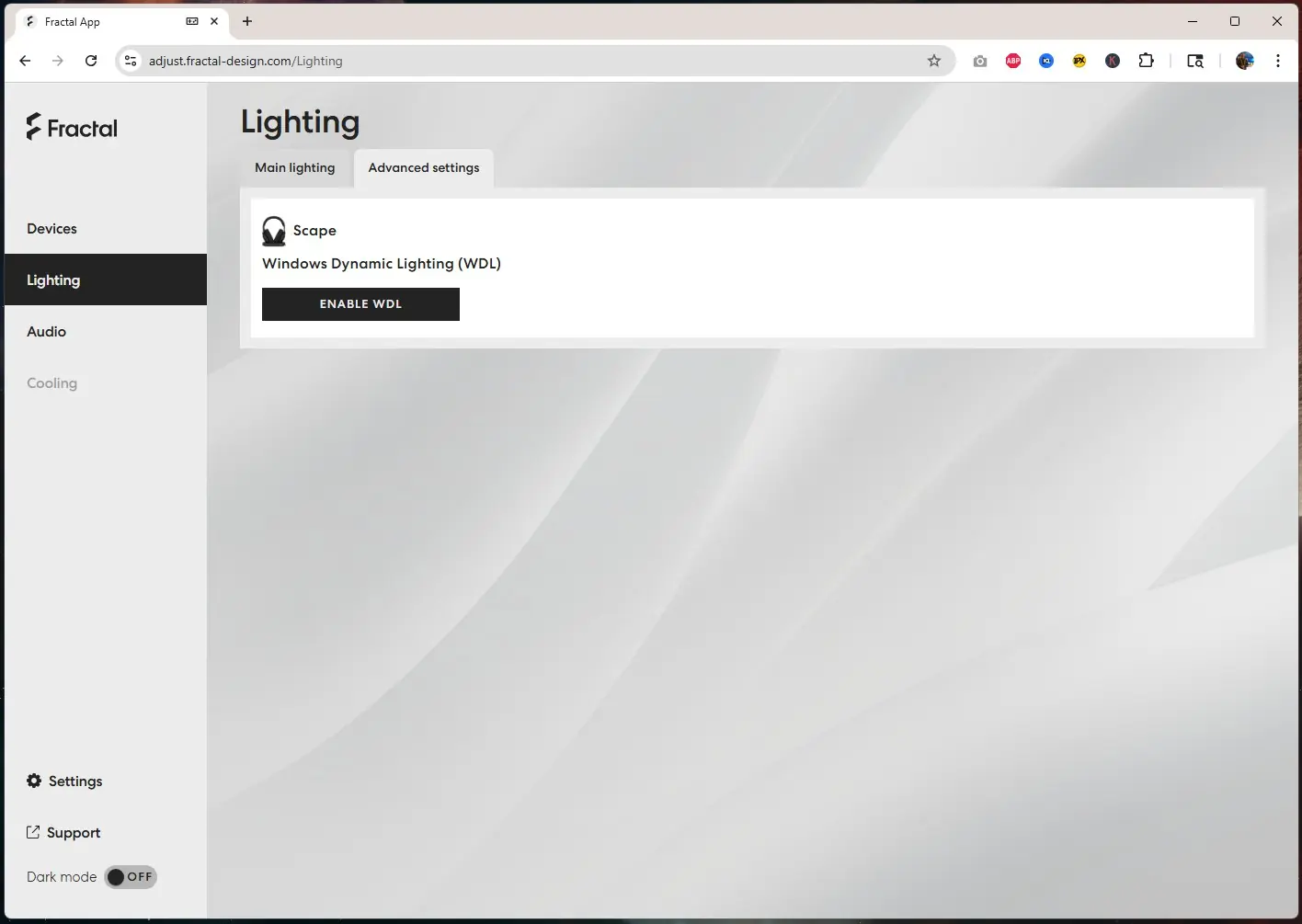
Under the lighting settings you can configure the RGB lighting on the earcups of the scape. There are built-in Fractal themes like we saw on the Meshify 3, but you can also set your own custom lighting. Under the advanced settings so you can turn on Windows Dynamic Lighting.
If you are wondering what the lighting on the headset looks like here are a handful of the different Fractal themes.