


Installation
Installation of the NH-D15 SE-AM4 is actually quite easy and can be done inside of a case. Now because of the size of the cooler you might want to take your motherboard out of your case for an easier installation.
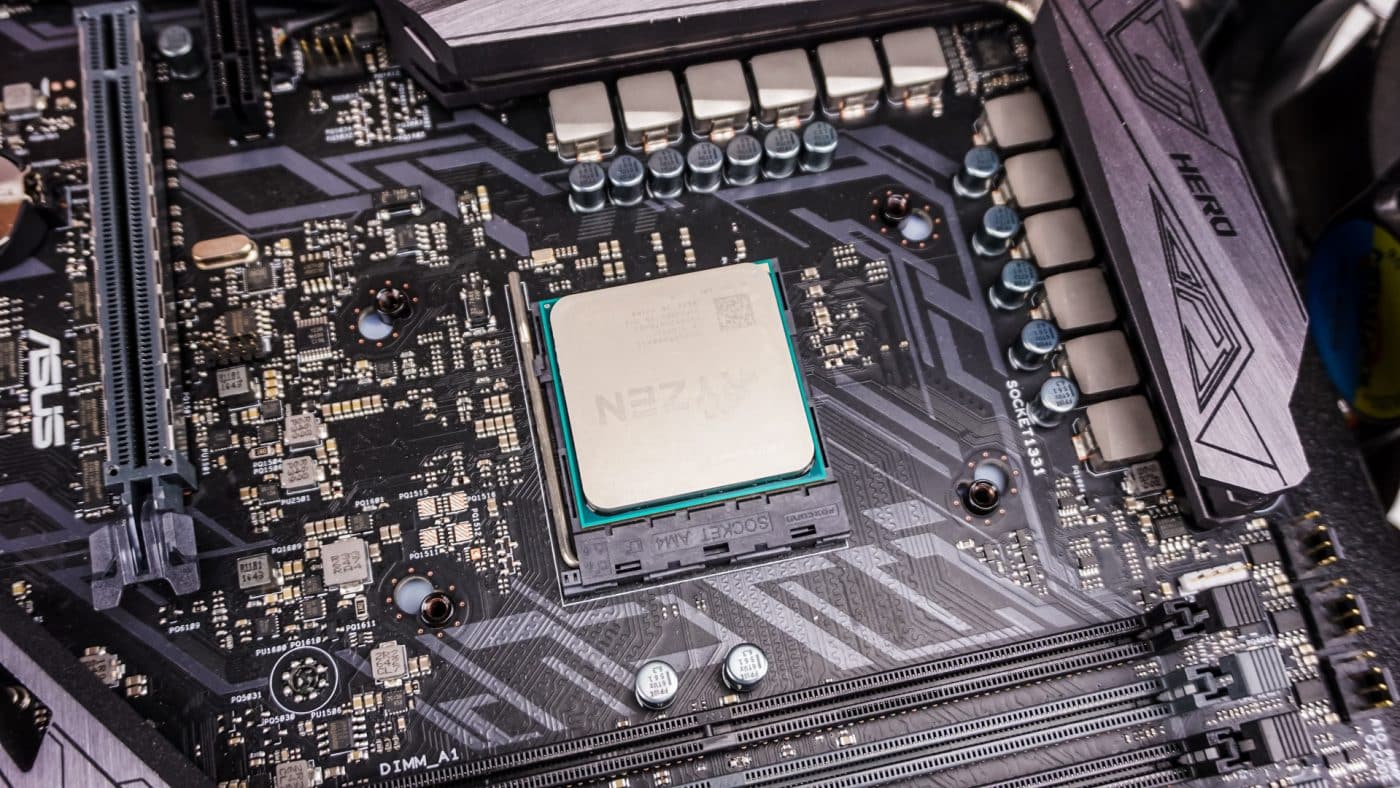
The first thing you need to do is remove the AM4 mounting bracket on your motherboard. This is done by removing the two screws on each bracket and simply taking them off. Once removed your motherboard should look a little like this.
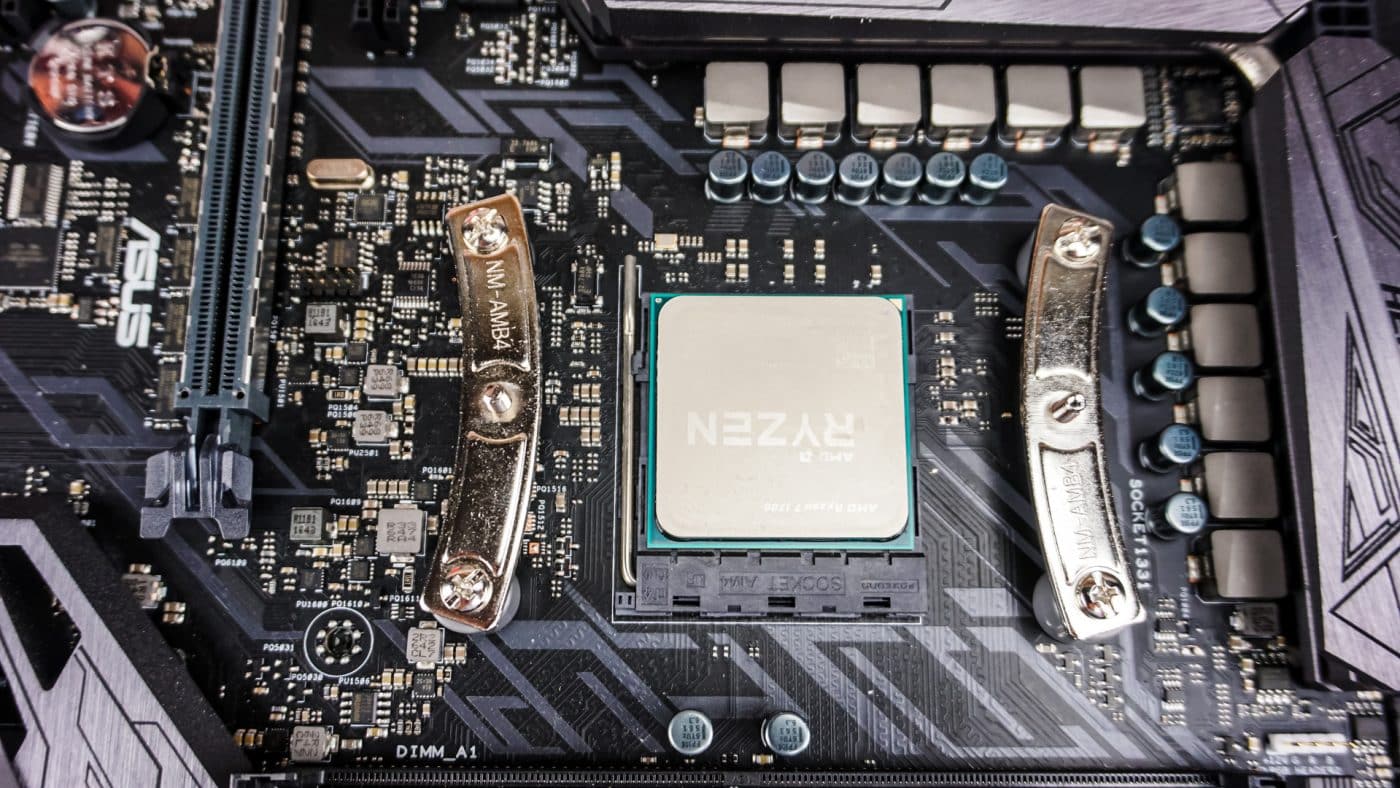
Now you need to install Noctua’s mounting bar. The orientation you see below sets the cooler so the fans are pushing out the back of your system. If you want them to say push out the top of your system you would place them horizontally not vertically.
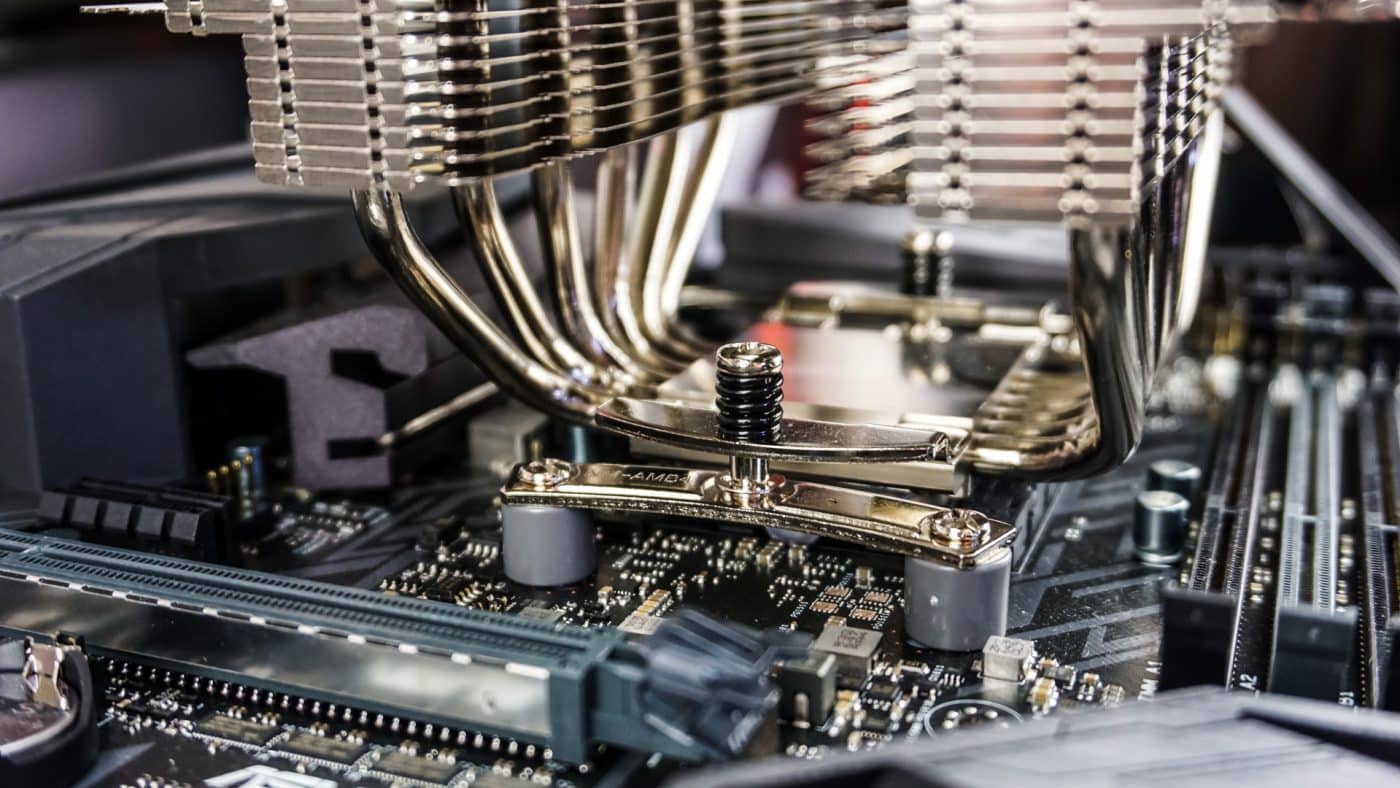
Remove the fan or fans from the heatsink. Then apply the included thermal paste and very carefully place the cooler on top of your CPU lining up the screws with your mounts on each side. With the included screwdriver secure the cooler on each side by fastening the screws.
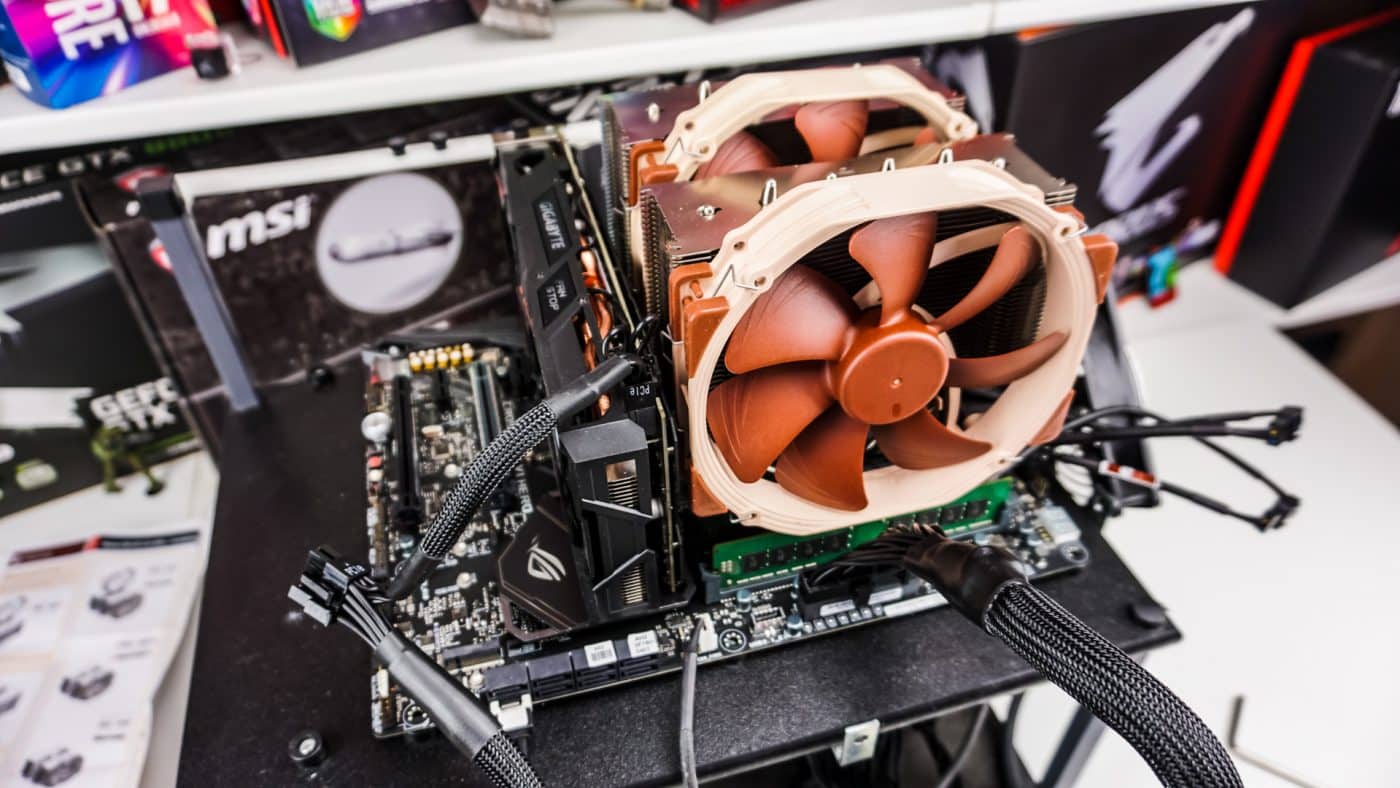
With the heatsink secured now you just need to reinstall your fans. The front fan does cover our memory so that is something you are going to want to keep in mind. For larger memory modules you can either move the fan up or remove it and mount it on the rear of the cooler.

With our graphics card installed you can see things are close, but everything does fit without issues. The last thing you are going to want to do is connect the Y-connector to your fans and then plug it into your motherboard.


40 degrees at 100% load?? Is this 40 over ambient or just the actual temperature of the CPU being 40? If it’s the latter, what’s the ambient temperature?
I know AMD uses some sweet thermal compound between the CPU and the heatspreader. But this seems absolutely crazy. An 8 core CPU at 40 degrees at full load.
First on the list would be to spray paint those fugly fans with a better color.
I have an R7 1700. At stock, maximum all core clock speeds are only 3.2GHz, and my Noctua U14S does similar temperatures. Overclocked to 3.8GHz all cores, the temperatures do push the high 60s.
do not forget the temperature offset used by many Ryzen CPU (1800x-1700x) unless you have a program reading the proper temperature AMD did state the temps are actually reported as 20c higher from the factory
https://www.kotaku.com.au/2017/03/amds-ryzen-cpus-arent-running-as-hot-as-they-say-they-are/
Either way ~60c fully loaded all cores is actually not bad though I would expect better from a noctua unit, but still much better then many Intel higher end core i chips let alone previous bulldozer/piledriver chips hitting in the 70-80s 😀
Man those fans are fugly bastards. Might be one of the best coolers. Wont win any color contests. Noctua needs to switch all fans colors over like the NF-F12 iPPC-3000. Beautiful.