Customizing the screen on the TRYX Turris 620 CPU Cooler
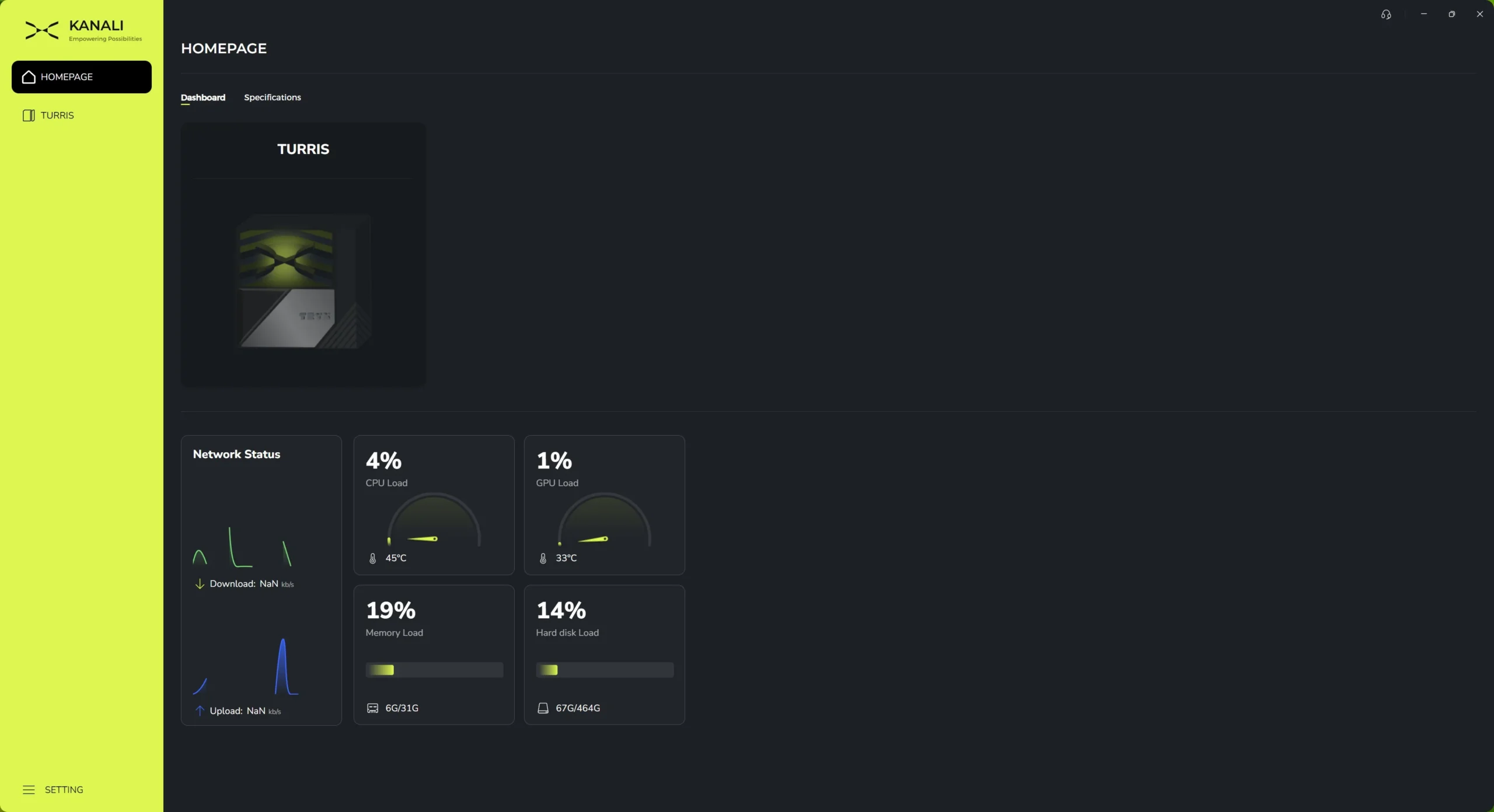
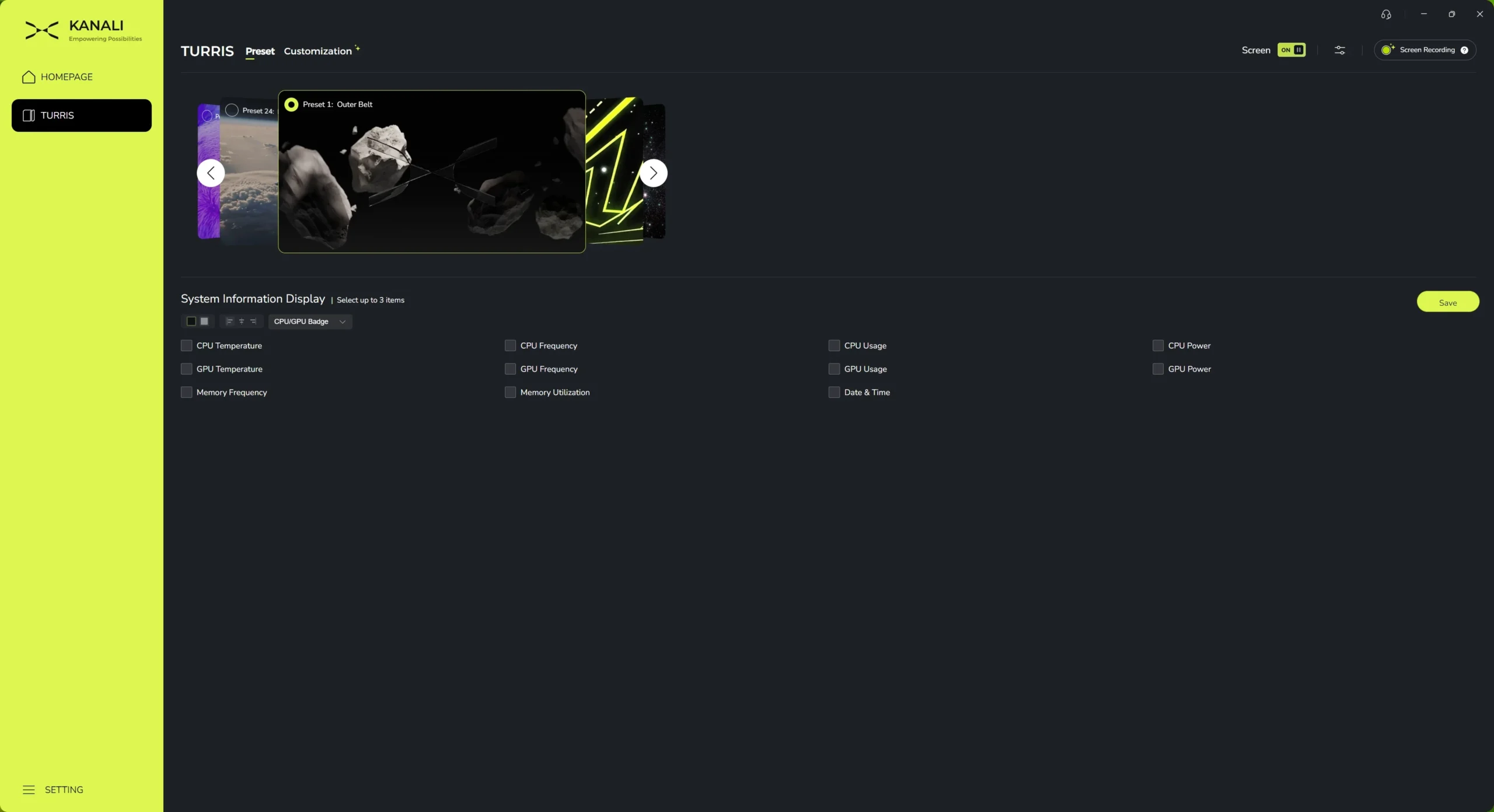
To customize the 5-inch IPS screen on the Turris 620 you’ll need to download the TRYX Kanali software. This is the same software they use for their liquid CPU coolers. Opening it up we are brought to our “Homepage” which shows what TRYX components we have installed and a list of system stats that include network status, CPU load, GPU load, memory load, and hard disk load.
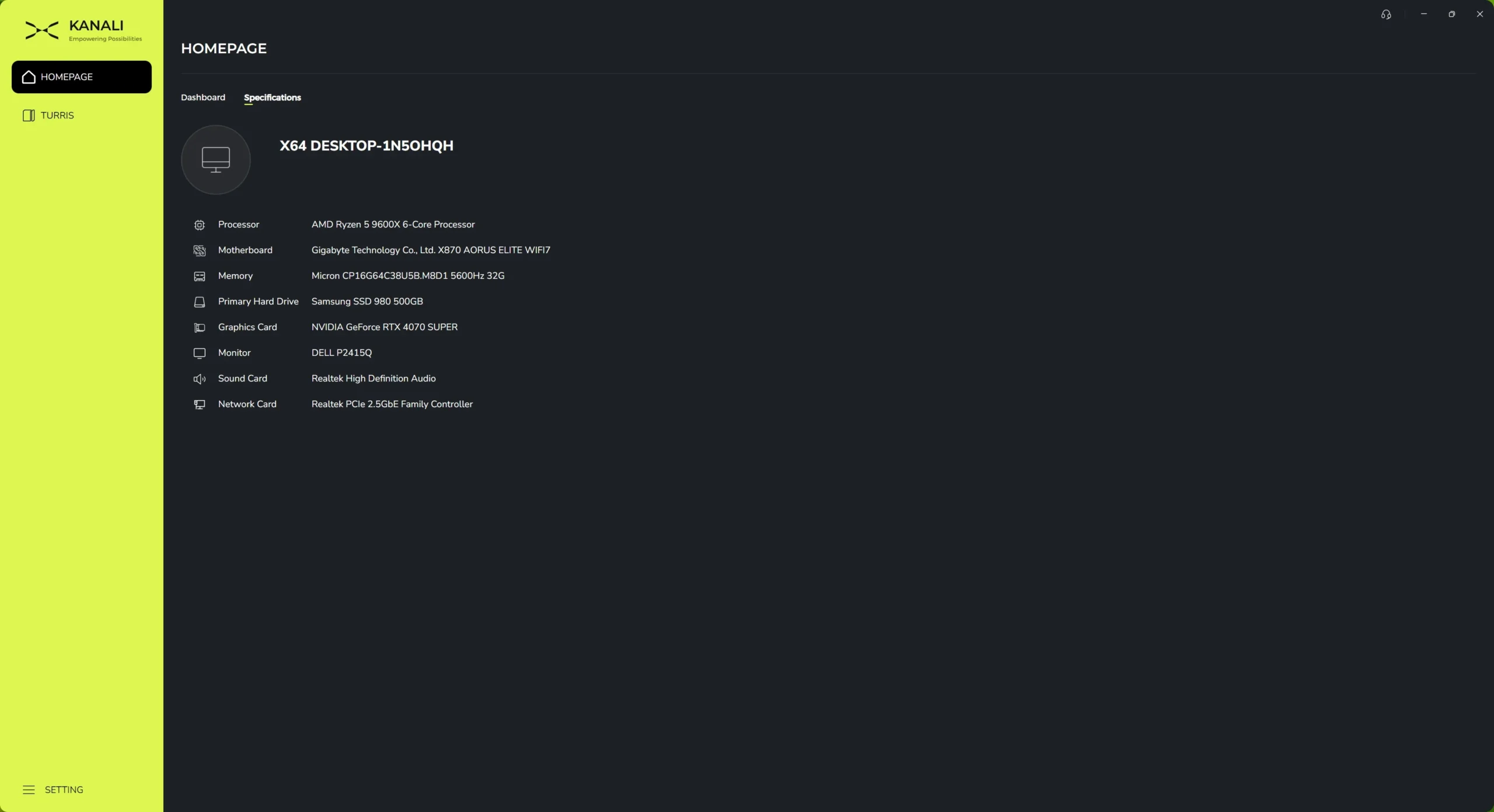
There is also a smaller sub-menu called “Specifications” which simply will show your system specifications.
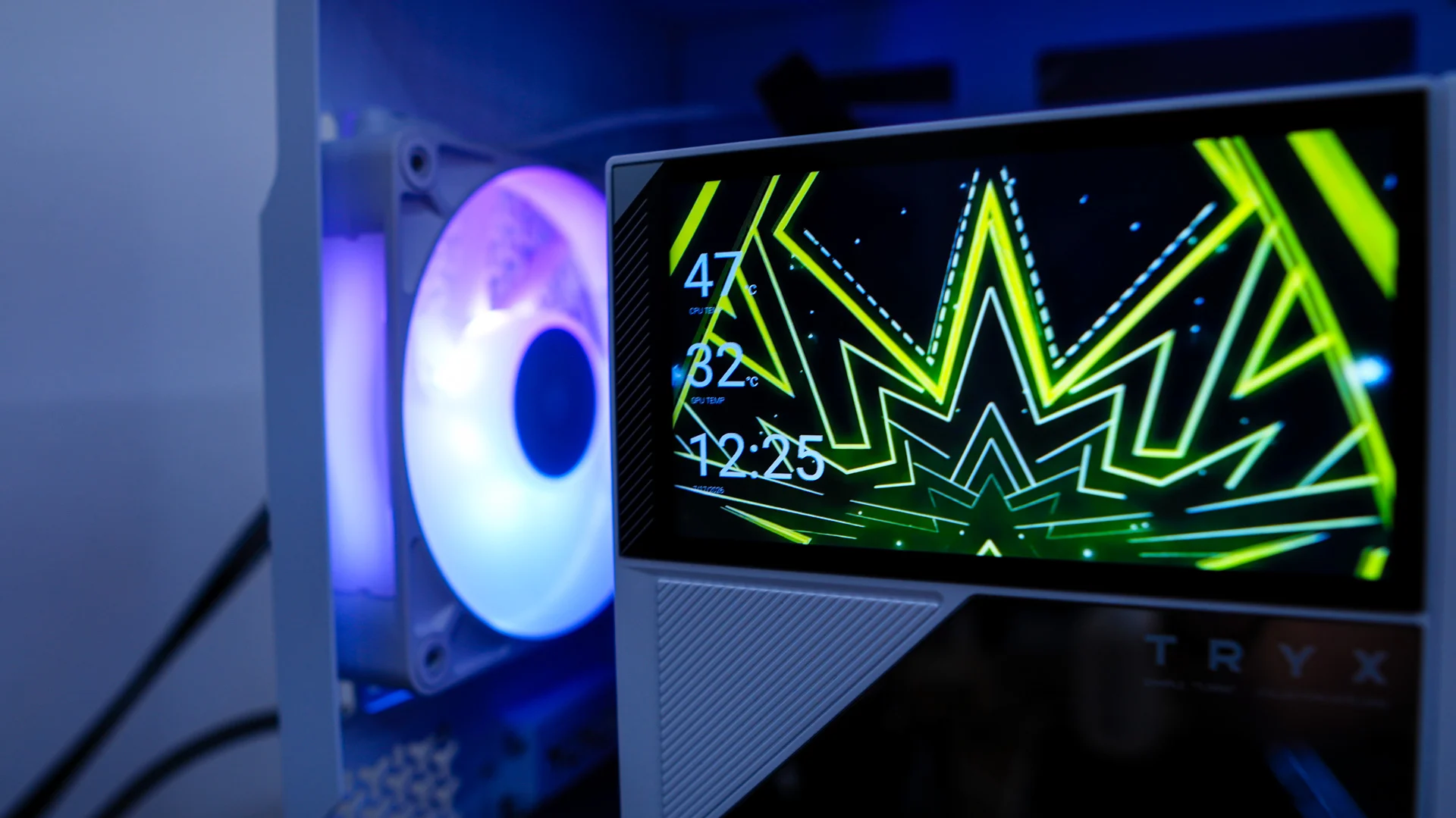
Clicking into the “Turris” section here we can customize what gets shown on the screen. By default there are 24 preset animations. Now you can simply run the animations or you can select to have an overlay of up to three system stats. You can also show a badge of what CPU and GPU you have. The overlay can be shown in both white and black text, but I really would have liked to have seen some time of either shadow or outline as the text is a bit hard to read as you’ll see here in a second.
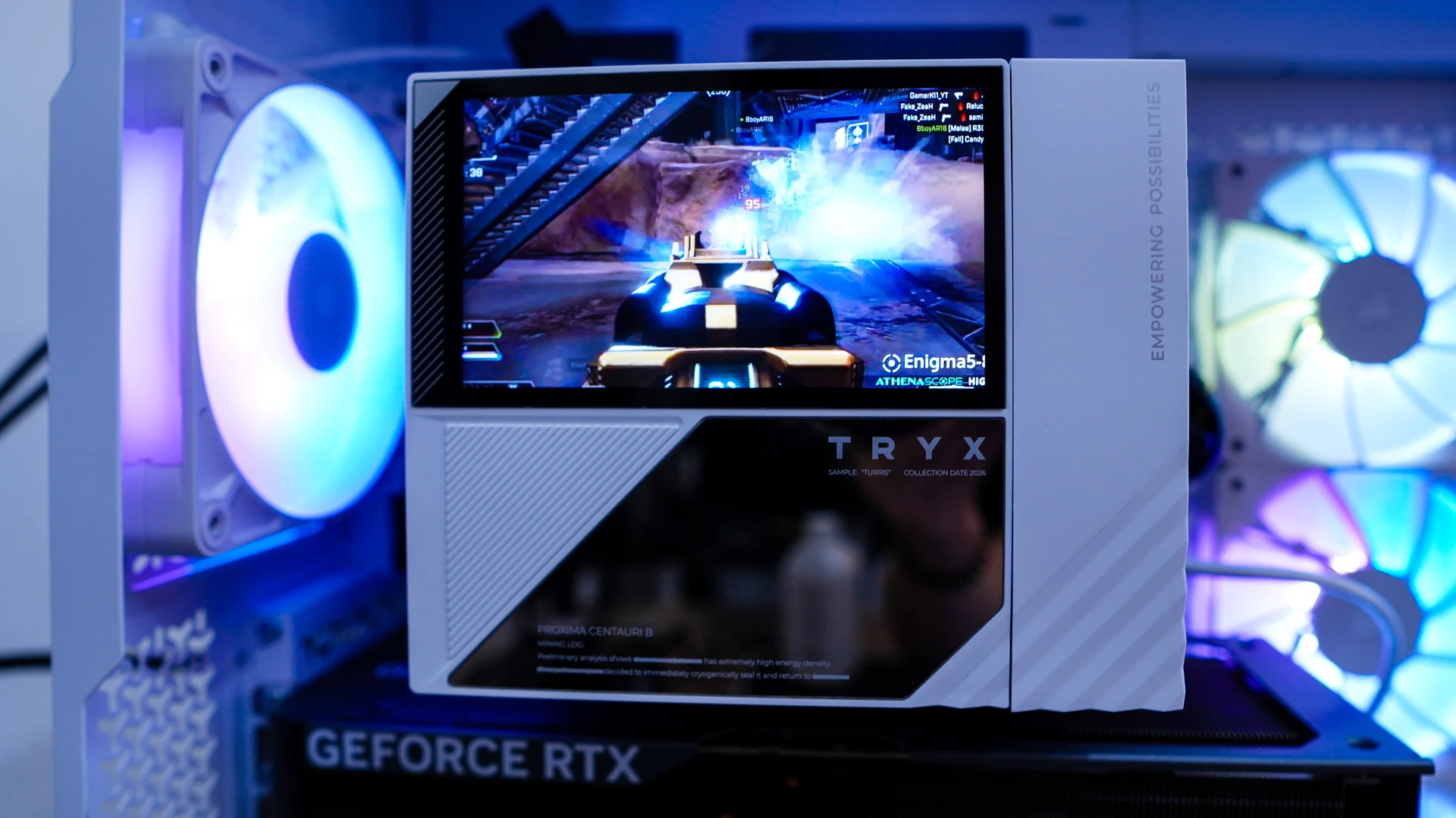
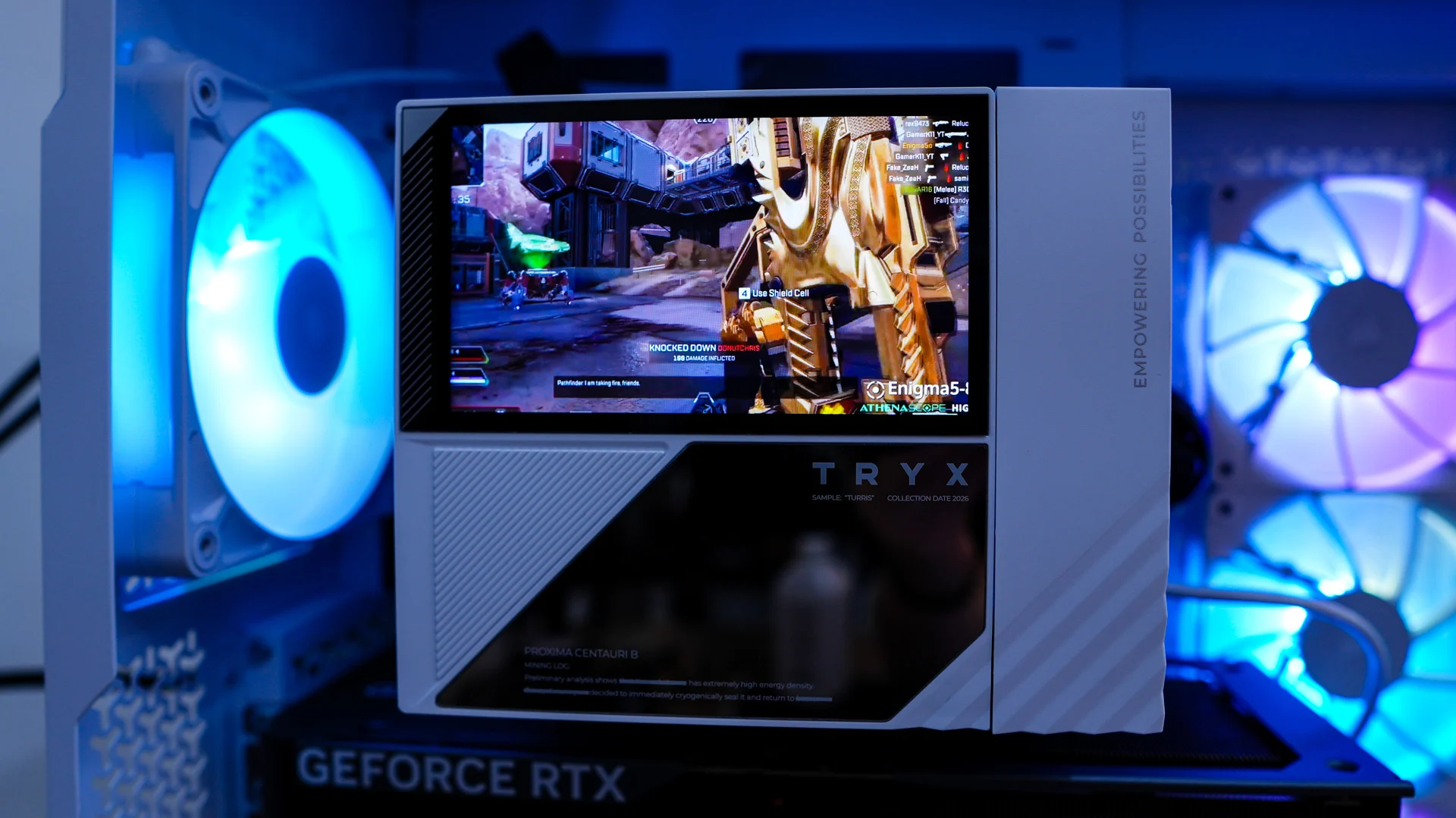
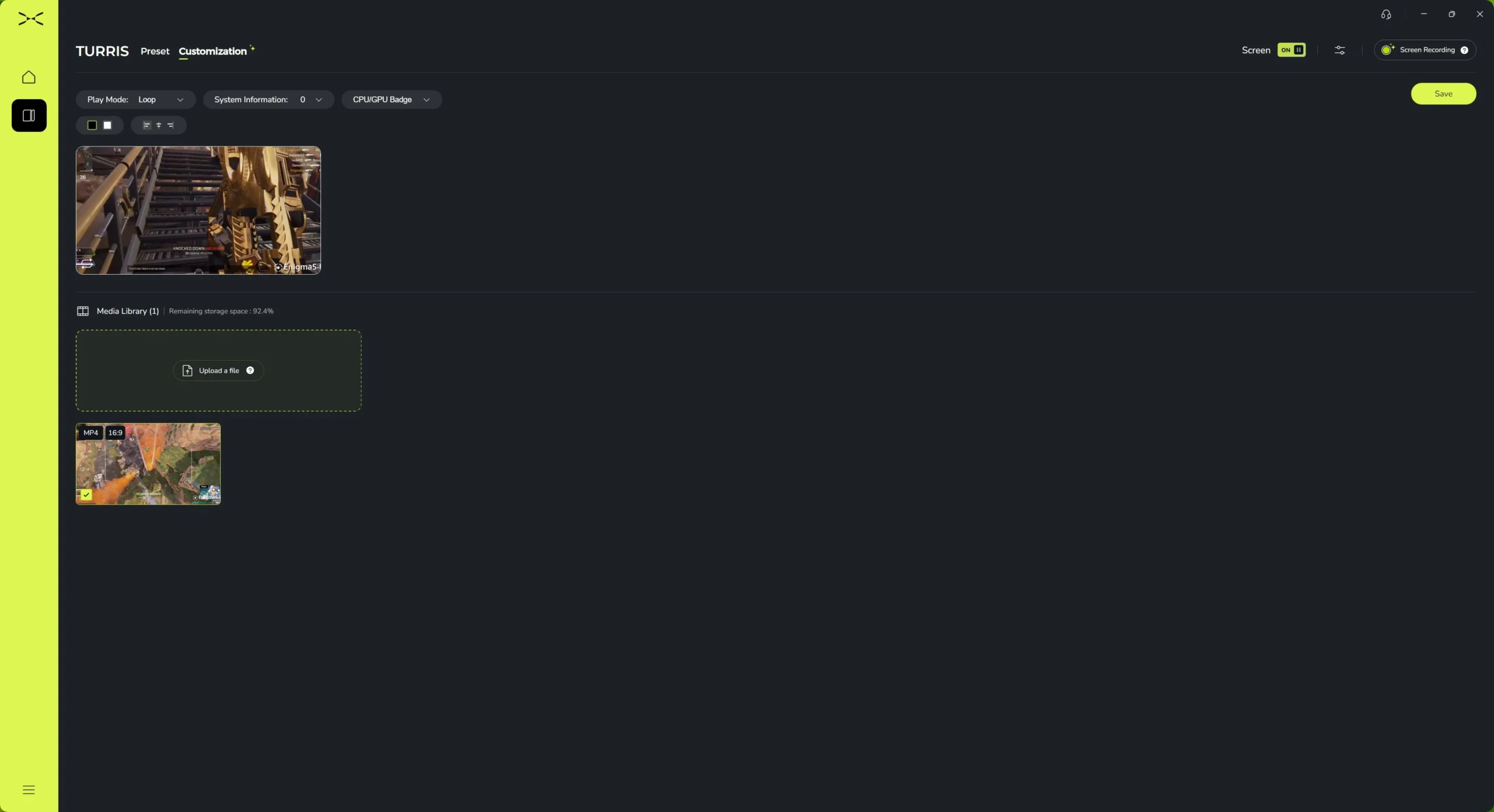
If you aren’t into any of the pre-set animations you can choose your own media to be displayed on the screen. I loaded up one of my gameplay videos from Apex Legends and it worked great, although the screen ratio is 16×9 so your media will likely be cut-off in most scenarios. To my knowledge the limitations on what you can display is just 500mb and a 1920 x 1080 resolution. I was able to load on images and GIFs as well.
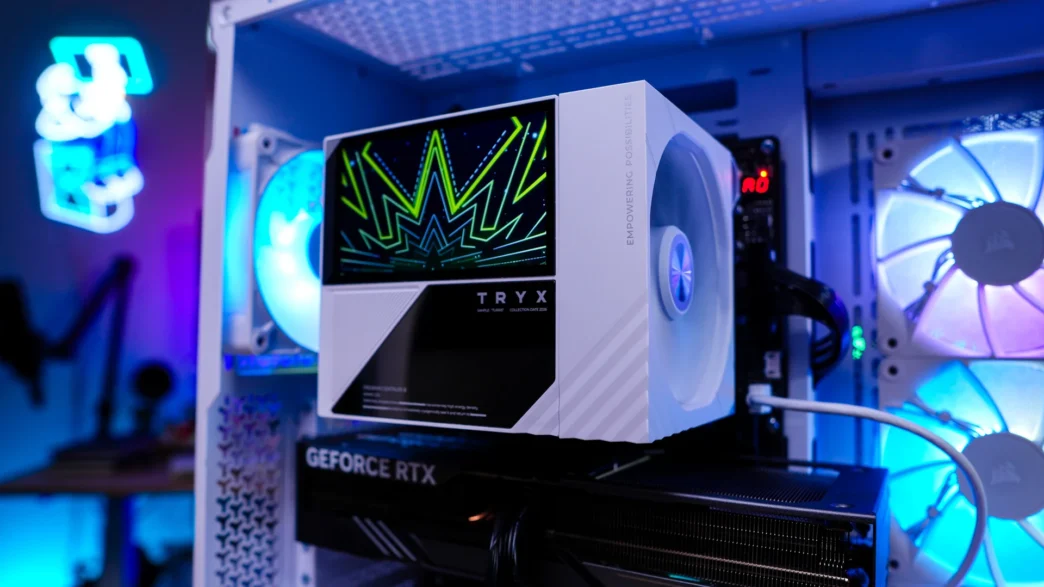
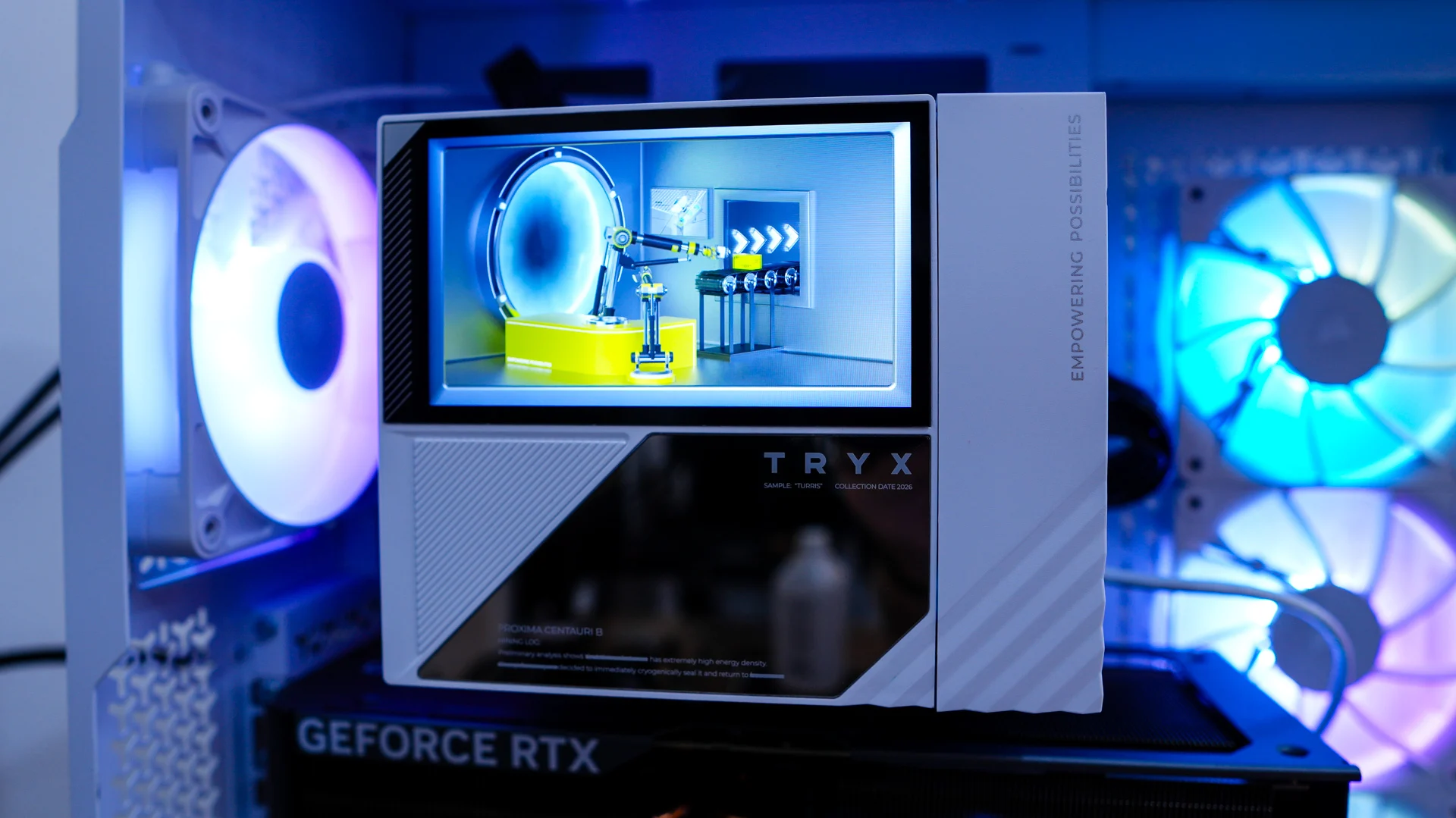
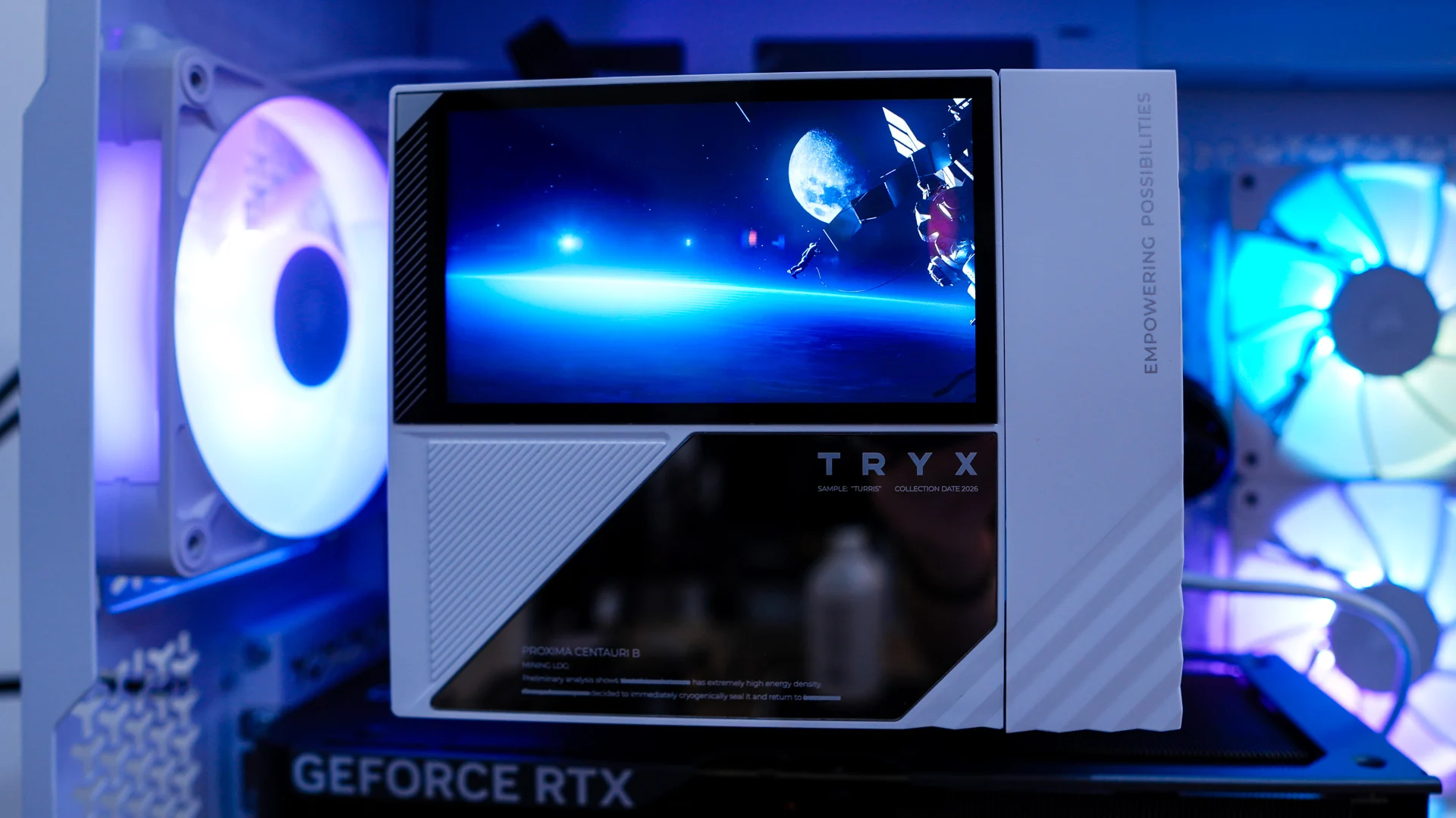
Showing off the screen on the TRYX Turris 620 CPU Cooler
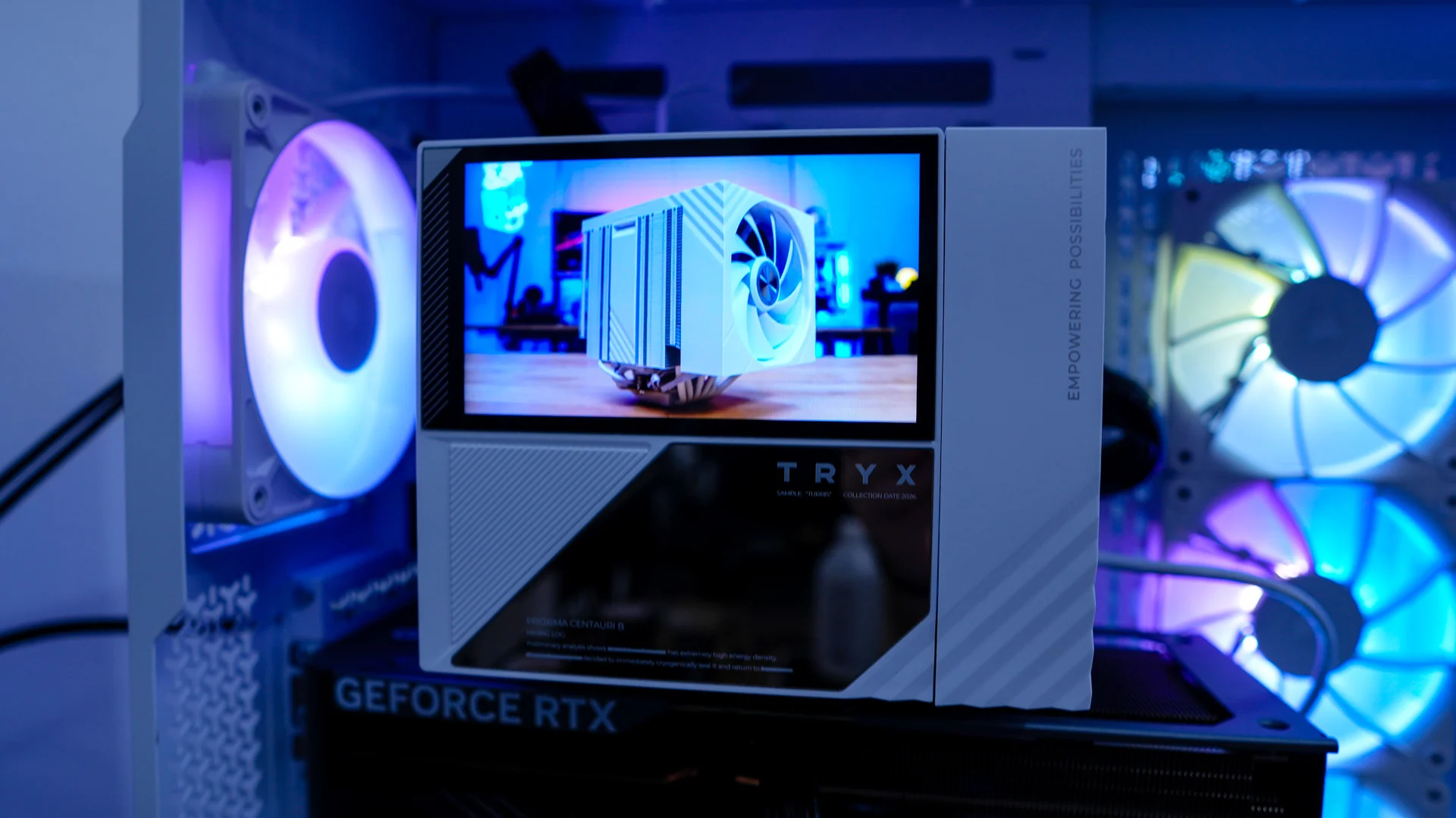
Below we have a gallery of photos showing off the screen on the TRYX Turris 620 CPU cooler. Here are some of the main preset animations in the software.
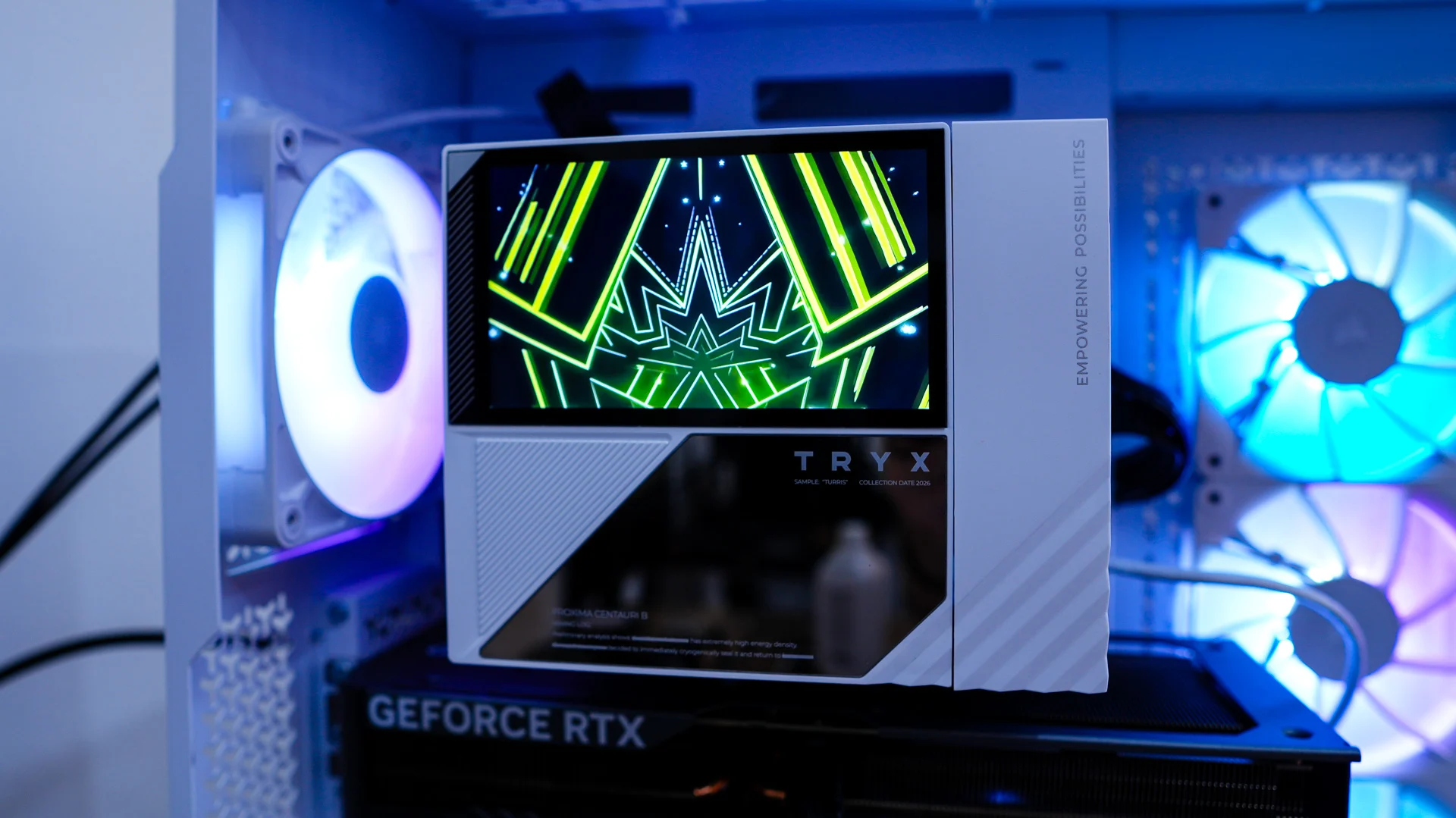
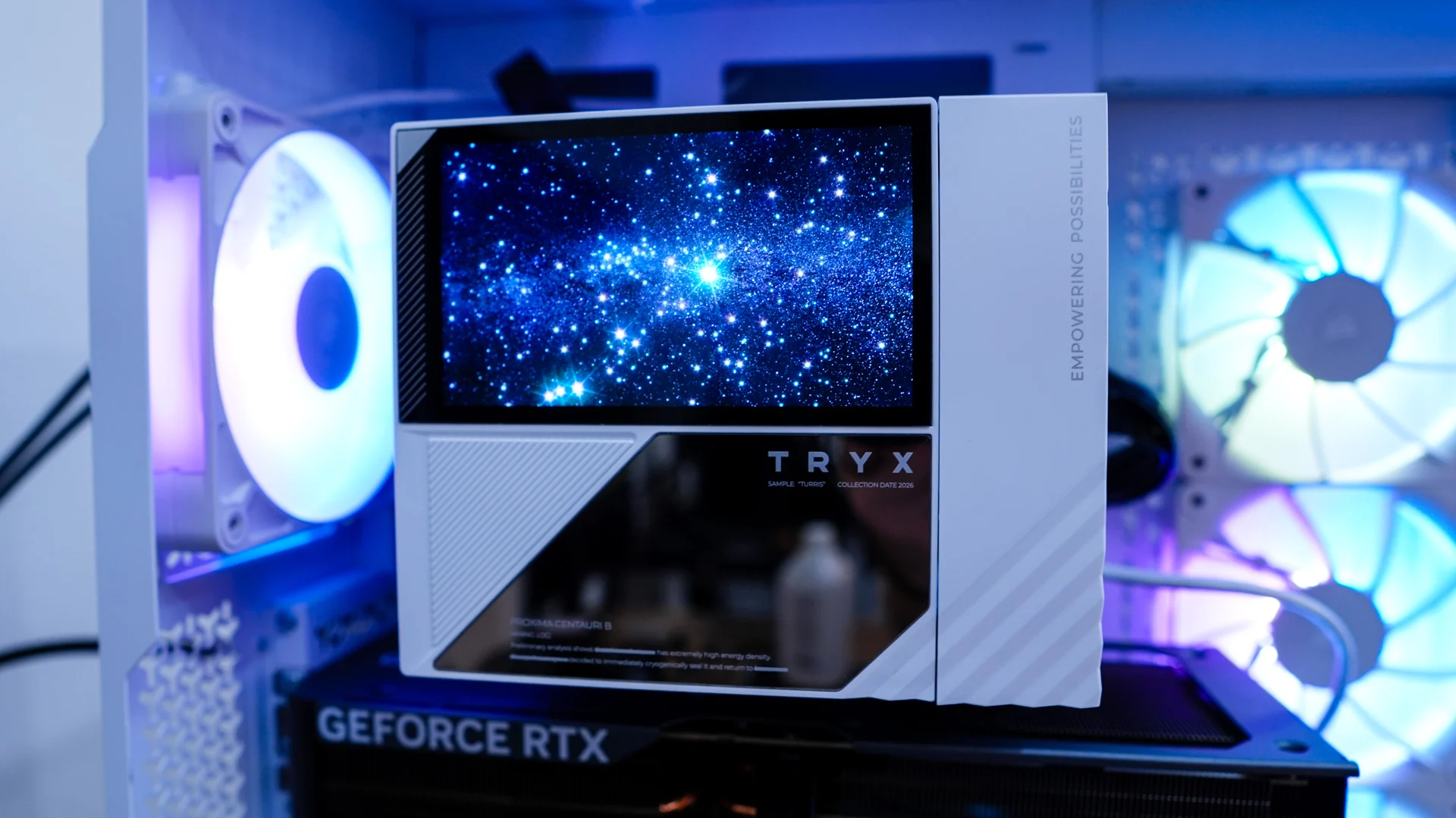
When displaying system stats on the animation you can see it is a bit hard to read, again I wish there was an outline or shadow effect available so you could see the text easier.
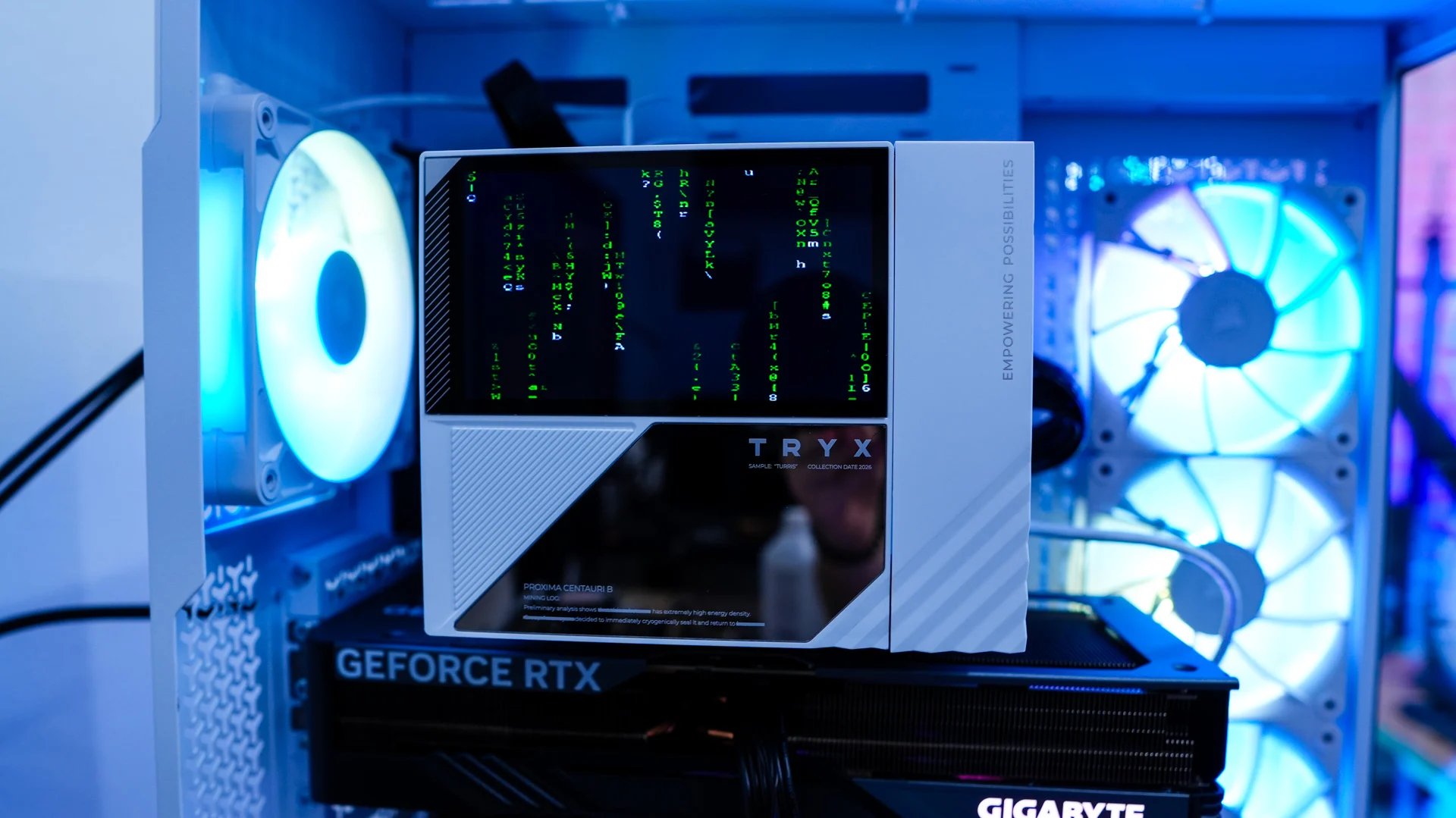
And finally some Apex Legends gameplay on the screen, a Matrix-themed GIF, and a simple image!