
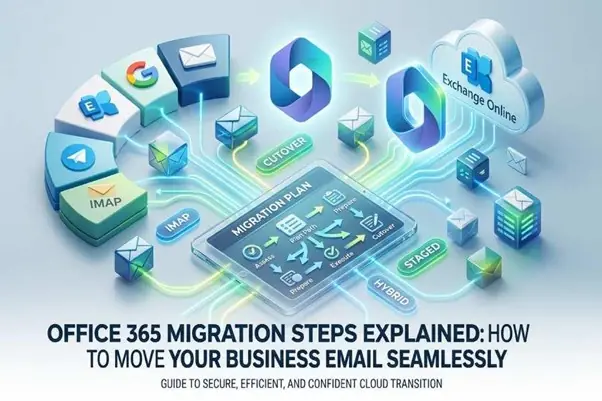
Achieving a successful transition to Microsoft 365 relies on thorough planning, effective implementation, and consistent governance practices. This migration guide serves as a comprehensive roadmap for confidently managing your email migration. The outlined steps for Office 365 migration detail the entire process, from readiness assessment to cutover and subsequent adjustments, while highlighting various migration techniques like IMAP, cutover migration, staged migration, and hybrid migration.
Assess readiness and scope
Inventory, identity, and compliance baselining
- Compile details on mailboxes, shared resources, distribution groups, public folders, and permissions assigned to users. Record mailbox sizes, identifying any that exceed a certain limit (for example, greater than 50 GB) and note their archiving status.
- Identify the current email platform being used (such as Exchange, Google Workspace, or an IMAP service) and outline its functionalities, which should include calendar features, contact management, mobile setups, and email clients (like Outlook, Apple Mail, or Thunderbird).
- Clarify identity management: whether it involves Azure Active Directory (Entra ID) operating solely in the cloud, synchronized via AD Connect, or utilizing federated single sign-on (SSO). Ensure user accounts are appropriately mapped, including UPN consistency and necessary multi-factor authentication policies.
- Determine necessary compliance configurations: including retention labels, legal holds, eDiscovery processes, legal archiving, and data residency requirements.
Estimate data, plan timeline, and budget
- Assess data transfer requirements based on the total volume of mailboxes, anticipated throughput, and bandwidth constraints of your network and internet access.
- Create a project schedule that includes key milestones for pilot migration, subsequent batch migrations, coexistence periods, and the complete cutover process.
- Allocate funds for licenses, a migration tool (such as CloudM Migrate), potential external support services, and a reserve for ongoing performance monitoring and necessary adjustments.
Risk, continuity, and documentation
- Create a risk registry that addresses throttling issues, limitations on endpoints, gaps in permissions, and periods of frozen changes.
- Develop strategies for business continuity, including coexistence in mail flow, managing queued deliveries during DNS transitions, and establishing criteria for rollback.
- Generate documentation intended for leaders (such as the IT Director and security personnel), the help desk, and all users to facilitate user acceptance and ensure adherence to best practices during the migration process.
Choose the right migration path (IMAP, Cutover, Staged, Hybrid)
Match migration methods to your scenario
Choosing the appropriate migration strategy is crucial when moving to Office 365. Tailor your method based on the size of your organization, the current platform in use, the version of Exchange, coexistence requirements, and the readiness for change.
IMAP migrations
- Ideal for straightforward email transfers from basic IMAP services, where only emails are migrated; tools or exports are needed for calendar and contact transfers.
- Ensure to check IMAP access, credentials, and folder mappings. Keep in mind that metadata accuracy may be limited.
Cutover migration
- Cutover migration is ideal for smaller businesses transitioning from on-premises Exchange or Google Workspace to Exchange Online in one go.
- Benefits include ease of implementation and rapid setup. Drawbacks consist of a short period of downtime and restricted coexistence options.
Staged migration
Staged migration transfers groups of mailboxes gradually over several days or weeks, minimizing risk and distributing the workload. It is ideal for medium-sized environments and situations where user communication and training need to occur in phases.
Hybrid migration
Hybrid migration (Exchange Hybrid) allows for seamless integration with Exchange Online, offering features like shared calendar visibility, a unified Global Address List (GAL), and phased mailbox transfers. It’s particularly suited for scenarios involving extended coexistence, intricate permissions, or the need to manage the migration of substantial mailboxes in a scheduled manner.
Tooling, throttling, and throughput
- Assess a migration solution such as CloudM Migrate for its capabilities in mapping, scheduling, and managing errors. Look into user feedback on platforms like Capterra and GetApp, and refer to Gartner’s research while comparing different providers.
- Also, take Microsoft’s service restrictions and throttling into account; adjust your batch sizes according to your available bandwidth and the project’s timeline.
Prepare tenant, identity, and DNS
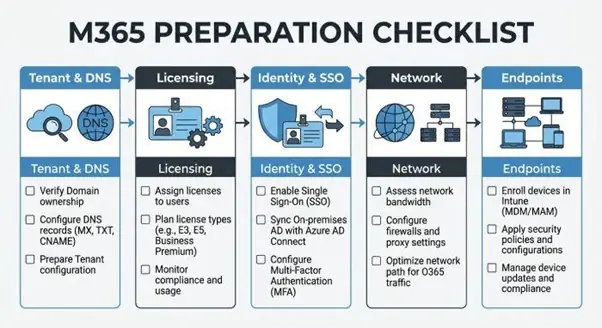
Create the Microsoft 365 tenant and verify domains
Set up Microsoft 365 (M365) and check the status of the services. In the admin portal, include and validate your domains. Ensure that necessary DNS records are published, such as MX (to be done later), SPF (TXT), DKIM (CNAME), DMARC (TXT), and autodiscover (CNAME).
Licenses and directory hygiene
Allocate Exchange Online licenses to test users. Standardize display names, aliases, and user principal names (UPNs); resolve any duplicates; and finalize the data cleaning for accounts that have been disabled.
Identity, SSO, and security baselines
- Set up Azure AD Connect/Entra ID synchronization with filters in place. Activate Single Sign-On if required and implement Multi-Factor Authentication.
- Establish predefined security configuration baselines, conditional access protocols, and device policies to ensure a smooth transition at cutover.
Network and Autodiscover validation
Assess the network infrastructure for delays and data transfer rates to Exchange Online endpoints. Verify the connectivity of Outlook and the responses from autodiscover. Ensure that the firewall and SSL inspection do not disrupt modern authentication.
Set up migration endpoints
In the Exchange admin center, set up migration endpoints for Exchange, IMAP, or the Google Workspace API. Verify the credentials, permissions, and the status of the endpoints.
Execute pilots and migration batches
Pilot migration to prove the plan
- Choose a diverse range of departments, job positions, and device categories. Ensure to integrate assigned scenarios and communal resources.
- Transfer email, calendars, and contact lists as needed; verify the accuracy of the data, the integrity of the folder structures, and the appropriate permissions.
Coexistence features
- Facilitate the sharing of availability, synchronize the Global Address List, and establish mail flow connectors between systems to maintain email operations throughout the migration.
Throttling and tuning tips
- Begin with a modest approach, monitor performance, and make adjustments as needed. Only boost the number of simultaneous operations once you’ve verified there are no limits on service or bandwidth.
Scale with well-defined batches
Organize users according to their business units or locations. Prioritize complex permissions and executive tasks following initial successes. Plan for overnight or weekend maintenance to minimize disruptions, and ensure that all company departments are well-informed about any downtime.
Monitoring, communications, and clients
- Utilize the admin center along with your migration tool for monitoring performance, managing retries, and addressing errors.
- Ensure readiness of email clients by refreshing Outlook and mobile policies, pre-configuring profiles when feasible, and testing Autodiscover functionalities.
- Foster effective user engagement through proactive communication, easy-access guides, and training sessions to enhance user adoption and reduce support requests.
Cutover and post-migration optimization
Switch DNS and confirm mail flow
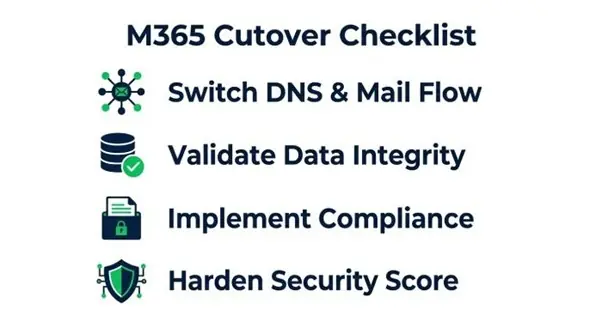
Change the MX record to point to Microsoft 365, and ensure that your SPF, DKIM, and DMARC records are properly aligned to secure your domain. Monitor delivery routes and non-delivery reports (NDRs). Maintain legacy acceptors for a short period as a precaution during the switch.
Outlook/mobile finalization
If necessary, rebuild or fix Outlook profiles, verify the autodiscover feature, and implement modern authentication. Check access to shared mailboxes and permissions for Send As and Send on Behalf in Exchange Online.
Validate data and decommission legacy
- Perform random checks on sample mailboxes to ensure data integrity, focusing on both calendar and contact migration. Restore shared mailboxes, Microsoft 365 Groups, and public folders if they are included in the project scope.
- Verify the functionality of connectors, transport rules, disclaimers, and journaling practices after the migration process. Once operations are stable, proceed to retire the legacy Exchange system or the source email platform, following the documented procedures and change control protocols.
Compliance, backup, and retention
- Facilitate policy-based retention and archiving, set up eDiscovery holds, and ensure compliance with legal and regulatory requirements. If the policy mandates a secondary copy for business continuity, establish integrations for backup or archiving.
Harden security and review Secure Score
- Evaluate the security setup, conditional access measures, defenses against phishing, and the usage of Safe Links and Attachments. Examine the Microsoft Secure Score and carry out improvements based on priority.
Lessons learned and support readiness
Note that Microsoft 365 and Office 365 are often used interchangeably in community resources. Companies, from new startups to established brands like Spotify, Netflix, Booking.com, Groupon, and Kempinski, tend to exhibit similar trends when transitioning to cloud solutions, despite differing requirements.
Educational institutions and nonprofits, like Washington College, typically prioritize governance and budget considerations in their Microsoft 365 migration strategies.
Before deciding on tools such as CloudM and CloudM Migrate for migrating data from Google Workspace or legacy Exchange, seek feedback from the community on platforms like Capterra and GetApp, along with insights from independent sources like Gartner.
By aligning your Office 365 migration strategies with your organization’s size, risk appetite, and needs for coexistence, you can implement a practical migration approach: carefully preparing for the transition, choosing appropriate migration techniques, starting with a pilot program, and concluding with strong post-migration governance. These detailed instructions will empower your IT team to execute a smooth transition to Exchange Online while ensuring lasting benefits from M365.