


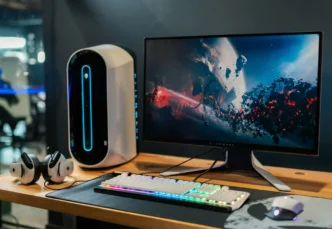
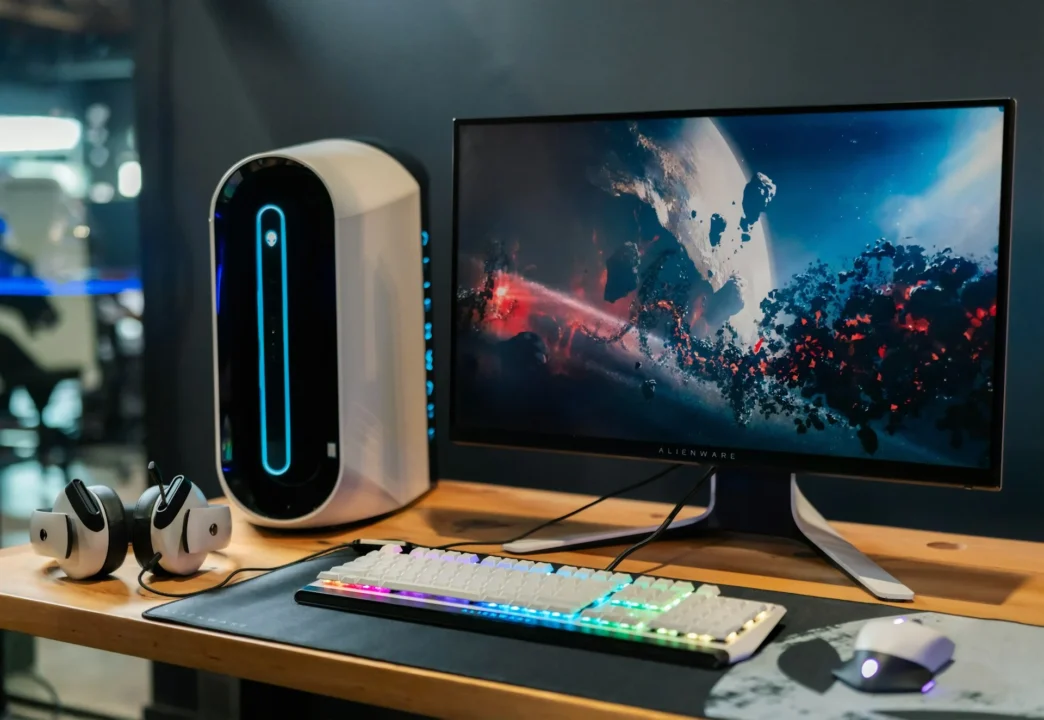
A custom motion background can turn a standard PC setup into a desktop that feels coordinated, personal, and alive. The best results come from matching the animation to your monitor layout, lighting, and daily workflow.
A calm loop can add depth without pulling attention away from games or creative work, while a faster design may suit streaming scenes or music playback. The following steps will help you build motion art that looks polished and runs smoothly.
Designing an Immersive Desktop
Start with the physical setup. Note your monitor resolutions, panel arrangement, and the colors produced by your keyboard, mouse, and case lighting. A wide animation can connect two displays visually, but the main subject should stay away from the gap between panels. A single-monitor setup gives you more freedom to center key details.
Photos of a finished art and streaming setup can help you see how screen content, wall decor, and lighting work together. Choose two or three dominant colors from your desk and repeat them in the motion art. Keep movement slower near desktop icons so shortcuts remain easy to identify. Darker backgrounds also reduce visual competition and may feel more comfortable during evening sessions.
Sourcing High-Resolution Clips
Use footage that matches your display’s native resolution whenever possible. A 3840 x 2160 clip will look clean on a 4K monitor, while a 1920 x 1080 source may appear soft when stretched. Abstract particles, drifting clouds, neon city details, and animated geometric forms tend to repeat well because they don’t depend on a clear beginning or ending.
You can also record or create your own material, then process it with Loop Video in the browser. The tool supports local, client-side processing, automatic loop-point detection, blended transitions, and custom durations. It can also convert video into a GIF when you need a lightweight format for another platform.
For ready-made desktop content, a live wallpaper library such as Razer Axon software provides another source of high-resolution designs. Check aspect ratio, frame rate, and licensing terms before adding any downloaded clip to public streams or recorded videos.
Master the Seamless Transition
A convincing repeating animation hides the moment when the clip returns to its first frame. Watch the final second closely. A sudden shift in brightness, camera position, or object placement will expose the transition every time.
Crossfading often fixes clips with gentle movement. Overlap the ending with the beginning, then blend the two for roughly half a second. For footage with stronger motion, look for matching frames where the main object occupies a similar position. Water, smoke, and particle effects are forgiving because their shapes change naturally.
Test the result for at least five complete cycles. Small flaws become much easier to spot after repeated playback. If the transition still jumps, shorten the clip to a cleaner matching point or slow the final portion slightly. Keep text out of the animation unless it remains readable throughout every cycle.
Keeping Desktop Resource Use Minimal
Motion backgrounds use processor, graphics, and memory resources, so choose settings that suit your hardware. A 60 fps 4K clip can create needless load when a subtle animation looks nearly identical at 30 fps. Shorter clips also reduce storage use, though heavy compression can introduce blocks in dark gradients.
Check resource use through Task Manager while the background is running. If graphics activity stays high at idle, lower the resolution or frame rate. Many wallpaper applications can pause animation when a game, video editor, or other full-screen program opens. Enable that option to reserve performance for active tasks. If you’re planning a gaming setup, understanding the top tips on choosing the right gaming PC can also help you balance hardware performance with visual preferences.
Audio should normally remain disabled for a desktop loop. It prevents an unexpected soundtrack from competing with calls, games, or videos. Once the technical settings are stable, let the animation run during a normal work or gaming session. The right final version should complement the hardware without demanding your attention.