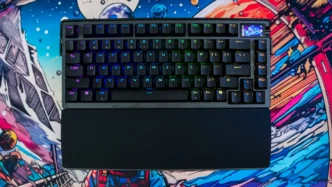

ASUS ROG Azoth Extreme Gaming Keyboard Overview
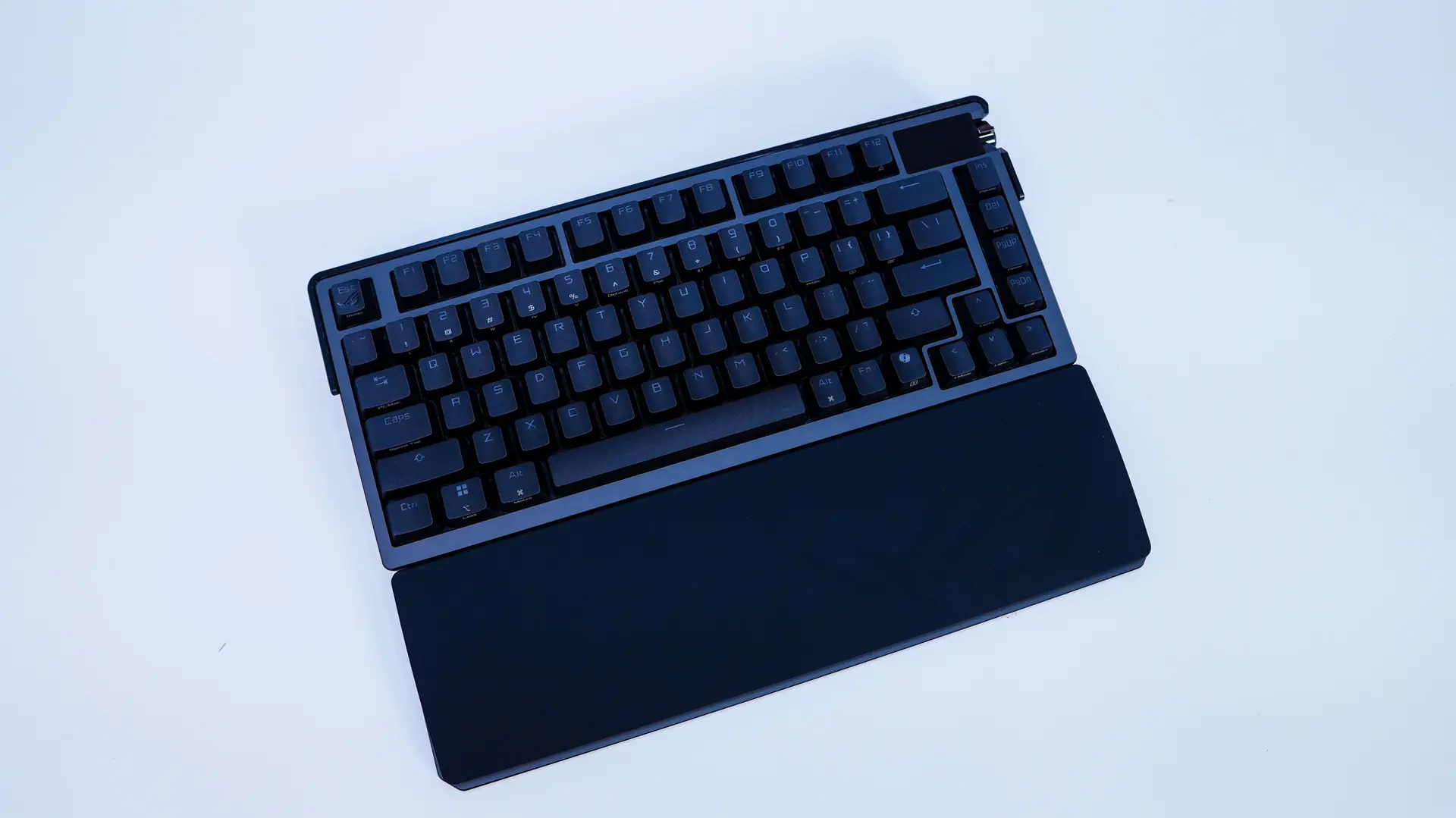
Picking up the Azoth Extreme for the first time it is quite heavy, which speaks to the quality and materials used in its build. You are getting a full heavy-duty aluminum alloy chassis. Typically on even high-end keyboards you have a plastic chassis with an aluminum top plate, but here the entire thing is aluminum. With that the keyboard and wrist rest together weigh in at 4.40 lbs! It just overall feels like a premium product.

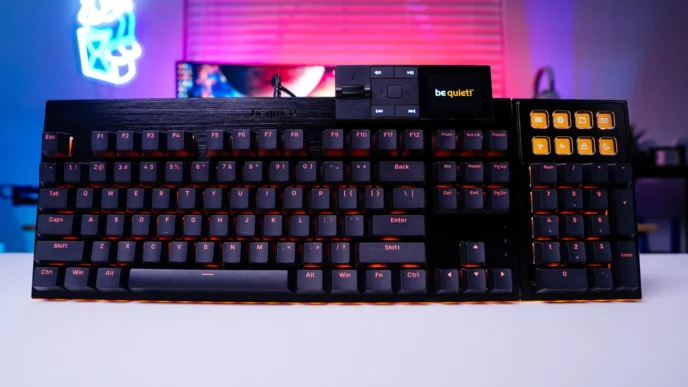
For such a premium product the design and colorway of the keyboard does not really stand out that much. The aluminum chassis is a sort of gunmetal color with the keycaps being black with see-though legends. The keyboard itself is in a 75% layout, which is a slightly smaller than a tenkeyless (TKL) layout, but you retain about the same amount of functionality. Another way to think of it is a 65% layout with an added function row. This size is extremely popular with gamers as you have quite a lot of functionality, but it takes up less space on your desk. Here we have an exploded 75% layout where the arrow keys and Ins, Del, Page Up, and Page Down buttons are slightly separated from the rest of the keyboard.
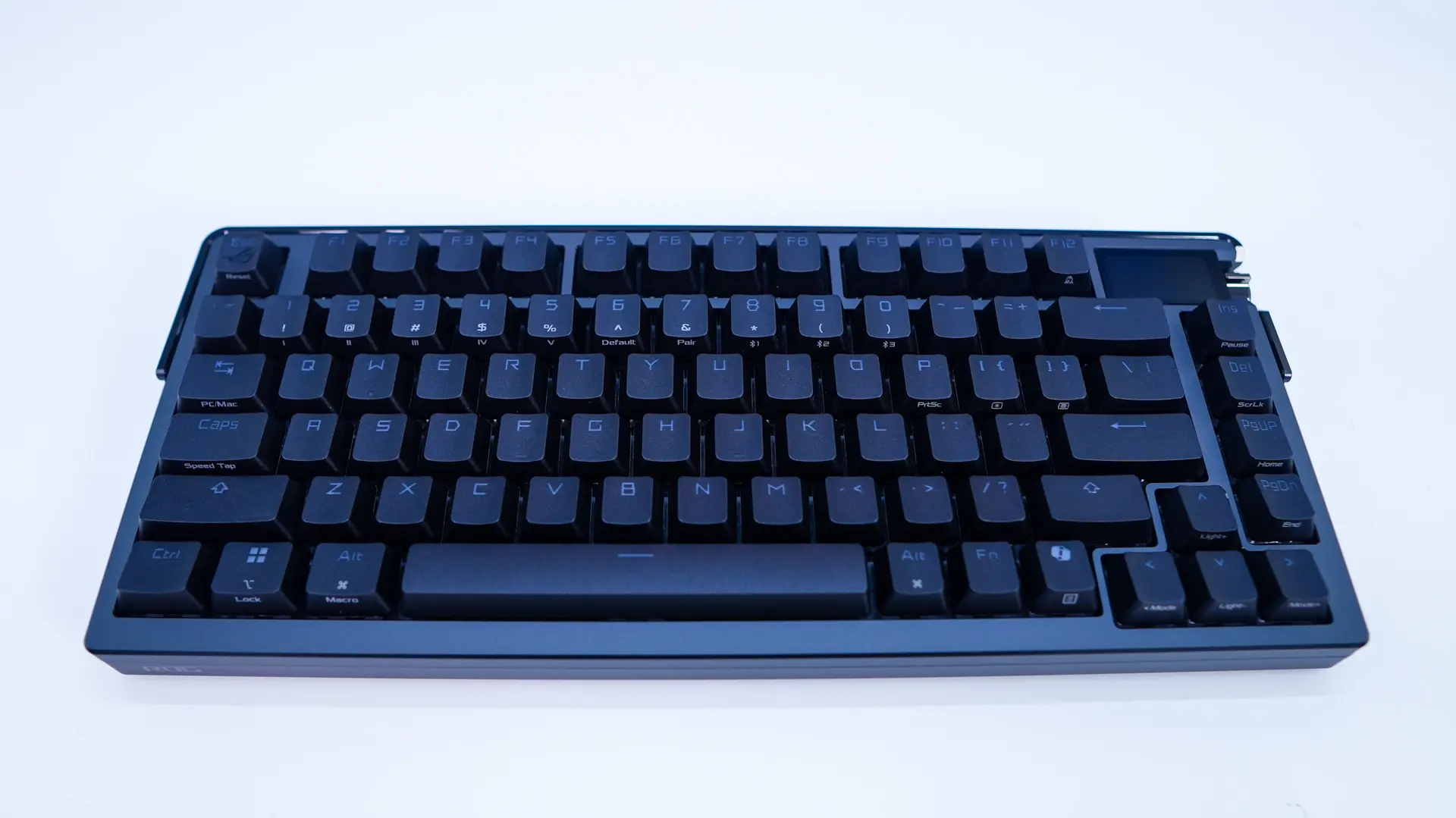

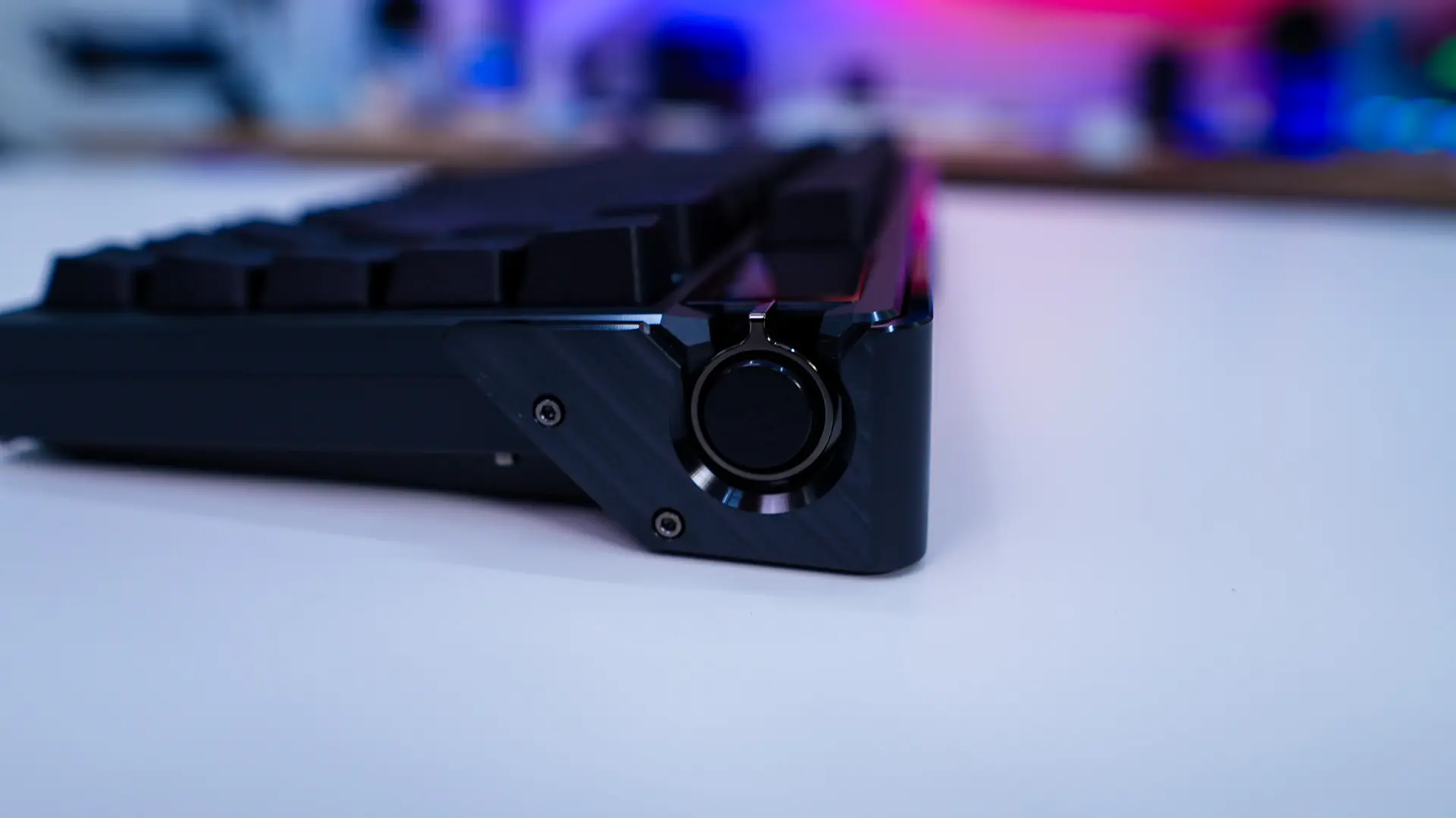
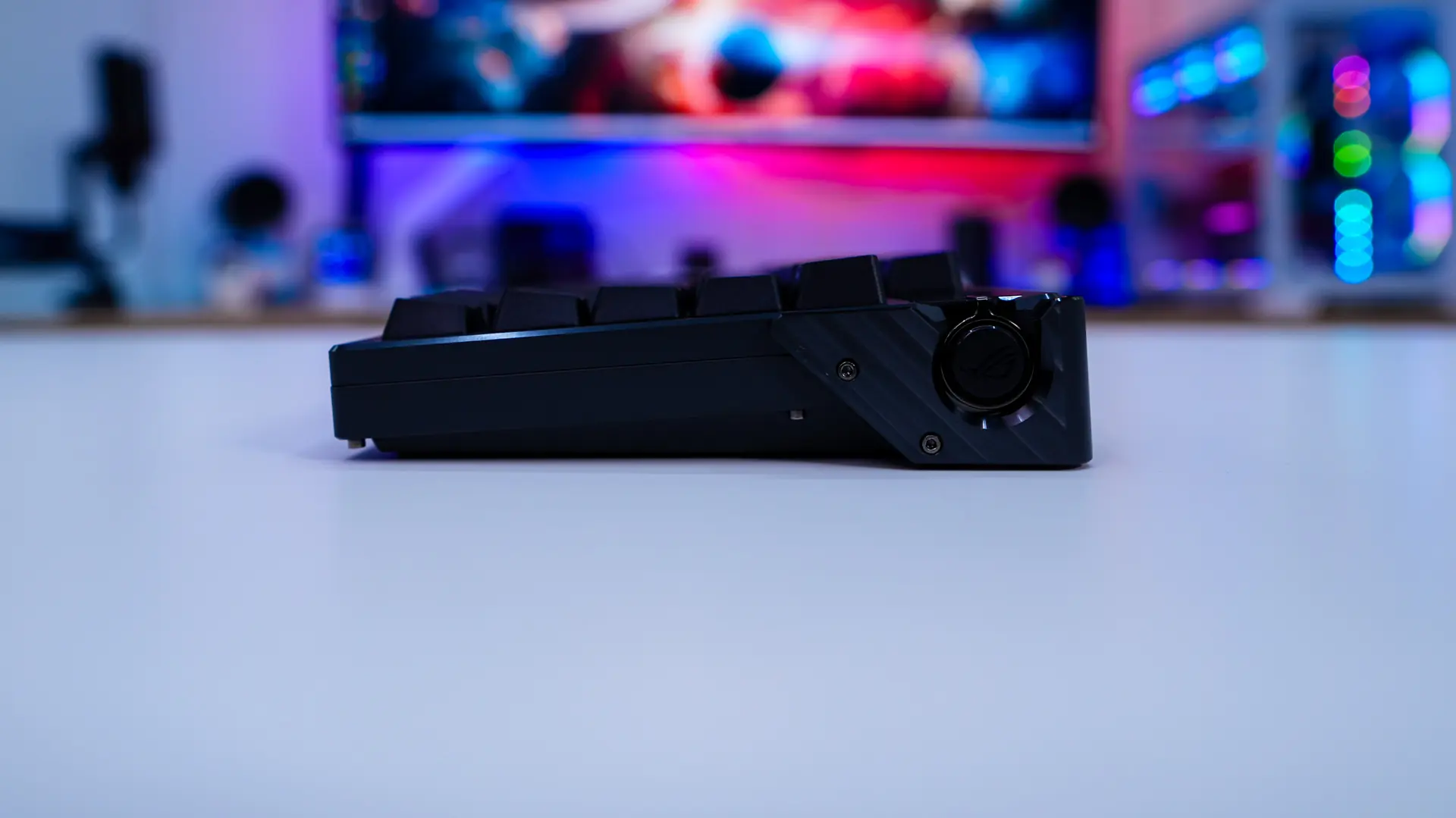
In the top right corner of the keyboard is a 1.47-inch OLED touchscreen display as well as a 3-way control knob which is made up of a main button on the side of the keyboard and a rocker that can also be pressed in. More on the OLED display in just a bit.

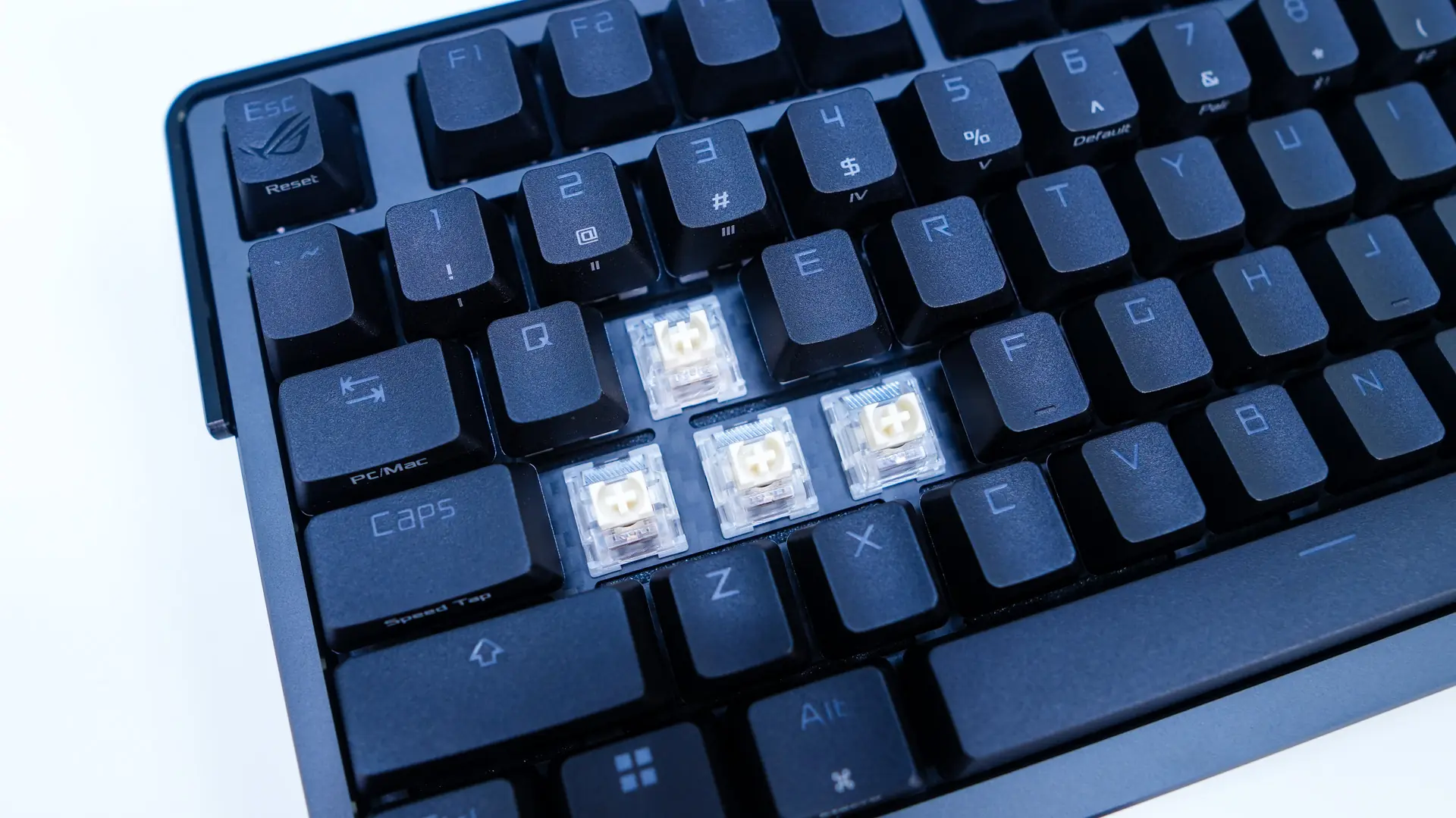
The keycaps themselves are double-shot PBT, which is great to see. PBT is much better than your normal ABS keycaps as it will not show shine or wear. Under these keycaps are our mechanical key switches. You have the option for ASUS’s ROG NX Snow (linear) or ROG NX Storm (clicky). These have an actuation point of 1.8mm, actuation force of 45, and a total travel of 3.6mm. These switches are rated for 70 million key presses. If you are wondering, this keyboard is hot-swappable so you can swap out of the switches if you like. Under the switches is a carbon fiber positioning plate and then 3 layers of sound dampening which include PORON dampening foam, a PORON switch pad, and a silicon pad.

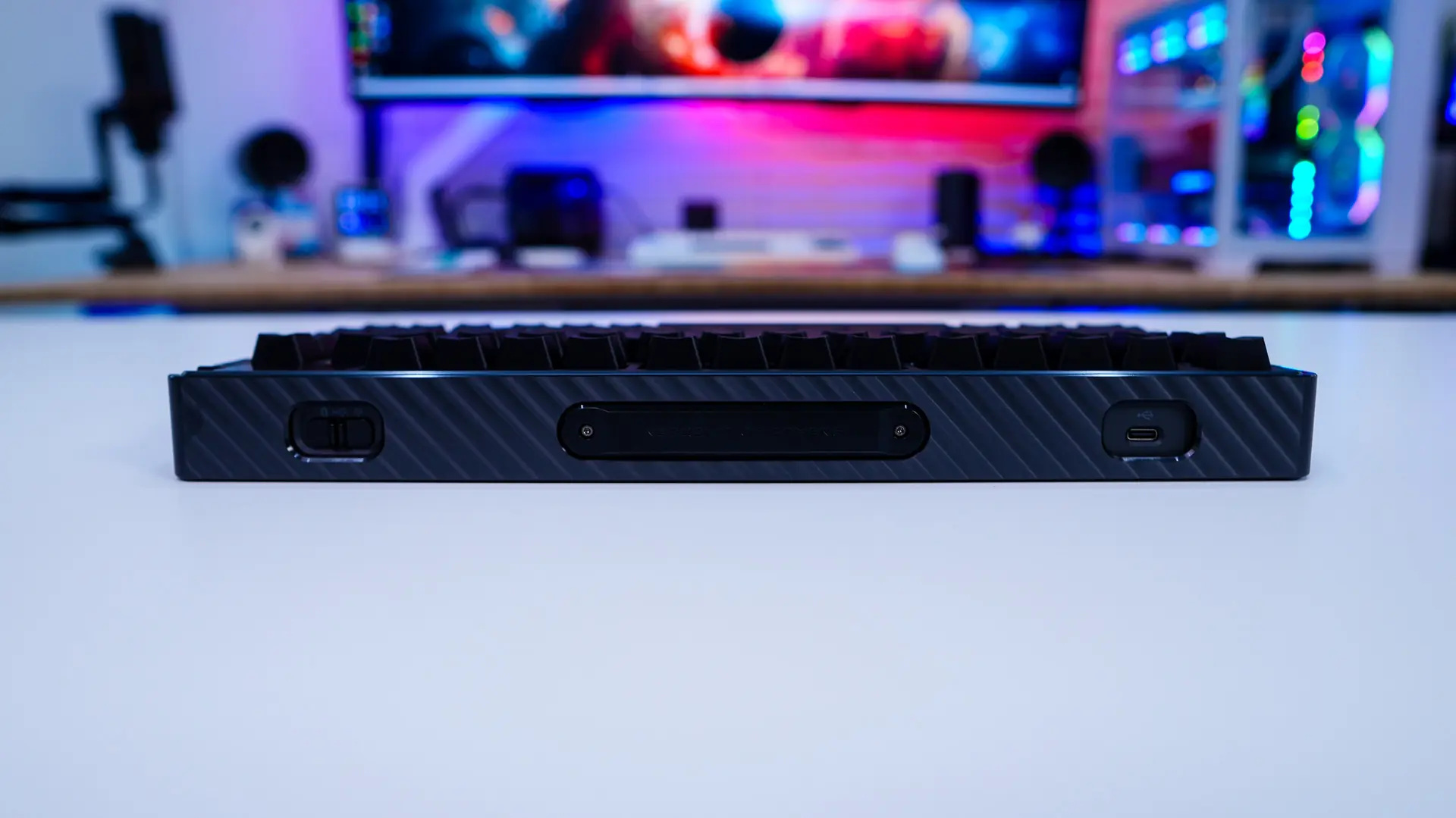
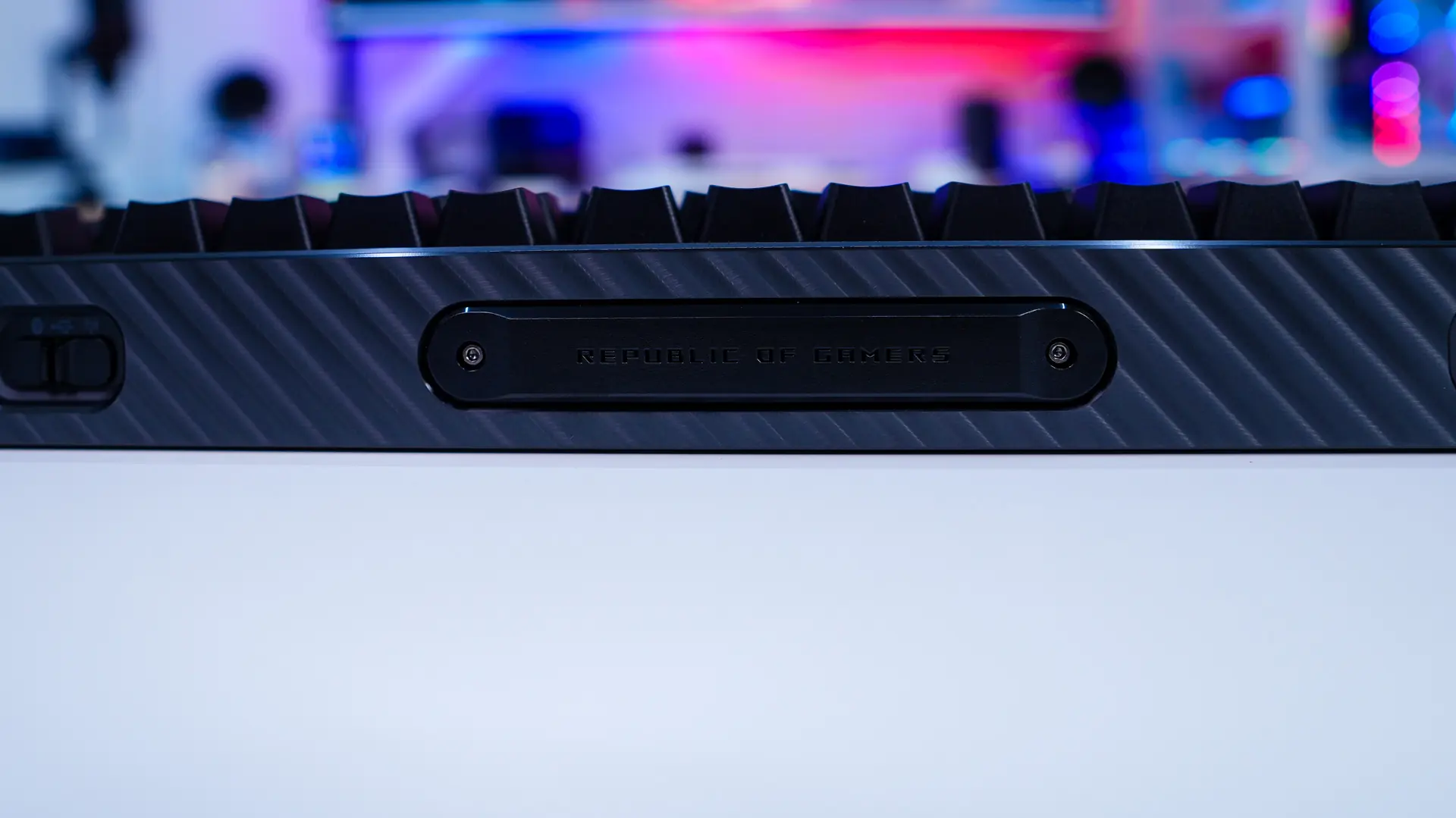
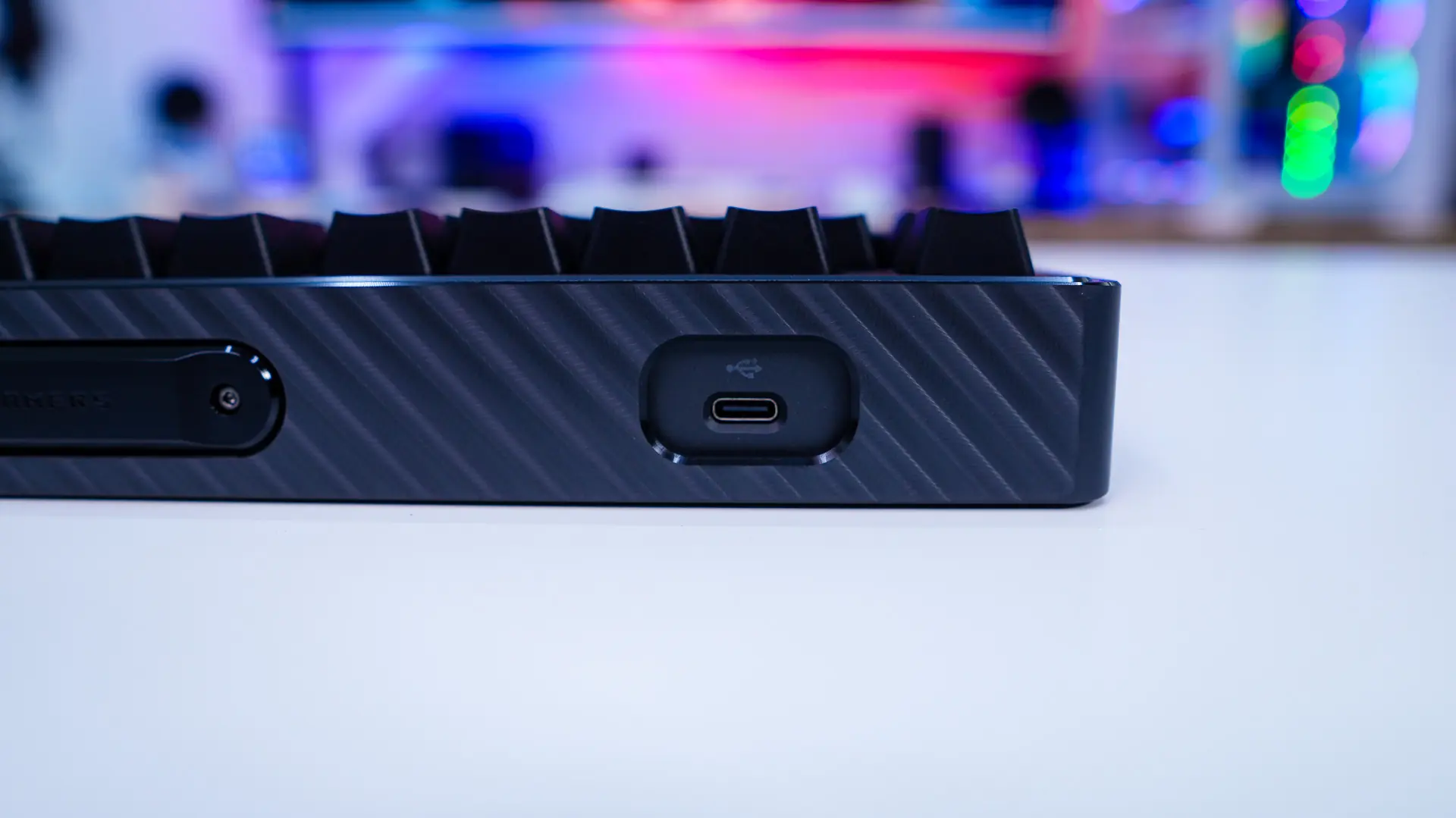
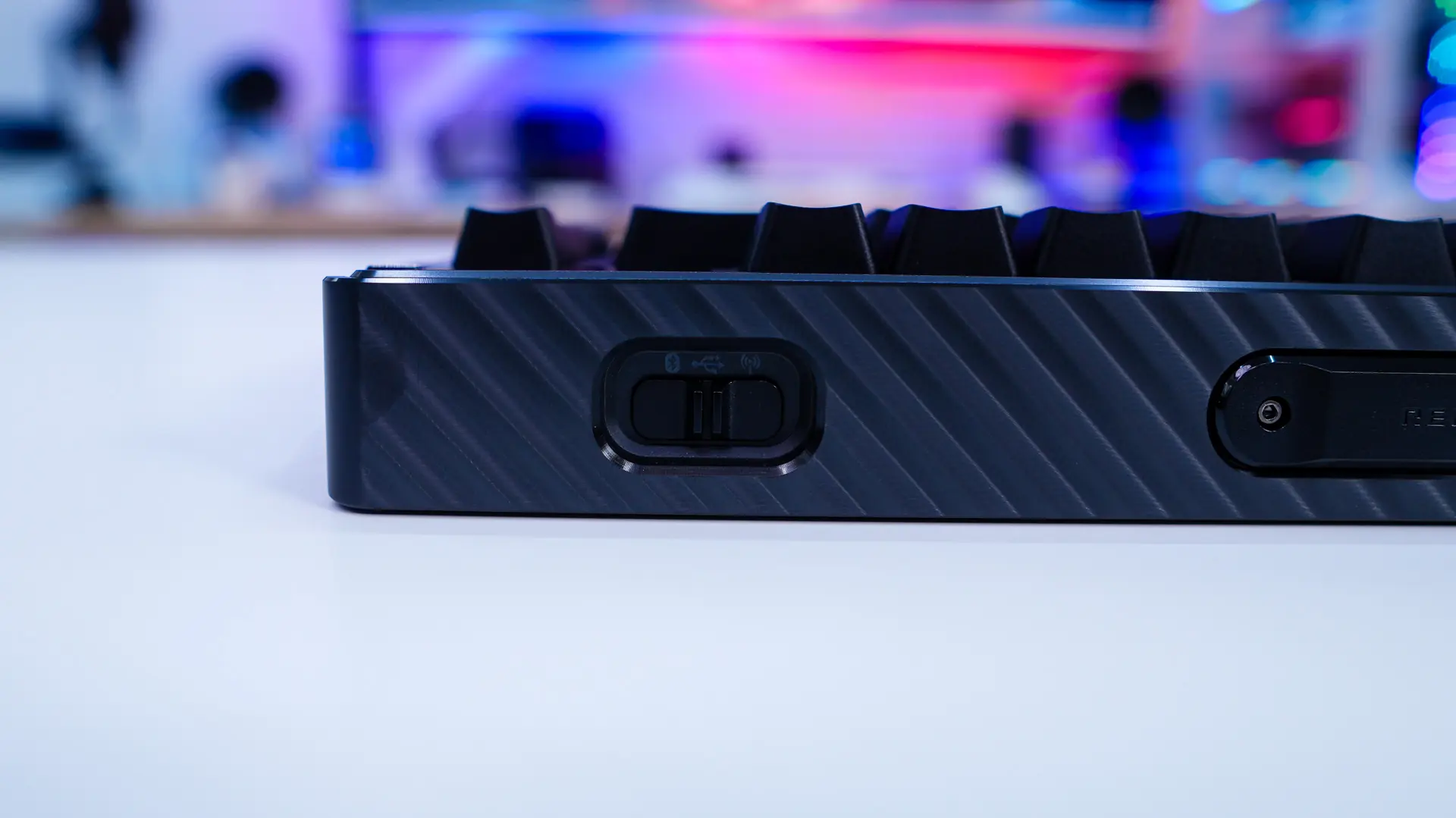
On the top-edge of the keyboard you have a sort of industrial design with a sort of plate in the center that says “Republic of Gamers”. On one side is a USB-C port to charge the keyboard and use it in wired mode and on the opposite side is a toggle switch so you can swap between 2.4 GHz wireless, wired, or Bluetooth modes.
The bottom of the keyboard actually looks amazing. It is made through a 12 step process that includes sandblasting, anodizing, CNC machining, and more. There are four small rubber feet on the bottom of the keyboard and then two places where you can install the included magnetic feet. In the center there is a place that holds the 2.4 GHz dongle and an interesting switch. This switch adjusts the gasket mount of the keyboard, it is actually the first time I’ve seen something like this on a keyboard. You choose between either a “hard” or “soft” setting.
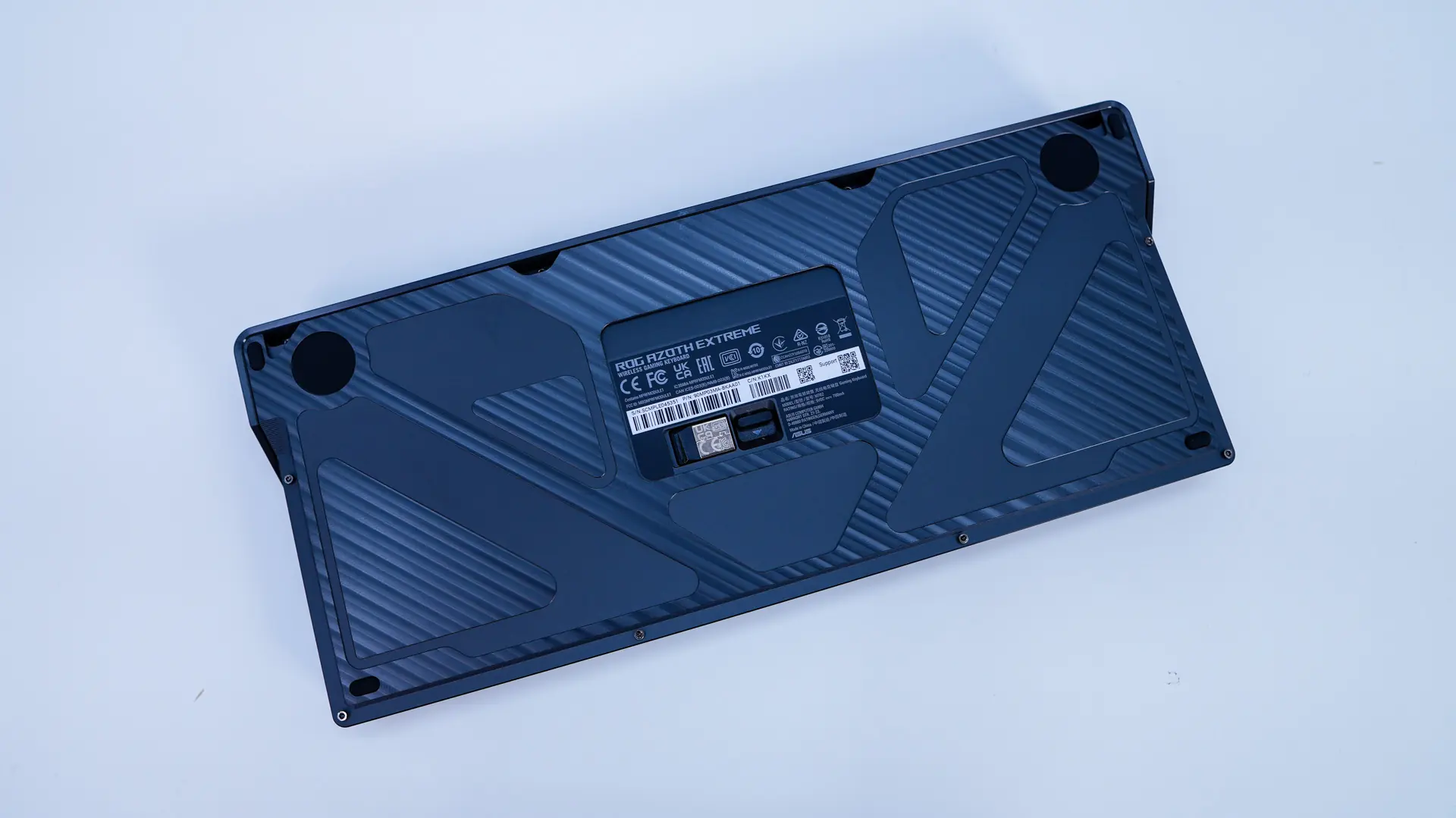
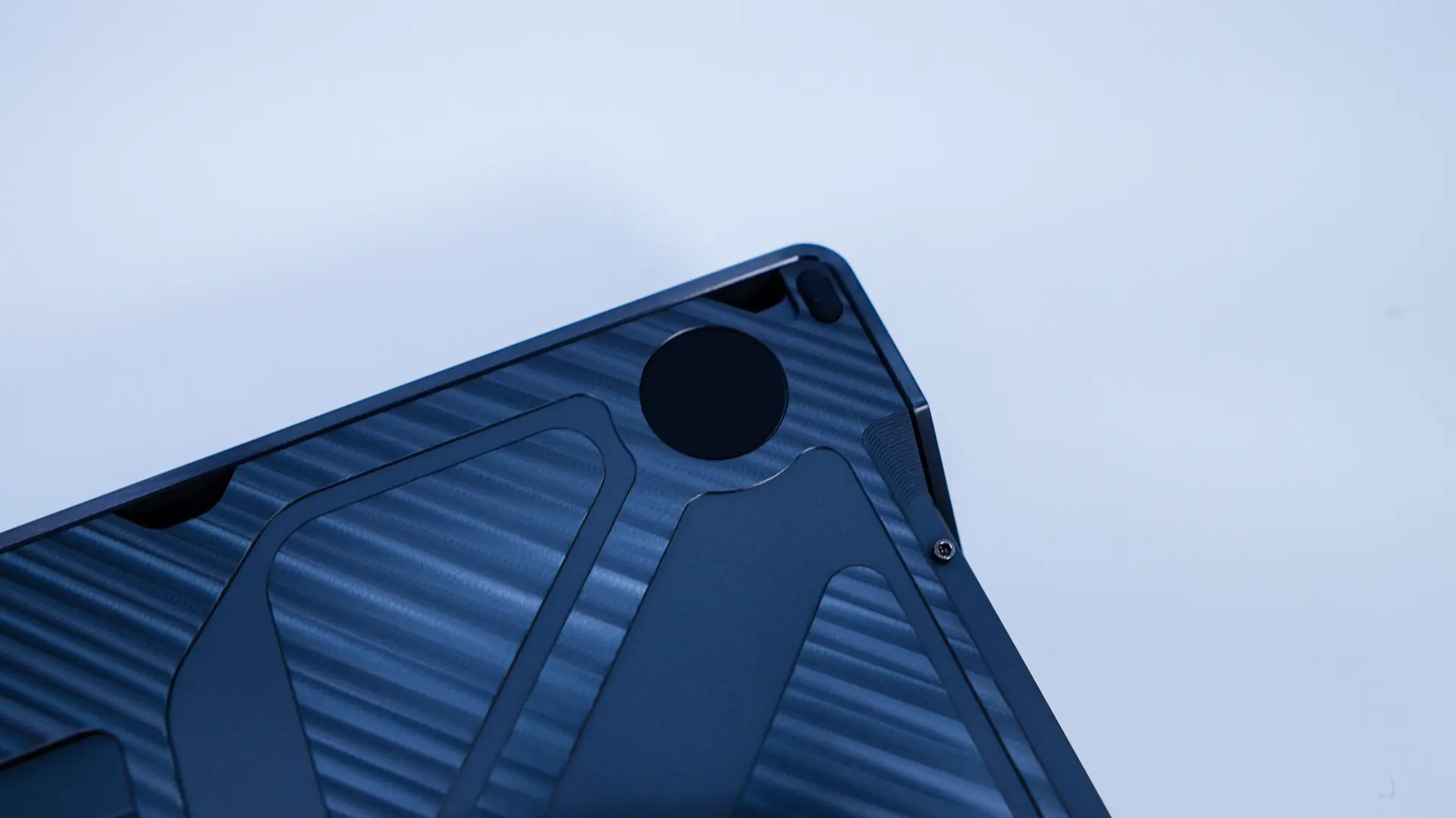
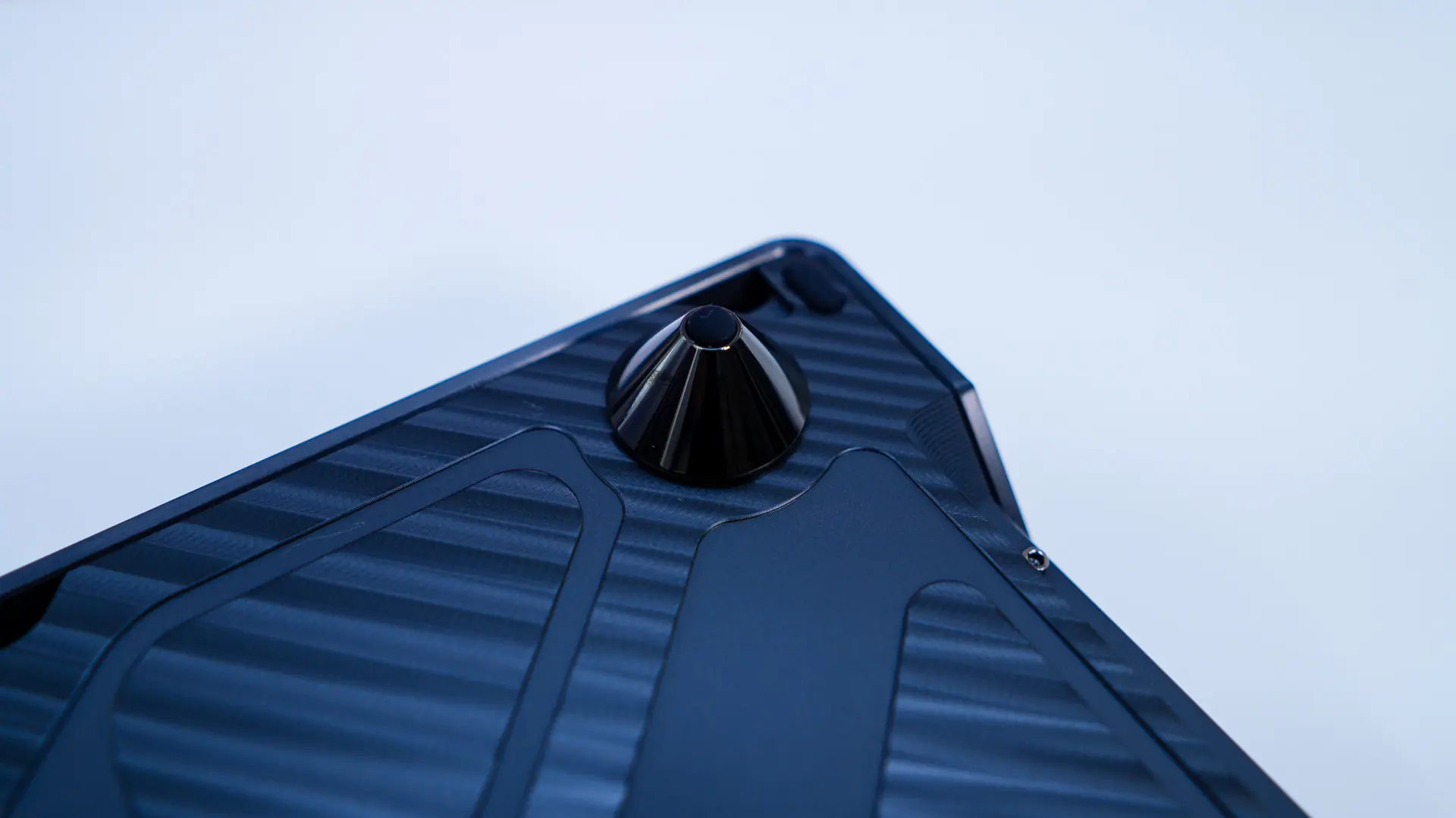
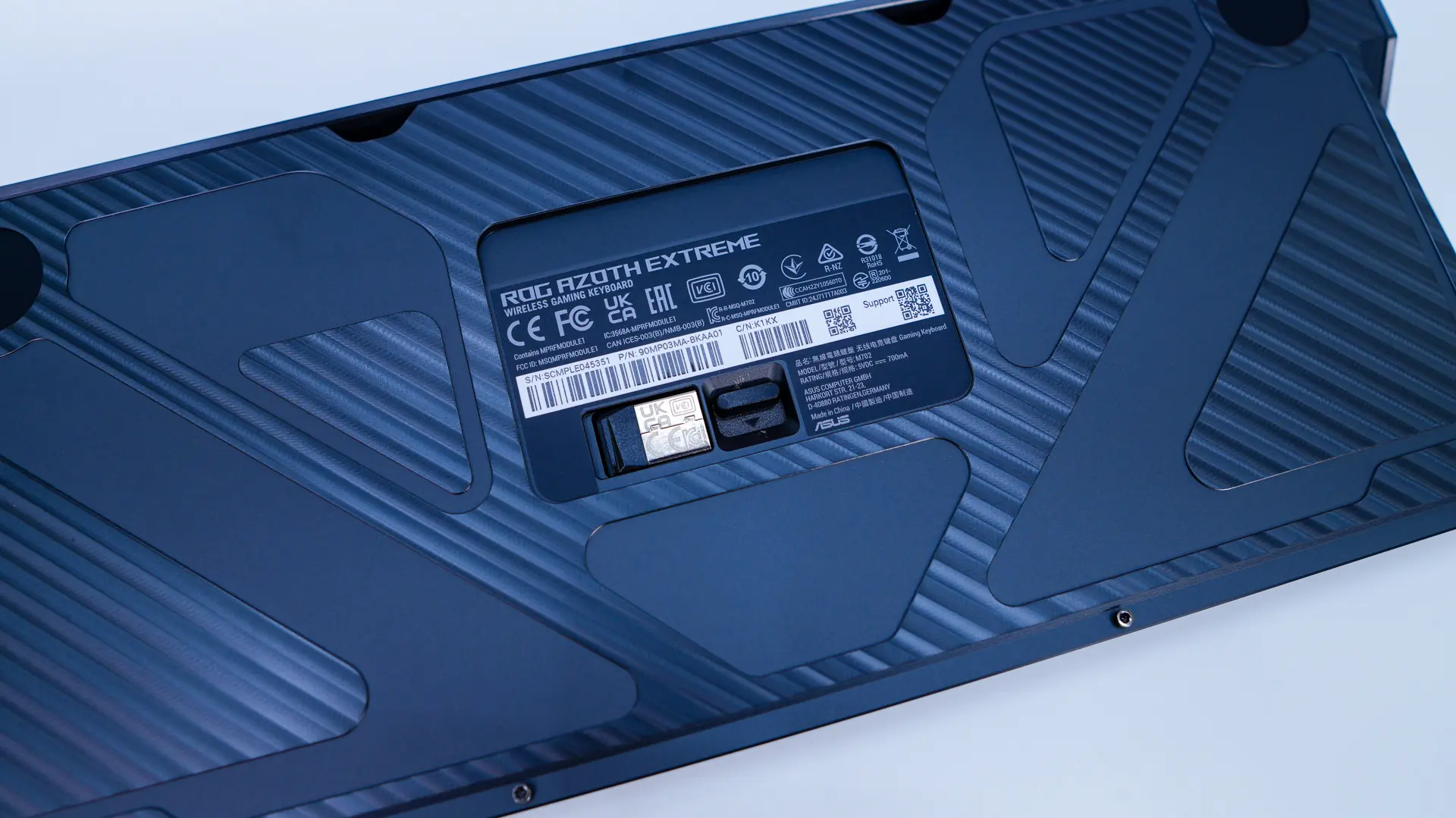
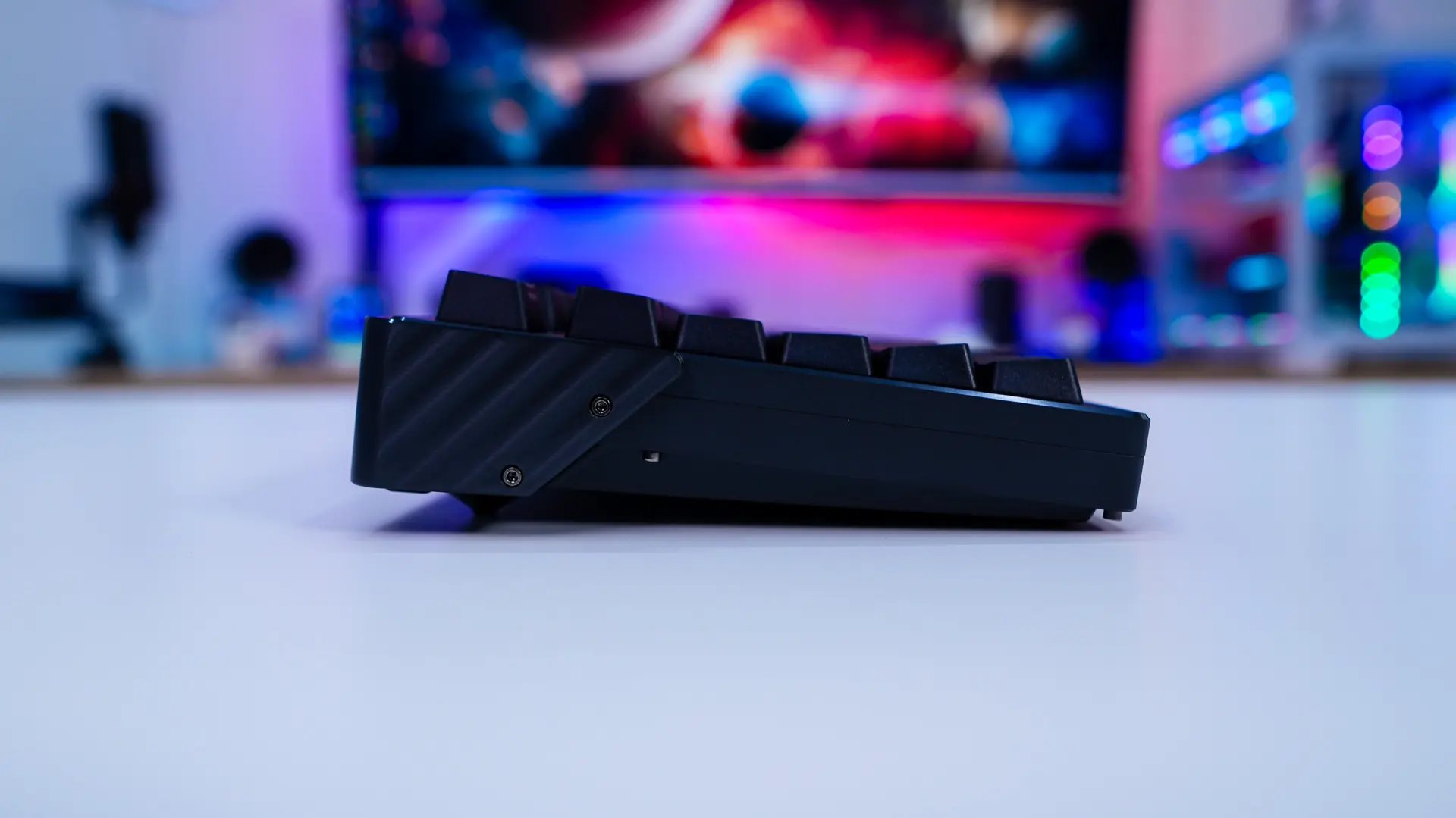
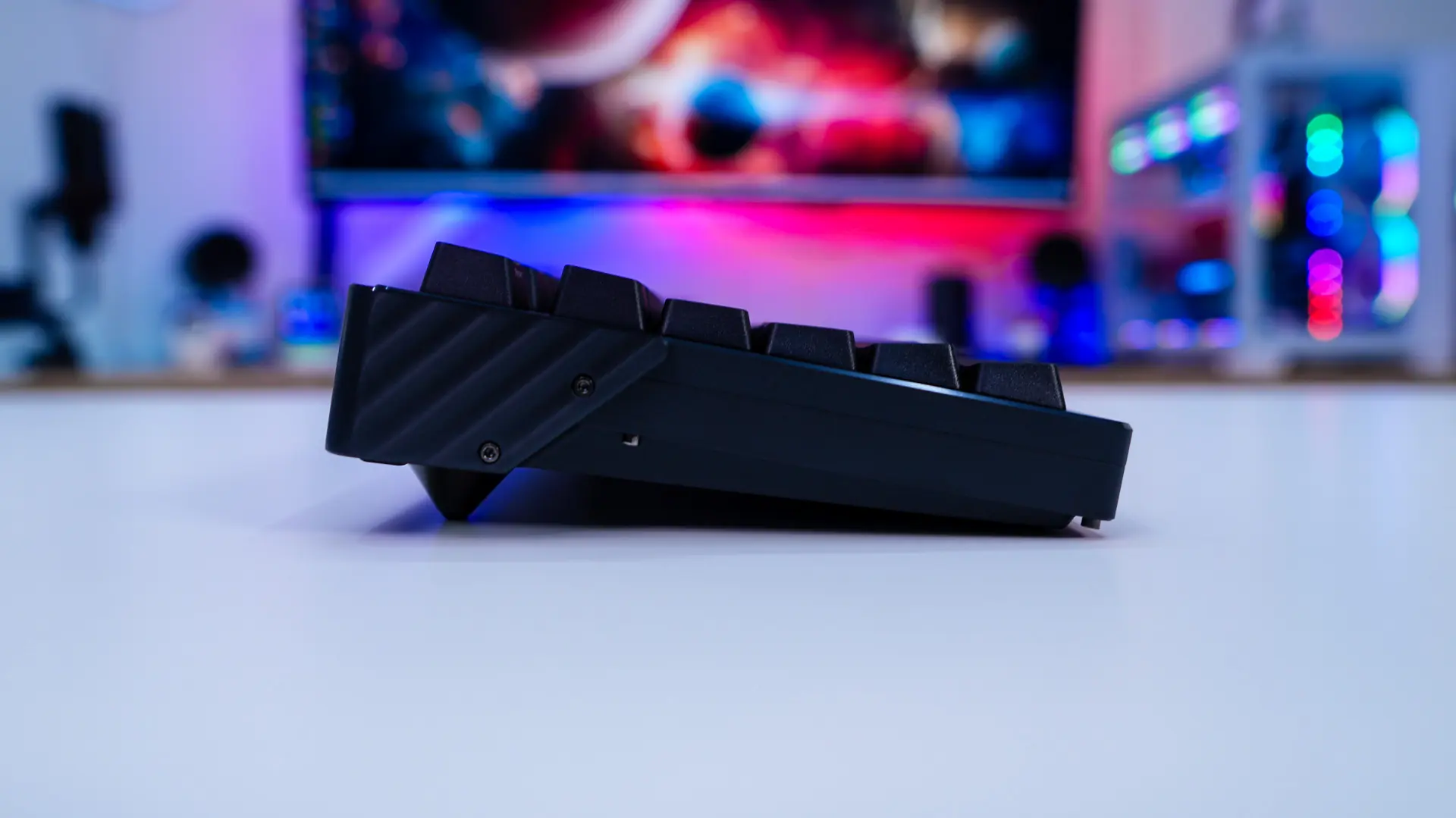
By default the keyboard will sit at a 5 degree angle. If you want more of an angle you can use the magnetic feet. The first set will change the angle to 9 degrees and the final set will make it 11 degrees.
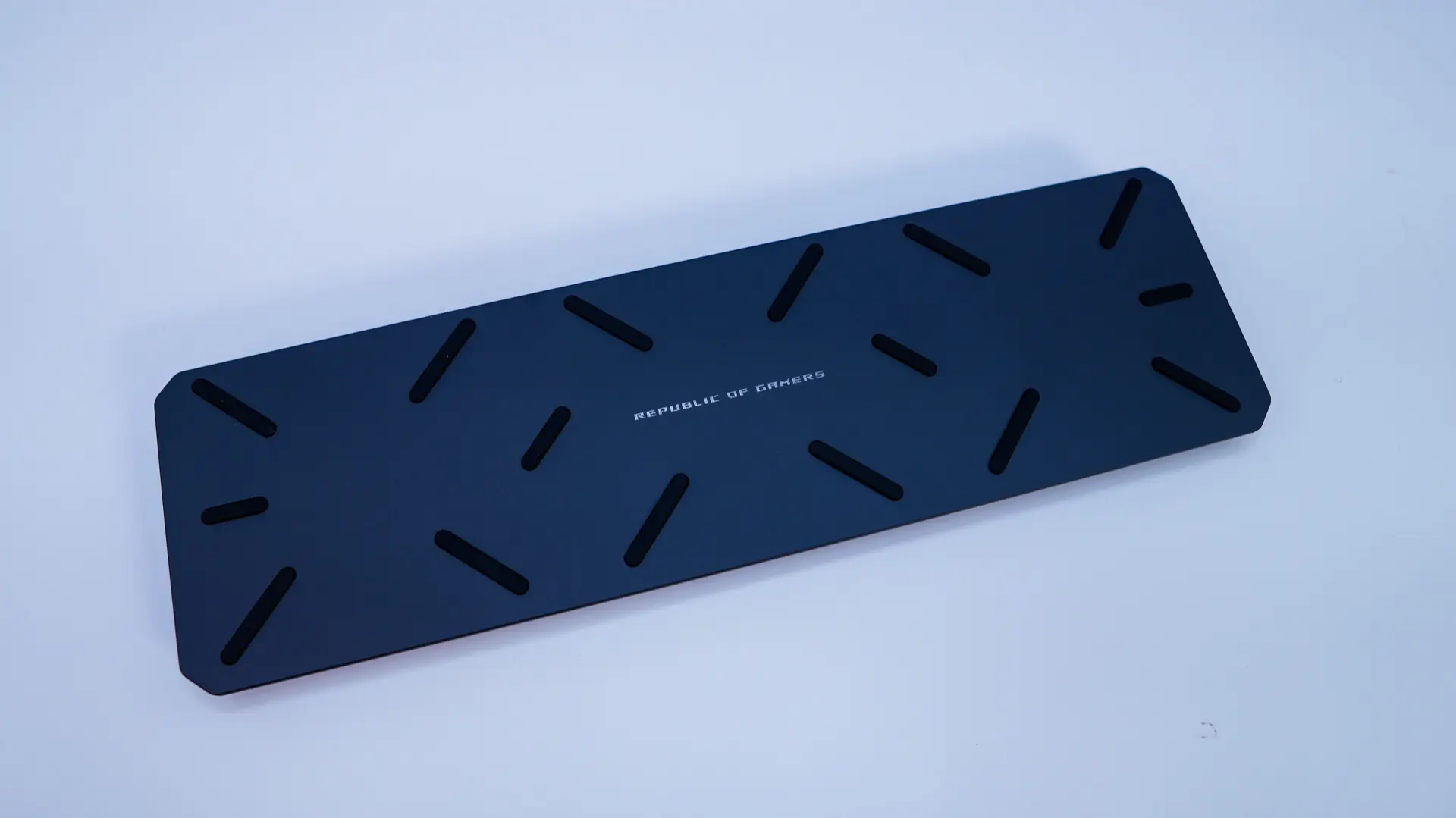
The included wrist rest is essentially a silicon pad that sits atop of an aluminum alloy base. It does not attach to the keyboard in any way, but is heavy enough and has rubber feet so it is going to stay in place on your desk.