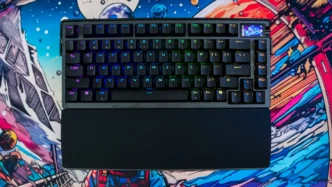

Setting up the ASUS ROG Azoth Extreme Gaming Keyboard
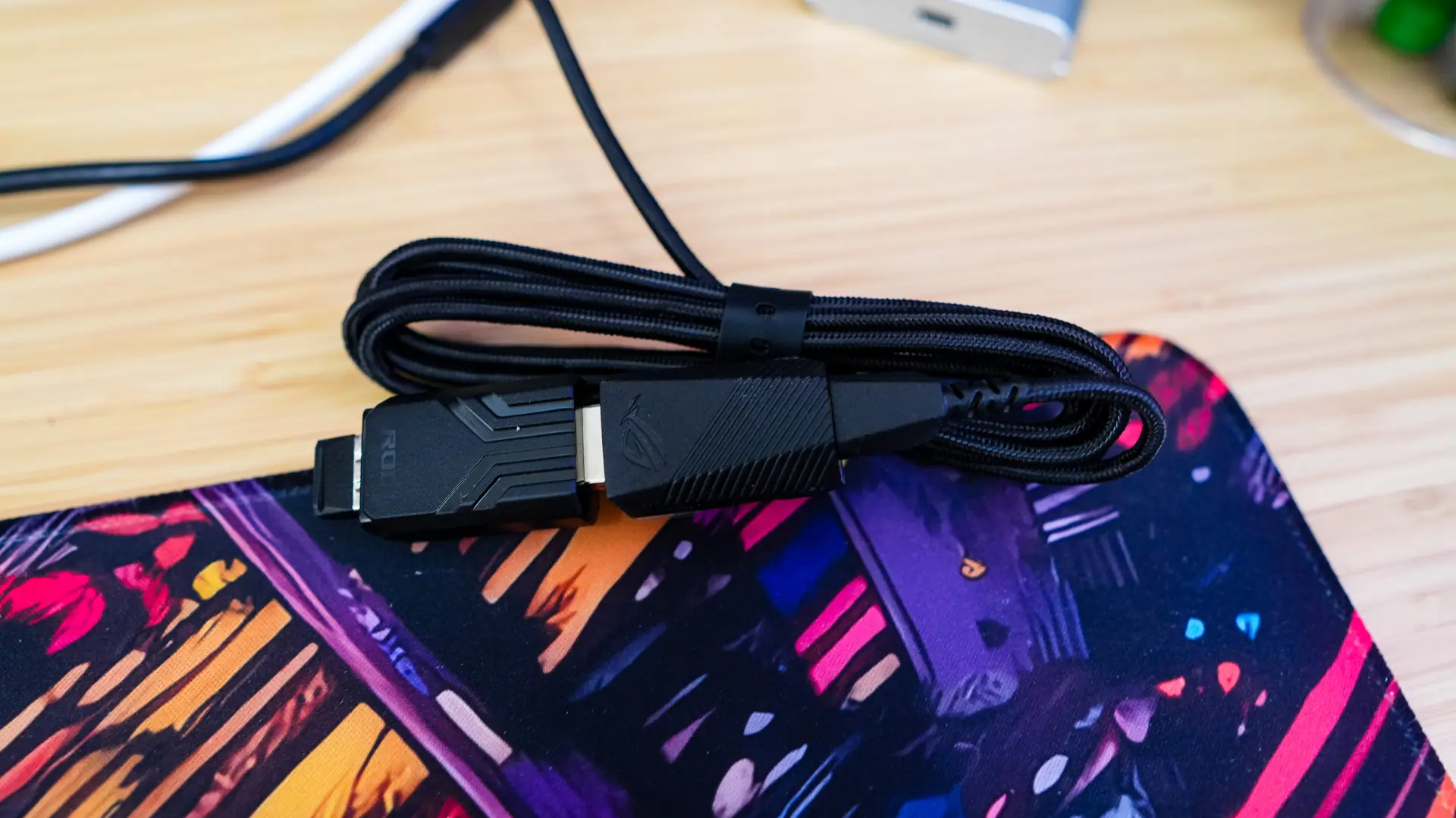
To get started with the ASUS ROG Azoth Extreme is pretty easy. You are going to want to plug in the included USB cable, then plug the cable into the USB extender, then plug in the ROG polling rate booster, and then finally plug in the 2.4 GHz dongle. Once you do that just switch the keyboard to 2.4 GHz wireless mode and it will turn on. It will automatically connect and you’ll be good to go.
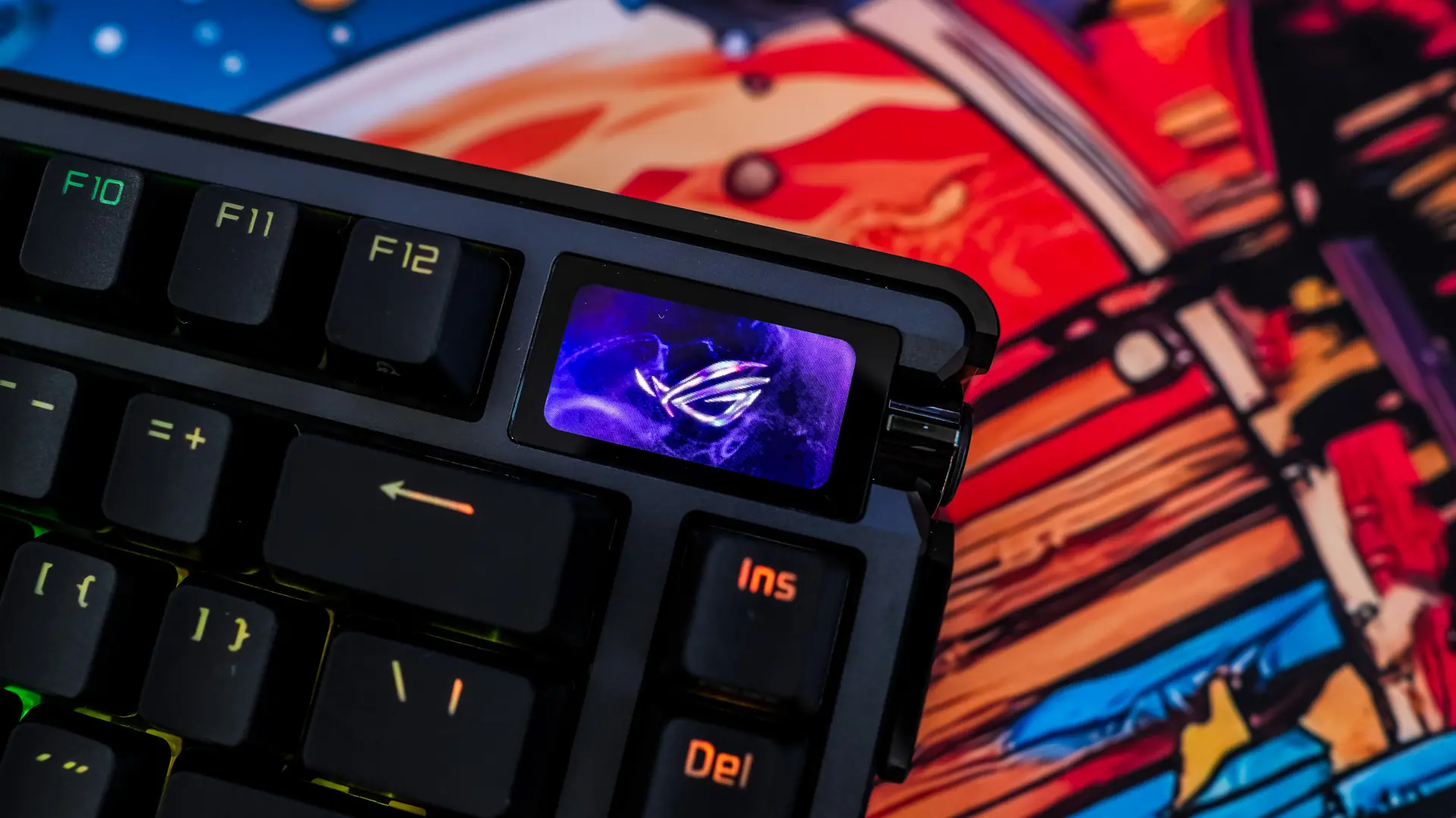
The OLED Screen on the ASUS ROG Azoth Extreme Gaming Keyboard
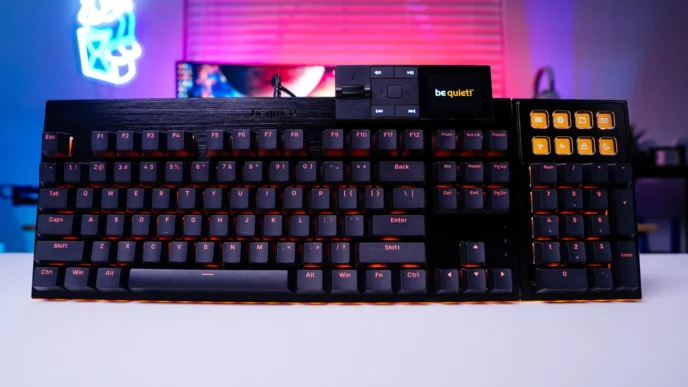
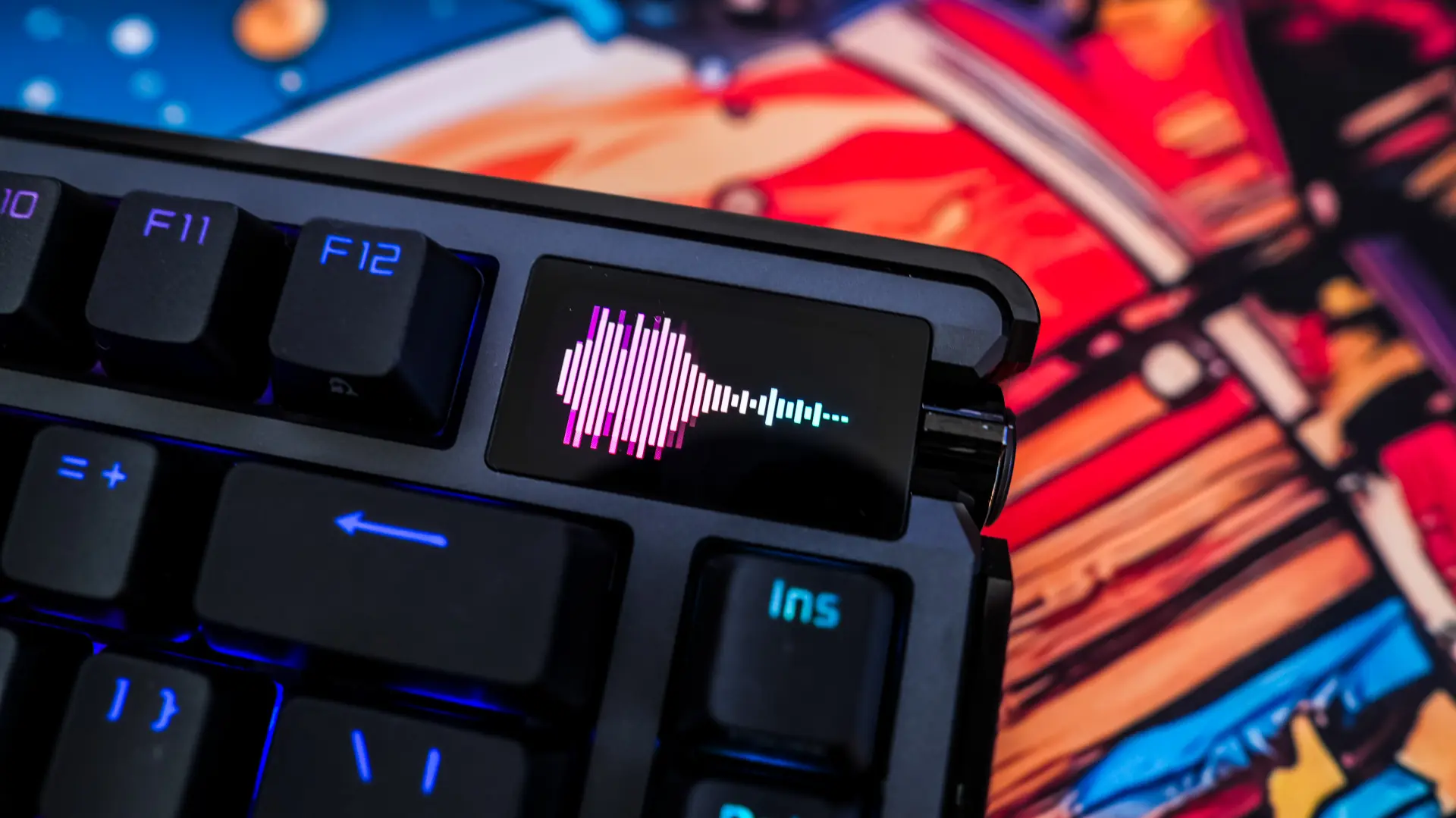
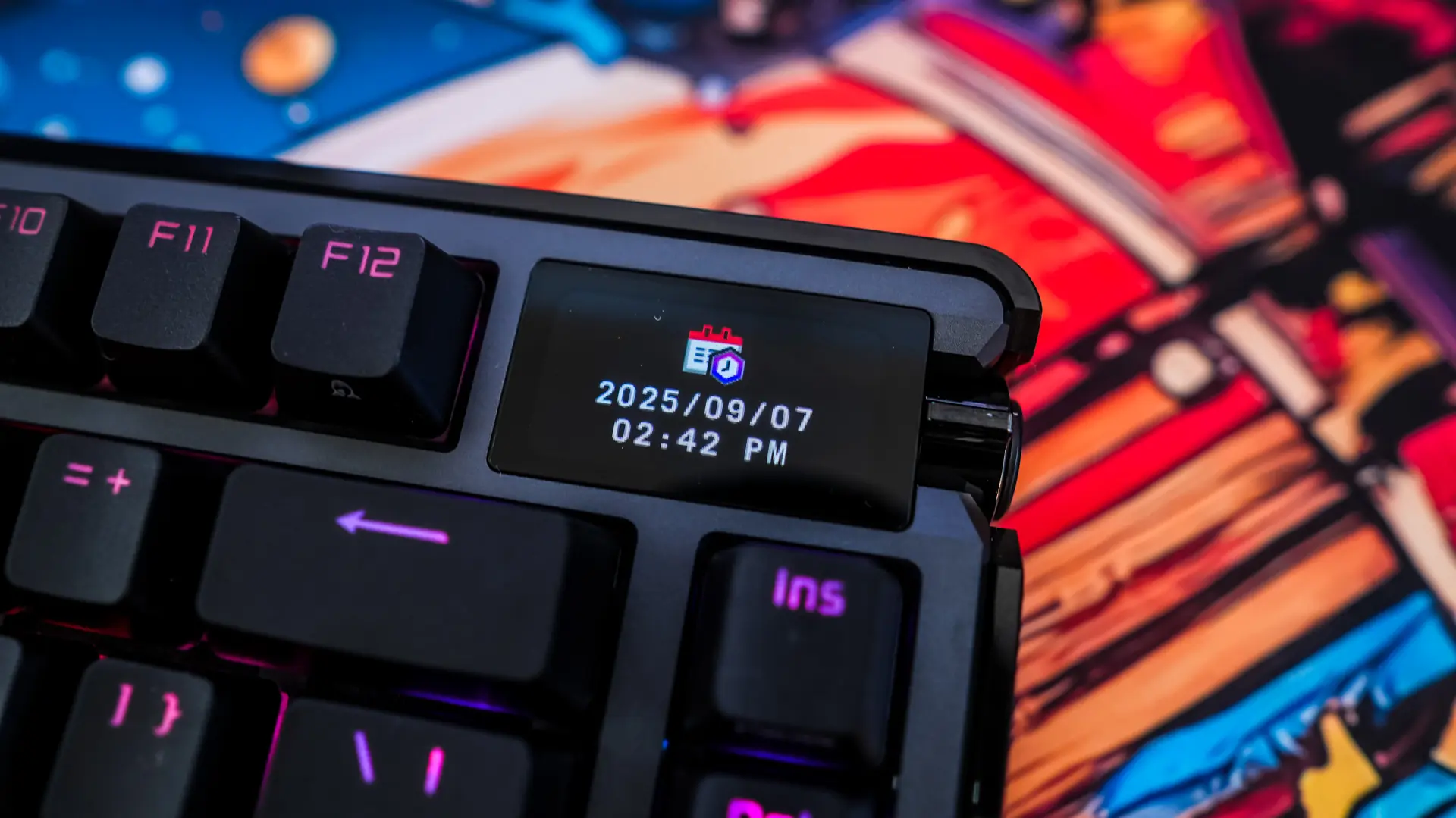
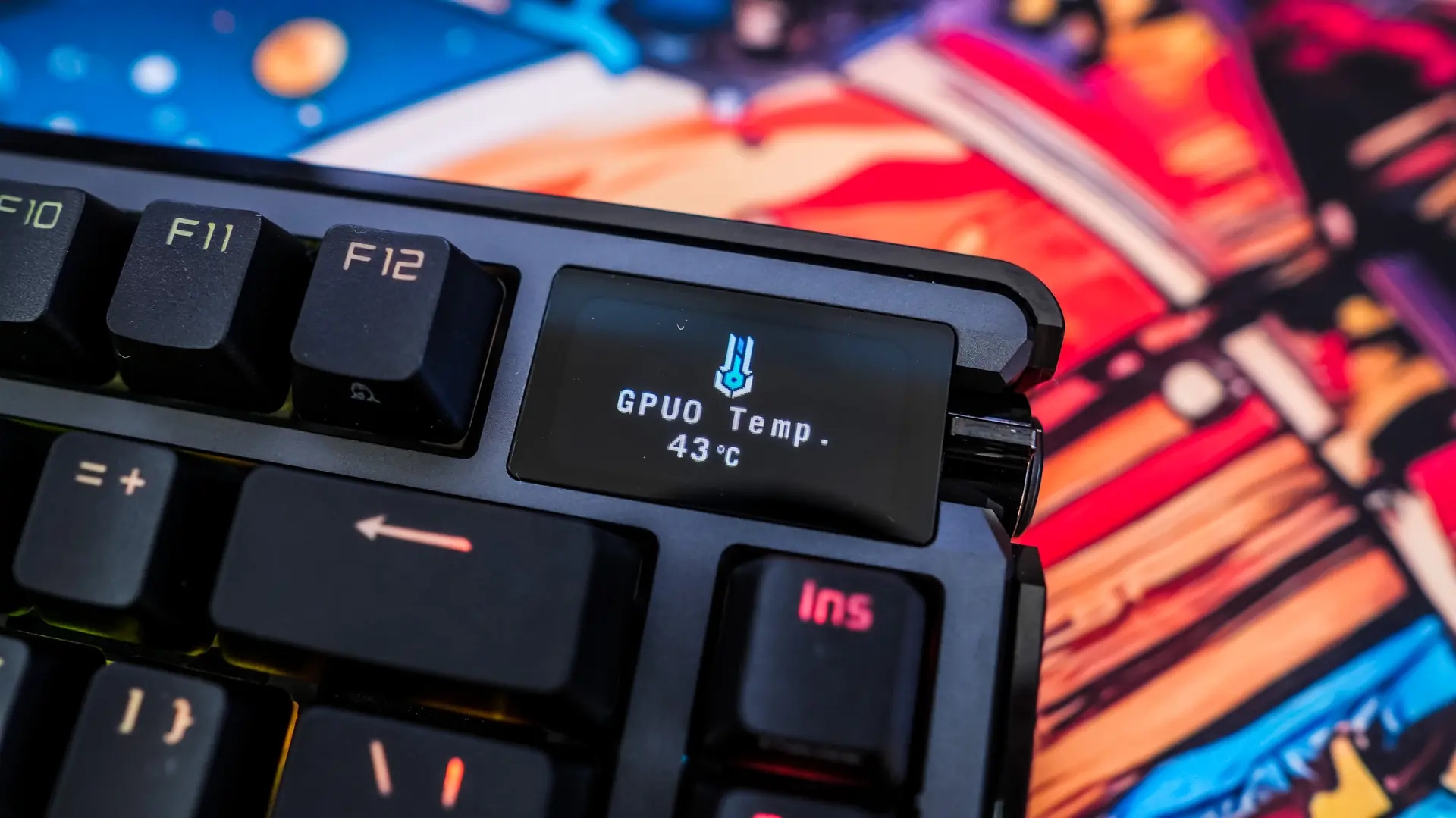
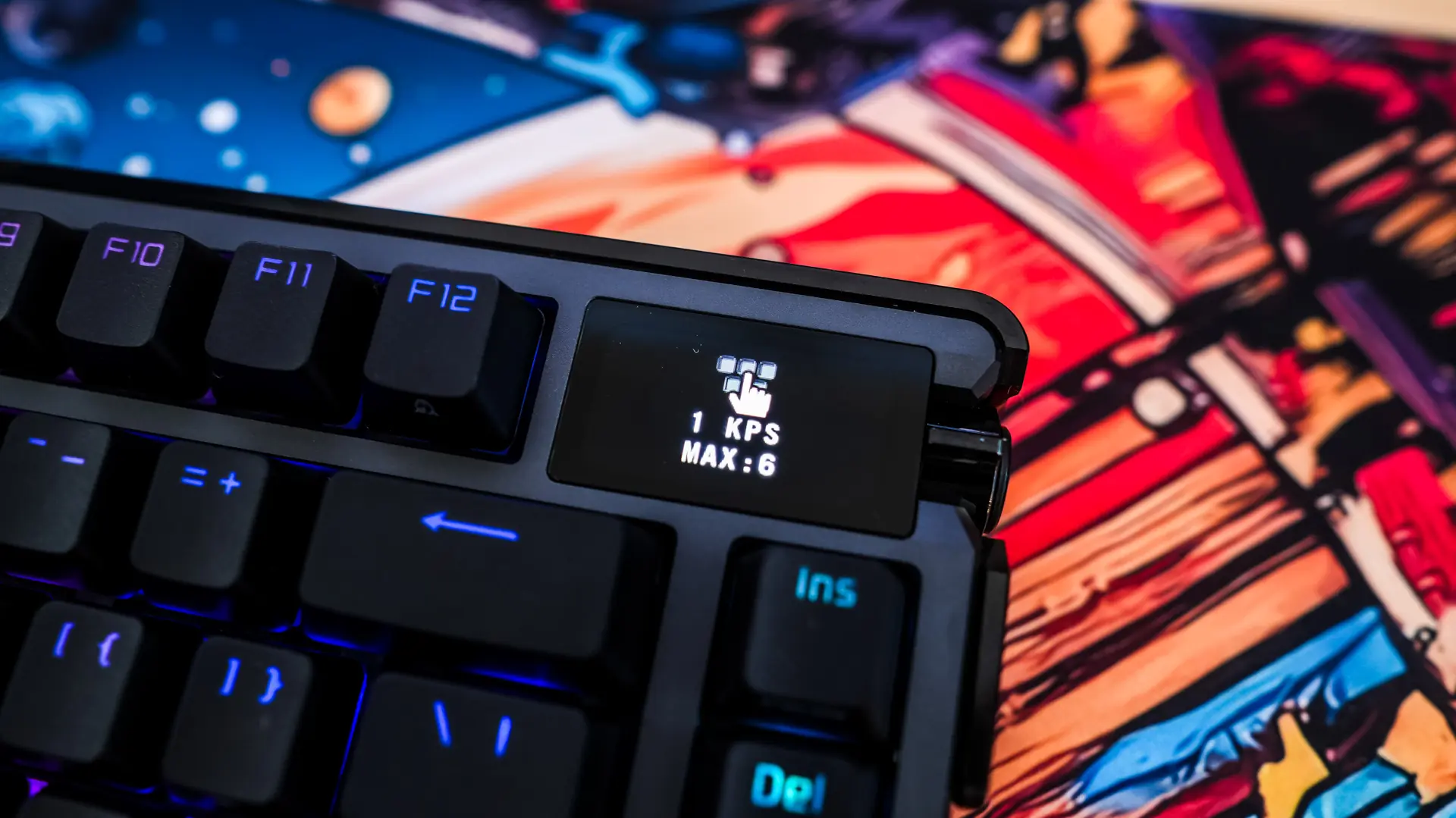
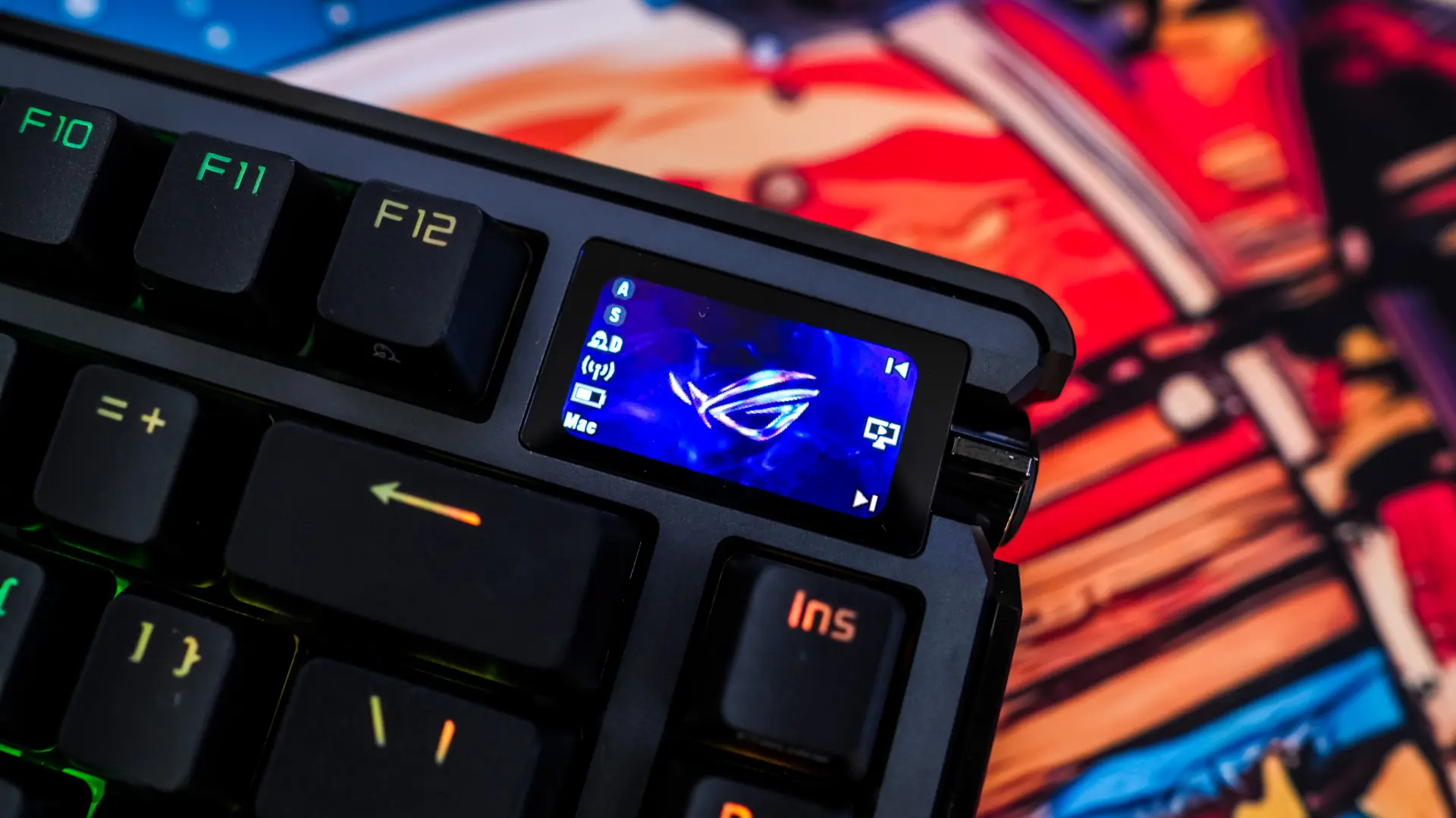
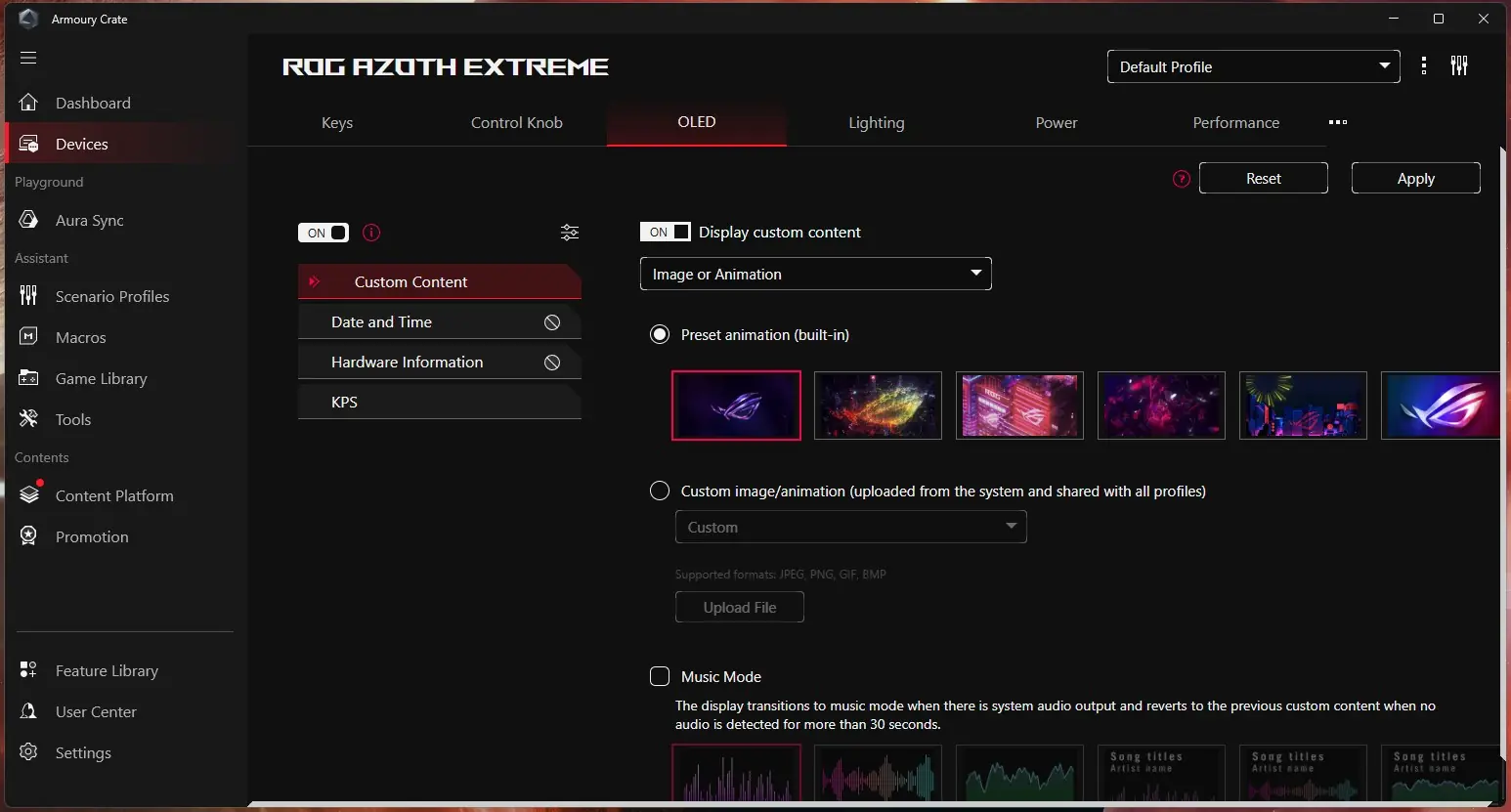
The 1.47-inch full color OLED touchscreen display is one of the better displays that I’ve seen on a keyboard. The ASUS built-in animations look great, but of course you can add your own. There is also Music Mode where an audio visualizer will appear on the display, you can display system stats, the date and time, and even your keystrokes per second (KPS). The screen also supports touch gestures, so if you swipe left or right it will go through the different modes, while swiping up or down will go through the different options in that display mode. If you double tap an overlay will come up that will show you status icons shows your current profile, battery level, and more.
ASUS Armoury Crate Software
While the keyboard does work out of the box without any software, if you want to do any type of customization you’ll have to either use the full ASUS Armoury Crate software, or the more lightweight Armoury Crate Gear.
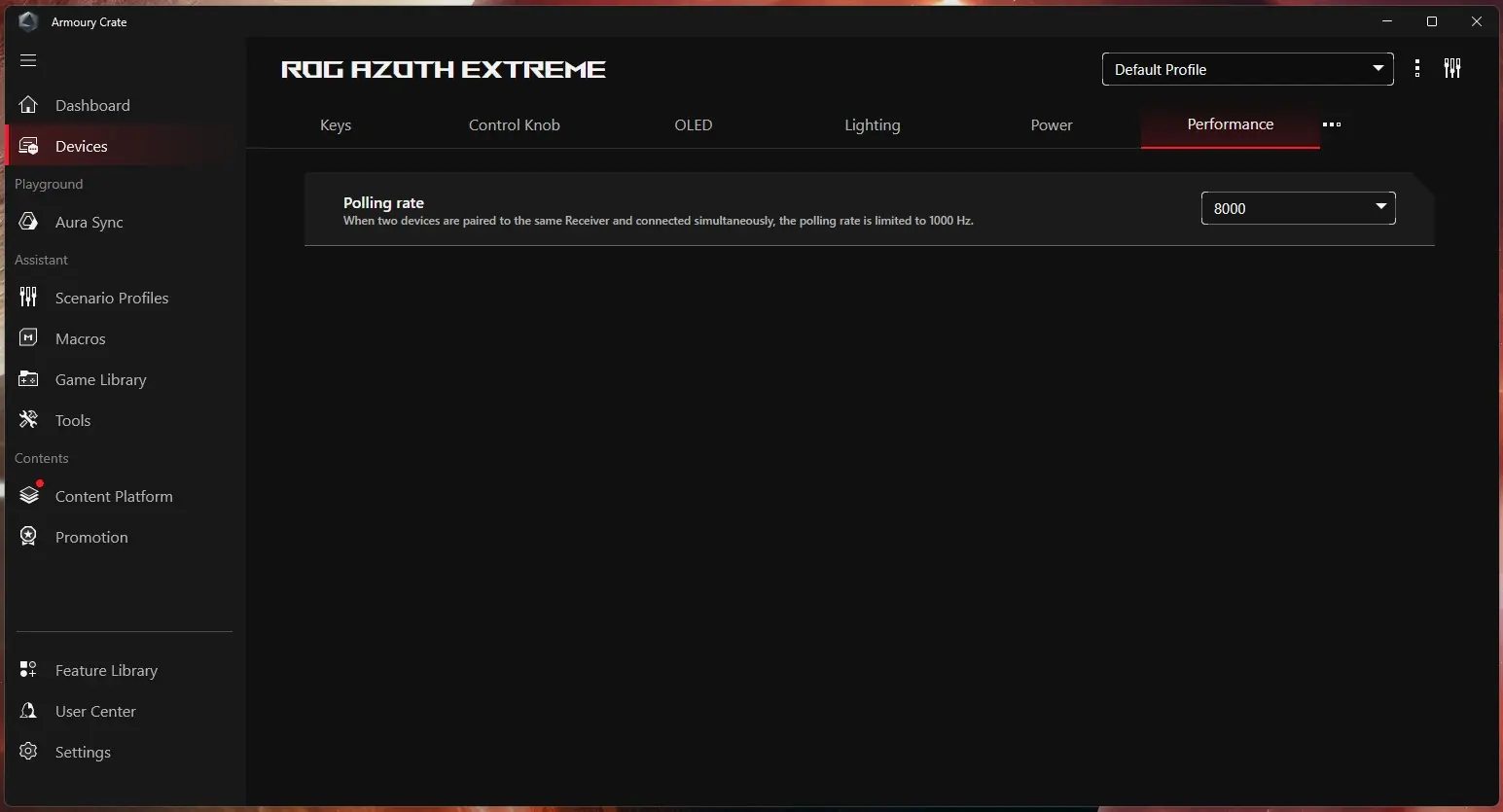
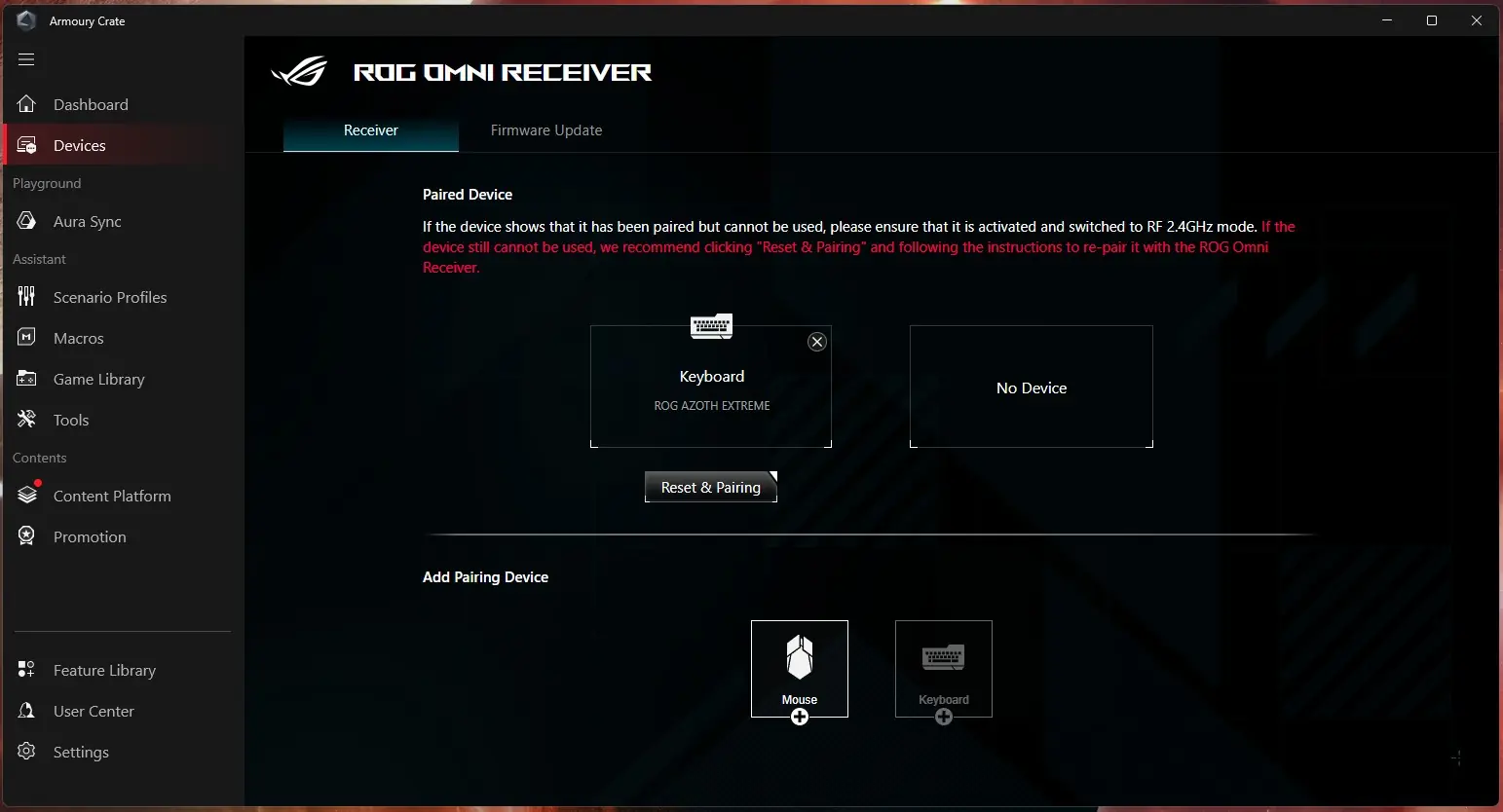
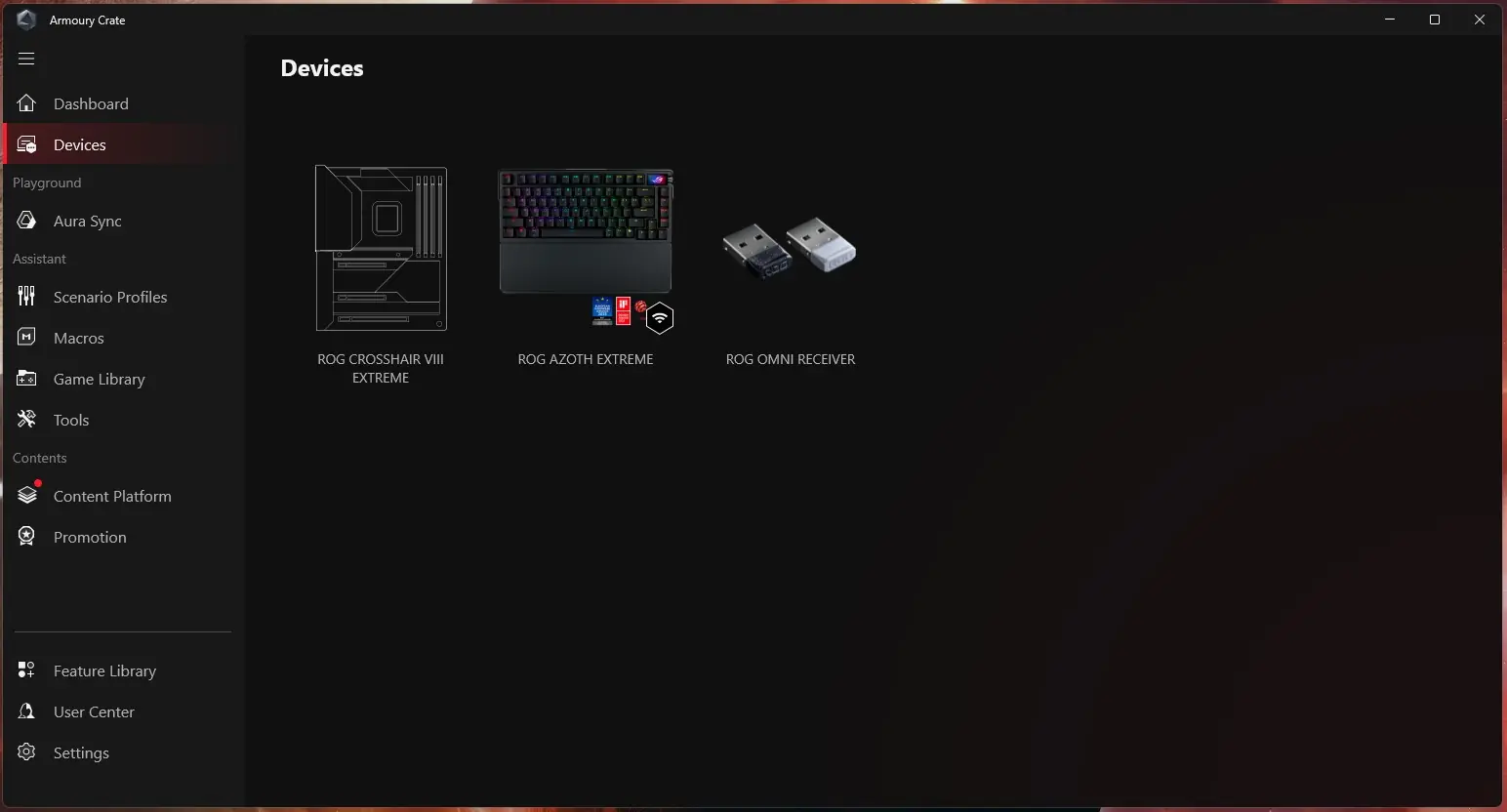
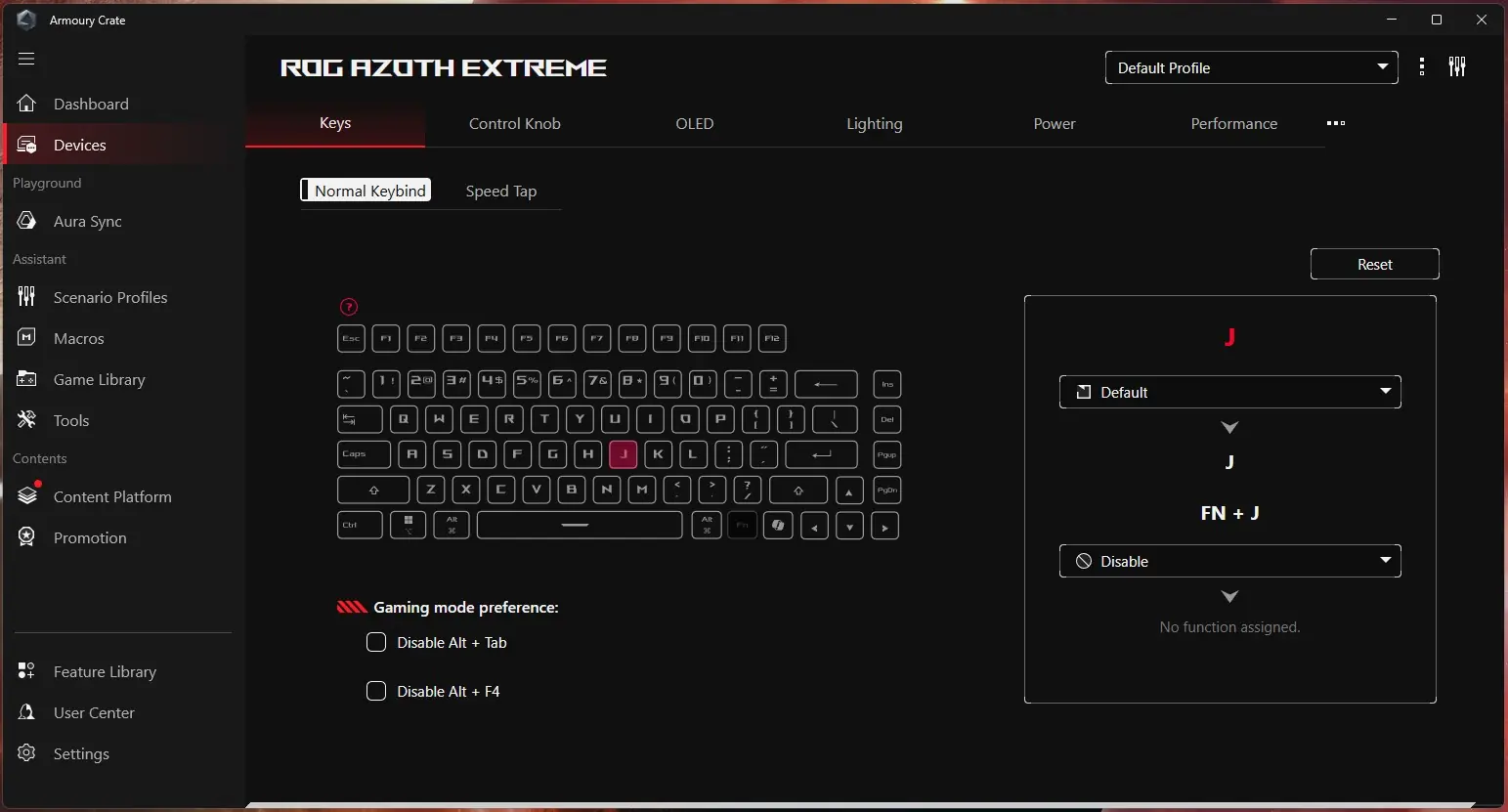
Since I’m already using Armoury Crate on my PC I just decided to use it. You should see both the ROG Azoth Extreme and the ROG Omni Receiver in your list of devices. Going into the ROG Azoth Extreme the first tab we have is “Keys”. Here we can fully reprogram the keyboard and we can also set up the Speed Tap settings here.
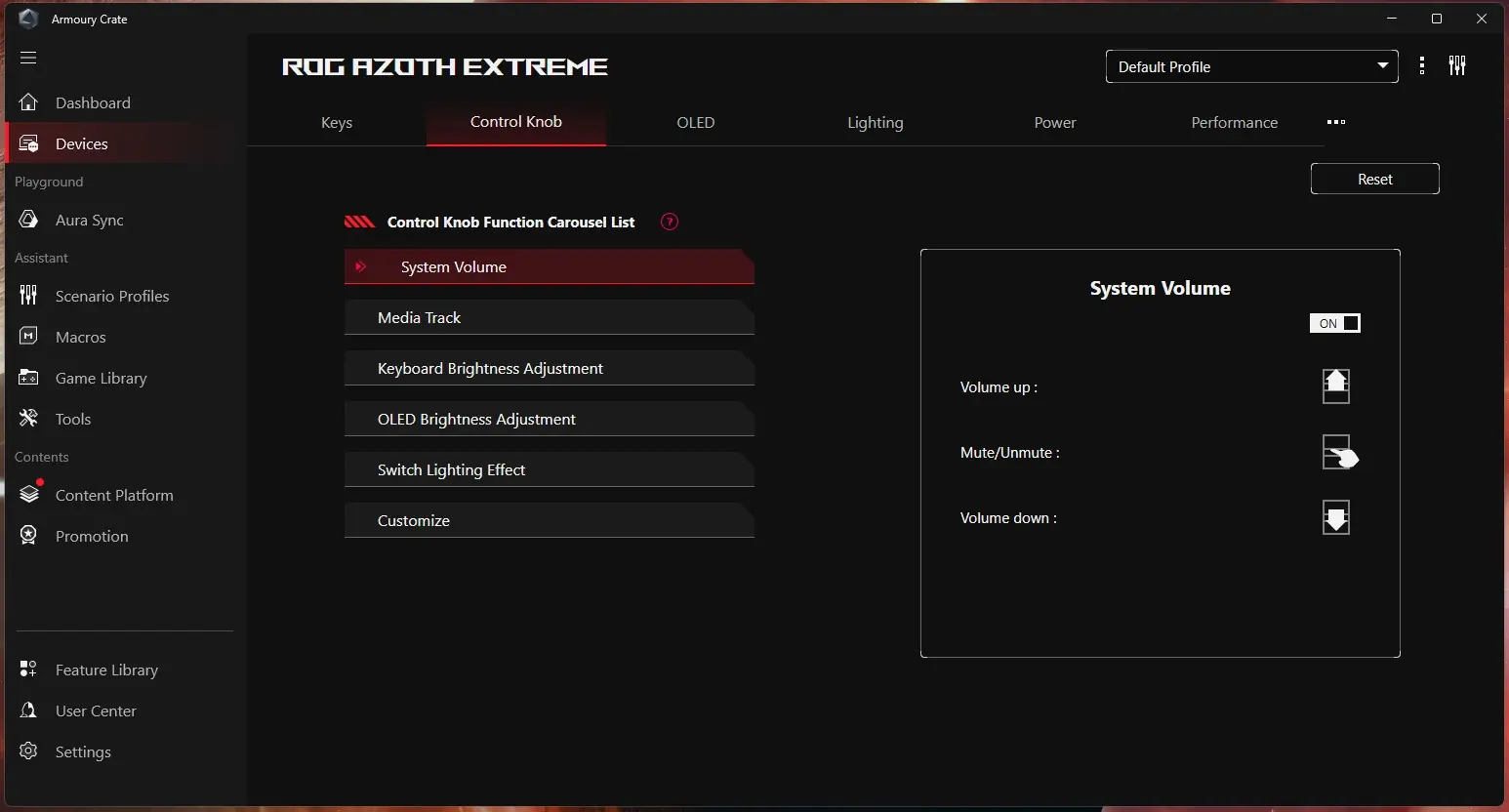
Next we have “Control Knob” which is where you can set what the 3-way control knob does. There is a customize setting where you can set custom actions for the control knob. After that we have “OLED”. Here is where you can set what is displayed on the OLED screen on the keyboard.
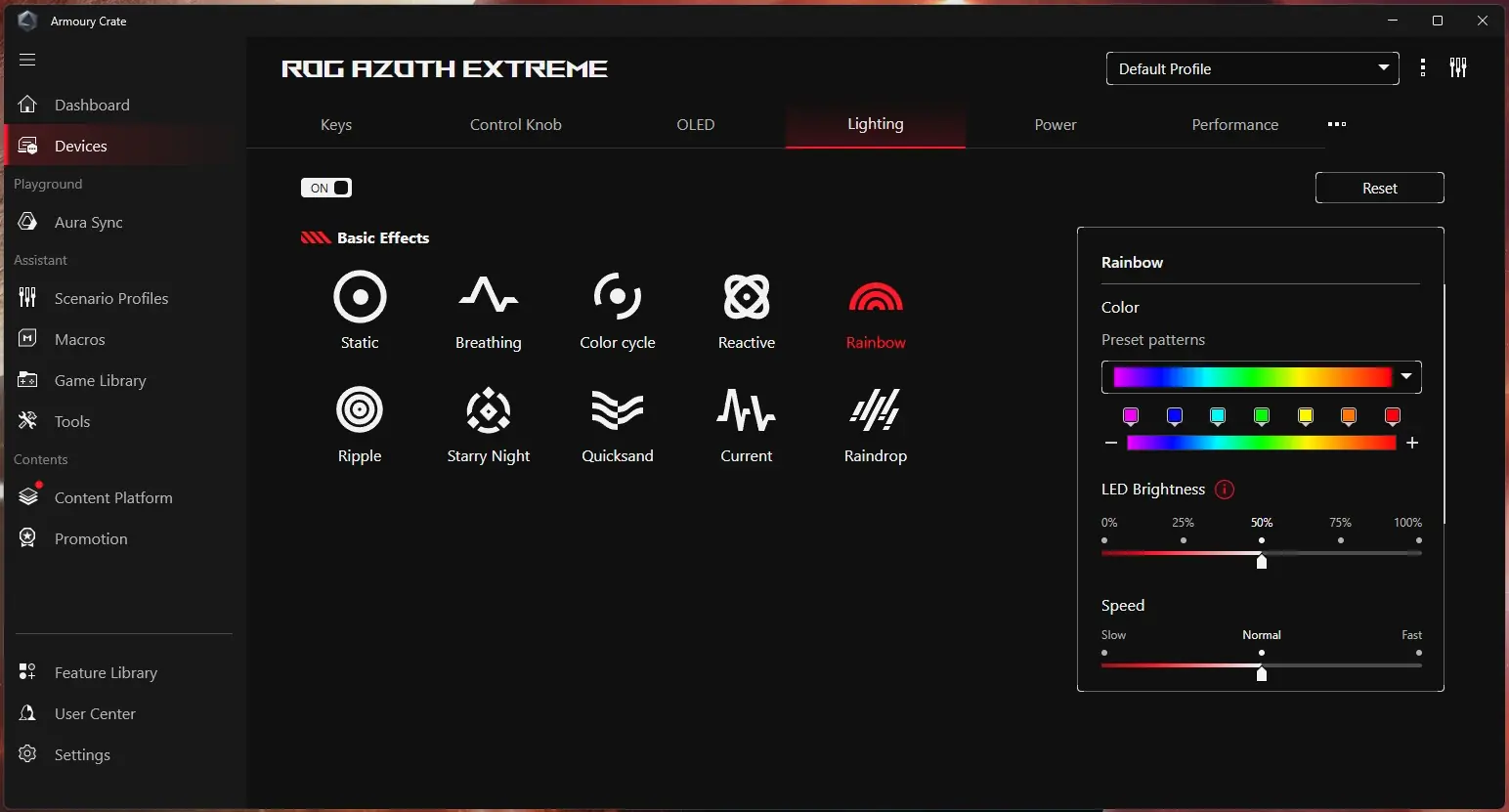
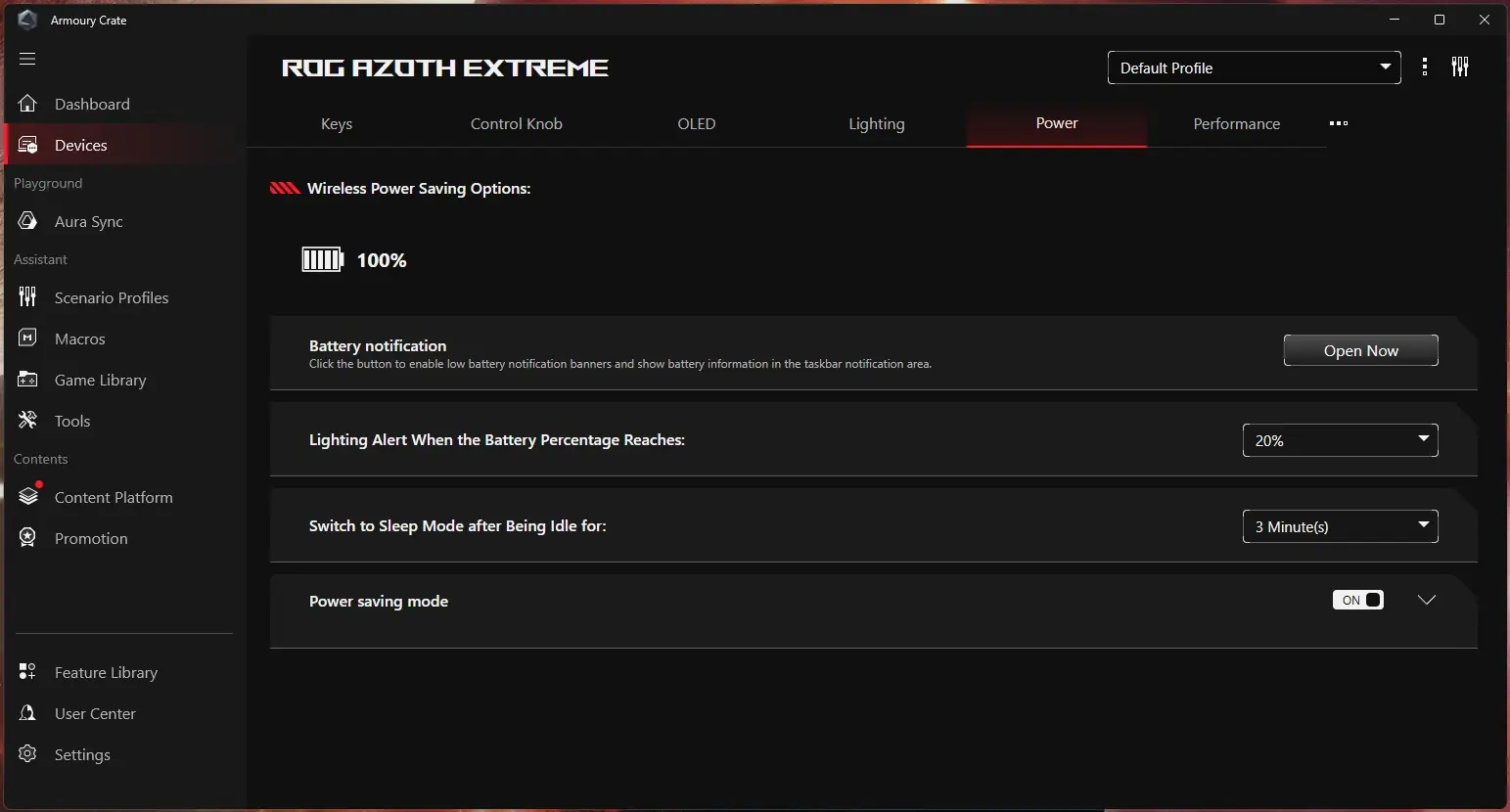
“Lighting” is of course where you can set the effects for the backlighting on the keyboard. “Power” has different power settings like alerts, when to go to sleep, and a toggle for power saving mode.
In “Performance” you can set the polling rate, which using the ROG booster should be set at 8000 Hz. In the Omni Receiver settings you can see what devices you have connected to the receiver. The Omni receiver does allow you to connect another device to it to free up a USB port, but keep in mind that if you do that the polling rate for each device will be set at 1000 Hz.