Setup & Using the ASUS TUF GAMING CAPTURE BOX-4KPRO
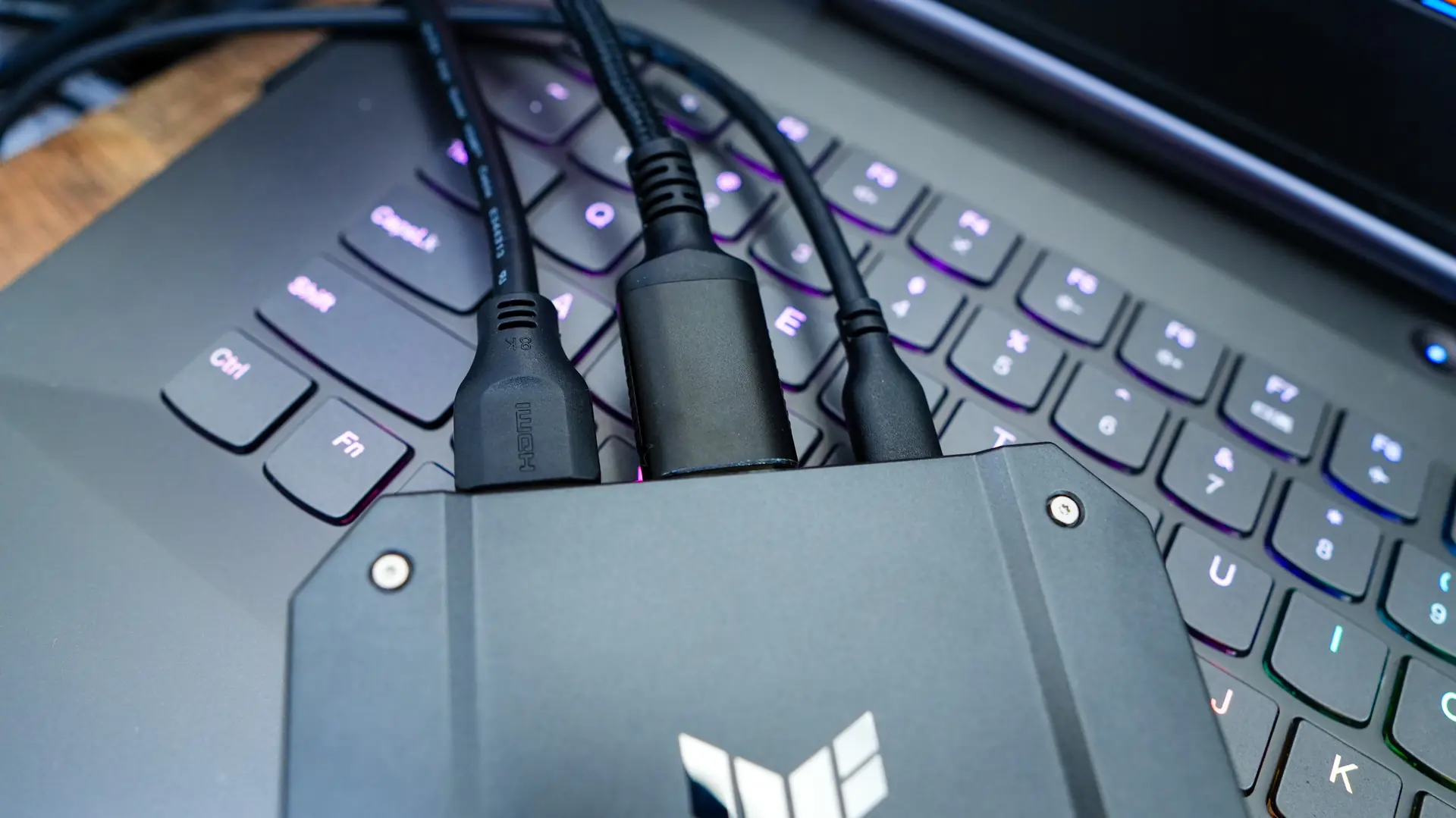
Getting the TUF GAMING CAPTURE BOX-4KPRO setup is extremely easy. You’ll first plug in the device you want to capture whether that is a console on PC to the HDMI In port on the capture box. Then connect an HDMI cable to the HDMI out and feed that into your display. Finally take the included USB cable and connect it from the capture box to a PC or laptop you want to use for capturing / streaming.
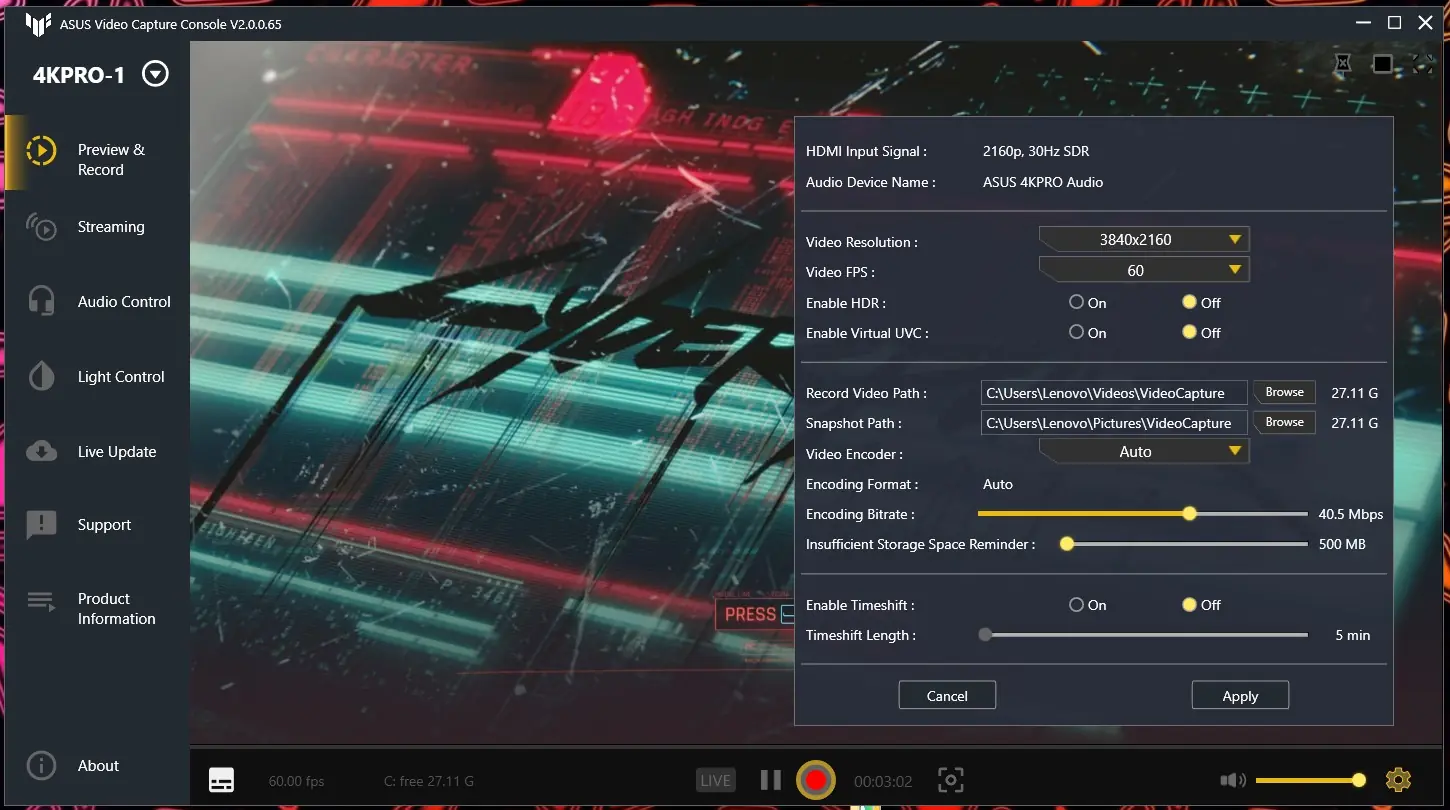
Once connected you are going to want to download the ASUS Video Capture Console. Opening it up you’ll see a live view of what you plan to record / stream.
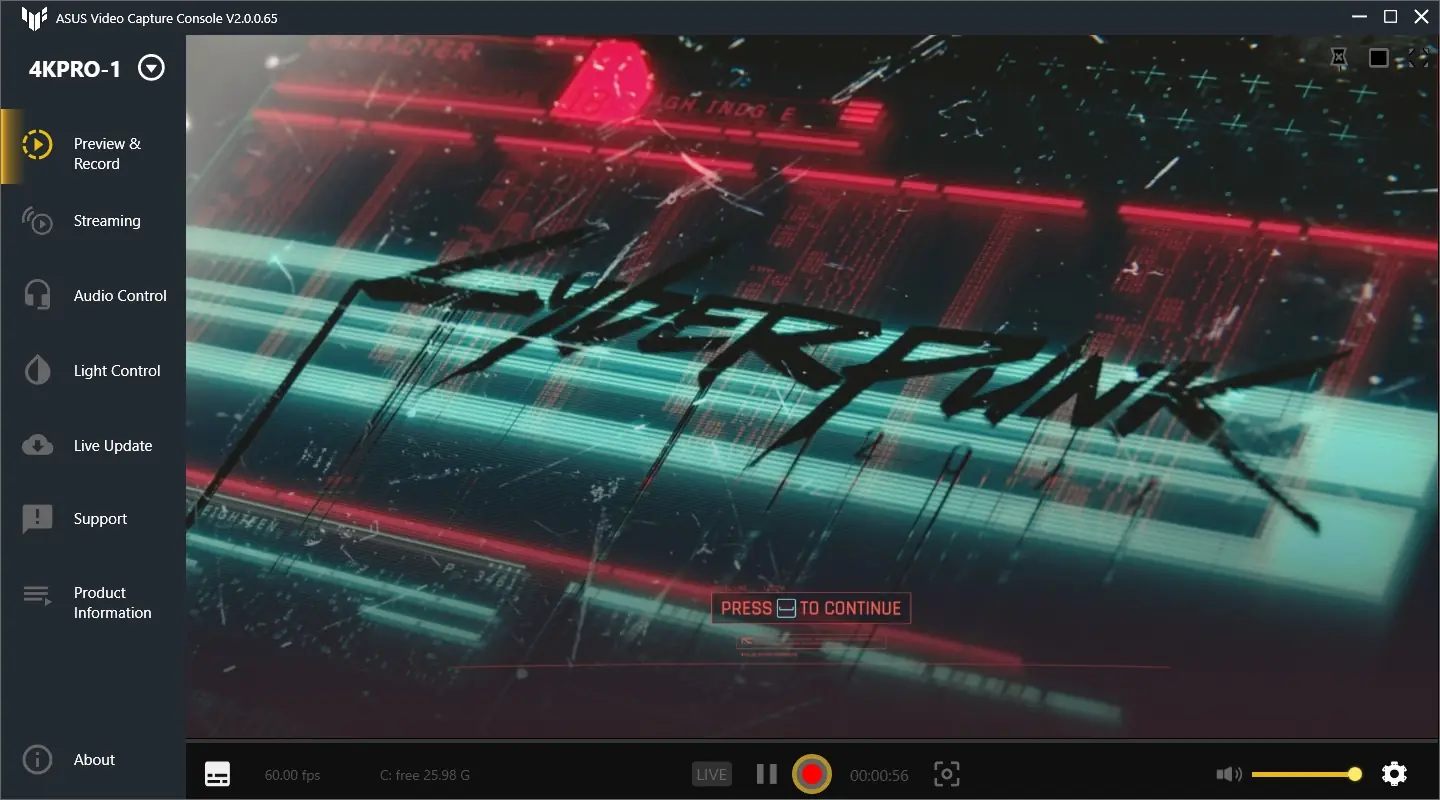
Towards the bottom right there is a little gear. Here you can set your resolution, frame rate, and other settings.
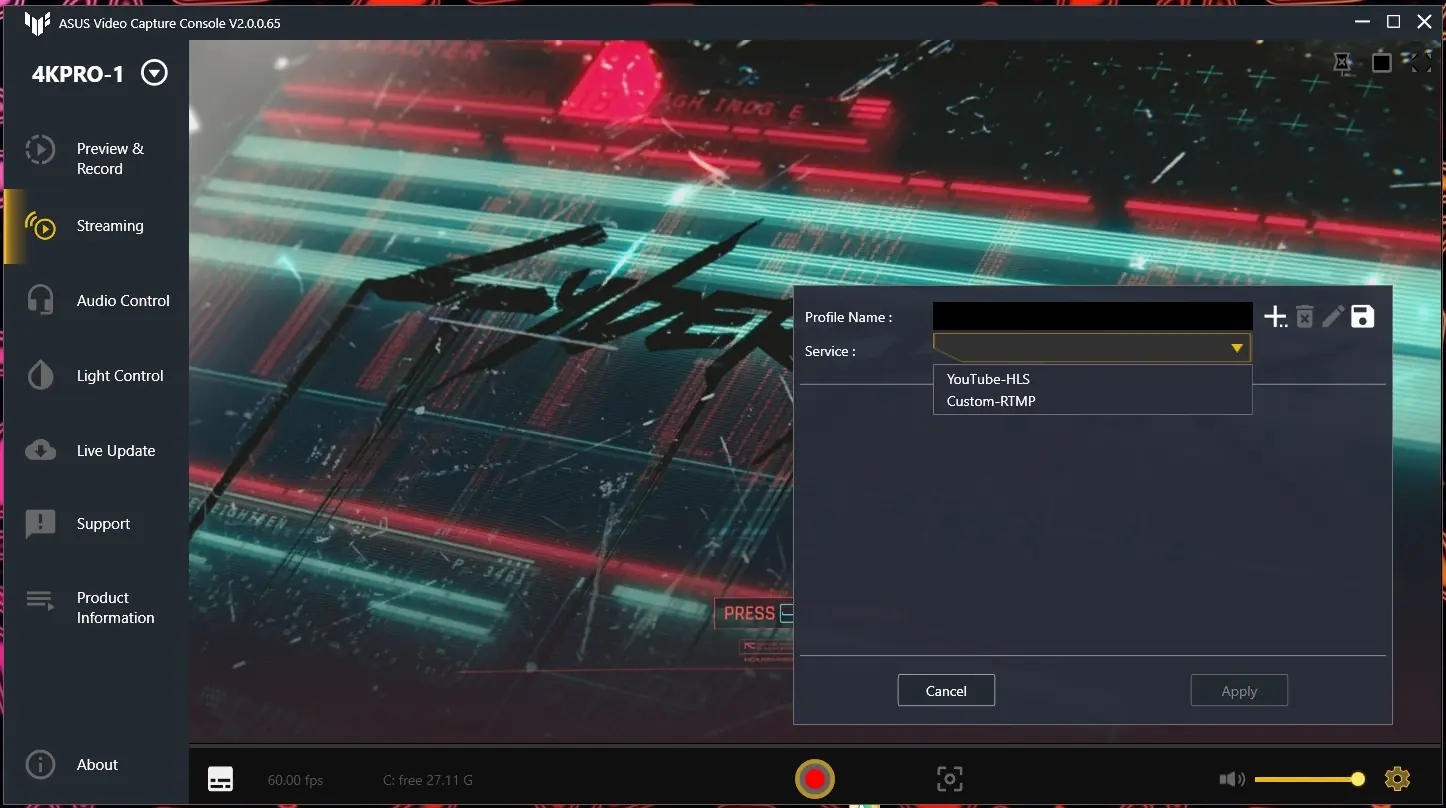
The application does allow you to stream directly from it. You have the ability to add a YouTube-HLS or custom RTMP.
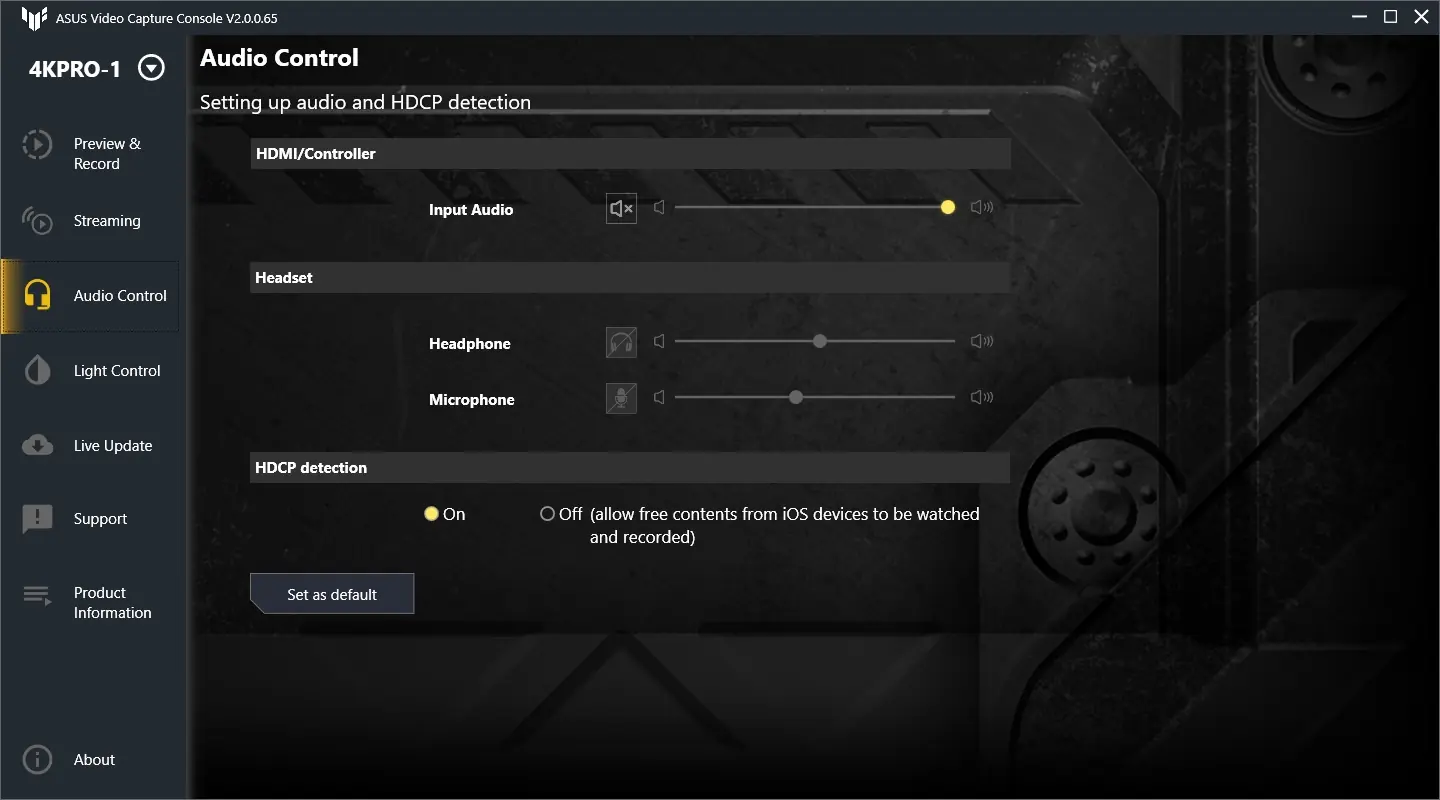
Audio control allows you to set the input audio volume as well as the volume of the headphones and microphone if you have them connected.
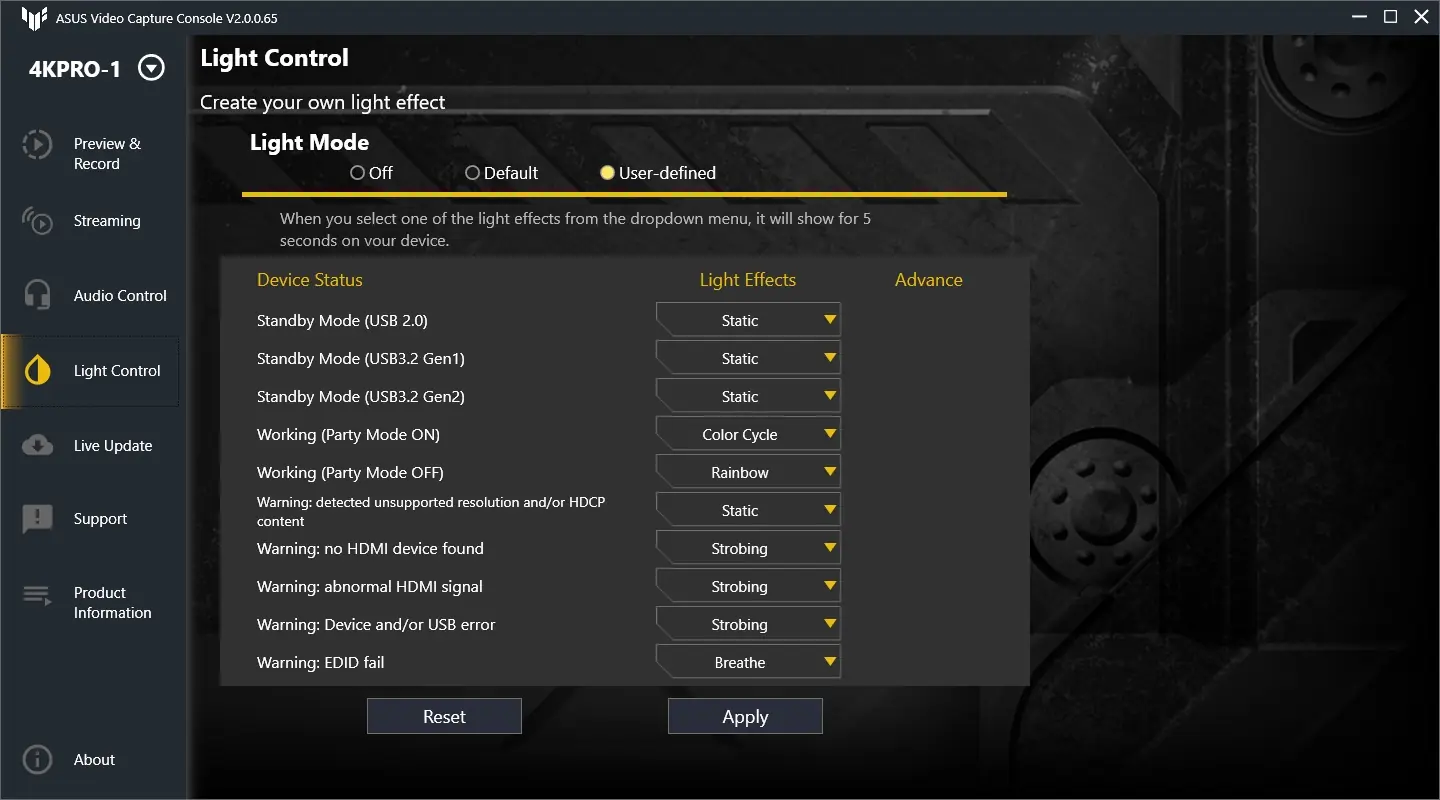
Finally under Light Control you can set the lighting effects of the small light bar on the device itself.
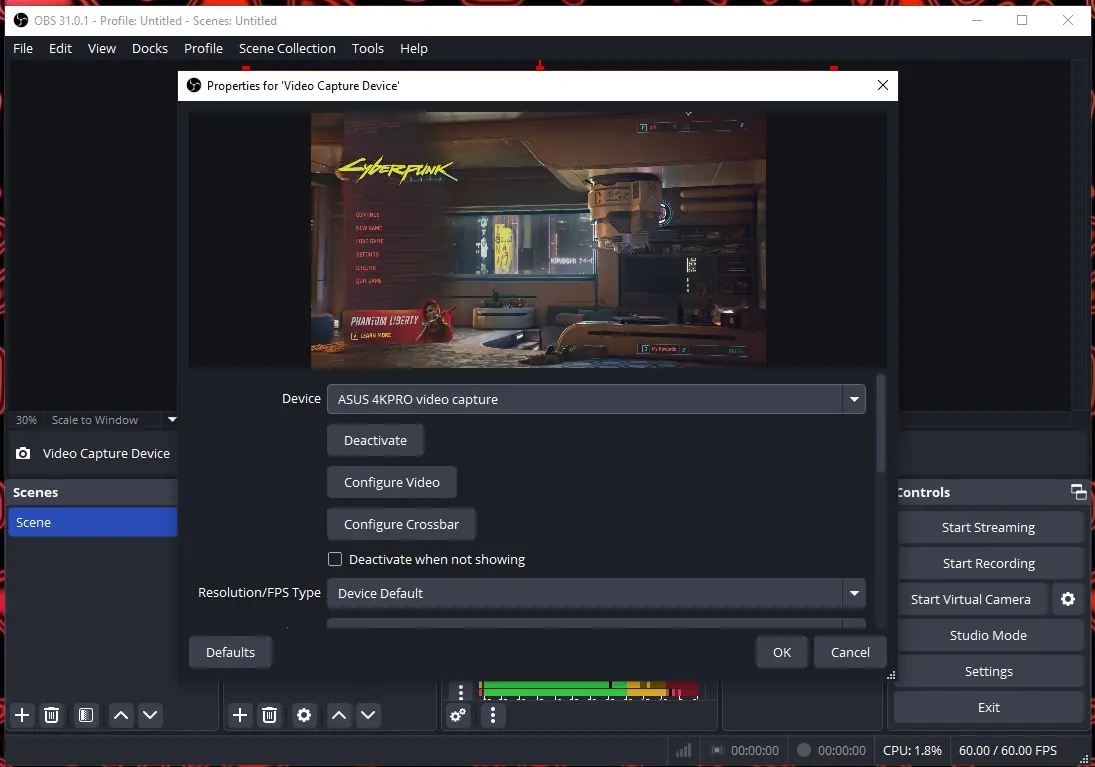
If you are not a fan of the ASUS software and want something with a little more customization the TUF GAMING CAPTURE BOX-4KPRO shows up in OBS no problem.