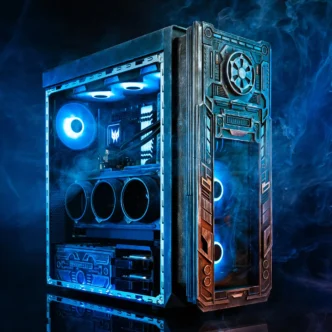
Many systems run games smoothly at launch but begin to lose stability after a few hours. In most cases, the hardware is not failing; the system is simply reaching its limits under sustained load. Modern games place continuous demand on the CPU, GPU, memory, and storage. As session length increases, heat builds, memory usage rises, and background processes begin to compete for resources, so lags often only show up two to four hours into a game, causing unexpected disruption at pivotal moments.

Common Causes of Gaming Lag After Long Sessions
Thermal Throttling from Heat Build-Up
Rising CPU and GPU temperatures reduce clock speeds, causing frame-rate drops over time. This is more pronounced in restricted airflow or warm environments. Tools like MSI Afterburner or HWInfo reveal sustained clock drops, indicating thermal throttling rather than brief performance spikes.
Memory Leaks and Resource Saturation
Some games continue to consume memory instead of releasing it efficiently. The issue is not always obvious at launch, which is why degradation tends to appear later in a session rather than immediately.
As RAM usage increases, the system may begin relying on slower storage as virtual memory. In Task Manager, memory usage above 85 to 90 percent during gameplay often leads to stutter and delayed asset loading.
At the same time, VRAM usage can reach its limit. When that happens, textures are offloaded to system memory, increasing latency and causing inconsistent frame delivery. The problem is not peak usage alone, but sustained usage without recovery across multiple resources.
Background Applications and Resource Drain
Background applications are often overlooked, but they can become a major factor during longer sessions. Browsers, Discord, and game launchers tend to increase their CPU and memory usage over time, even when they appear idle.
Individually, the impact is small. Over several hours, however, the combined load reduces the resources available to the game and contributes to instability.
Network Issues vs Hardware Lag
Not all lag is tied to system performance, and identifying the source is important before making adjustments.
Hardware-related issues usually appear as frame drops, stutter, or uneven frame pacing. Network-related problems show up as high ping, rubberbanding, or delayed responses.
If frame rate remains stable but actions feel delayed, the issue is more likely related to network conditions than hardware. This becomes especially noticeable in latency-sensitive environments such as competitive shooters or poker online, where even small delays affect responsiveness. Congestion during peak hours can increase latency even on otherwise stable connections.
Quick Fixes to Restore Stability
Restart the Game or System
Restarting clears accumulated memory usage and resets system load. It remains the fastest way to recover stable performance during extended sessions, particularly when issues build gradually rather than appearing immediately.
Close Unnecessary Background Applications
Shutting down browsers, overlays, and unused apps frees CPU and memory right away. Removing even a few processes can make a noticeable difference once the system has been under load for a while.
Adjust High-Impact Graphics Settings
Lowering a small number of settings can stabilize performance without significantly affecting visuals:
- Texture quality
- Shadow quality
- Background streaming options.
These settings place a consistent load on memory and the GPU, which becomes more important during extended play.
How to Reduce Heat and Prevent Throttling
Improve Case Airflow
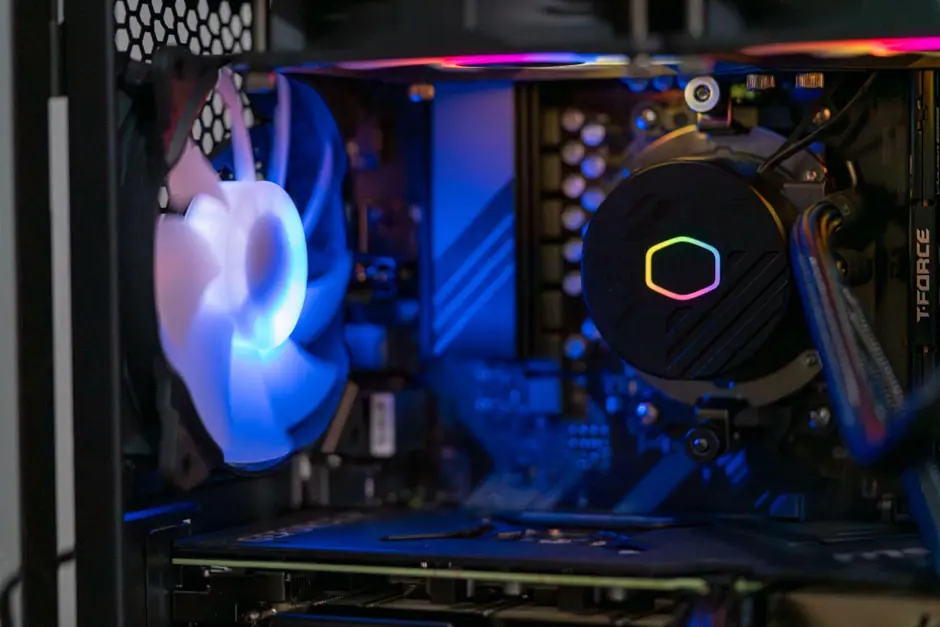
Ensure intake and exhaust paths are clear and unobstructed. Dust buildup restricts airflow and accelerates heat accumulation, particularly in systems used for long sessions.
Monitor CPU and GPU Behavior
Use monitoring tools to track temperatures, clock speeds, and usage over time rather than relying on a single snapshot.
A system that starts within normal temperature ranges but steadily climbs under load usually points to cooling limitations, not immediate overheating.
Replace Thermal Paste if Needed
Thermal paste can degrade over time and reduce heat transfer efficiency. Reapplying it is a straightforward way to lower temperatures and improve stability during extended use.
How to Improve Memory and System Efficiency
Track RAM Usage During Gameplay
Monitoring memory usage during gameplay provides more useful insight than checking at idle. If usage remains close to full capacity, the limitation is likely memory-related rather than raw processing power.
Enable System Optimization Features
Windows Game Mode and hardware-accelerated GPU scheduling can help prioritize gaming workloads and reduce interference from background processes.
Keep Drivers and Games Updated
Updates often include fixes for memory handling and long-session stability, particularly in newer or recently updated titles.
Storage and Background Optimization
Use SSD Storage for Games
Installing games on an SSD improves asset loading and reduces stutter in large environments where data is streamed continuously.
Disable Overlays and Background Sync
Overlays from Discord or GPU software add overhead that builds gradually. Disabling them, along with pausing cloud syncing, reduces unnecessary system activity.
Fixing Network-Related Lag
Use a Wired Connection
A wired Ethernet connection provides more consistent latency than Wi-Fi, especially during extended sessions.
Manage Network Usage
Limiting downloads or streaming on the same network reduces bandwidth contention and helps maintain stable latency.
Monitor Connection Quality
Checking ping and packet loss during gameplay helps confirm whether lag is caused by network conditions rather than system performance.
Laptop vs Desktop Performance Over Extended Sessions
Gaming laptops are more prone to thermal throttling due to limited cooling capacity. Cooling pads and adjusted power settings can help maintain more consistent performance.
Desktops generally offer better airflow and greater cooling headroom, allowing them to sustain performance more effectively during extended sessions.
Long-Term Optimization Strategy
Consistent performance depends on regular maintenance—keeping systems clean, limiting background tasks, and managing temperatures. Most late-session issues stem from gradual resource buildup under sustained load, not hardware limits or single points of failure.
Maintaining Stable Performance Over Long Gaming Sessions
Lag that develops during extended gaming sessions is usually tied to heat buildup, rising memory usage, and background resource drain. Focusing on cooling, system efficiency, and resource management allows systems to maintain stable frame rates for longer periods without requiring immediate hardware upgrades.