


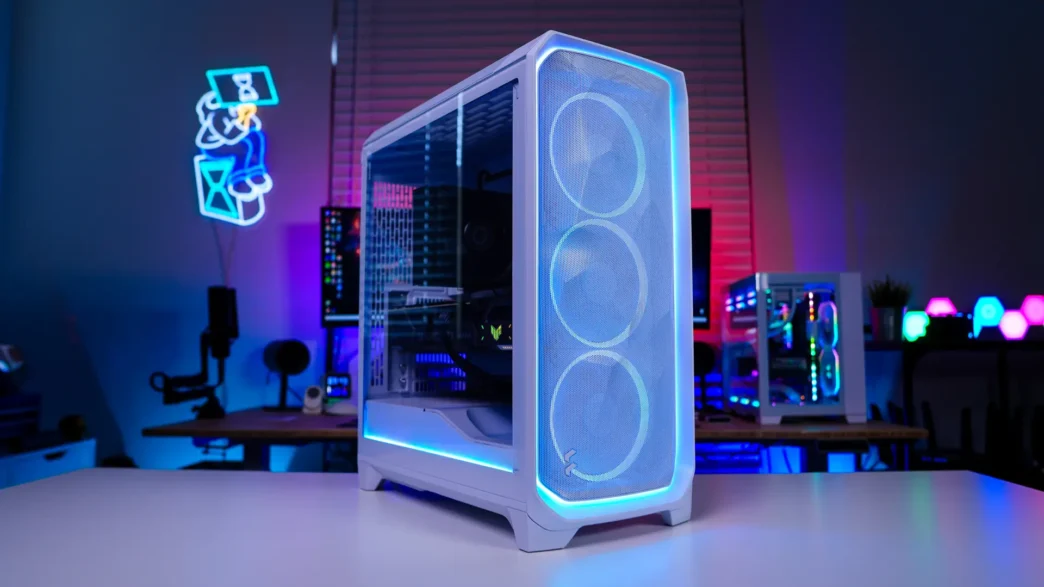
Lighting on the Fractal Design Meshify 3 Ambience Pro RGB Case
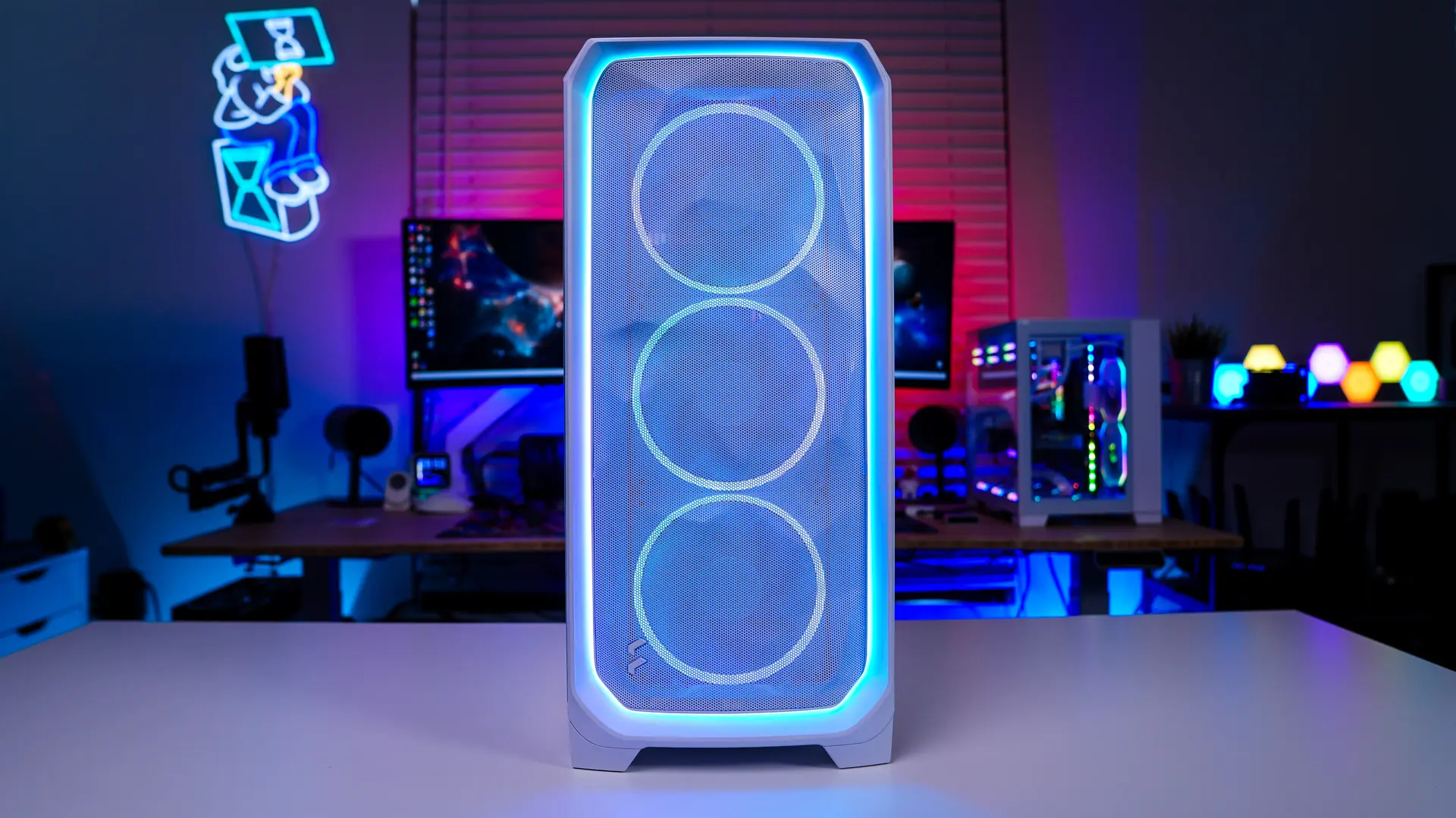
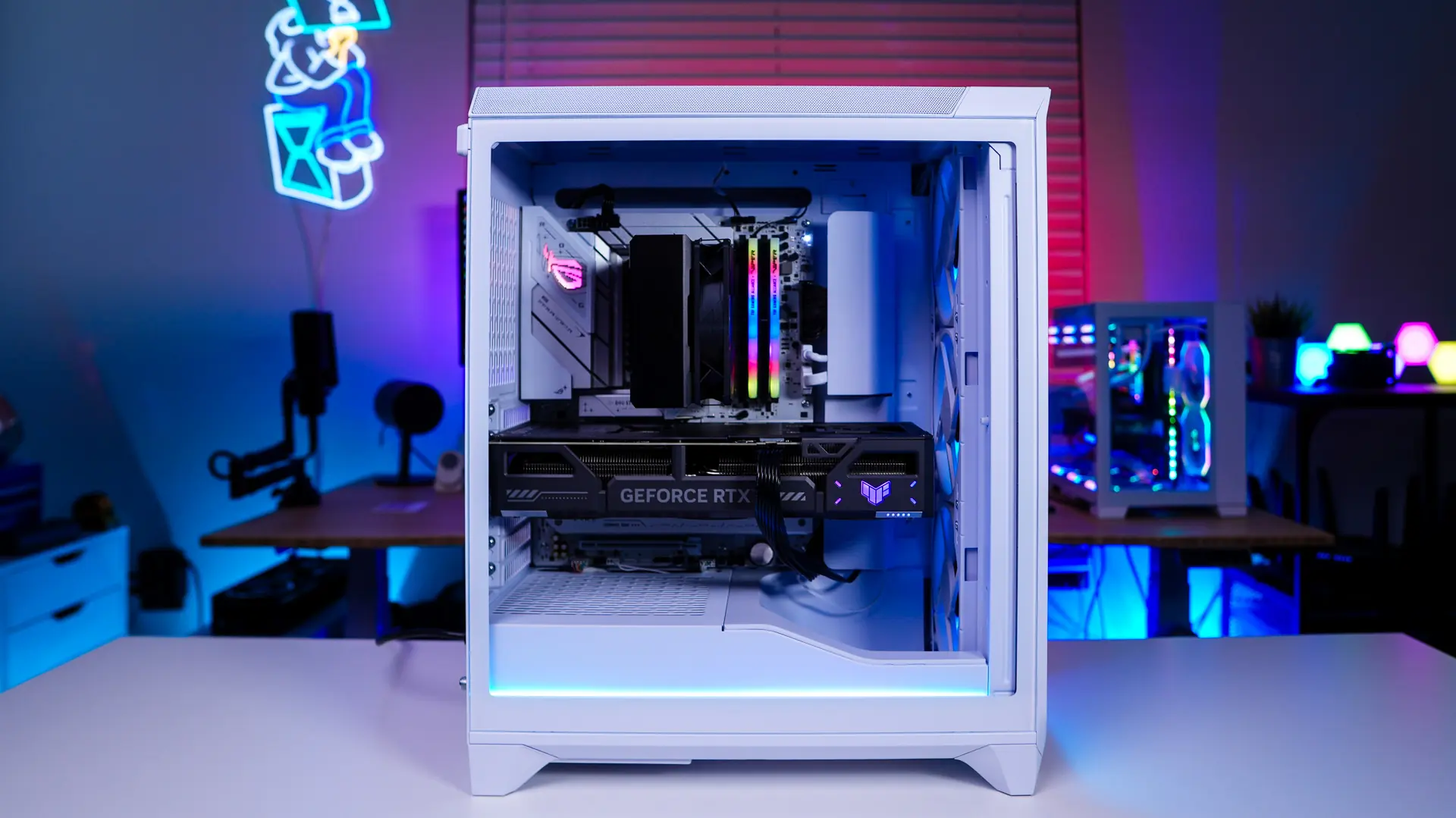
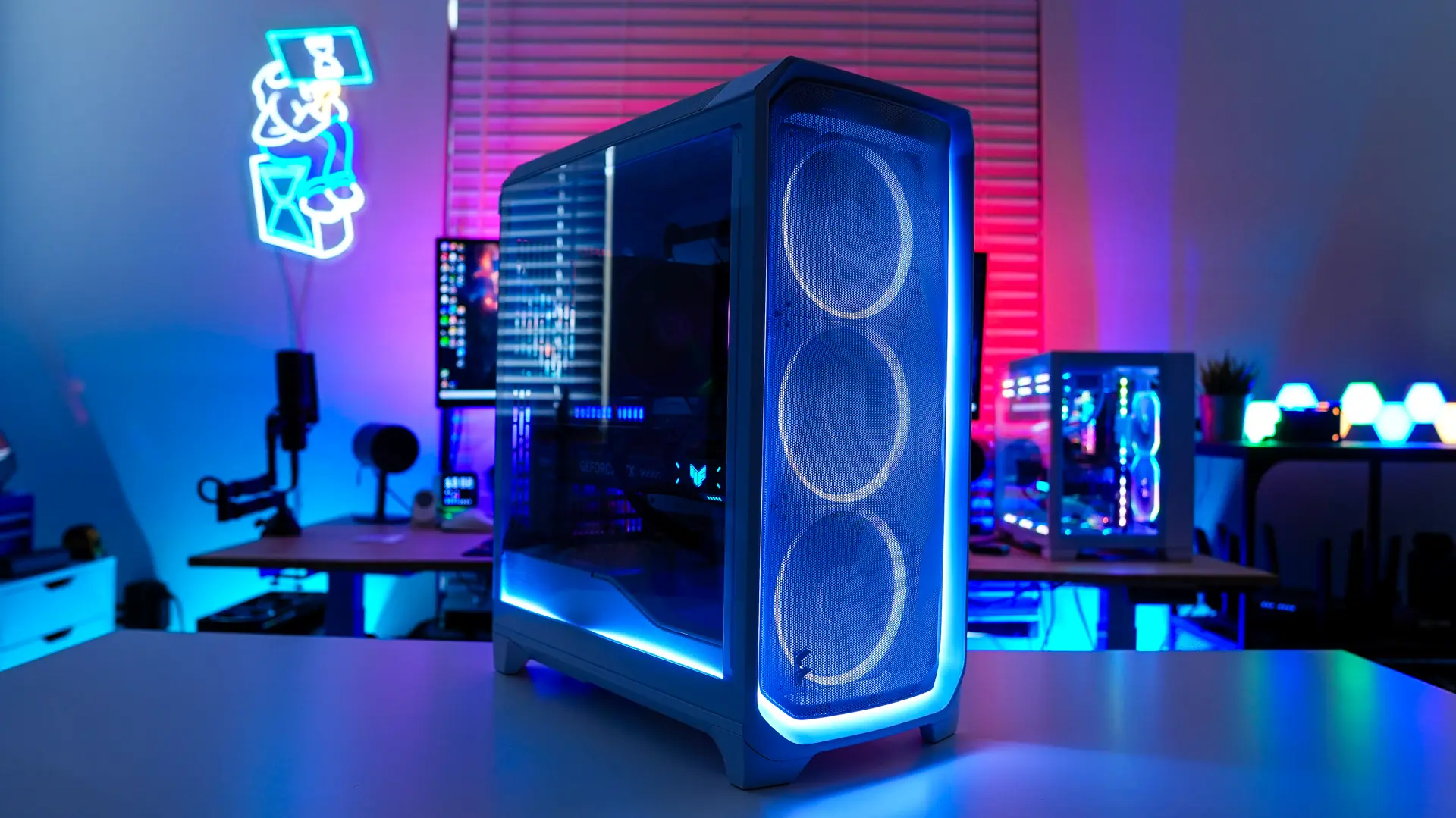
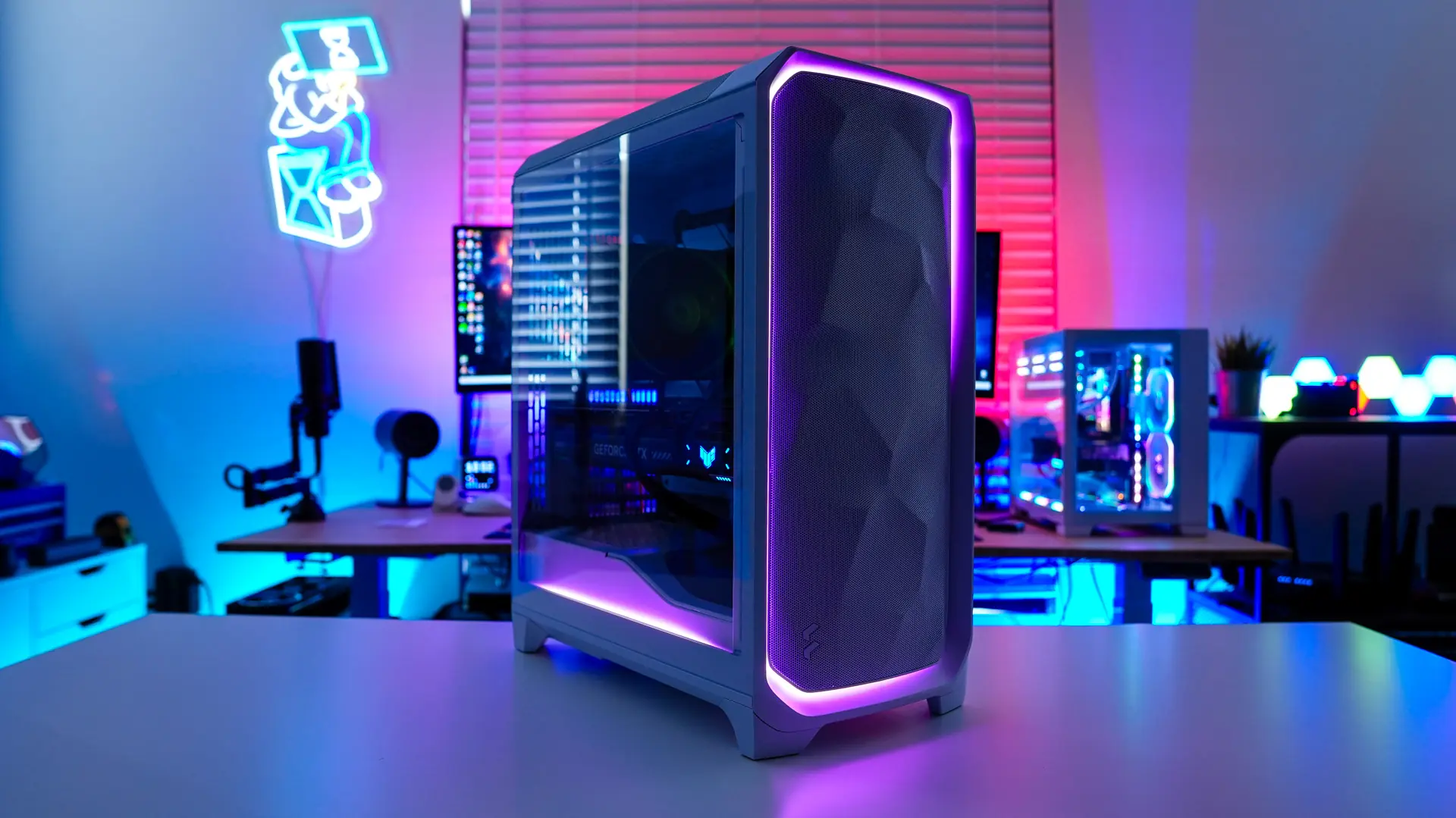
When you power your system on for the first time you’ll notice the fans on the front of the case light up, but there is also accent lighting on the front of the case as well as the side. All of this together looks great!

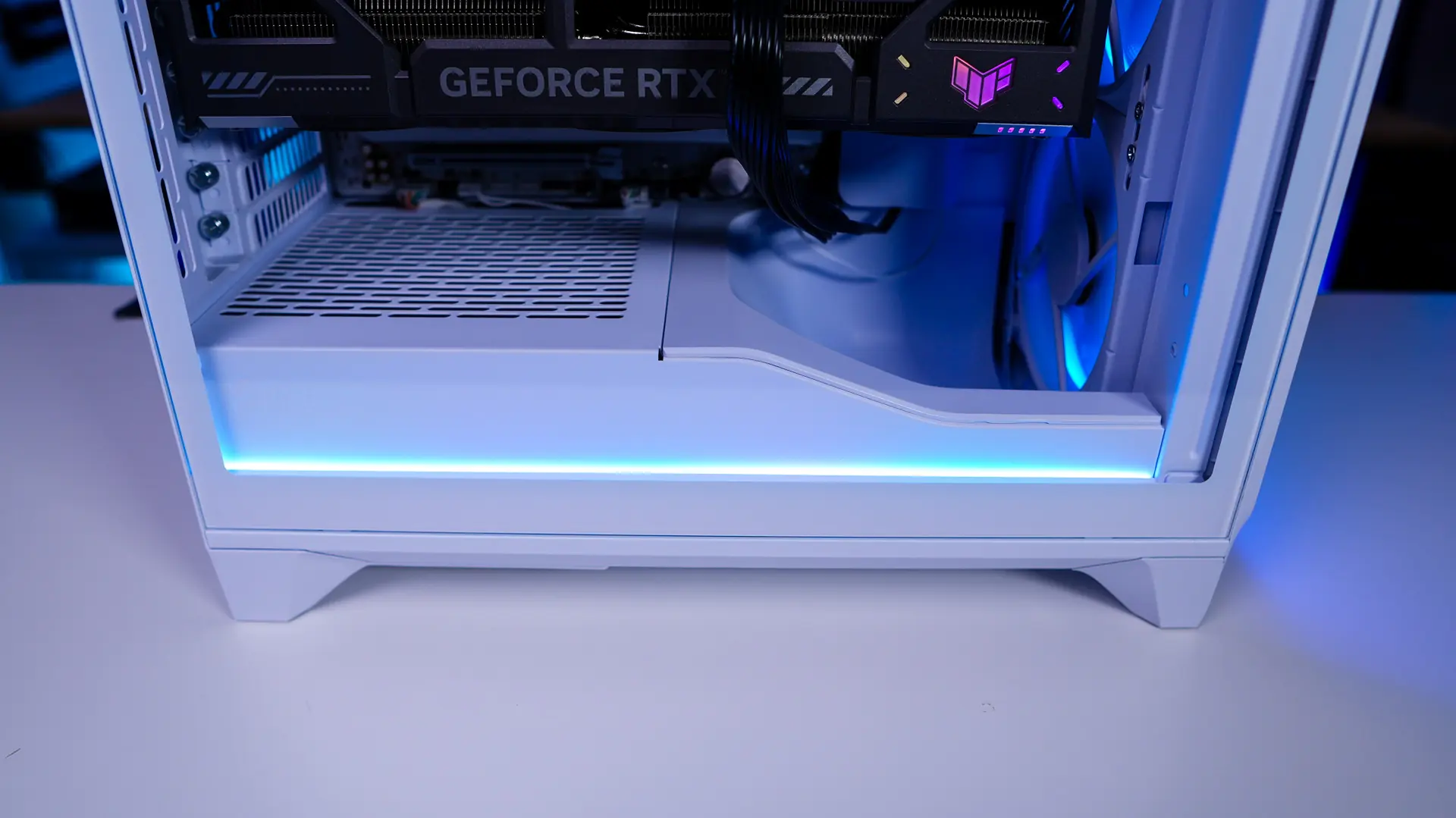
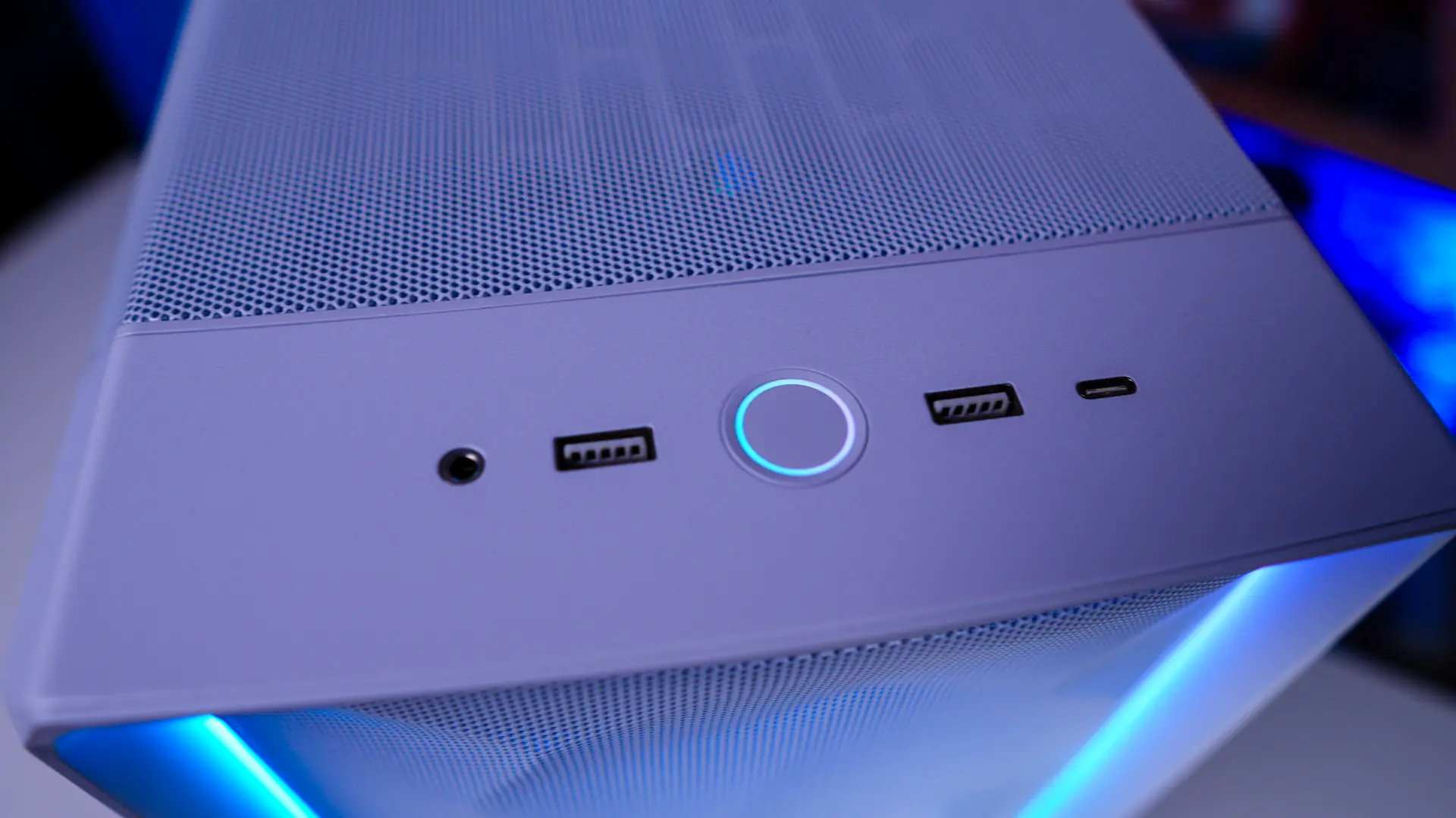
It is also worth noting that there is lighting around the power button, which is not just a normal color, but will mirror the effect and color you select in the software.
The Fractal App
Now if you want to do any type of adjustments to the fan speed or lighting you will need to use the Fractal app. The thing I love is that this is actually not a piece of software you download, but actually a web-based app. We’ve seen this before on certain motherboards and I like that Fractal has gone this direction. No one wants extra software on their system and we’ve seen how bloat certain companion apps have got. Before we get into the app any changes you make on the web app are saved to the Adjust Pro hub itself. Also if for some reason you don’t have an internet connection Fractal will offer an offline version of the Fractal App which will allow users to configure the Adjust Pro without an internet connection.
To access to Fractal app you navigate to adjust.fractal-design.com. From here you can easily add the Adjust Pro Hub. Once added you get the option to get into the lighting or cooling settings and then also do a factory reset.

Going into the lighting settings we have the ability to see our connected devices. One really cool thing about this app is that if you actually hoover over a device only that device will light up in your system, so there is no guessing what device you are configuring. For each device you can select from up to 10 different “Fractal themes” or set your own custom lighting.
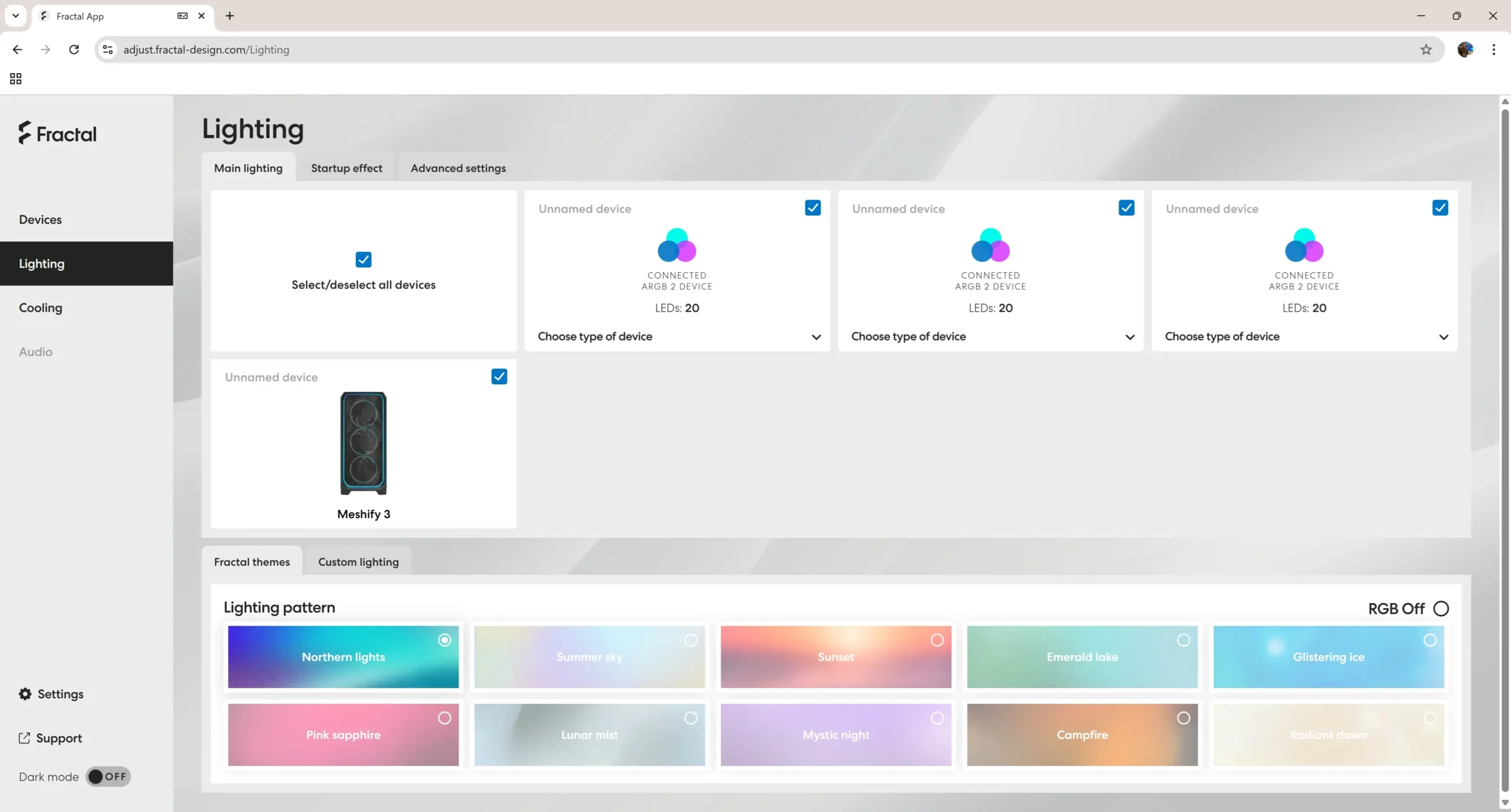
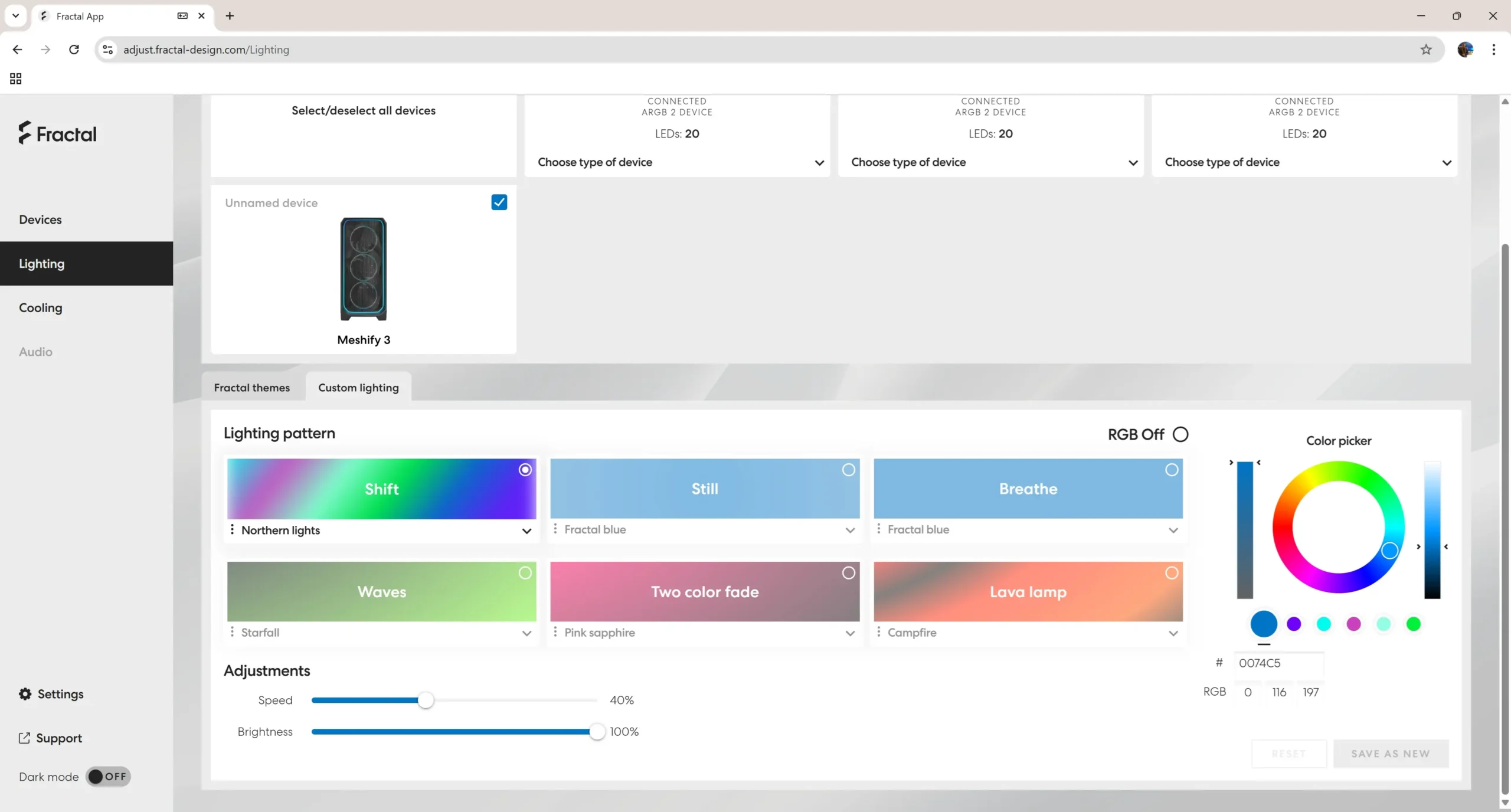
If for some reason you don’t see any lighting devices here you need to disable Windows Dynamic Lighting. Once you do that the lighting options will show up. Here is what the 10 different “Fractal themes” look like…
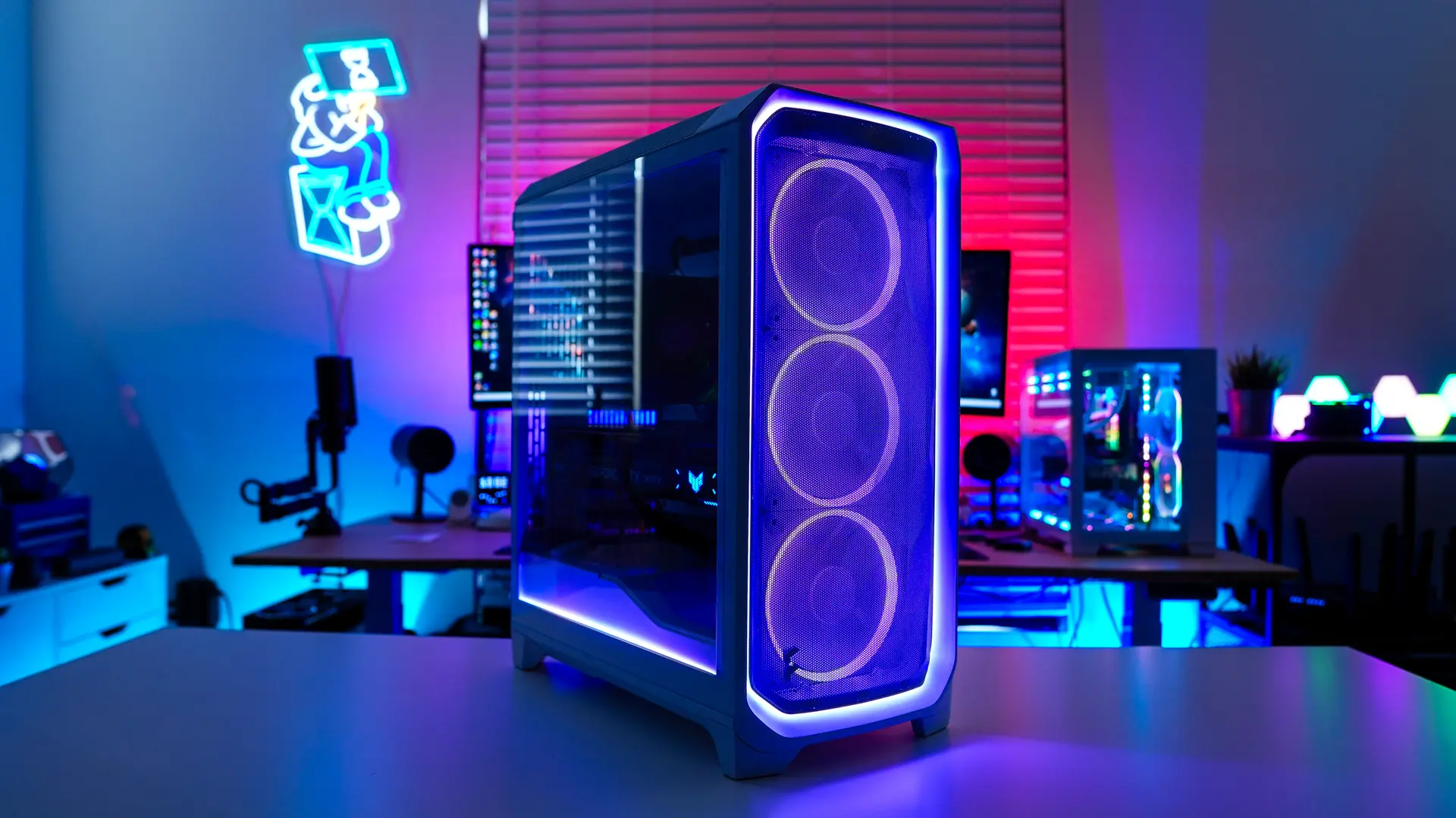
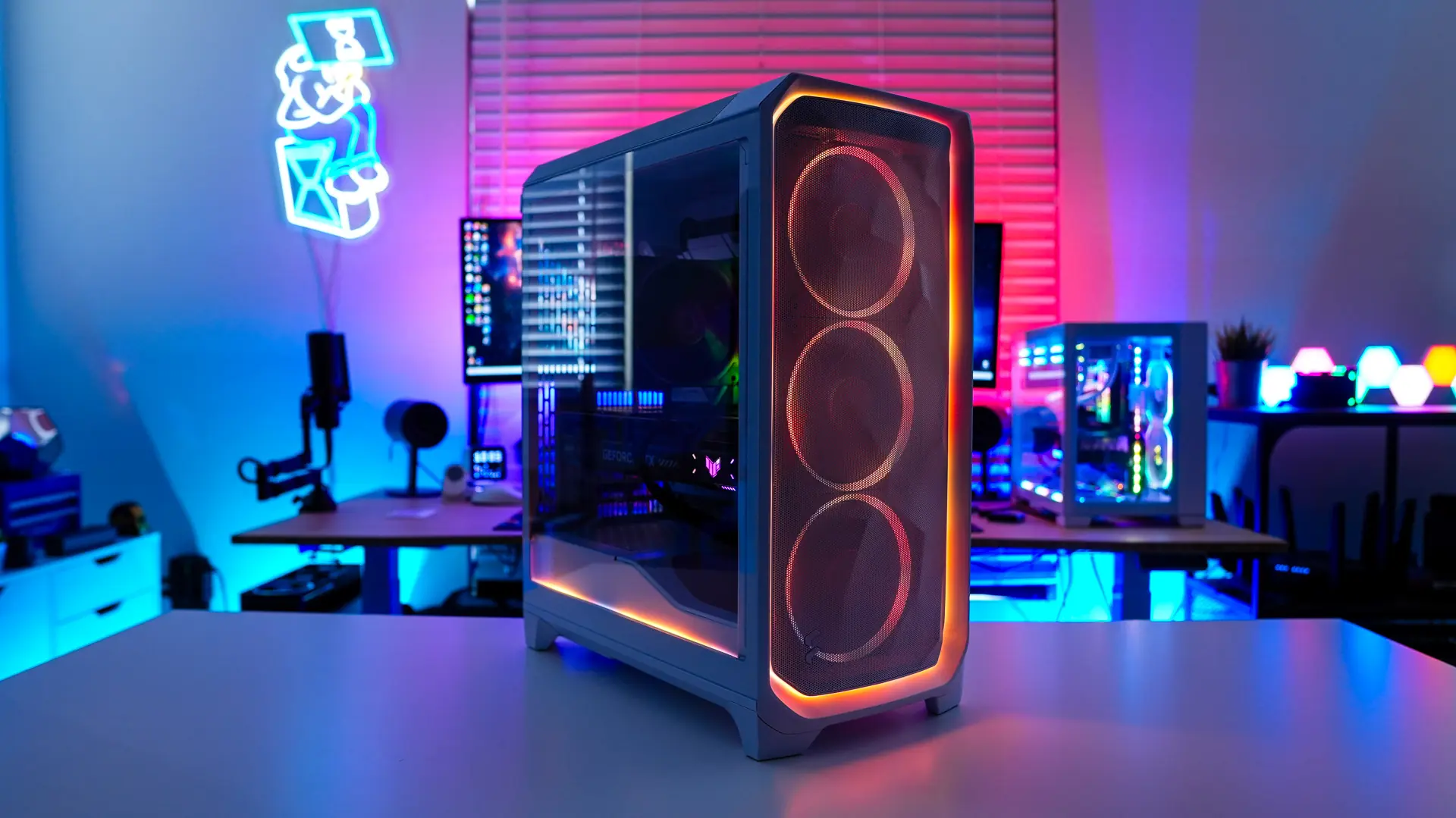
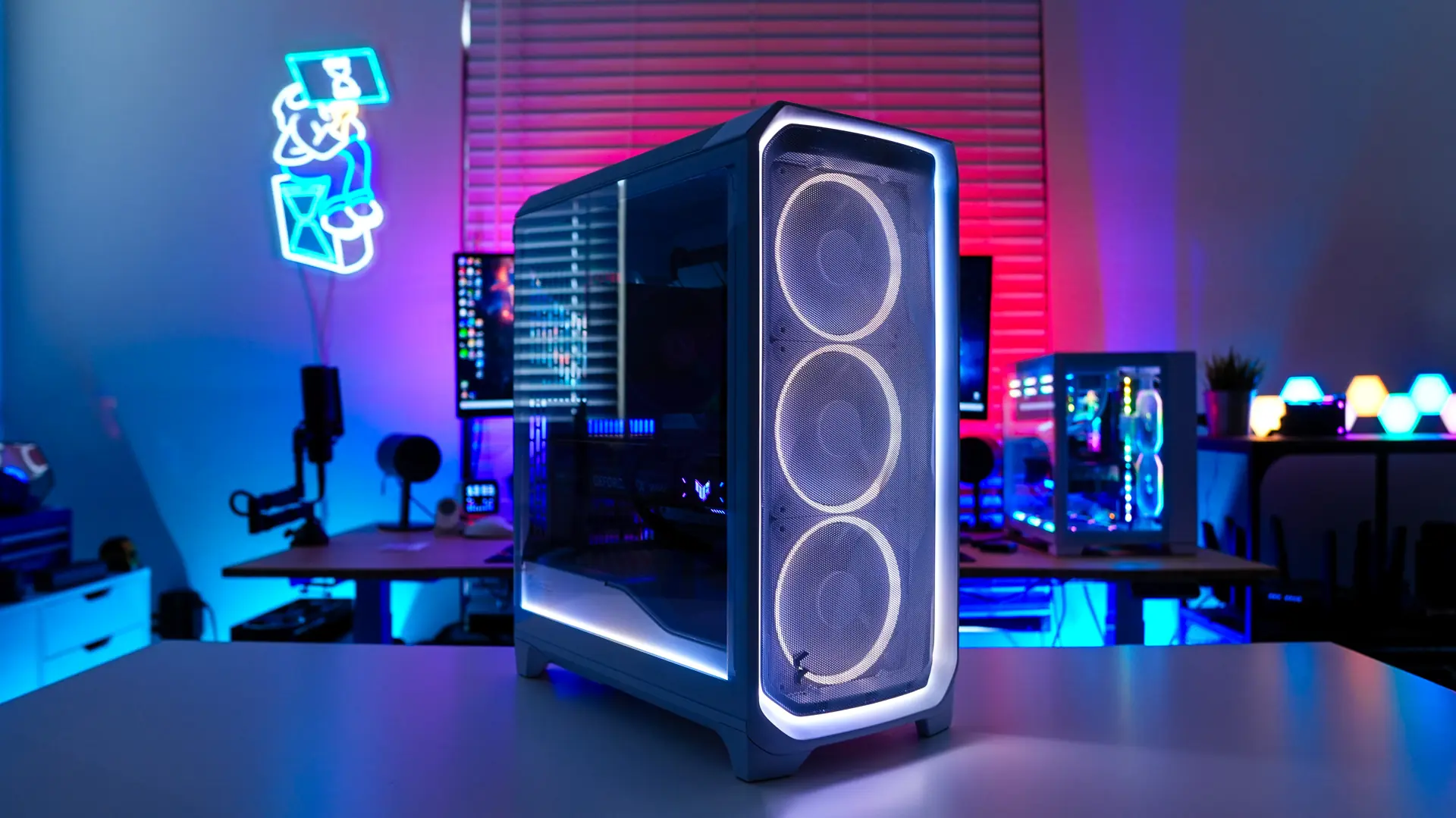
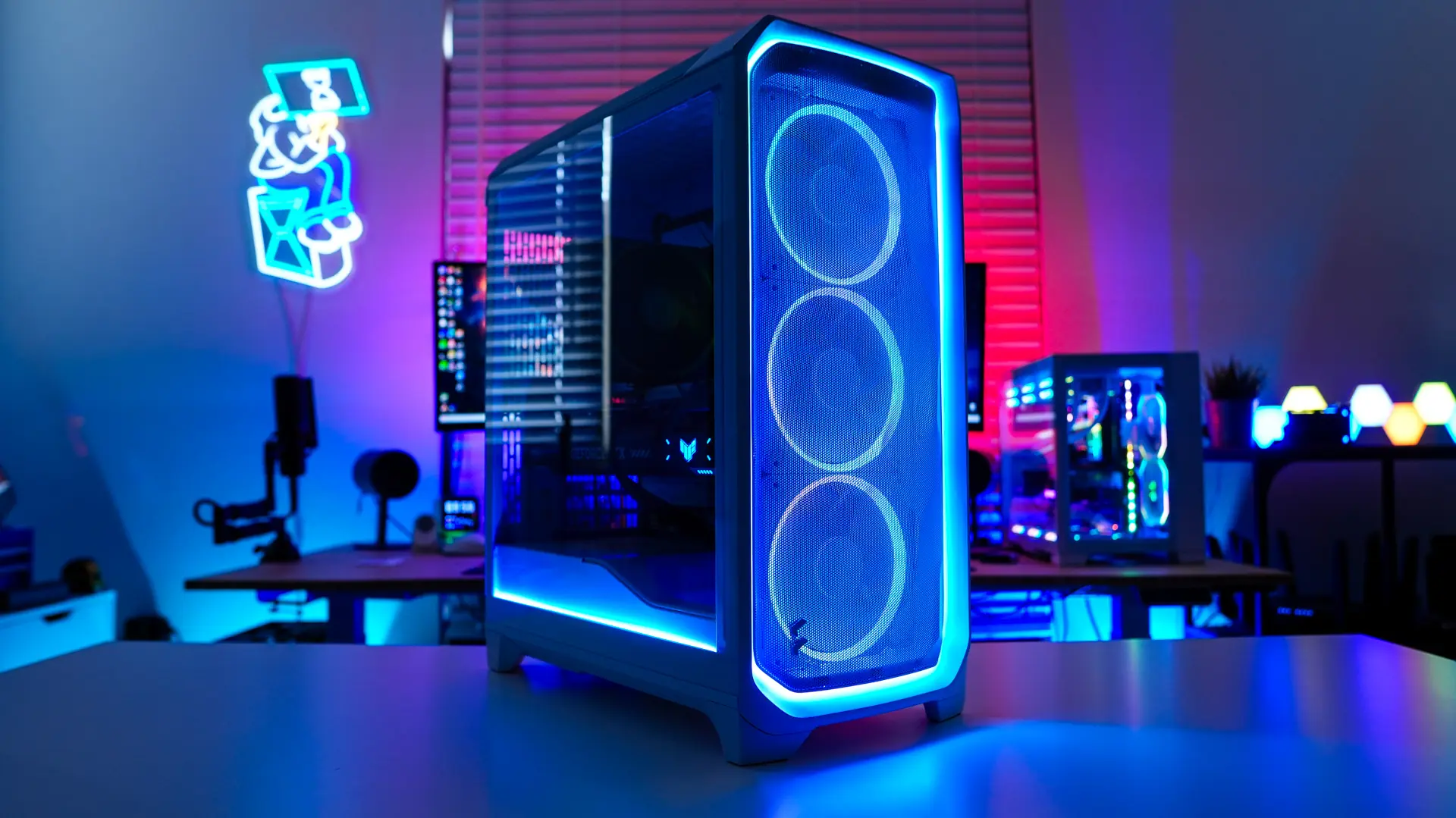
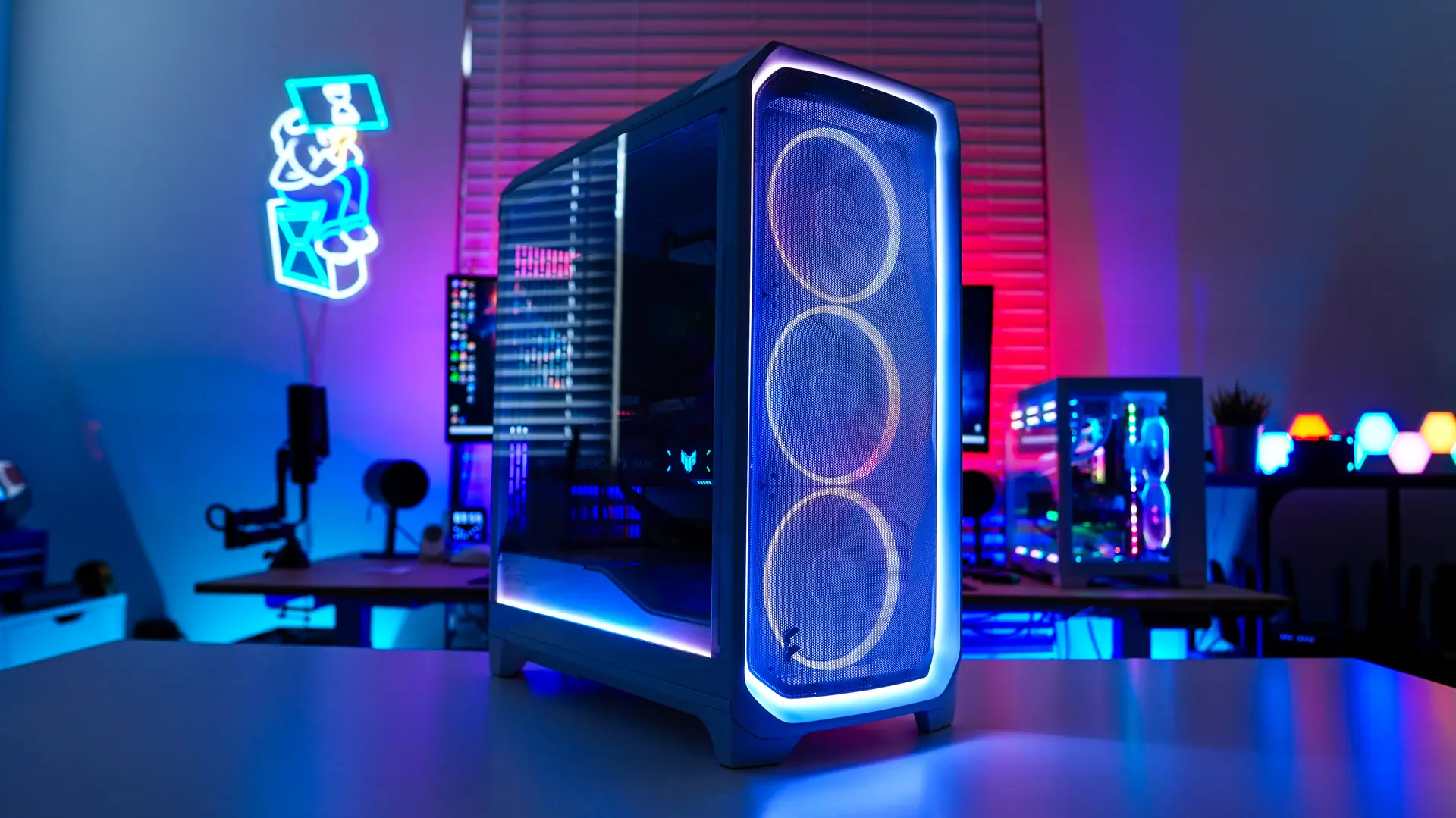
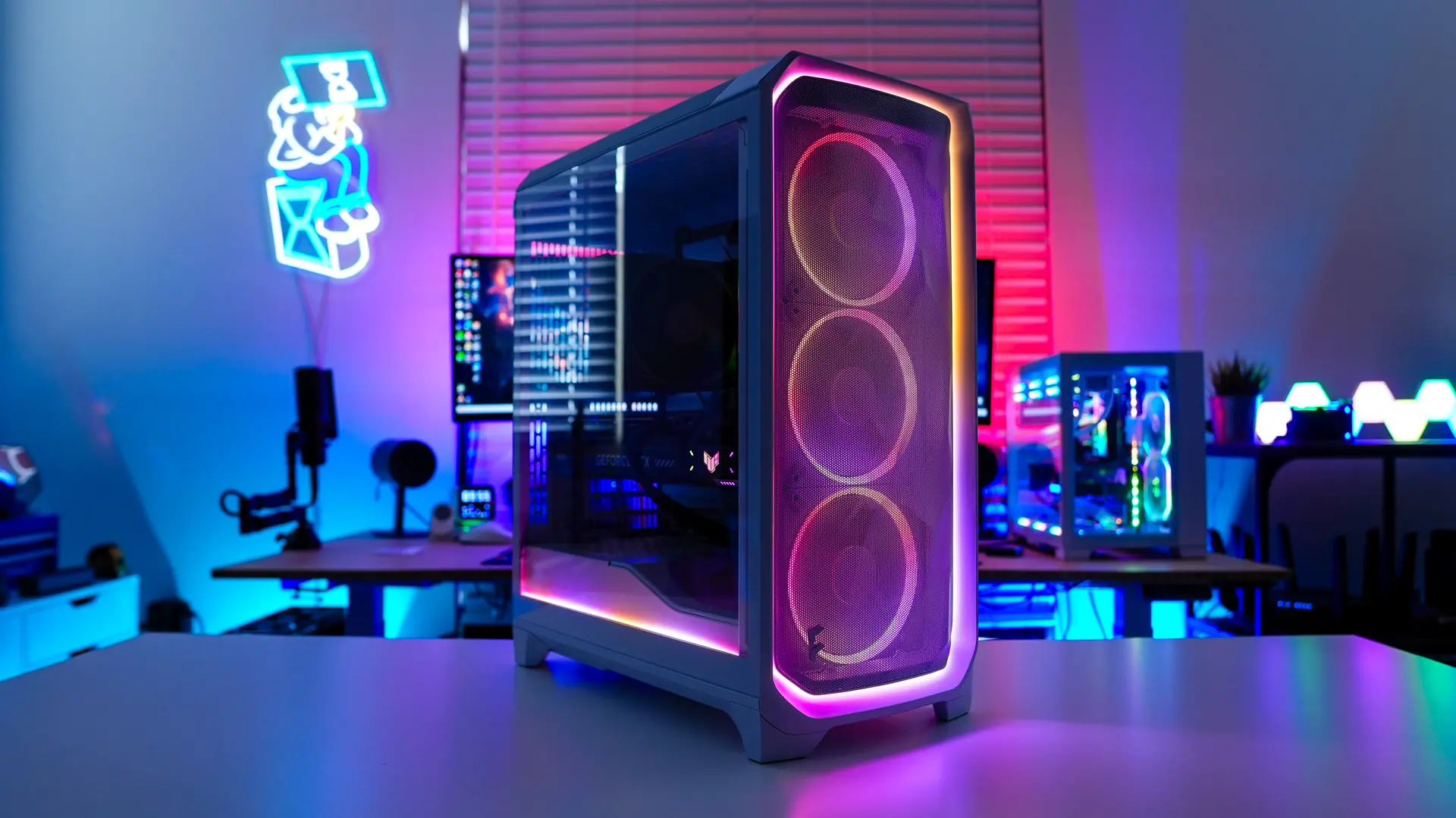
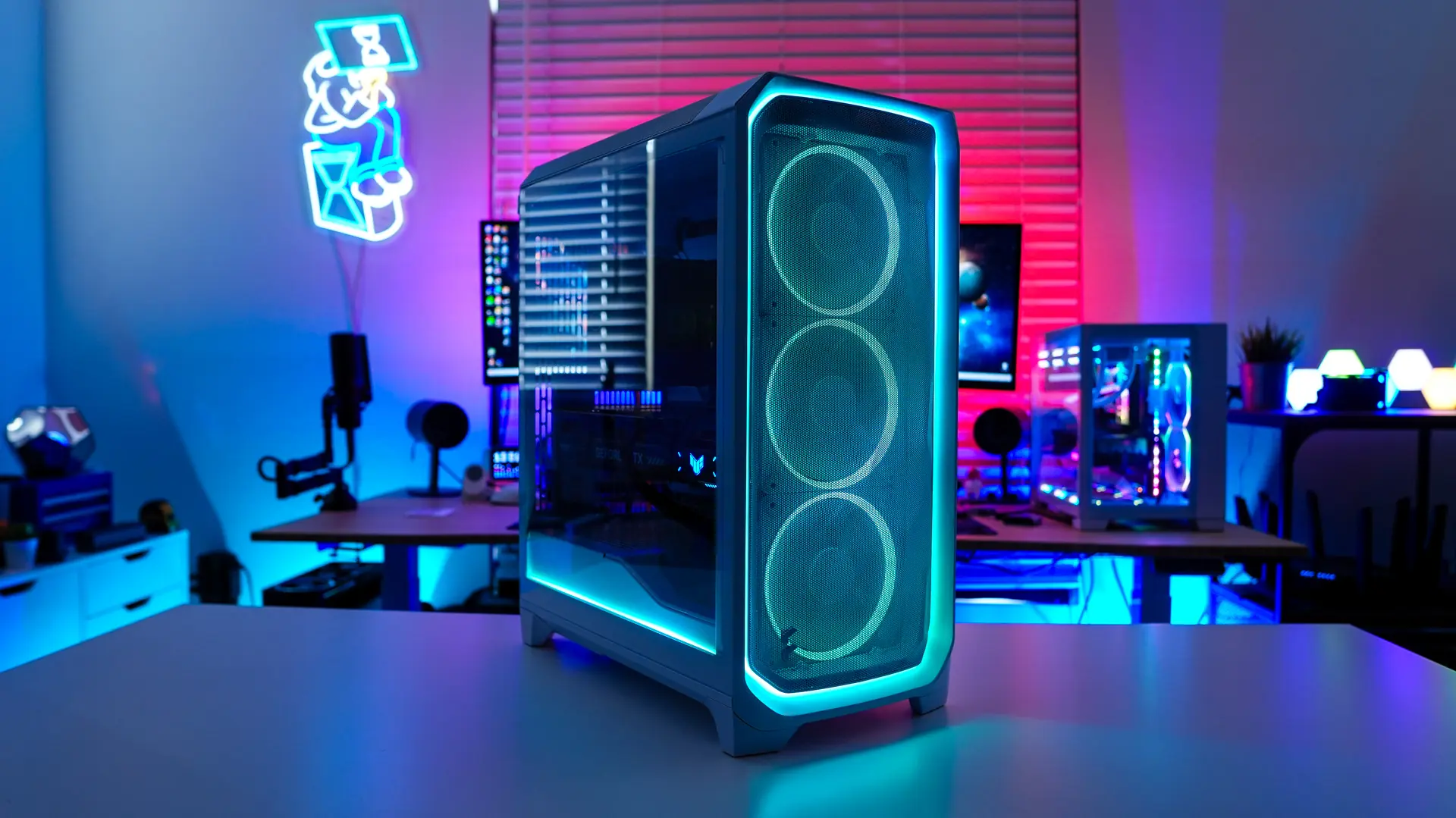
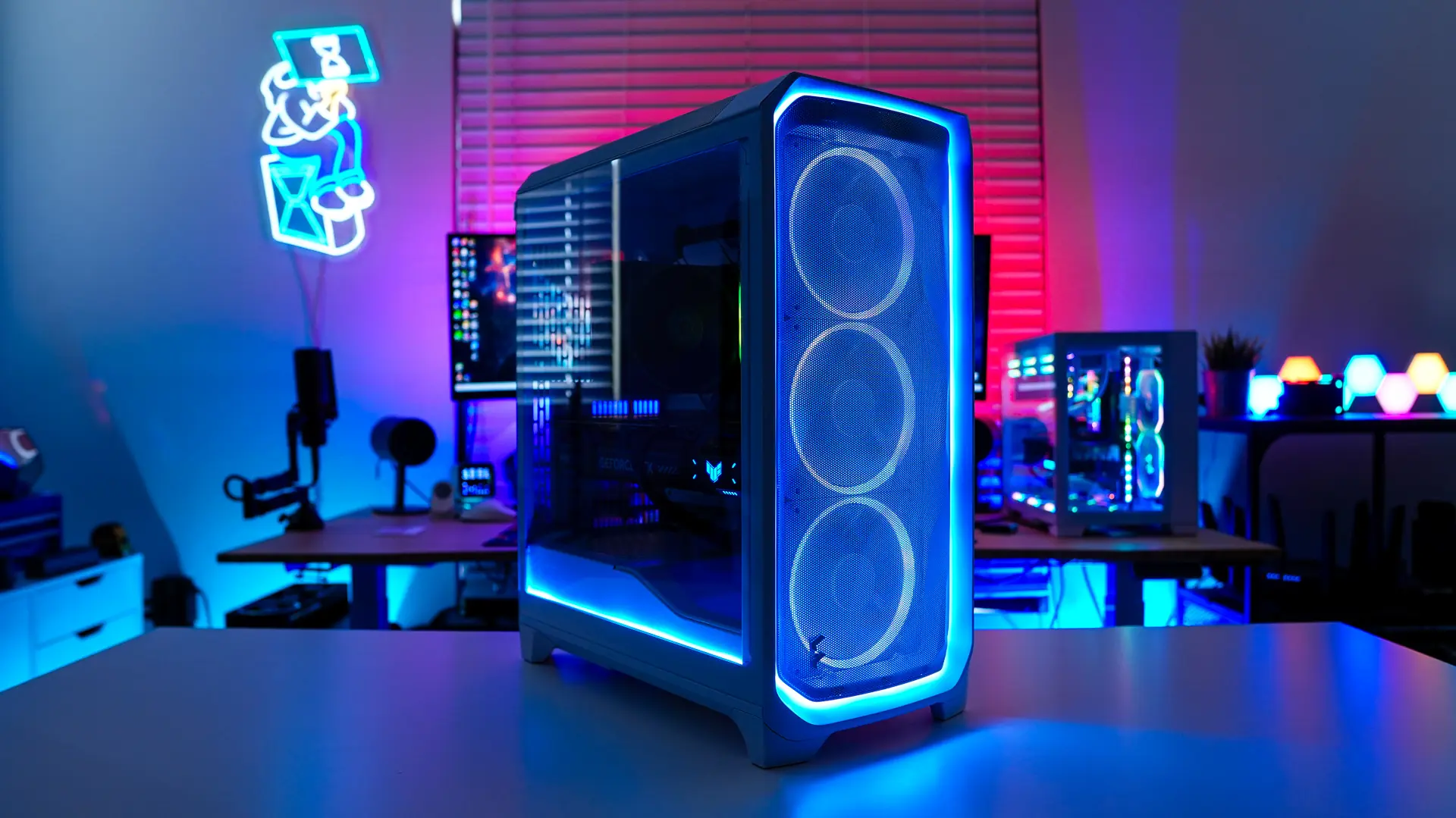
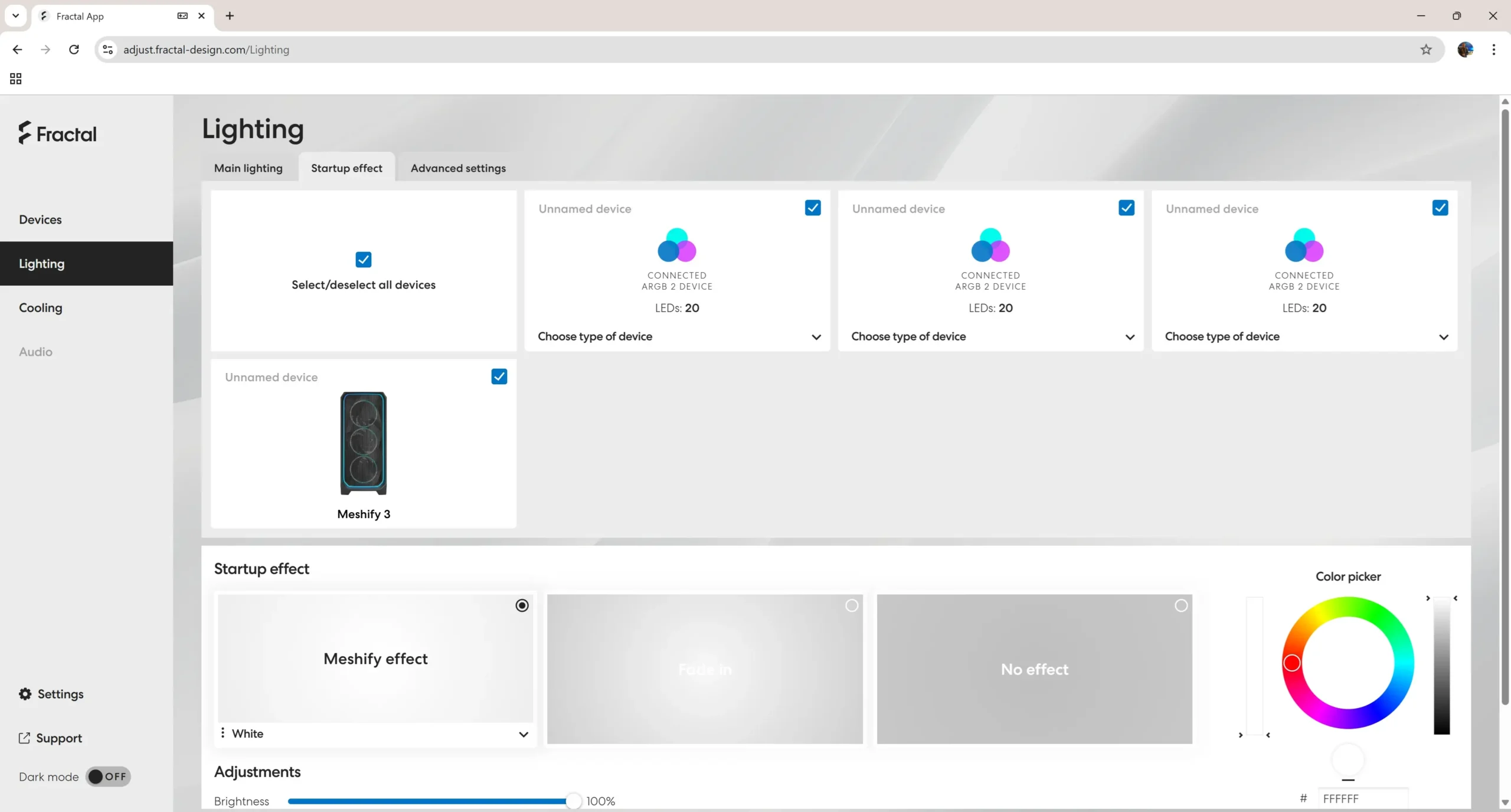
Also in the lighting settings you can set a startup effect for your RGB devices.
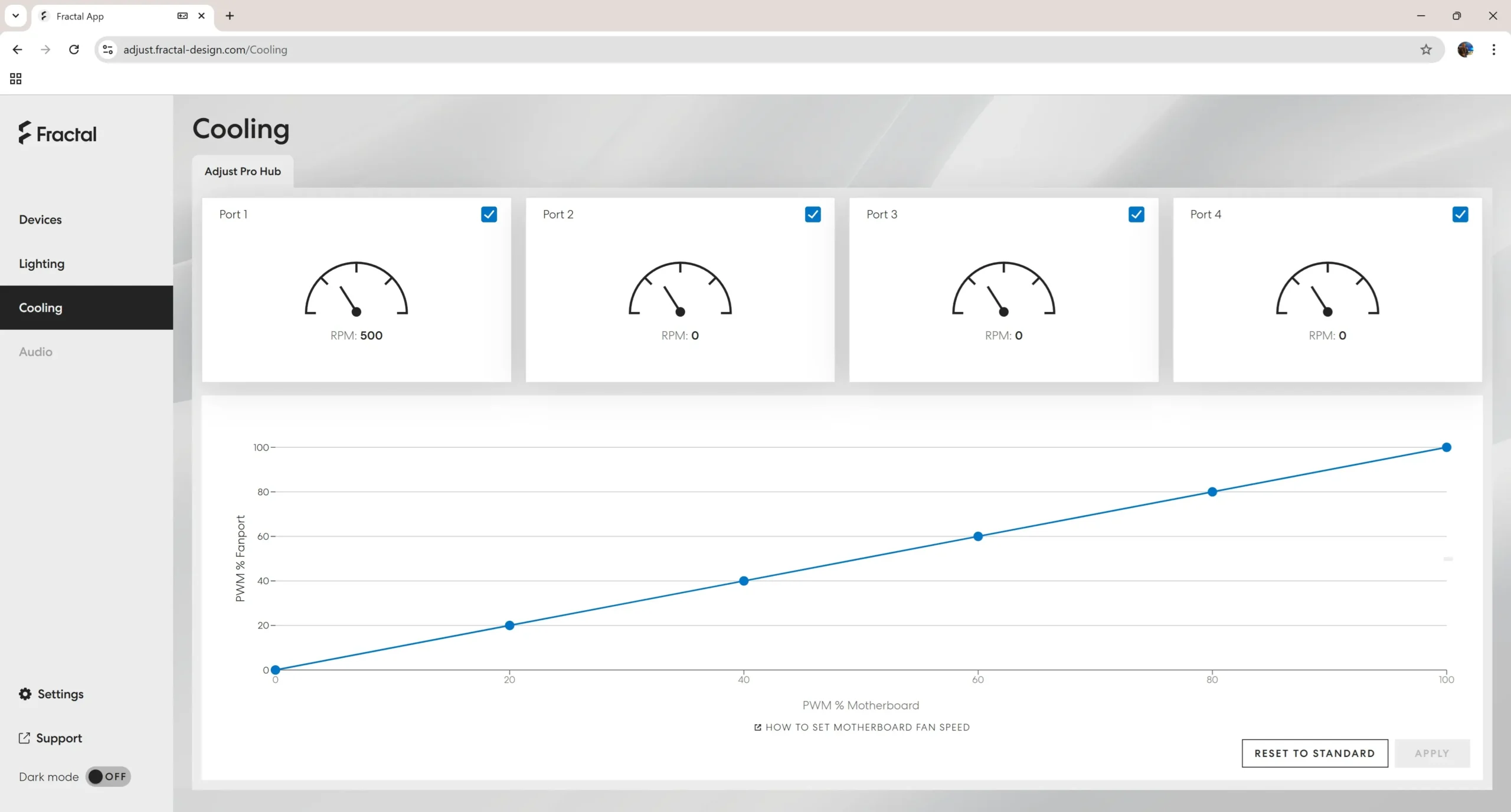
Moving over to Cooling settings we can see the four ports on the Adjust Pro hub as well as a live read-out of our fan speed. We can set a fan curve relative to PWM % of the motherboard. Now if for some reason your fans are running at 100% speed and you don’t seem to have any fan control here you need to manually set the fan header on your motherboard which you have the Adjust Pro plugged into to PWM and not auto. I ran into this issue with an ASUS motherboard and I had to go into the BIOS and switch that header from Auto to PWM.




The air holes/slots on the back panel seem quite large compared to most.
Great for airflow but not so good for dust resistance.