


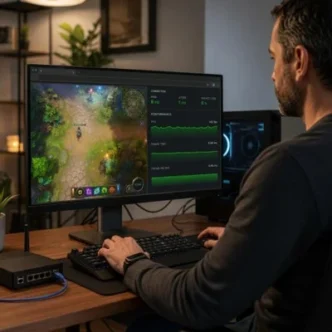
Browser gaming ought to be simple. Open a tab, sign in, and get on with it. Yet even a capable PC can feel oddly sluggish if the connection stutters, the browser is overloaded, or Windows is busy doing something in the background.
The good news is that you don’t usually need a full system rebuild to improve things. Smooth browser gaming comes down to a few basics: steady frame pacing, responsive controls and a connection that isn’t dropping data when it matters. Get those right and the whole experience feels far less fiddly.
Identify the issue first
A game doesn’t have to freeze completely to feel off. You might notice slight pauses in animation, a delay between moving the mouse and seeing a response, or pages that take longer than expected to load.
These are often separate problems:
- Frame pacing is about how evenly frames are displayed. A high frame rate that arrives unevenly can still look jerky.
- Input responsiveness covers the delay between your mouse, keyboard or touch input and what happens on screen.
- Network stability affects loading, sign-ins, live features and anything that communicates with a remote server.
It’s worth checking one area at a time. If you change five settings at once, you’ll never know what actually helped.
Your internet connection is the foundation
A fast broadband package is useful, but consistency matters just as much for browser-based games. A brief delay or lost packet can be more noticeable than a slightly lower download speed.
Ethernet is still the easy win
If your PC is close enough to the router, a wired Ethernet connection is usually the most dependable option. It avoids much of the interference that can affect Wi-Fi, including thick walls, neighbouring networks and other wireless devices.
That said, Wi-Fi can work perfectly well when it’s set up sensibly. Put the router somewhere open and reasonably central, rather than tucked in a cupboard or behind a television. Keep it away from large metal objects where possible, and avoid placing it directly on the floor.
If your router offers both 2.4GHz and 5GHz bands, the 5GHz option is often preferable when you’re in the same room or nearby. It generally has more capacity, though its signal does not travel through walls as effectively as 2.4GHz.
Check whether other devices are hogging the line
A connection can appear fine until someone starts a large download, backs up photos, or streams high-resolution video elsewhere in the home. This is where a router’s Quality of Service, often labelled QoS, can help.
QoS lets you prioritise certain kinds of traffic or specific devices. The names and menus vary between router brands, so check the manufacturer’s instructions before changing anything. There’s no single perfect setting, but giving your main PC sensible priority can reduce interruptions when the network is busy.
Don’t confuse speed with latency
Run a speed test if you like, but pay attention to:
- Ping or latency, the time data takes to travel to a server and back
- Jitter, how much that delay varies over time
- Packet loss, where pieces of data fail to arrive
Packet loss is especially worth investigating. As Wikipedia’s overview of packet loss explains, it can result from congestion, wireless interference or network faults. For browser gaming, a stable connection with low variation is normally more useful than an impressive speed-test result that changes wildly from one minute to the next.
A simple diagnostic routine is:
- Test the connection while the PC is connected normally.
- Pause downloads, cloud synchronisation and other heavy activity.
- Repeat the test with Ethernet, if possible.
- Restart the router only after noting the results.
- If the issue persists across several devices, contact your internet provider with the times and results you recorded.
DNS can be worth checking, but don’t expect miracles
DNS translates site names into the addresses your PC needs. A slow or unreliable DNS service can make websites feel hesitant when they first load, though it will not usually fix a persistent in-game delay.
You can compare your provider’s default DNS with established public services, such as Cloudflare’s 1.1.1.1 resolver or Google Public DNS. Make a note of the original setting before changing it, and revert if nothing improves.
Reduce unnecessary system activity
A browser game is still relying on Windows, your graphics hardware, memory and processor. If they’re already occupied, performance can suffer.
Keep Windows updated, then restart properly
Updates can include security fixes, driver improvements and compatibility changes. Check Settings > Windows Update, install available updates, then restart the PC when prompted.
A restart is more useful than many people give it credit for. It clears temporary processes and can resolve a browser that has gradually become slow over several days.
For help with system settings and common maintenance tasks, Microsoft’s Windows support pages are a reliable first stop.
Close the background tasks you don’t need
Open Task Manager with Ctrl + Shift + Esc and look at the Processes tab. Sort by CPU, Memory or Network to see what is demanding attention.
You don’t need to close every process. Windows needs many of them. Instead, look for obvious extras:
- Multiple browser windows with dozens of tabs
- File synchronisation running a large upload or download
- Video calls left open in the background
- Launchers or apps updating themselves
- Unused overlays and recording software
Be cautious with unfamiliar processes. If you aren’t sure what something is, search its name before ending it.
Treat browser tabs as part of your PC’s workload
Modern browsers are hungry for memory, especially with media-rich pages and extensions running. A dozen unused tabs may not sound dramatic, but they can add up.
Before opening a browser-based service:
- Close tabs you no longer need
- Disable extensions you rarely use
- Avoid running several browsers at once
- Use the browser’s own task manager where available
Chrome and Edge both offer ways to identify tabs or extensions using excessive resources. If a particular browser seems problematic, test the same service in another current browser before assuming the PC is at fault.
Hardware acceleration is useful, until it isn’t
Hardware acceleration allows the browser to use the GPU for tasks such as video playback, rendering and animation. In most cases, leaving it enabled is the right call.
If you’re seeing flickering, black windows, unusual graphical artefacts or repeated crashes, try toggling the setting once and restarting the browser. In Chrome and Edge, it is usually found under Settings > System and performance.
Don’t keep changing it back and forth every day. Test, observe, then stick with the setting that behaves properly on your machine.
Clear the cache when a site starts behaving oddly
Cached files help sites load faster, but an old or corrupted cache can also cause broken layouts, loading loops and stale content.
Try a hard refresh first, often Ctrl + F5. If the issue remains limited to one site, clear that site’s stored data or the browser cache. Remember that clearing cookies can sign you out, so make sure you can access your account before doing it.
Make the screen and controls feel right
A PC can be technically fast while still feeling awkward to use. A few display and peripheral checks can make a real difference.
Confirm your monitor’s refresh rate
Many monitors can run above 60Hz, but Windows may not always select the highest supported setting automatically. Go to:
Settings > System > Display > Advanced display
Choose the correct display, then select the highest stable refresh rate available. This won’t transform every browser game, as some are designed around a fixed frame rate, but it can improve desktop smoothness and reduce the sense of input delay.
Also check display scaling. Very high scaling can occasionally make older pages or browser elements look soft. There’s no universal ideal here, so choose the setting that is sharp and comfortable for your screen.
Keep graphics drivers current
Graphics drivers matter even for browser use because the browser may use the GPU for rendering. Update through the official software for your card:
Avoid random driver-download sites. The official source is the safer route, and it makes it easier to identify the correct version for your hardware.
Give your mouse and keyboard a quick once-over
Mouse lag can be a simple battery, connection or surface issue. If you use a wireless mouse, check its battery level and try a different USB port for the receiver. Keep the receiver close to the mouse rather than hidden behind a metal PC case.
For wired devices, inspect the cable for damage and make sure it is seated firmly. In Windows, check Settings > Bluetooth & devices > Mouse for pointer speed, but avoid extreme settings that make precise movement difficult.
Sort out audio before it becomes a distraction
If sound is cutting out or coming from the wrong device, check the output selector in the taskbar first. Then confirm the browser tab is not muted and that the site has permission to play sound.
Bluetooth headphones can occasionally reconnect in a lower-quality call mode if another application is using their microphone. Closing unused calling software and reconnecting the headset often resolves it.
Keep browser use secure as well as reliable
Performance matters, but account safety should never be an afterthought. A fast browser is no help if you land on a copied website or reuse a password that has already been exposed elsewhere.
Use a password manager and unique passwords
A reputable password manager can generate long, distinct passwords for each account. That means one compromised password is less likely to affect other log-ins.
Turn on multi-factor authentication where a service offers it. An authenticator app is often a stronger option than relying solely on text messages.
Check the website before signing in
Phishing pages can look convincing, particularly when reached through adverts, messages or unexpected emails. Before entering any details:
- Check the spelling of the web address
- Look for the correct domain, not a close imitation
- Avoid signing in through unsolicited links
- Bookmark services you use regularly
- Be wary of messages demanding urgent action
Use a current browser and keep its built-in security protections enabled. Browser and security-tool updates are not glamorous, but they close known weaknesses and improve compatibility with newer websites.
A quick troubleshooting checklist
When a browser-based service performs poorly, work through this list before replacing hardware:
- Restart the PC and router.
- Test Ethernet if you normally use Wi-Fi.
- Pause downloads, streaming and cloud backups.
- Check latency, jitter and packet loss, not only download speed.
- Close unnecessary tabs, apps and extensions.
- Update Windows, the browser and GPU drivers.
- Confirm hardware acceleration is behaving correctly.
- Check monitor refresh rate and audio output.
- Clear the affected site’s cache if it alone is misbehaving.
- Verify the site address and use a unique password.
For more practical reading, ThinkComputers’ networking coverage, Windows articles, graphics card guides and peripheral reviews can be useful places to compare hardware and troubleshoot specific components.
A real-world browser example
Say you’re opening a browser-based entertainment service such as Double Bubble ’s UK online-bingo catalogue, including titles that use slot-style mechanics. The same checklist still applies: use a stable connection, keep your browser current, reduce unnecessary background load, and make sure you’re signing in on the genuine site with secure account details.
None of this needs to become a weekend project. Start with the connection, close what you’re not using, keep key software updated, and pay attention to the one change that improves things. Often, that’s all it takes to make browser gaming feel properly smooth again.