
Using the Lenovo Legion Go S
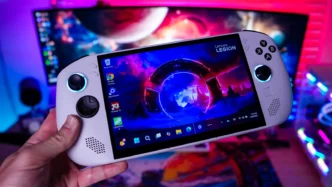
The version of the Legion Go S we are taking a look at is running Windows 11. For those wondering, there is now a SteamOS version of the Legion Go S. The Windows 11 experience on a gaming handheld is not the best, first I had to wait about 45 minutes for updates to be installed before I could even use the device.
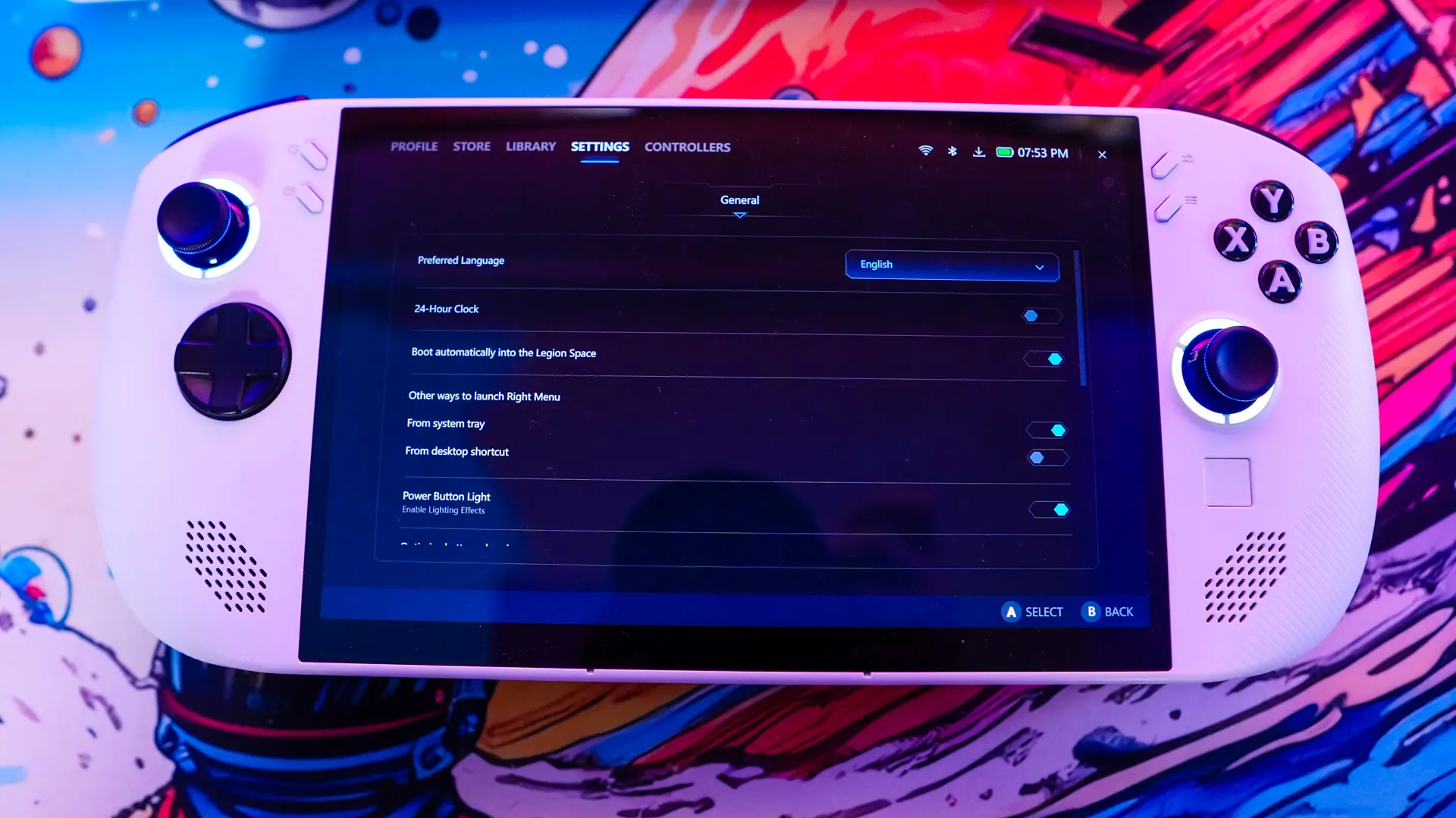
After that we drop into Windows 11 which is pretty easy to navigate with the small touchpad on the right side of the Legion Go S. By default you will just load into Windows each time you power on the device, but Lenovo does have their own gaming app called LegionSpace which is pre-installed on the device.
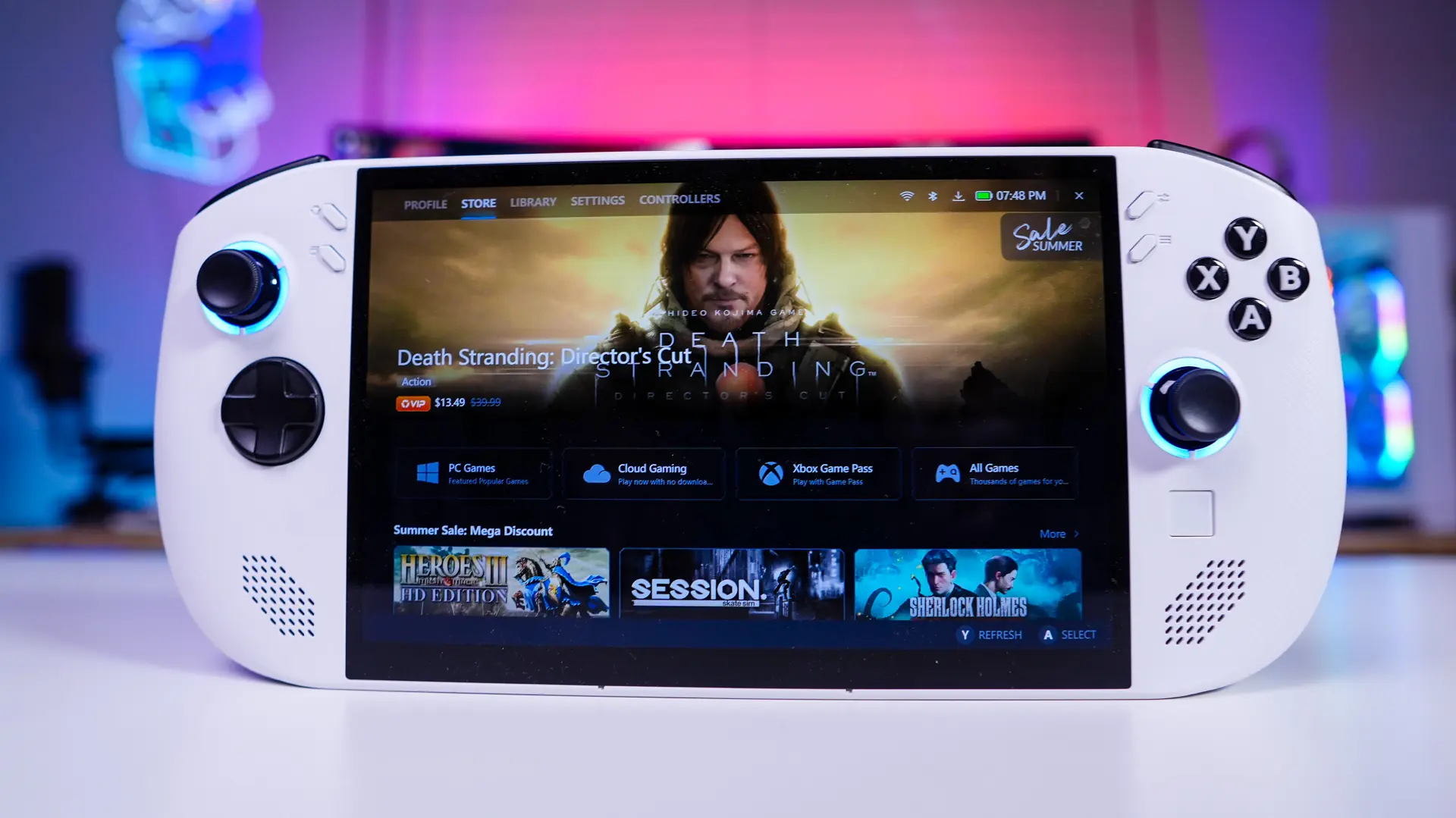
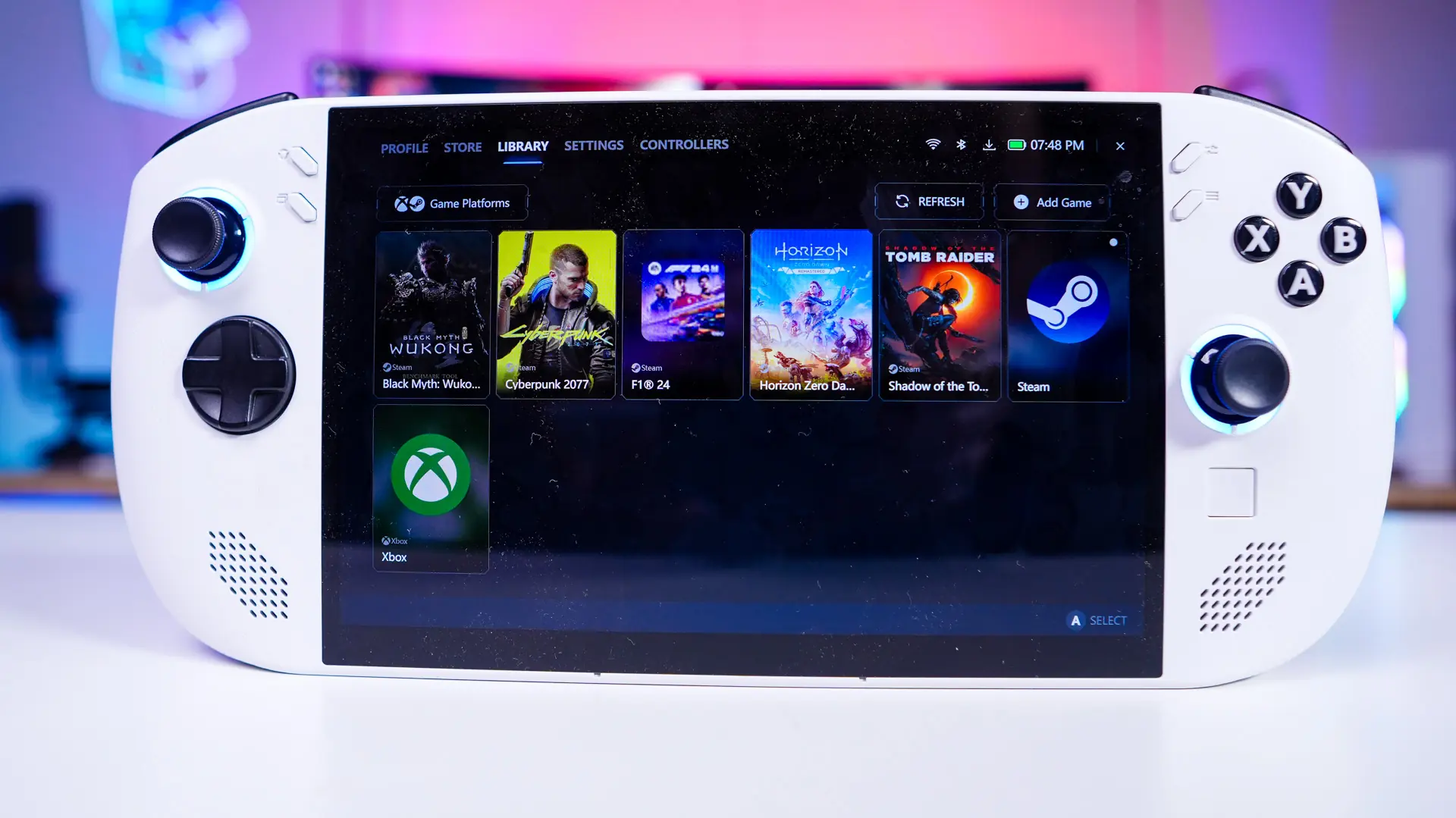
It has a built-in store and also connects with your game libraries. You can sync it with Xbox, Epic, Ubisoft Connect, Steam, GOG, Rockstar, and Giants. Once I installed Steam and installed my games it found them no problem. So this essentially gives it a singular launcher for the Legion Go S, which also works with the joysticks and buttons on the device.
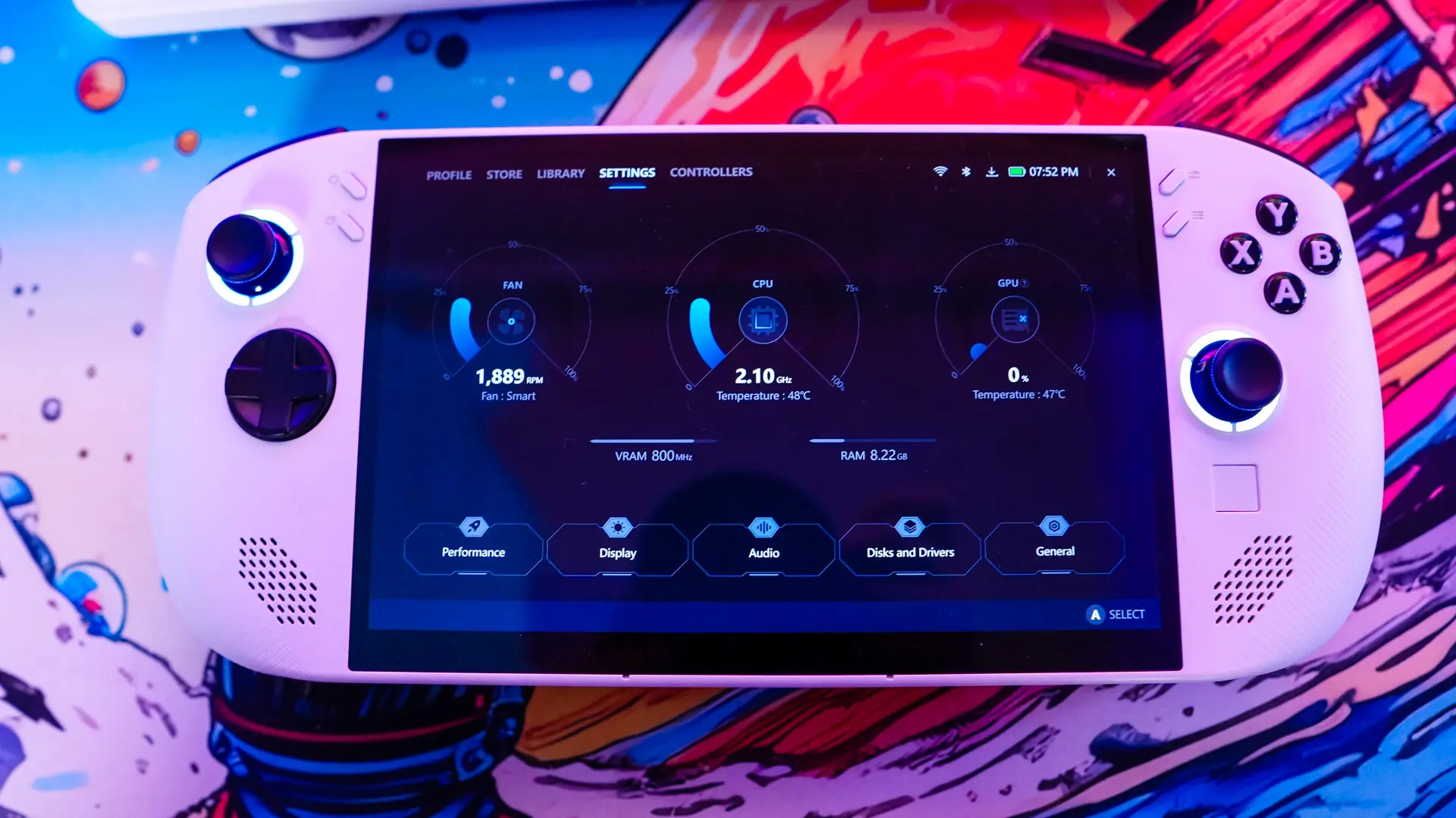
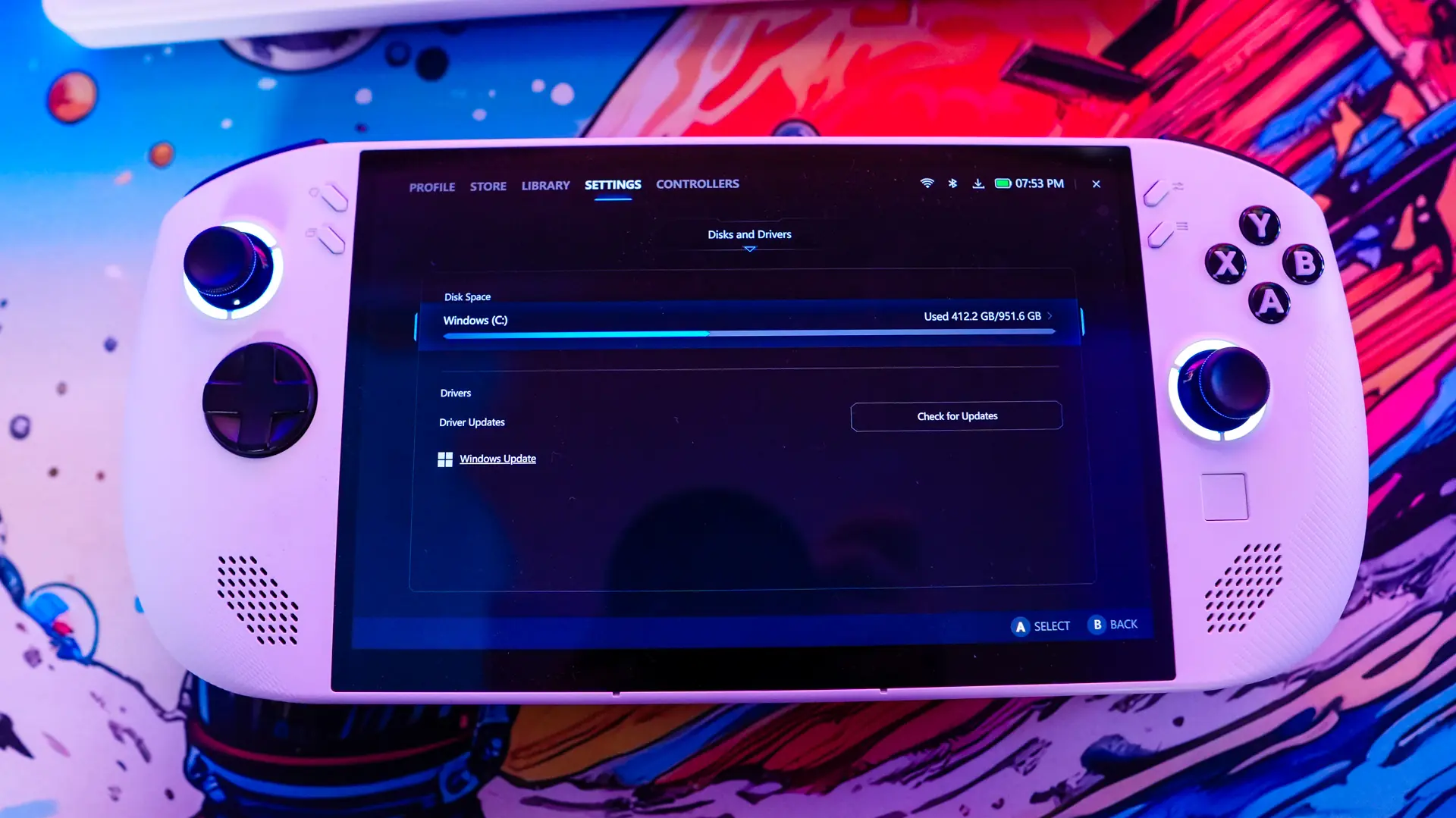
Also within this app is a settings section. The main page shows your fan, CPU, and GPU speeds as well as temperatures. Below that you have tabs for performance, Display, Audio, Disks and Drivers, and General. On each one of these you can change specific settings.
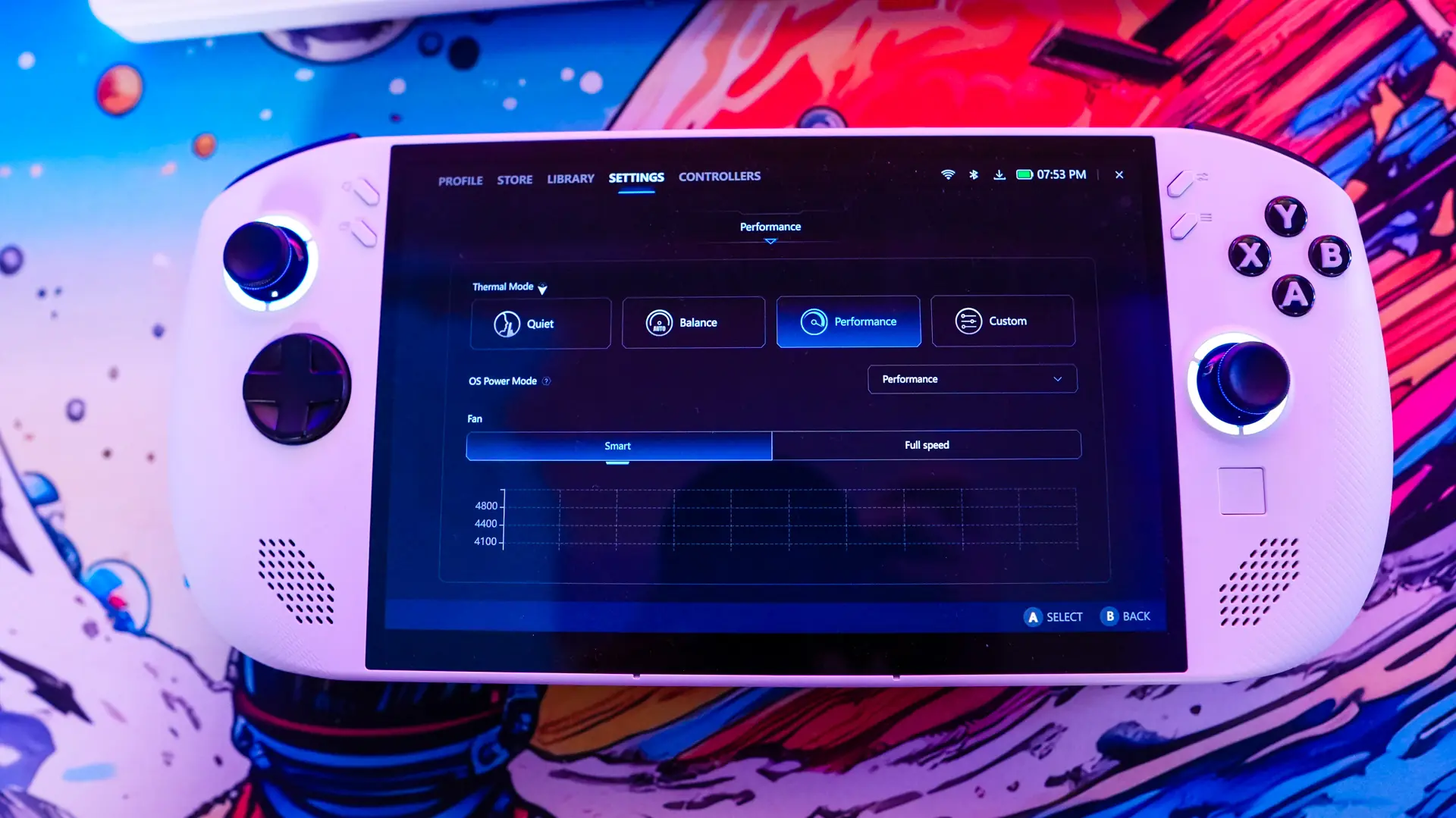
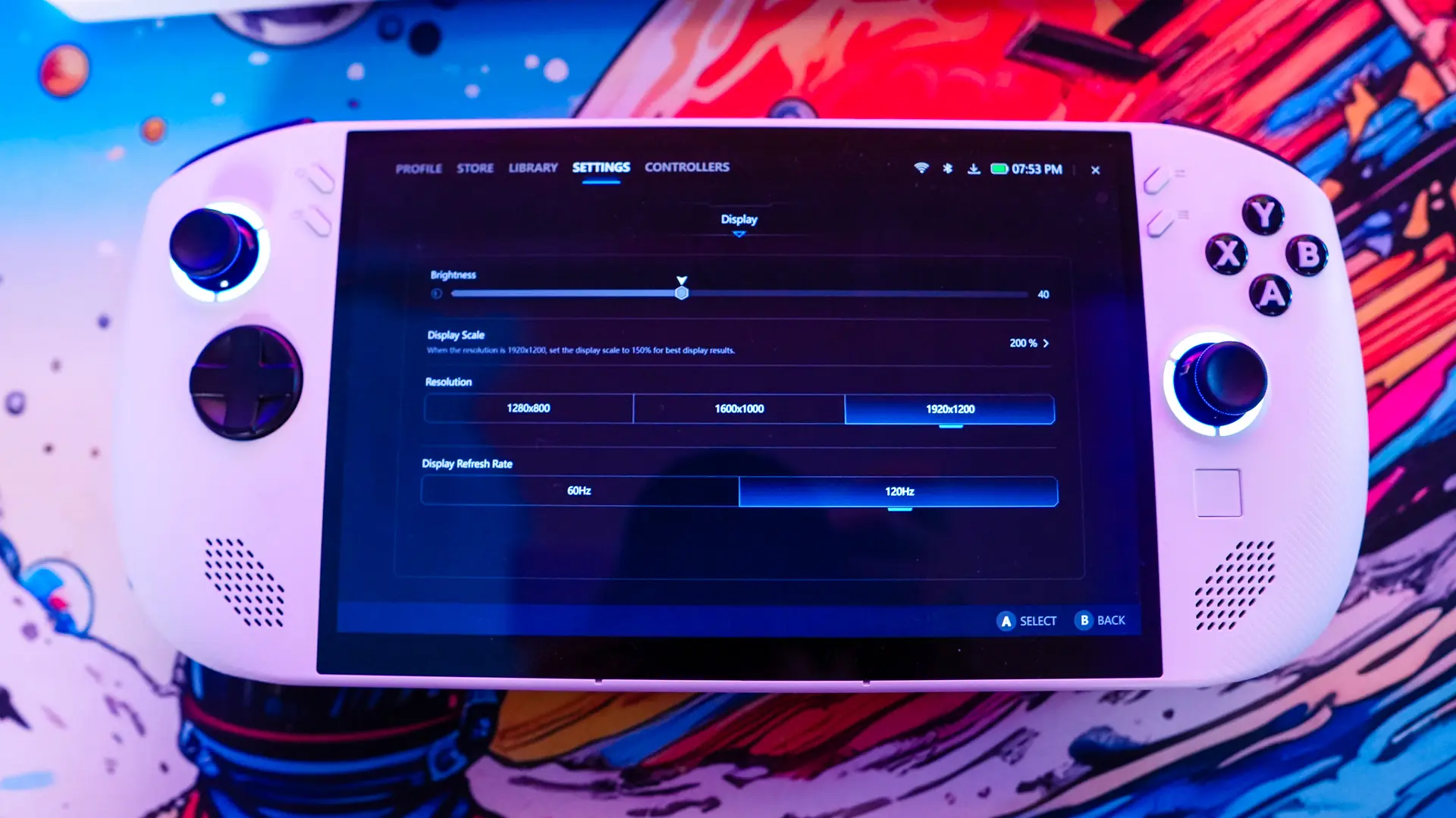
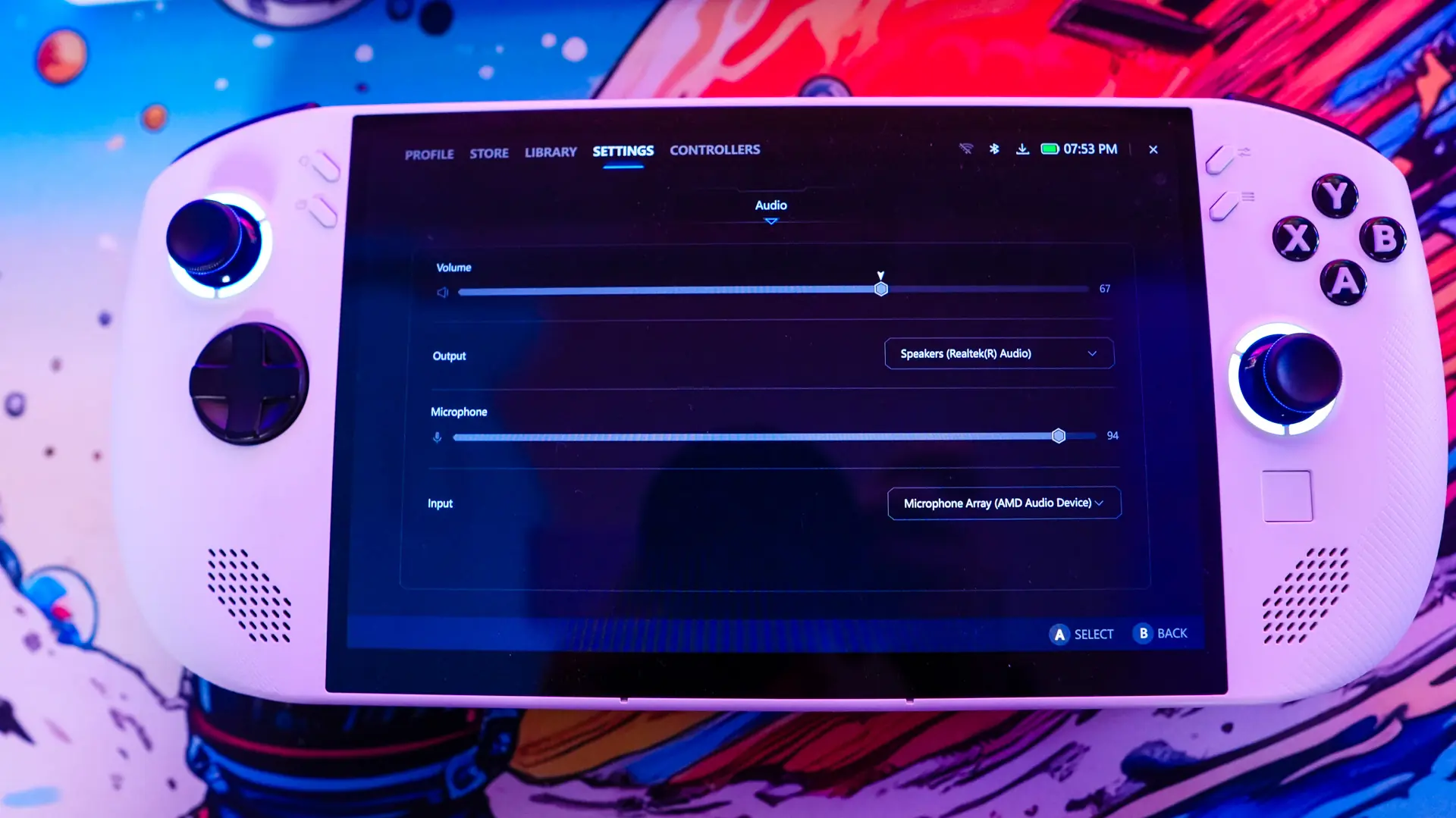
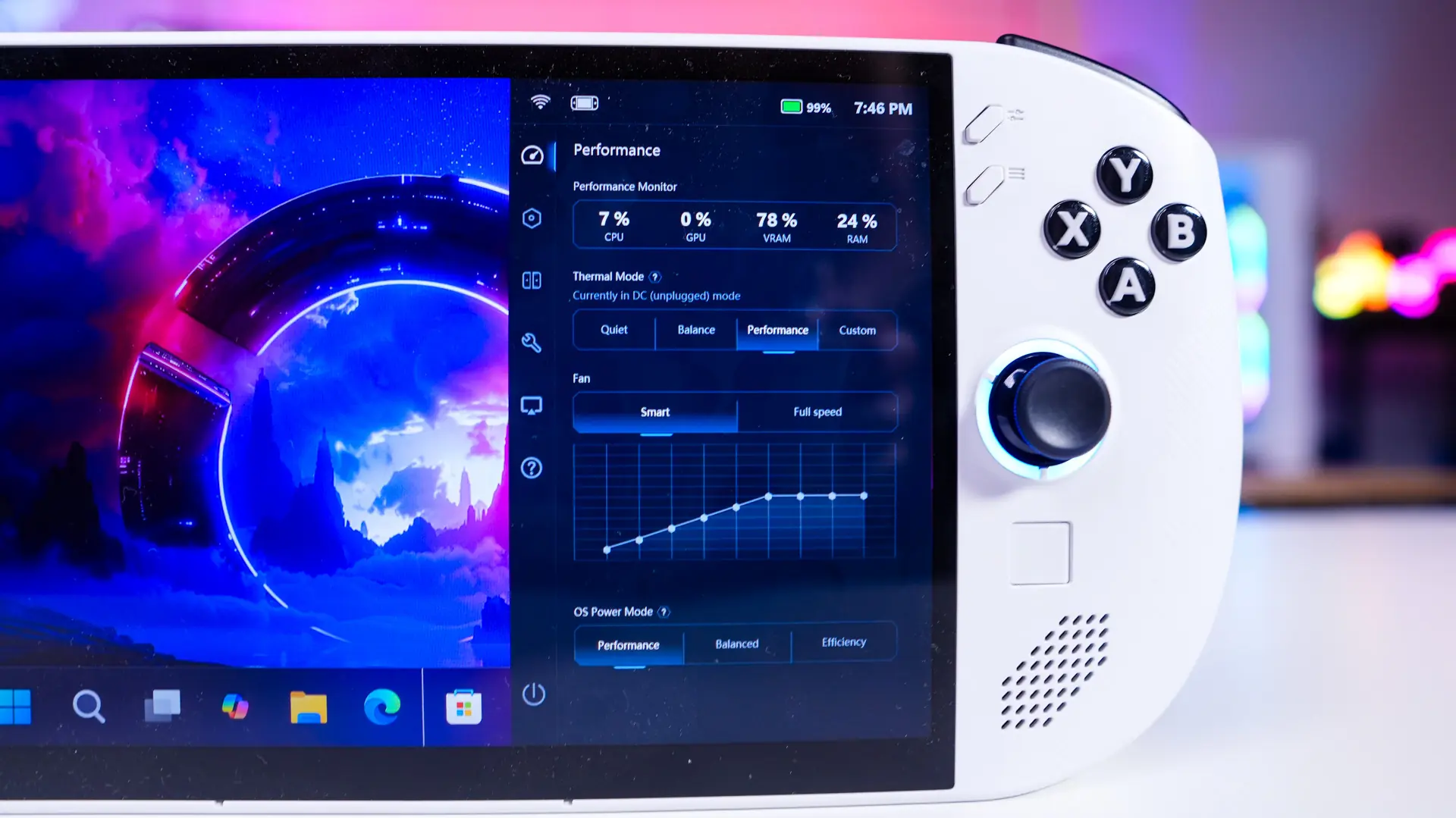
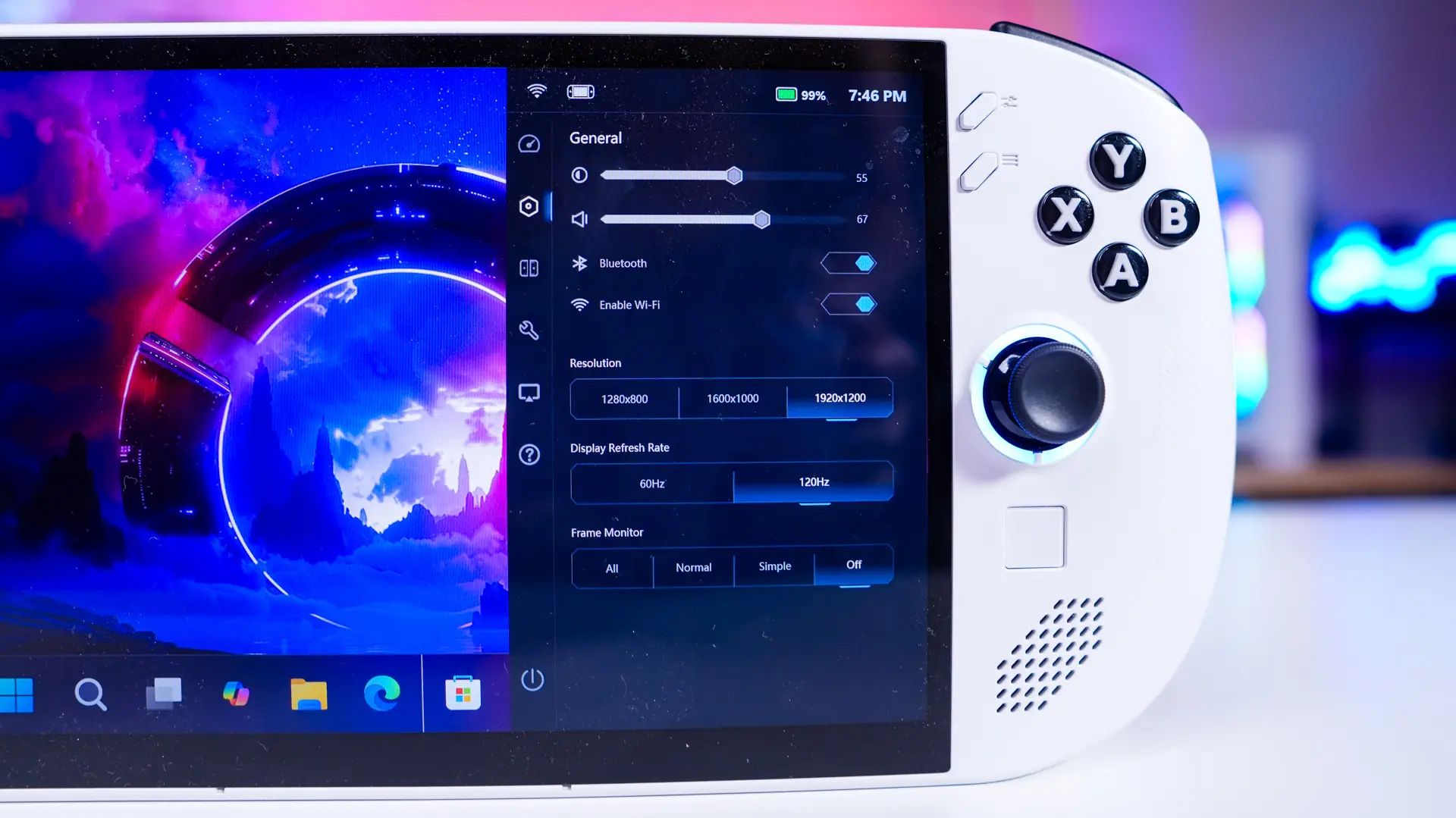
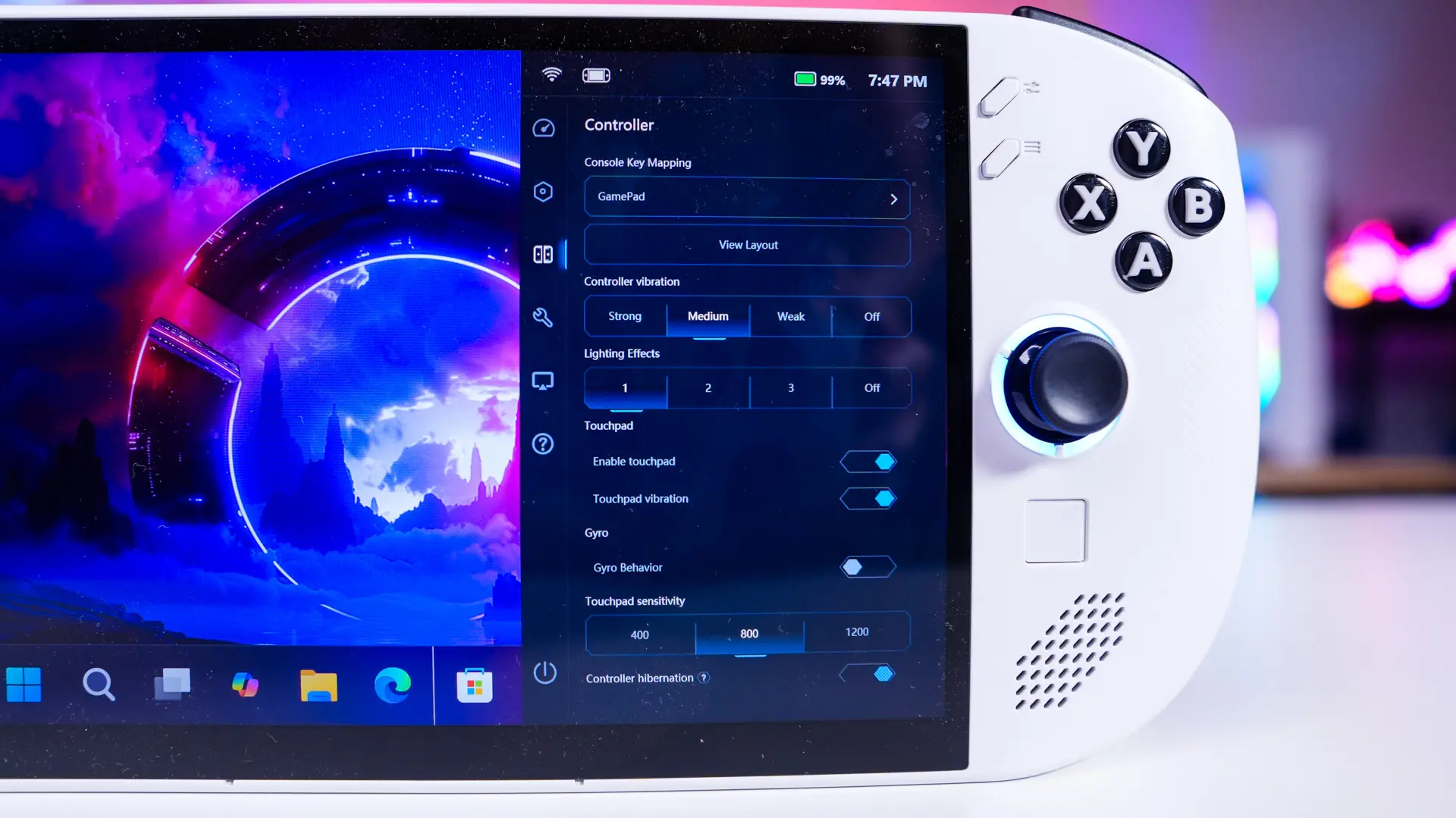
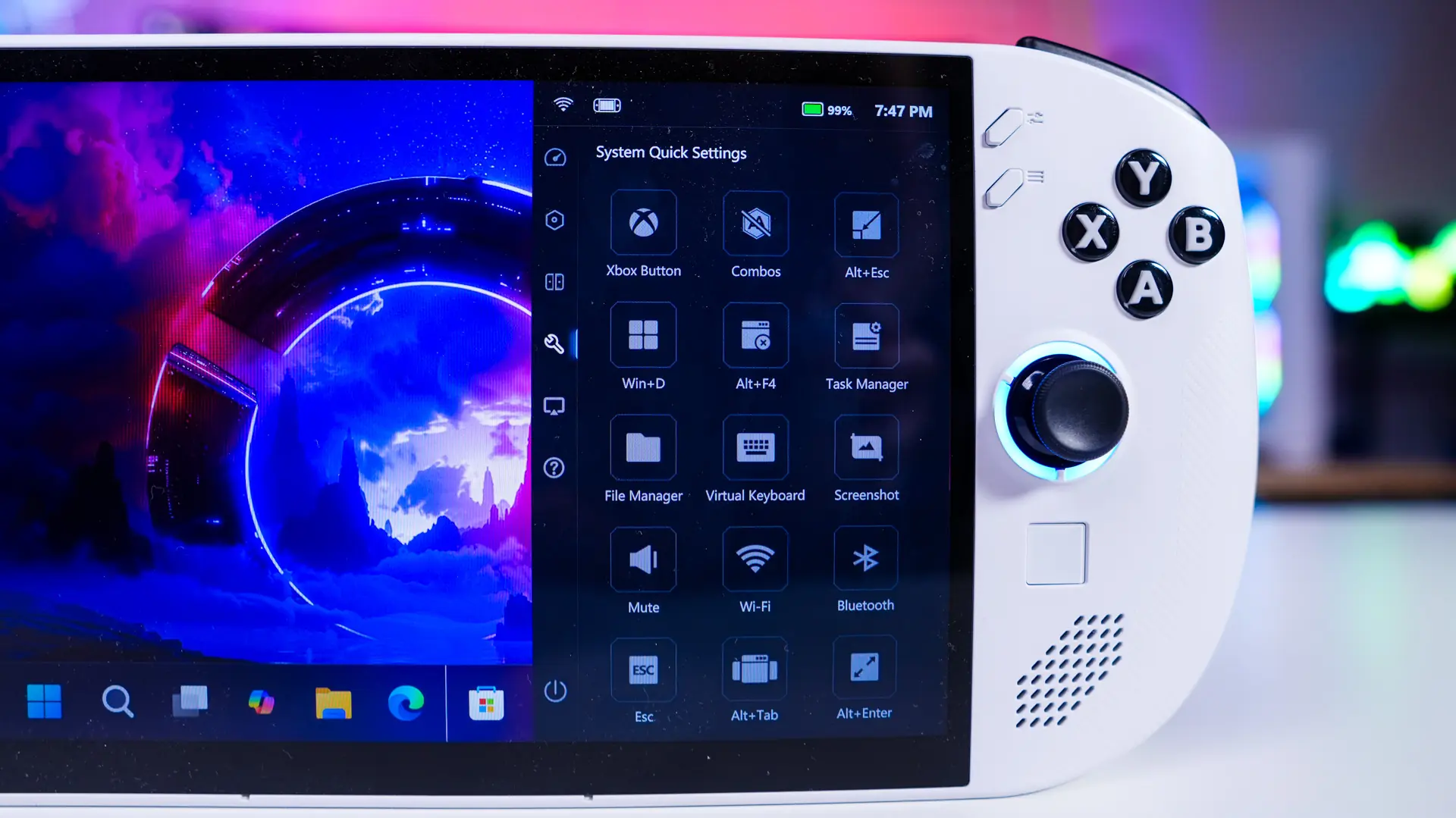
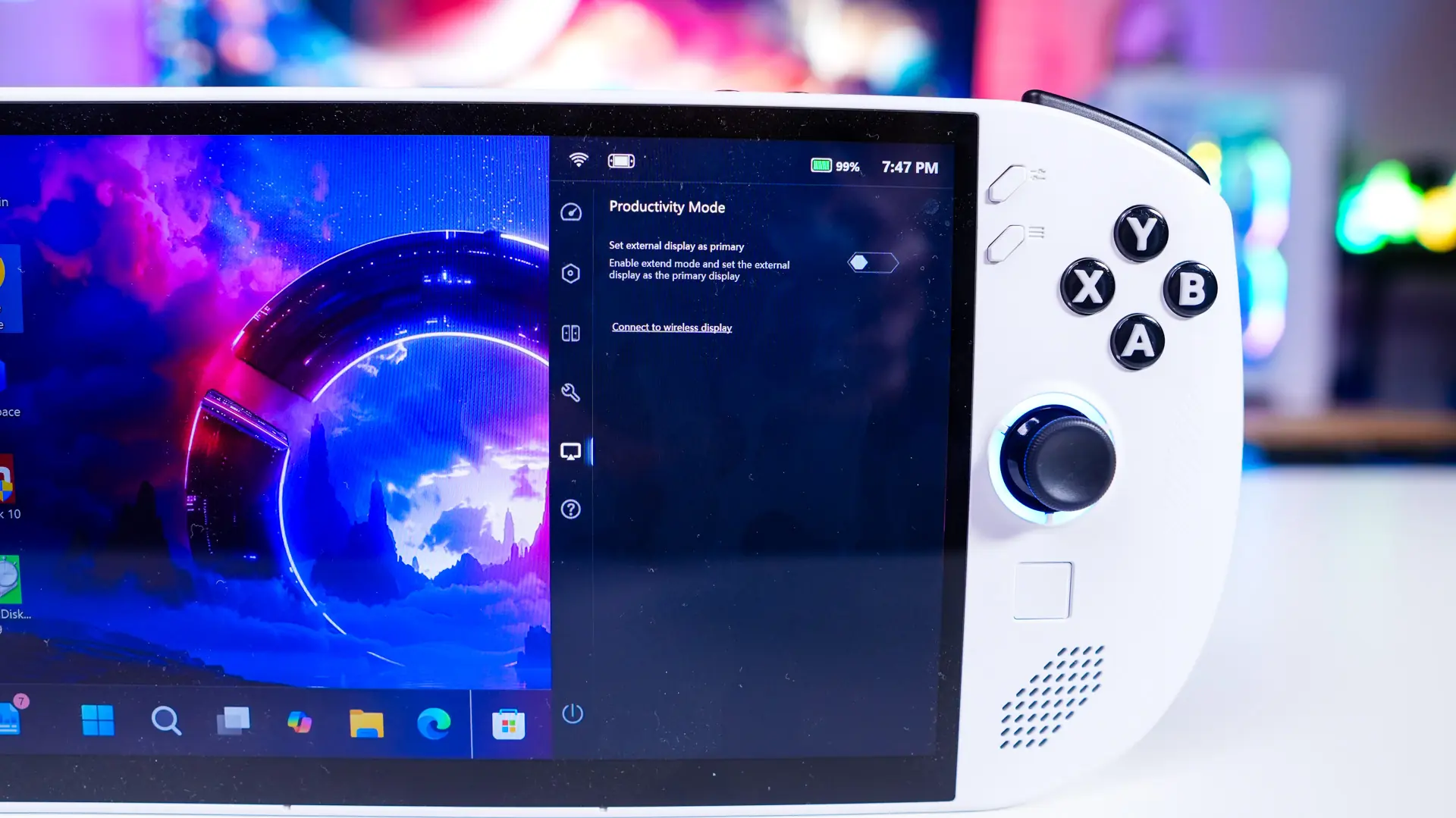
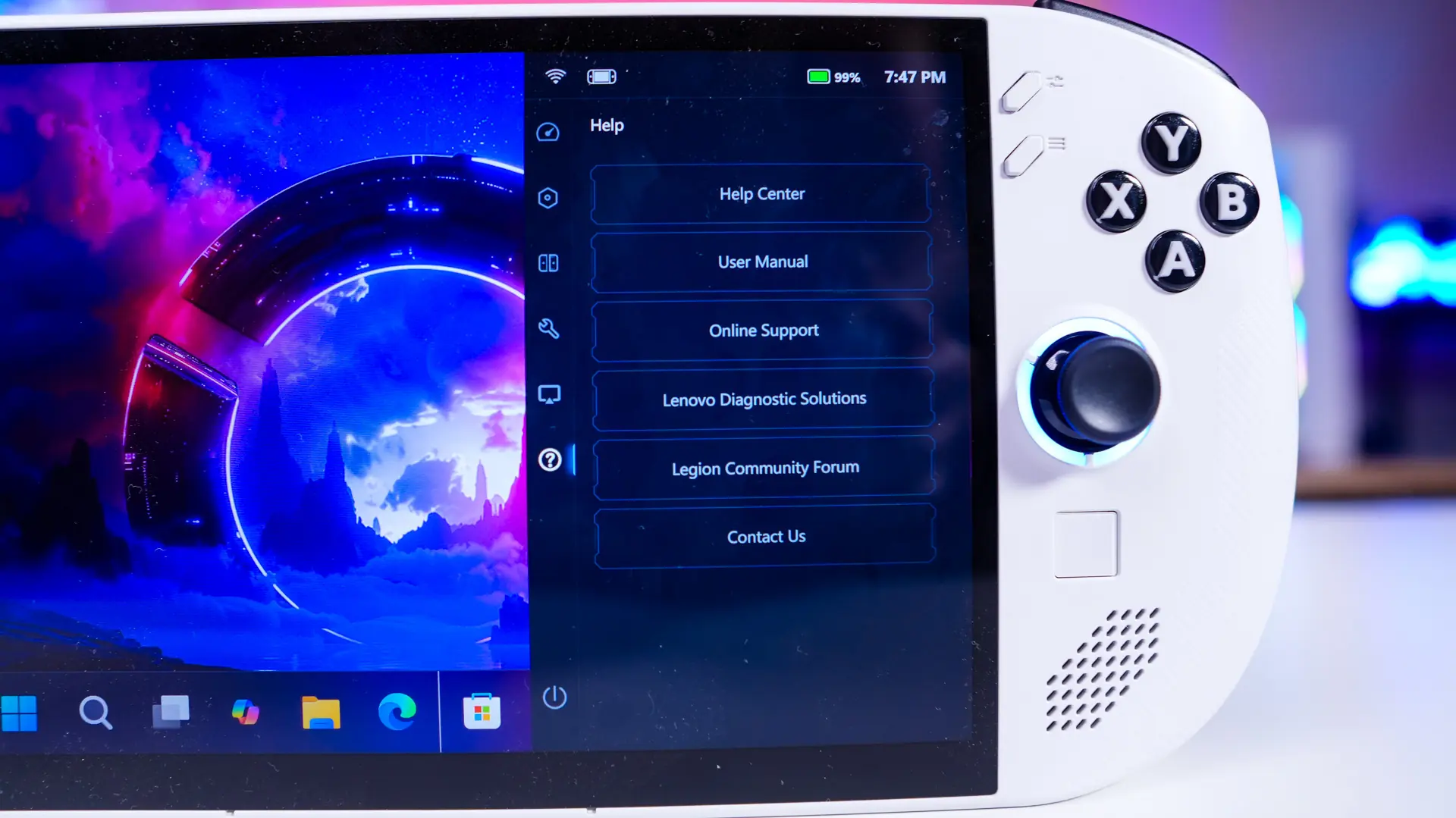
You can also press the Legion Space button on the right side of the device to bring up a smaller version of the app which shows performance, thermal and fan modes, and allows you to change a variety of different settings.