


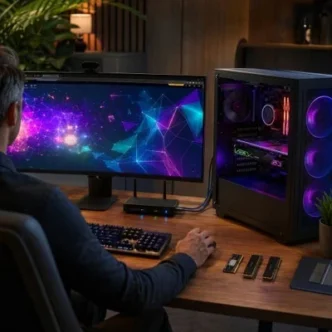
Browser games have come a long way from simple pages and basic animations. Many now use detailed artwork, animated interfaces, WebGL effects and high-resolution video elements, all of which can make an older or poorly configured PC feel rather less capable than it ought to.
The good news is that you don’t need a wildly overpowered machine just to enjoy a smooth browser-based experience. What you do need is balance. A capable graphics card won’t help much if your system is short on memory, while a speedy processor can still be held back by a cluttered browser or a shaky Wi-Fi connection.
Here’s how to get your gaming PC working properly for visually rich browser games, without endlessly changing settings for the sake of it.
Start with the performance baseline
It’s tempting to focus entirely on the GPU, particularly if you’re used to PC gaming, but browser games rely on several parts of the system working together.
A visually demanding title may use the browser to render animated visuals, stream assets, process input and keep a secure connection running at the same time. That means your processor, graphics card, RAM and storage all have a part to play.
CPU: keeping the browser responsive
The processor handles a surprising amount of work in browser games. It deals with page logic, scripts, background tabs, browser extensions and general operating-system activity.
You don’t necessarily need the newest high-end processor, but modern quad-core and six-core chips are a sensible baseline. If your PC slows down when you have a few tabs open, music playing and a game running in the browser, the CPU may be reaching its limit.
Signs that your processor is the weak point include:
- Stuttering when several browser tabs are open
- Input delay while the page is loading
- Fans becoming noticeably loud during light-looking tasks
- High CPU use in Task Manager, even when graphics use is modest
Before buying anything, close unnecessary background apps and look at resource usage. You may find that a handful of tabs, a chat app and a launcher are taking more processing power than expected.
GPU: useful for demanding browser visuals
A dedicated graphics card remains useful for browser-based gaming, particularly where hardware acceleration and WebGL rendering are involved. It helps the browser draw animations and effects more smoothly, while reducing the amount of work left for the CPU.
Integrated graphics found in many recent processors can be perfectly adequate for casual browser use. Still, a dedicated GPU from recent generations can make a visible difference at higher resolutions, on ultrawide displays, or when you prefer a high-refresh-rate monitor.
The aim isn’t to chase enormous frame-rate figures. Instead, you want consistent rendering, clear image quality and fewer pauses while visual elements load.
RAM: the quietly important upgrade
Memory is often the unsung hero of a comfortable browser experience. Modern browsers can consume a fair amount of RAM, especially with multiple open tabs, streaming media and extensions running in the background.
For a gaming PC that also handles browser games, 16GB of RAM is a practical starting point. If you regularly multitask with creative software, large spreadsheets, several browser windows or demanding desktop applications, 32GB gives you more breathing room.
If your system has only 8GB, upgrading memory may bring a more noticeable day-to-day improvement than replacing a reasonably modern graphics card.
SSD storage: faster loading, less waiting about
An SSD won’t raise graphical detail by itself, but it makes the whole machine feel less sluggish. Your operating system, browser cache and temporary game files all benefit from quick storage.
A SATA SSD is still worthwhile if you’re upgrading from a mechanical hard drive. An NVMe SSD is quicker again, particularly when moving large files or loading demanding applications. Keep some space free too, ideally at least 15 to 20 per cent of the drive, so the system has room for updates and temporary files.
Upgrade the part that’s actually holding you back
There’s no universal upgrade order because each PC has its own weak link. Spend a few minutes identifying the bottleneck before opening your wallet.
If graphics are struggling
A GPU upgrade is worth considering if you see:
- Visual effects looking choppy despite low CPU usage
- Reduced smoothness at 1440p or 4K
- Poor results when hardware acceleration is enabled
- An older card that no longer receives reliable driver updates
For browser gaming, a mid-range modern GPU is generally more than enough. Prioritise current driver support, sensible power use and compatibility with your monitor connections rather than paying for performance you won’t use.
Always download drivers directly from the GPU manufacturer, whether that’s NVIDIA, AMD or Intel.
If your processor is running flat out
If CPU use remains high while the GPU barely gets involved, it may be time to look at the processor. A move from an older four-core chip to a newer six-core or eight-core model can improve general responsiveness, especially if you use the PC for more than one task at a time.
Do check motherboard compatibility first. A processor upgrade can require a BIOS update, different memory or even a new motherboard, so it’s not always the most straightforward route.
If tabs keep reloading
This is usually a RAM issue. The browser may discard inactive tabs when memory is tight, then reload them when you return. It’s annoying, and it can make a system seem slower than it really is.
Adding RAM is often one of the simpler upgrades. Use matched memory modules where possible and check the motherboard’s supported speeds and capacities.
If everything takes ages to open
An SSD upgrade is the likely answer. Browser games depend on an internet connection, of course, but the browser itself still writes cache files and loads local components. A slow drive can make every little task feel like a chore.
Your display, settings and inputs matter too
A well-configured display can make browser gaming feel far more polished, even without changing a single internal component.
Use the refresh rate you paid for
If you own a 120Hz, 144Hz or higher-refresh monitor, make sure Windows is actually using it. It’s surprisingly common for a new display to be left at 60Hz.
In Windows, head to Settings > System > Display > Advanced display, then select the highest stable refresh rate supported by your monitor and cable.
Higher refresh rates can make cursor movement, scrolling and animated browser content look cleaner. They won’t force every browser game to run at the same number of frames per second, but they can improve the overall feel of the desktop.
Adaptive sync and sensible frame pacing
If your display and GPU support Adaptive-Sync, FreeSync or G-Sync Compatible mode, enable it through the monitor and graphics driver settings. This can reduce visible tearing when frame delivery varies.
Consistency matters more than impressive-looking numbers. A stable, well-paced image at a sensible resolution usually feels better than erratic output that jumps around.
Avoid forcing unusual browser flags unless you know what they do. Start with the standard settings, then change one thing at a time if you’re troubleshooting.
Check browser hardware acceleration
Most mainstream browsers include a hardware-acceleration option. When active, supported visual tasks can be passed to the GPU.
In Chromium-based browsers, look under Settings > System for an option similar to “Use graphics acceleration when available”. Restart the browser after changing it.
If enabling acceleration causes graphical glitches, flickering or crashes, update your graphics driver first. If the issue continues, turning it off can be a sensible temporary workaround. There’s no point clinging to a setting that makes the experience worse.
Don’t overlook power settings
Laptops and compact PCs can reduce performance when set to battery-saving modes. On mains power, choose an appropriate Windows power profile, such as Balanced or Best performance, depending on your hardware and noise preferences.
It’s also worth checking that the browser is using the dedicated GPU where applicable. Windows lets you set graphics preferences for individual applications in Settings > System > Display > Graphics.
Keep the browser tidy and the device secure
Even a powerful PC can feel awkward if the browser is overloaded.
Start by keeping your browser updated. Updates commonly include security fixes, stability work and compatibility improvements. This is especially important for sites that use modern web features and secure account sign-ins.
Every few months, give your browser a quick audit:
- Remove extensions you no longer use
- Disable anything that alters pages without a clear reason
- Clear cached files if a site is loading incorrectly
- Keep only the tabs you genuinely need open
- Restart the browser after major updates
Extensions deserve particular attention. A poorly made add-on can slow pages down, interfere with scripts or create unnecessary privacy risks.
For accounts, use a reputable password manager to create distinct, long passwords rather than reusing the same one across several services. Turn on multi-factor authentication where it’s offered. The National Cyber Security Centre’s guidance on using strong passwords is a useful place to begin.
A stable, secure connection makes a real difference
Browser games are affected by connection quality, not just headline broadband speed. Short interruptions, packet loss and congested Wi-Fi can all lead to loading problems or interrupted sessions.
Ethernet is generally the most dependable option for a desktop PC. A wired connection avoids much of the interference that affects Wi-Fi, particularly in busy homes or flats with lots of nearby networks.
Wi-Fi can still work well. If you use it, place the router sensibly, use the 5GHz or 6GHz band where available and avoid hiding it behind furniture or inside cabinets.
A few useful checks include:
- Install router firmware updates from the manufacturer or internet provider.
- Change default router administrator credentials.
- Use WPA2 or WPA3 security rather than an open network.
- Be cautious with unfamiliar public Wi-Fi connections.
- Consider a trustworthy DNS provider if you want added privacy or filtering features, while remembering that DNS changes alone don’t make a device anonymous.
When signing into any online service, check the address bar carefully. Look for the correct domain, a secure HTTPS connection and a page that hasn’t been reached through a suspicious message or pop-up. Genuine services don’t need you to hand over passwords through unsolicited links.
Adult-only browser-game example (UK)
Once your hardware, browser and connection are in good order, a visually rich browser title can be useful for checking practical details such as display scaling, hardware acceleration and connection stability. It shouldn’t be treated as a benchmark, because browser performance varies by device, browser version and network conditions.
Adult-only browser-game example (UK): Virgin Games’ 88 Fortunes slot.
This is strictly an adult-only example for eligible users. If you choose to access an operator’s service, verify your age and eligibility, use an updated and secure device, protect your account credentials with a unique password and MFA where available, and review the operator’s responsible-play tools. Take breaks, set personal limits where relevant and only use services that are properly licensed for your location.
A properly balanced PC, a well-kept browser and a secure home network will do more for visually rich browser games than endlessly tweaking one setting. Get those foundations right and the experience should feel smooth, reliable and pleasantly fuss-free.