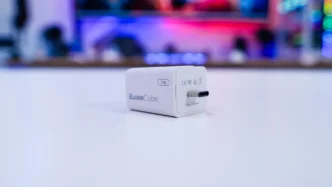
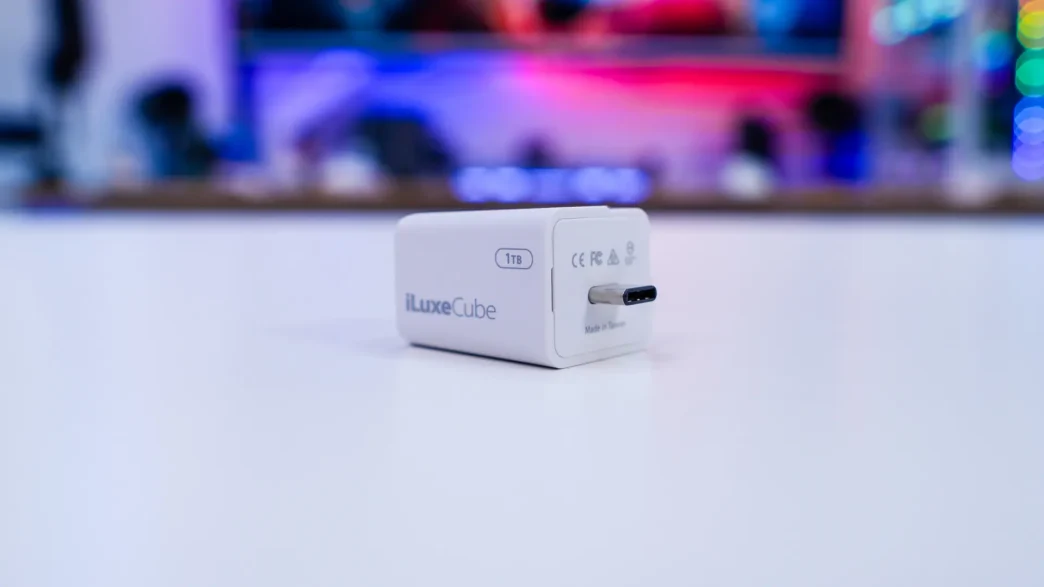
Setup & Using the Patriot iLuxe Cube
Using the iLuxe Cube is actually really easy! First you want to plug it into your charger or wall outlet. Then go ahead and plug your iPhone or iPad into it using a USB-C cable that has data capabilities. The one that came with your iPhone or iPad will have have data capability.
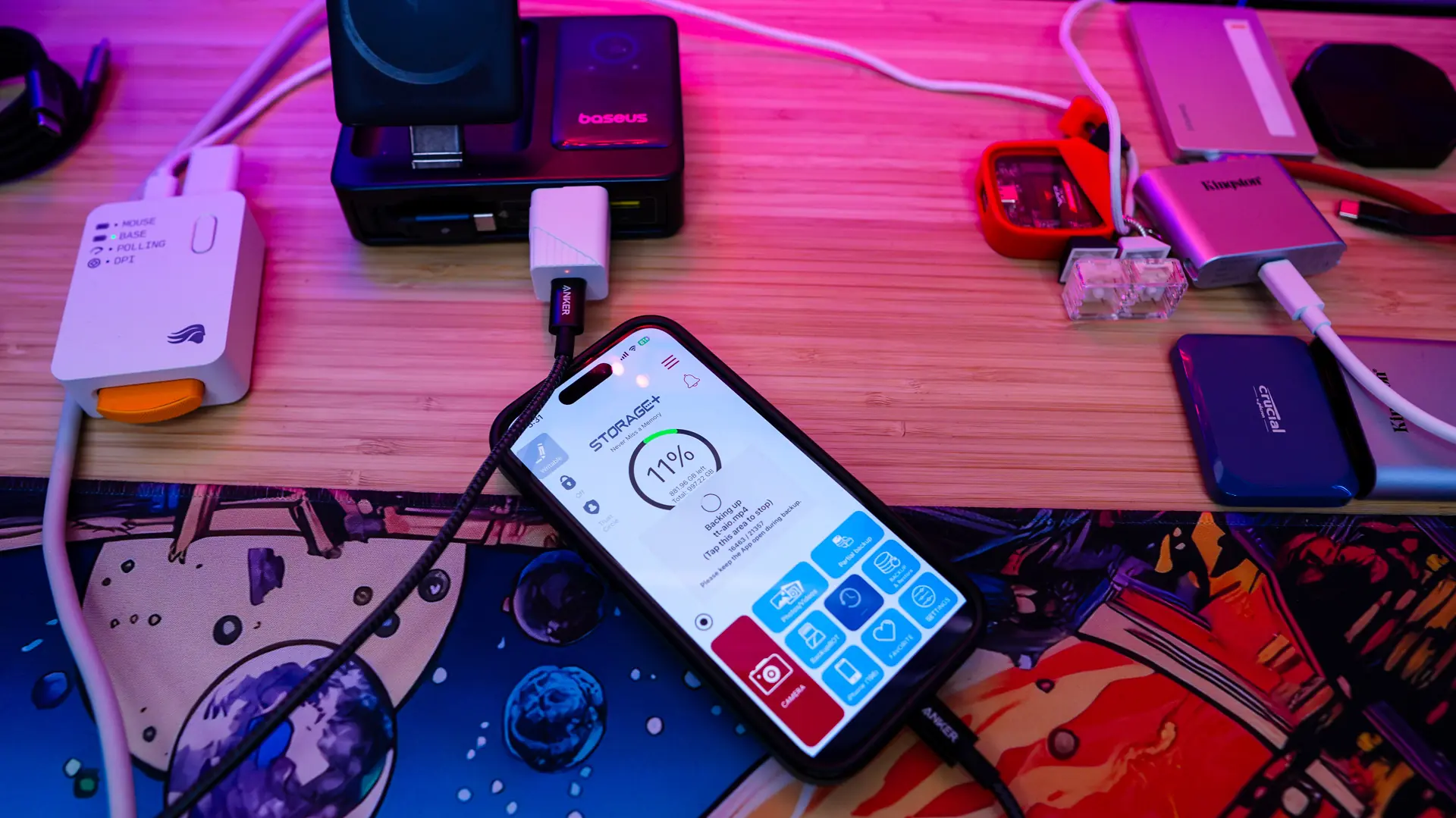
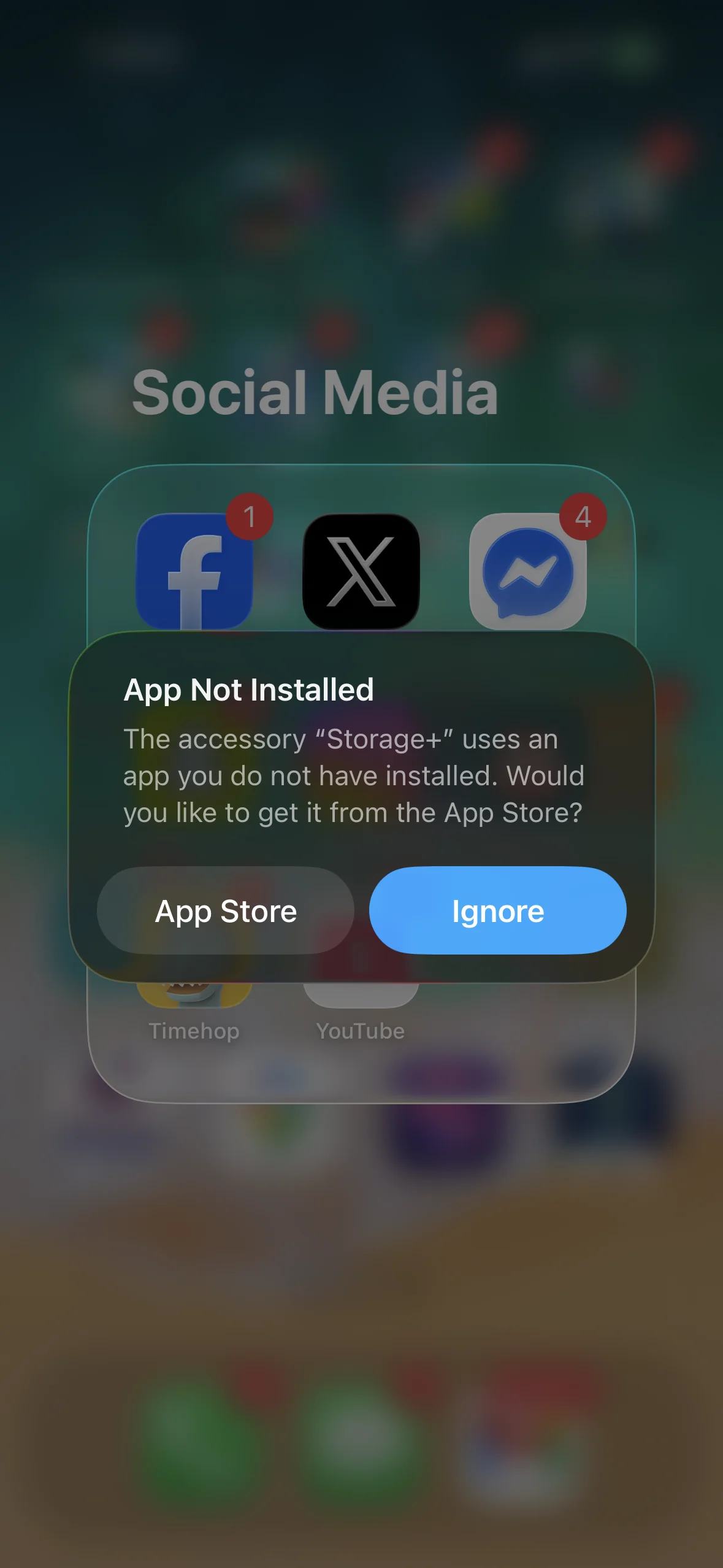
Once connected your iPhone or iPad will prompt you to download the Backup Bot app. This is what is used to pull your photos and videos off your phone. Once downloaded you can open it and get to work. I would say for most people you are going to want to turn on automatic backups so as soon as you connect your phone it will start backing up.
If your phone is quite full like mine it is going to take a while for the backup to complete. You can cancel the backup at anytime and it will continue where it left off, which is definitely nice. While you are given the notice to keep the app open to do the backup, I did have it running in the background and it worked just fine.
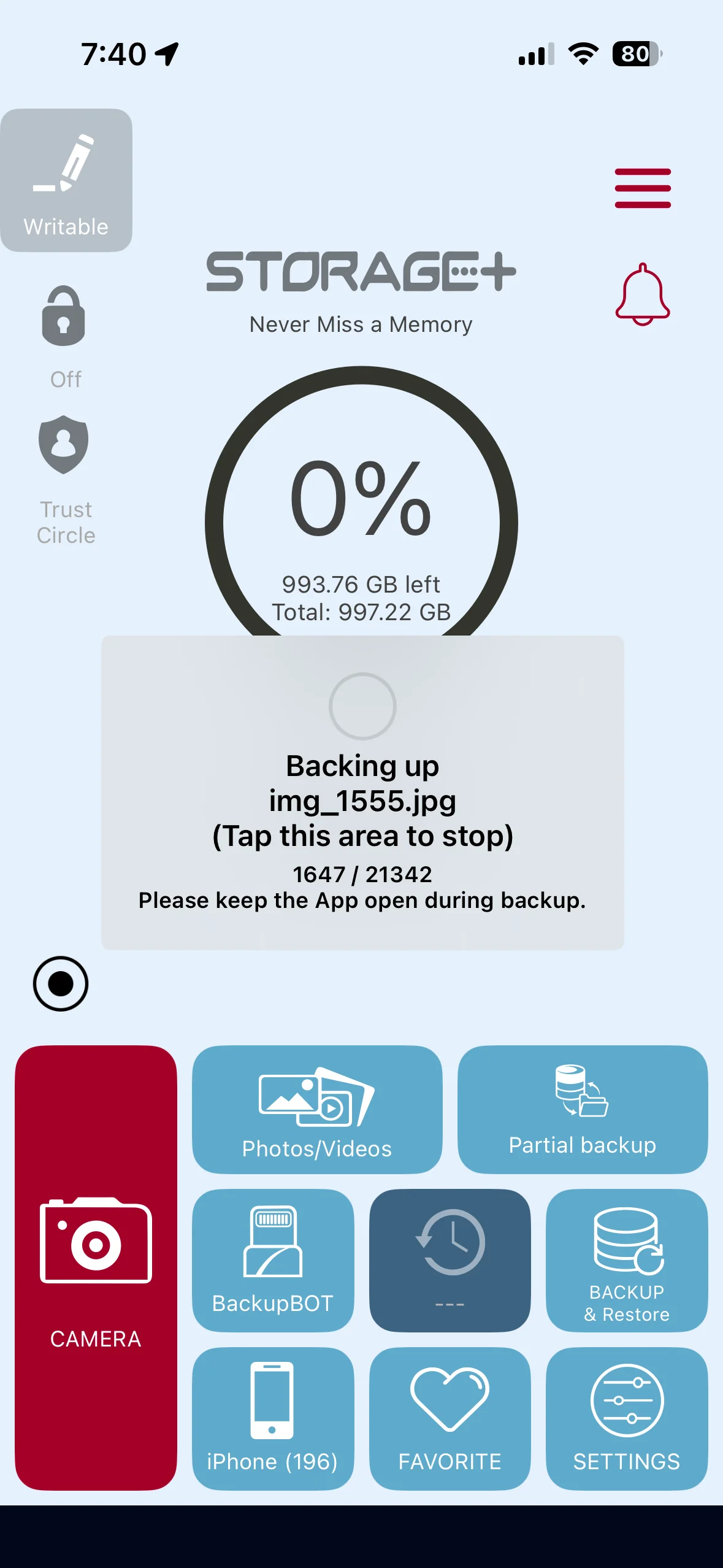
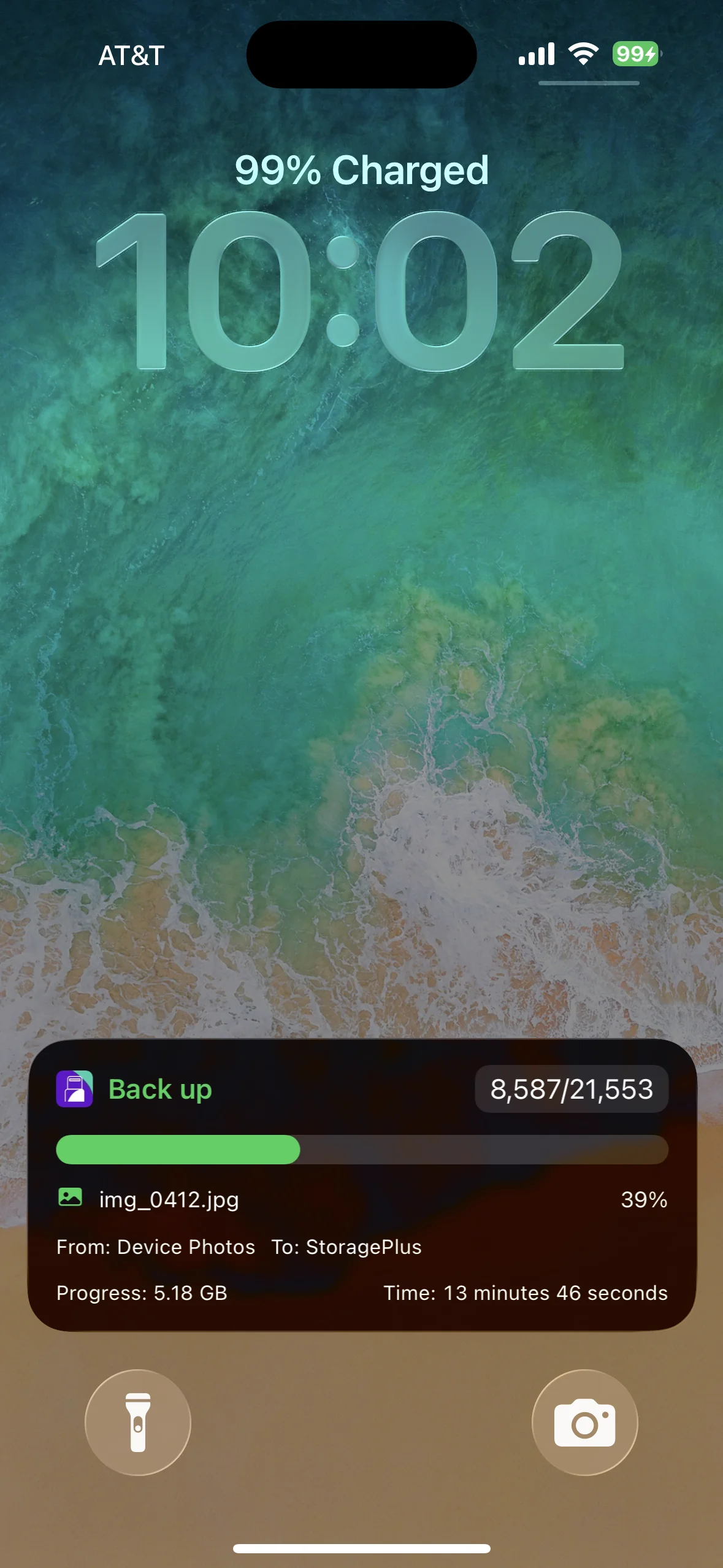
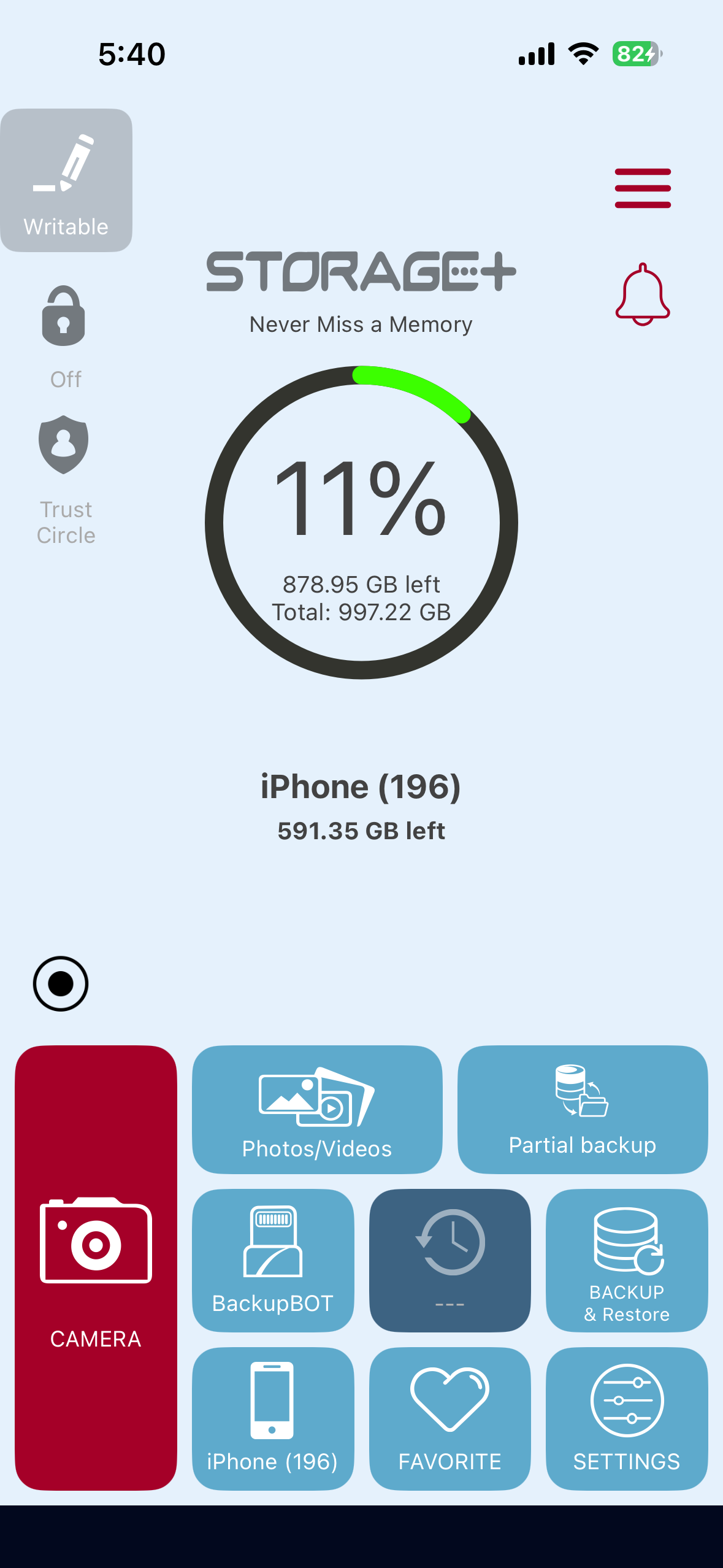
Within the app itself you can see how much storage is available on both the iLuxe Cube and your iPhone. Look through your photos and videos, do a partial backup (where you select the photos / videos you want to backup), do a full backup, set your favorites, change settings, and even take photos and videos directly from the app that get saved right to the iLuxe Cube.
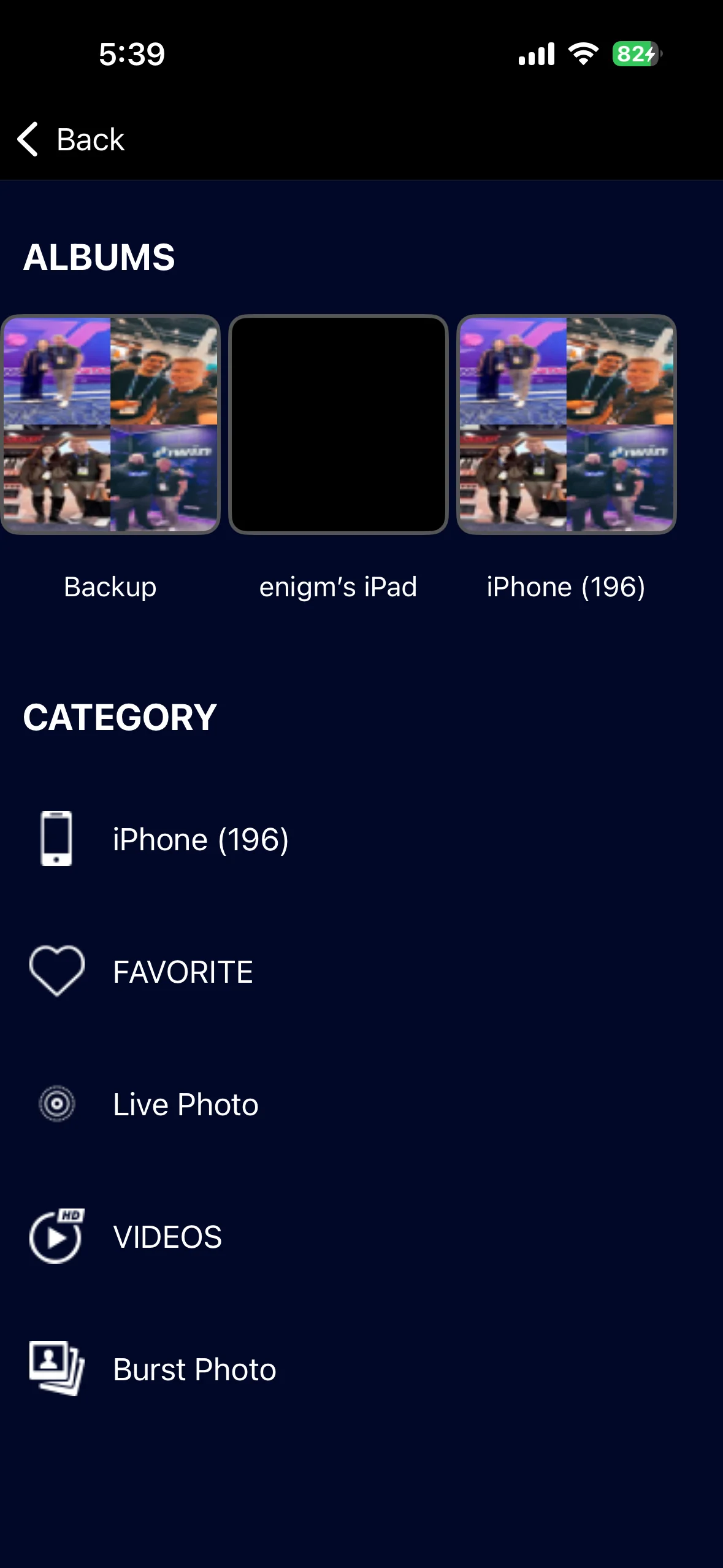
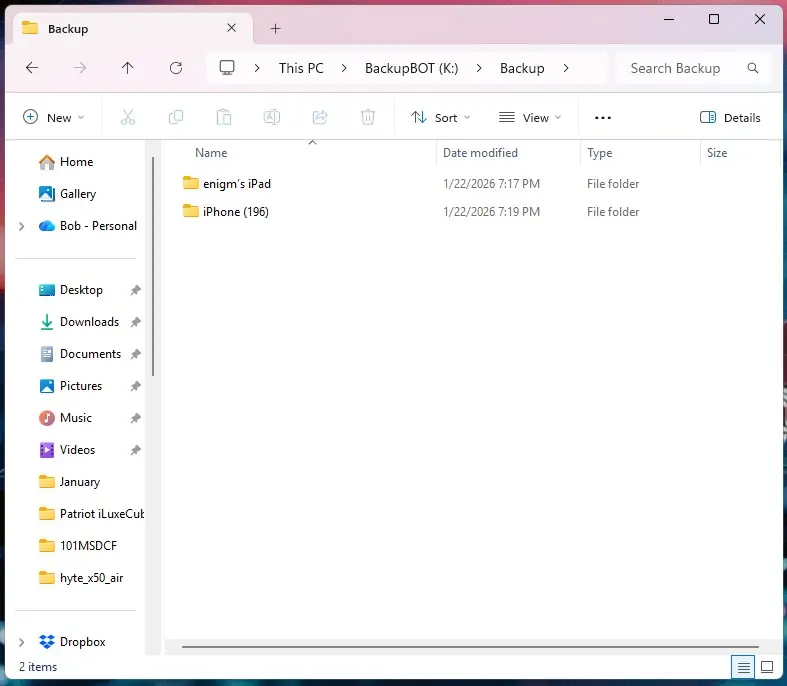
If you want to access your files on the iLuxe Cube outside the app when you have your phone connected you can simply plug it into your PC. This is a USB 3.2 gen 1 drive if you are wondering. Plugging the iLuxe Cube into my PC we can see that the backups are organized by device, so you can use this with multiple devices and not worry about things not being organized. Once inside my iPhone backup you can see the folder structure.
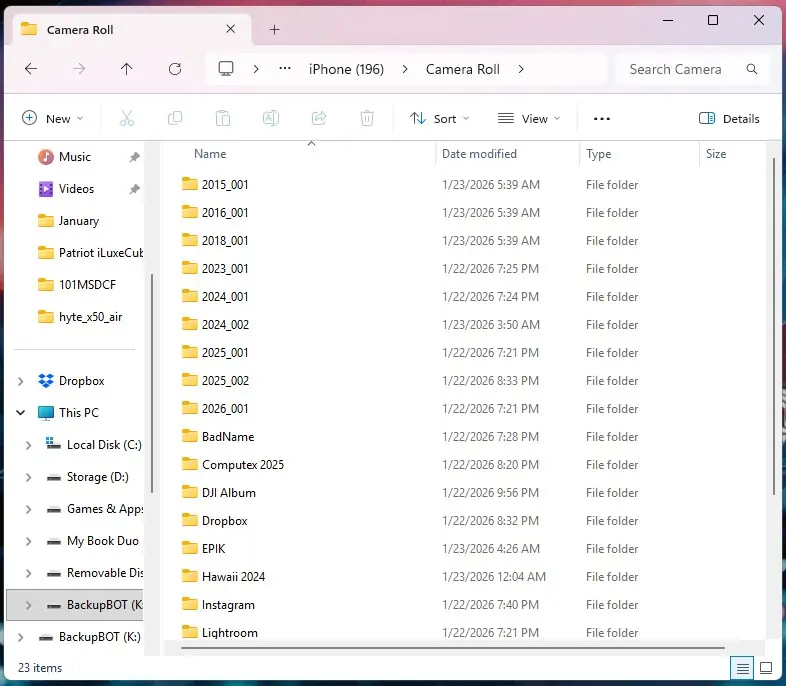
This allows you to easily backup your photos and videos even more to online services or locally to your computer or NAS.