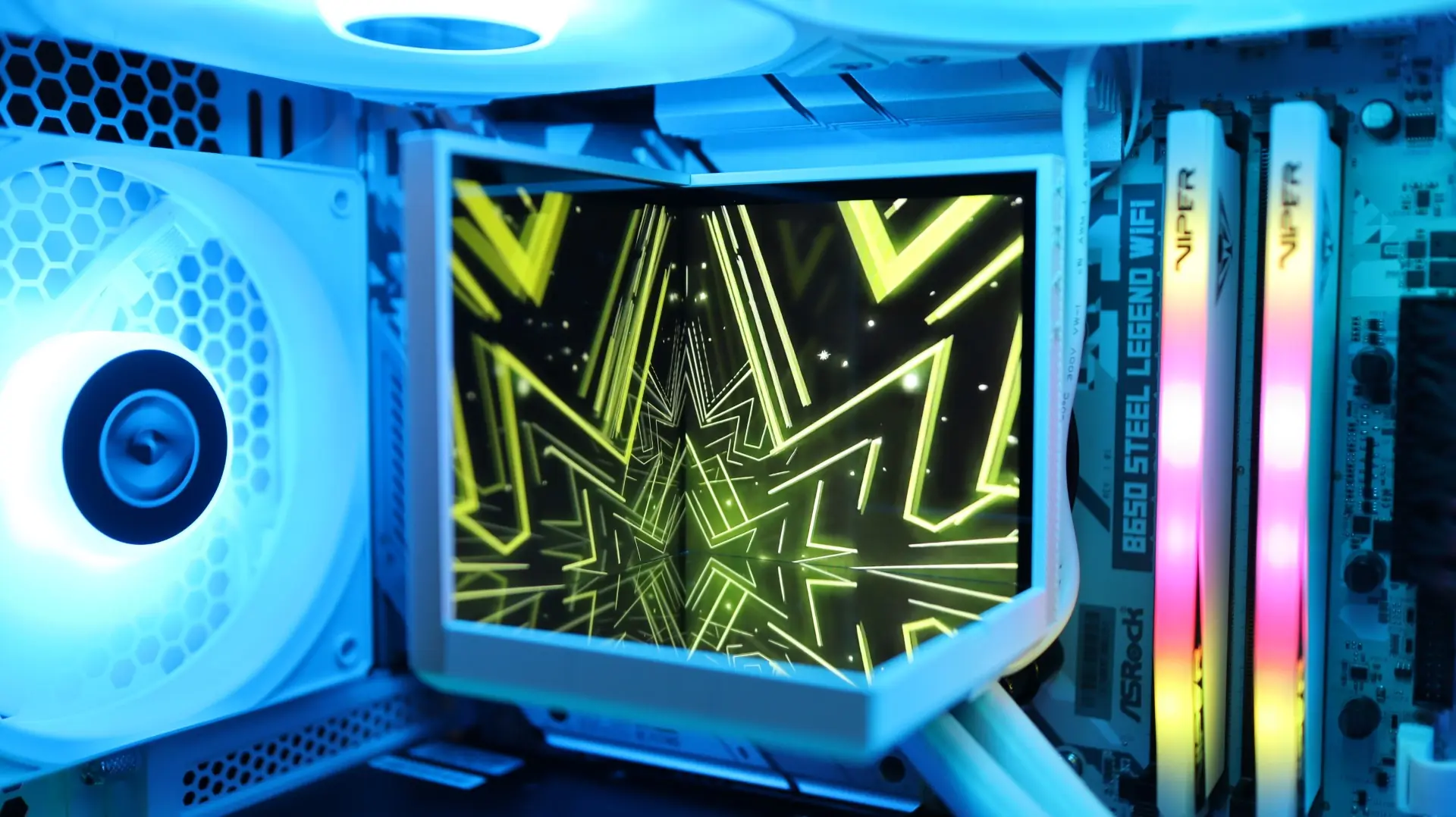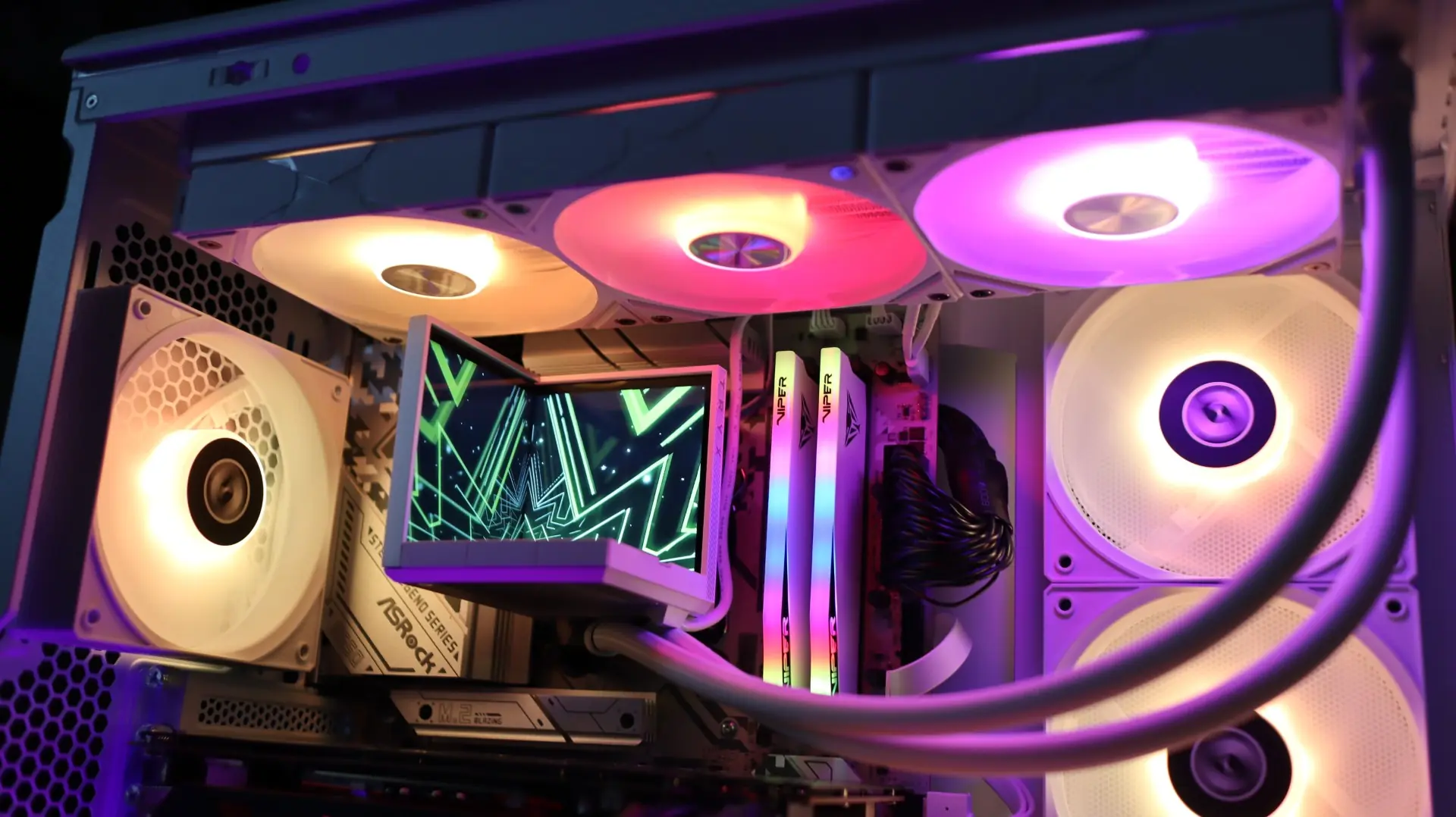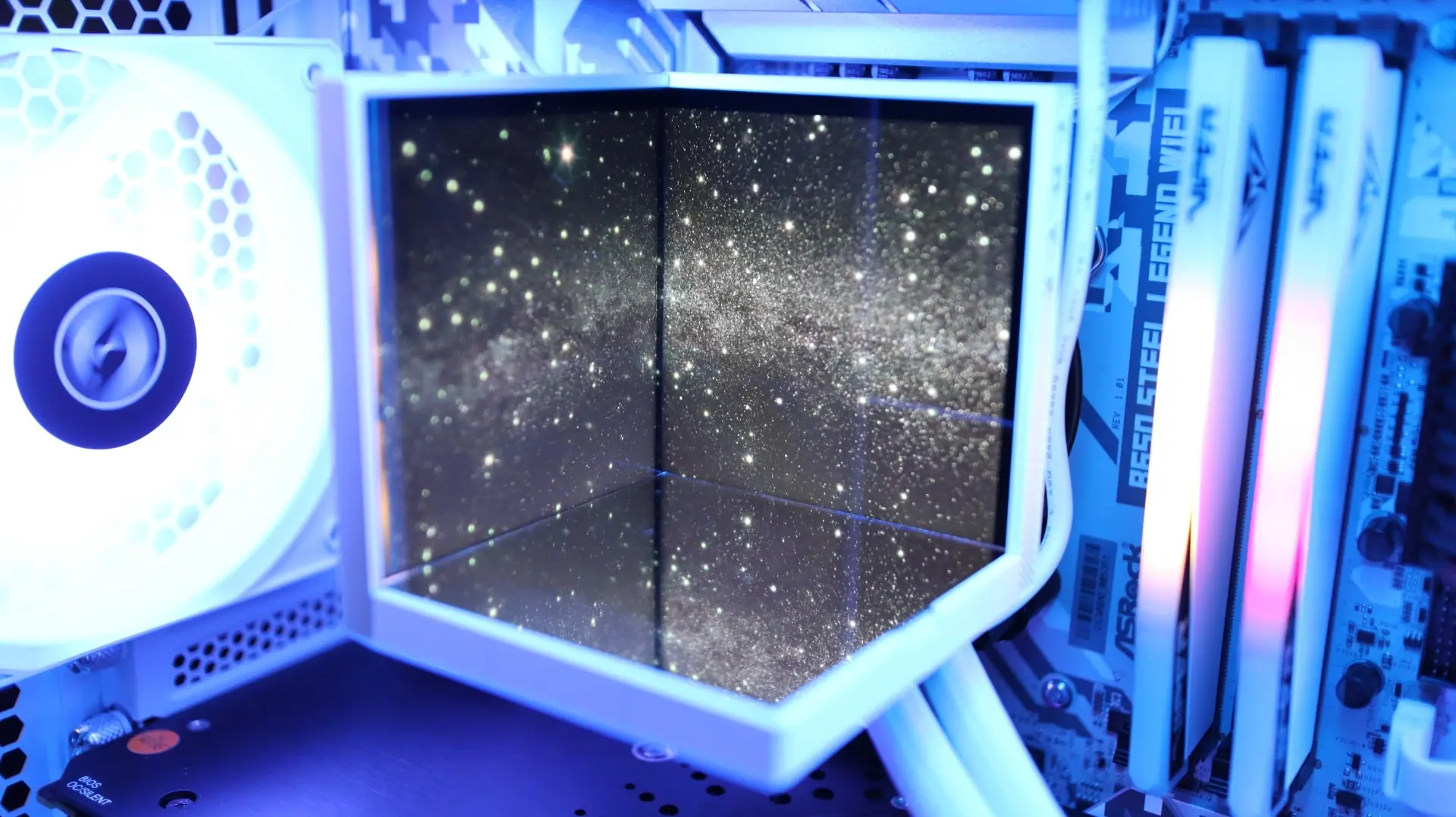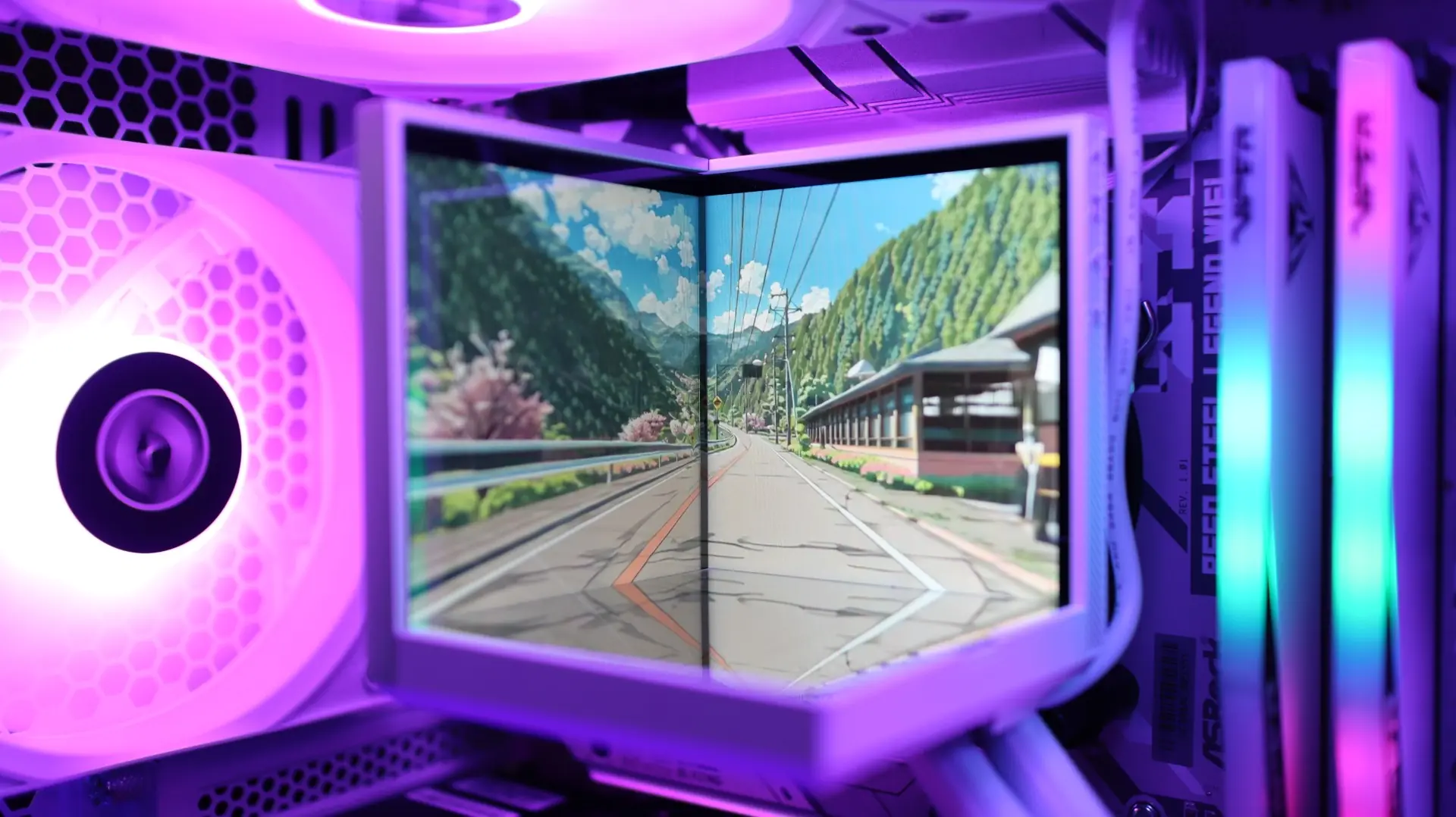
Software of the TRYX STAGE
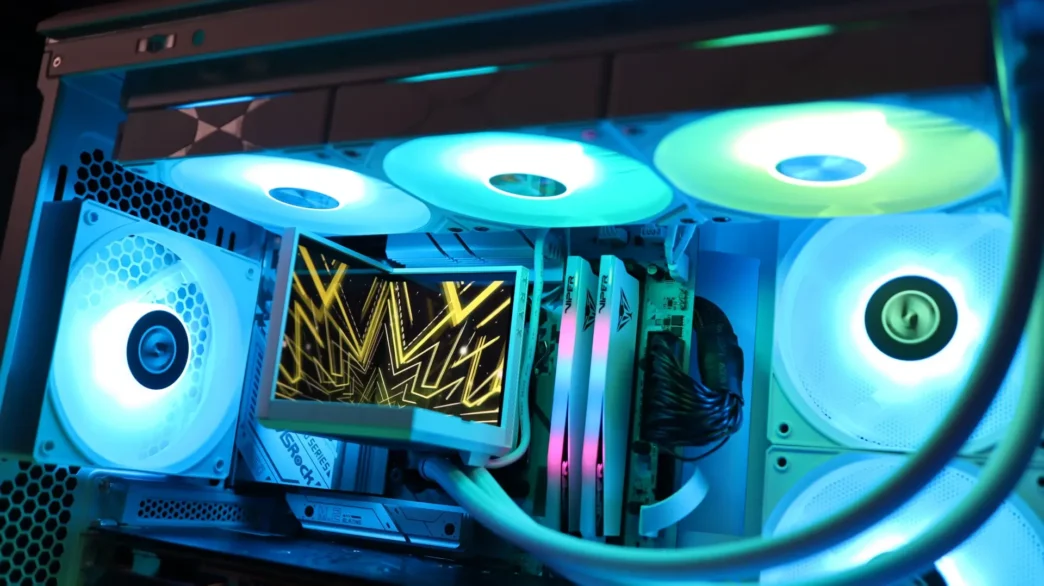
Controlling the displays on the STAGE is TRYX’s KANALI application. After a quick installation the application was ready to customize the look of the dual 4″ IPS displays found on the cooler.
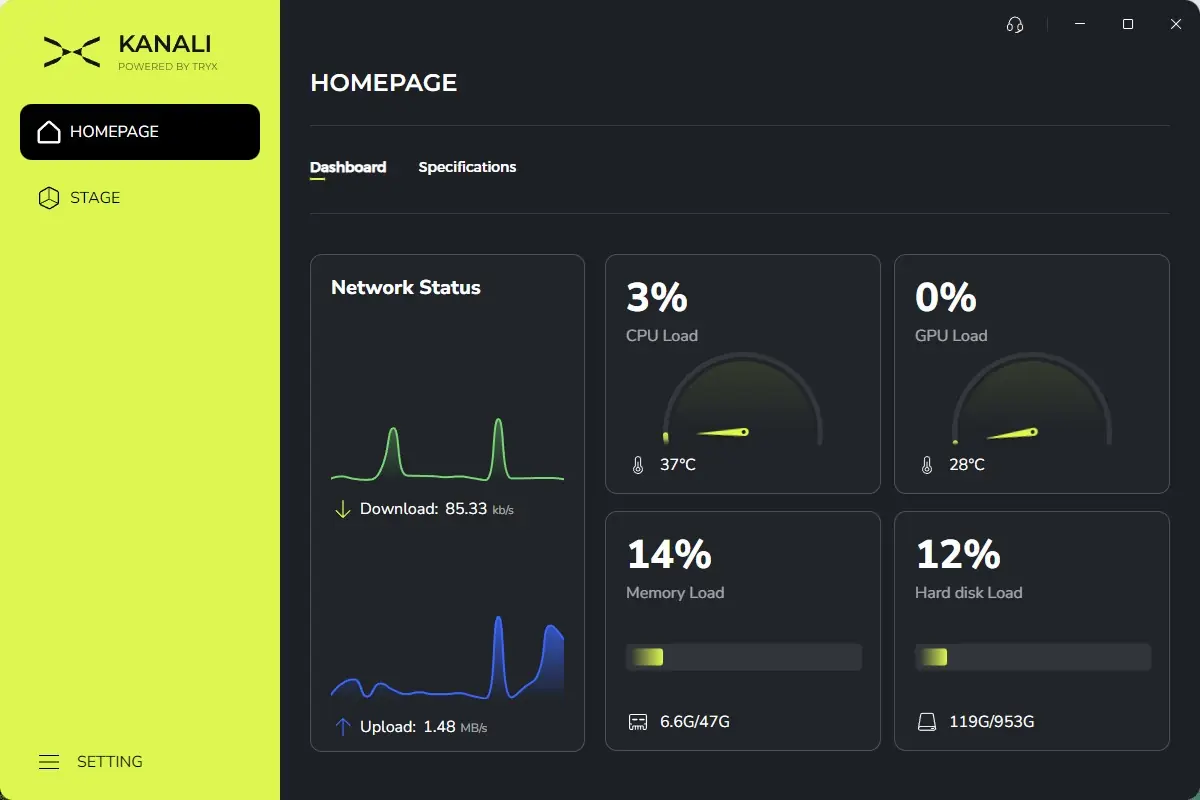
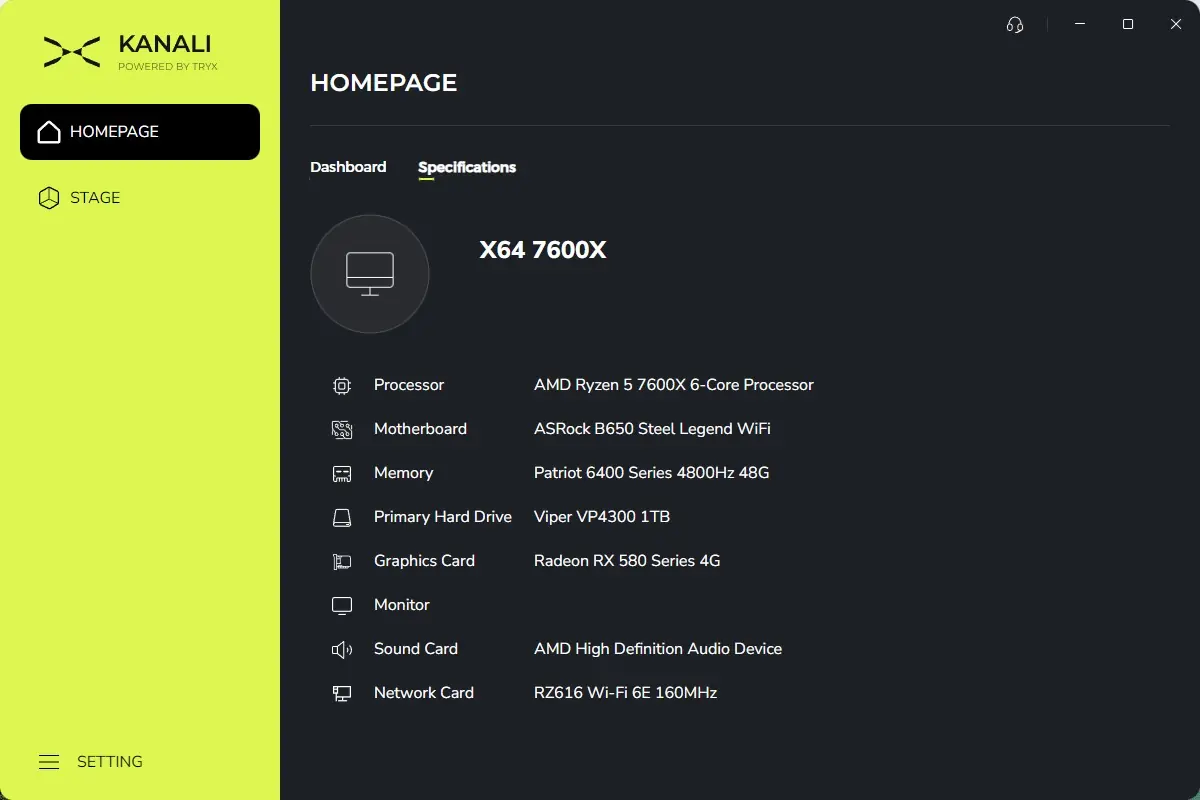
Along the left side of the application, the first menu is the Homepage – which provides a dashboard look at what compatible TRYX hardware is installed in your system, and also shows various graphs for other hardware components. From here you can click the compatible TRYX devices to be taken to their specific control area, or you can also click the Specifications tab to look at some basic settings for your system.
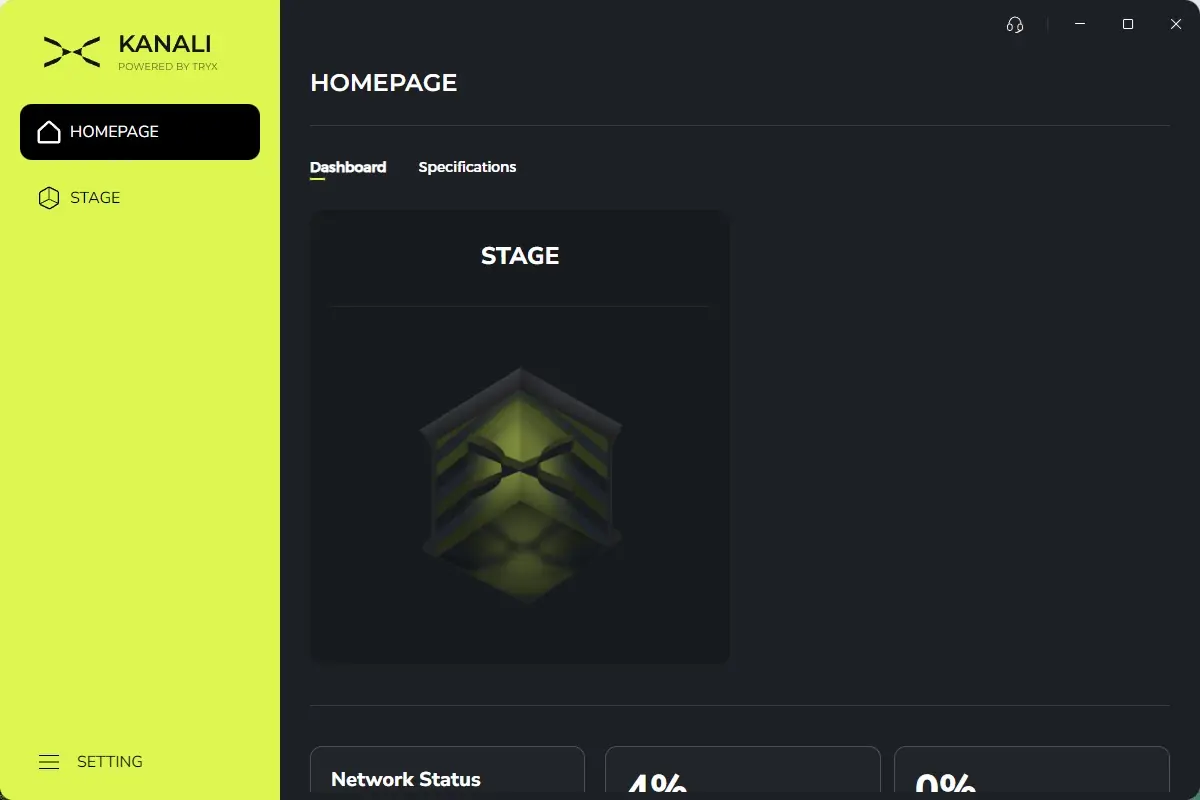
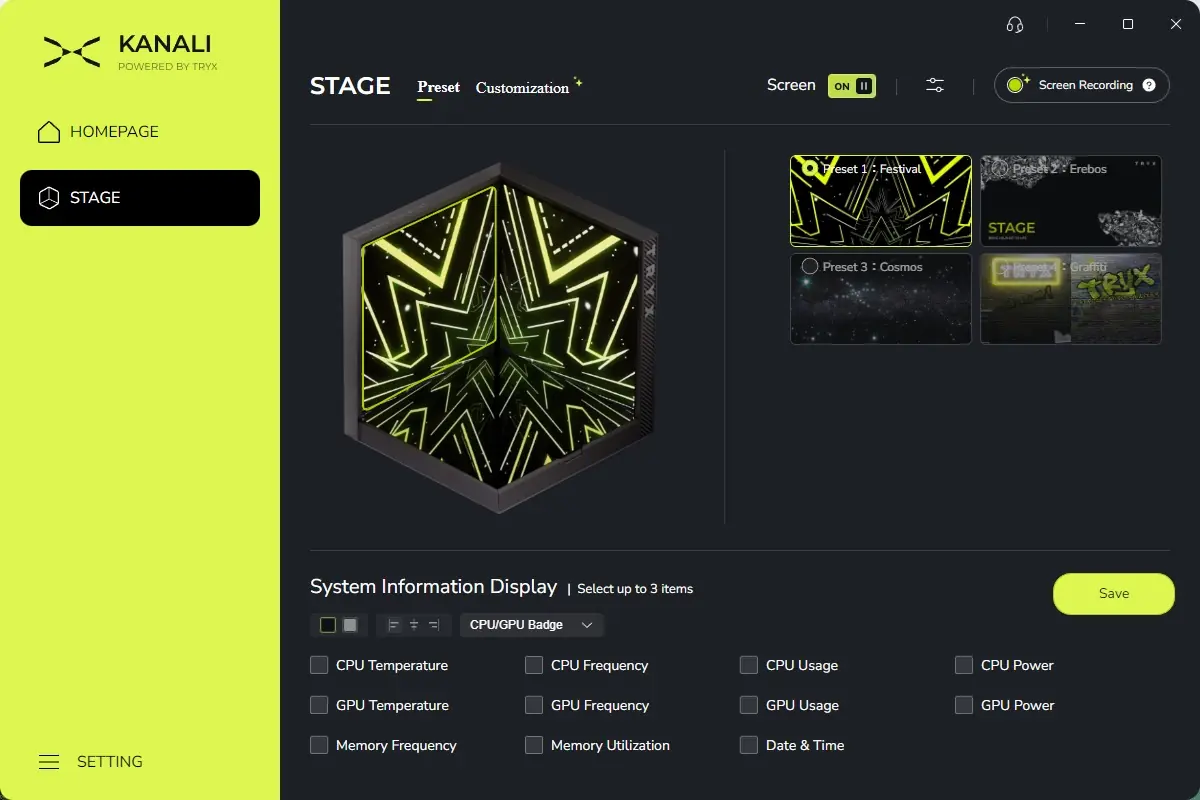
The second menu option on the left side of the KANALI window is for the STAGE. The first tab lets you customize the pre-set animations, of which there are currently 4 available. I found the variety to be quite lacking compared to the 14 options with the PANORAMA units. Add on the fact that the Graffiti preset didn’t actually display anything, and you are left with just three presets to choose from. Now, I do like the ability to display up to three readings to monitor your system, but the limited animations options left me wanting more, especially from such a unique display layout.
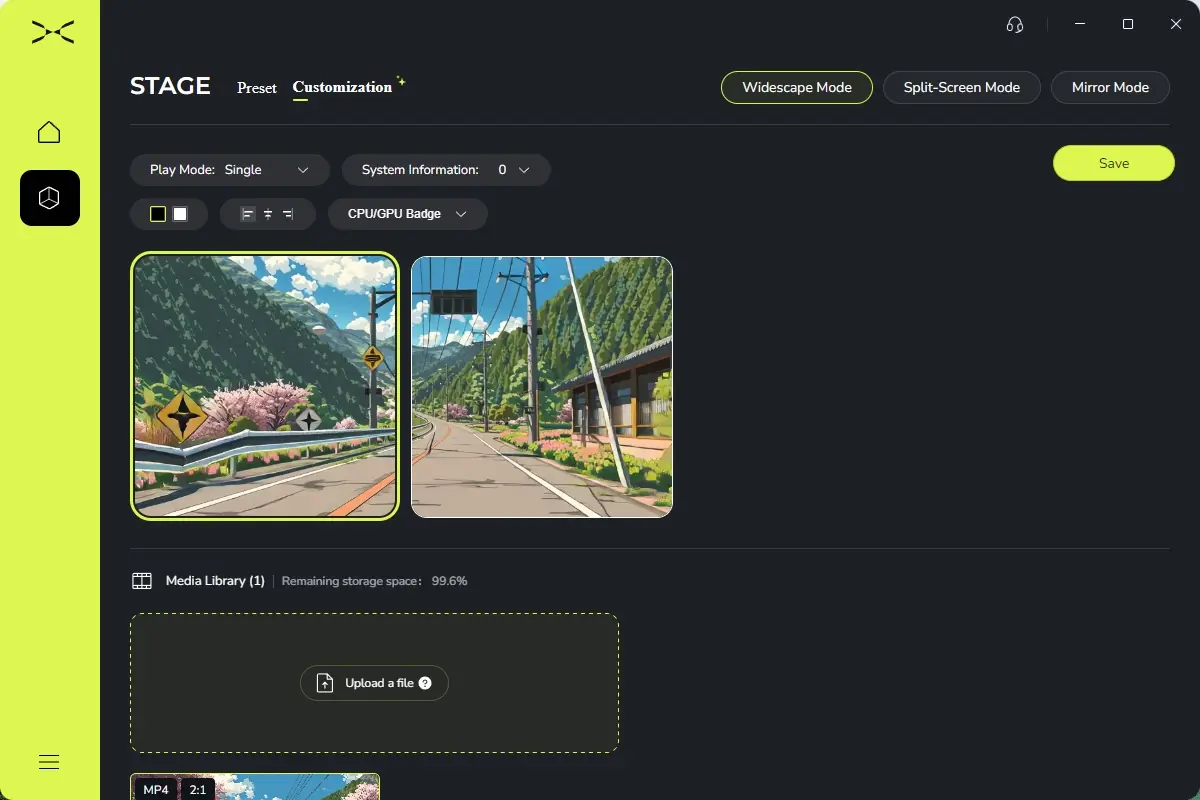
Thankfully, the Customization tab allows you to customize exactly what media is displayed on the screen, and in what manner. This is where you can add your own media files to be displayed, and can select the manner in which they play. For example, you can load up a widescreen video that will play across the entire width of the screens, or you can load two different square-shaped videos to display on the left and right halves of the screen. There are a few restrictions to the file sizes (500MB each, with a resolution no higher than 1920×1080), but I think they are well within reason.
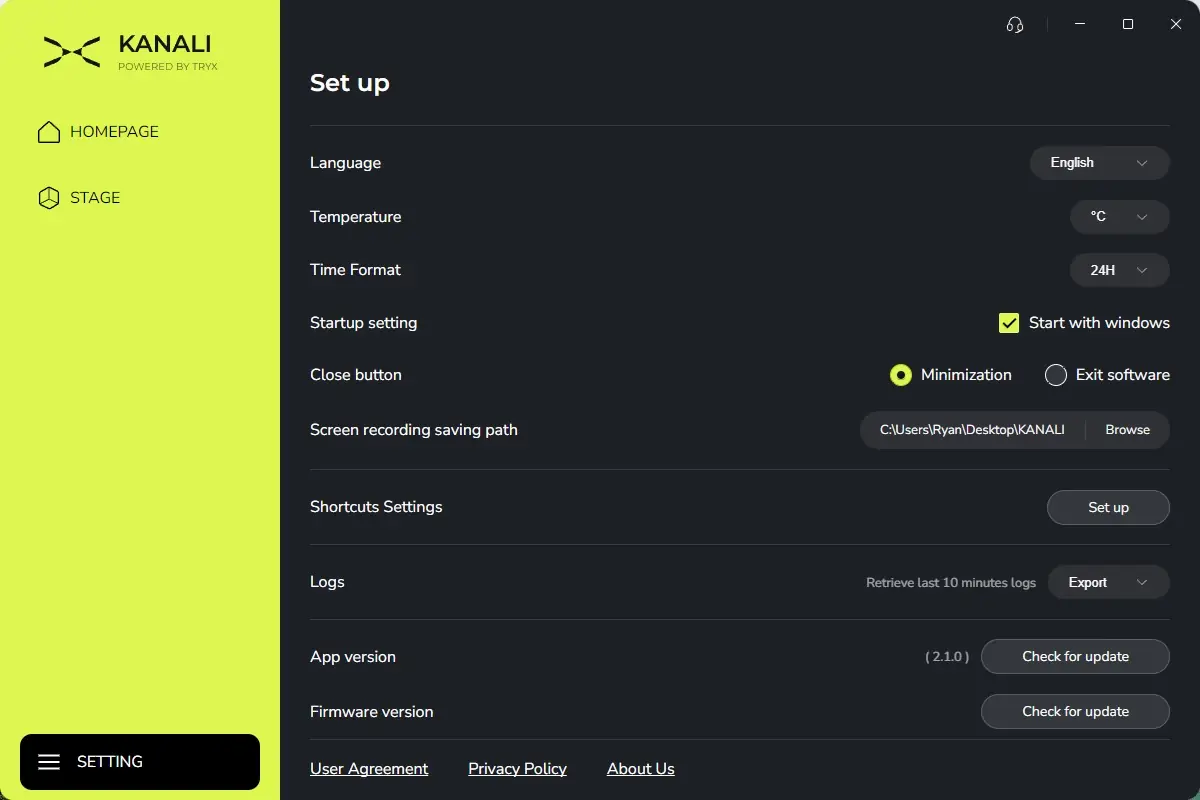
Additionally, you can use KANALI to record your PC screen, but I think this is a very niche use-case that doesn’t really belong inside this application. There are also a few settings menus for both the application and the installed hardware that allow you to adjust things like screen brightness, sleep settings, image mirroring, language and temperature unit settings, and more.
Gallery
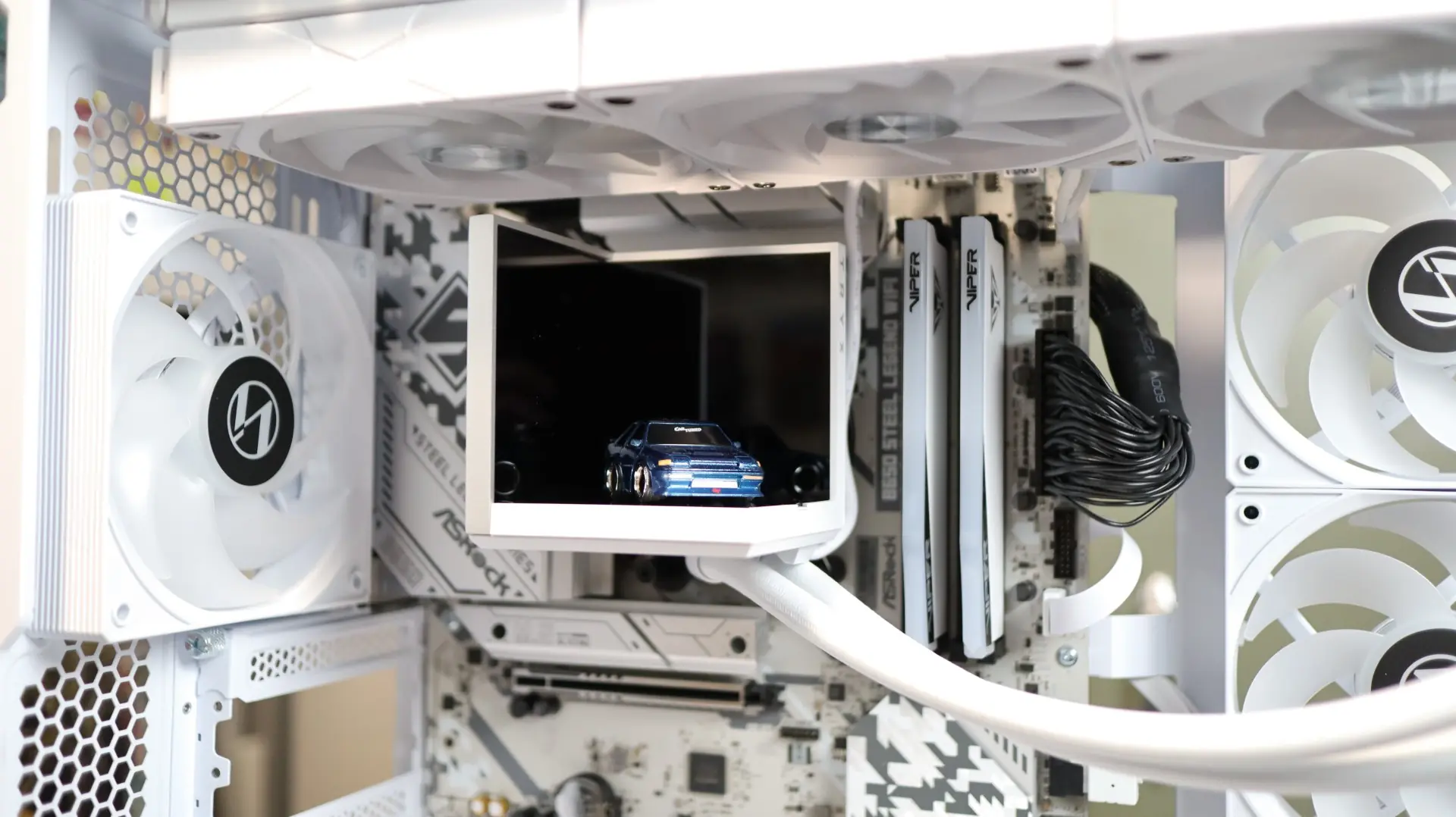
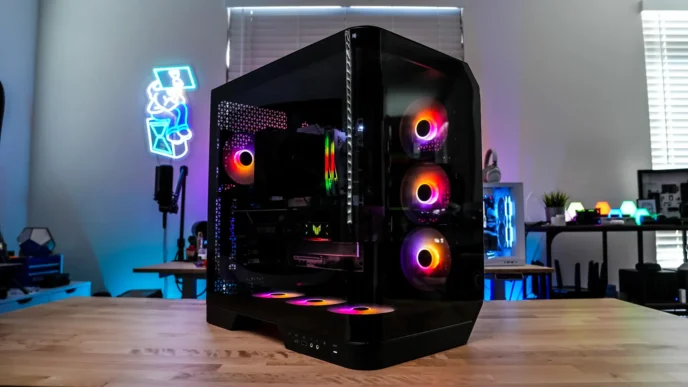
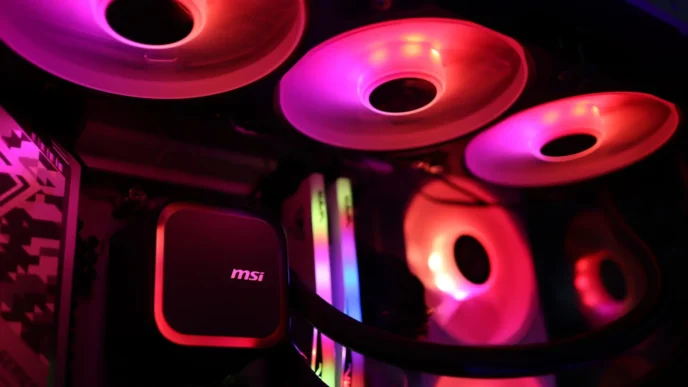
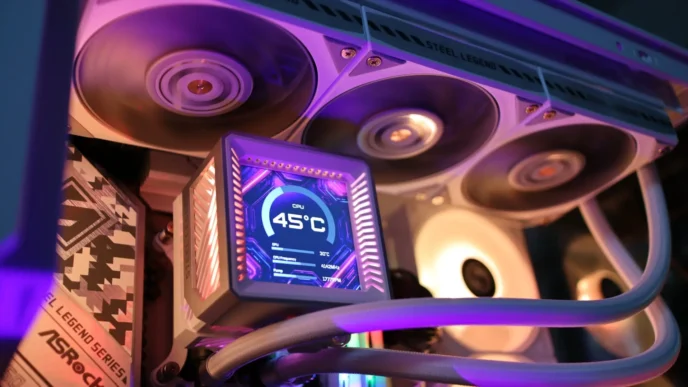
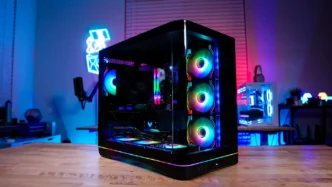
Here are a few shots of the TRYX STAGE up and running.