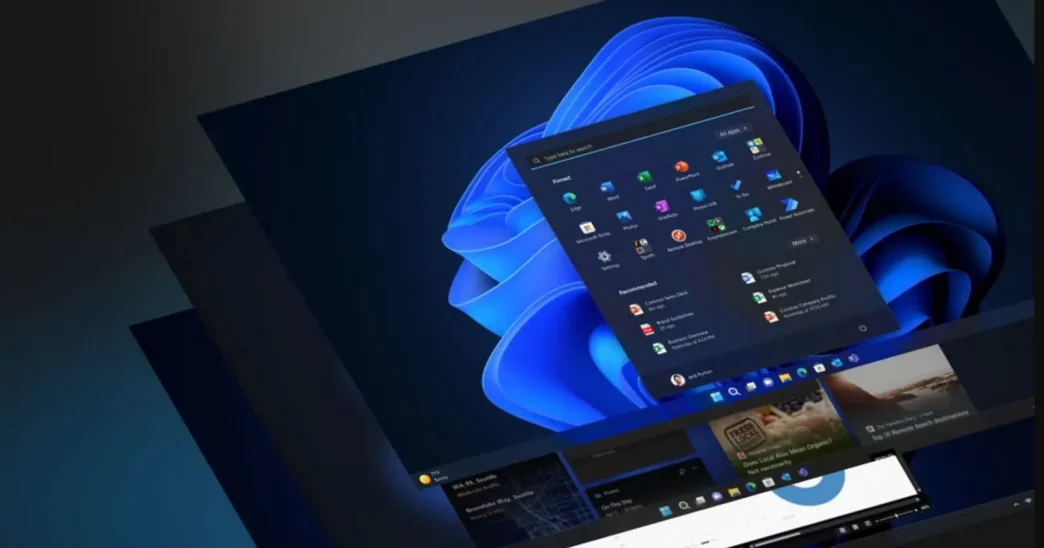
Microsoft has introduced a new feature in Windows 11 that allows users to quickly terminate unresponsive applications directly from the taskbar. This enhancement streamlines the process of managing stubborn apps, making it easier for users to regain control without navigating through the Task Manager.
Key Takeaways
- The ‘End Task’ feature can be enabled from the Settings menu.
- It allows users to terminate all processes associated with an app directly from the taskbar.
- This feature is particularly useful for dealing with unresponsive applications.
- Users should be cautious as it may lead to data loss if unsaved work is present.
How The ‘End Task’ Feature Works
Previously, when an application froze, users had to open the Task Manager, find the problematic process, and manually end it. With the new ‘End Task’ feature, users can simply right-click on the app’s icon in the taskbar and select ‘End Task’ to close it immediately.
- Functionality: The feature works similarly to the existing ‘End Task’ option in Task Manager, forcefully terminating the application and all its associated processes.
- Multiple Processes: If multiple instances of an application are running, such as several Chrome windows, the option will change to ‘End All Tasks’, allowing users to close all instances at once.

Enabling The ‘End Task’ Feature
To activate this feature, users need to follow these simple steps:
- Open the Settings app on your Windows 11 device.
- Navigate to System and then select For Developers.
- Find the End Task option and toggle it to On.

Once enabled, the ‘End Task’ option will appear in the context menu when right-clicking on any app icon in the taskbar.
Benefits of The New Feature
- Efficiency: This feature significantly reduces the time and effort required to close unresponsive applications, enhancing user experience.
- Convenience: Users no longer need to remember keyboard shortcuts or navigate through multiple menus to access Task Manager.
- Immediate Action: The ability to quickly end tasks can be crucial during critical work sessions, allowing users to regain control without delay.
Cautions When Using ‘End Task’
While the ‘End Task’ feature is a powerful tool, users should be aware of its implications:
- Data Loss: Unlike the standard close option, which allows applications to save data, ‘End Task’ does not provide this opportunity. Unsaved work may be lost.
- System Processes: The feature cannot terminate essential system processes, such as File Explorer, which still require Task Manager for management.
Conclusion
The introduction of the ‘End Task’ feature in Windows 11 marks a significant improvement in user interface efficiency. By allowing users to quickly terminate unresponsive applications directly from the taskbar, Microsoft has made managing tasks more intuitive and user-friendly. However, users should exercise caution to avoid potential data loss when using this powerful new tool.