Xastra ASTRA LZ360 ARGB Installation
Like most AIOs, the installation of the be ASTRA LZ360 ARGB is a very straightforward process. As DIY PC building seems to be getting more popular each and every day, the option of AIO liquid coolers is sure to entice those wanting to have a more advanced build, and easy installation will go a long way towards not scaring off first-time builders. As I mentioned when I covered the included accessories, Xastra has included all of the necessary mounting hardware for modern AMD and Intel platforms, as well as a physical installation manual to reference if needed.
Our testing is performed with the fans in a push configuration, and since the ASTRA LZ360 ARGB comes with the fans already attached to the radiator in that orientation, this is a step that we can skip.
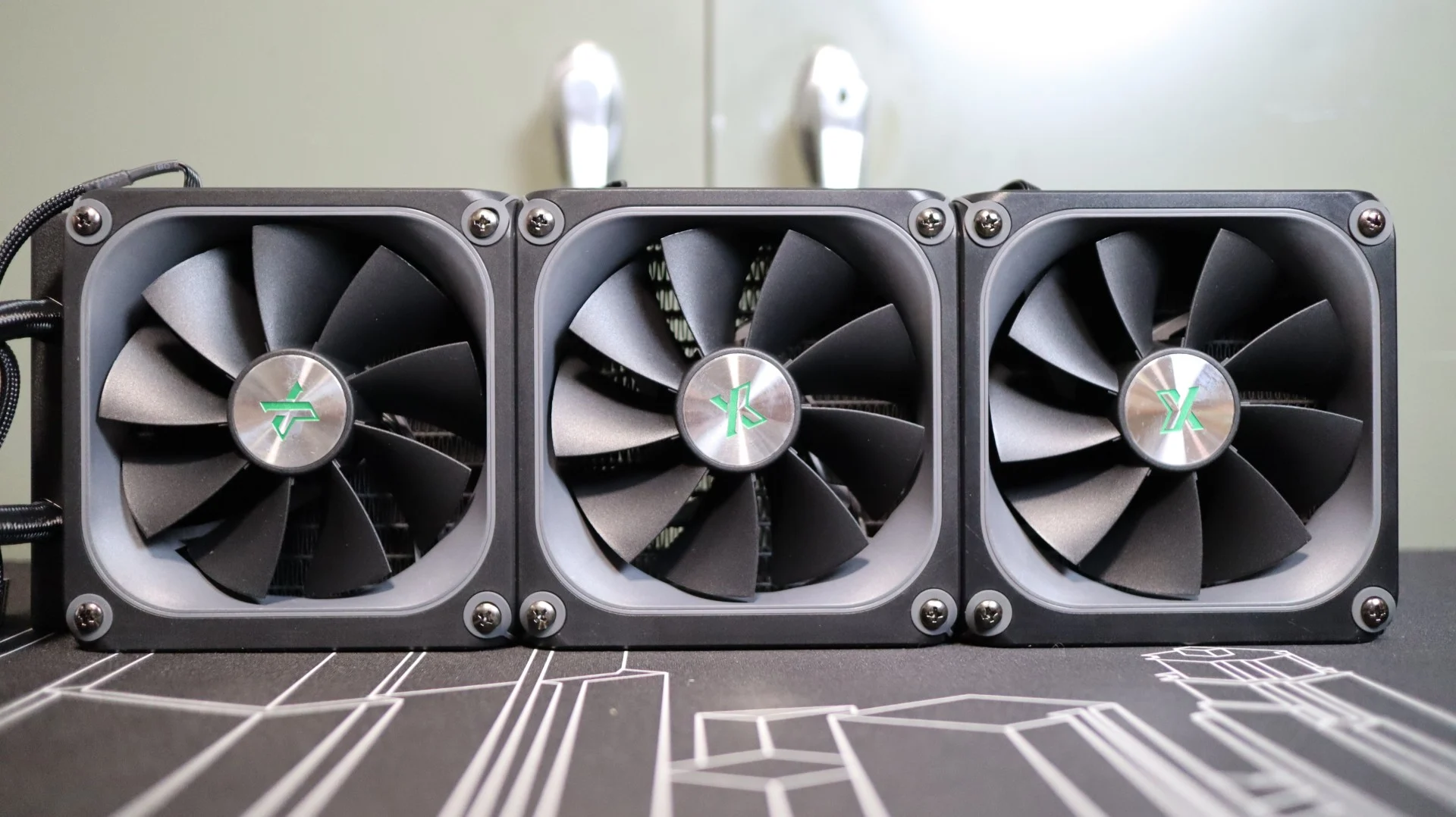
We did still have to connect each fan to the included 14-channel controller, and while it’s not a difficult step by any means, it does take a bit more time, and adds more cables to manage.
As previously mentioned, the ASTRA LZ360 ARGB does not come with a mounting bracket attached to the pump housing from the factory, so I did have to attached the AMD mounting hardware to the pump housing for my Ryzen 7 7600X test system.
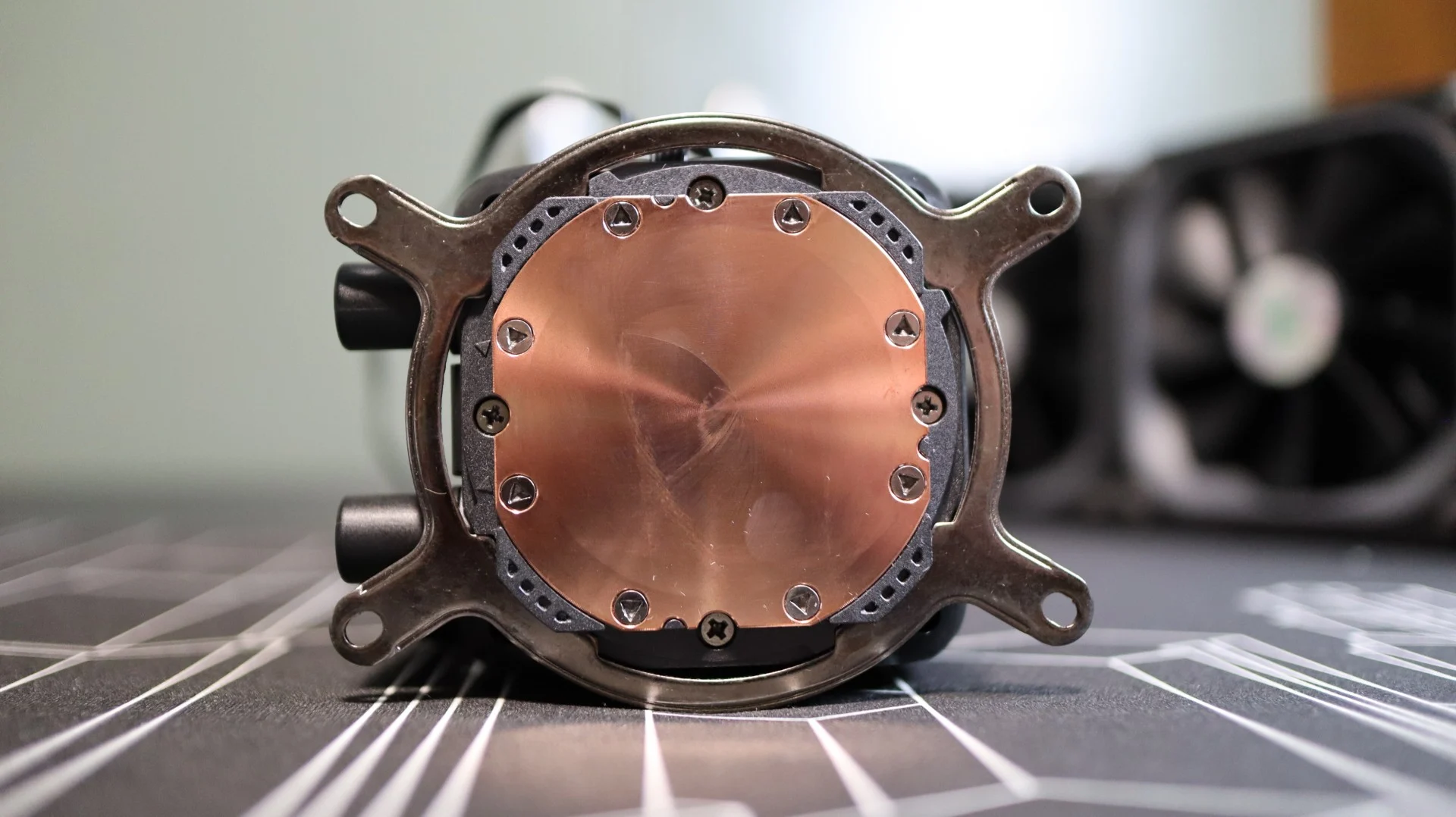
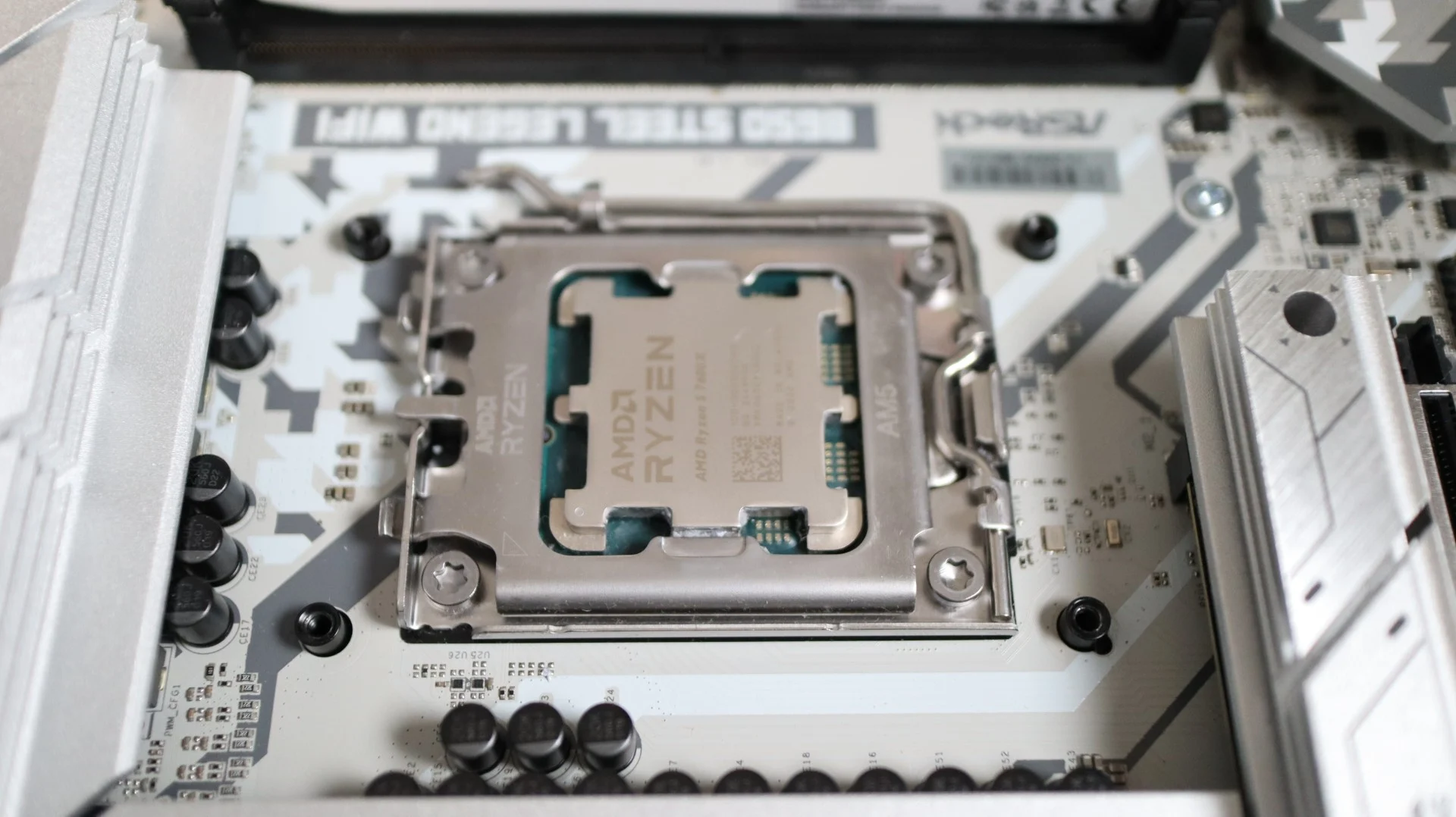
Like most AIOs, the ASTRA LZ360 ARGB does not use the factory AMD mounting clips for securing the cooler to the motherboard, so I did have to remove the plastic mounting brackets in order to secure the cooler to the motherboard.
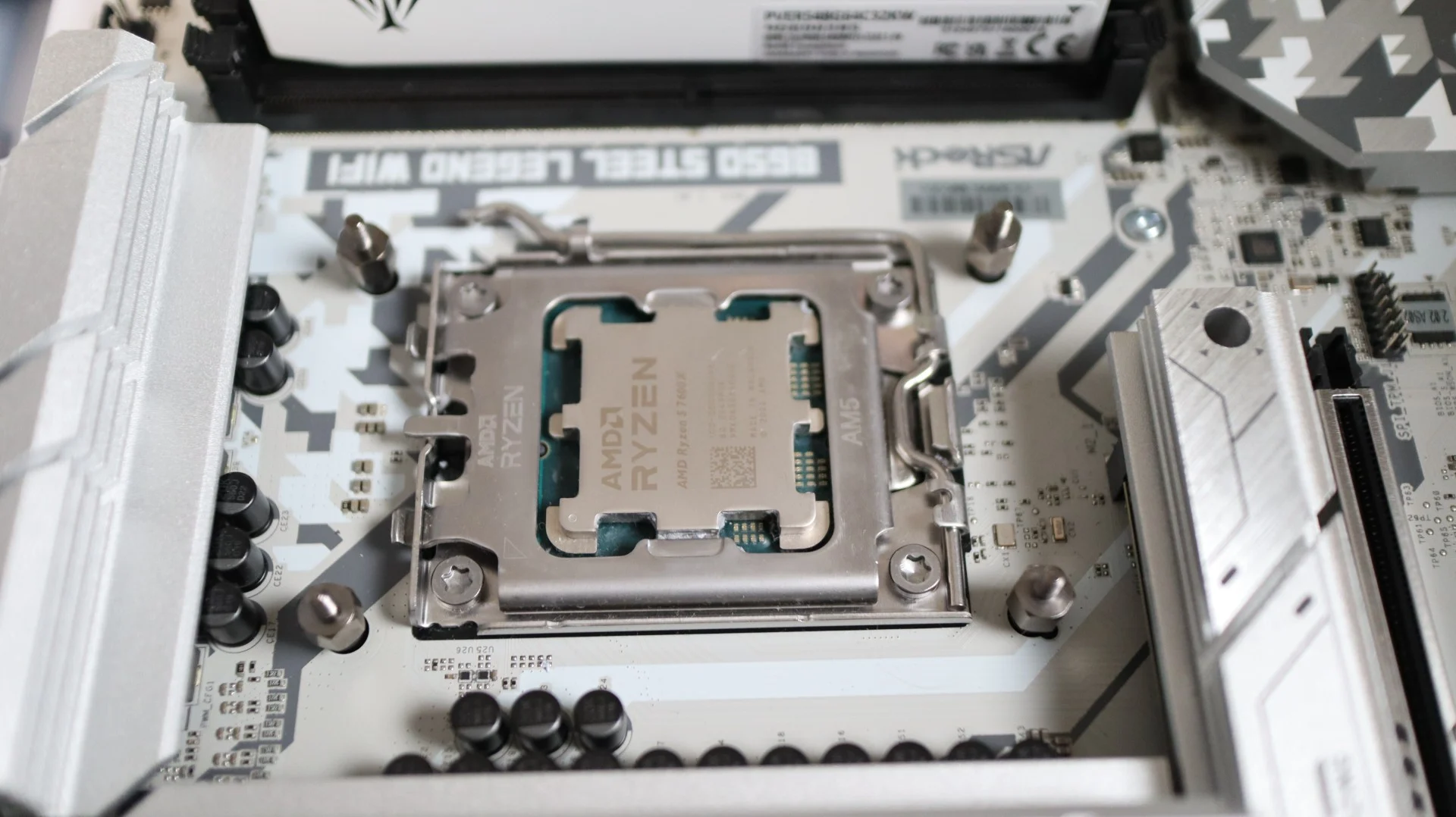
Next up is installing standoffs on each of the motherboard’s backplate mounting points in order for the included thumbscrews to properly hold down the cooler.
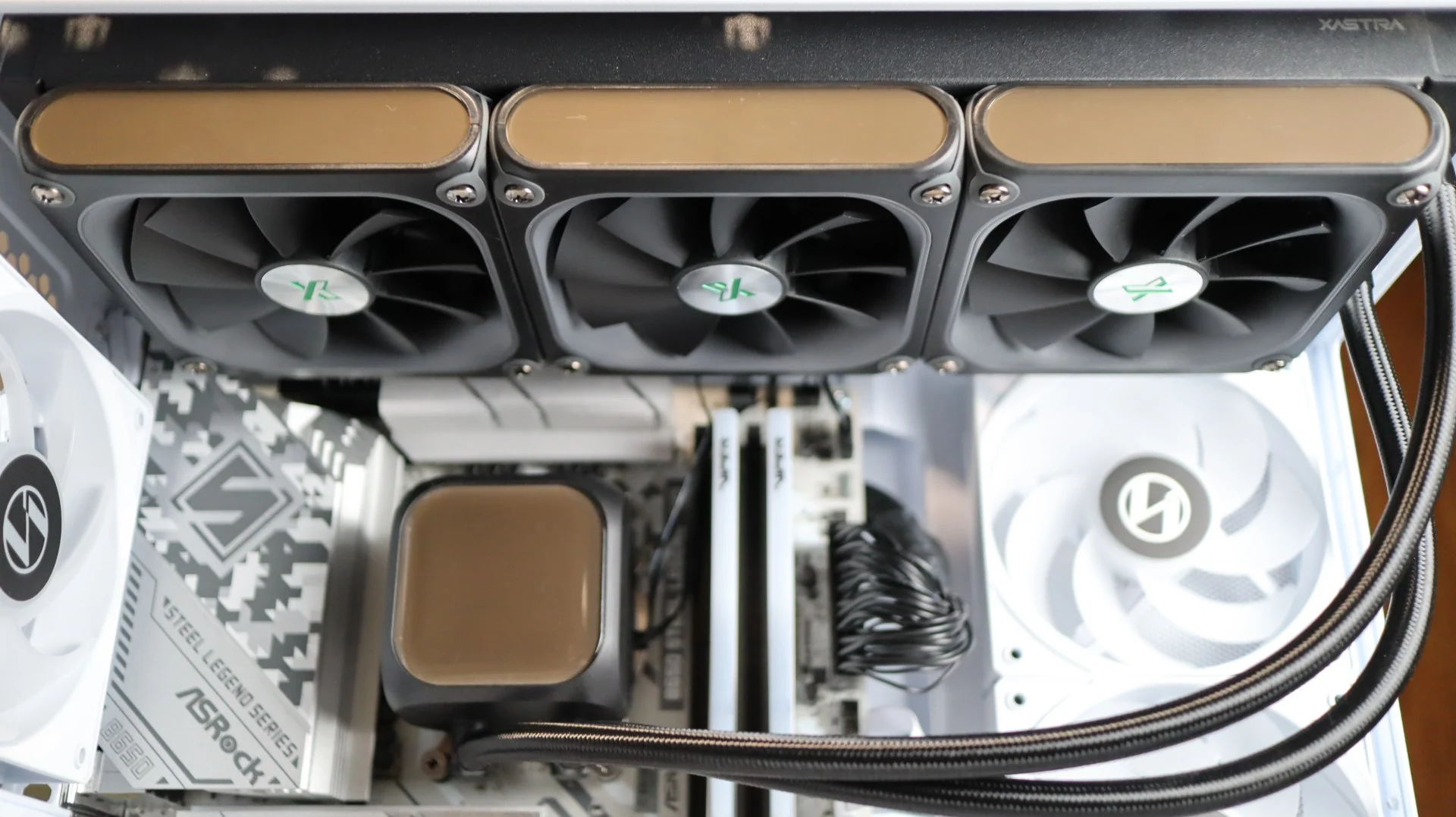
With the mounting hardware in place and thermal paste applied to the CPU, it is time to line up the cooler with the brackets, and tighten everything down. The use of four thumbscrews makes the rest of this installation very simple. Next up is attaching the radiator to the top of our case. Using the twelve included screws, simply align them with the appropriate mounting points on your case, and tighten.
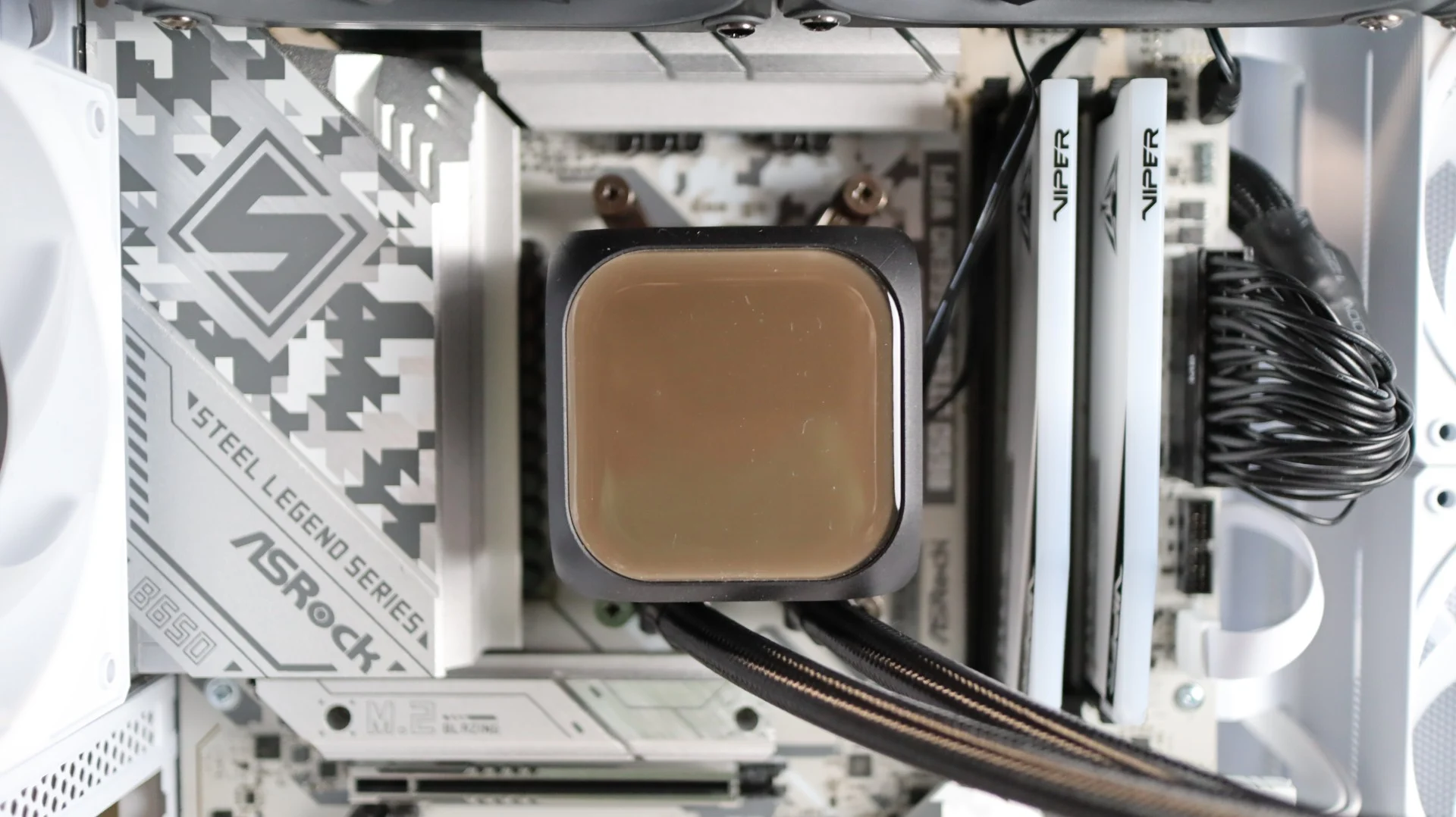
The last step is making sure all of the cabling associated with this cooler has been connected to the proper headers on the motherboard and controller. Thankfully the included manual does a decent job showing how to route and connect all of these cables, so with that step out of the way, it was time to get testing.
Software
In order to control the fans’ performance and aesthetic aspects, Xastra has provided their Matrix software. This software provides a single platform for Xastra hardware and provides a single control interface to the 14-port controller and the components attached to it.
Fan
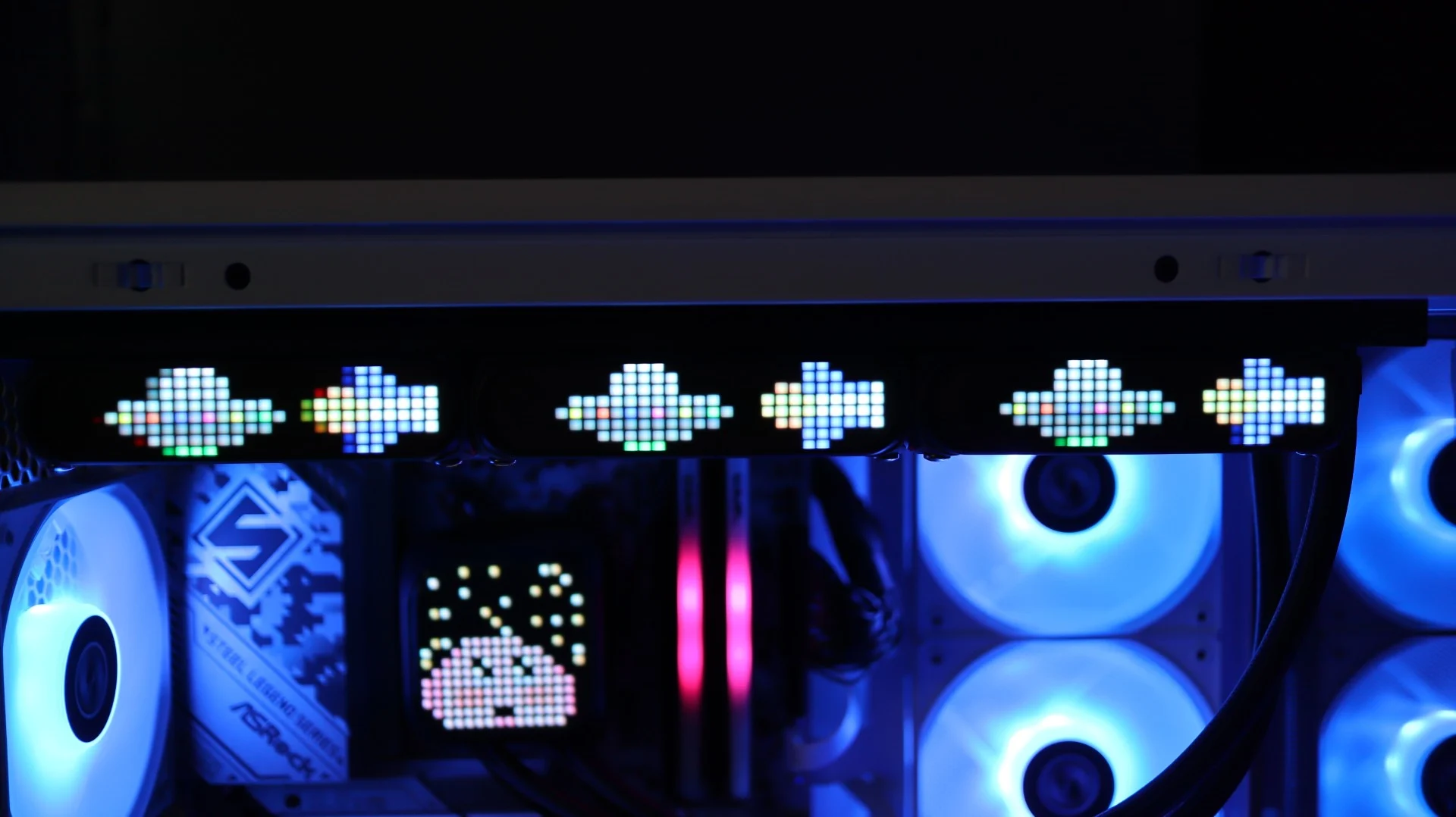
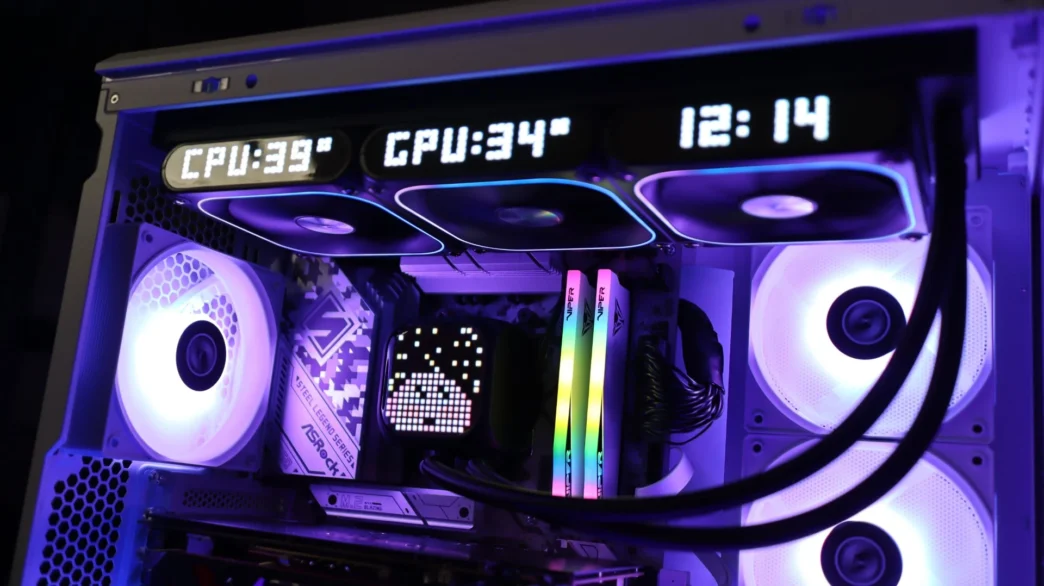
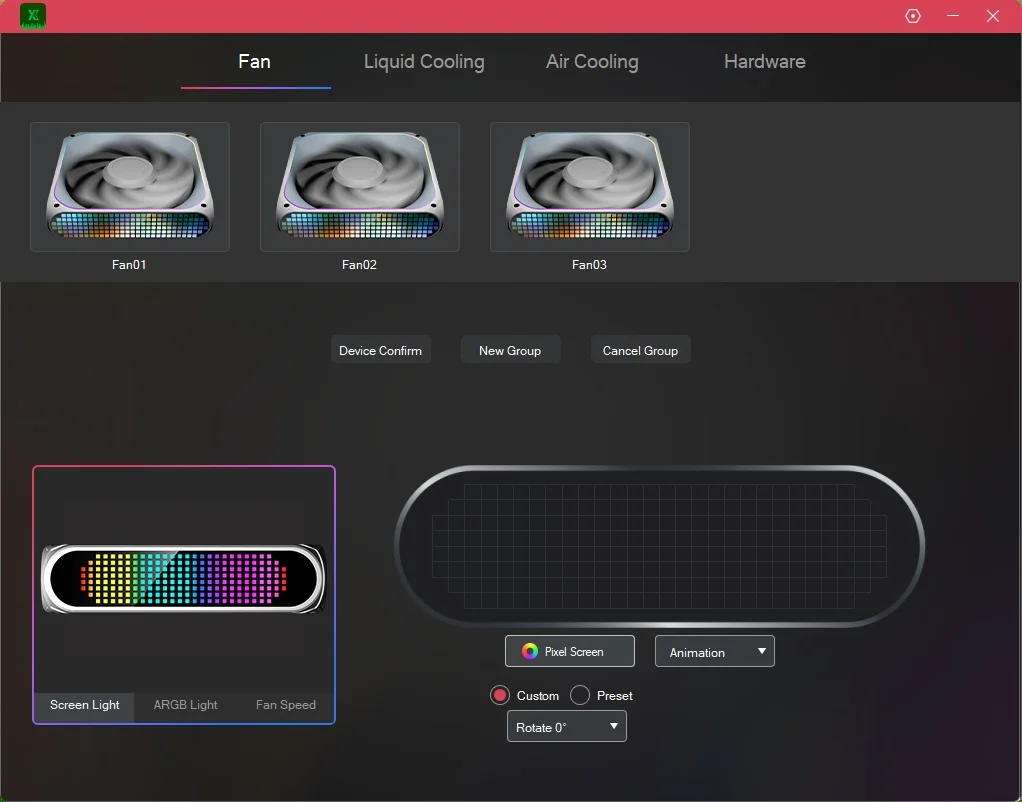
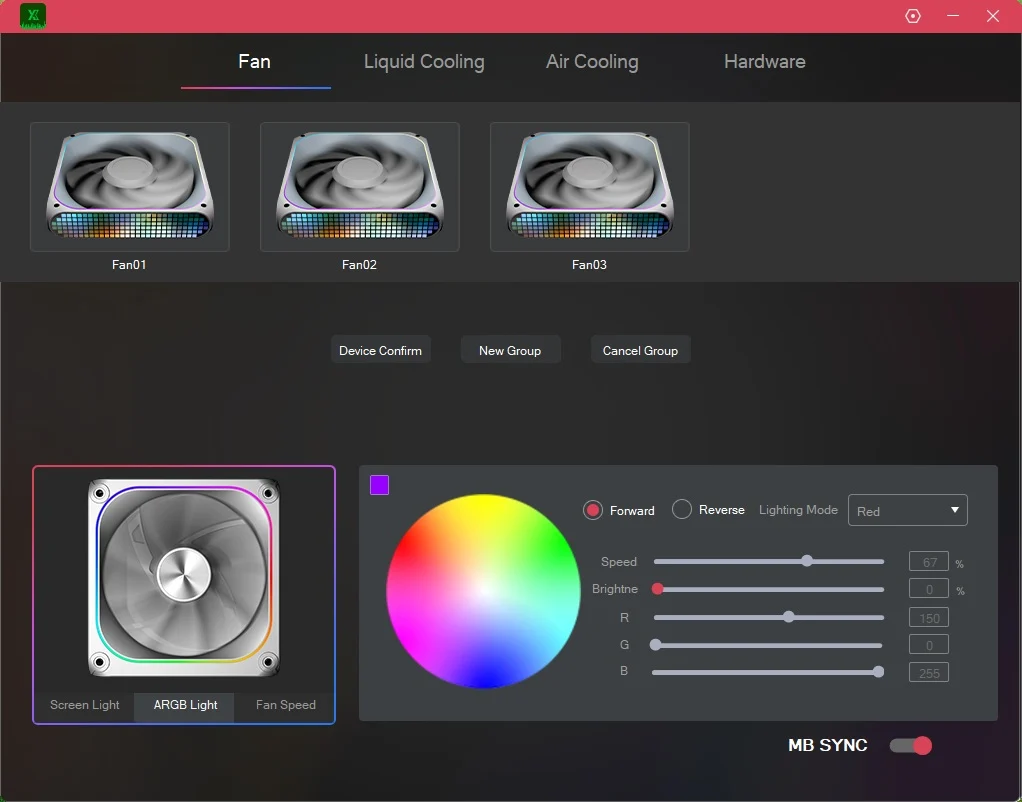
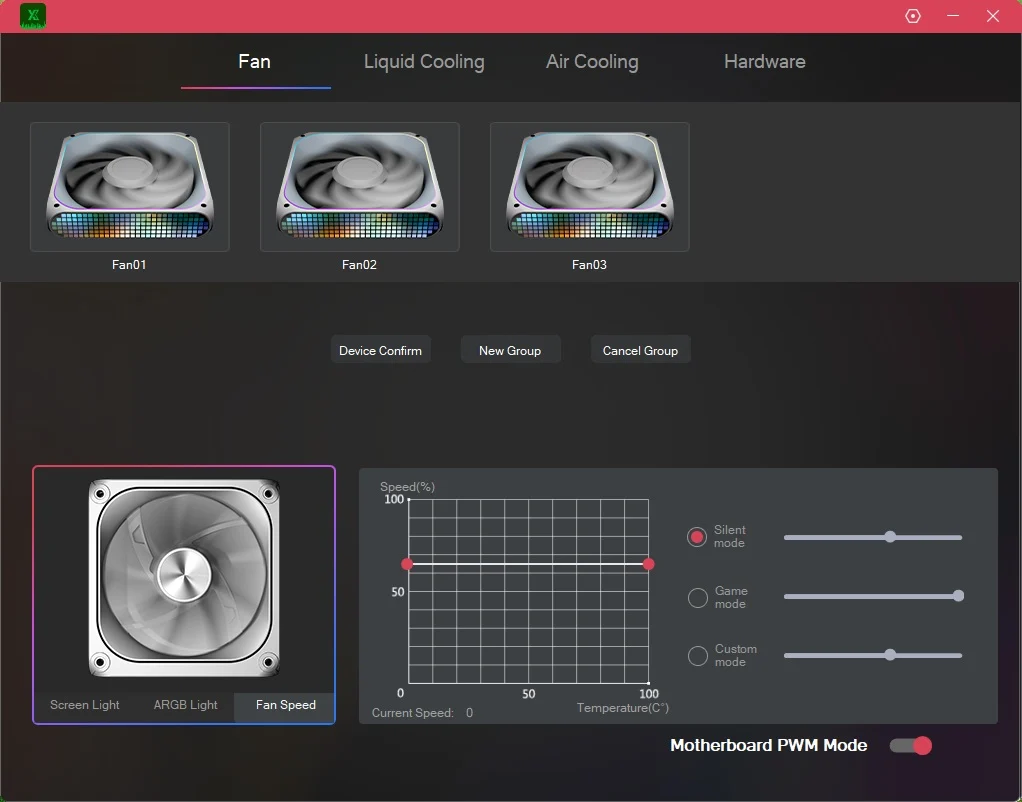
The Fan menu allows for control of the included fans, and they can be addressed individually or as a group, which I really like. It’s really easy to set all three fans with the same visual and performance settings when they are grouped up, but also very easy to control each one individually should you want to have different settings on each one. There are additional sub-menus on the Fan menu that allow you to customize the 28-8 LED matrix on the side of the fan with both custom and preset imagery, adjust the ARGB LED lighting that surrounds the fan blades, and the fan speed via preset or custom settings, or even letting the controller passthrough control to your motherboard.
Liquid Cooling
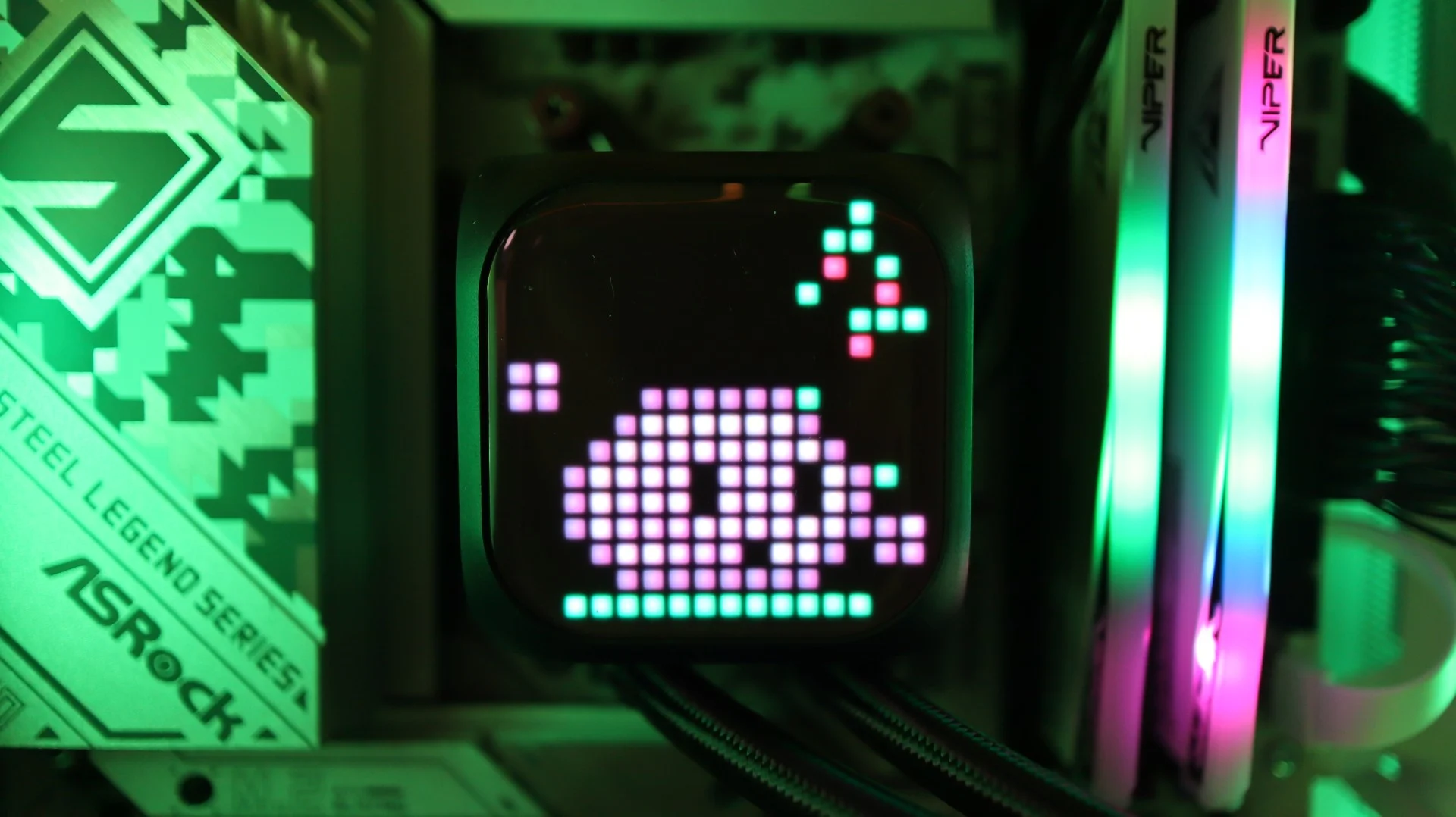
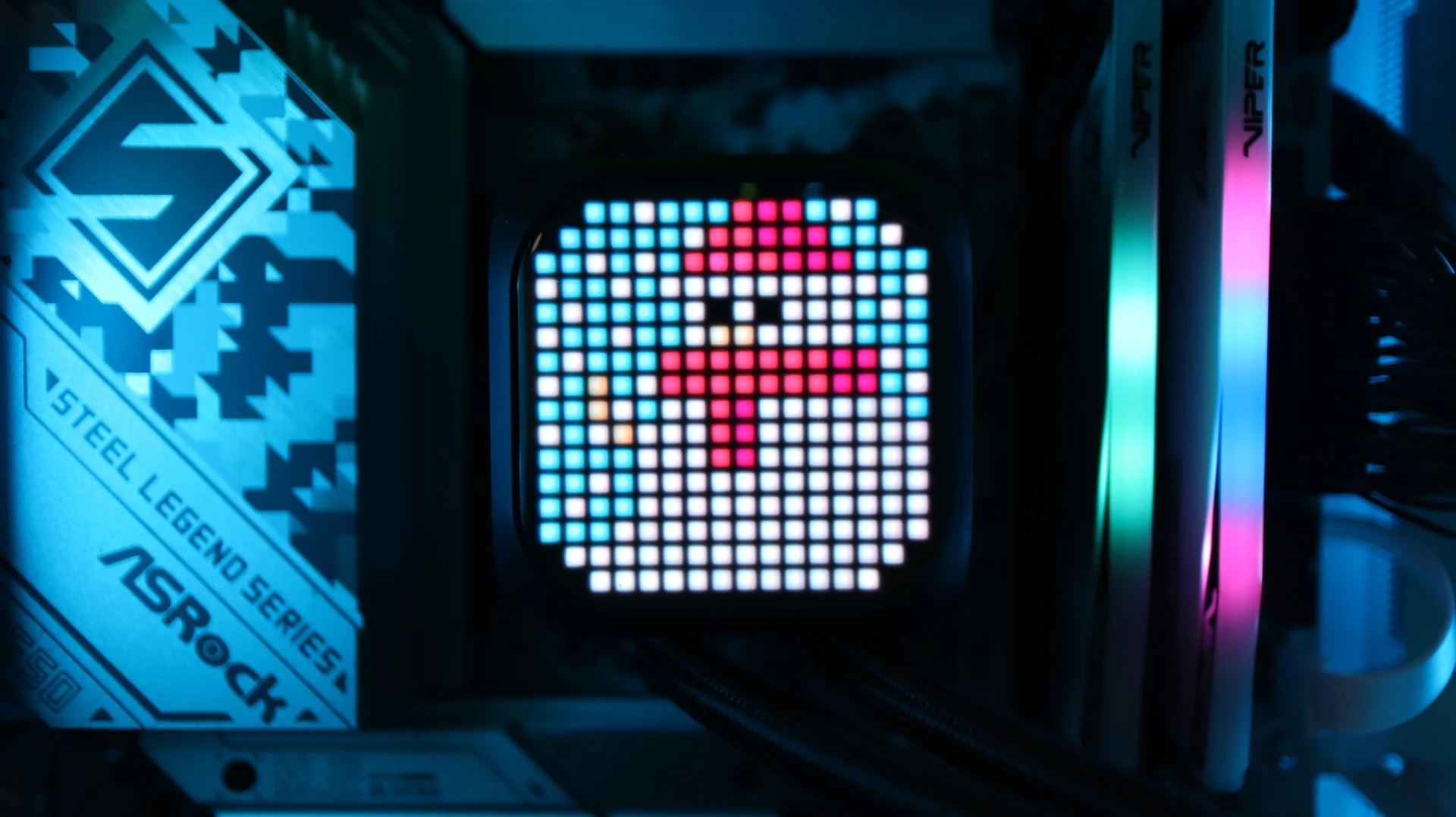
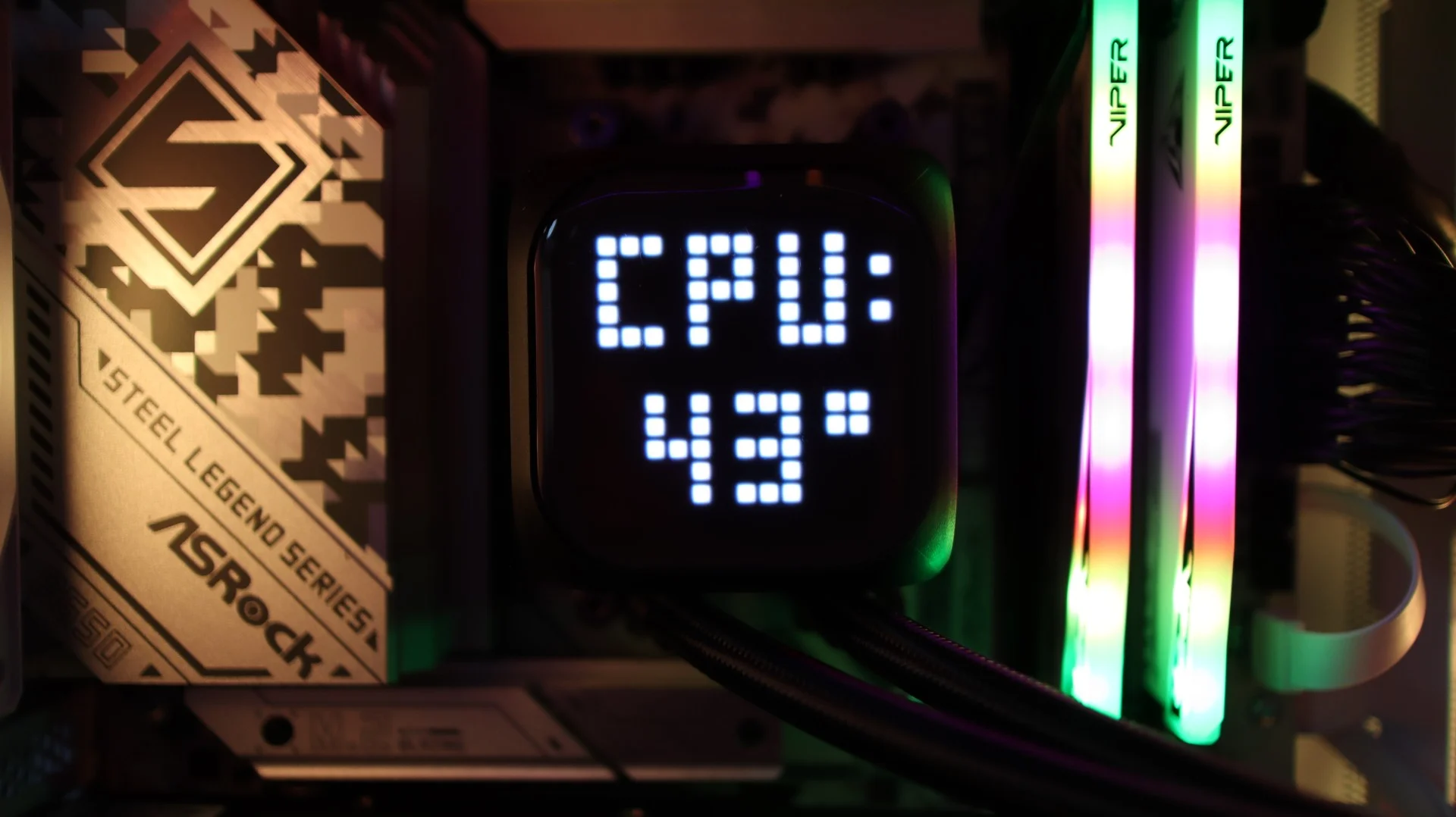
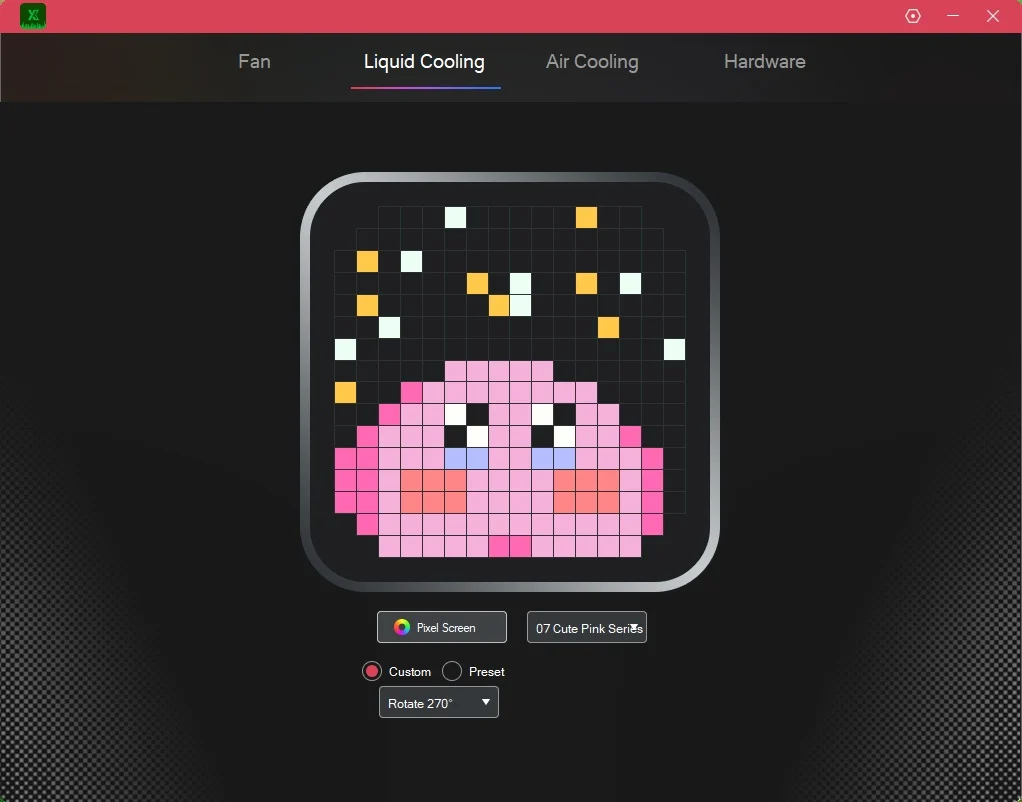
The Liquid Cooling menu lets you customize the 16×16 LED matrix on the pump housing, and it offers a similar set of preset and custom options for your choosing. You can also rotate the images depending on how you have the pump housing oriented in your system. You can get into some really detailed configurations within this menu, so be ready for some work if you want a fully custom animation to display on your cooler.
Air Cooling
The Air Cooling menu is essentially the same as the Liquid Cooling menu, but will be available when you have one of Xastra’s air coolers connected to the controller.
Hardware
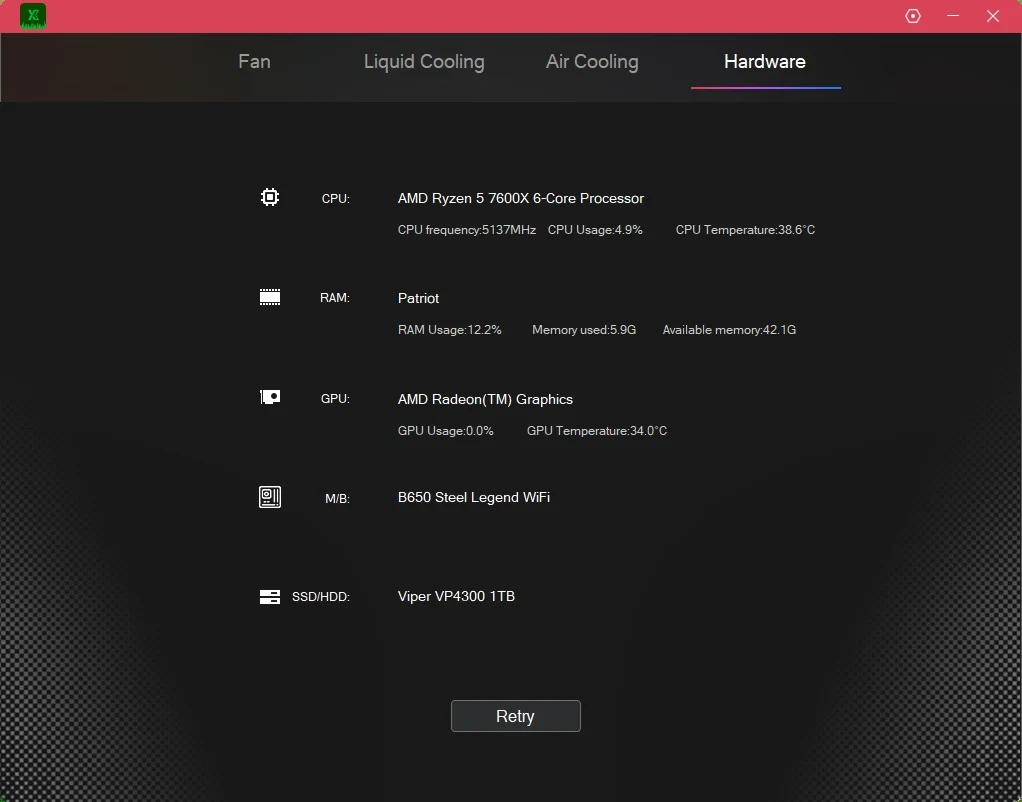
The Hardware menu gives a quick look at the major hardware components installed in your system.
Gallery
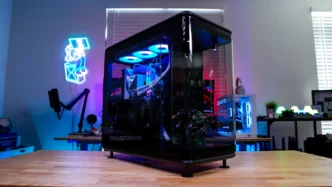
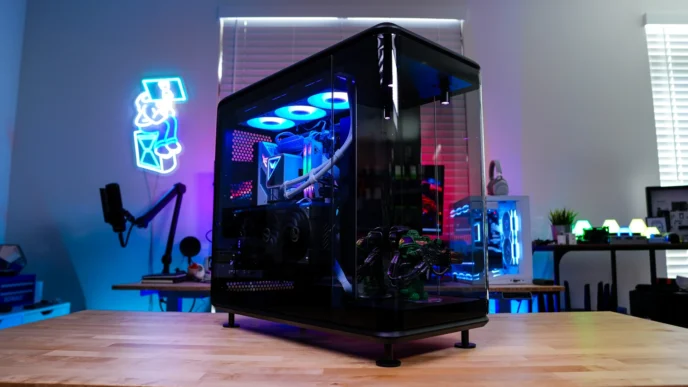
Here are some shots of the Xastra ASTRA LZ360 ARGB in operation.