Usage & Performance on the ASUS ROG Falchion Ace HFX Keyboard
I’ve been using the ROG Falchion Ace HFX for the past couple of weeks and the first thing I was surprised with was how comfortable it was and how it had a great sound. This is of course thanks to the PBT keycaps, gasket-mount design, and multiple dampening layers. If you are wondering what the keyboard sounds like below is a sound test.
Since we do have magnetic switches here we have a lot more functionality than what you would get with a standard mechanical switch keyboard. The first thing is setting your own actuation point. This is how far down you press the key before it is actuated (or registered). This allows you to really set what feels best for you and just gives you a better experience overall.
Rapid Trigger is another great feature of a keyboard like this. On a normal mechanical keyboard you have to wait for the switch to reach a reset point before you can press it again. With Rapid Trigger the switch resets instantly as it moves upwards so you can press it again with minimal effort. The nice thing about this keyboard is that there is a dedicated Rapid Trigger toggle switch on the keyboard making it easy to enable or disable this feature.
Finally there is Speed Tap. When enabled, as soon as the system detects the input of two keys (e.g. A and D), it will prioritize the last input and automatically release the previous one. This means that in FPS games, pressing two opposing directional keys will no longer cause the character to stop moving. Instead, directional changes can now be done immediately without releasing the previous key, eliminating any time gap for counter-strafing and ensuring precise aim every time. Keep in mind this action is banned in many competitive games.
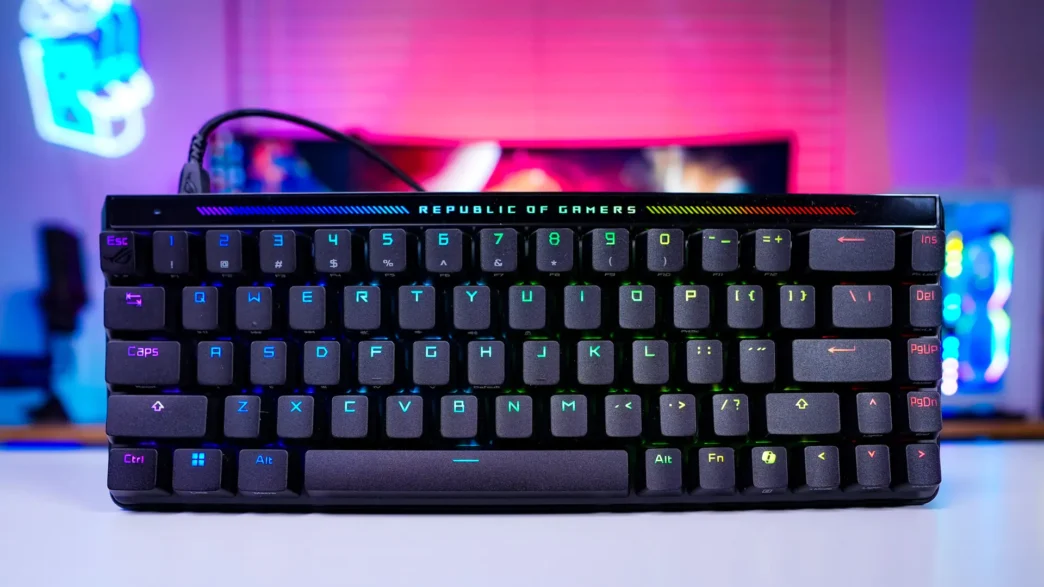
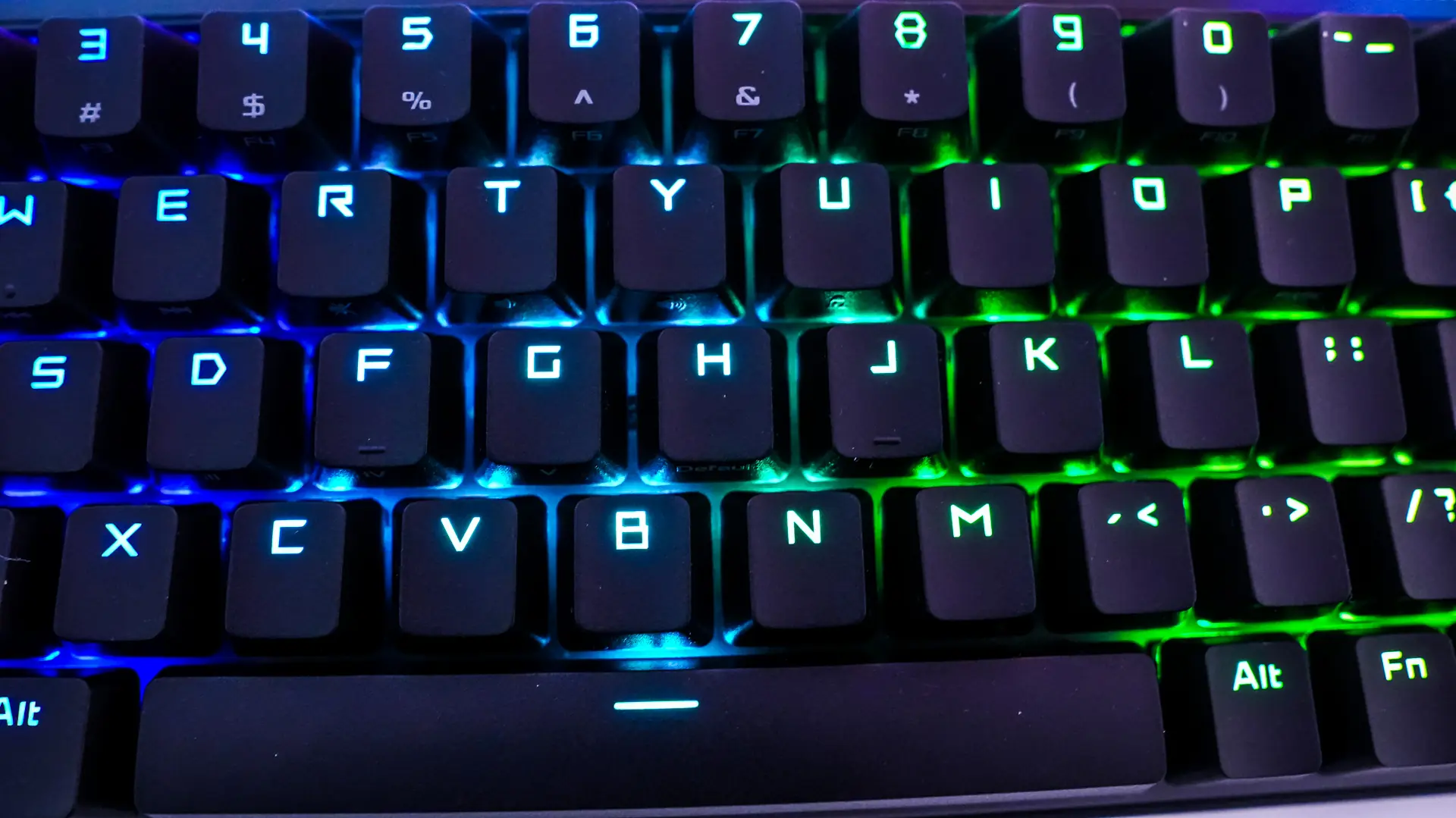
When it comes to lighting on the keyboard it does look quite good and the Republic of Gamers logo in the top center of the keyboard lights up as well.
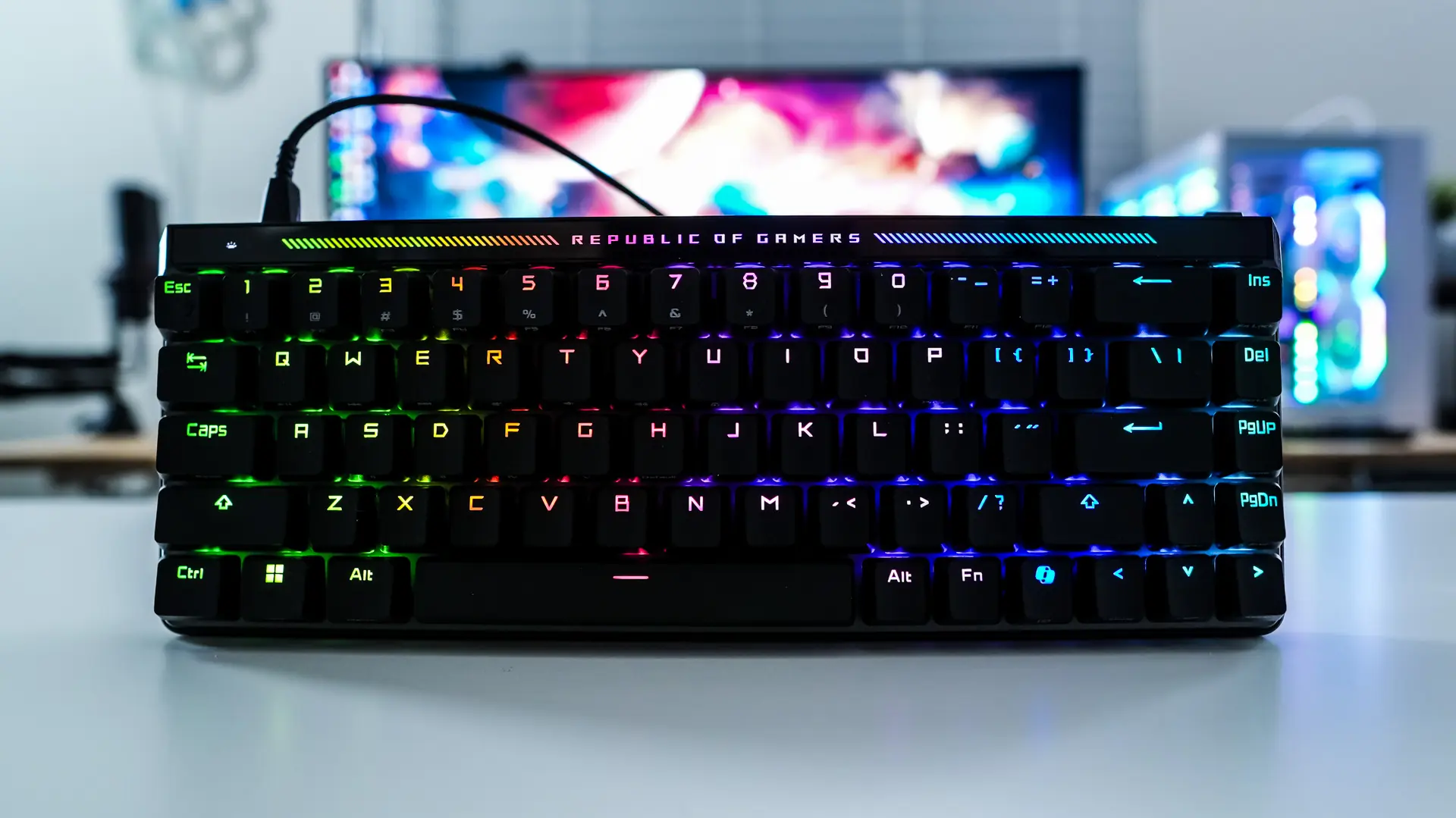
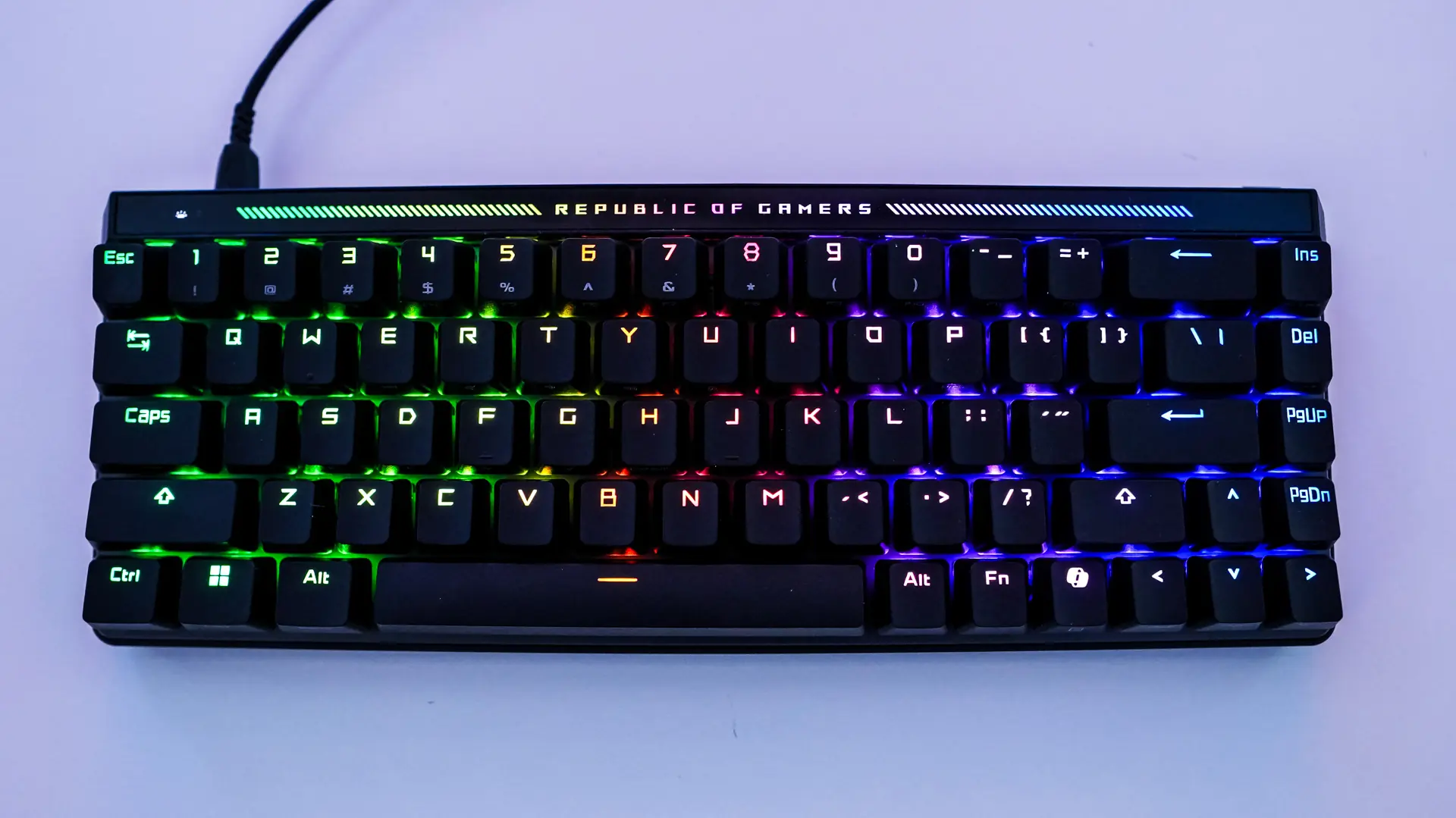
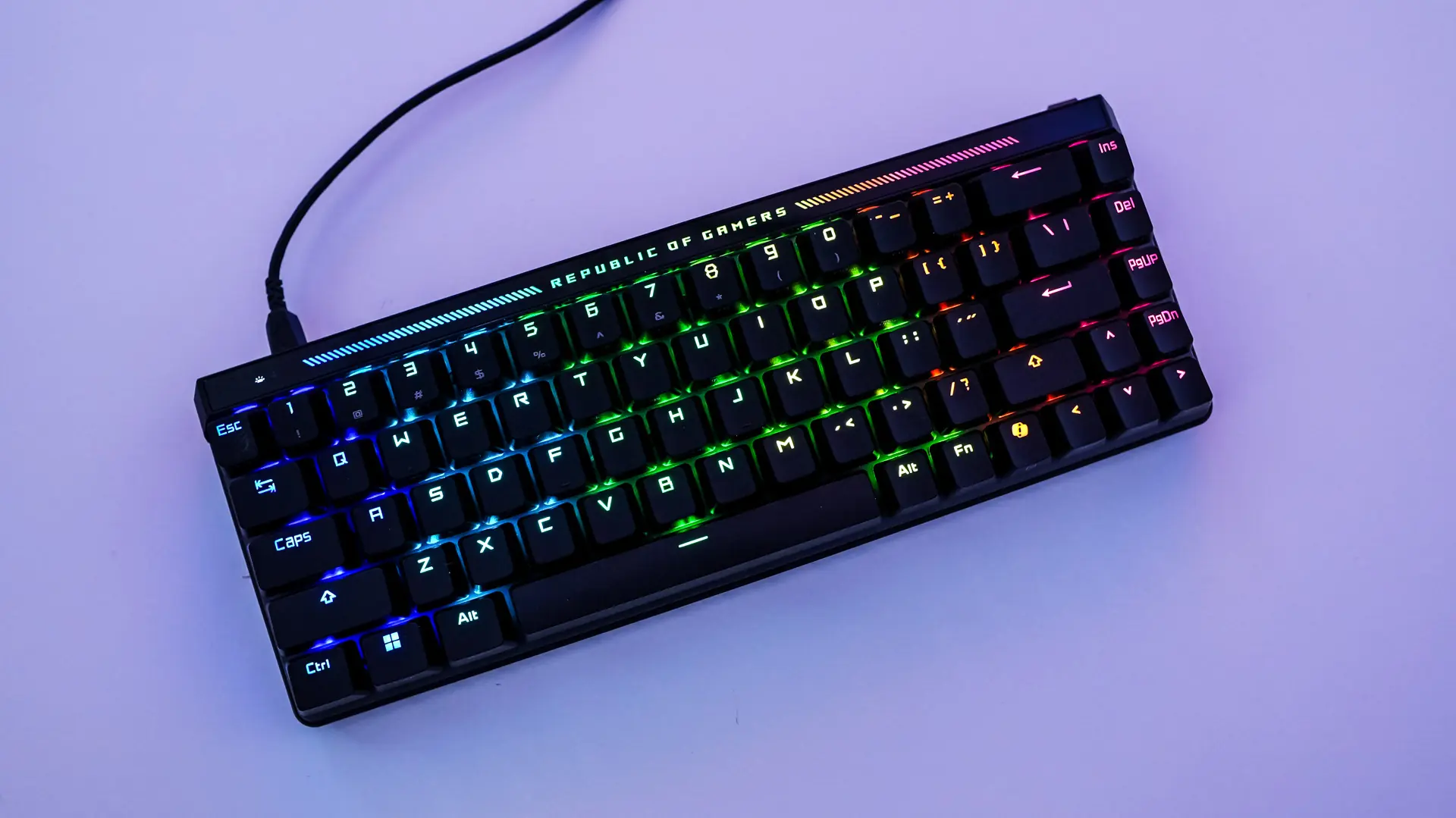
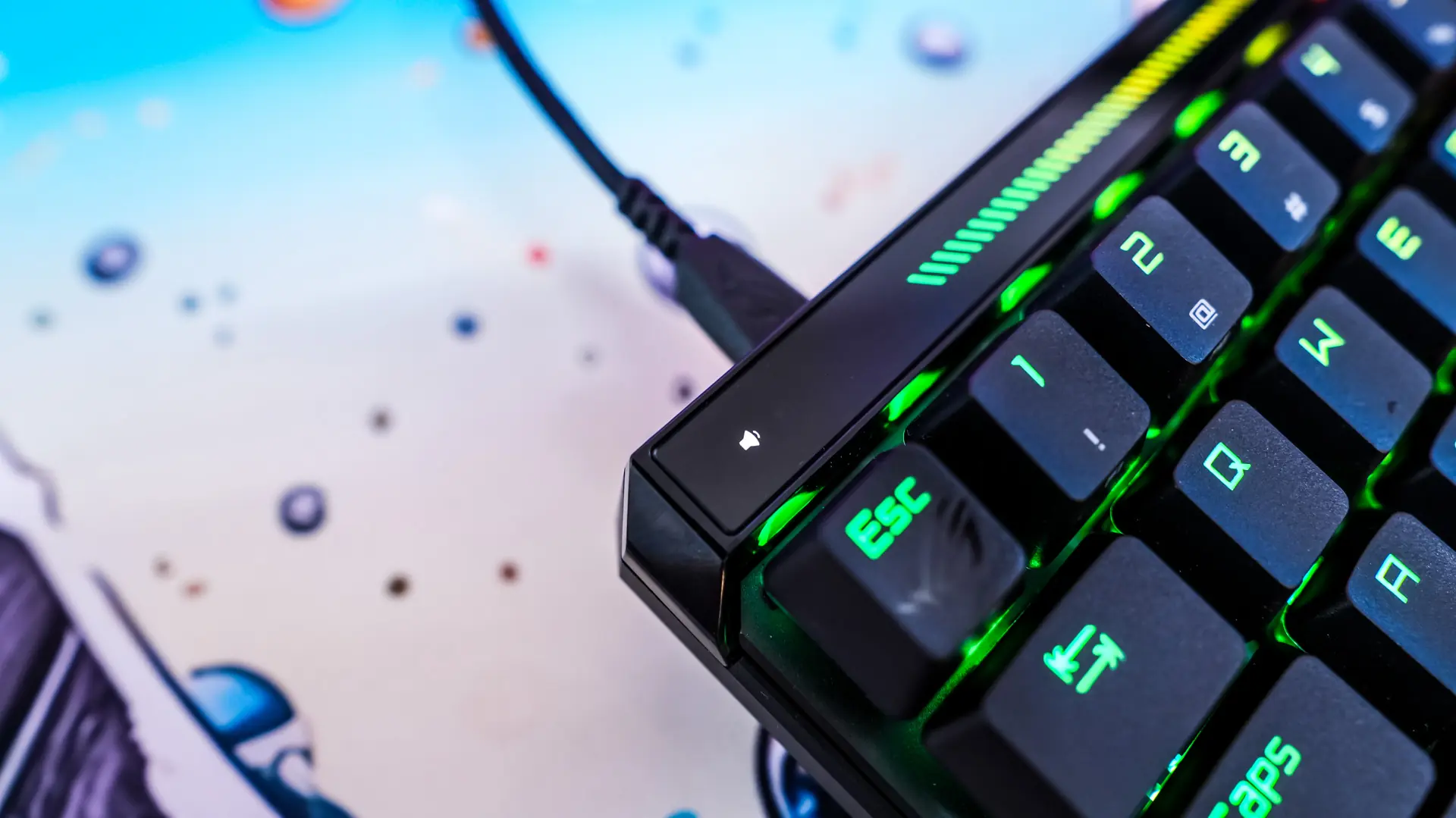
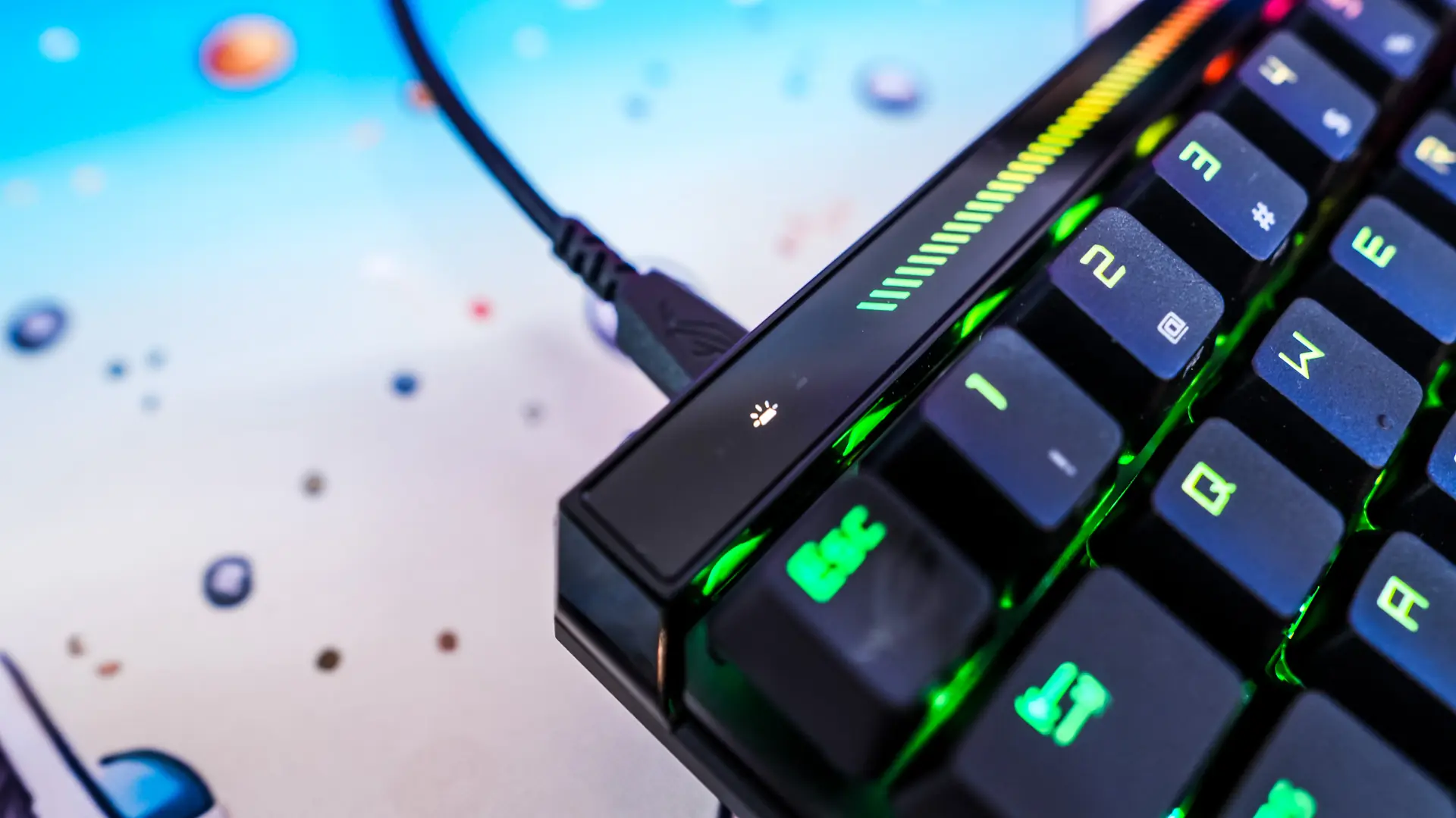
You’ll also notice a little icon light up in the top left corner of the board. This lets you know what touch panel function you are on. Using the touch panel is quite easy and very intuitive.