Setup & Using the HYTE CNVS
Getting the CNVS setup and ready to use is quite easy. Using the supplied USB-C cable connect it to the CNVS and then plug it into your PC. If you don’t have a USB-C port available you can use the Type-C to dual USB-A adapter that comes in the box.
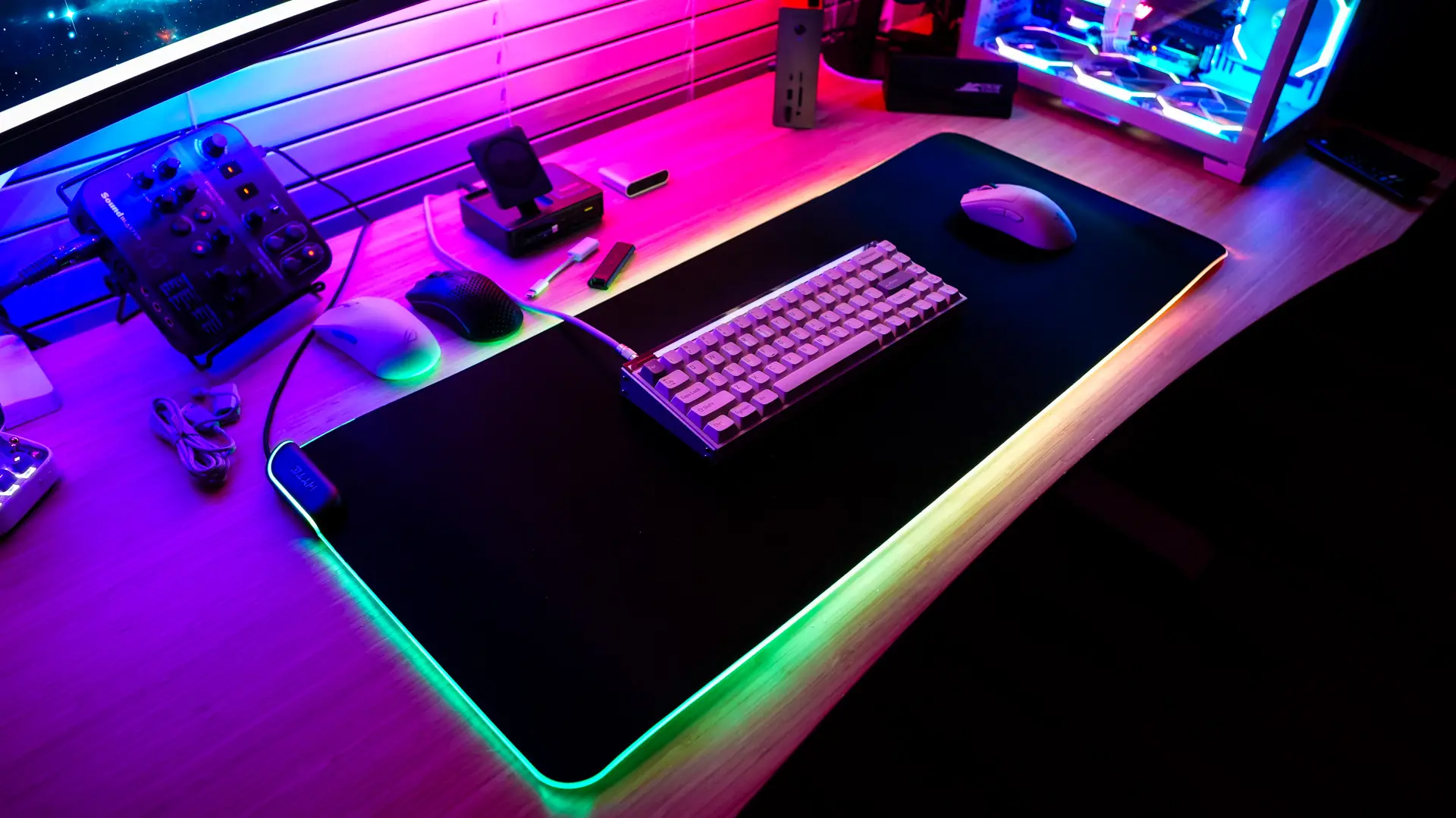
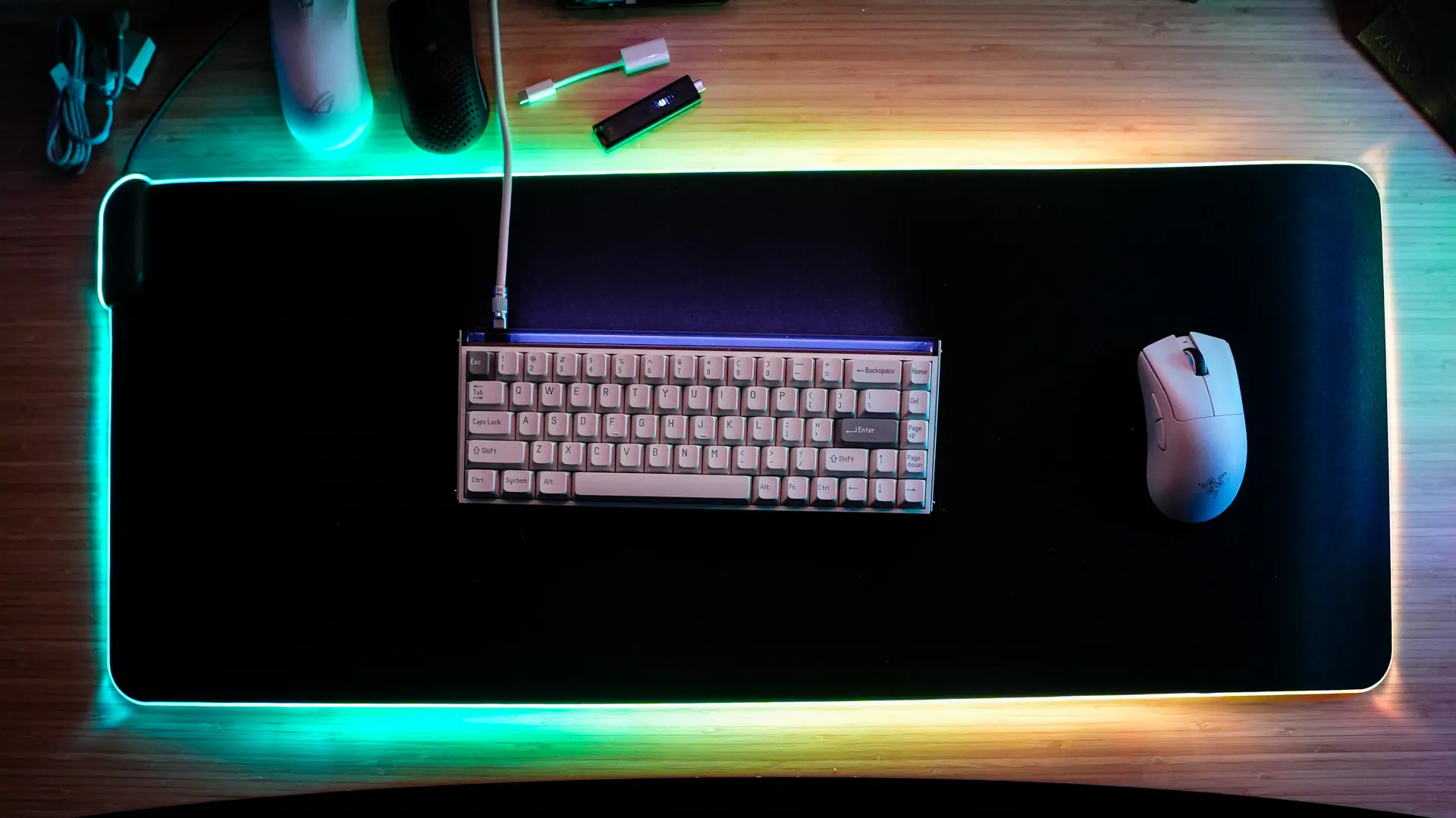
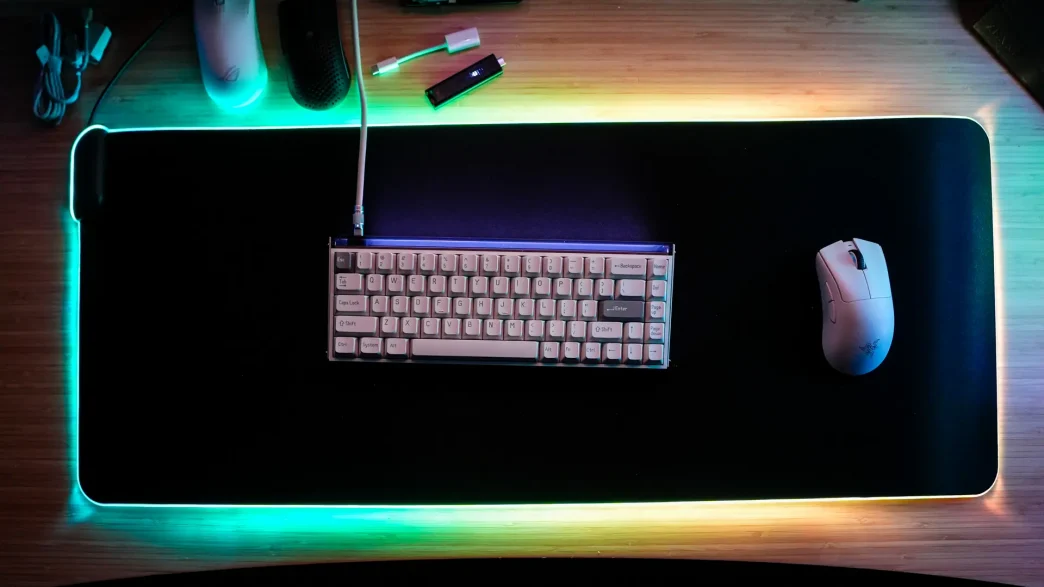
Once plugged in you’ll notice the lighting on the mousepad turns on. By default there is a sort of rainbow effect.
If you want to do any type of customization with the lighting you’ll need to download HYTE’s Nexus application. Once downloaded and installed you want to open up the lighting section.
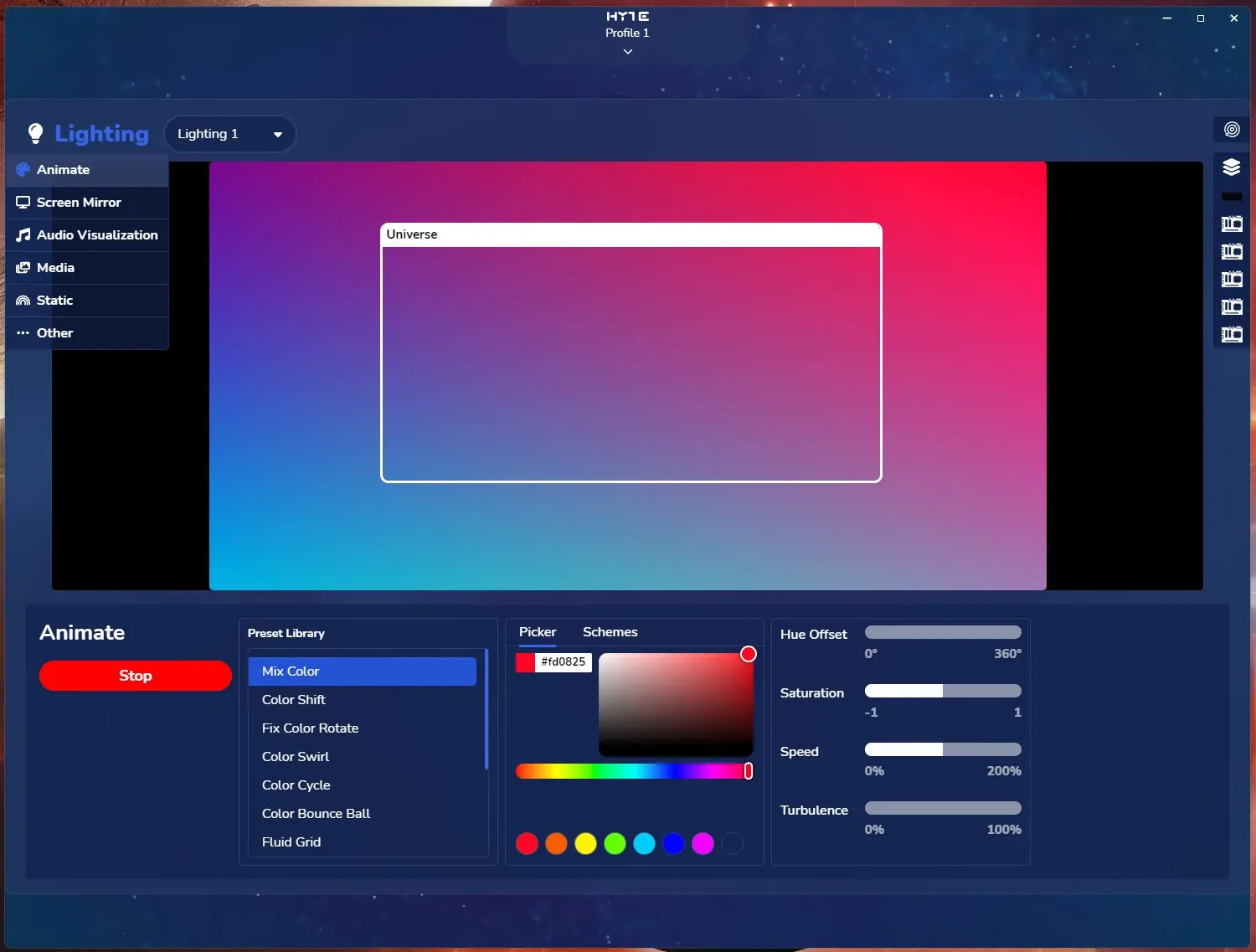
HYTE does their lighting a lot differently than others. When you open the lighting section you are presented with a live view of the effect you have selected and then a “Universe” box. This represents all of your devices and they all will have matching effects if you are using the Universe box. You can adjust the size of this box to encapsulate more or less of the desired effect.
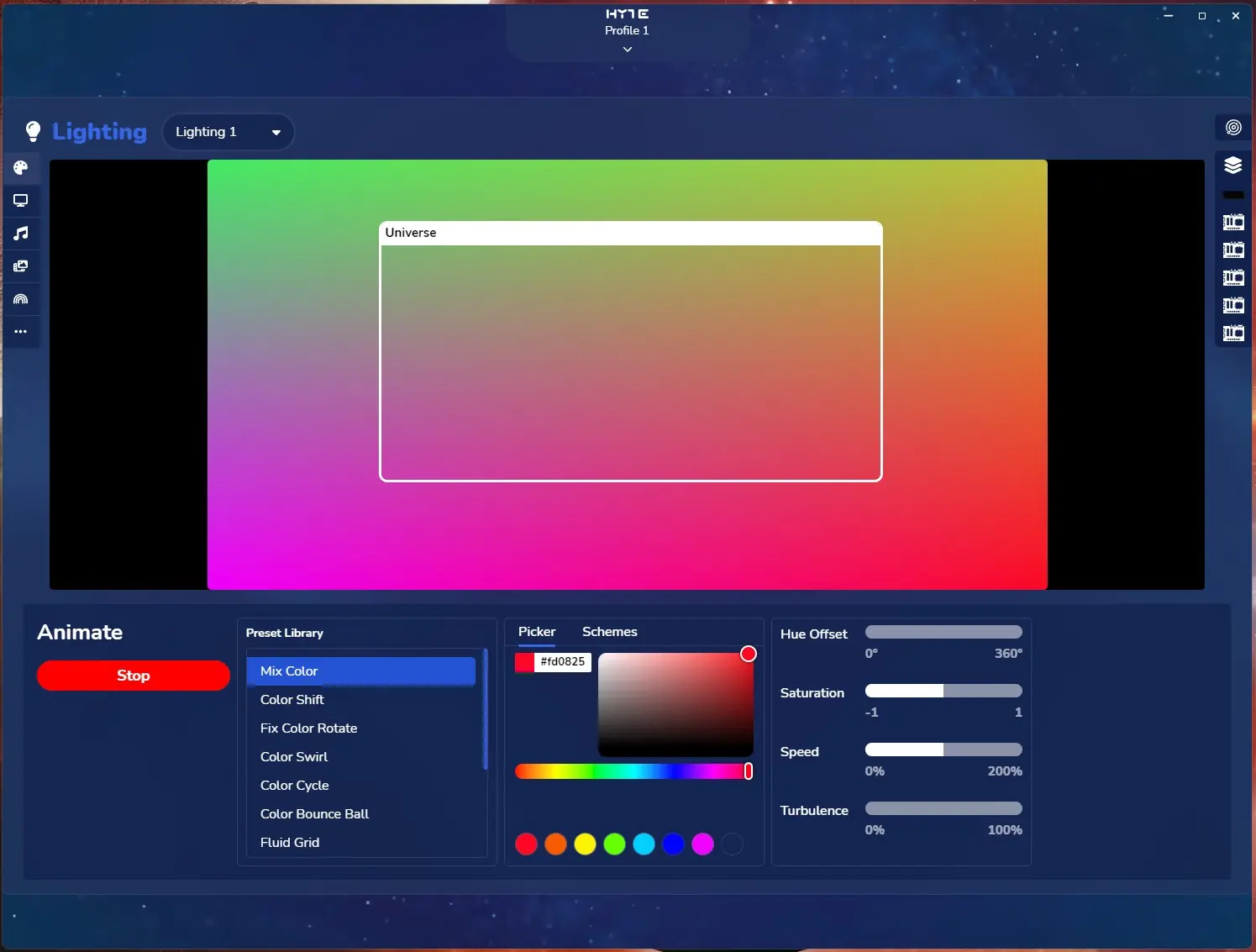
When it comes to effects you have animated effects, screen mirror, audio visualization, media, and static. Within each one of those there are multiple different settings.
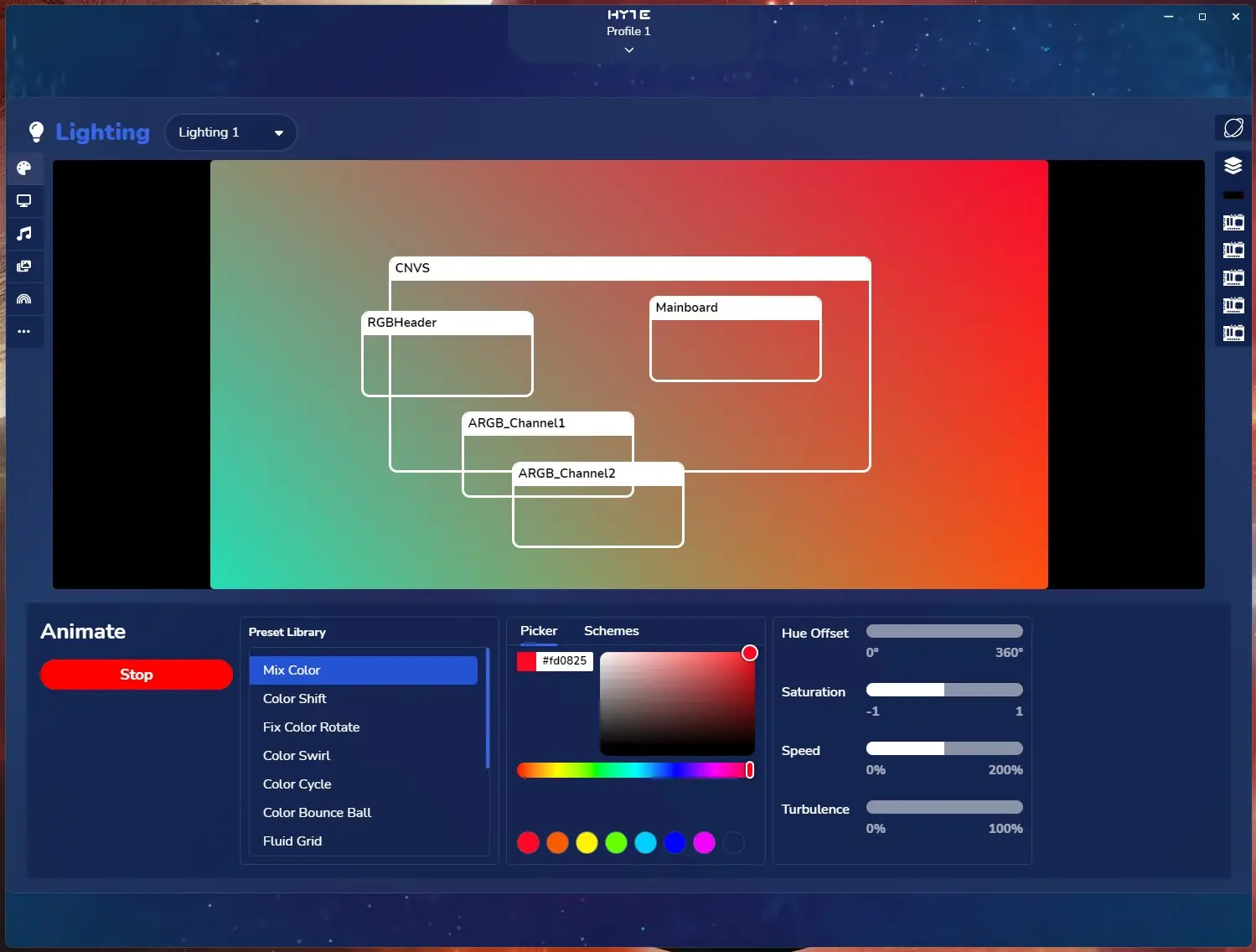
If you have multiple products you can switch from Universe to “Planet” mode. Here you can organize your devices, this is great if you want an effect to sort of go over or across multiple devices.
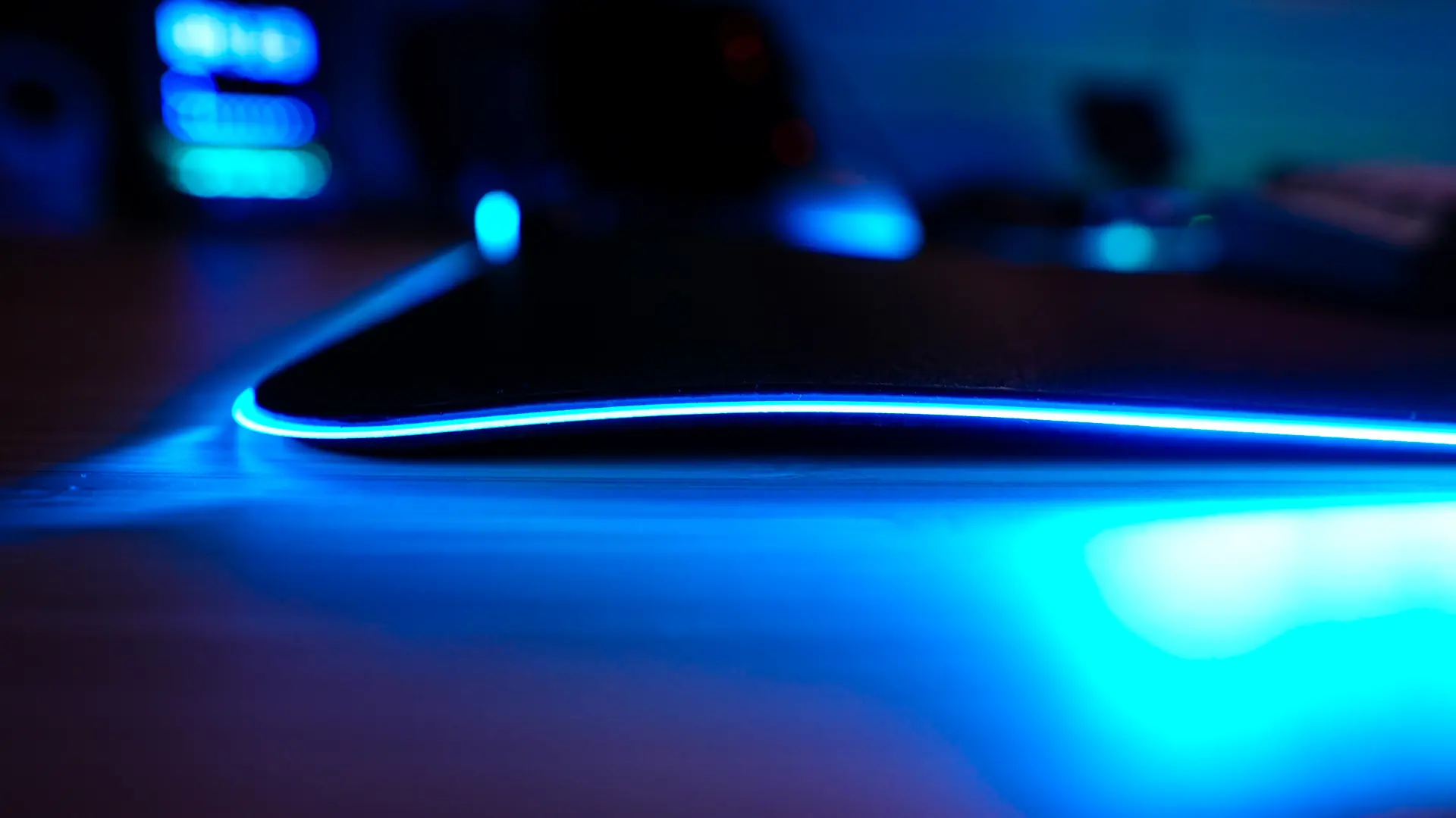
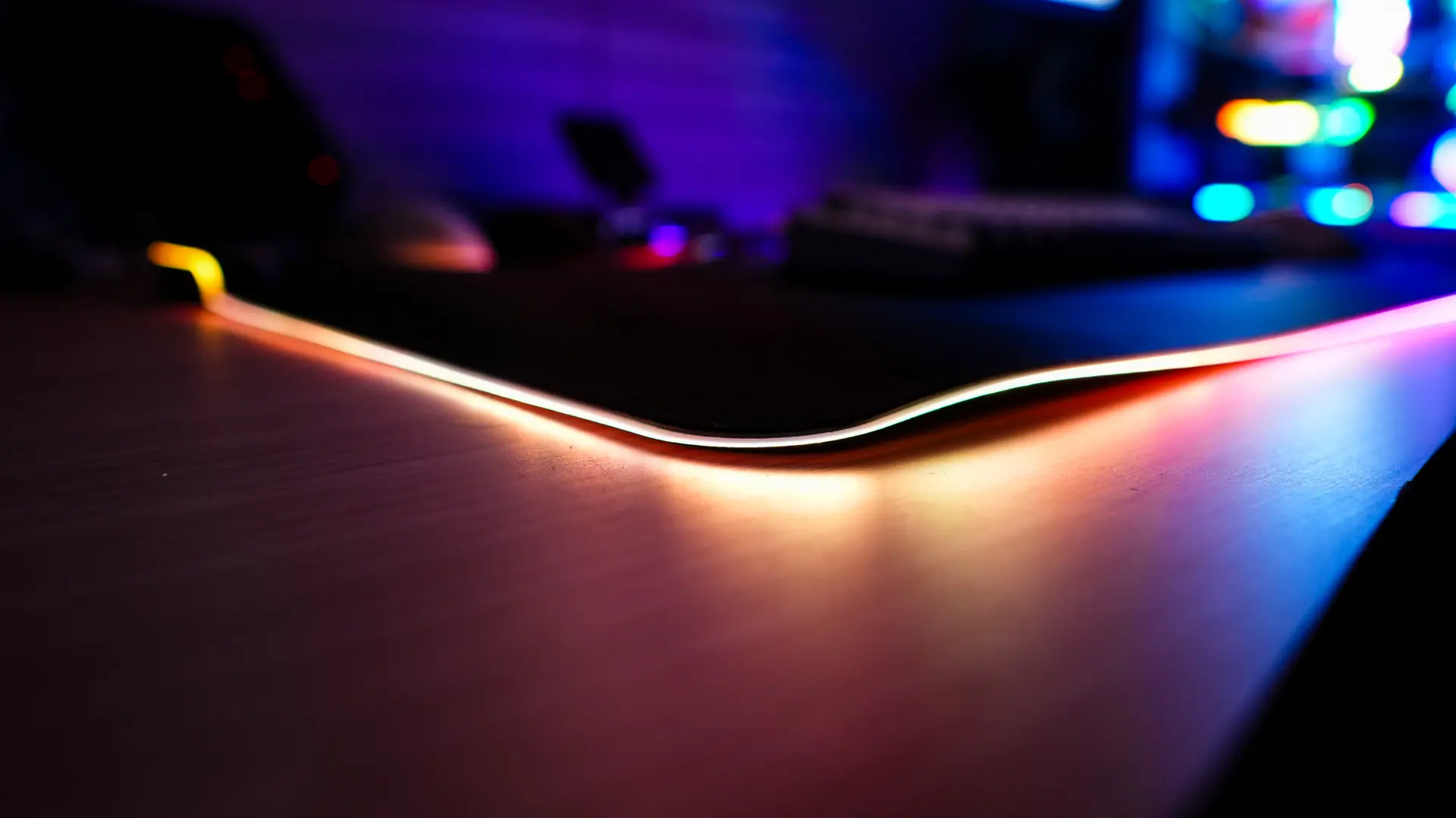
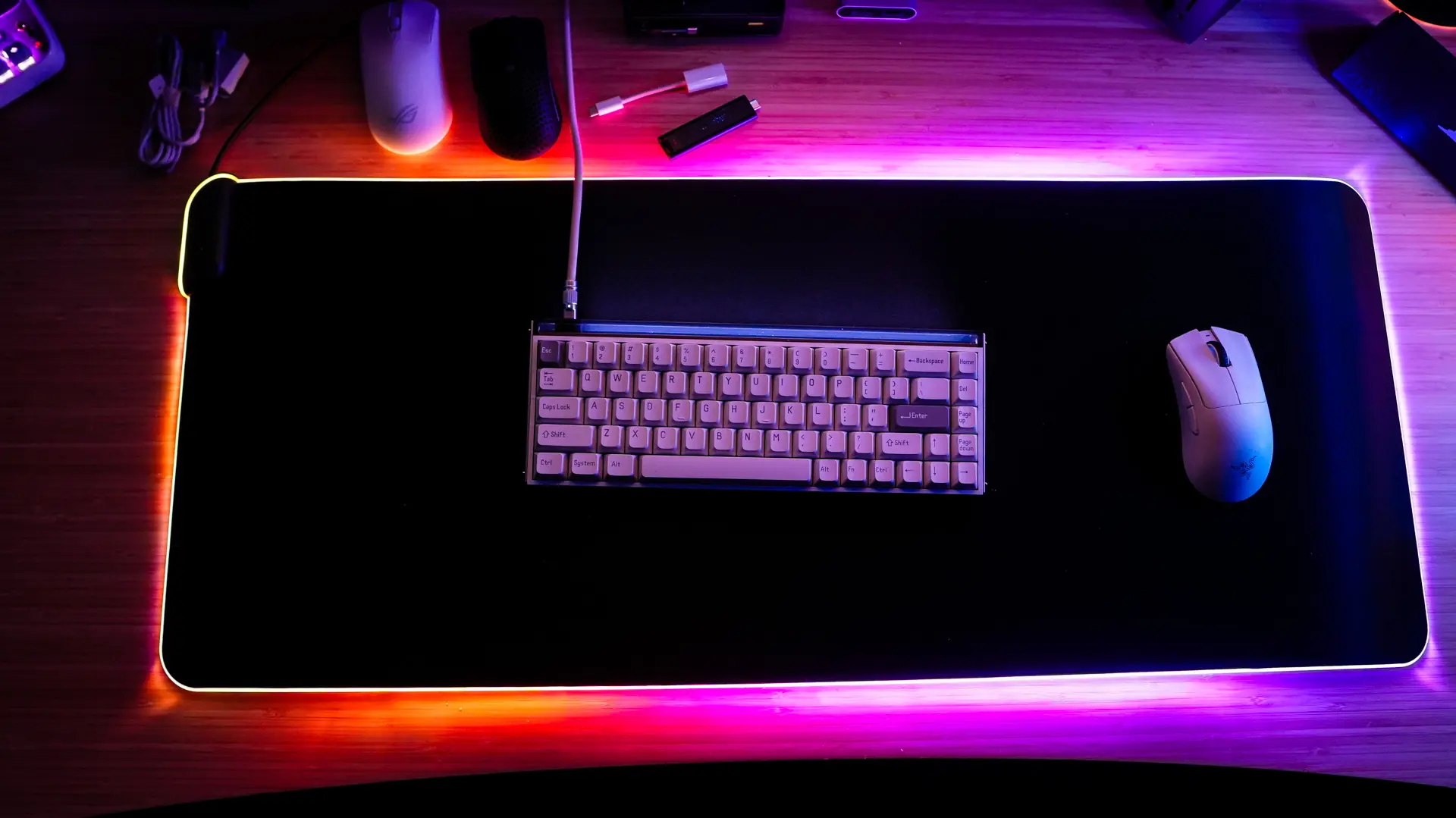
Here are some shots of the CNVS in action! I do have to say it looks quite good!