Logitech PRO X SUPERLIGHT 2 DEX Software
Now you can use the PRO X SUPERLIGHT 2 DEX without any software. You just plug the receiver into a USB port and turn the mouse on and you are good to go.
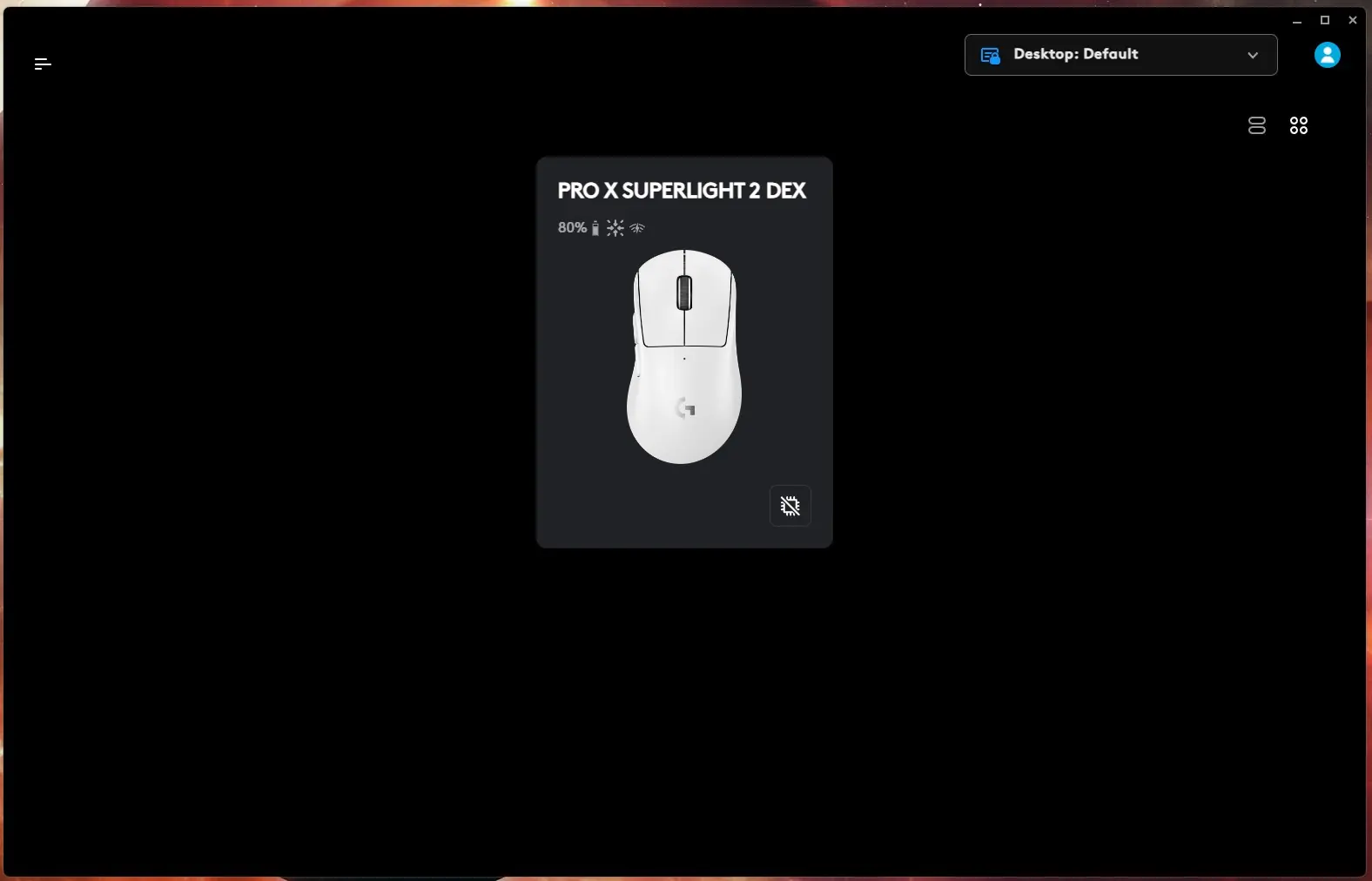
If you want any customization you’ll need to download Logitech’s G Hub software. Once you have the software installed, open it up and you’ll see a list of your connected Logitech G devices. You should see the PRO X SUPERLIGHT 2 DEX listed here. The tile will let you know how much battery you have, if you have LIGHTFORCE enabled, and how the mouse is connected.
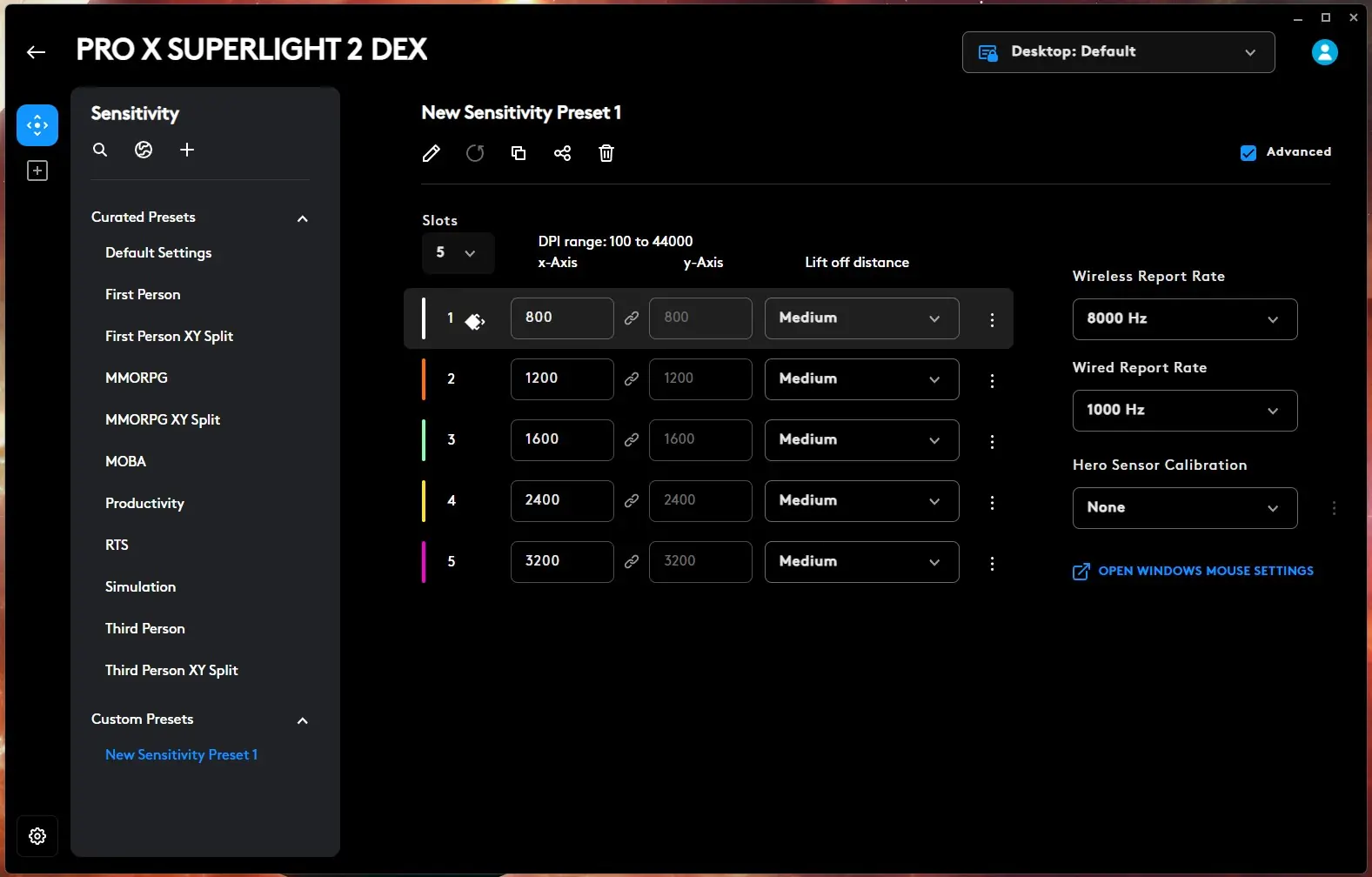
Clicking into the tile we are brought to the Sensitivity settings. There are pre-loaded presets for different games and scenarios. You can create your own preset as well by setting the number of DPI slots (max 5), minimum DPI level and maximum DPI level, lift off distance for each slot, the wireless report rate, the wired report rate, and the sensor calibration.
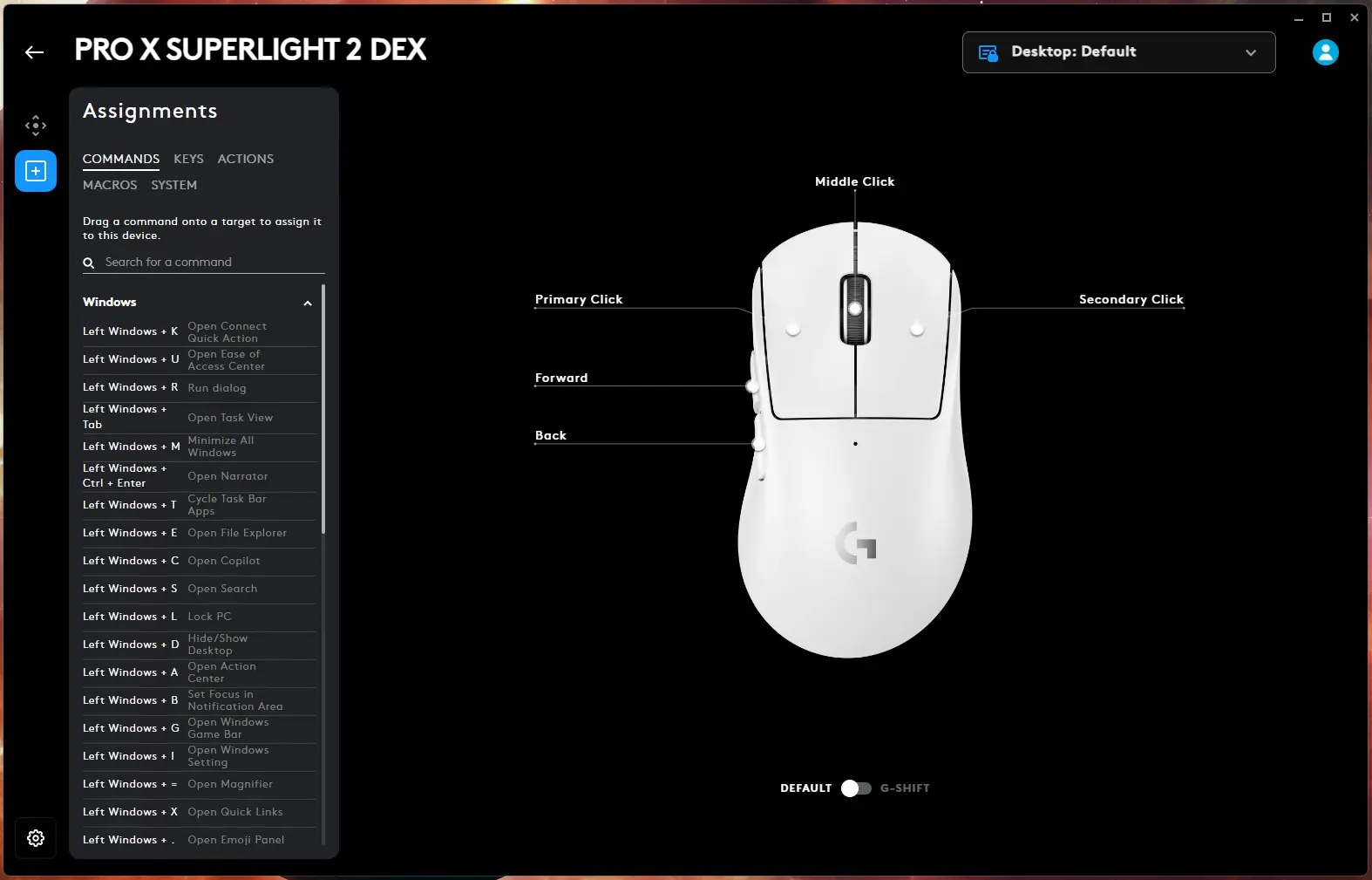
We can go into the assignments menu to reprogram the mouse and Logitech essentially has every command, shortcut, etc that you would want here.
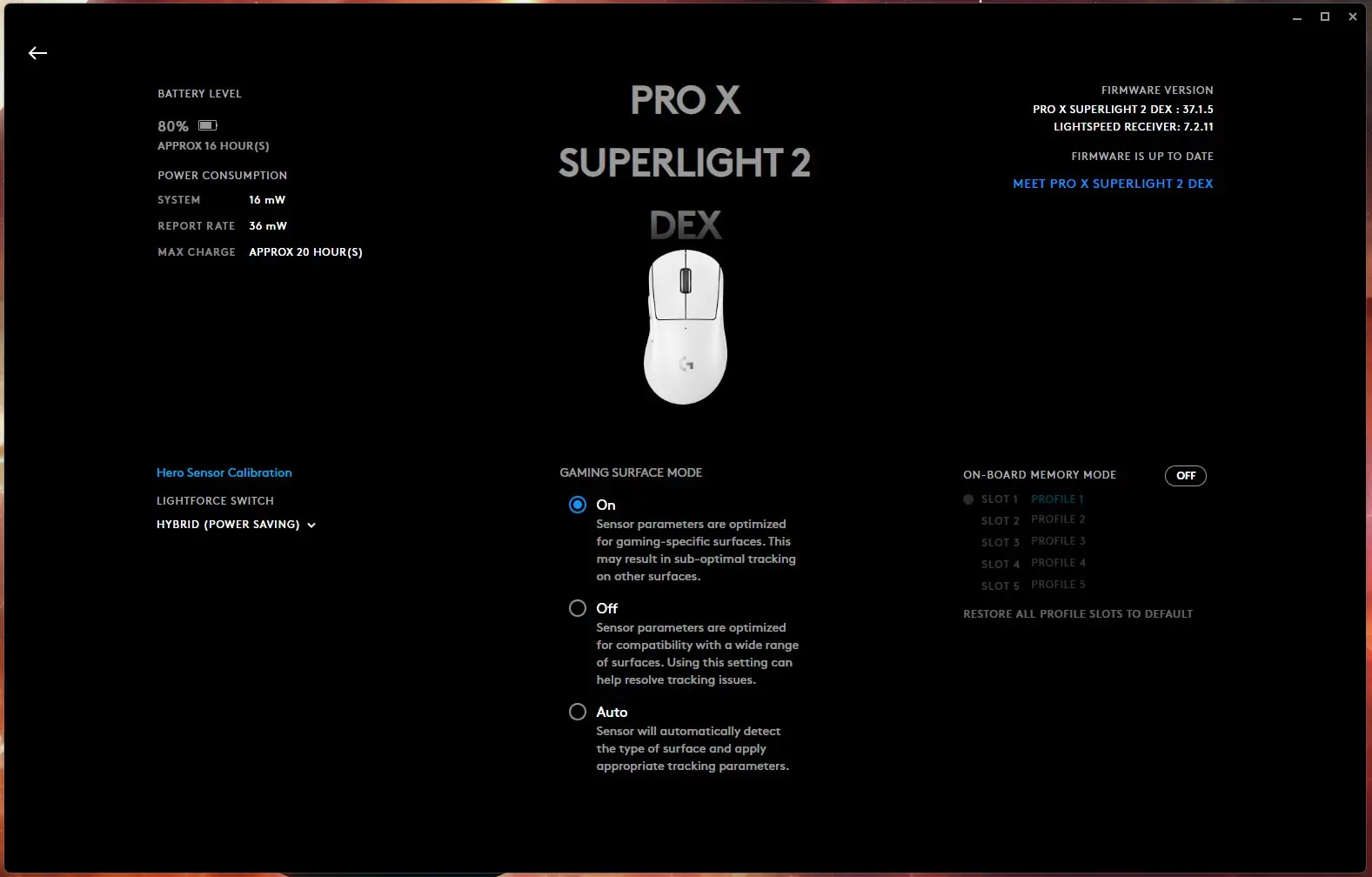
If we go down and click on the small gear icon it brings up some more information on the mouse and a few more settings. One of those is setting the gaming surface mode.