Setting up the MCHOSE x Unbox Therapy UT98 Mechanical Keyboard
Getting this keyboard setup is extremely easy. If you plan to use the keyboard wired, just simply plug it in. If you want to use the 2.4 GHz dongle, just plug that in and switch the keyboard to 2.4 GHz mode, it will automatically pair. If any of the modes there are no drivers or anything like that to install.

Lighting on the MCHOSE x Unbox Therapy UT98 Mechanical Keyboard
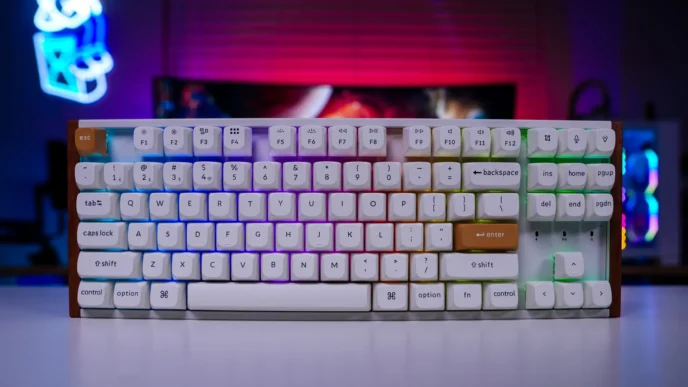
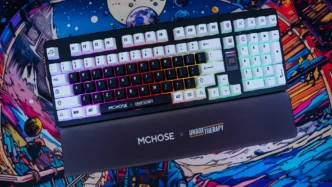
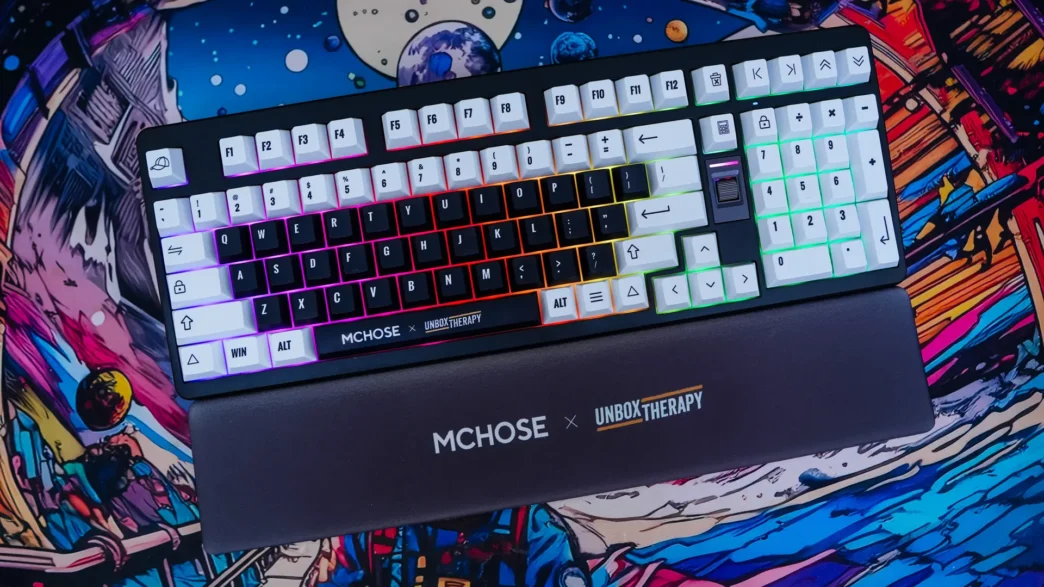
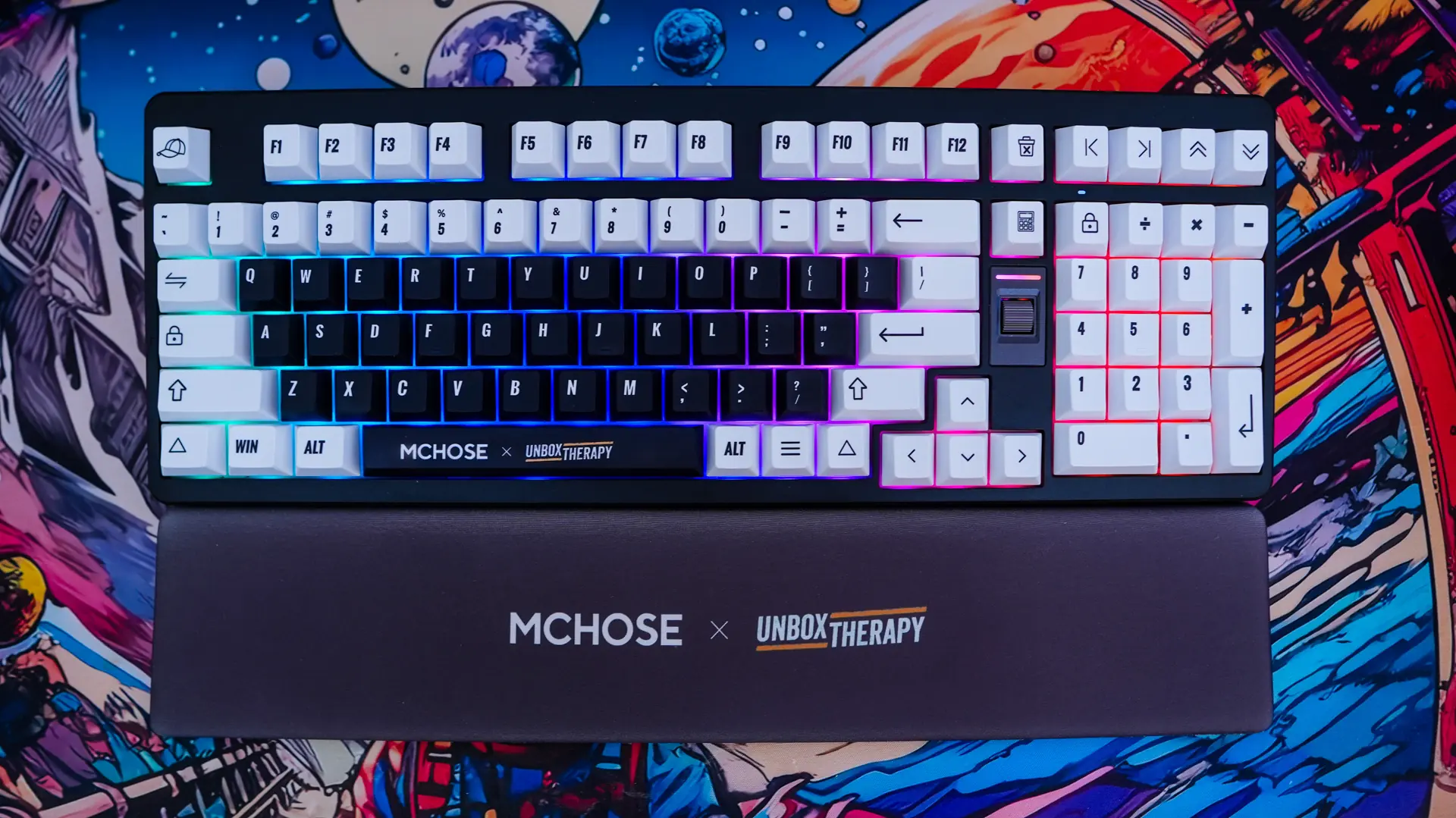
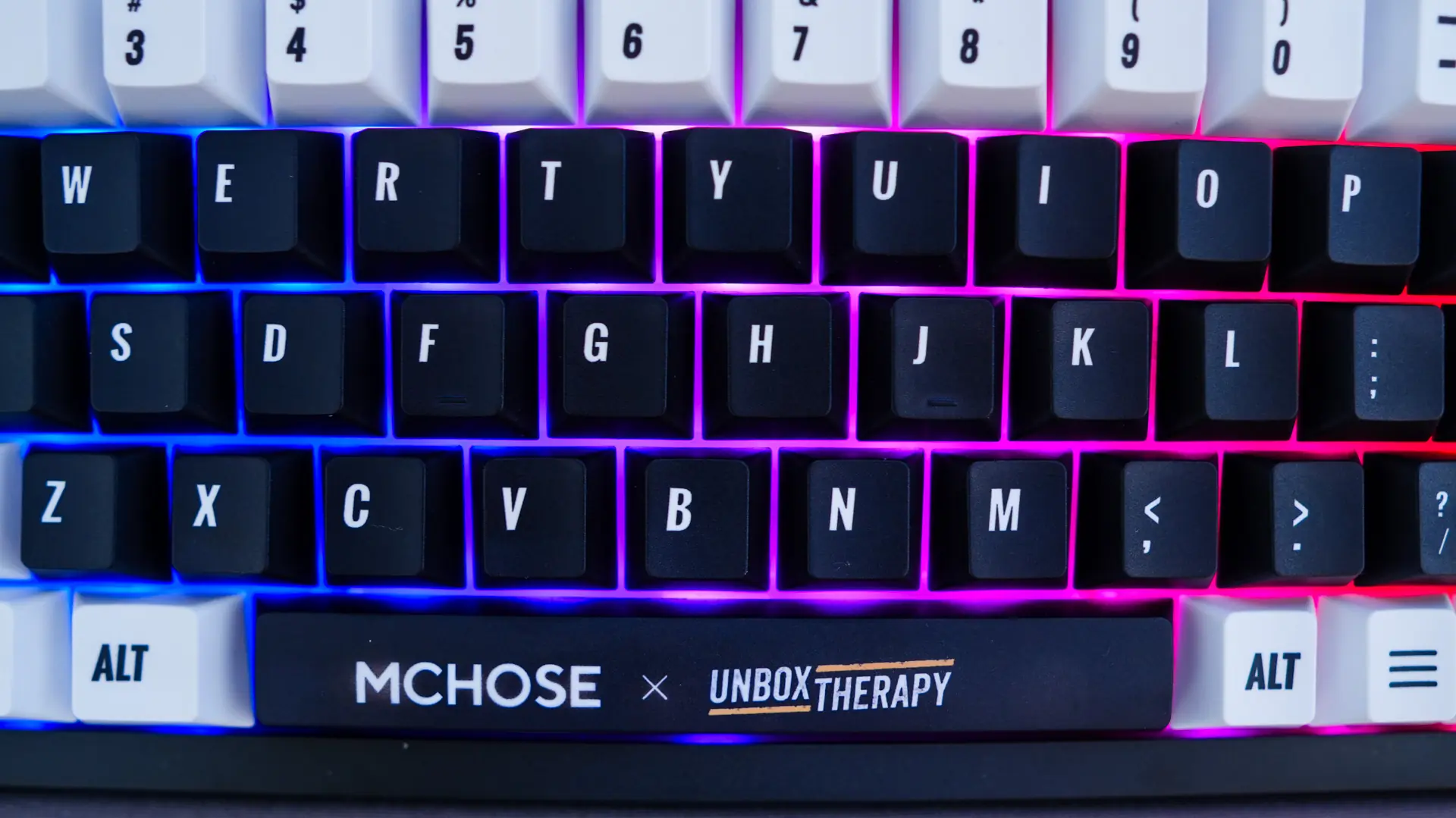
This keyboard does offer per-key RGB lighting. Now since we don’t have see-through legends on the keycaps the lighting will really only be able to be seen between the keycaps. It doesn’t look half bad though.
Configuration Software for the MCHOSE x Unbox Therapy UT98 Mechanical Keyboard
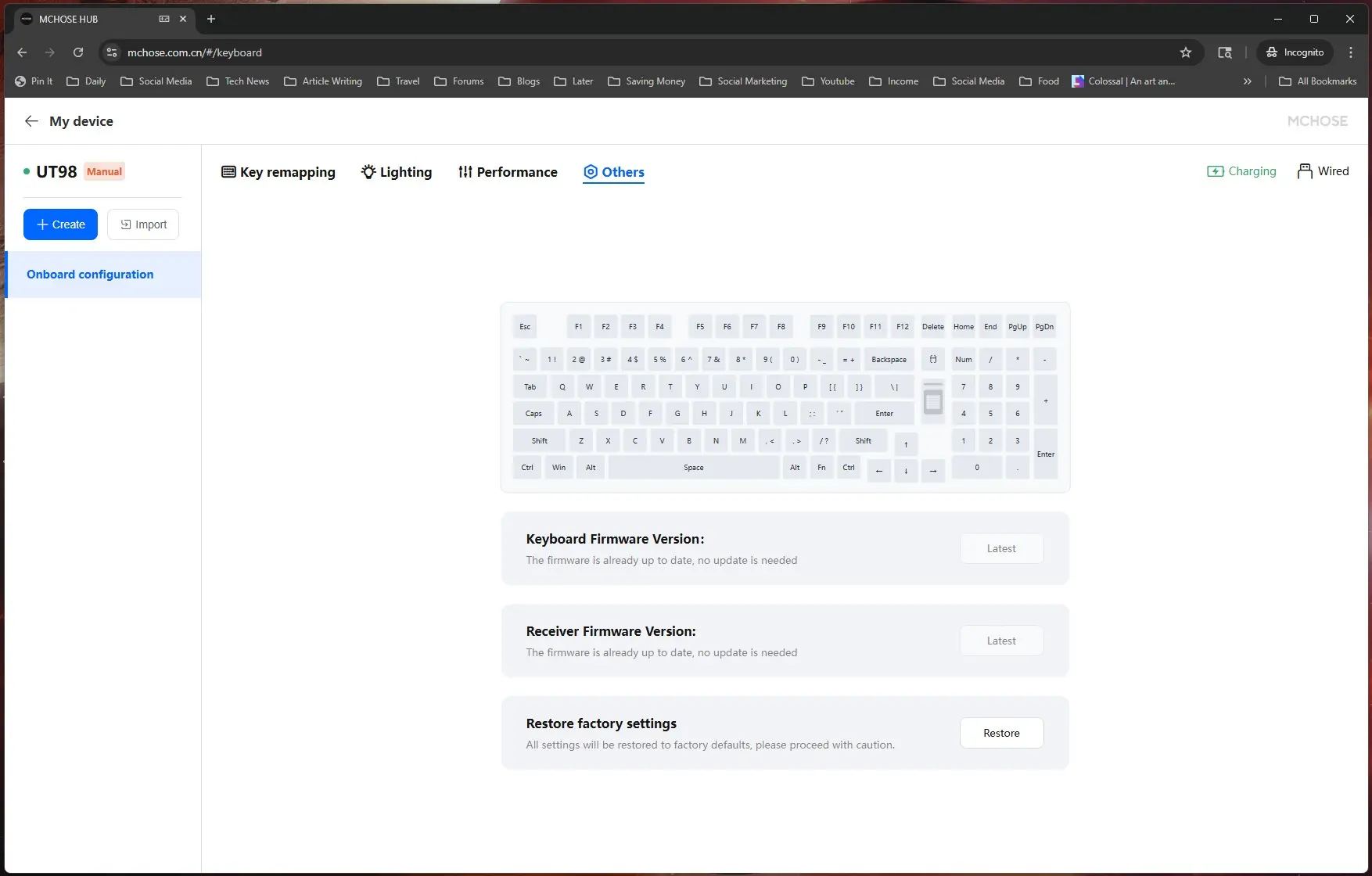
MCHOSE offers either an app you download to configure the keyboard, or web-based configuration. I opted for the web version, which does work in Chrome, Edge, and Opera browsers.
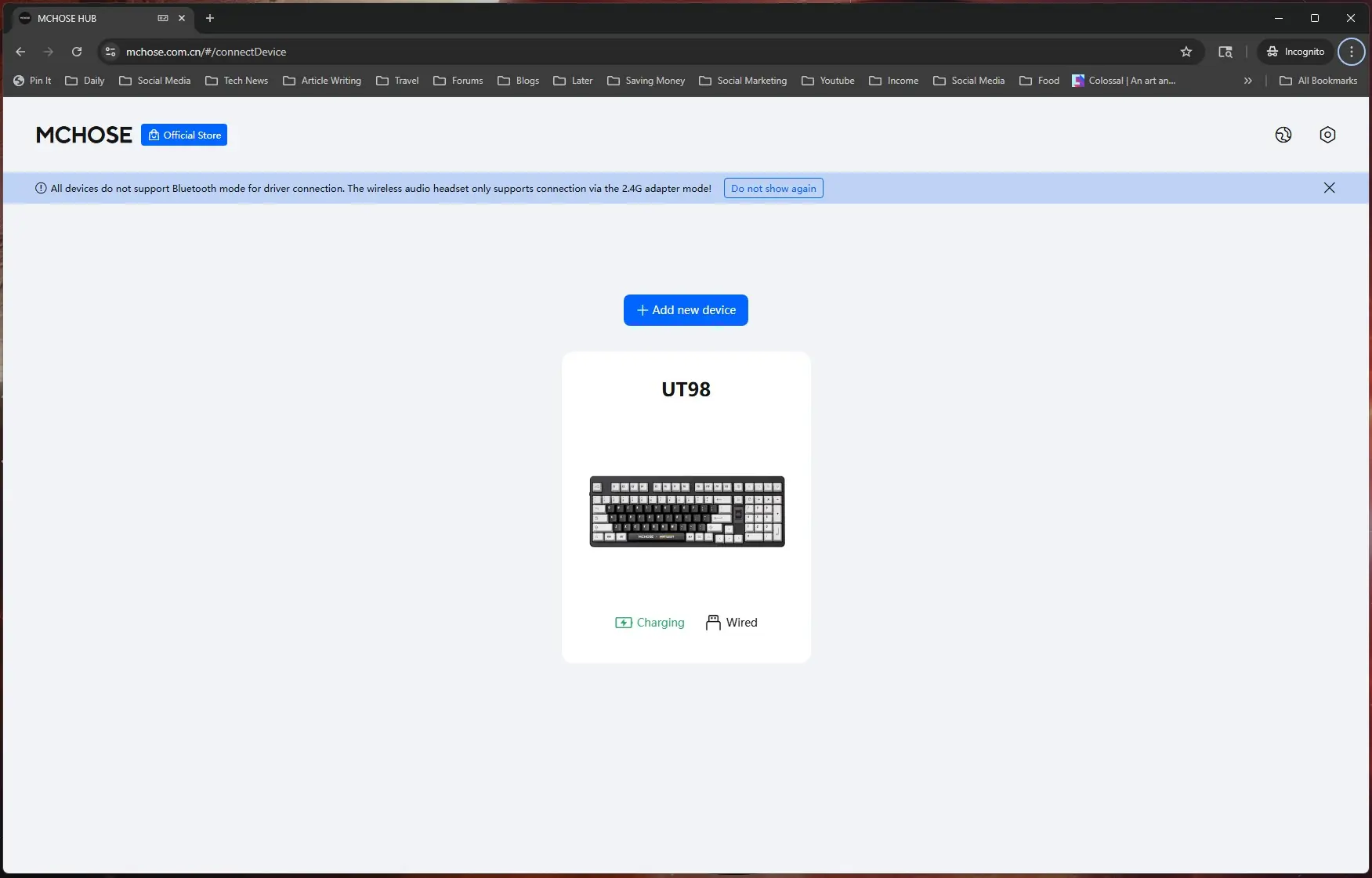
Once you select your keyboard it should show up. The main screen will let you know how charged up it is and the connection mode you you have it in.
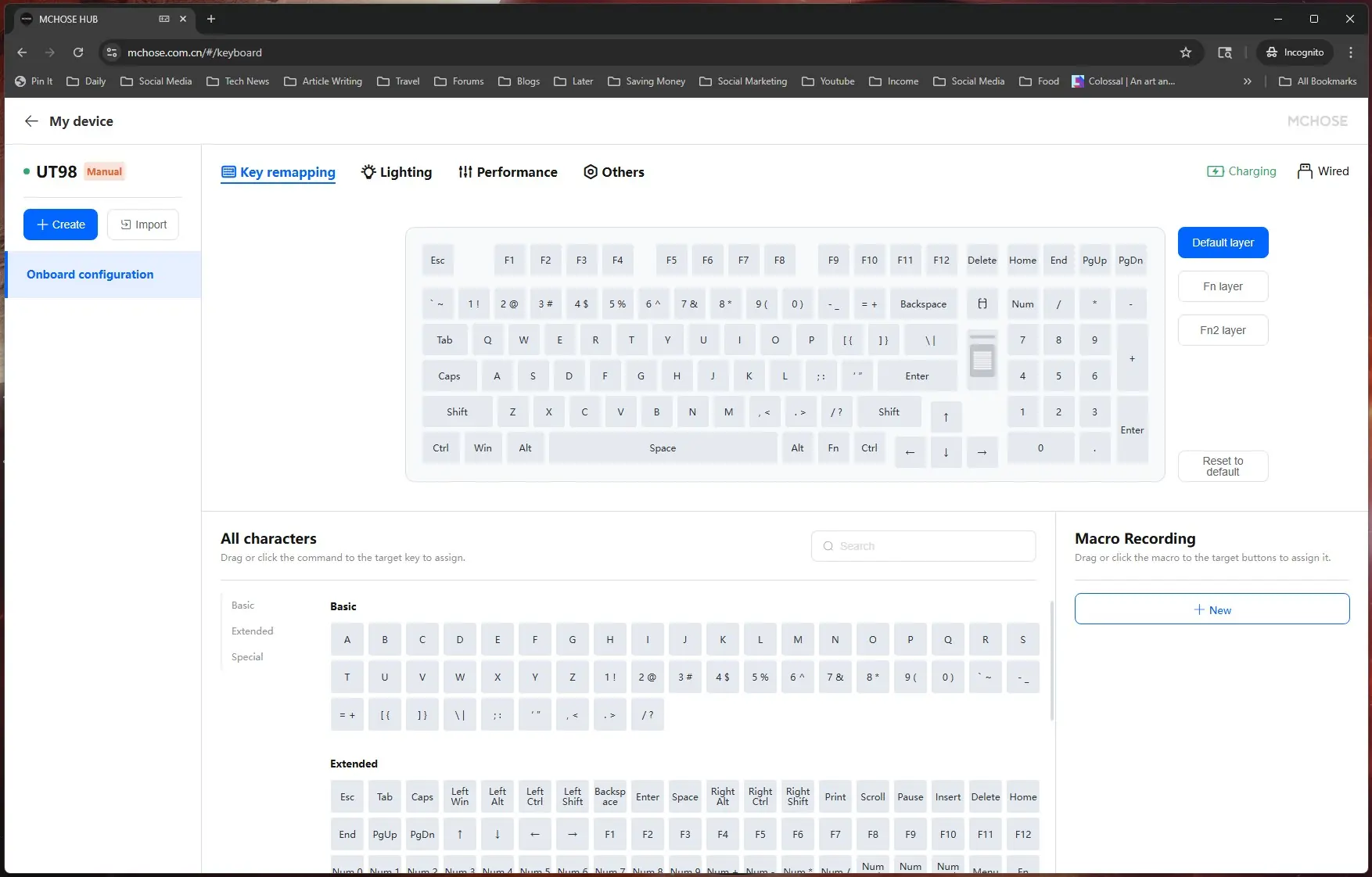
Clicking into the keyboard the first thing we can do is remap the keys. The is a default layer, Fn layer, and Fn2 layer and you have the ability to create multiple profiles. Each key on the keyboard is fully reprogramable and you can easily create and manage macros here too.
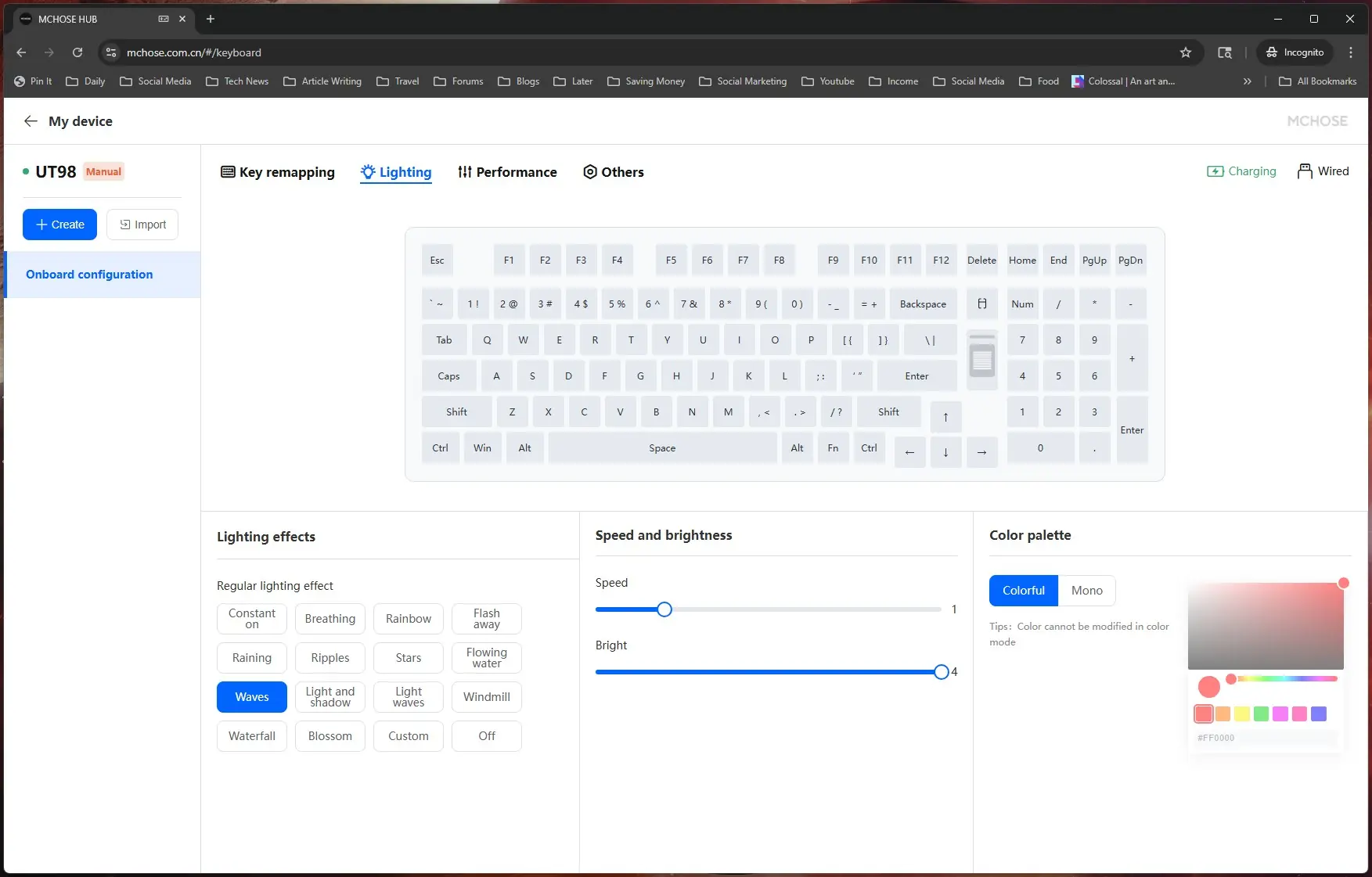
Next we have lighting where we can set an effect for all of the keys on the keyboard, or go into Custom and set per-key lighting.
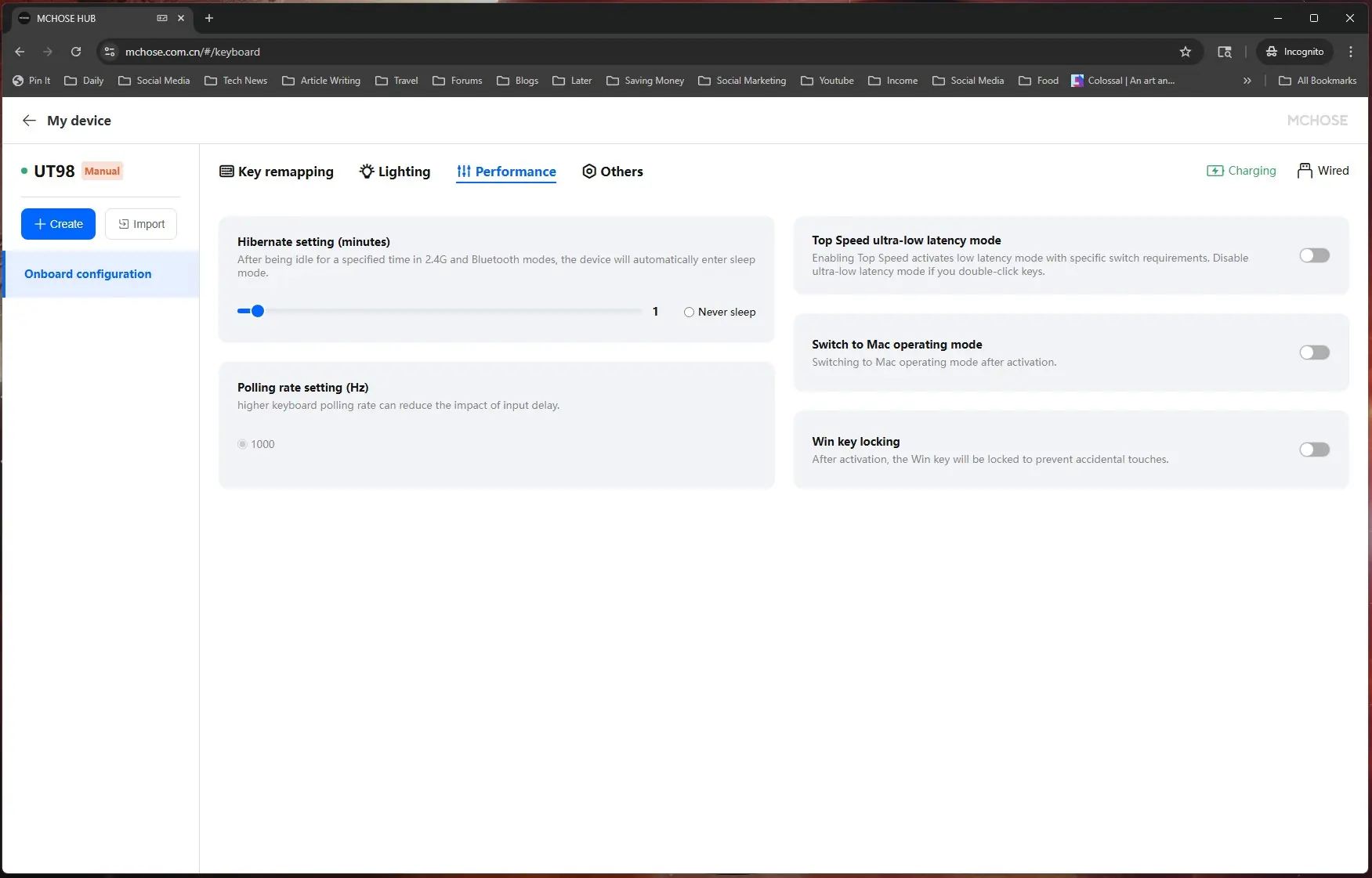
Under performance you can set how long till the keyboard sleeps when in wireless mode, the polling rate, if you want it in ultra-low latency made, switch it over to Mac, and enable Windows key lock.
Finally in the other section you can update the firmware or restore the keyboard to factory settings.