Installation of the Scythe Mugen 6 DBE CPU Cooler
We will be doing our installation on an Intel Z490 system so this installation would be pretty much the same for Intel LGA 1200, 1150, 1151, and 1155 sockets.
The first thing you are going to want to do is find the backplate. The pegs will already be installed on it, but you may need to adjust them depending on your socket. Carefully attach the backplate to the backside of your motherboard making sure the pegs go through the holes on your motherboard.
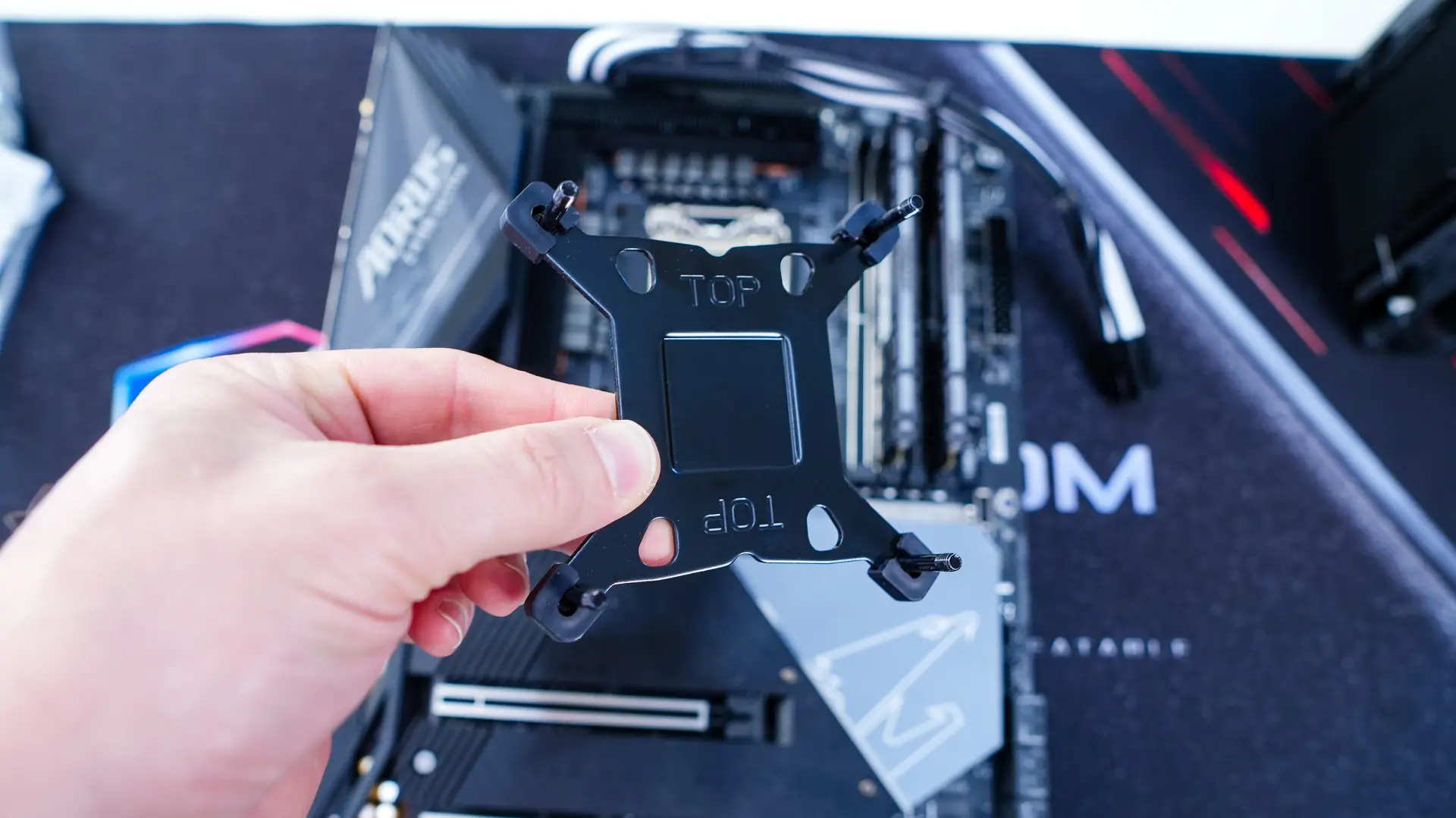
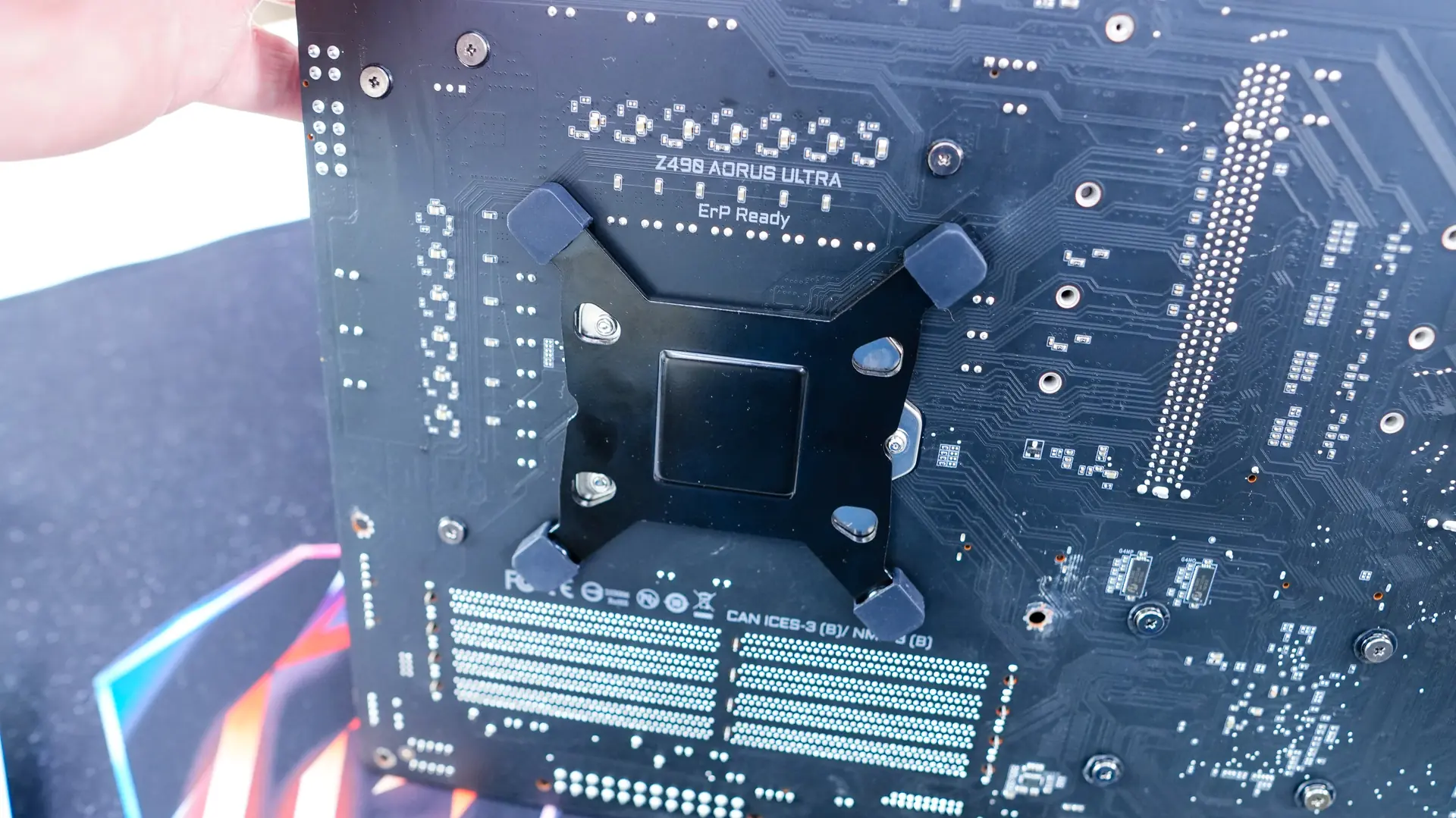
Next install the Intel spacers. Be sure to install them with the rubber side facing down. Take the Intel mounting bars and install them onto the pegs like you see in the photo below. Use the included thumbscrews to lock the mounting bars in place. You can install install your thermal paste at this point.
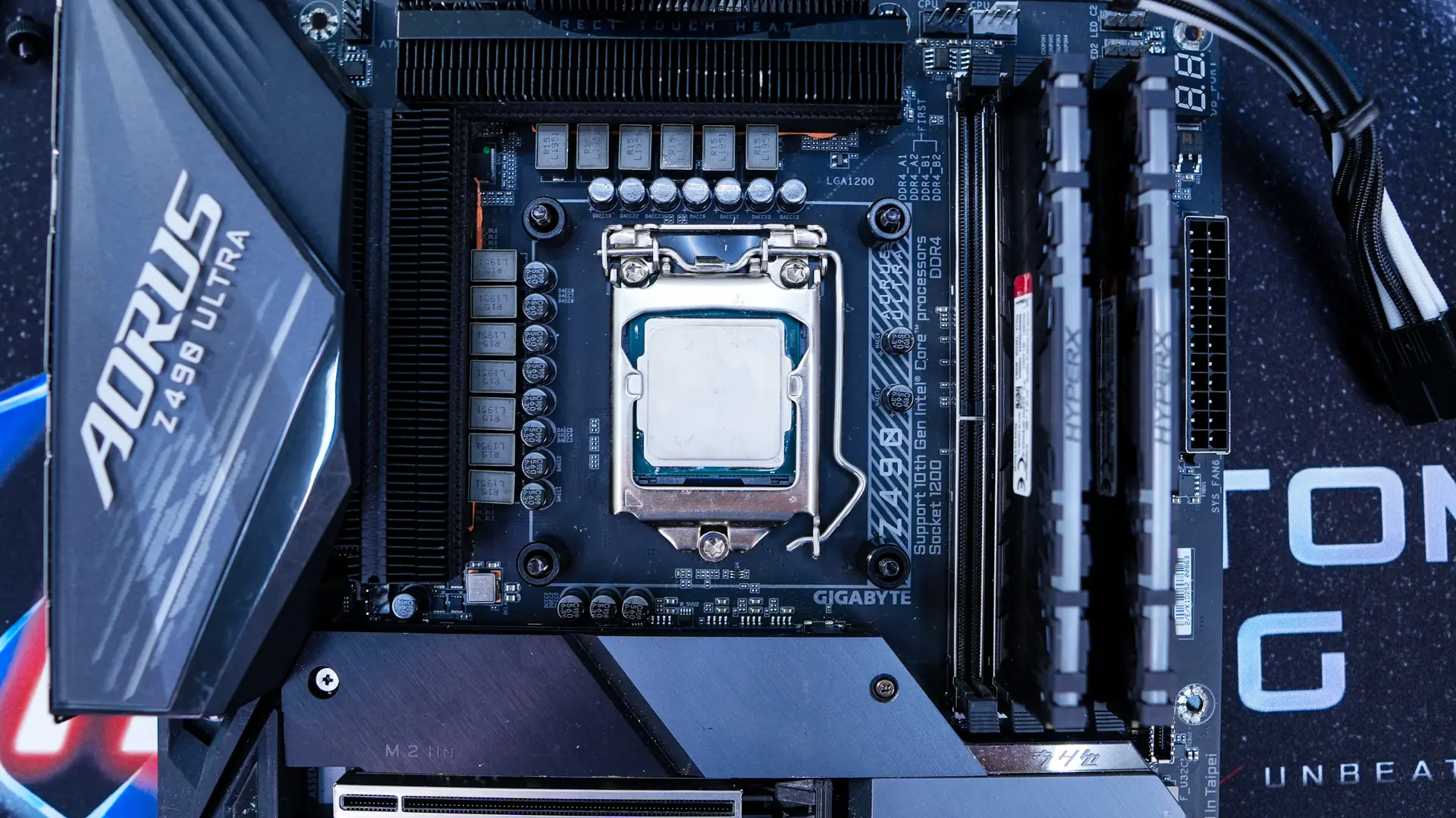
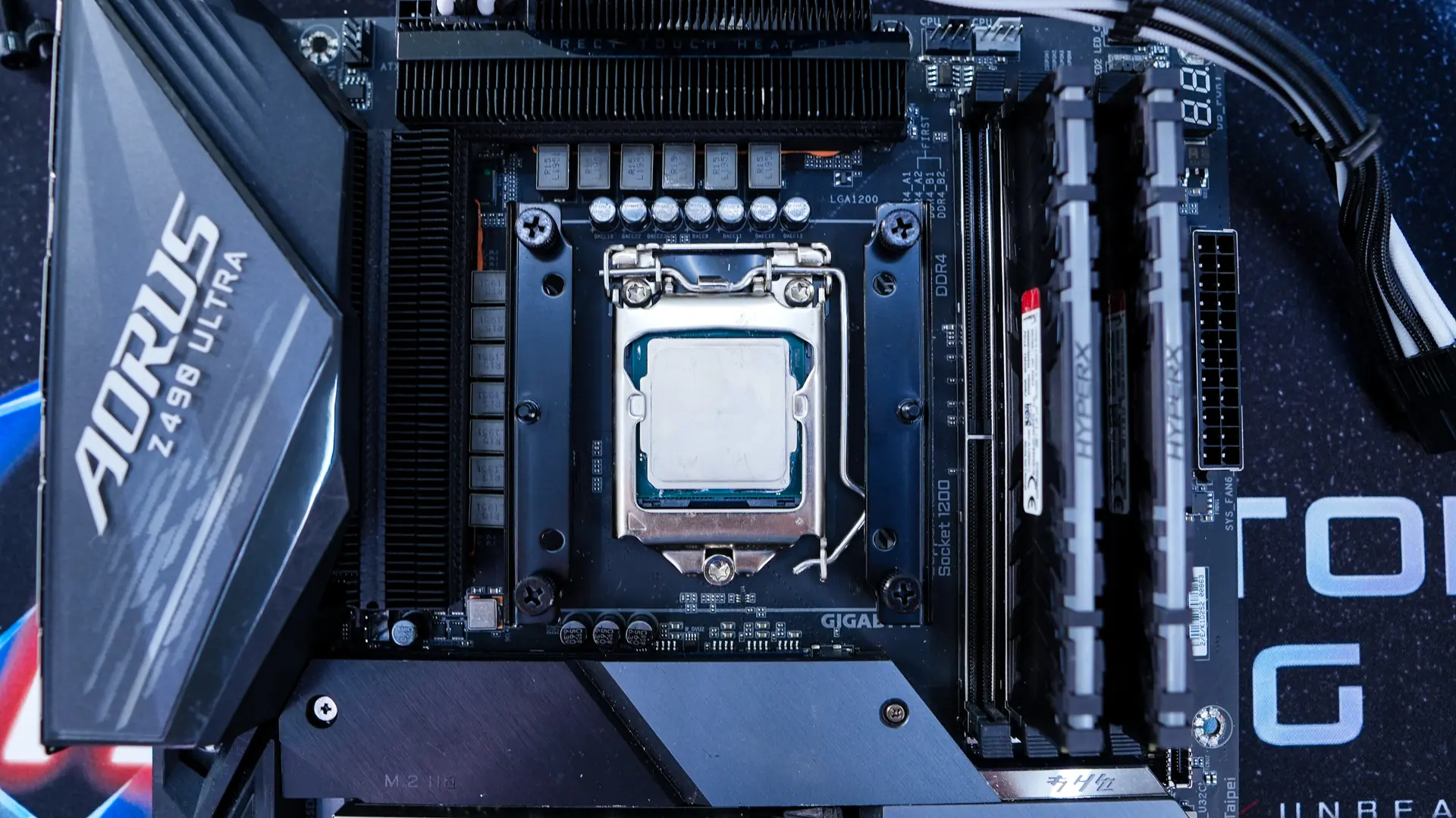
Carefully take the cooler and place it on top of your CPU, lining up the screws with the holes in the mounting bars. Using the included screwdriver place it down through the top of the cooler and secure the cooler initially that way, and then tighten the screw on the front of the cooler as well.
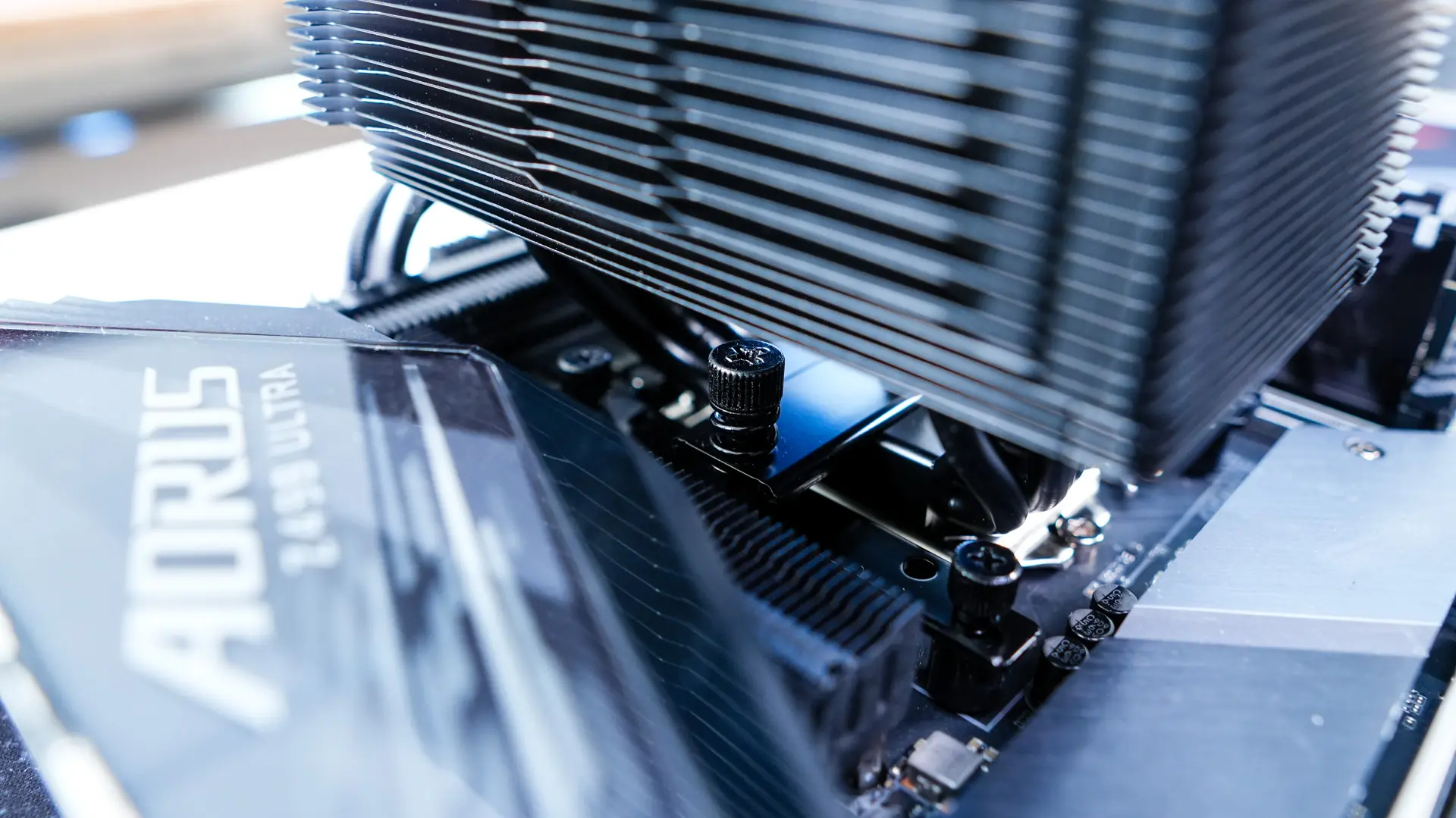
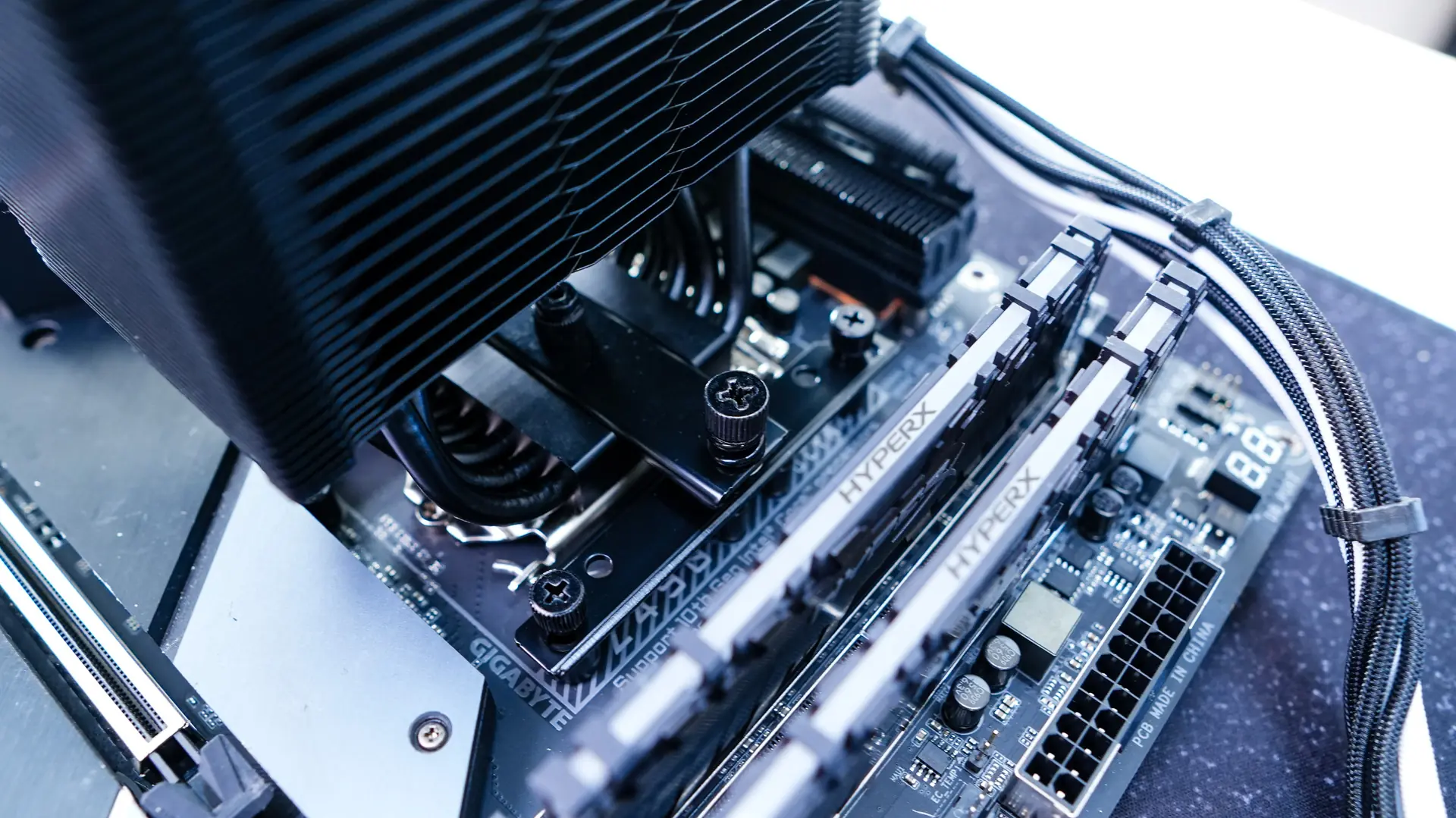
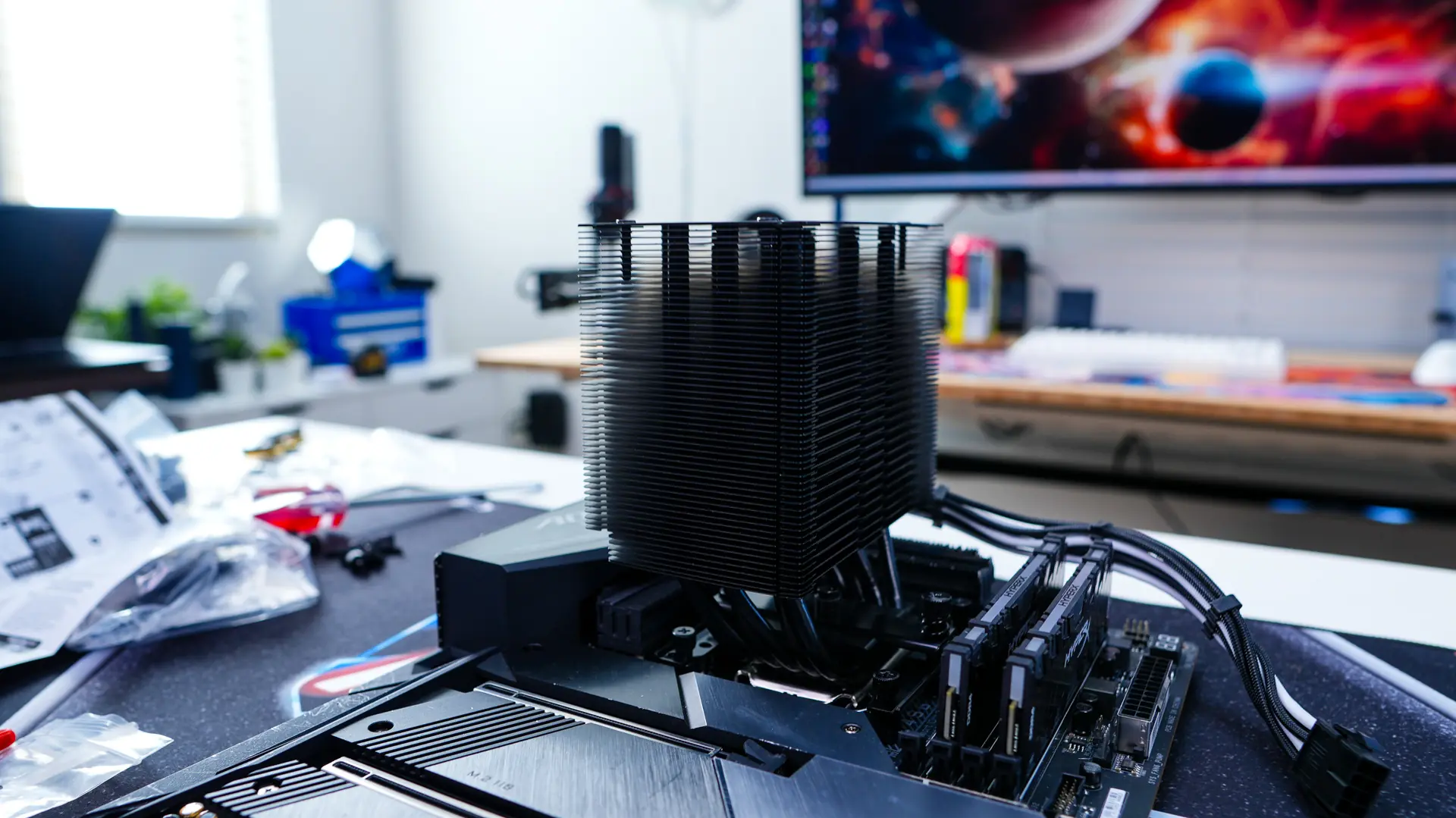
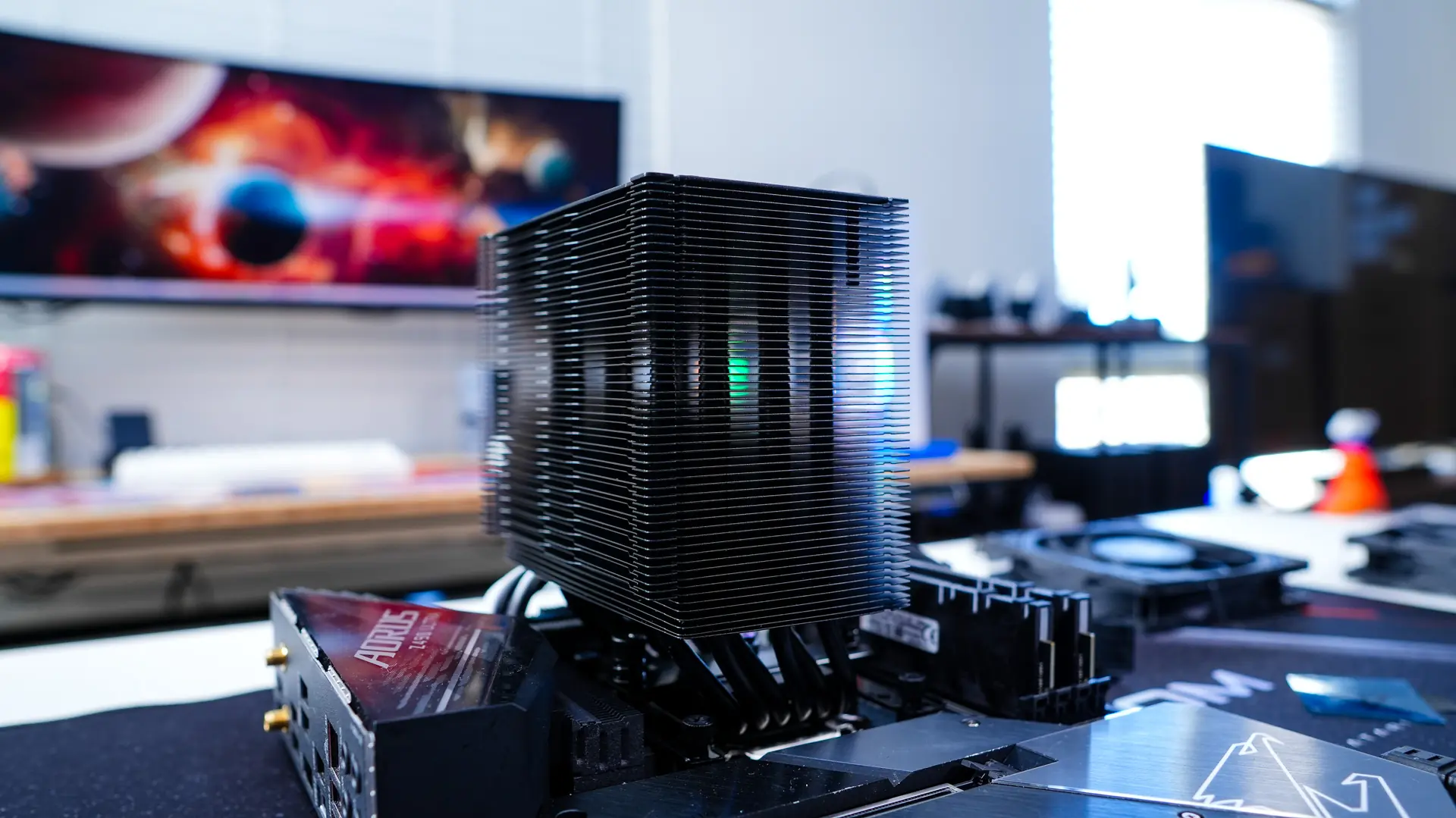
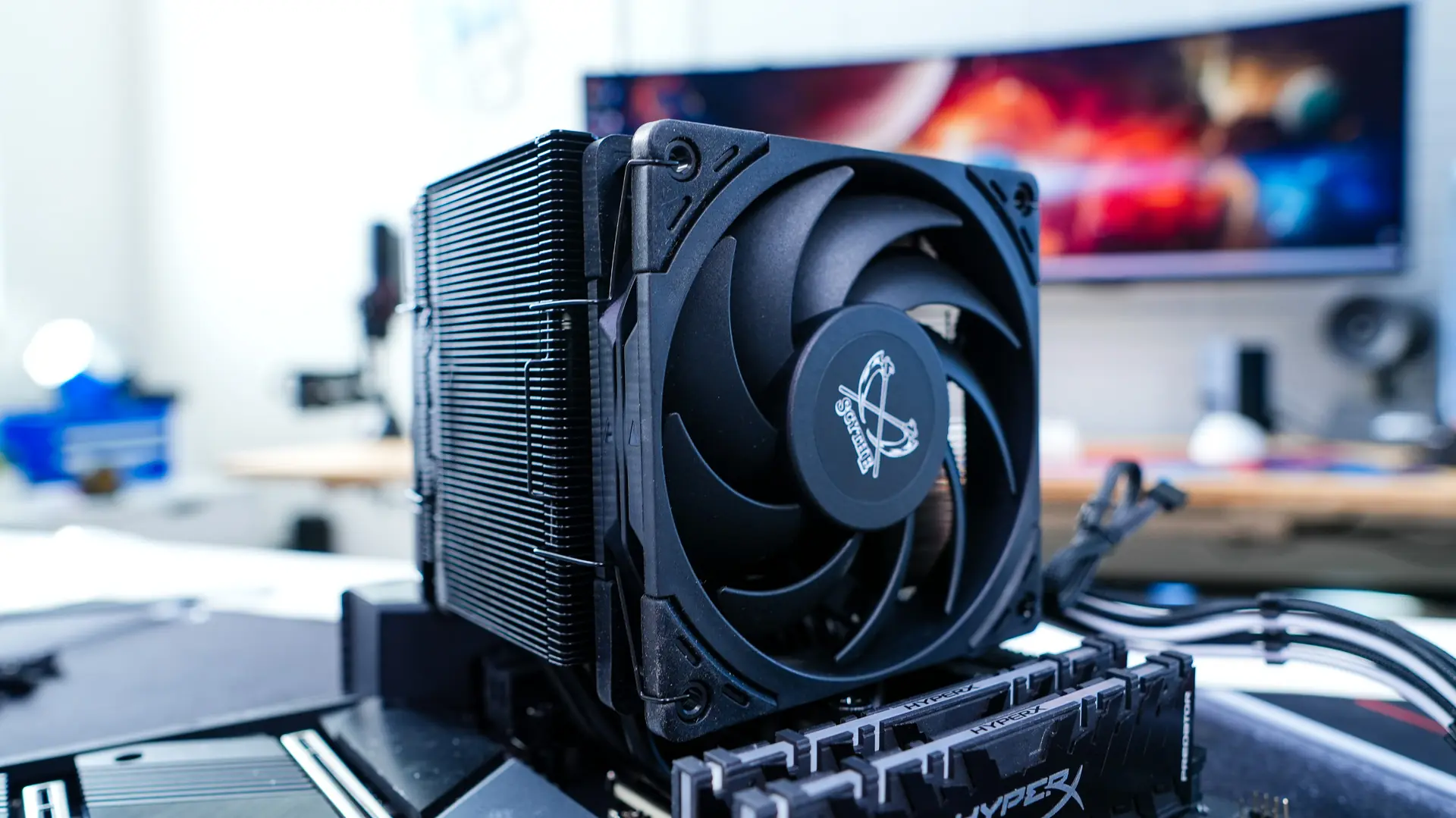
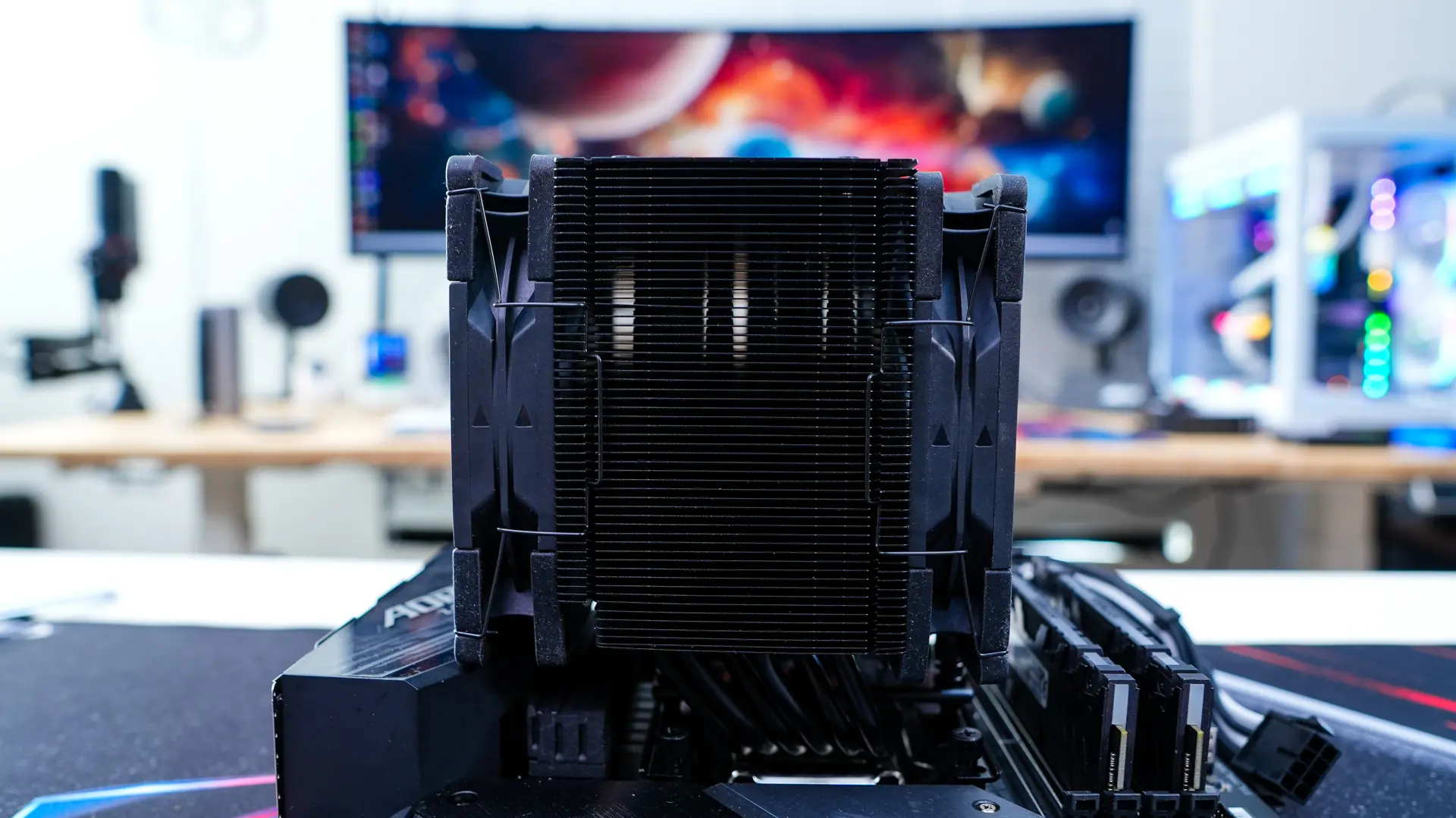
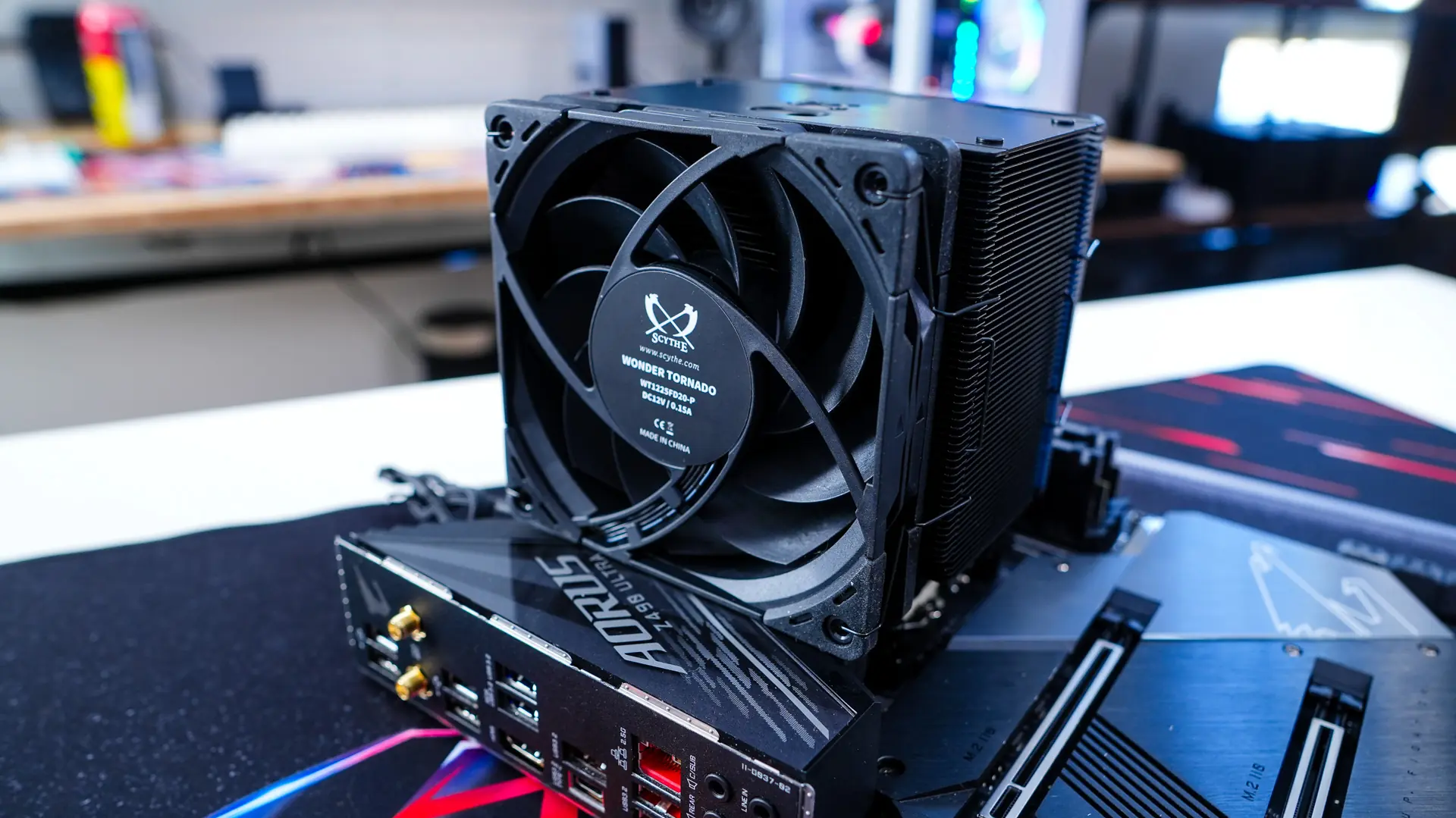
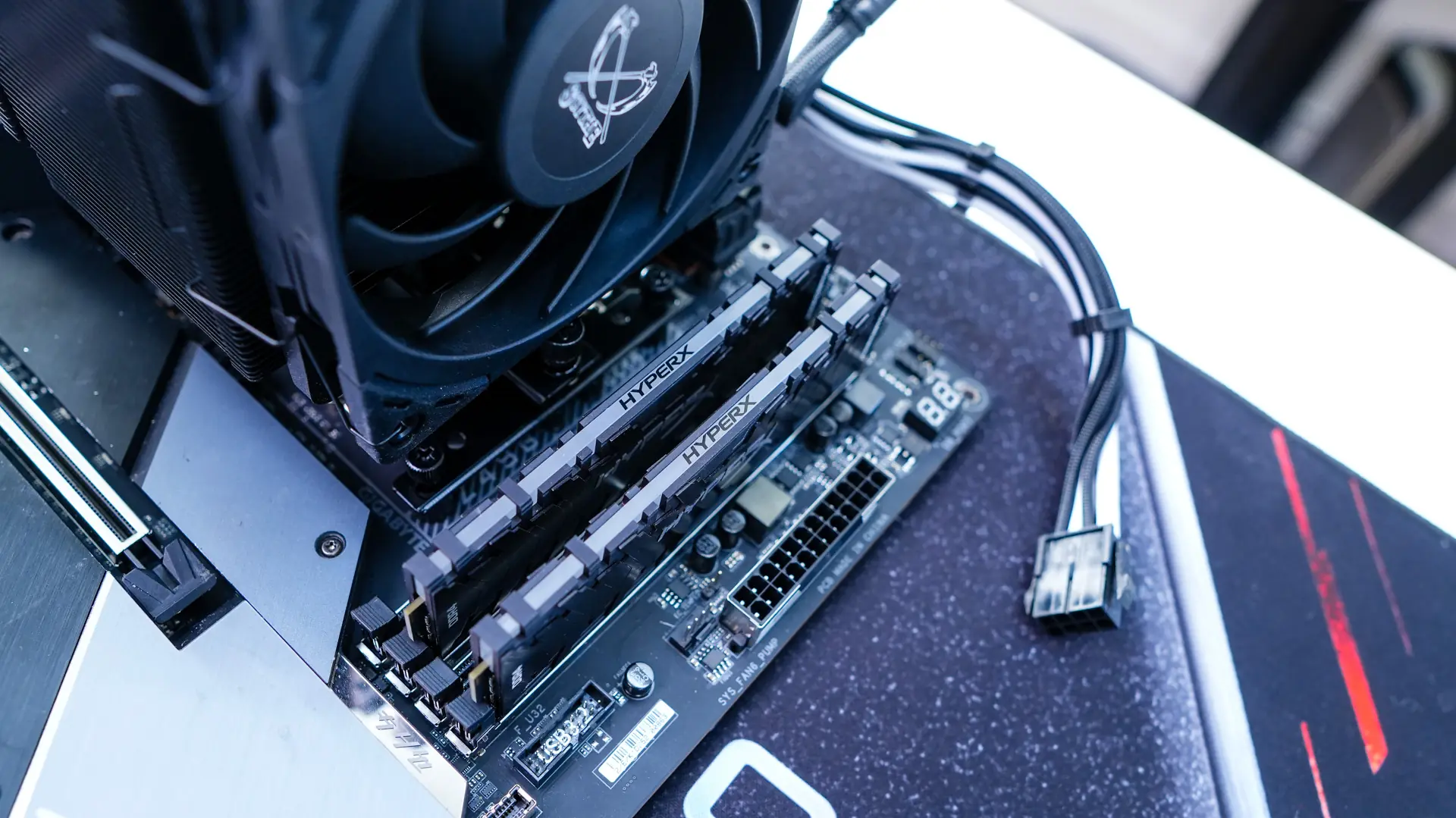
Finally go ahead and install your fans on the front and back of the cooler using the included fan clips. Be sure to plug the fans into the included splitter than then plug that into the CPU fan header on your motherboard. I did notice that the back fan essentially sits on top of our rear I/O cover. We do of course have 100% RAM clearance.