
Setting up the SteelSeries Arctis Nova Pro Omni Headset
One of my favorite things about the Omni is the ability to connect, control, and listen to up to four audio sources all at once. With that level of versatility, it does add a bit of complexity to the setup, should you choose to use it in a multi-device setup, and why wouldn’t you if you chose the Omni? To start, you will need to make sure you have charged at least one of the batteries, either via the GameHub or the headset itself. With power for the headset out of the way, the next logical step is to connect the GameHub’s USB 1 connection to your system via the included USB cable. Windows automatically added the device, making it readily available as an output option in our sound settings.
Next up you will want to focus on the additional audio sources you would like to connect to the GameHub. My testing scenario is quite simple, with the GameHub connected to my test PC via USB 1, and an original Nintendo Switch connected via USB 2. This left the USB 3/XBOX port open for future connectivity, and the 3.5mm Line-In and Line-Out options available for further expansion as well. My Pixel 8 Pro was then connected via Bluetooth for a total of three devices. The headset is already paired to the Gamehub, so no need to worry about getting those two devices talking to each other.
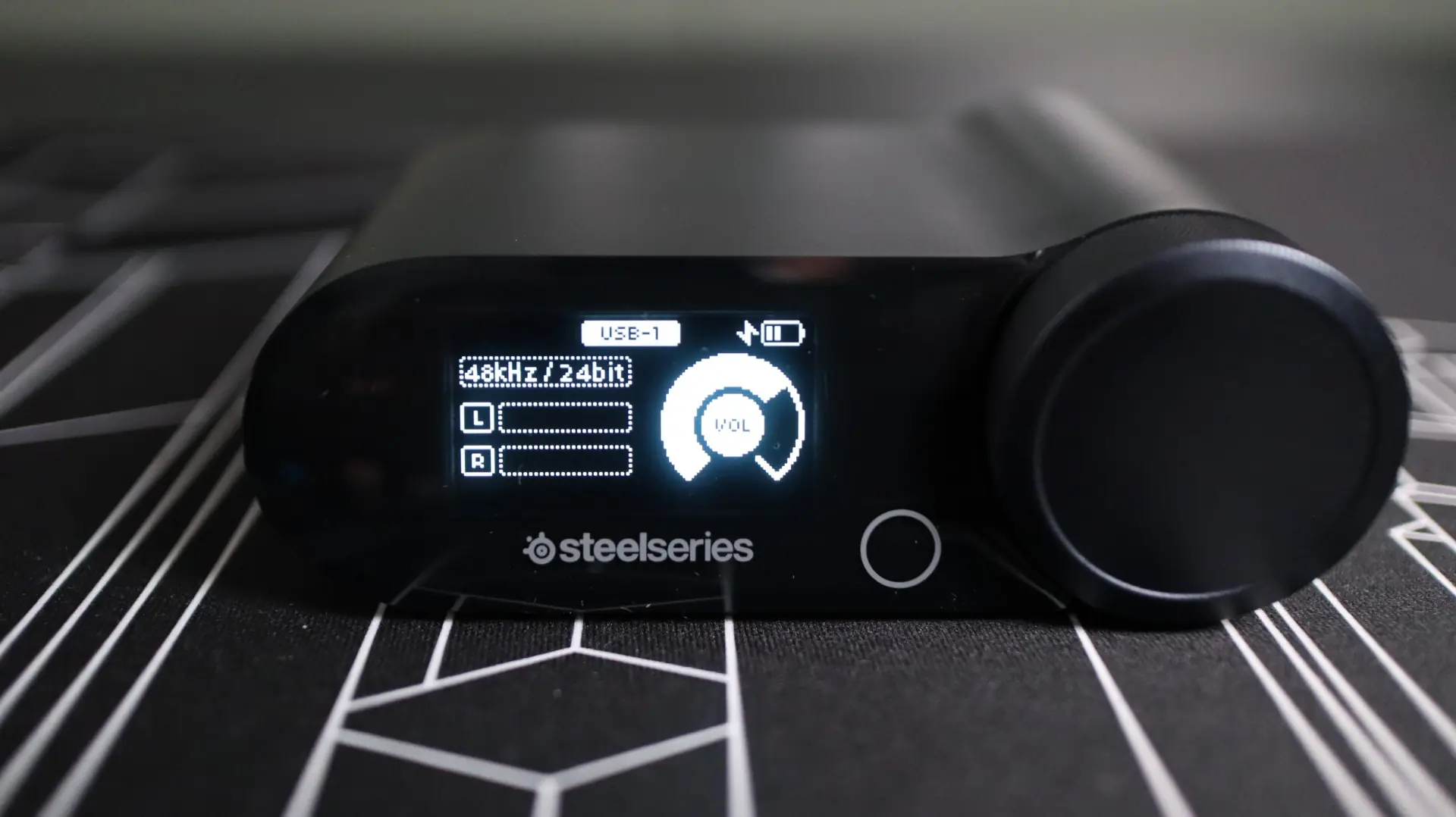
Now, you can certainly start using the Arctis Nova Pro Omni right away, but you can also utilize SteelSeries’ GG application, or the Arctis app, for ultimate control over each physical source connected to the GameHub, and even each individual application running on your PC.
Software for the SteelSeries Arctis Nova Pro Omni Headset
Home
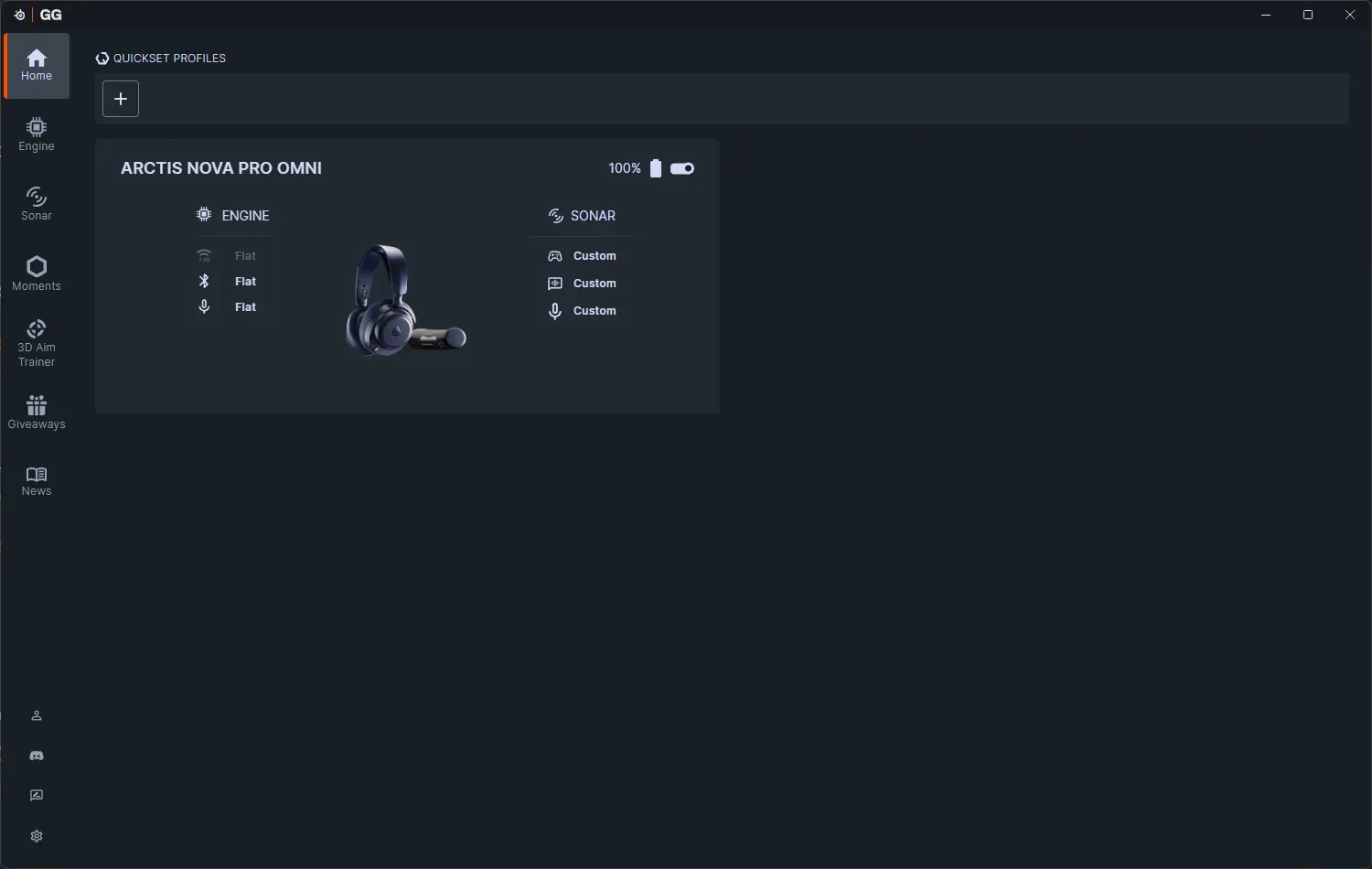
From the Home tab you get a quick view of all of your compatible SteelSeries devices that are currently connected to your system. Here we can see the Arctis Nova Pro Omni and a quick view of some of the sound settings of the headset.
Engine
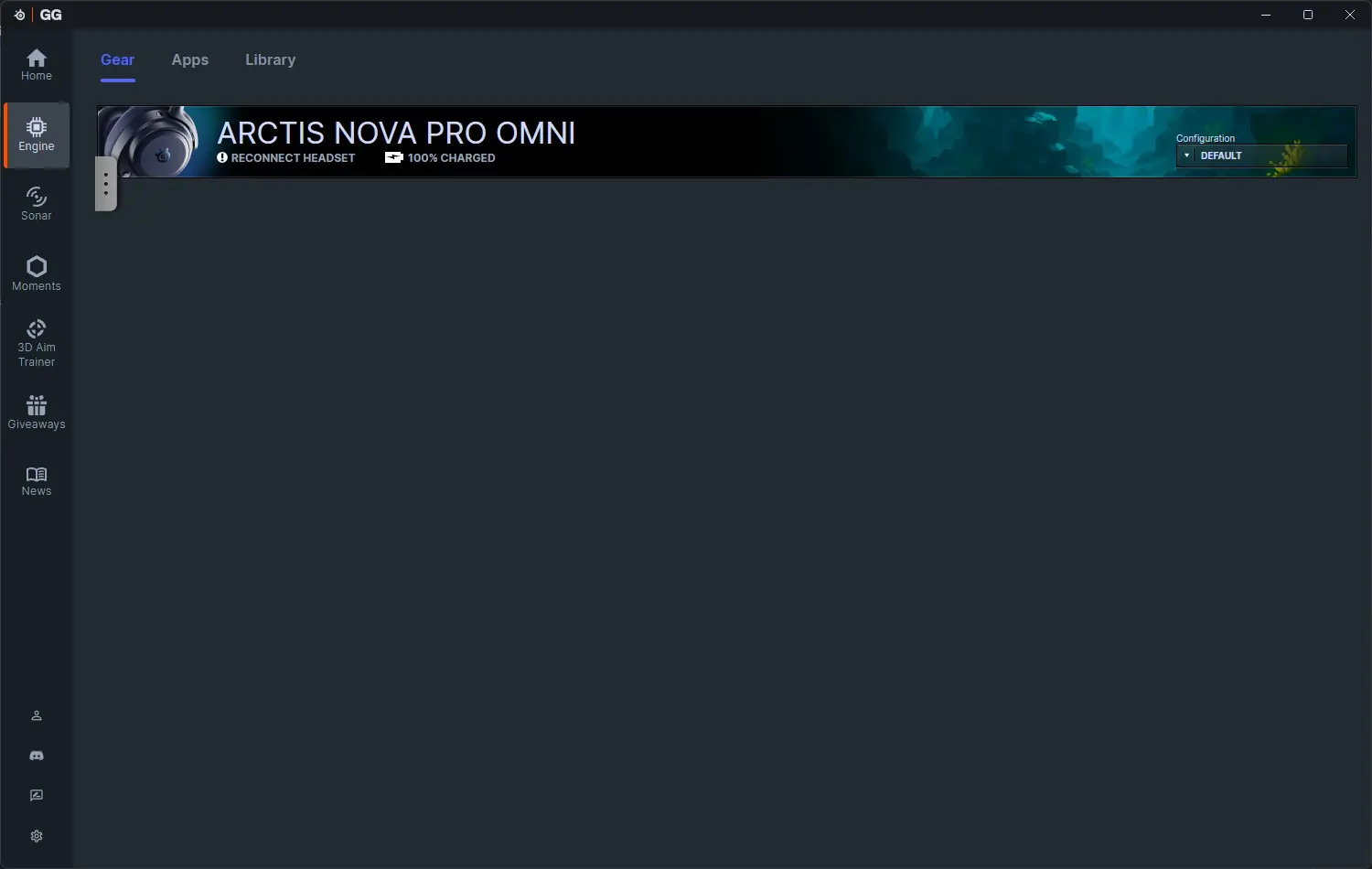
The Engine tab offers a couple of sub menus – Gear, Apps, and Library (replaced with the Quickset profiles available from the Home tab). The Gear menu allows you to select the headset, and when you do, you are presented with another window that lets you make adjustments to your audio settings, microphone settings, and general headset settings.
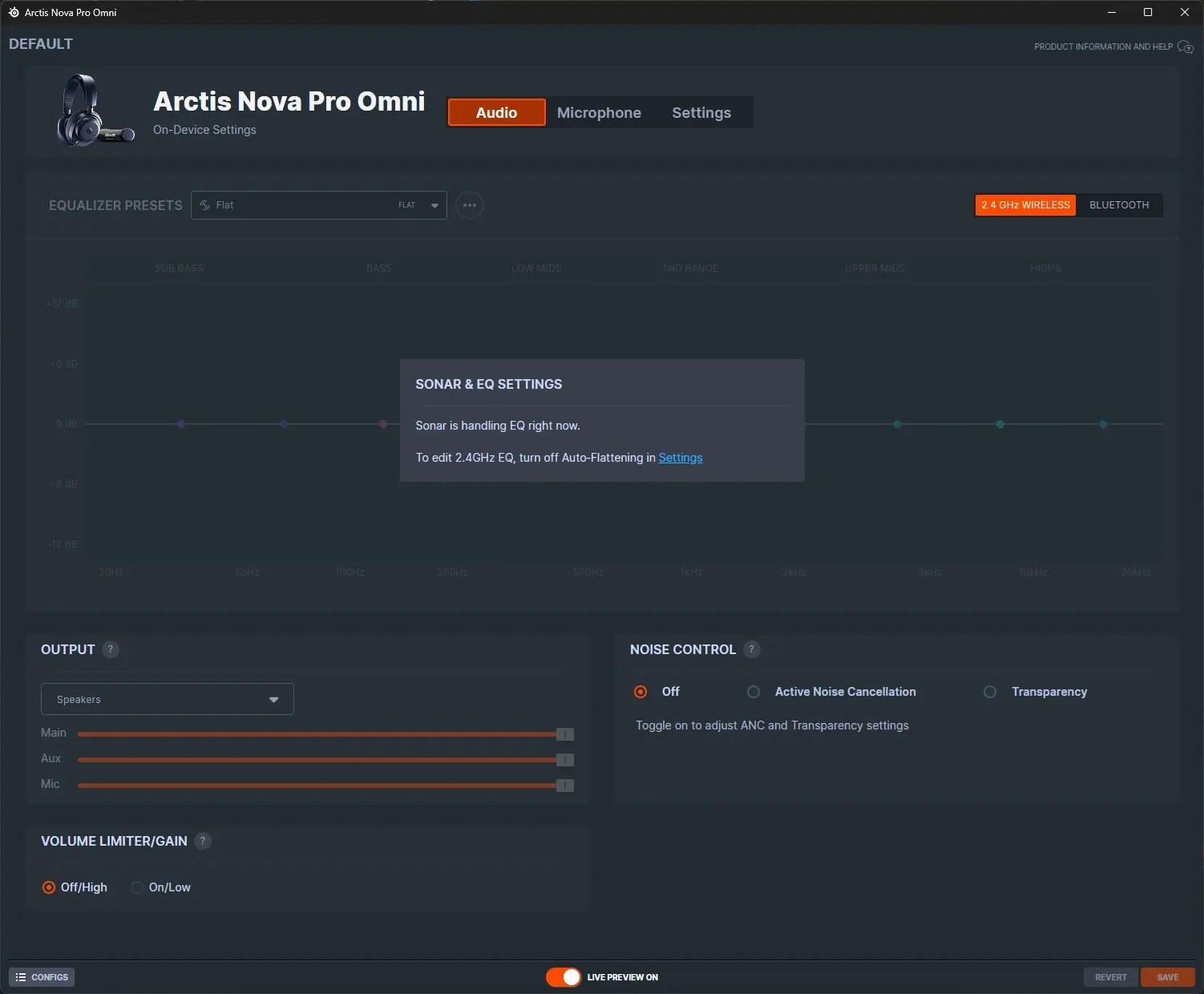
The Audio section is used when you don’t have the Sonar option enabled for the headset, and offers EQ controls, output levels, noise control settings, and volume limiting.
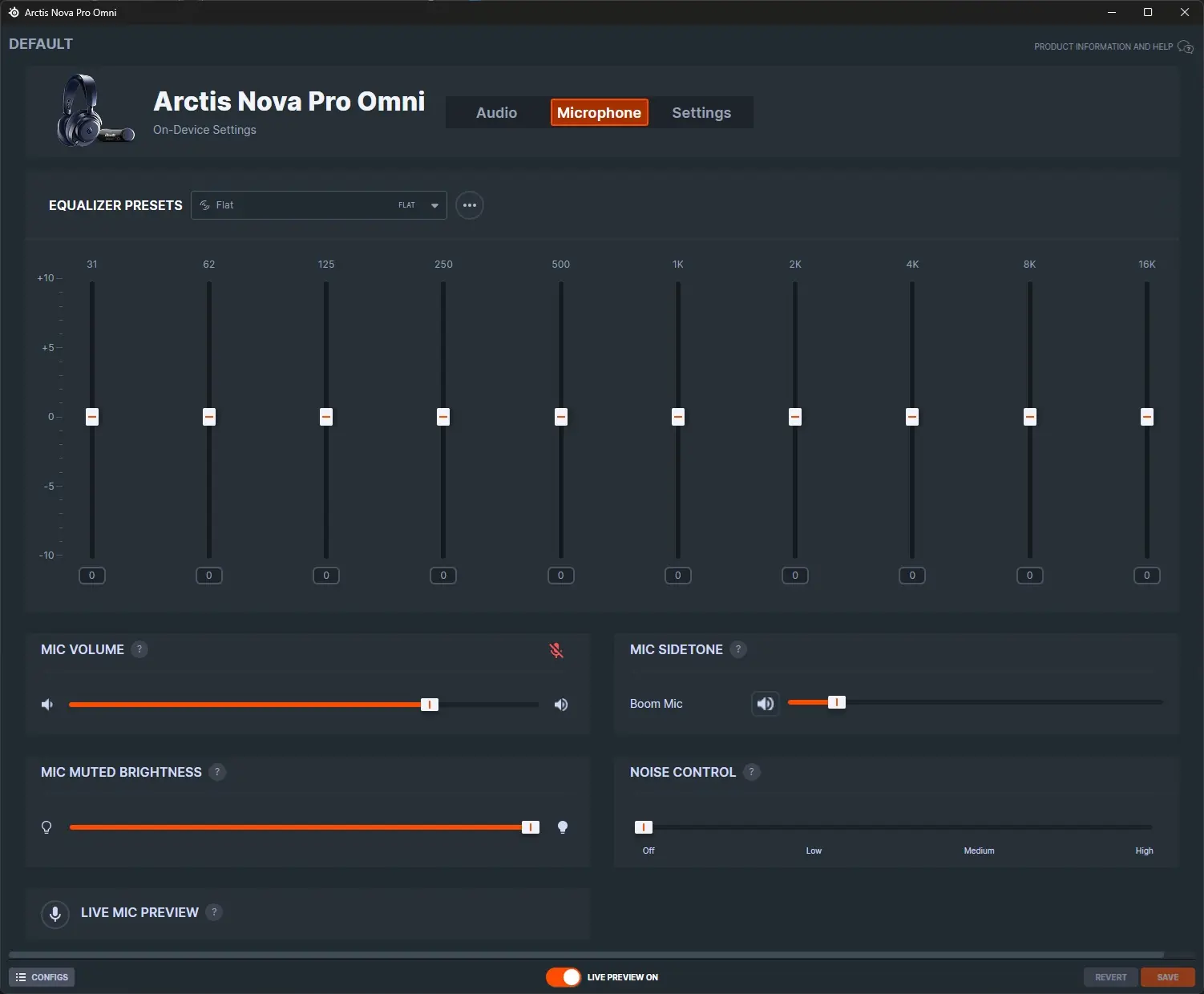
The Microphone section offers a similar layout for EQ settings, mic volume, mute LED brightness, sidetone volume, noise control, and live mic preview control.
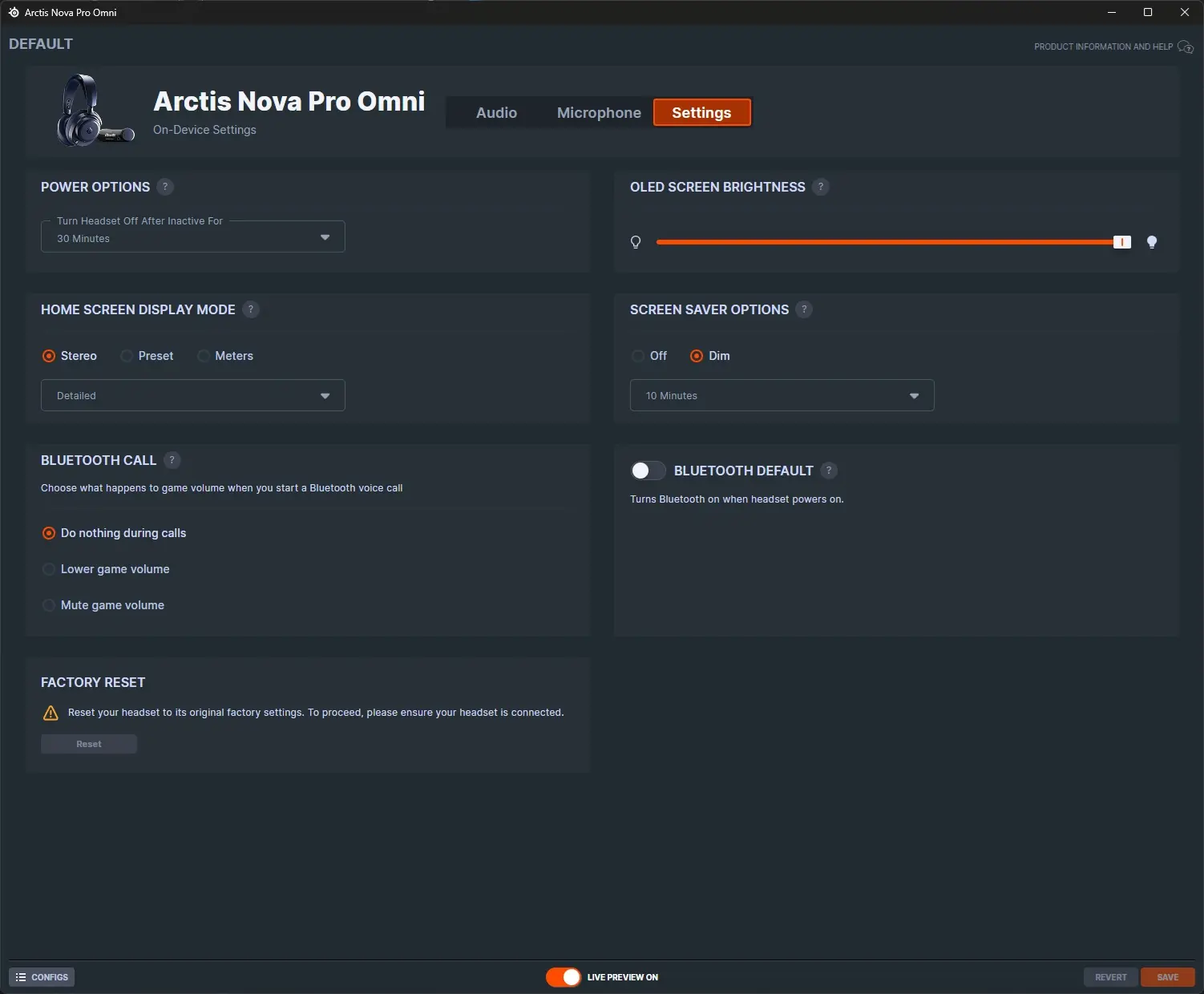
The Settings section lets you control how you want the headset to act when it is inactive, adjust GameHub display mode and brightness, Bluetooth call options and default operation, as well as perform a factory reset.
Sonar
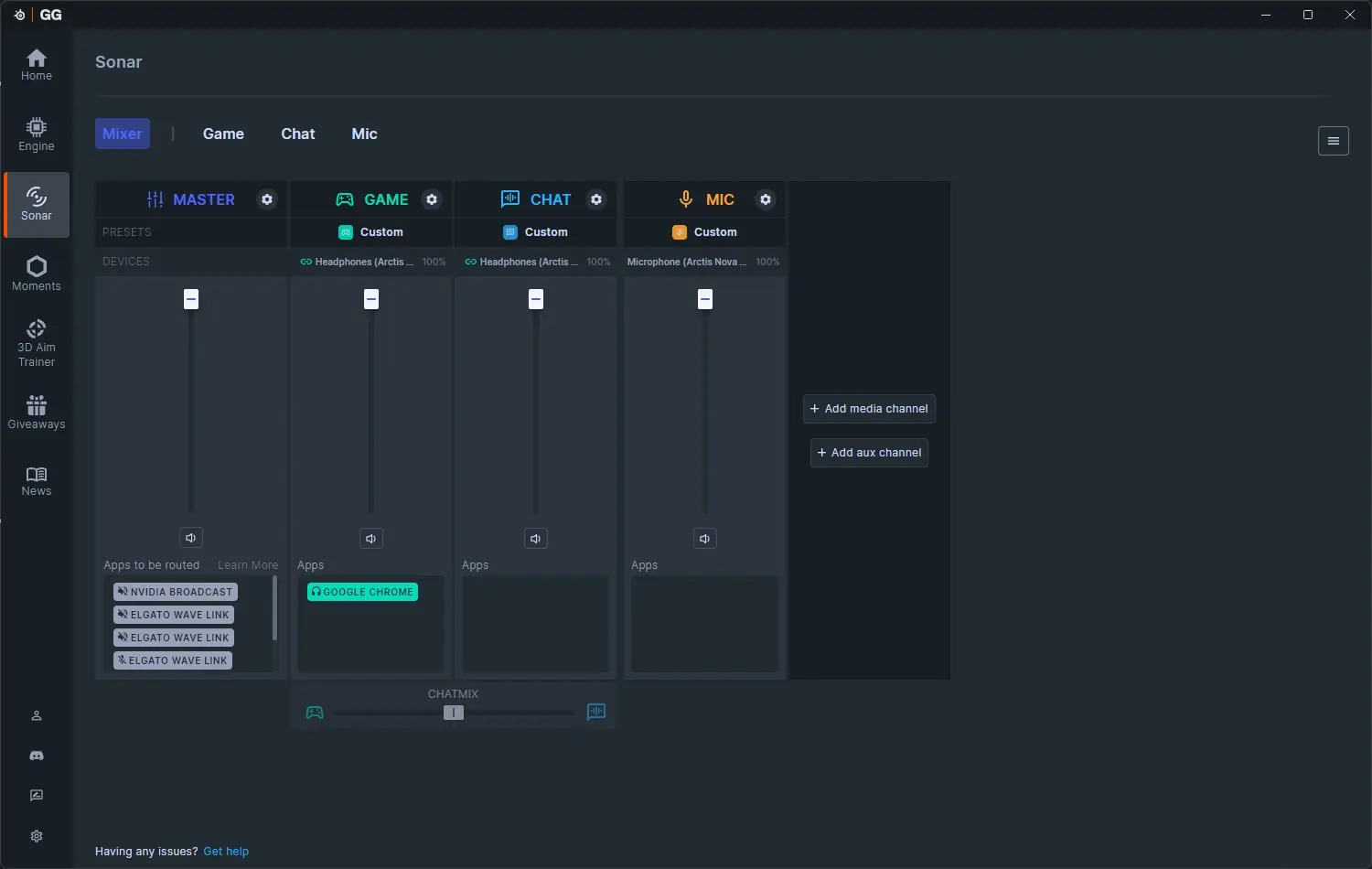
The Sonar tab’s Mixer section offers a ton of control over your audio sources and outputs, and gives you nearly unlimited options for how you want to route your audio. Multiple default media channels are present to get you started, each with their own presets, device selections, levels, and app routing sections. This type of control is awesome for those that might want to go even further than just the audio they are hearing, and want to send a different set of audio to a streaming channel or something similar.
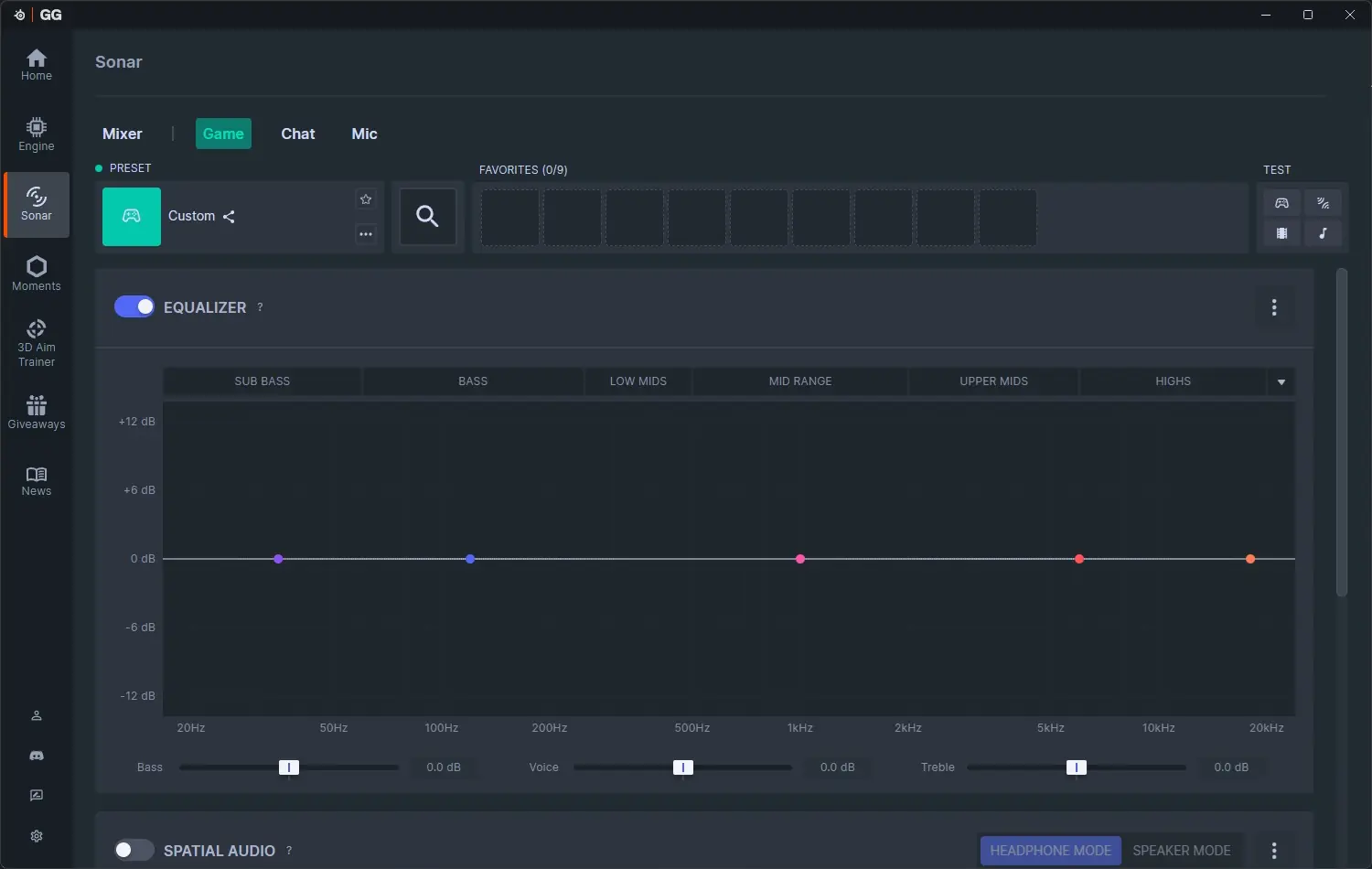
The Game section allows you to choose and adjust prebuilt audio presets that have been tweaked and tuned for optimal performance. SteelSeries offers over 200 game titles here, so feel free to enable them for your favorite game and dial them in to your specific needs.
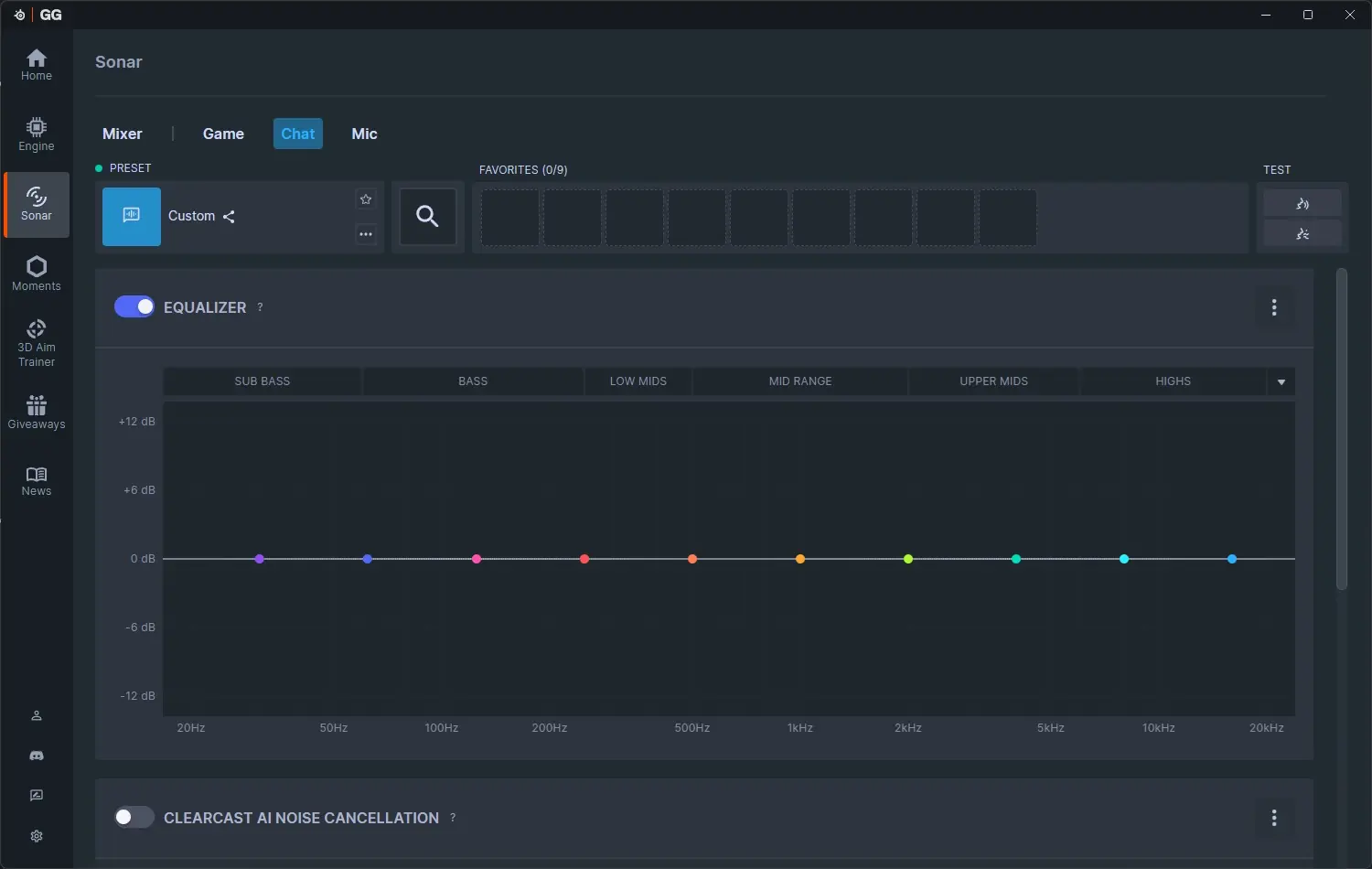
The Chat section offers another set of prebuilt presets and the ability to turn on ClearCast AI noise cancelation, adjust noise reduction in the background and from impacts, set a noise gate to make sure only the sound you want to come through is doing so, and even adjust the compressor level.
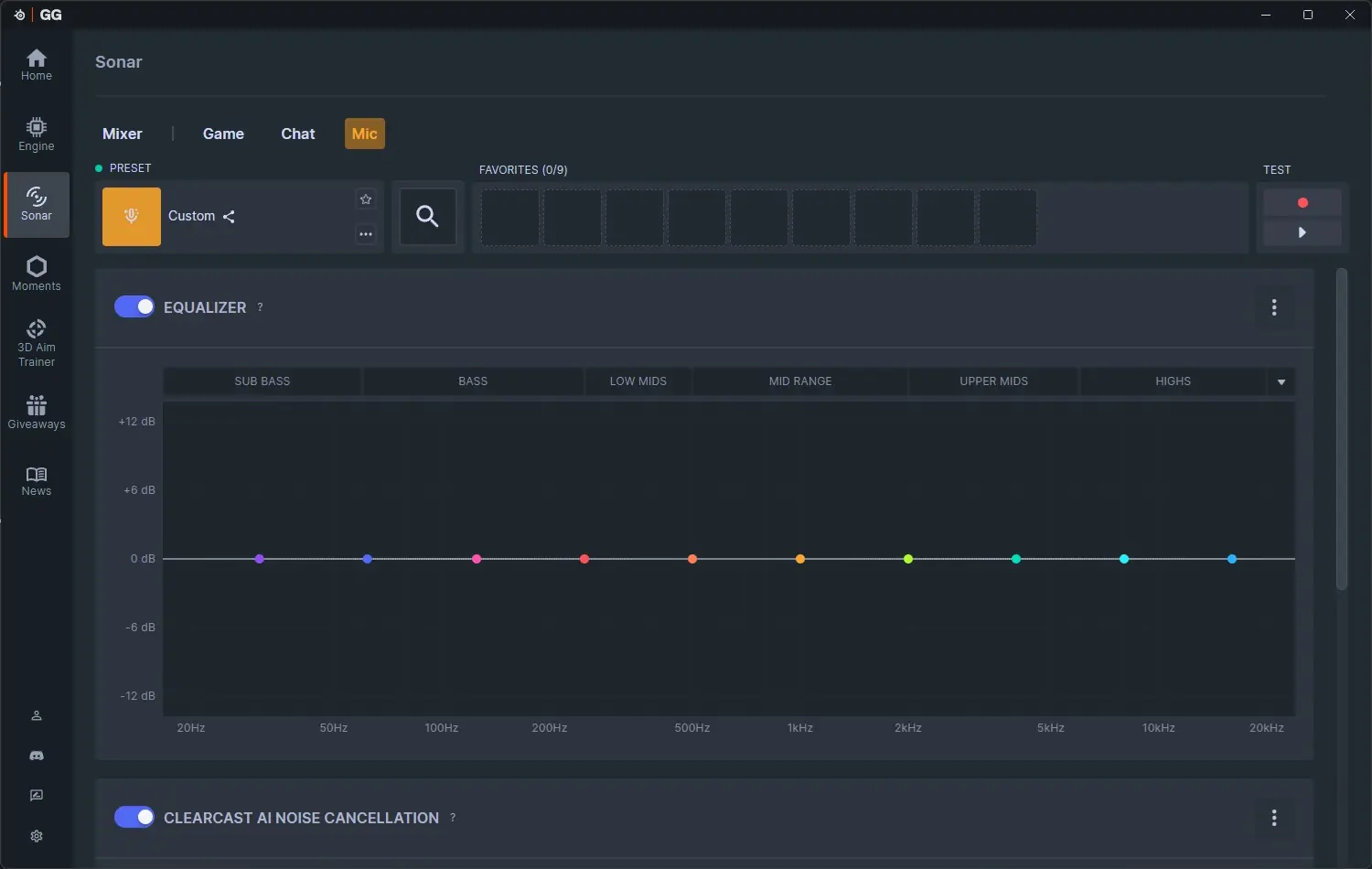
The Mic section again offers control over the microphone and offers those custom presets again, and the same noise reduction, gating, and compression settings that the Chat section does.