Testing the TRYX PANORAMA 360
With the recent move to a new test bench setup, it is time to update the list of components below. Additionally, we are trying out a new set of testing which still involves monitoring the system while both idling and under load, which now includes set fan RPM levels to see how fan speed and the noise associated, plays into a cooler’s performance.
The following components are used for our AIO cooling testing.
CPU: AMD Ryzen 7 7600X
Cooling: TRYX PANORAMA 360
Motherboard: ASRock B650 Steel Legend WiFi
Graphics Card: PowerColor Red Devil Radeon RX 580
Memory: Patriot Viper Gaming Elite 5 DDR5 6400MT/s 48GB
Storage: Patriot Viper VP4300 Gen4 PCIe NVMe 1TB SSD
Case: Fractal Design Define R6 Tempered Glass
Power: EVGA G5 750W
List of coolers being compared:
– TRYX PANORAMA 360
– Endorfy Navis F360 ARGB
– Corsair Nautilus 360 RS
– TRYX PANORAMA SE 360 ARGB
– be quiet! Silent Loop 3
Please note: As we continue to test additional AIOs on this new test bed, this table will be updated in order to show comparisons to additional coolers.
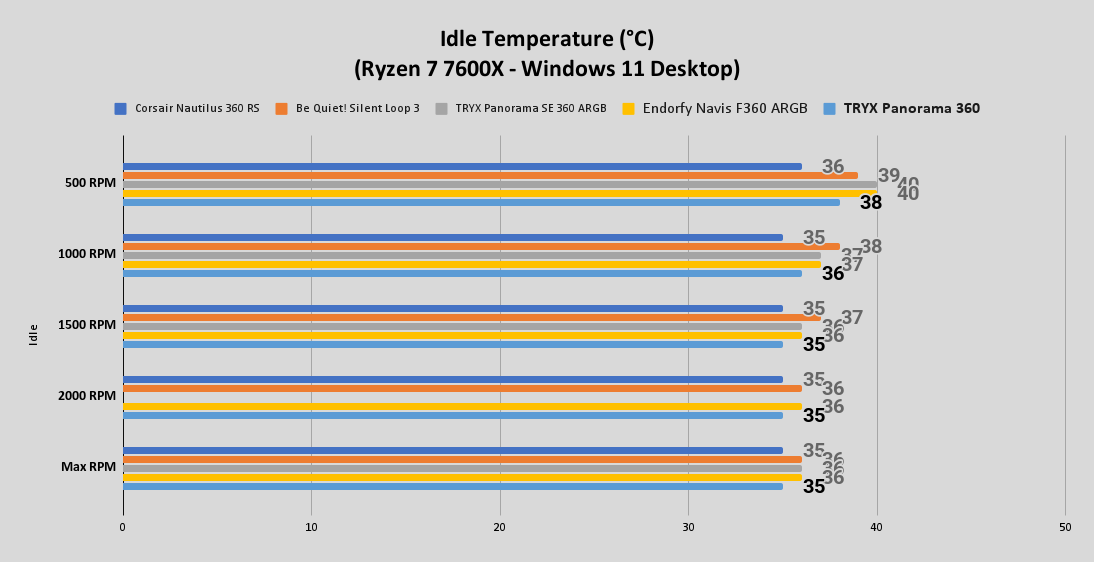
For performance testing we will first test idle temperatures. These are taken on the Windows 11 desktop an hour after the system has been turned on.
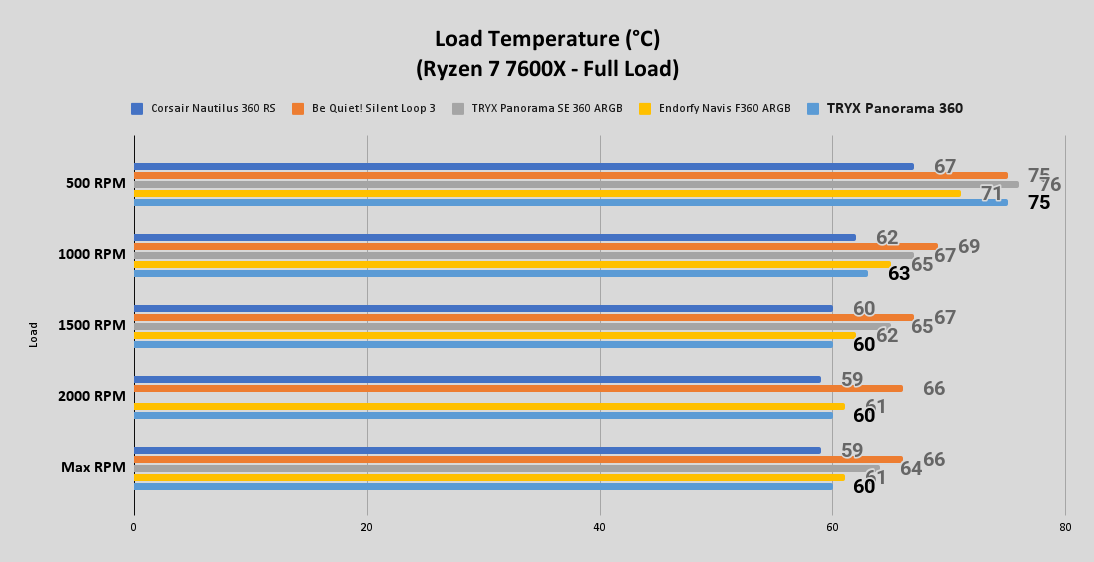
For load testing we will be running the AIDA64 system stability test with the CPU only checked. This puts a full load on our CPU. We run this test for 1 hour and record the highest temperature throughout the test.
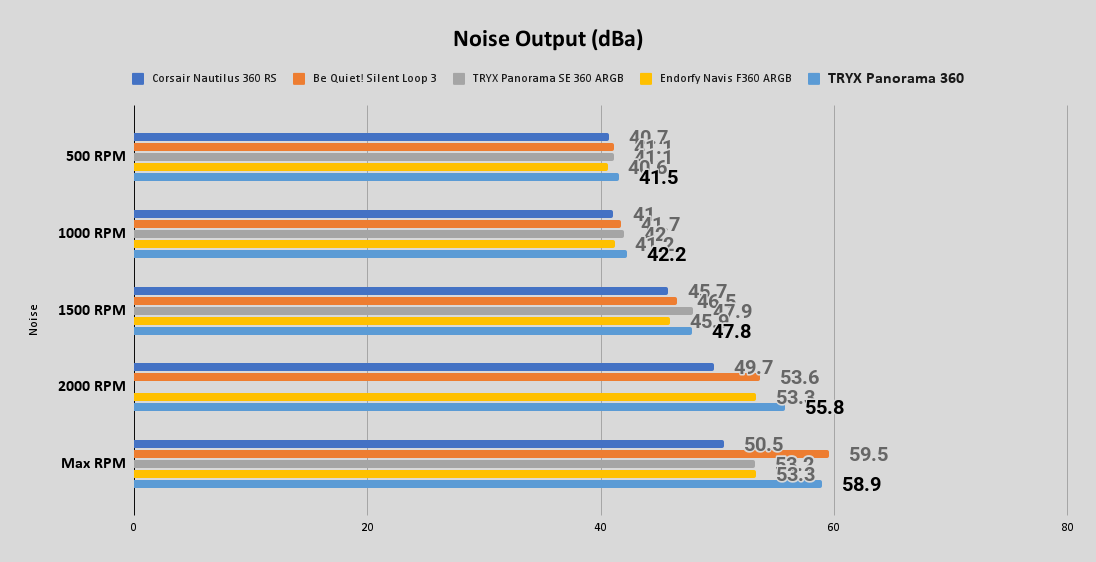
In addition to the different temperature readings across the various fan speeds, we are now also including noise output readings as well. This is important information that can help you find a nice balance of performance to noise output for your system.
Software of the TRYX PANORAMA 360
Controlling the display on the PANORAMA 360 is TRYX’s KANALI application. After a quick installation and a few updates to firmware, the application was ready to customize the look of the 6.5″ AMOLED display found on the cooler.
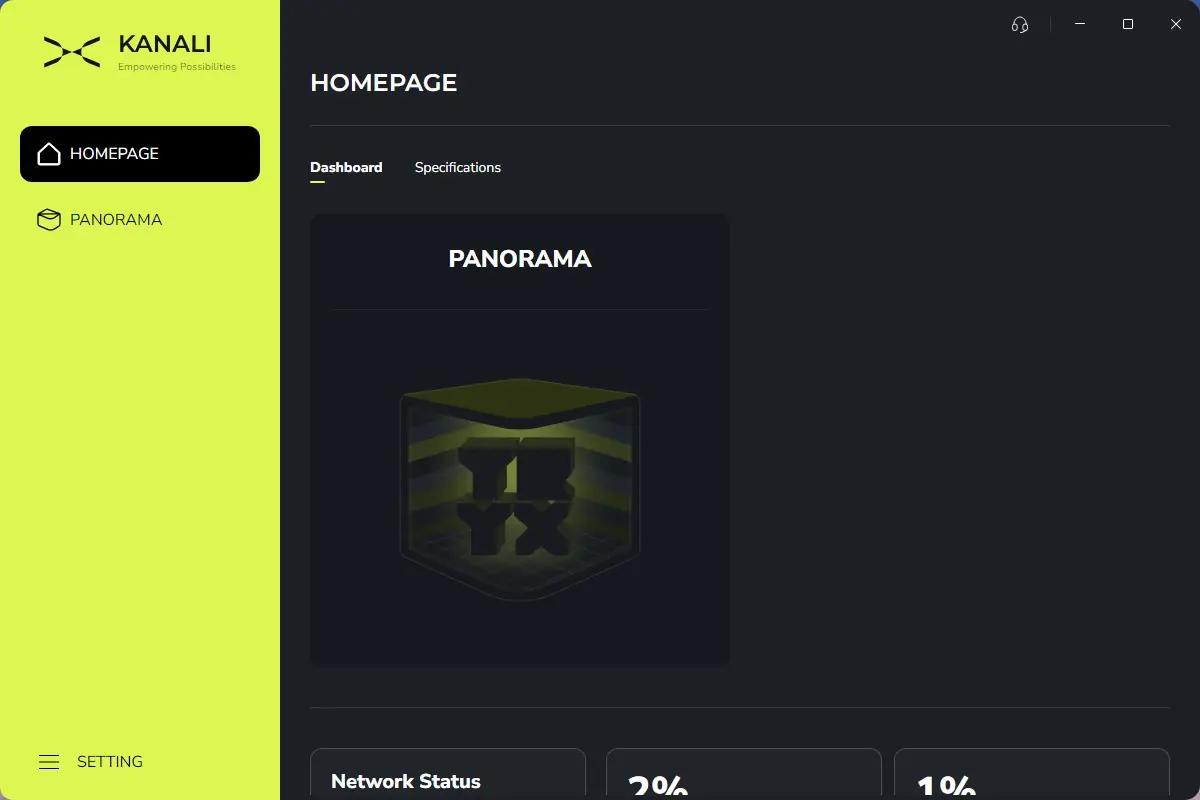
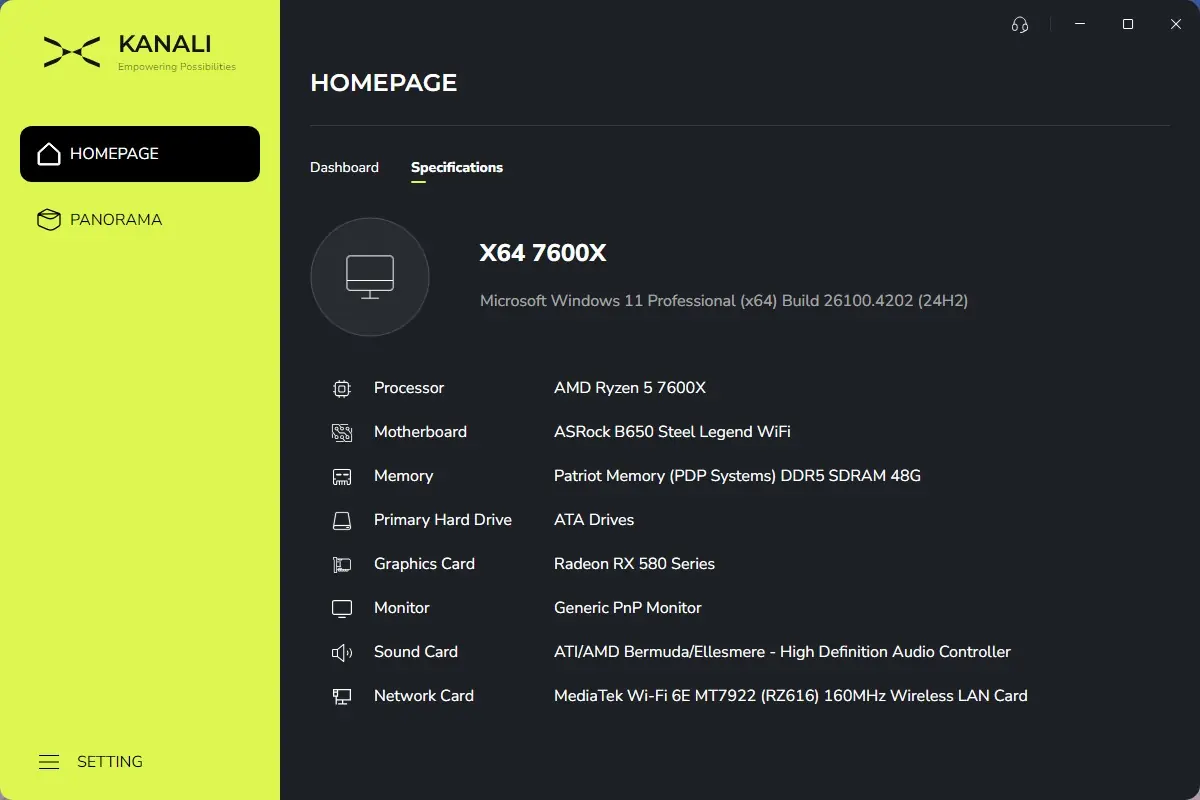
Along the left side of the application, the first menu is the Homepage – which provides a dashboard look at what compatible TRYX hardware is installed in your system, and also shows various graphs for other hardware components. From here you can click the compatible TRYX devices to be taken to their specific control area, or you can also click the Specifications tab to look at some basic settings for your system.
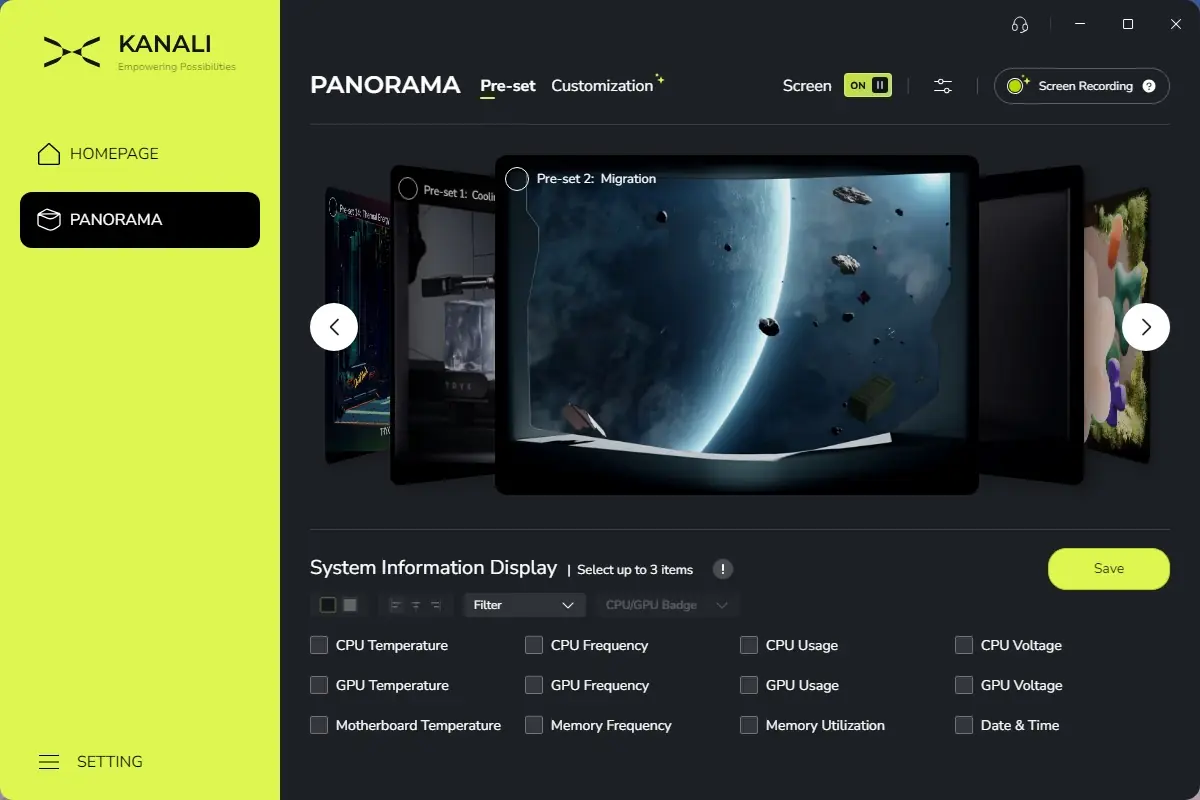
The second menu option on the left side of the KANALI window is for the PANORAMA. The first tab lets you customize the pre-set animations, of which there are currently 14 available. I found the variety to be quite expansive as far as themes and colors go, and I’m happy to see that TRYX didn’t just settle with a handful of designs, but provided more than a dozen to choose from.
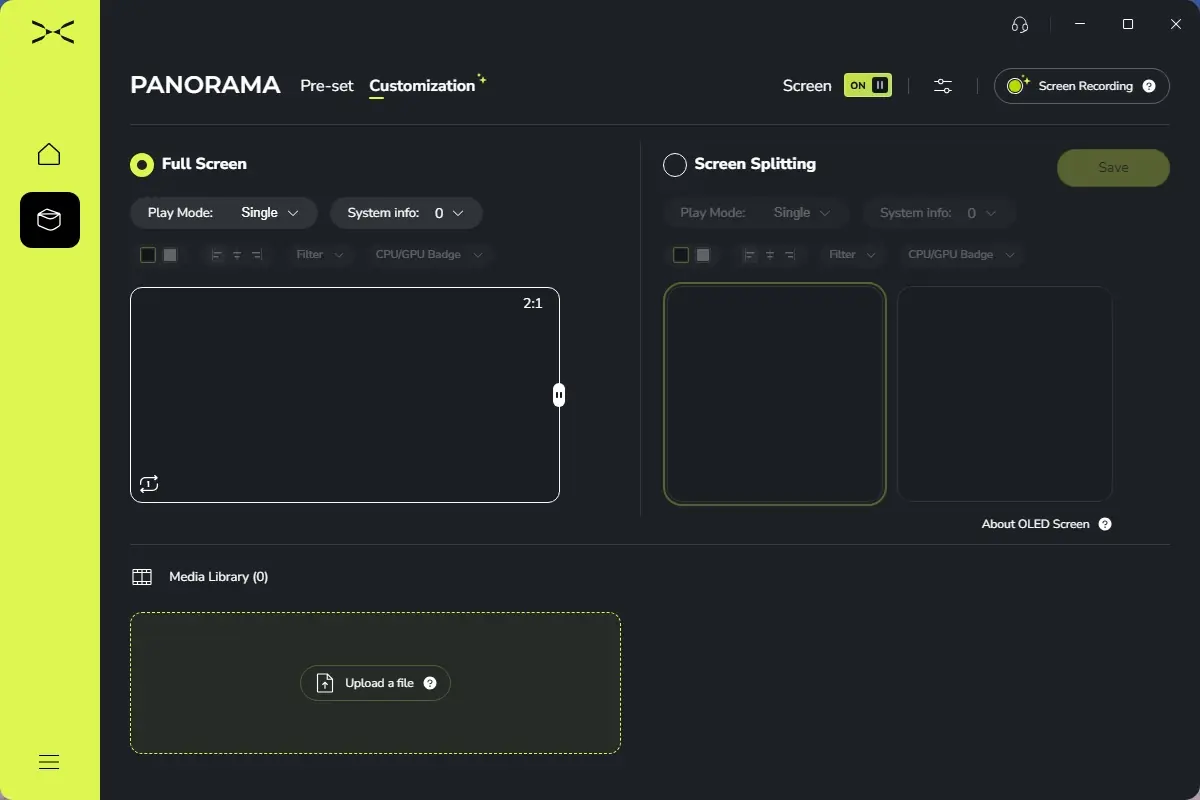
The Customization tab allows you to customize exactly what media is displayed on the screen, and in what manner. This is where you can add your own media files to be displayed, and can select the manner in which they play. For example, you can load up multiple widescreen videos that will play in a playlist across the entire width of the screen, or you can load two different square-shaped videos to display on the left and right halves of the screen, with the same playlist rotation options available. There are a few restrictions to the file sizes (500MB each, with a resolution no higher than 1920×1080), but I think they are well within reason.
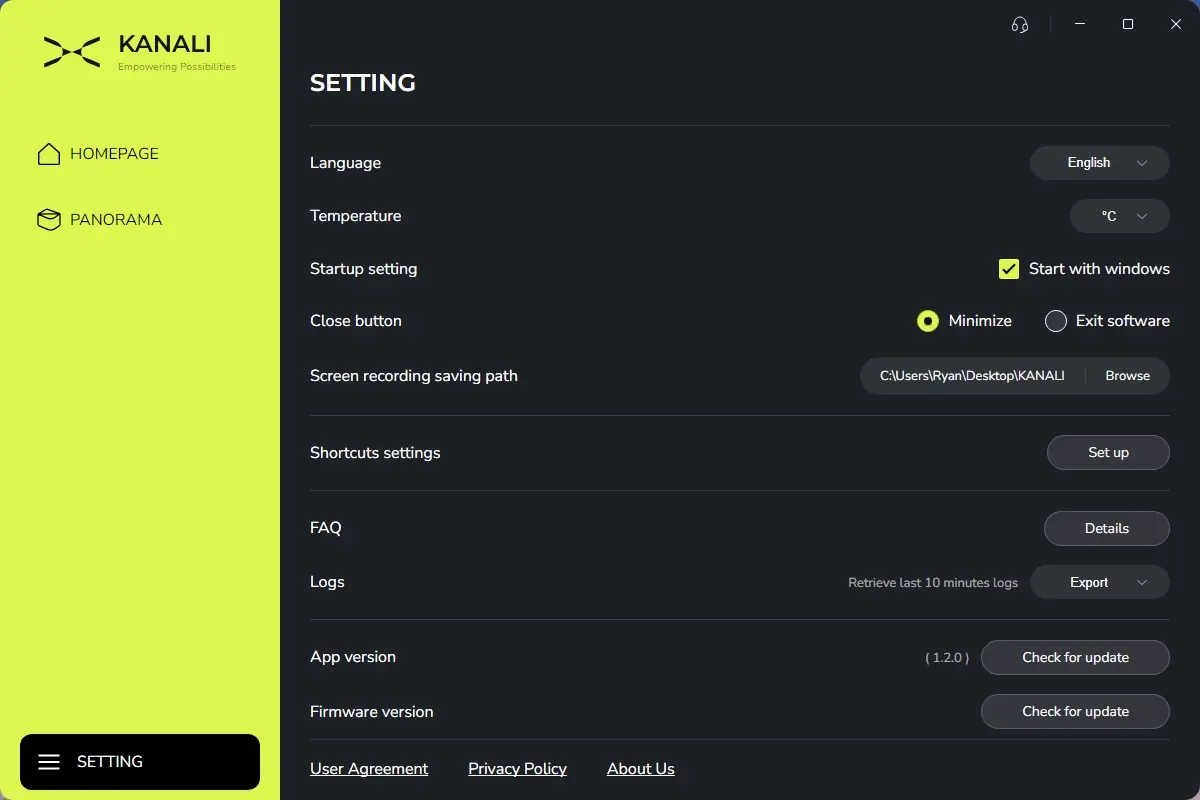
Additionally, you can use KANALI to record your PC screen, but I think this is a very niche use-case that doesn’t really belong inside this application. There are also a few settings menus for both the application and the installed hardware that allow you to adjust things like screen brightness, sleep settings, image mirroring, language and temperature unit settings, and more.
Gallery of the TRYX PANORAMA 360
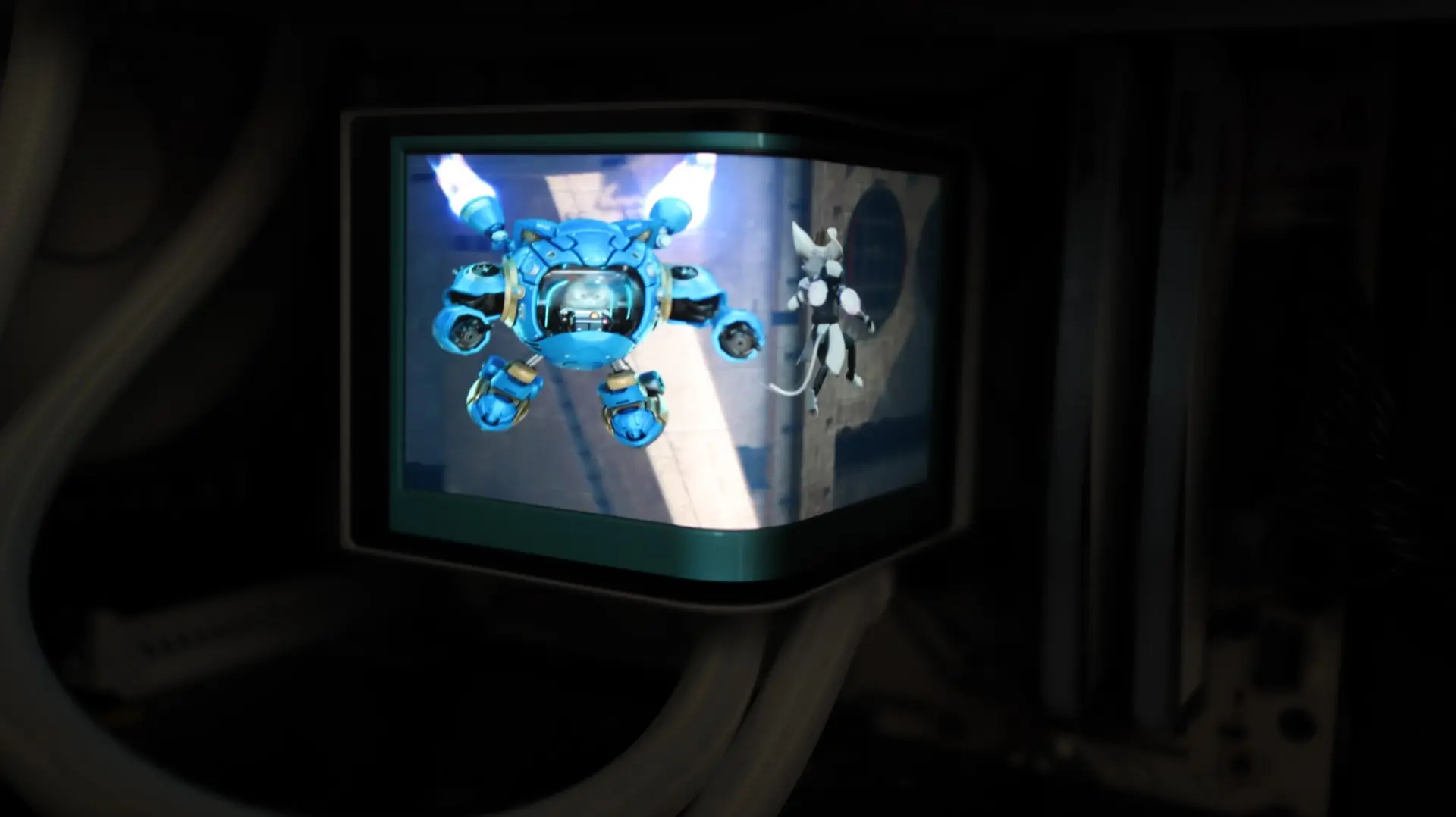
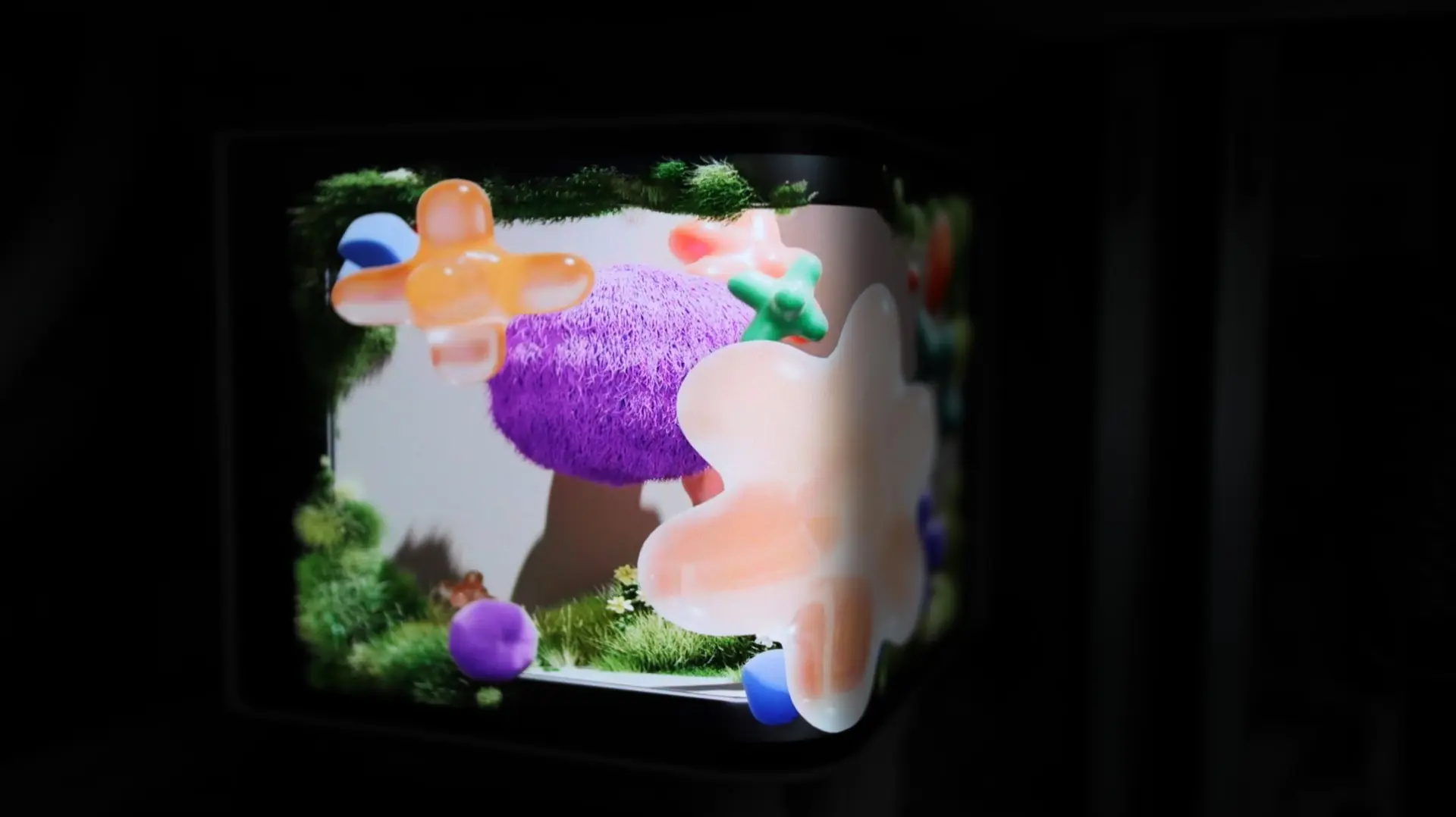
Here are a few shots of the TRYX PANORAMA 360 in action.