


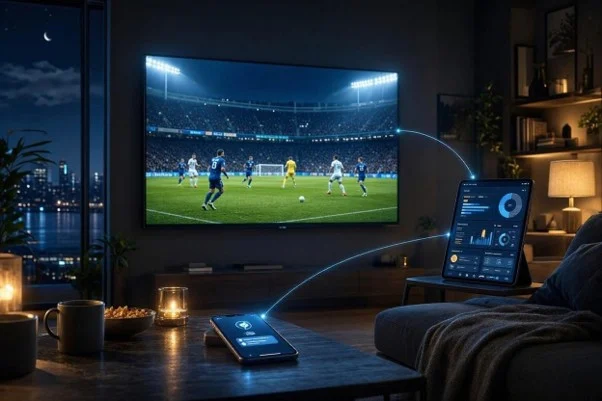
A phone can announce a goal while the television still shows the attack developing. That mismatch does not necessarily indicate a faulty device or slow broadband. Video, score updates and push notifications travel through different systems, so a useful matchday setup starts by measuring the gap and controlling interruptions.
Put the broadcast on the large screen and give the phone a clearly defined supporting role. The Android download page دانلود وان ایکس بت 1xbet اندروید is one example of the betting-related services viewers may include in that second-screen setup. Whatever service occupies the phone, decide whether you want immediate information or protection from score spoilers. Those goals sometimes require different settings.
Why Video, Scores and Alerts Arrive at Different Times
Live video passes through capture, encoding, distribution and playback. The player also maintains a buffer to help absorb uneven delivery. A small score message can take another route entirely, so it may appear before the corresponding pictures.
There can also be a gap between an update inside an open app and its notification. The service must generate the alert, deliver it and have the phone present it. A delayed notification therefore does not establish that the underlying score feed is equally delayed.
Android adds another variable when the phone is idle. Google’s developer documentation explains that Doze and App Standby can defer background activity. The effect depends on the app and delivery method, so battery restrictions are something to investigate rather than a universal explanation.
Network conditions matter most when they interrupt delivery or cause additional buffering. A large download can compete with the television stream for a constrained connection. Changing phone notification settings cannot remove delays introduced by the broadcaster’s production and distribution systems.
Setting Up a Useful Second Screen
First choose a spoiler policy. For uninterrupted viewing, disable score alerts and check statistics manually during breaks. Silencing an alert alone may leave its text visible on the lock screen or in a banner.
On Android, inspect Settings, then Notifications and the relevant app. Google documents both app-level switches and notification categories where available. Menu names vary by device, so check the resulting behaviour rather than assuming a particular switch hides every alert.
Next establish a stable baseline. Use the same broadcast player and score service throughout the check, and record whether the phone uses Wi-Fi or mobile data. Return the video to its live position if the player offers that control.
Run this repeatable test with the television and phone visible together. Start a stopwatch, then record its reading when the same identifiable event appears on each device. Record the notification arrival separately from the score update inside the app.
Repeat across at least five clearly matched events, such as goals or completed tennis games. Subtract the television observation time from the phone observation time. A negative result means the phone displayed the event first; it measures relative arrival, not the true delay from the sporting venue.
Summarise the median difference and the smallest and largest gaps. For example, hypothetical differences of −18, −21, −19, −35 and −20 seconds have a median of −20 seconds. These invented figures illustrate the calculation and are not a test of any named service.
A Simple Matchday Troubleshooting Checklist
Change one variable and repeat the same method. If alerts arrive late only with the phone locked, investigate background restrictions. If the television drifts further behind after freezing, examine playback and the connection first.
Work through these settings and checks:
- Disable score notification categories if avoiding spoilers is the priority.
- Review lock-screen previews, pop-ups and connected-watch alerts.
- Check the app’s battery setting; temporarily allow background activity for comparison.
- Check background-data permissions and Data Saver restrictions where relevant.
- Pause large transfers and test the television over Ethernet if available.
- Compare Wi-Fi and mobile data separately, noting potential data charges.
Allowing more background activity may increase battery use. Restore restrictions that make no measurable difference. Avoid changing every app’s settings merely because one service behaves inconsistently.
For any accompanying betting activity, the operator’s margin creates a long-run advantage, and money can be lost. Set time and spending limits in advance, and never chase losses.
The practical goal is predictable behaviour across both screens. Measure the relative delay, choose which alerts deserve attention and repeat checks after a meaningful change. Different services may never align completely, but a controlled setup makes their differences easier to manage.