


If you follow hardware news, you’ve seen the headlines: AI data centers are soaking up DRAM and NAND supply, memory makers are prioritizing high-margin server parts, and component prices that looked settled a year ago are moving in the wrong direction. Enthusiasts feel it when they price out a new build. Small businesses feel it when they try to replace ten laptops at once.
As an IT company on Long Island, we’ve spent much of this year having the same conversation with owners of small offices: do we buy now before prices rise further, wait it out, or find a way to get more years out of what we already have? The honest answer is usually a mix of all three, decided machine by machine rather than by a blanket refresh. Here’s the playbook we use.
Start with an inventory, not a shopping cart
Most small businesses can’t say exactly what hardware they own. Before spending anything, build a simple spreadsheet with one row per computer:
- Model, purchase date and warranty status
- CPU generation, installed RAM and maximum supported RAM
- Storage type (SATA SSD, NVMe or, still surprisingly common, a spinning hard drive) and free space
- Windows version and whether the machine officially supports Windows 11
- Who uses it and what they actually do all day
That last column matters more than people expect. A receptionist running a browser, email and a scheduling app has very different needs from a bookkeeper with QuickBooks, three spreadsheets and a dozen Chrome tabs open on two monitors.
If you already use a remote monitoring tool or Microsoft Intune, most of this data is a report away. If not, a free inventory script or even an afternoon with a clipboard will do.
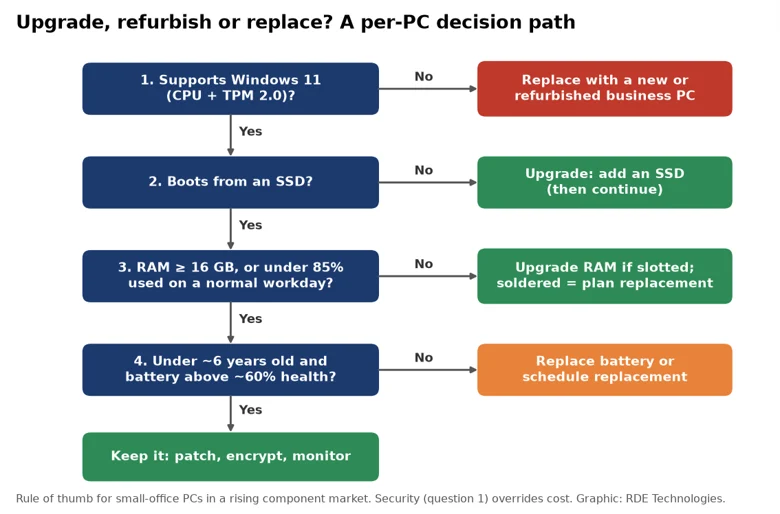
Alt text: Decision flowchart for each office PC: check Windows 11 support, then storage type, then RAM, then age and battery health, leading to upgrade, refurbish or replace. Image: original graphic created by RDE Technologies for this article. You’re free to publish it with the post.
The decision for each machine
The flowchart above is the logic we run for every device. It boils down to four questions.
1. Can it run a supported version of Windows?
Windows 10 reached end of support in October 2025. A business PC that can’t run Windows 11, usually because of an older CPU or missing TPM 2.0, is a security liability no matter how fast it feels. Extended security updates can buy time, but for most small offices those machines belong on the replacement list. This is the one question where the answer overrides cost.
2. Is it still booting from a hard drive?
A surprising number of office desktops from the late 2010s still run on mechanical drives. Swapping one for even a modest SSD is the single highest-impact upgrade you can make. Boot times drop from minutes to seconds and the “my computer is slow” tickets largely disappear. Even with NAND prices rising, a 500 GB or 1 TB SATA SSD remains a small cost compared with a new machine.
Clone the old drive or, better, reimage cleanly. A fresh install clears years of accumulated startup junk and leaves you with a known-good baseline.
3. Is RAM the bottleneck?
In 2026, 8 GB is genuinely tight for a Windows 11 business machine running Microsoft 365, Teams and a modern browser. Open Task Manager during a normal workday: if memory sits above 85 percent and the disk is constantly busy paging, more RAM will help more than a faster CPU would.
This is where current pricing bites, so be targeted. Check whether the machine has a free slot and what the maximum supported capacity is. Many business laptops from the last few years have soldered memory, which takes the upgrade option off the table entirely. Desktops and older laptops with SO-DIMM slots can often go from 8 GB to 16 GB for a fraction of the price of a new unit, even at today’s prices. If you’re upgrading several identical machines, buying matched kits at once usually beats piecemeal purchases.
4. How old is it, really, and how is the battery?
A five-year-old business-class desktop with an SSD and 16 GB of RAM can comfortably serve another two years for light office work. A five-year-old consumer laptop with a swollen battery and a cracked hinge cannot. For laptops, check battery health with the built-in Windows battery report (run `powercfg /batteryreport`). Below roughly 60 percent of design capacity, a replacement battery or a replacement laptop is coming either way.
Refurbished business hardware is underrated
When a machine does need replacing, new isn’t the only option. Off-lease business laptops and small-form-factor desktops from major OEMs, typically two to three years old, are built to a higher standard than most consumer models and are widely available from reputable refurbishers with warranties. They usually support Windows 11, come with replaceable RAM and storage on many models, and cost significantly less than new.
For roles that don’t need much horsepower, a quality refurbished unit is often the smartest buy in a tight market. Save the new purchases for the people whose work justifies them.
Don’t let the hardware plan weaken security
Stretching a fleet has a hidden risk: older machines that miss updates or fall outside your management tools. Whatever mix you land on, make sure every device, old or new, has:
- A supported OS with automatic updates enforced
- BitLocker drive encryption turned on, with recovery keys stored somewhere other than the laptop itself
- Endpoint protection that someone actually monitors
- Firmware and BIOS updates applied, since vendors regularly patch security flaws at that level
- A clear process for wiping and retiring a machine, including the old drives you pulled during SSD upgrades
That last point gets missed constantly. A drawer full of removed hard drives is a drawer full of client data. Wipe them properly or have them physically destroyed.
Timing the purchases you can’t avoid
For machines that genuinely need replacing, a few habits help in a rising market:
- Standardize on two or three models. It simplifies imaging, spare parts and support, and gives you leverage when ordering in small batches.
- Buy for the realistic lifespan. If you plan to keep a laptop five years, 16 GB minimum and a 512 GB SSD will age far better than the cheapest configuration.
- Stagger the refresh. Replacing a quarter of the fleet each year smooths both the budget and the exposure to price spikes.
- Keep one spare. A preconfigured spare laptop turns a dead machine from a lost day into a 20-minute swap.
The bottom line
Component prices will keep moving, and nobody can time them perfectly. What a small business can control is how deliberately it spends. An inventory, a simple per-machine decision process, a willingness to upgrade rather than replace where it makes sense, and a firm line on security will stretch a hardware budget further than waiting for prices to fall. In most offices we look at, a few SSDs and memory kits buy a year or two of breathing room, and the money saved goes to the machines that really need replacing.
About the author: Nathan Spitalny is the CEO of RDE Technologies, a managed IT and cybersecurity provider based in Oceanside, New York, serving small and midsize businesses across Long Island and New York City.