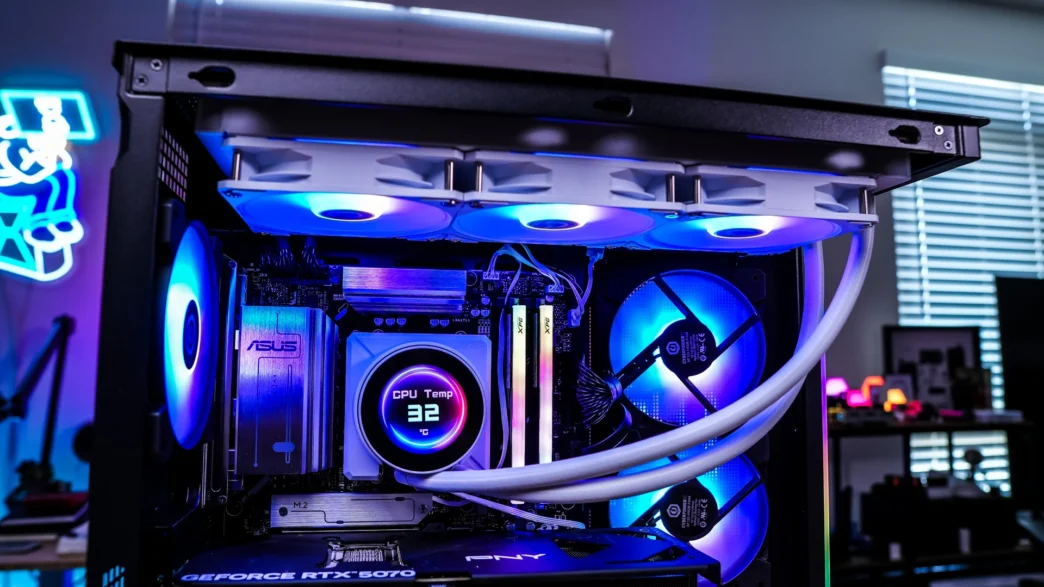
Is Installing the MSI MPG CORELIQUID P22 360 W Liquid CPU Cooler Easy?
Getting the MPG CORELIQUID P22 360 W installed is quite easy. Now we will be doing our installation on an AMD B850 motherboard so this installation will be for the AM5 socket.
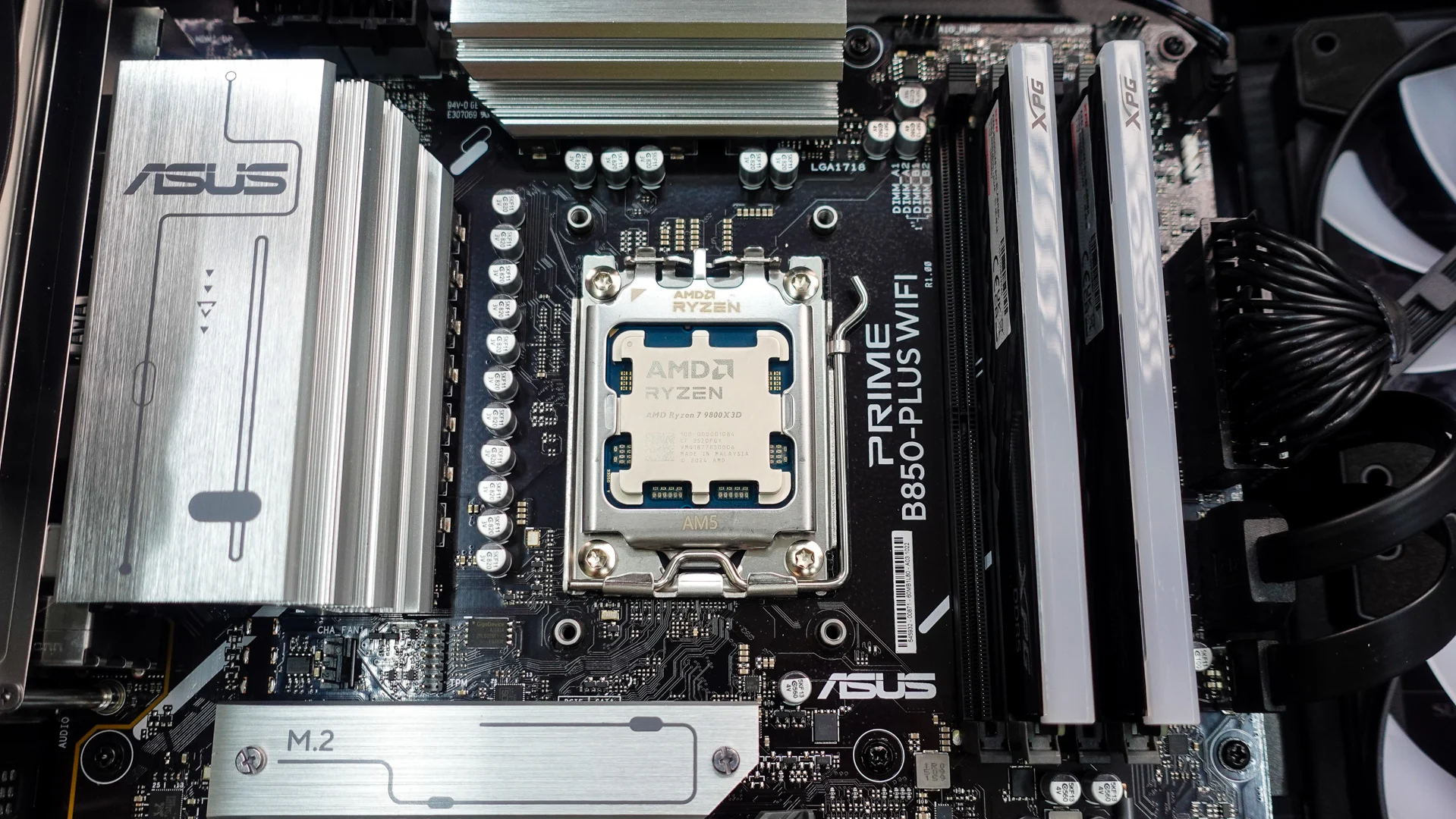
The first thing you are going to want to do is remove the AM5 mounting brackets that are on your motherboard. You will keep the backplate in place though, so your motherboard will look like the photo you see below.
After that install the AMD mounting screws in the holes in the backplate. It is nice that MSI labeled the bags so you know which screws these are.
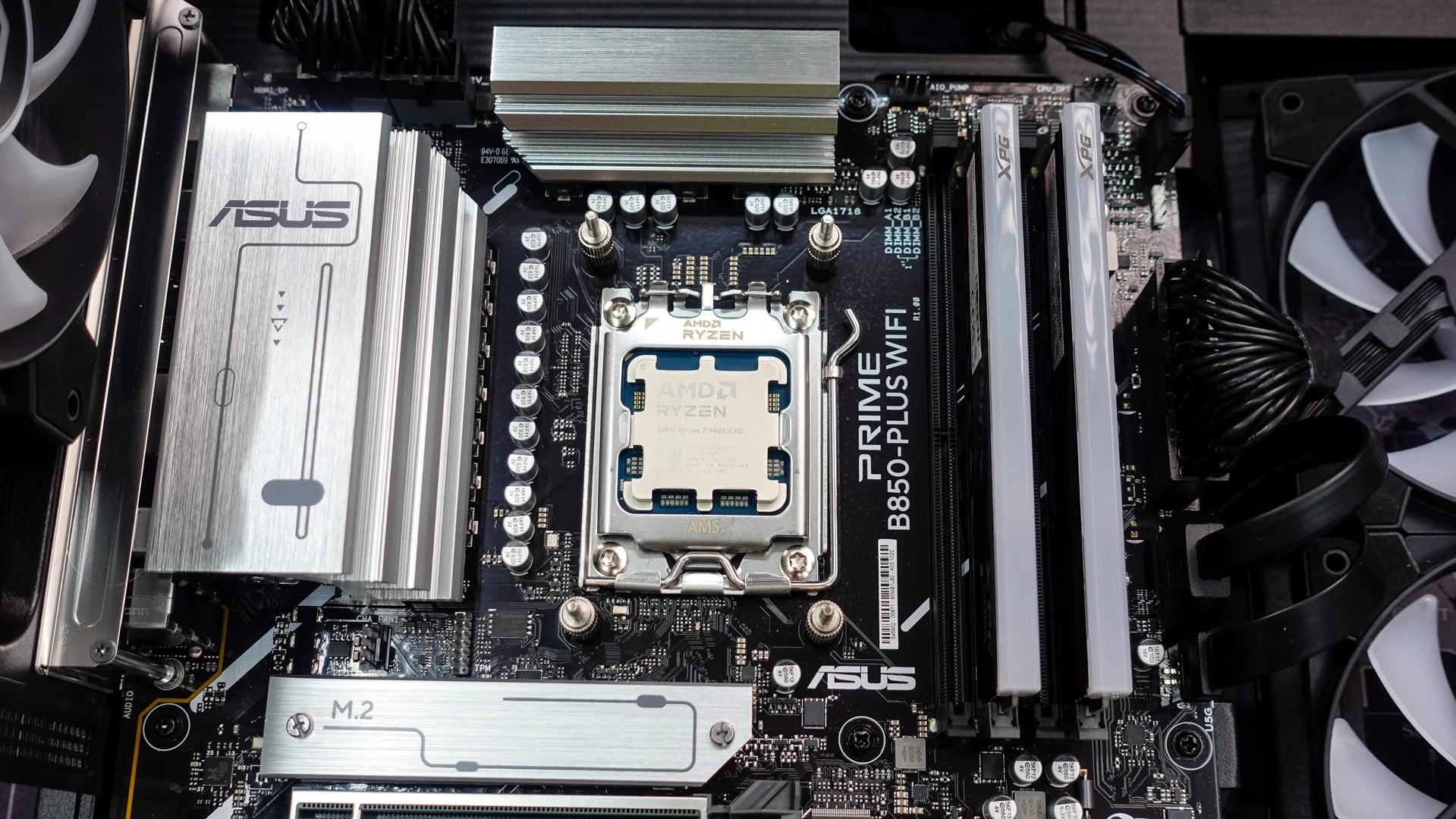
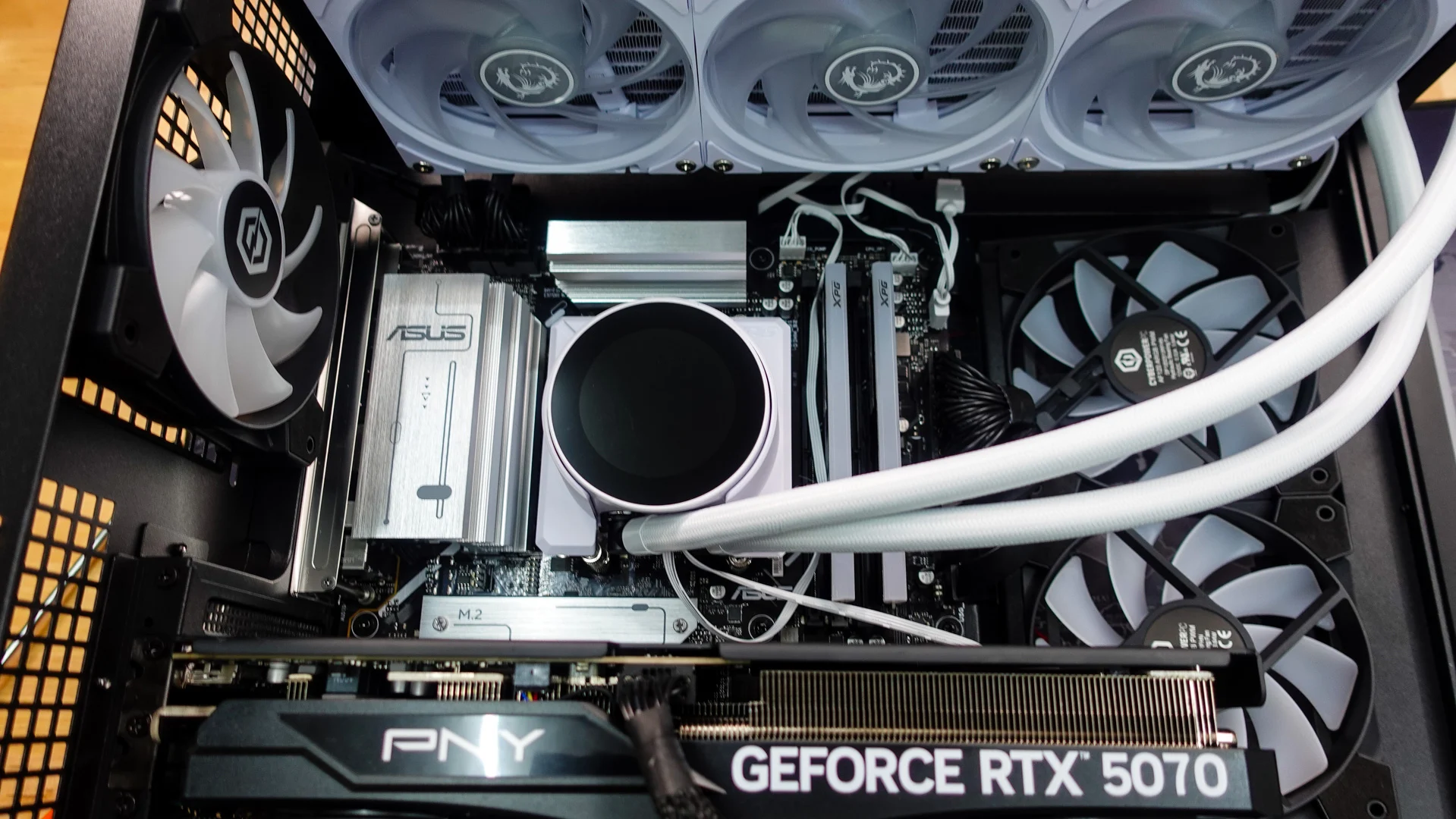
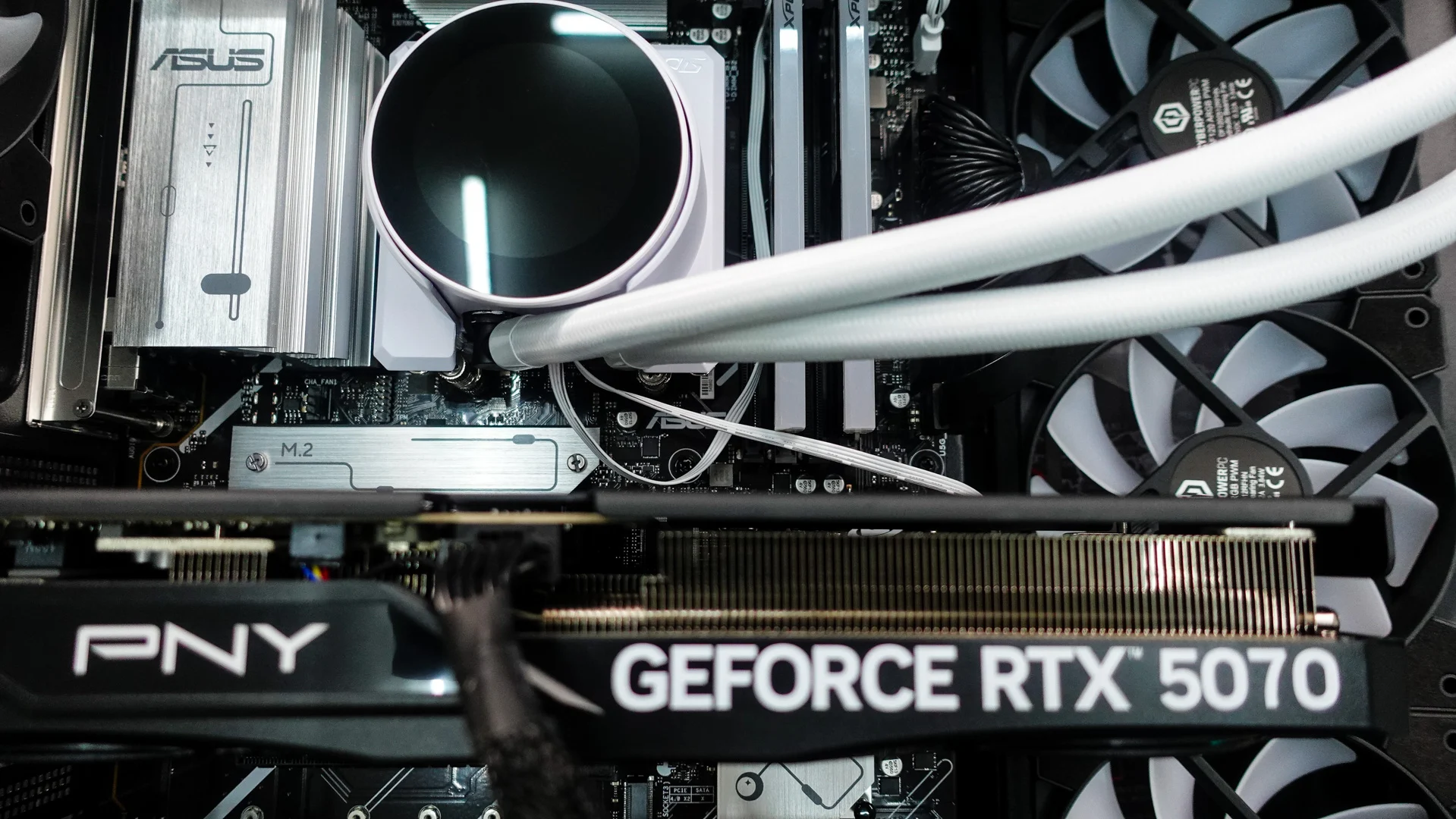
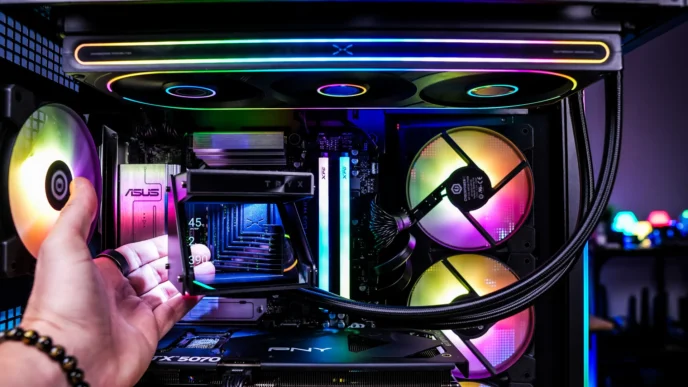
With these installed go ahead and install your thermal paste, then place the pump-block section of the MPG CORELIQUID P22 360 W on top of your CPU, lining up the AMD mounting points in the universal bracket with the AMD mounting screws you just installed. You are going to want to make sure you have the pump-block orientated so the tubing is coming out of the bottom. Secure the pump block with the included spring-screws.
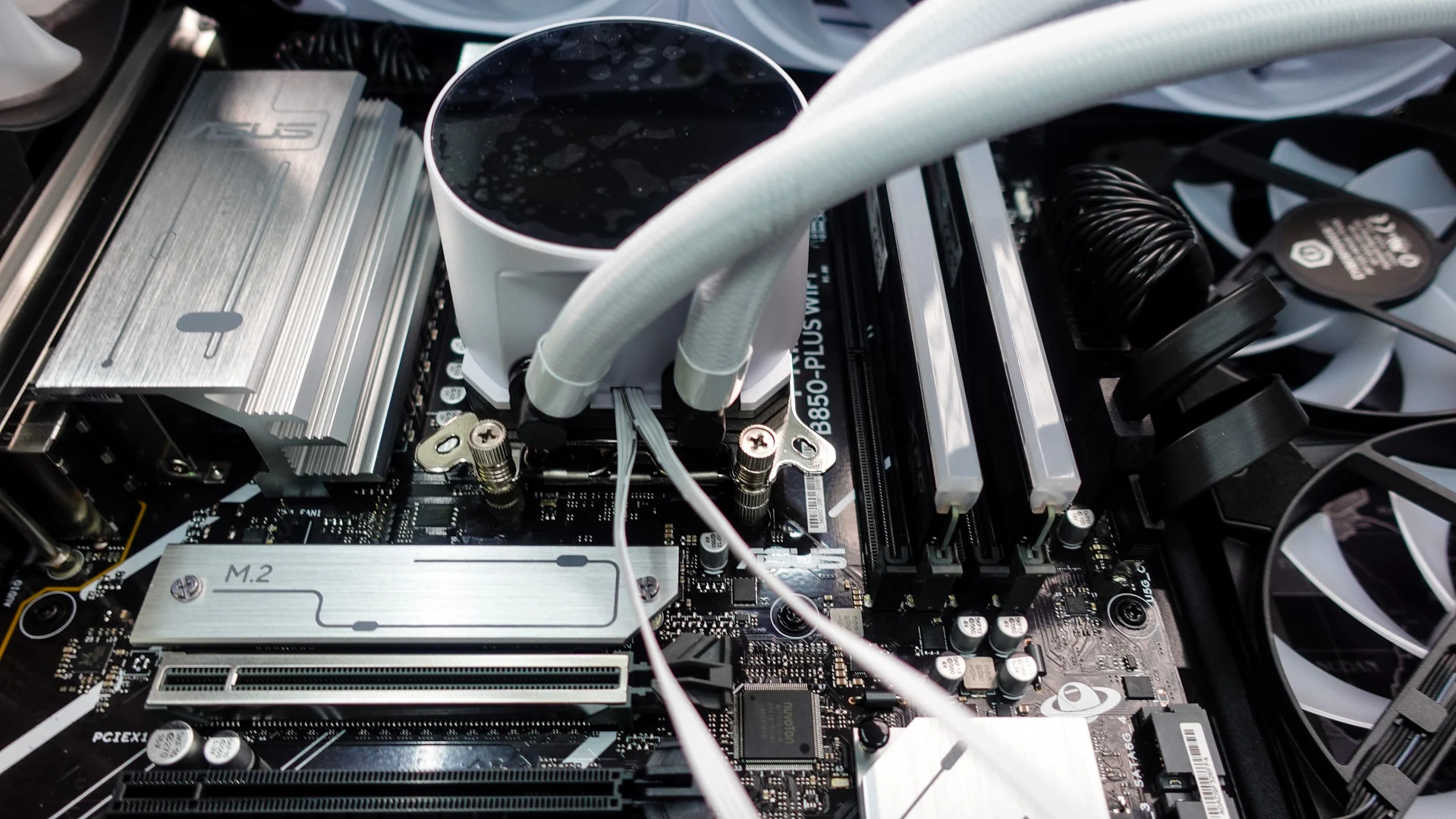
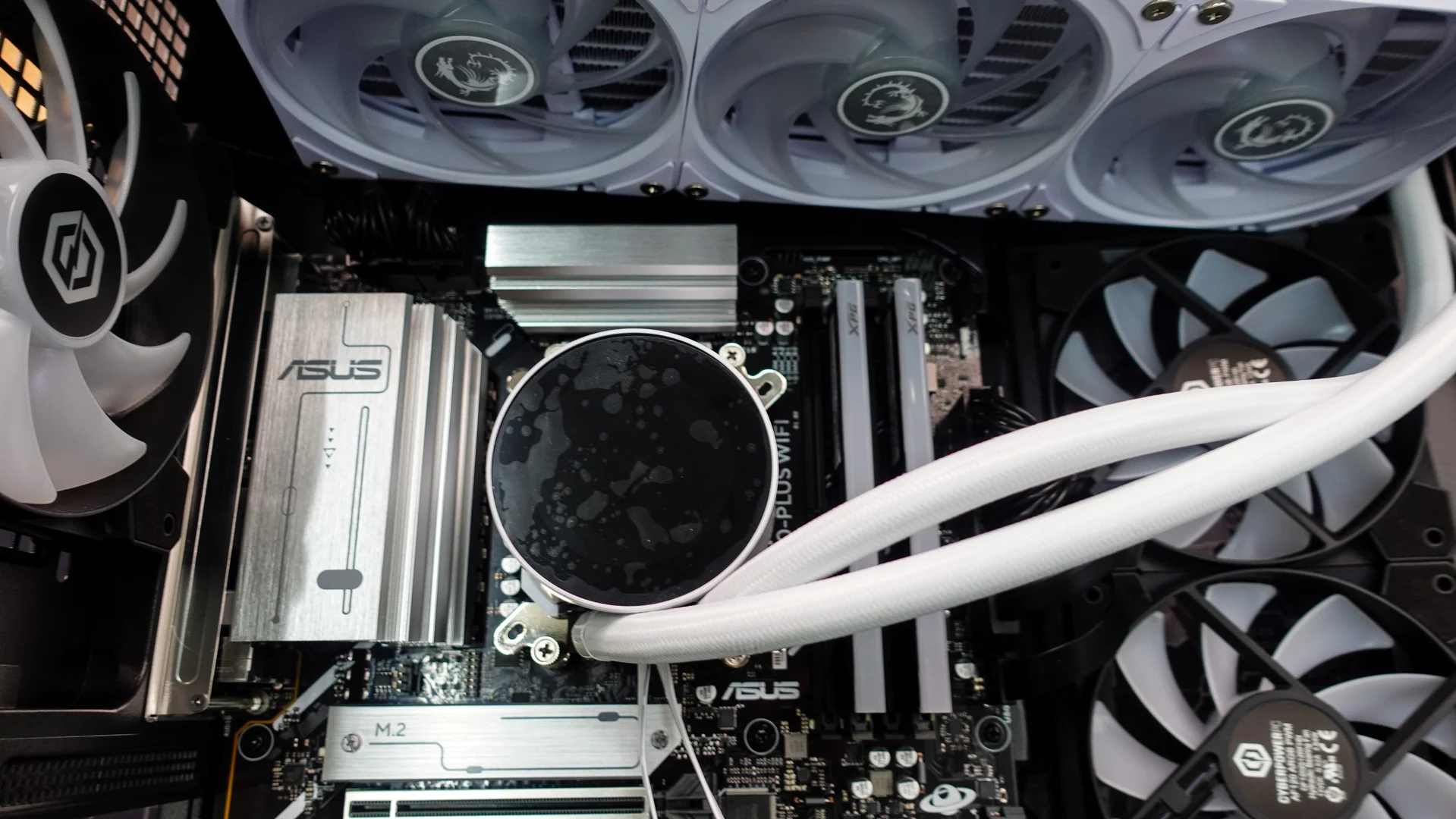
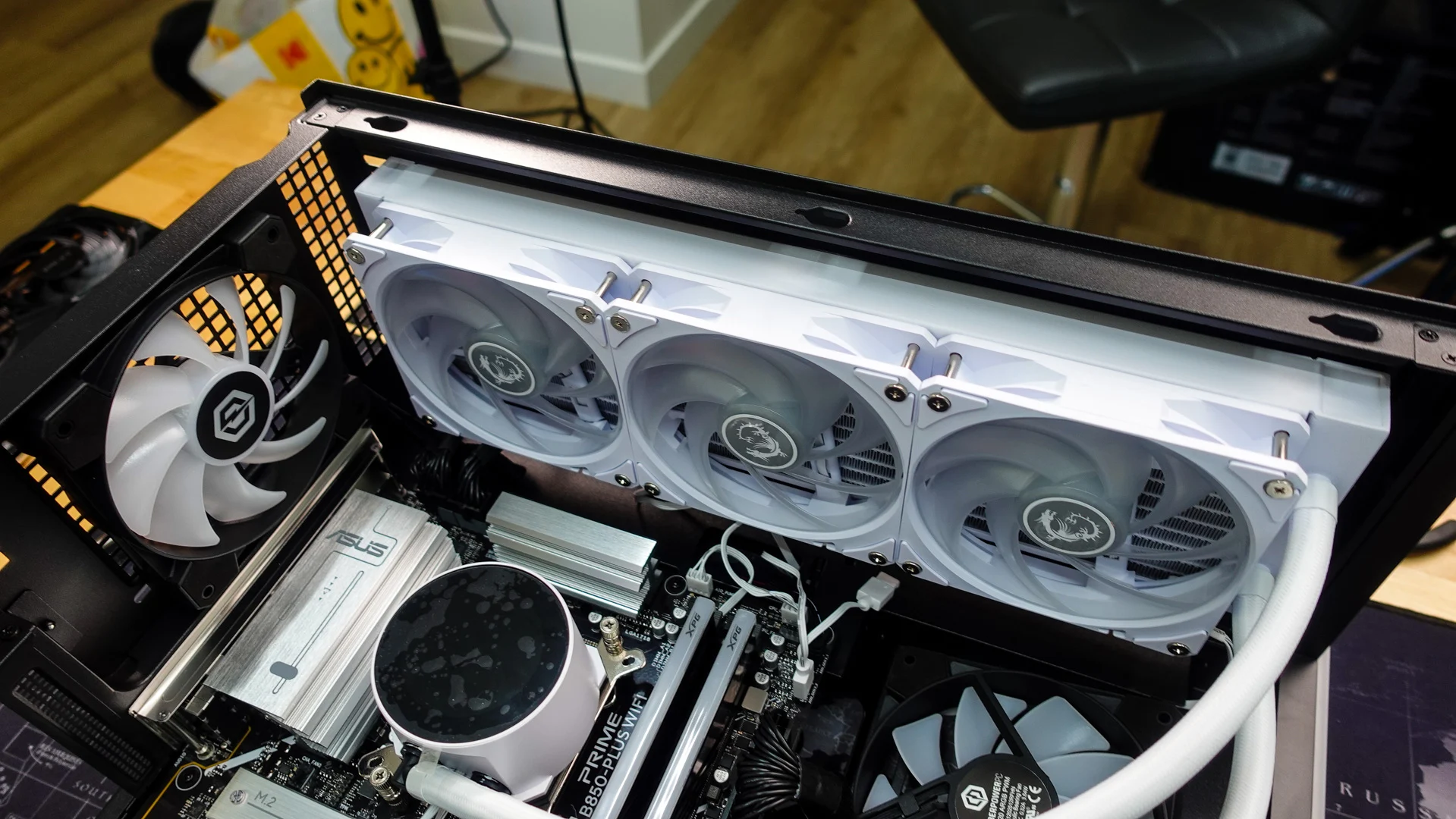
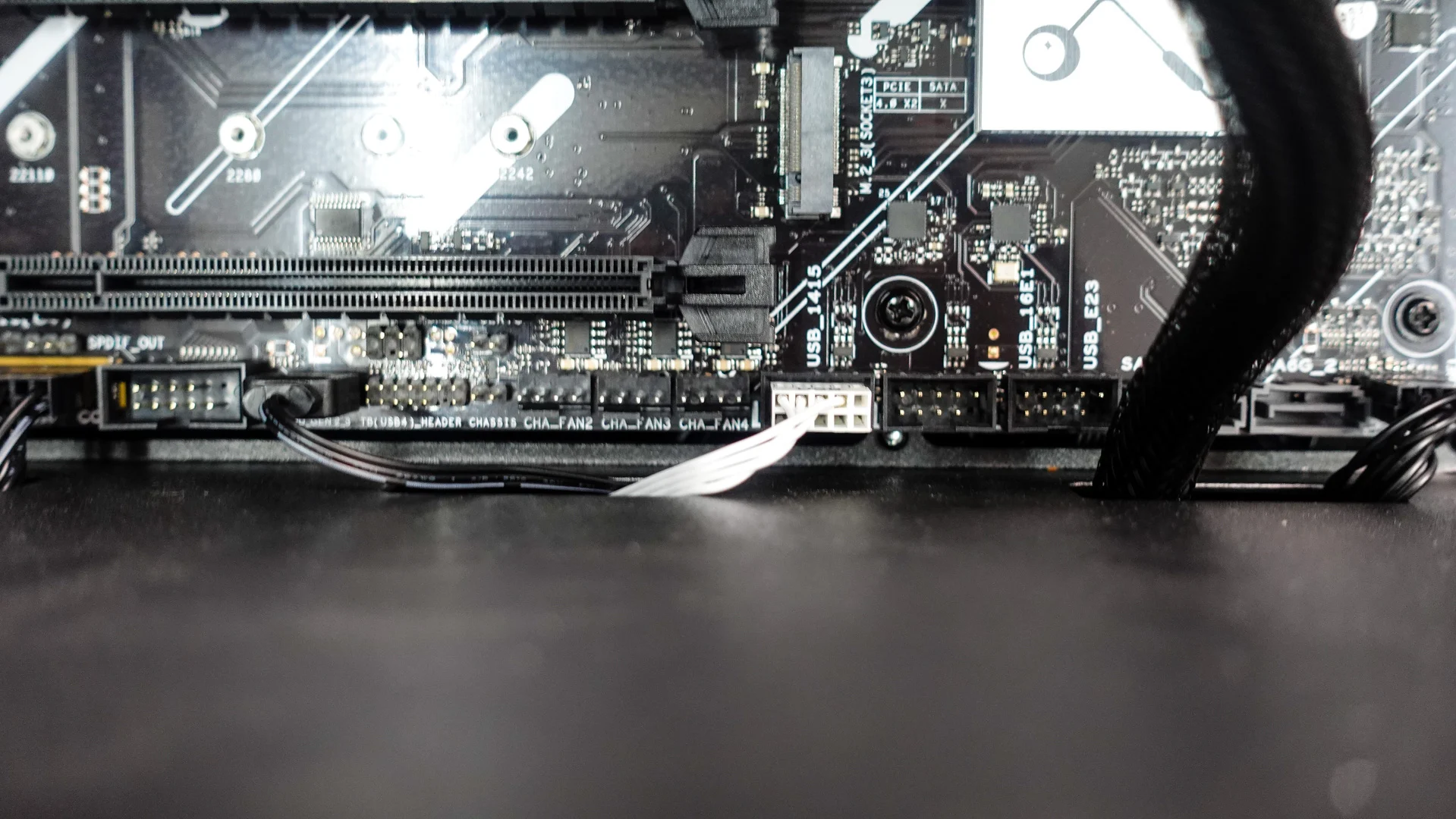
Once the pump block is secure you can then mount your radiator with the supplied screws. Finally go ahead and connect all of your cables. The two cables that come off the block itself are a pump header and USB 2.0 header. The pump header of course goes into the AIO pump header on your motherboard and the USB 2.0 header goes into an open USB 2.0 header on your motherboard. The USB 2.0 header is not long enough to route up, over, and around your motherboard to connect to a bottom USB 2.0 header so you’ll have to route it to the front-edge of your board and and then behind to get to that bottom USB 2.0 header. Coming off the fans is a fan header and ARGB header. The fan header connects to the CPU fan header on your motherboard and the ARGB of course connects to any open ARGB header. The last thing you’ll want to do is install the cover over the pump block. This gives a much cleaner look to the area around your CPU socket.