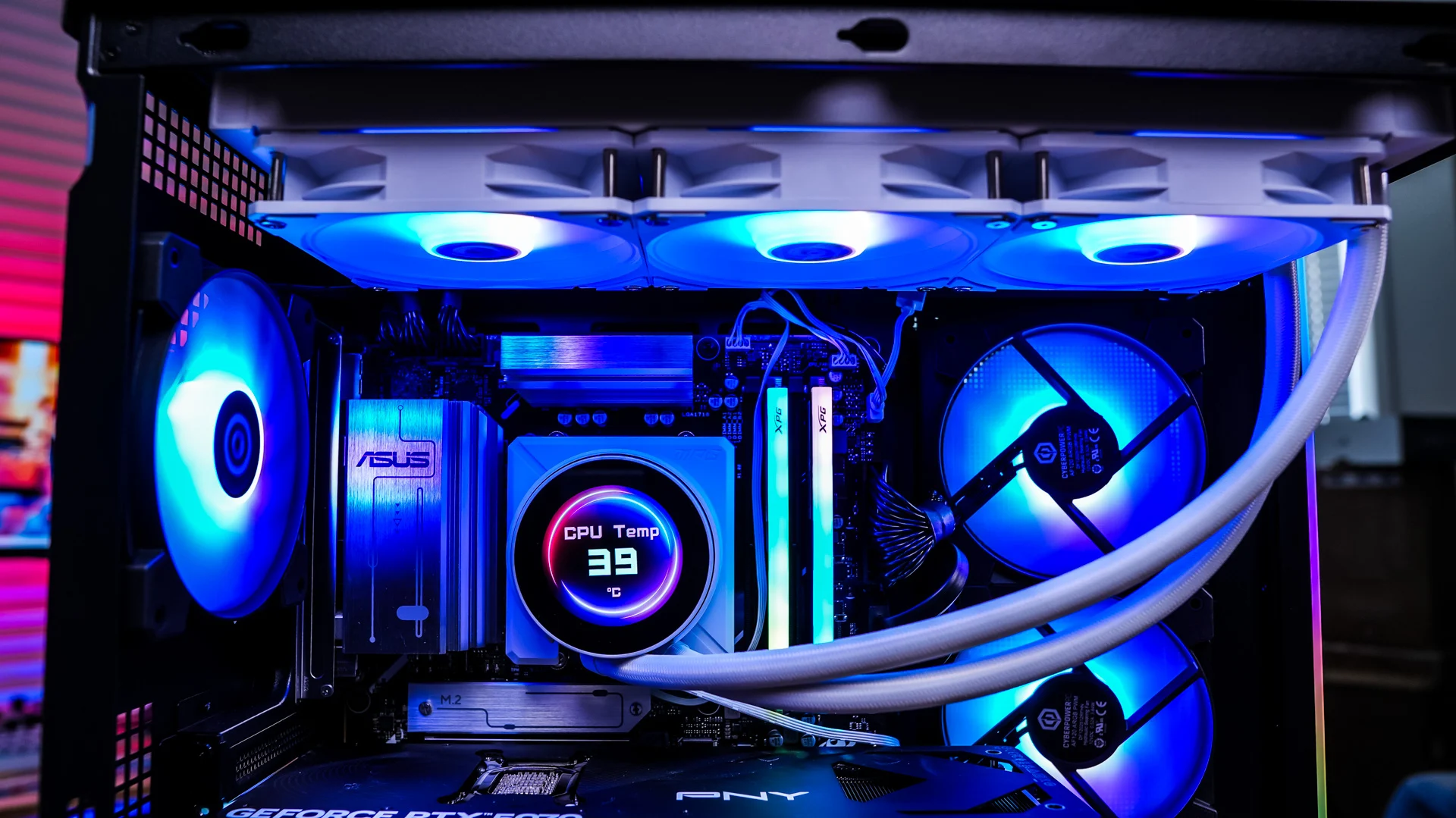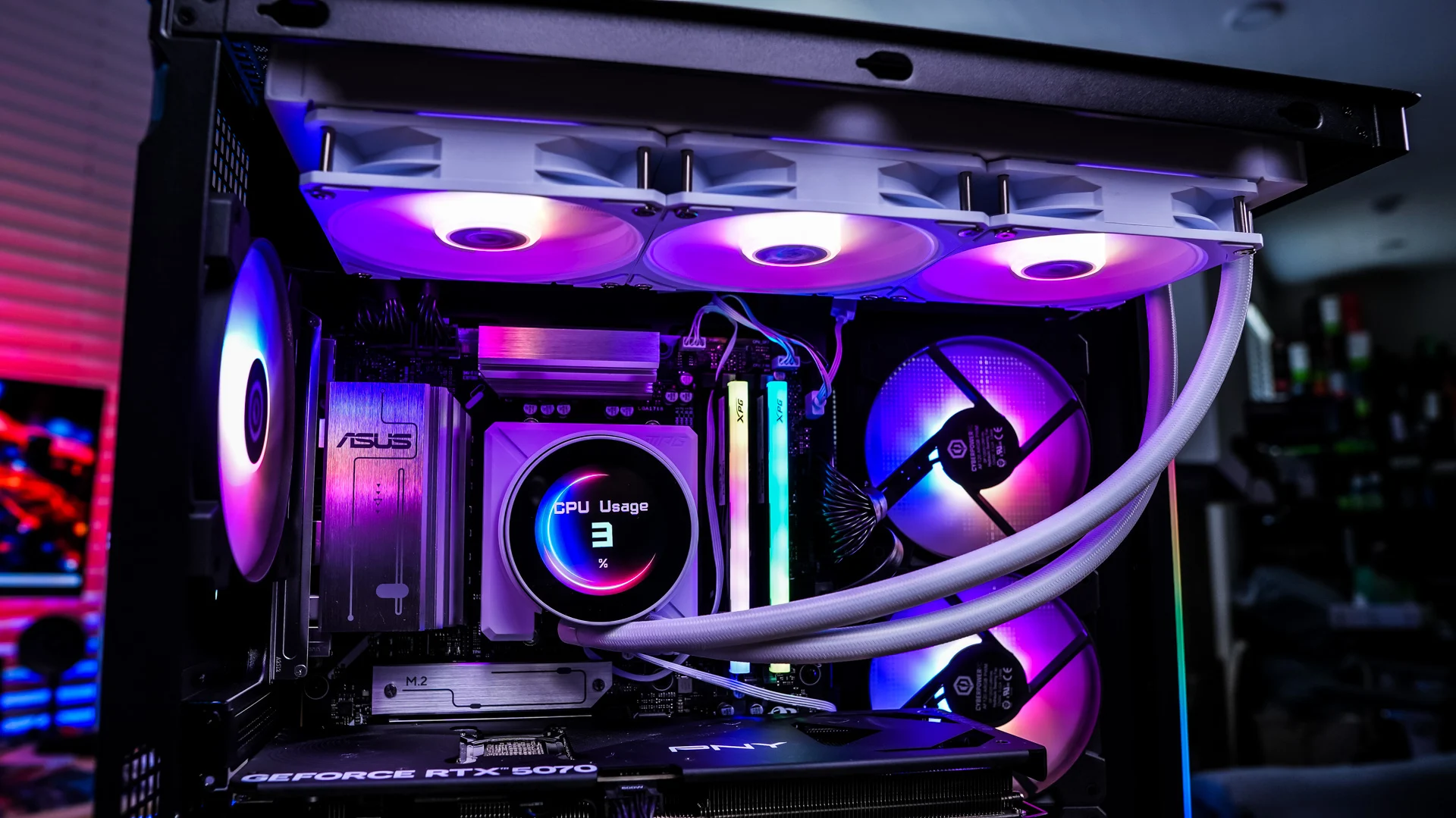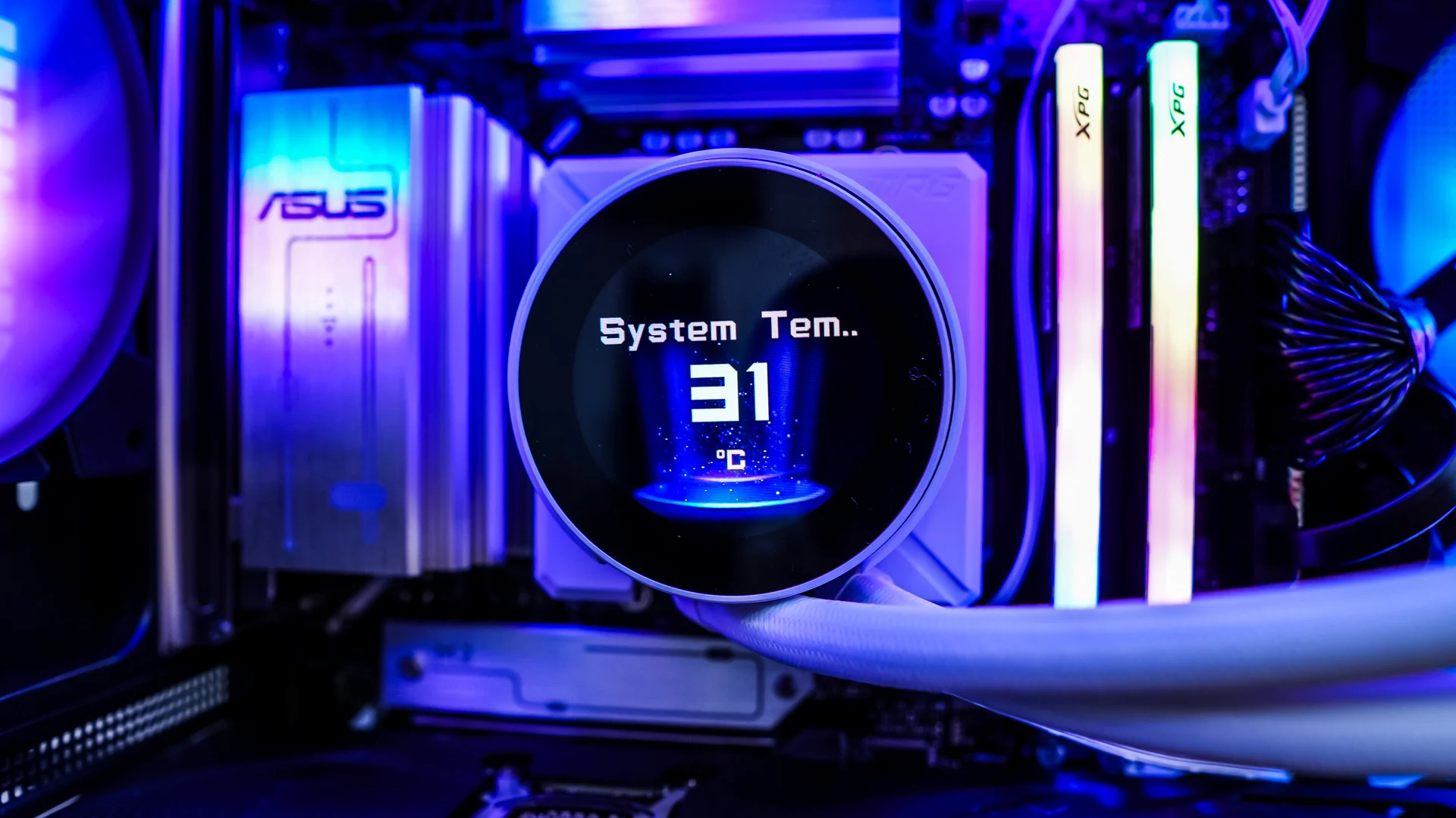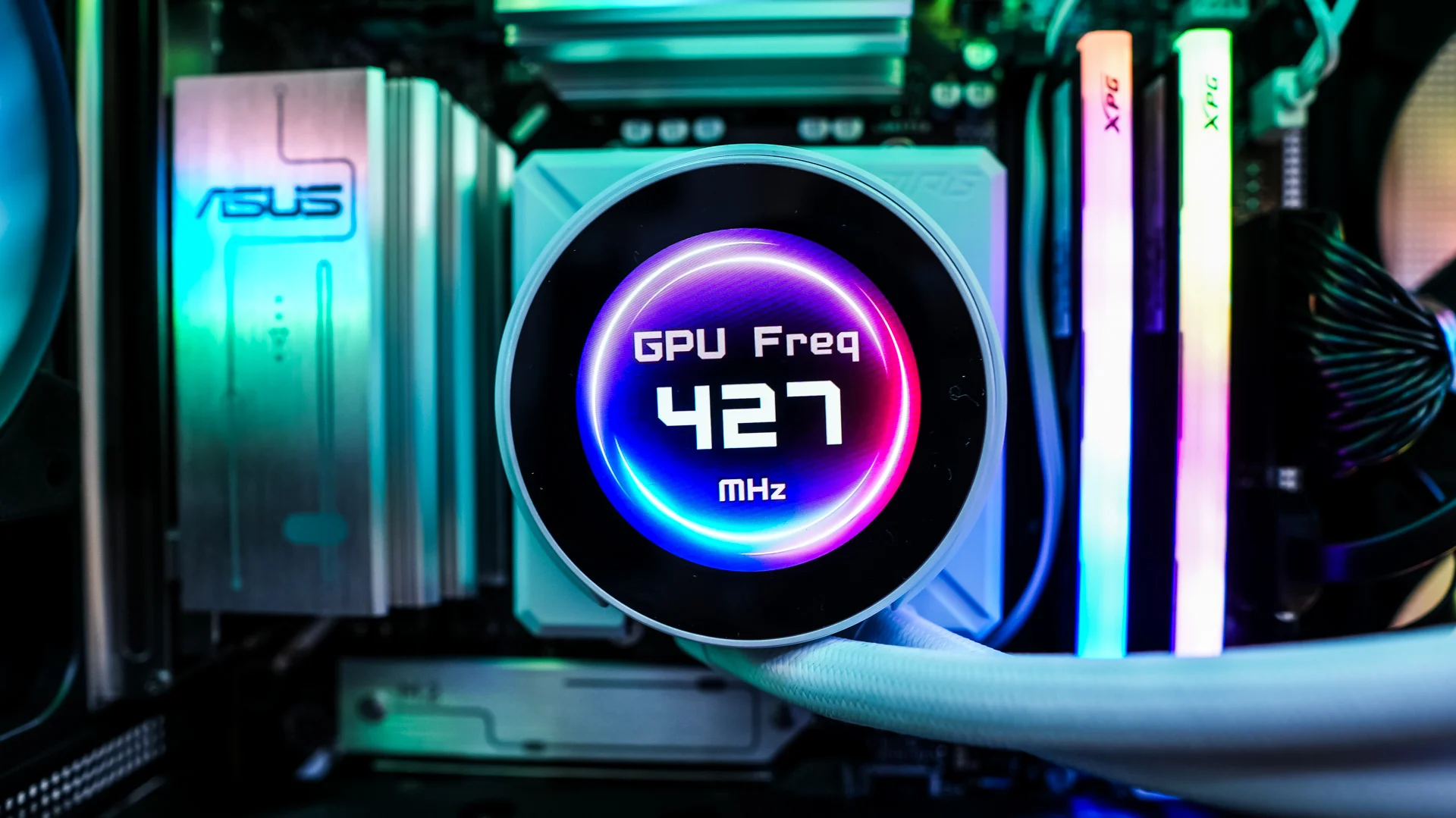
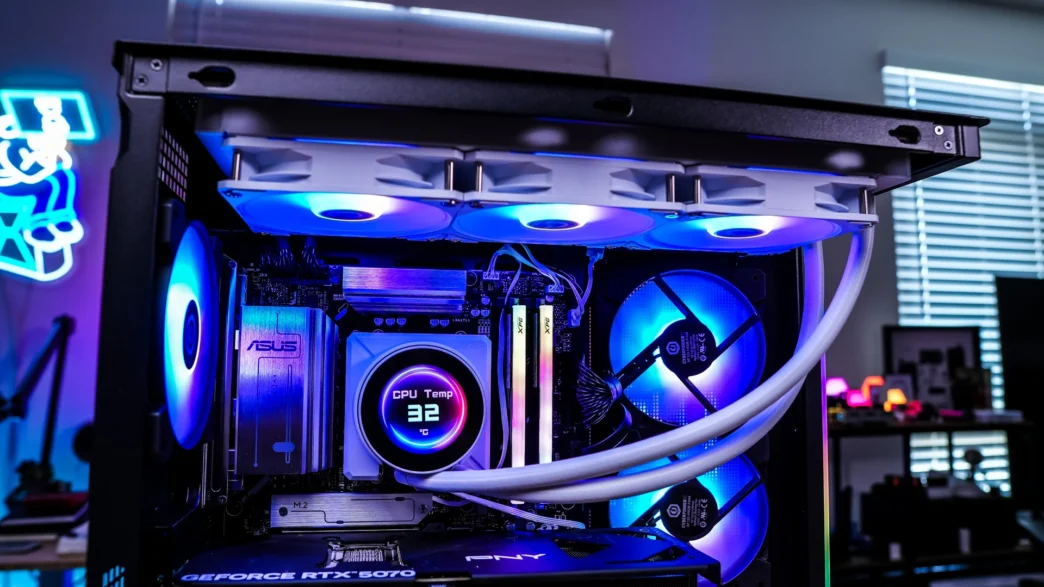
Can You Customize the screen on the MSI MPG CORELIQUID P22 360 W Liquid CPU Cooler?
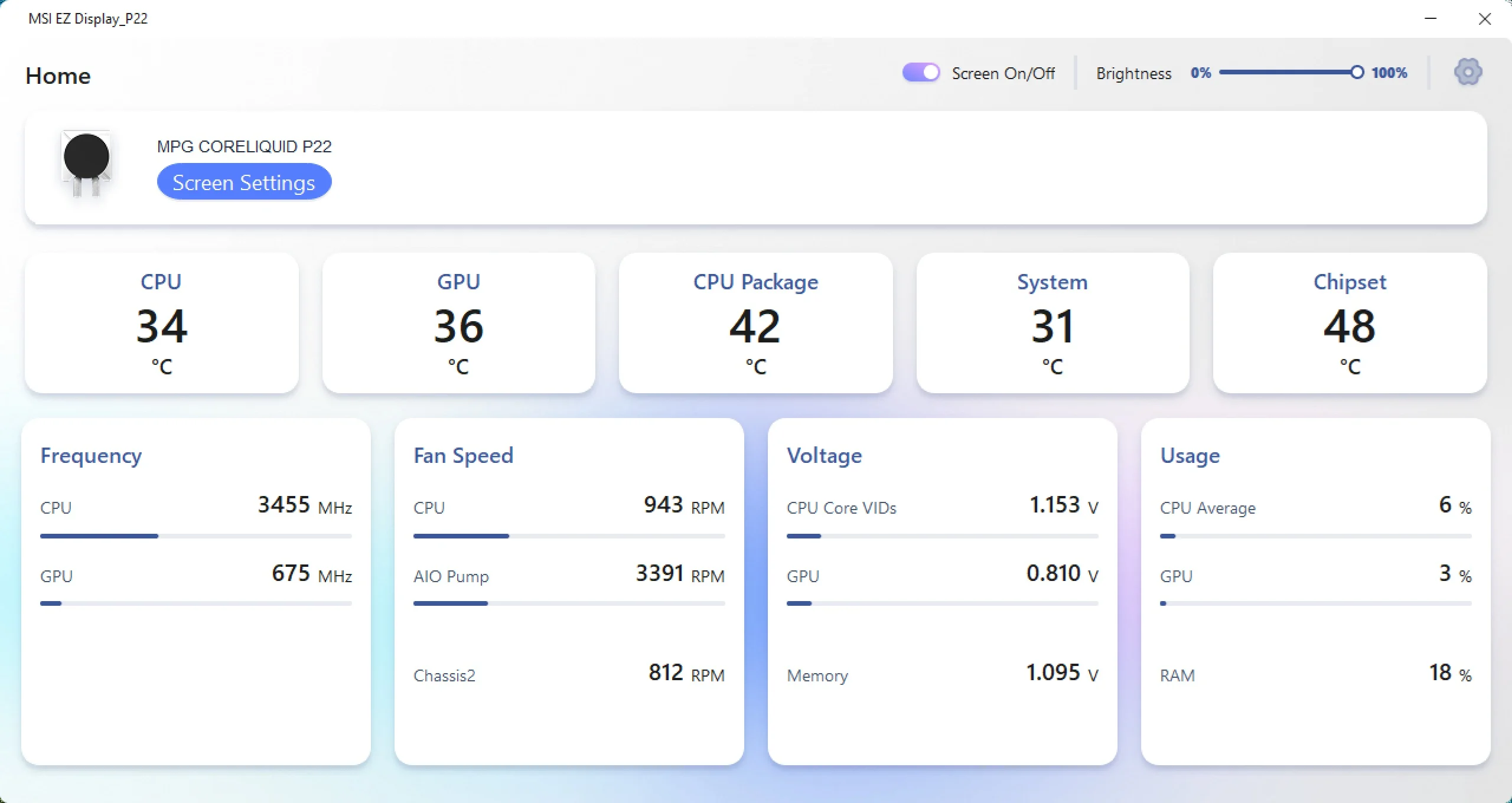
When it comes to customizing the screen on the MPG CORELIQUID P22 360 W you’ll need to either download the standalone “MSI EZ Display_P22” app or add the EZ Display feature in MSI Center. I opted for the standalone app. Opening it up, it gives you a full overview of your system stats including temperatures, frequencies, fan speeds, voltages, and usage. You can also completely turn the screen on the cooler off, and adjust the brightness.
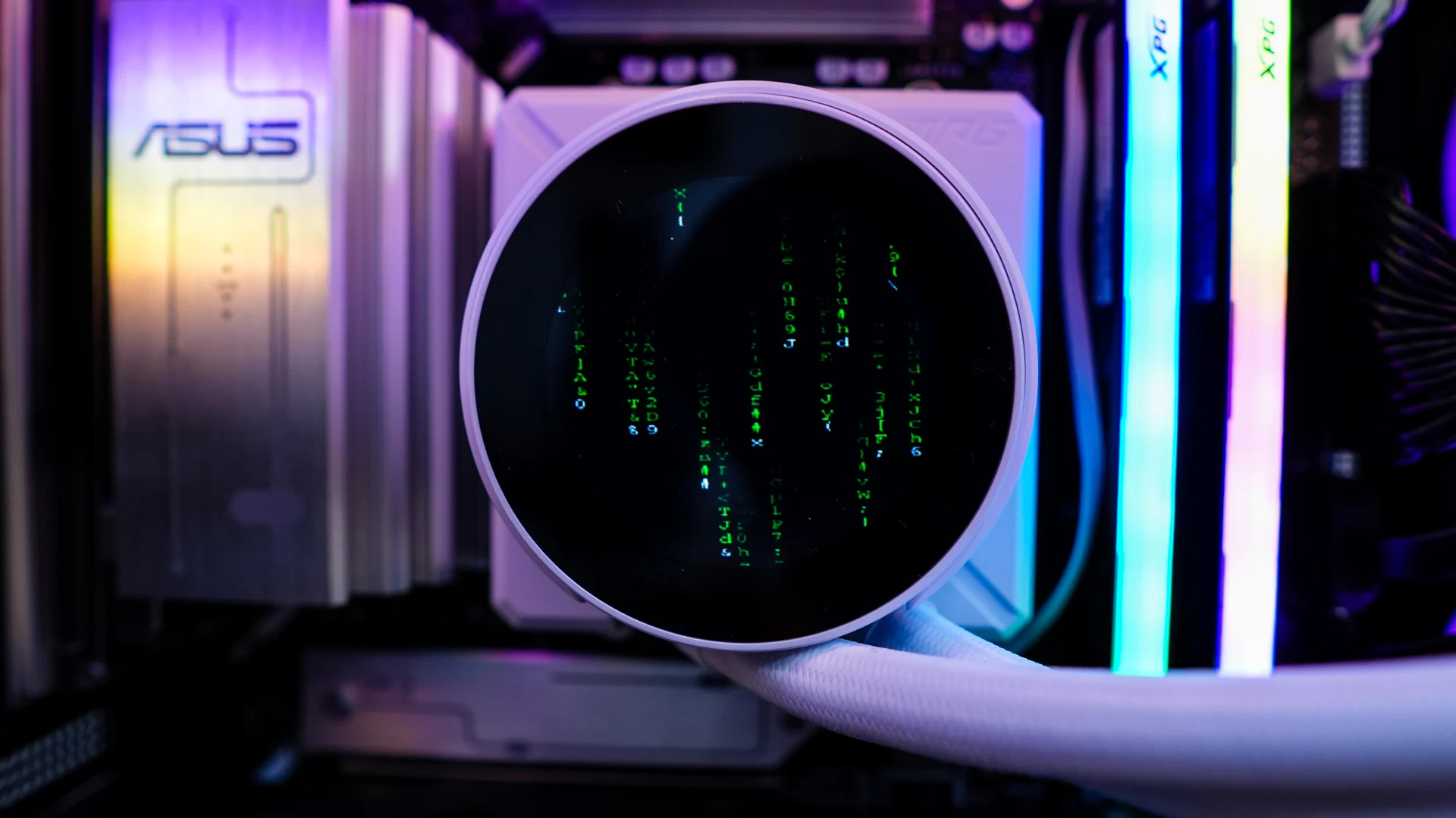
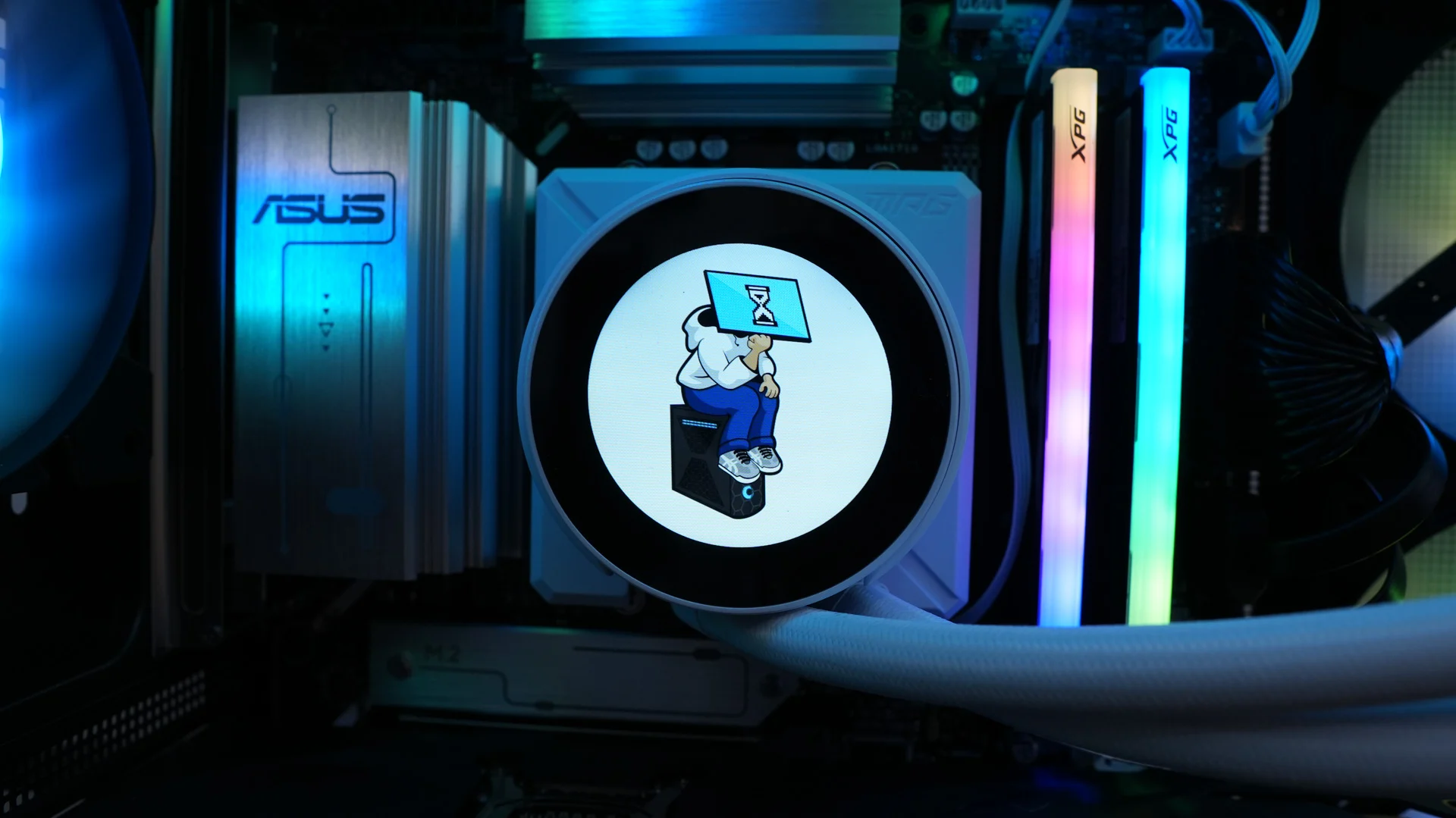
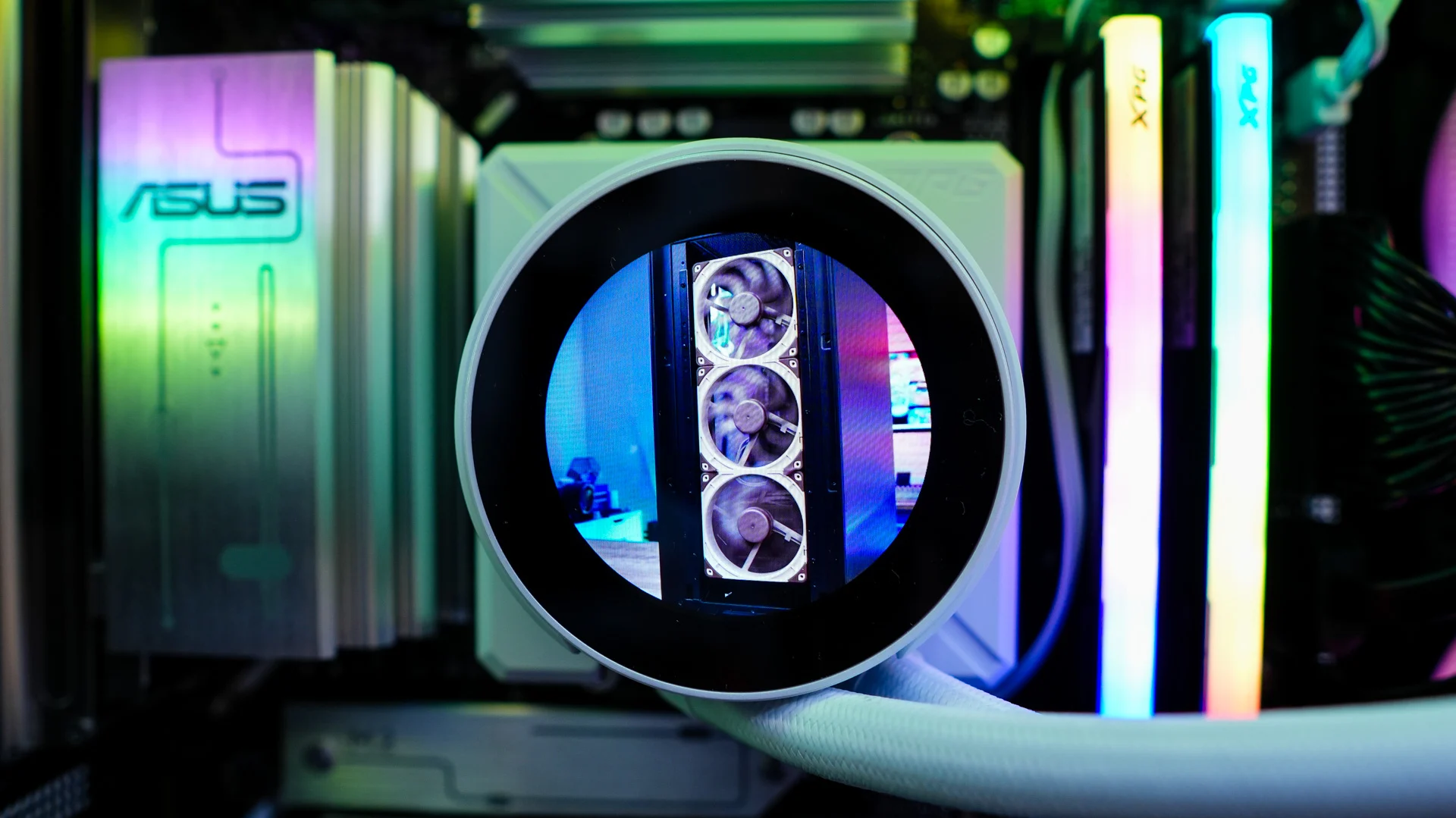
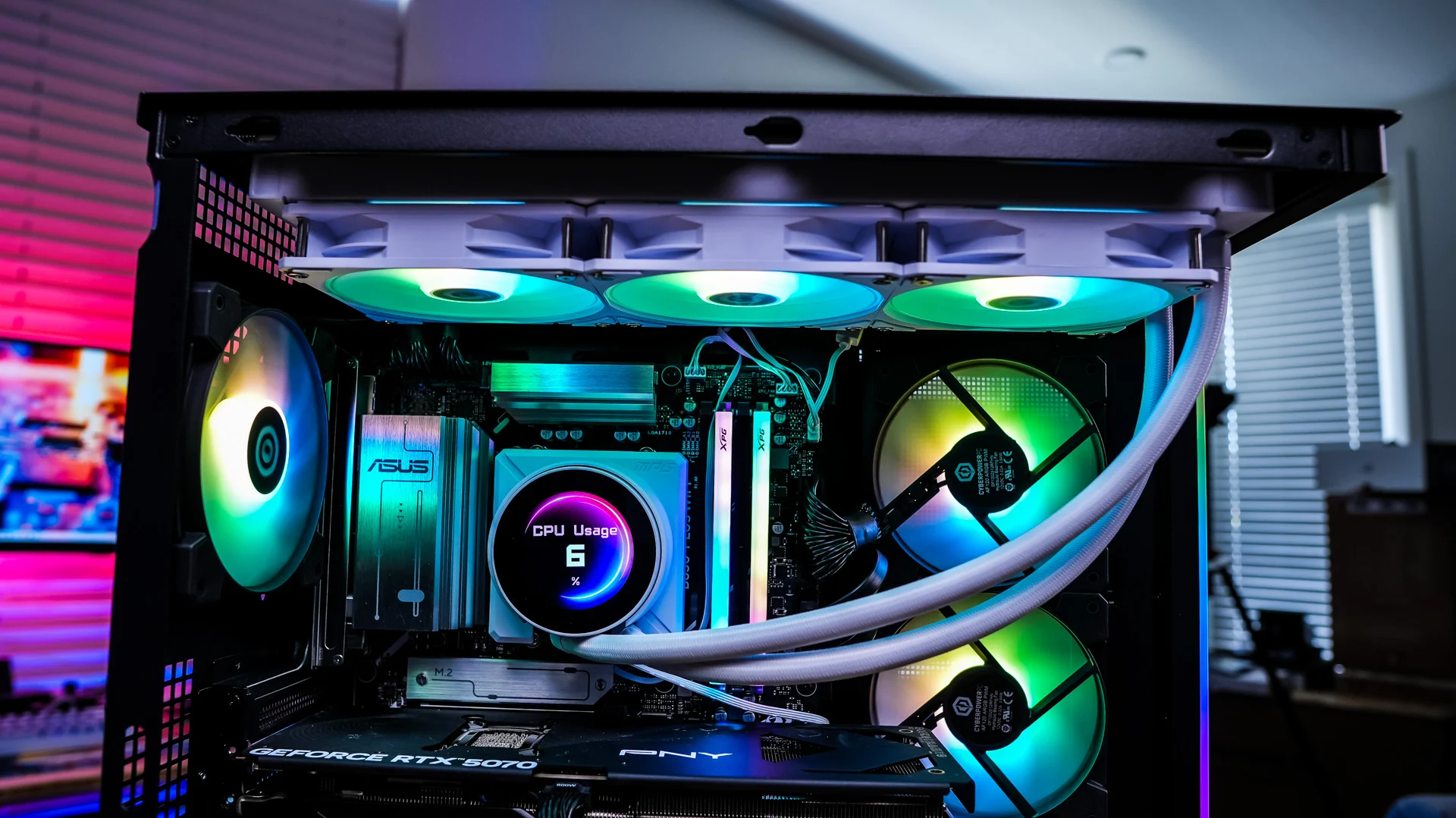
Going into the screen settings we can see what is actually being displayed on the screen and we have the ability to set a background from a media library. There are four default background, which seems a bit limited. You have the ability to add any image, gif, or video file (up to 500mb) to the media library. You can also have a list of system stats displayed over the background. For those you can set the font, content color and content color.
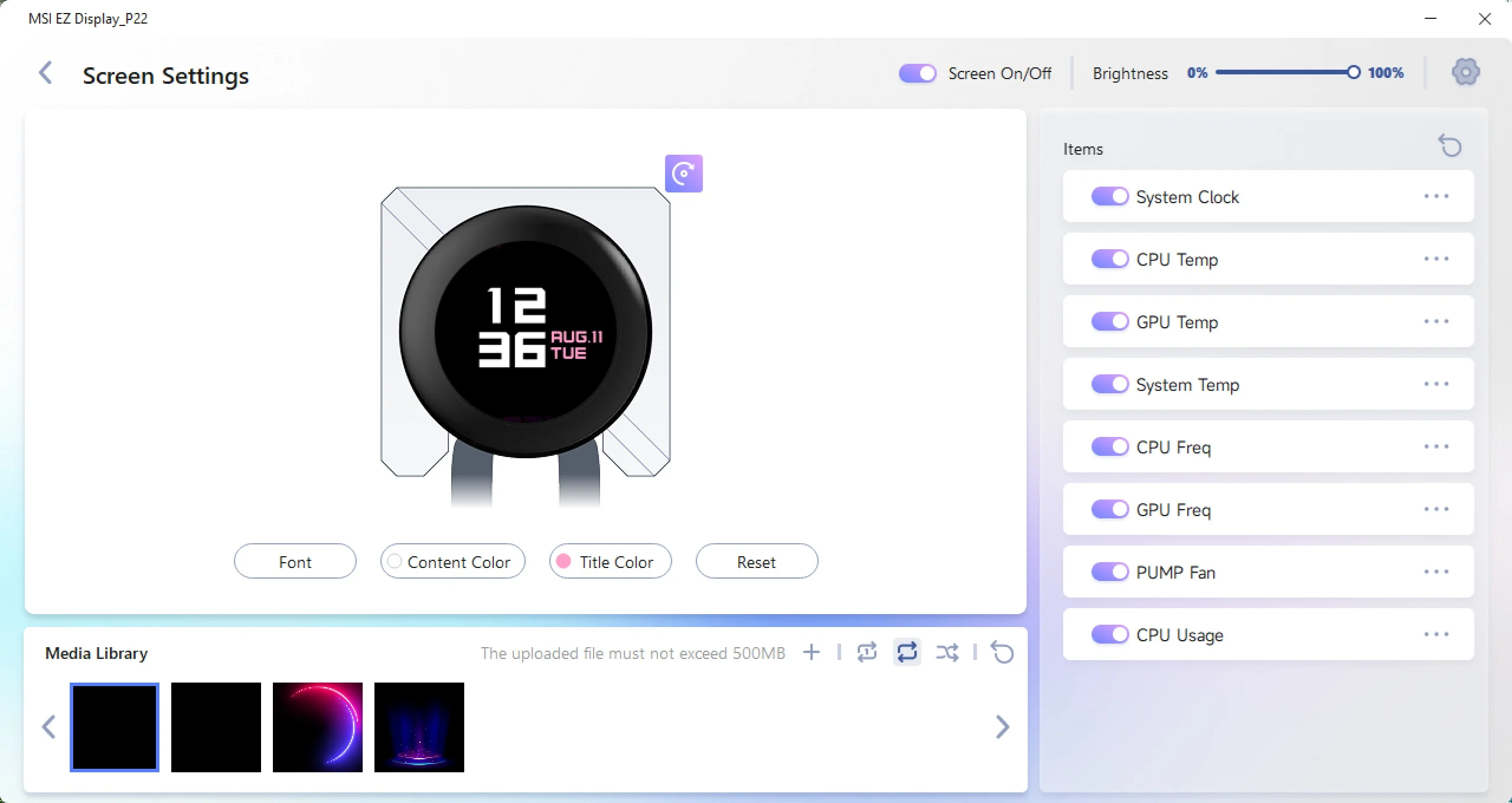
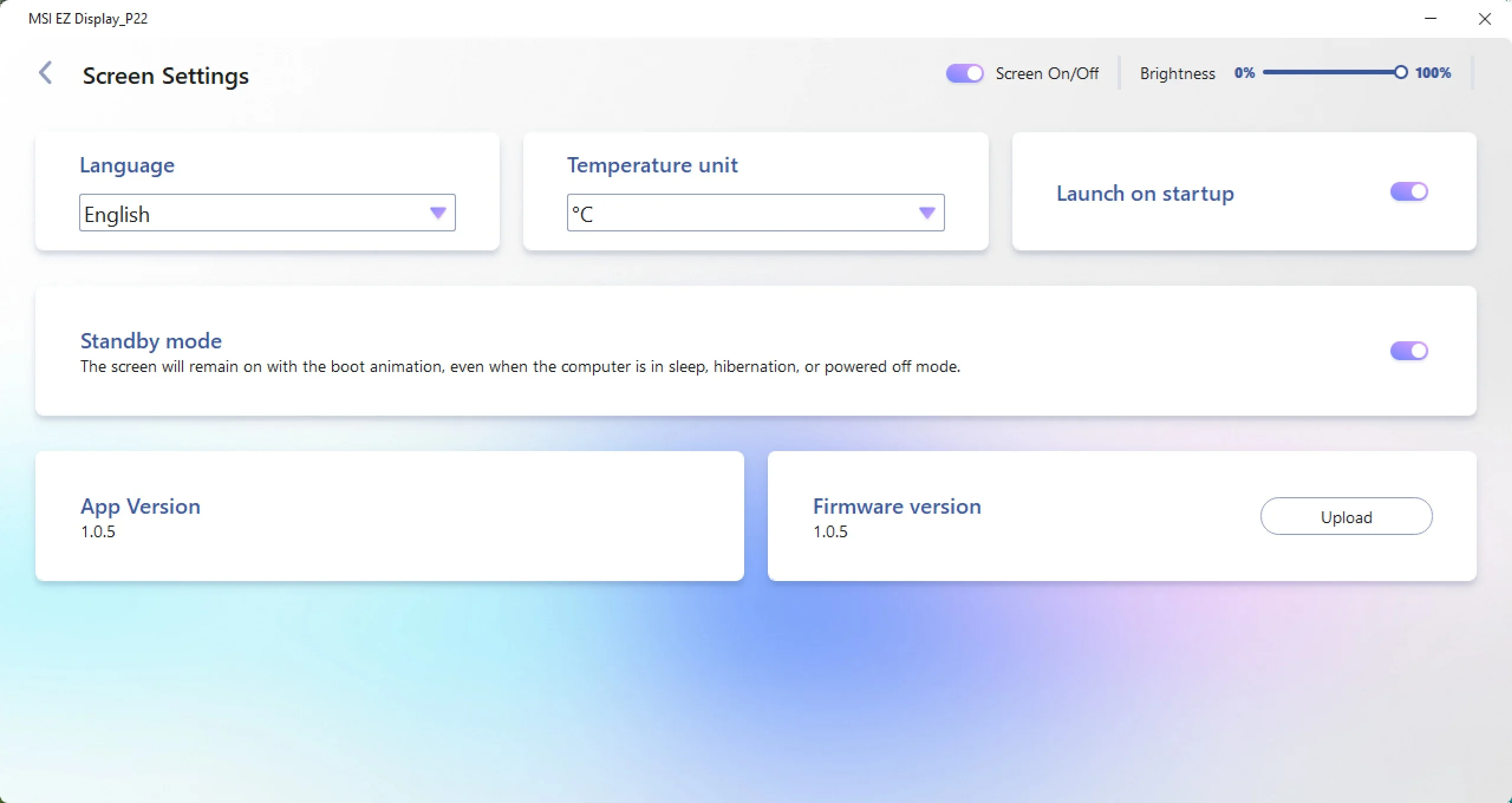
There is also a small settings menu where you can change the language, temperature unit, if the app launches on startup, and if the screen stays on if you power your system off.
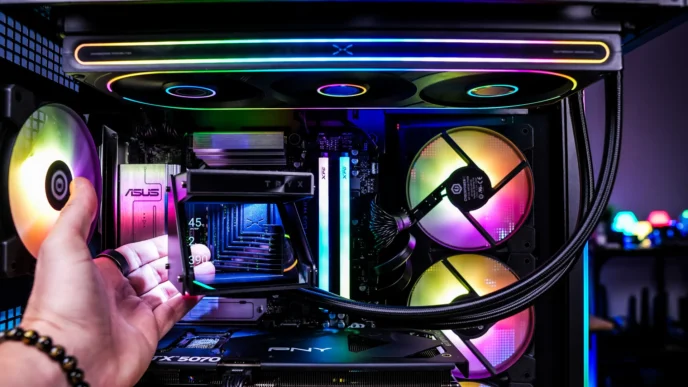
MSI MPG CORELIQUID P22 360 W Liquid CPU Cooler Gallery
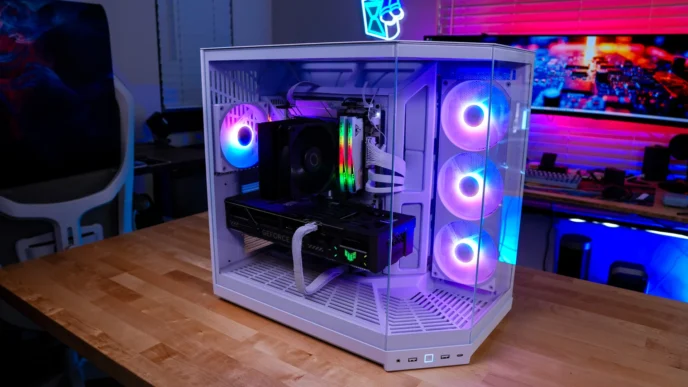
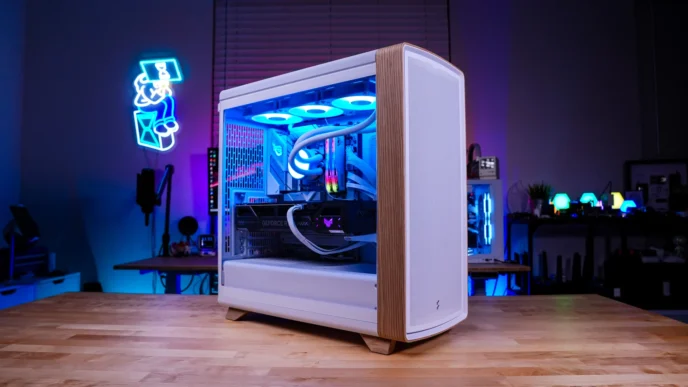
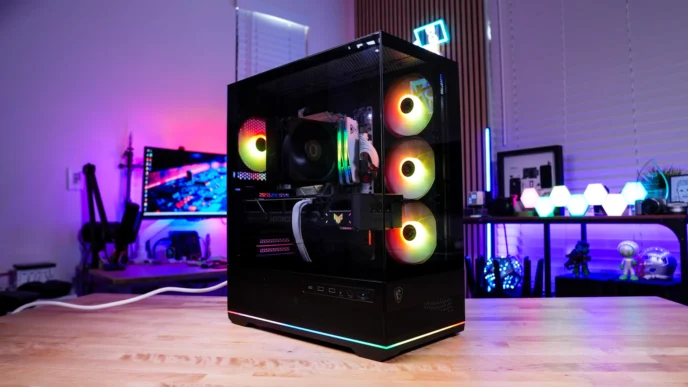
Here are some shots of the cooler and screen in action!