Installing the Fans
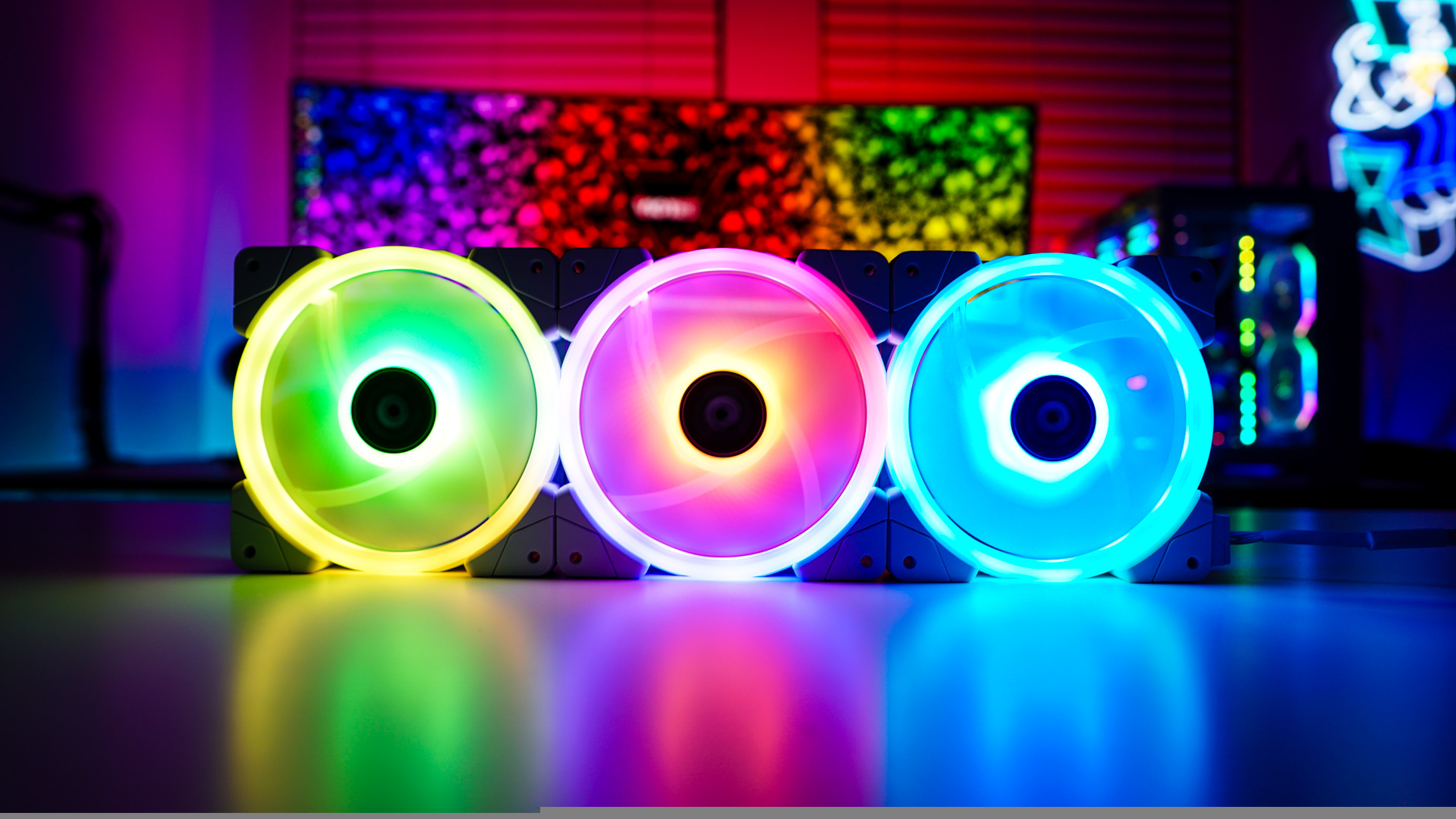
Getting the SWAFAN EX12 RGB fans setup is pretty easy. Below you can see how I have everything configured. I have the fans connected together and then connected to the controller. You’ll need to plug in the USB connection to the controller as well as the power connection. I do not know why Thermaltake has gone with a Molex connector for power over something newer like SATA. With everything connected you can see we do have very limited cable mess.

I actually did install these fans in a case to see how the magnets would help and I have to say it was quite easy. You can screw in one fan and then attach the other two and they will stay there. This makes it so you have both of your hands free as you are not using one of your hands to hold the fan in place.

The Software
The included controller works with Thermaltake’s TT RGB Plus software, which you can download from Thermaltake’s website. With it installed on the main screen you should see the controller listed. You’ll see that there is a listing of different fans and other Thermaltake products at the bottom of the page. You want to drag and drop your product from the list on the bottom of the page to the corresponding port on the controller. Once you have done this hit save.


If you are wondering about controlling the speed of the fans you can click on “MY PC” and then “FAN SPEED”. You should see your fans listed here and the current RPM that they are running. You can click on advanced options and set the fans to PWM, select one of the predefined settings, or make your own fan curve.


When it comes to customizing the lighting we click on the “LIGHTING” section in the software. Here you should see your three fans. Each fan has 20 zones that you can control independently or you can use the select all to select all of them at once. There is a list of different effects, colors, and more you can choose from to customize the lighting effects.