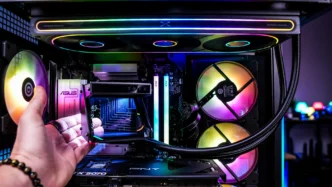
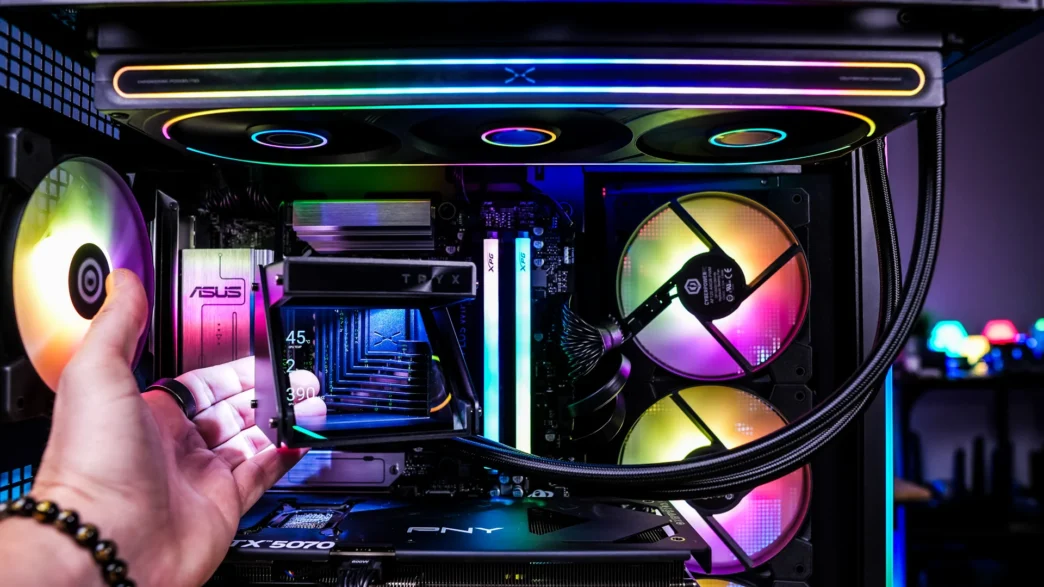
TRYX HOLO ARGB 360 Liquid CPU Cooler Review

TRYX HOLO ARGB 360 Liquid CPU Cooler TRYX HOLO ARGB 360 Liquid CPU Cooler

Is Installing the TRYX HOLO ARGB 360 Liquid CPU Cooler Easy?

Getting the TRYX HOLO ARGB 360 installed is quite easy. Now we will be doing our installation on an AMD B850 motherboard so this installation will be for the AM5 socket.

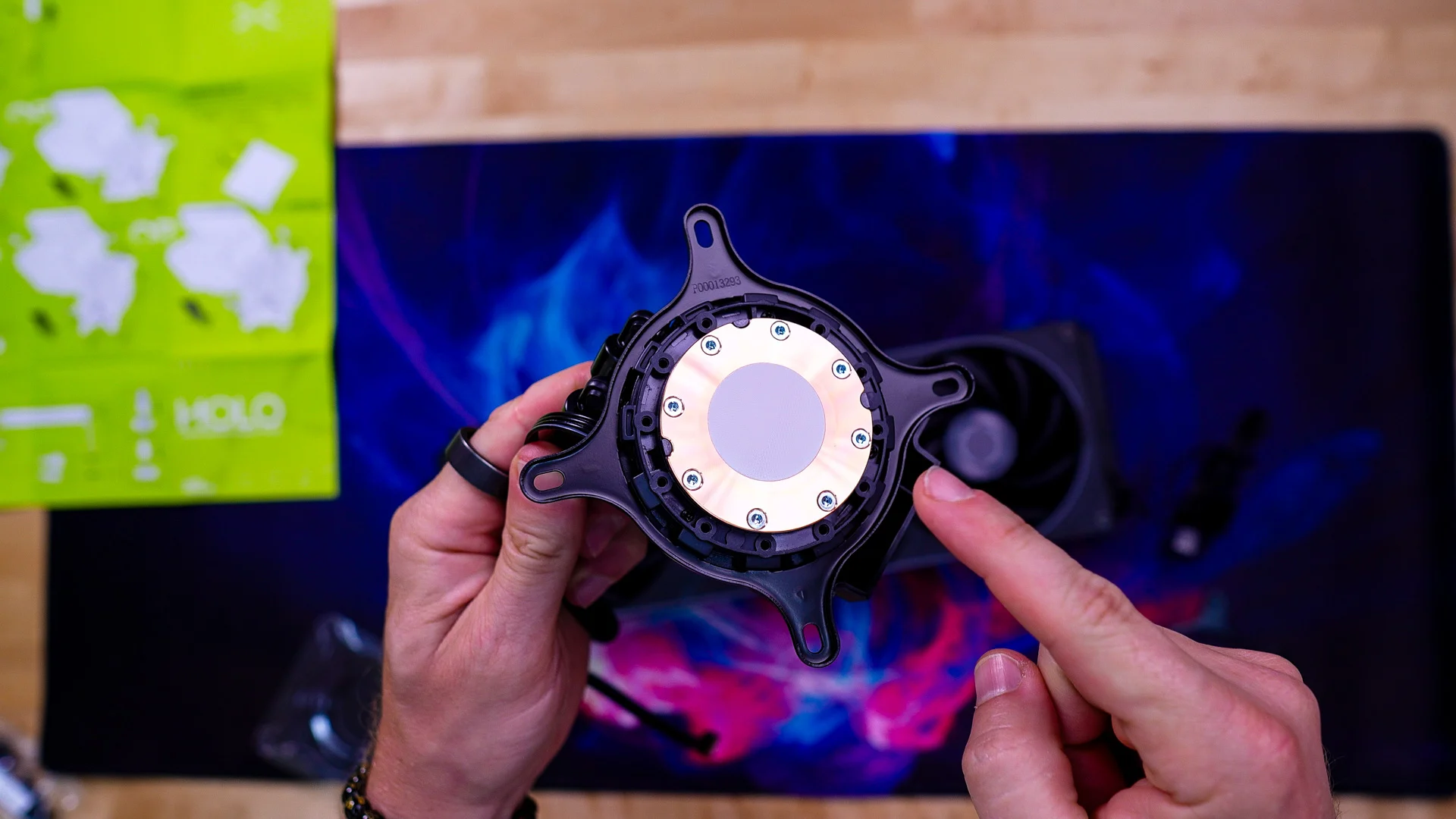
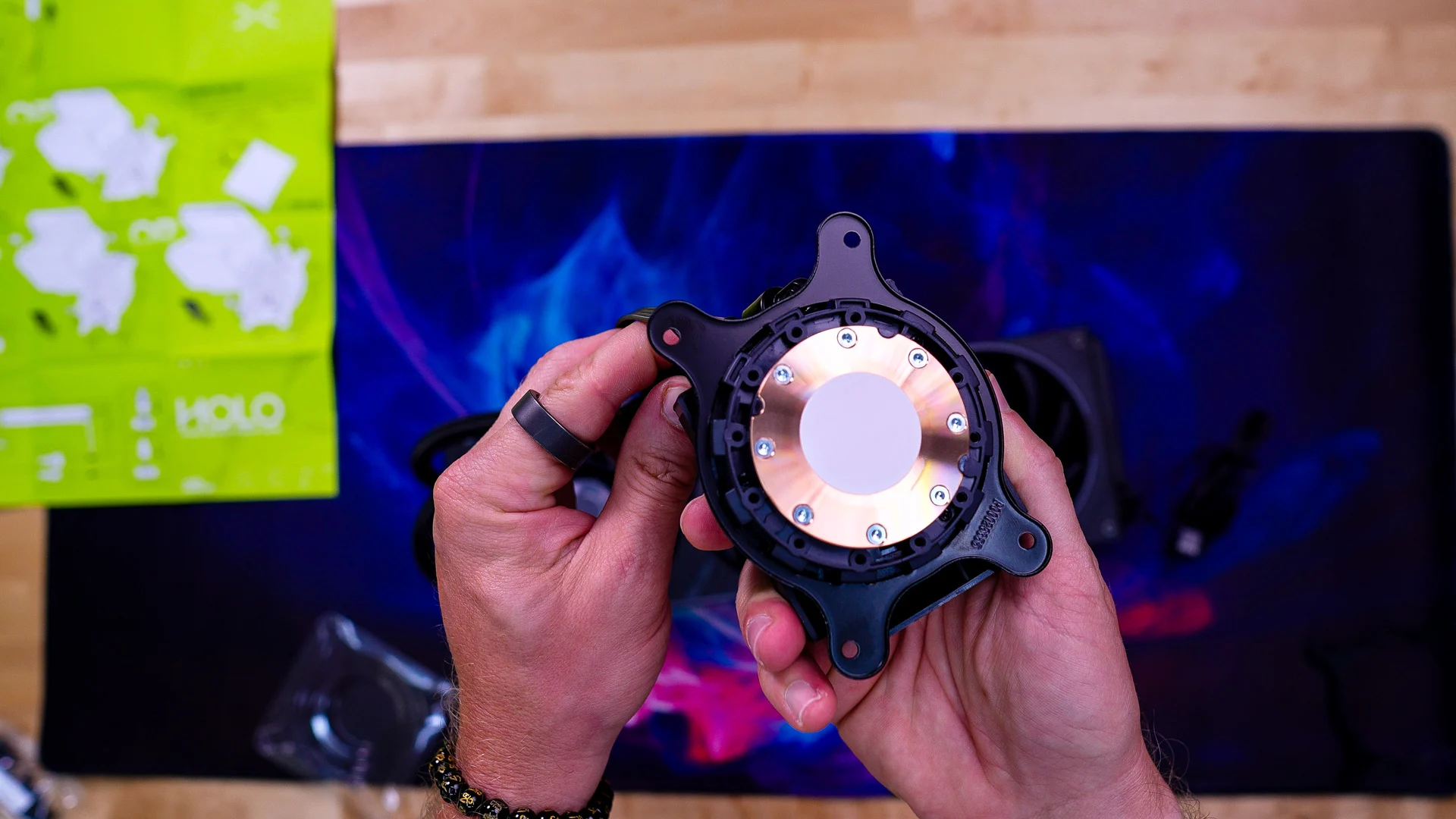
The HOLO does not have a universal mounting bracket and our sample shipped with Intel mounting hardware pre-installed, so we had to swap out the bracket for the AMD bracket.
TRYX HOLO ARGB 360 Liquid CPU Cooler TRYX HOLO ARGB 360 Liquid CPU Cooler
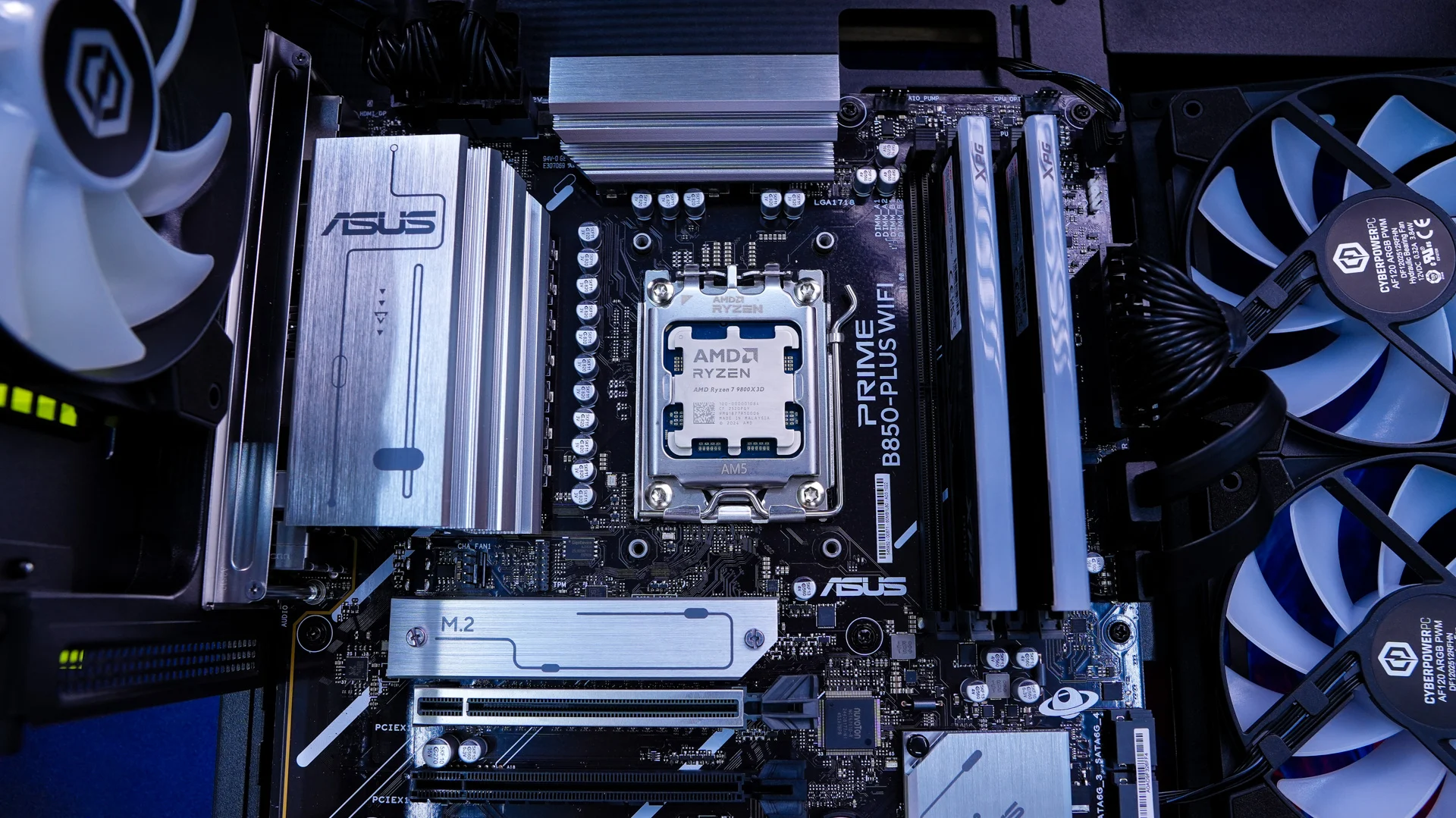
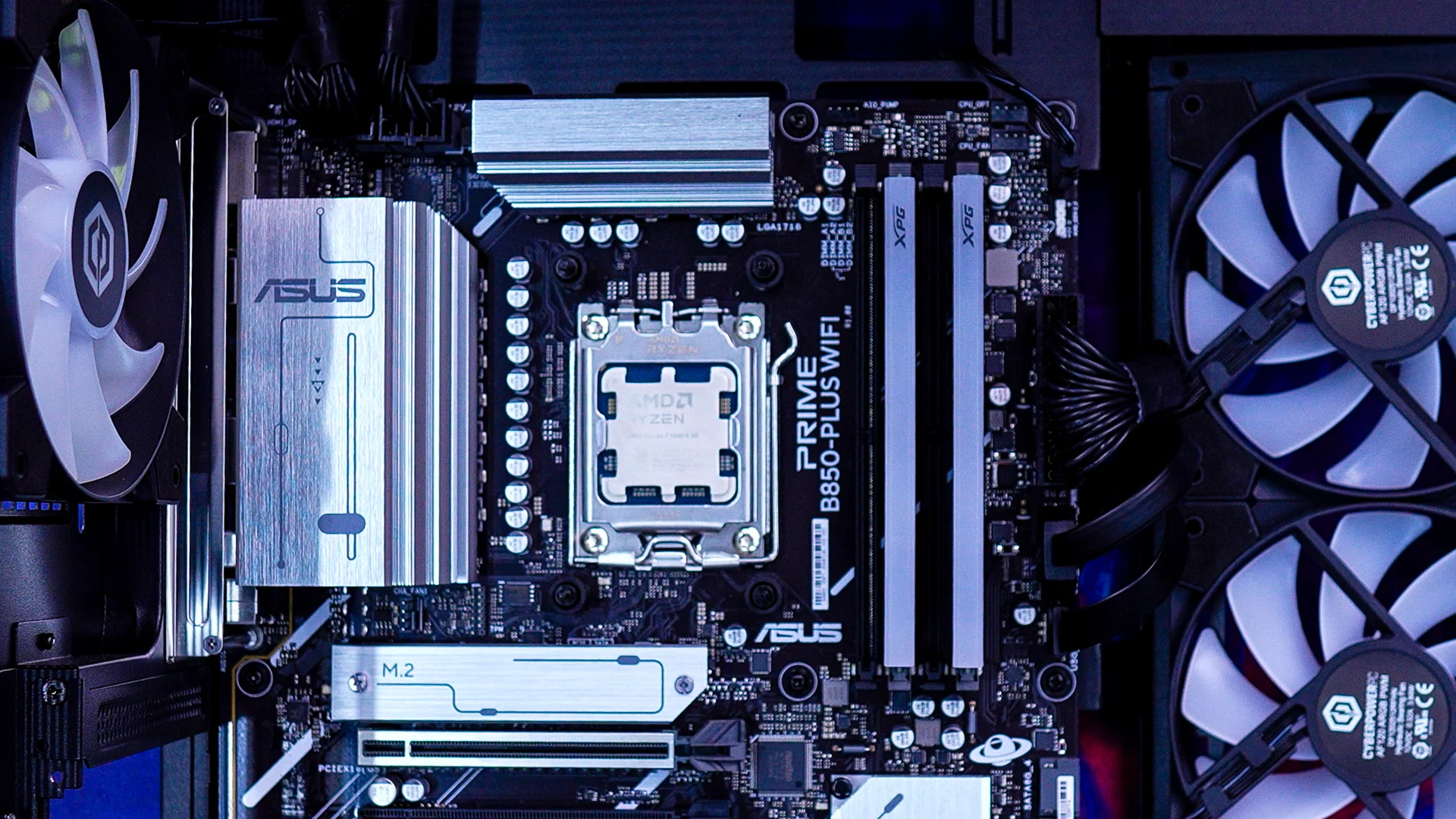
With that done, remove the AM5 mounting brackets that are on your motherboard. You will keep the backplate in place though, so your motherboard will look like the photo you see below.

TRYX HOLO ARGB 360 Liquid CPU Cooler

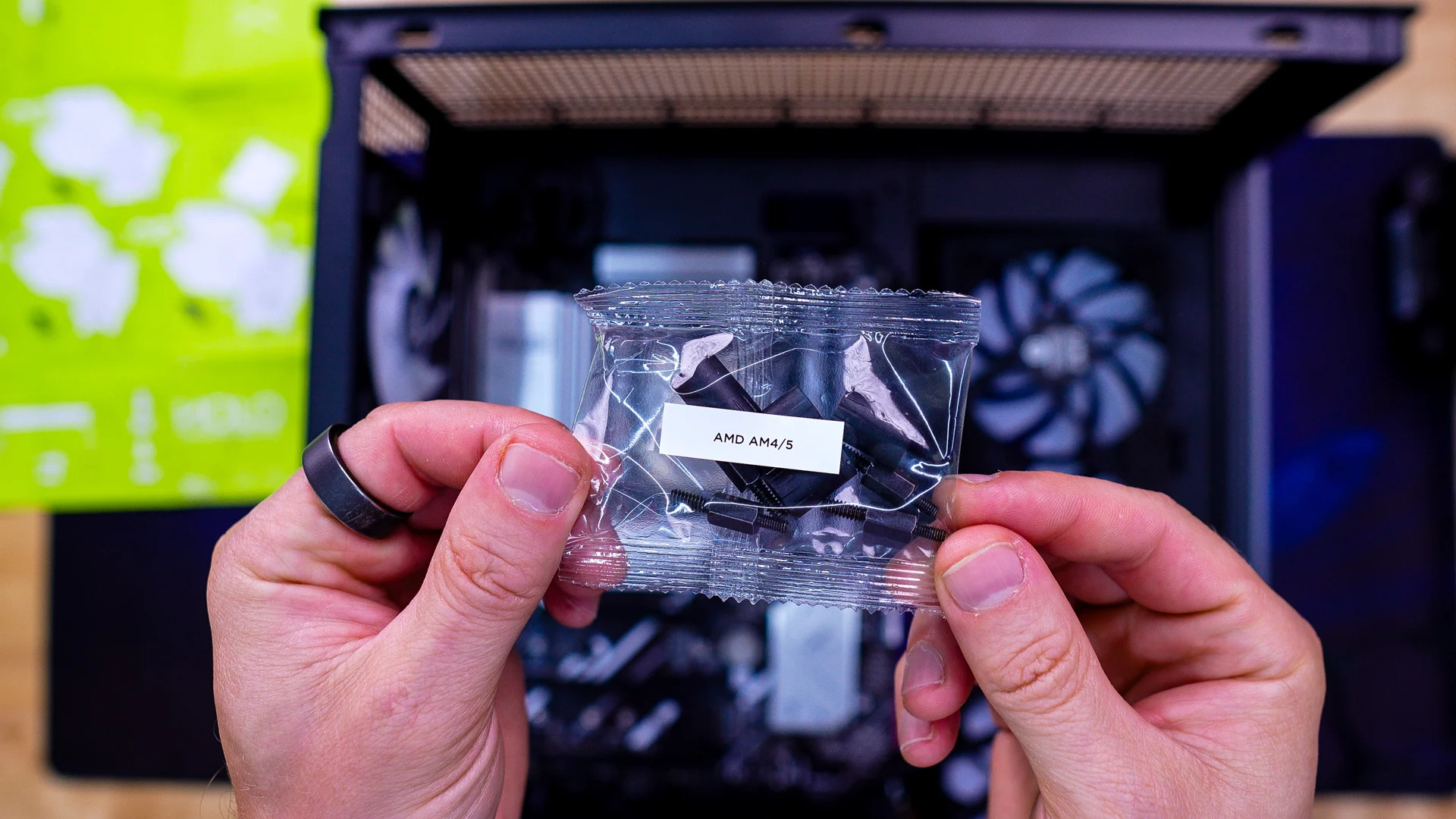
Now find the small bag that says AMD AM4/5. This will have your spacers and AMD screws inside. Slide the spacers over the holes in your motherboard where you removed the AM5 mounting brackets. From there install the screws in those holes.
TRYX HOLO ARGB 360 Liquid CPU Cooler TRYX HOLO ARGB 360 Liquid CPU Cooler
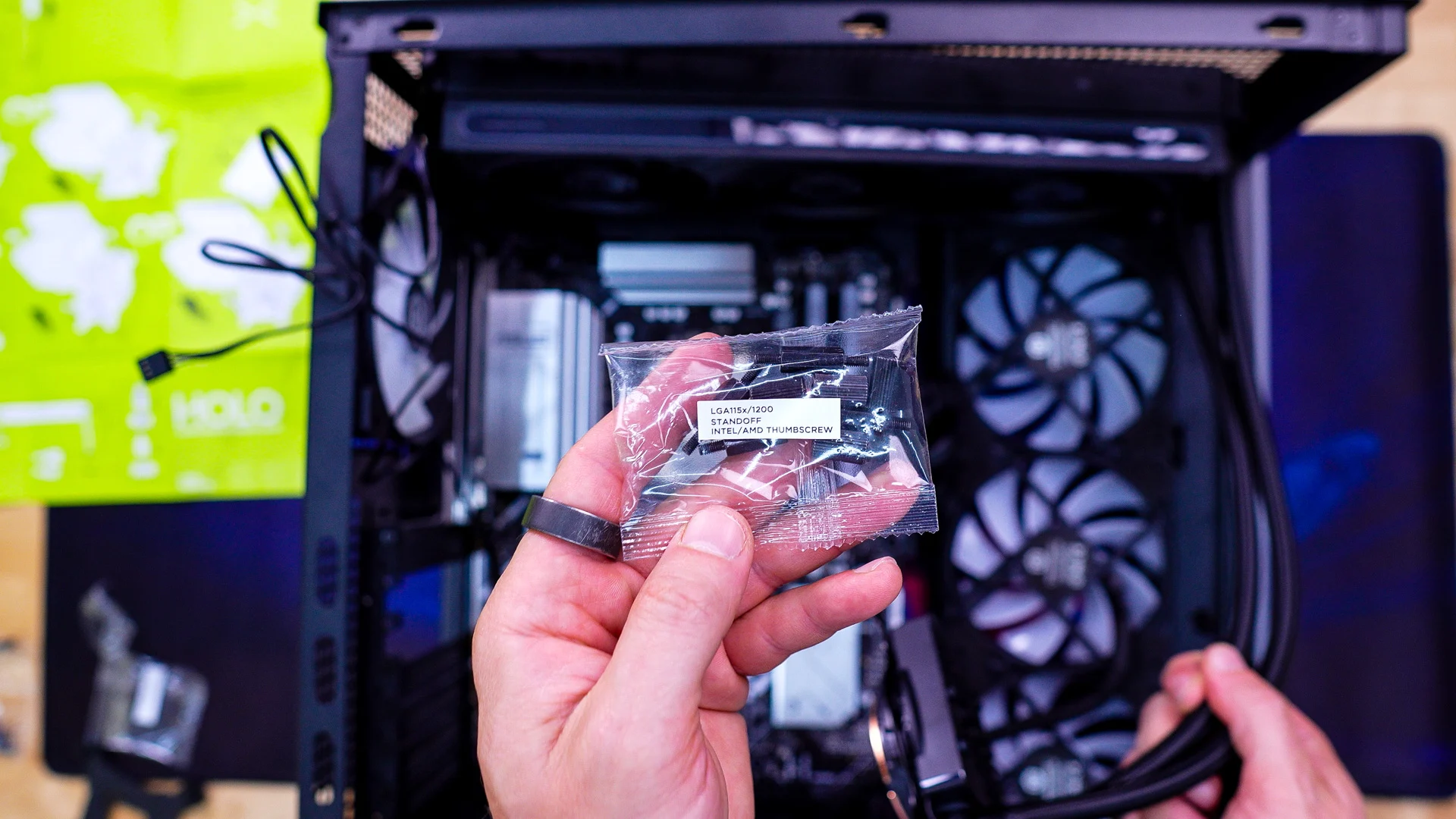
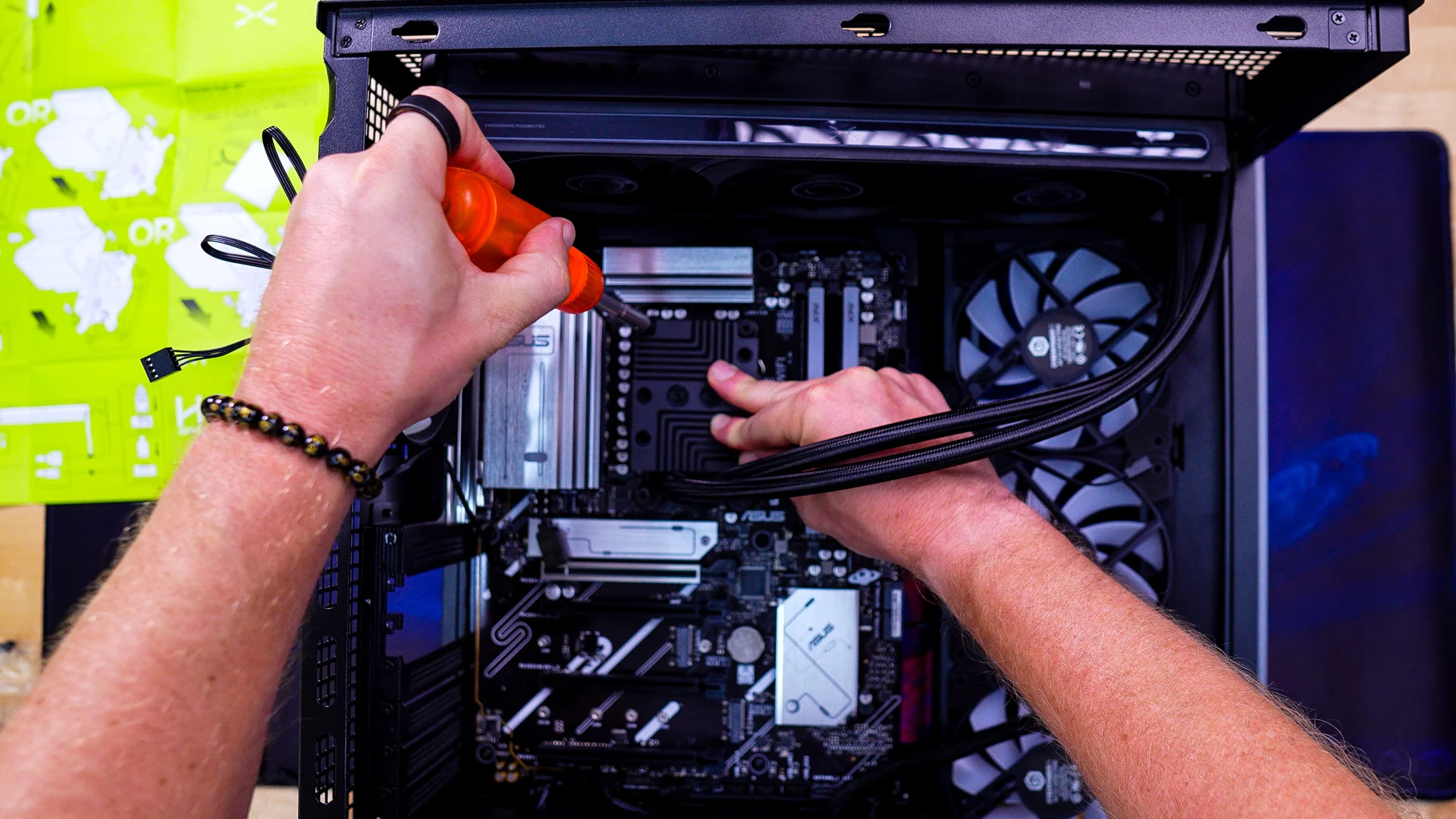
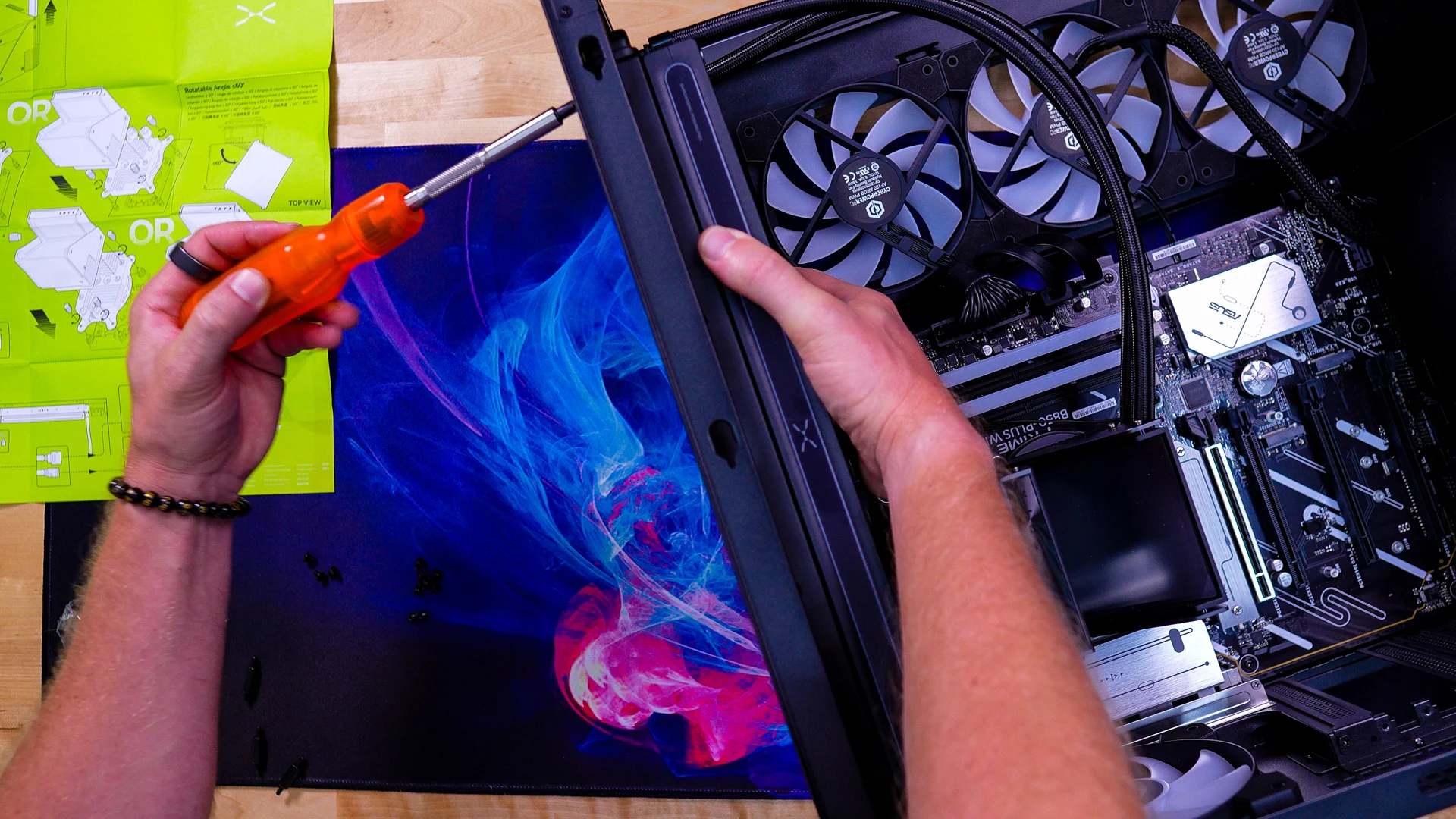
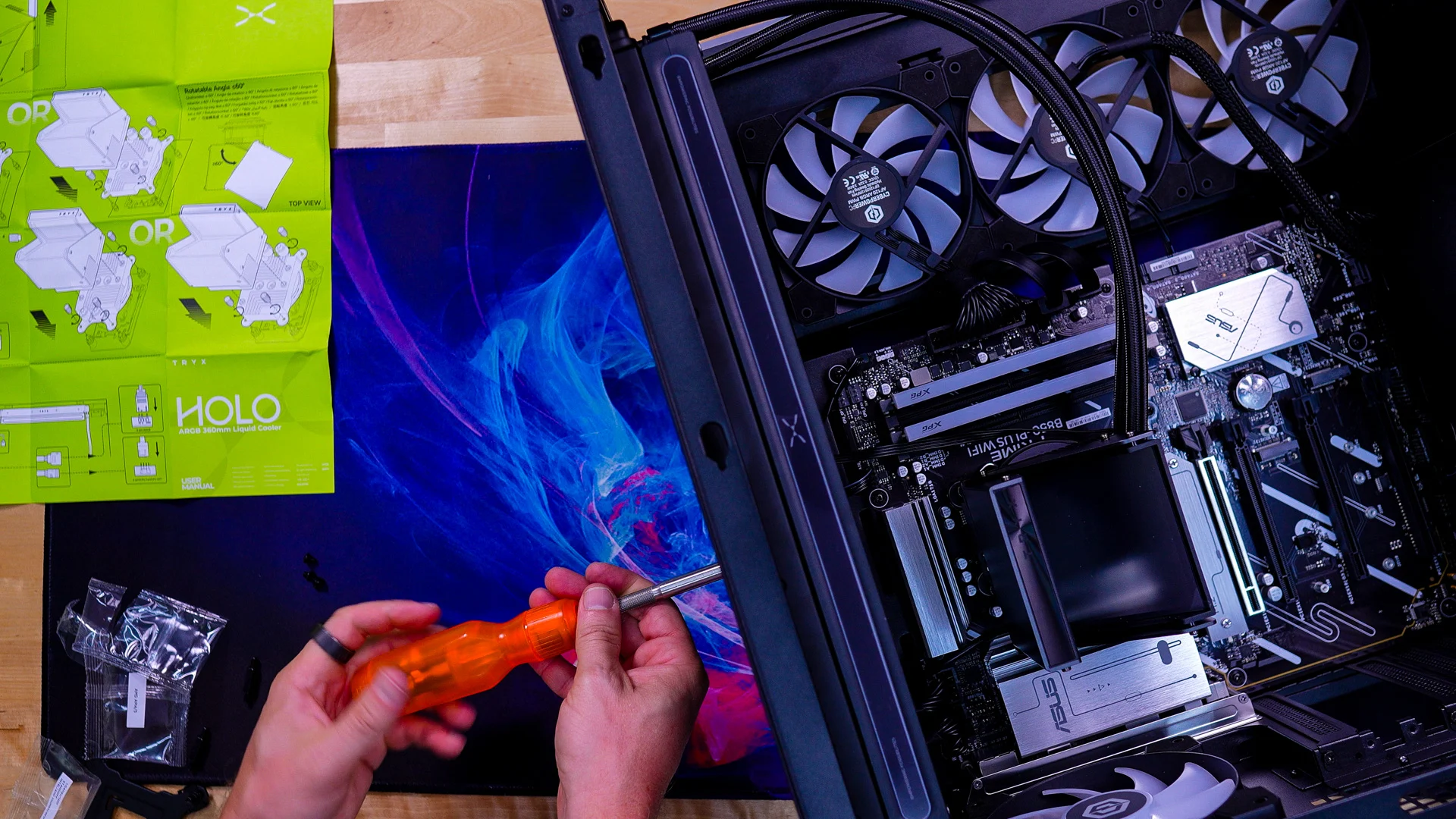
Find the bag that says Standoff thumbscrew on it. Inside you’ll find four thumbscrews. Carefully place the pump block on top of your CPU, lining up the holes in the AMD mounting bracket with the AMD screws you just installed. Then take the four thumbscrews and secure the pump block.

TRYX HOLO ARGB 360 Liquid CPU Cooler TRYX HOLO ARGB 360 Liquid CPU Cooler
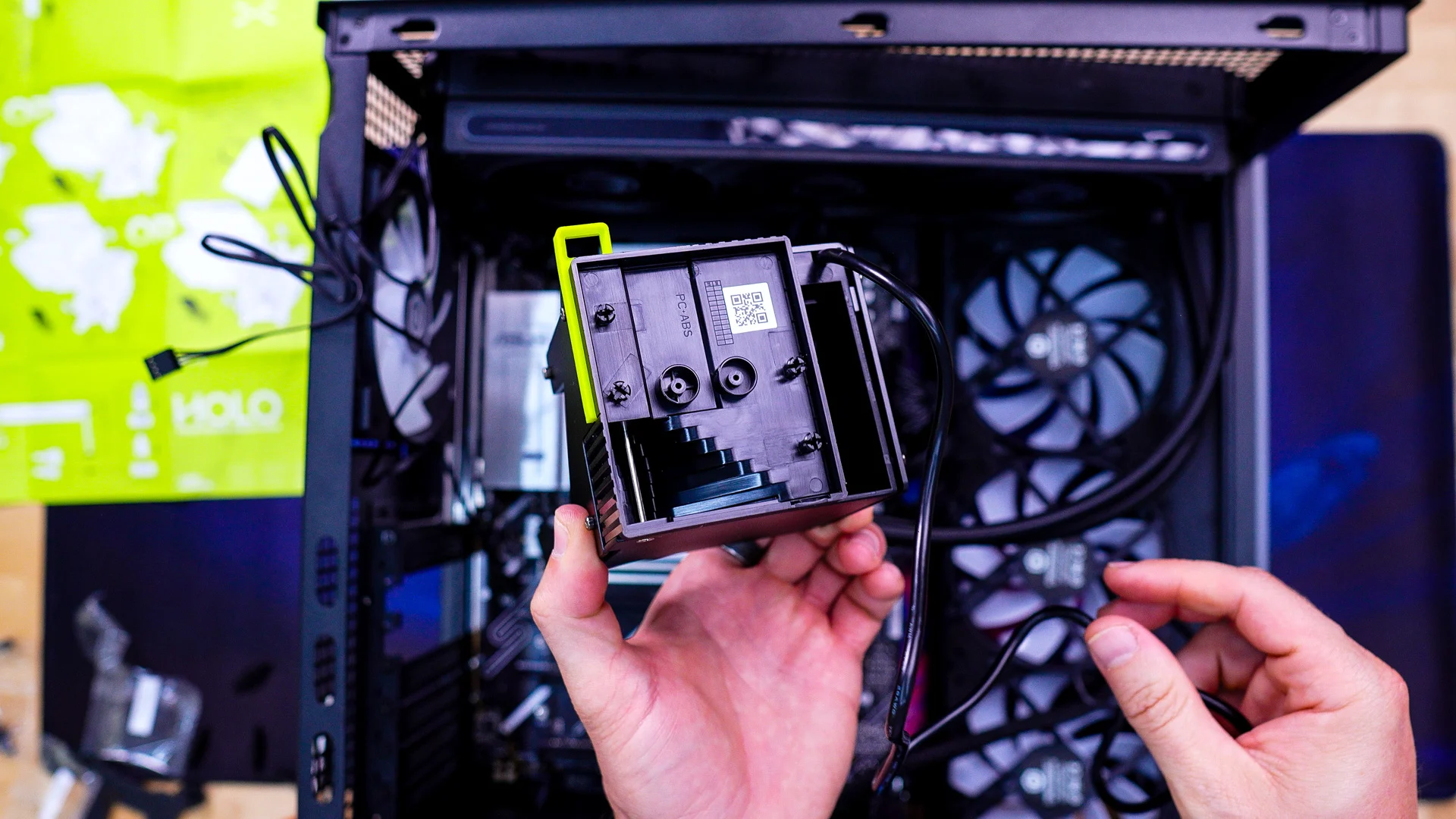
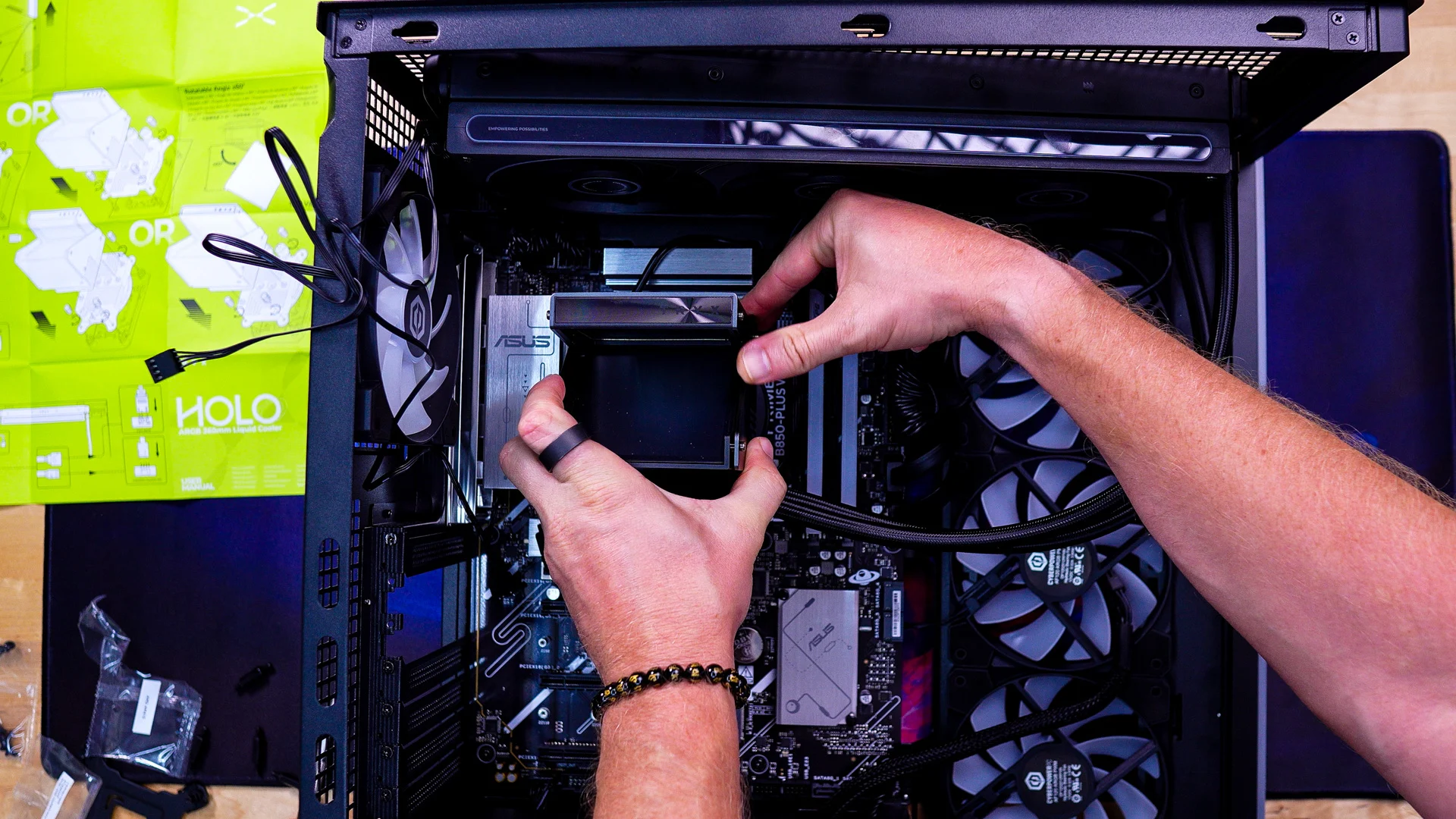
Now it is time to install the holographic display unit. It has a set of circular holes that line up with holes in the pump block. Place it on top of the pump block and press down firmly to secure it in place.

TRYX HOLO ARGB 360 Liquid CPU Cooler TRYX HOLO ARGB 360 Liquid CPU Cooler
You will want to mount your radiator after this. It is quite easy to mount your radiator if you put your case on its side.

TRYX HOLO ARGB 360 Liquid CPU Cooler TRYX HOLO ARGB 360 Liquid CPU Cooler
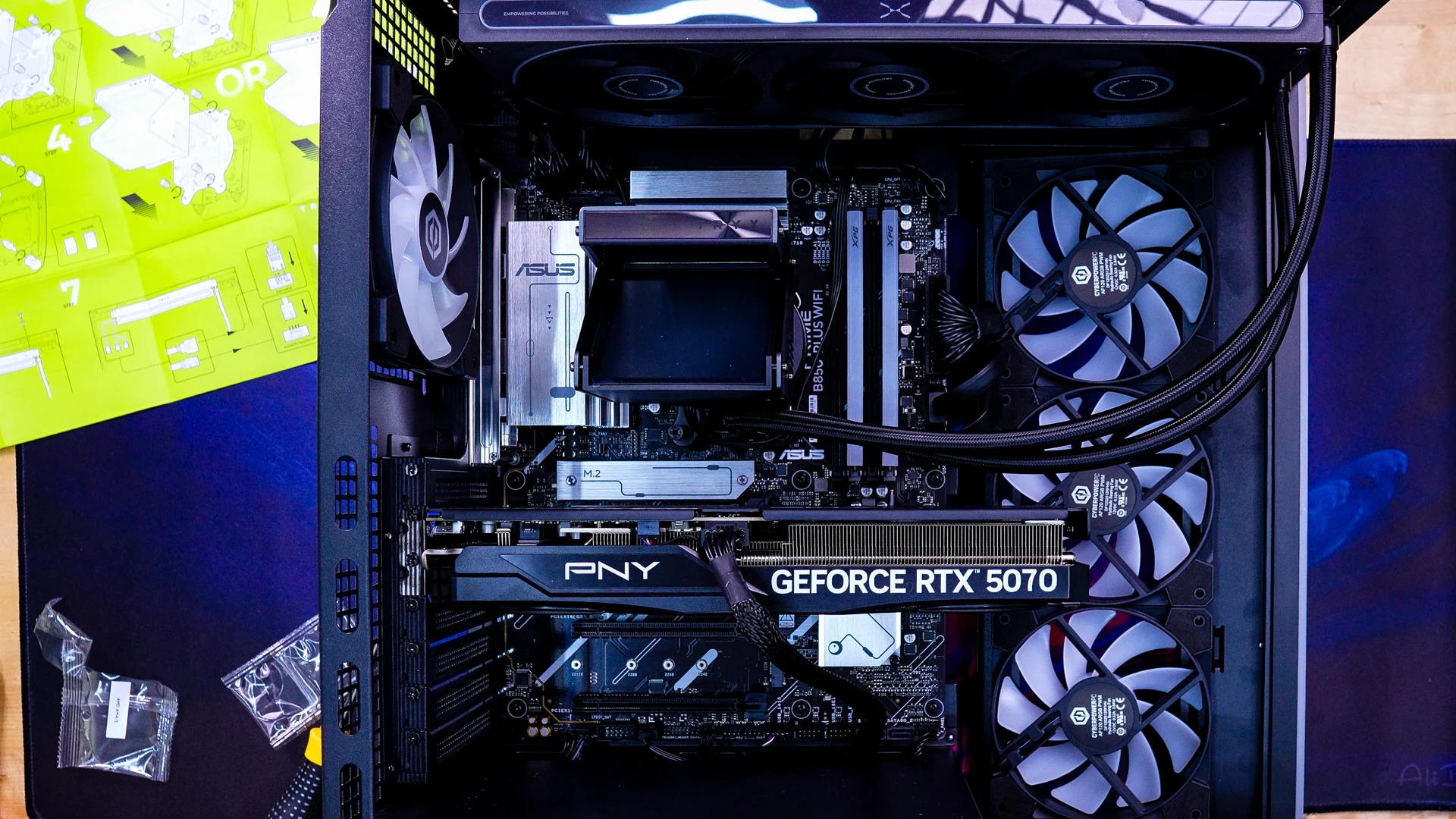
Finally you’ll need to connect your cables. Coming off the pump block is a 4-pin connector which does into the AIO pump header on your motherboard. Coming off the fans is a 4-pin header and 3-pin addressable RGB header. The 4-pin header goes to your CPU fan header and the ARGB header can go into any open ARGB header. Finally there is the USB 2.0 cable that comes off the holographic display unit. You can route this behind your motherboard tray and bring it up below to connect to a bottom USB 2.0 header on your motherboard.

TRYX HOLO ARGB 360 Liquid CPU Cooler

Add a Comment

Leave a Reply

Your email address will not be published. Required fields are marked *