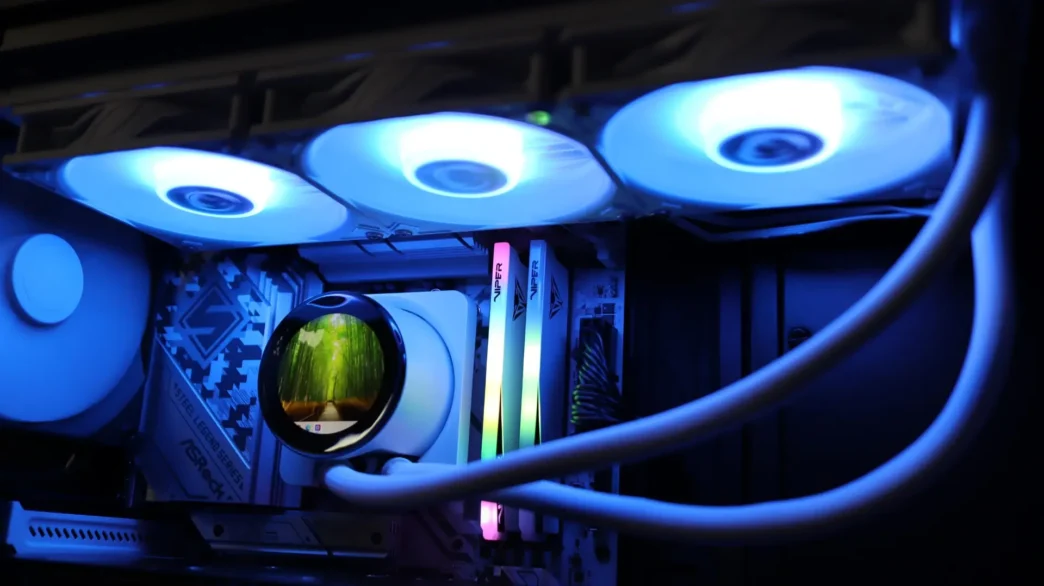
Testing the MSI MPG CORELIQUID P13
With the recent move to a new test bench setup, it is time to update the list of components below. Additionally, we are trying out a new set of testing which still involves monitoring the system while both idling and under load, which now includes set fan RPM levels to see how fan speed and the noise associated, plays into a cooler’s performance.
The following components are used for our AIO cooling testing.
CPU: AMD Ryzen 7 7600X
Cooling: MSI MPG CORELIQUID P13
Motherboard: ASRock B650 Steel Legend WiFi
Graphics Card: PowerColor Red Devil Radeon RX 580
Memory: Patriot Viper Gaming Elite 5 DDR5 6400MT/s 48GB
Storage: Patriot Viper VP4300 Gen4 PCIe NVMe 1TB SSD
Case: Fractal Design Define R6 Tempered Glass
Power: EVGA G5 750W
List of coolers being compared:
– MSI MPG CORELIQUID P13
– SAMA L70
– Valkyrie V360 Lite
– TRYX PANORAMA 360
– Endorfy Navis F360 ARGB
– Corsair Nautilus 360 RS
– TRYX PANORAMA SE 360 ARGB
– be quiet! Silent Loop 3
Please note: As we continue to test additional AIOs on this new test bed, this table will be updated in order to show comparisons to additional coolers.
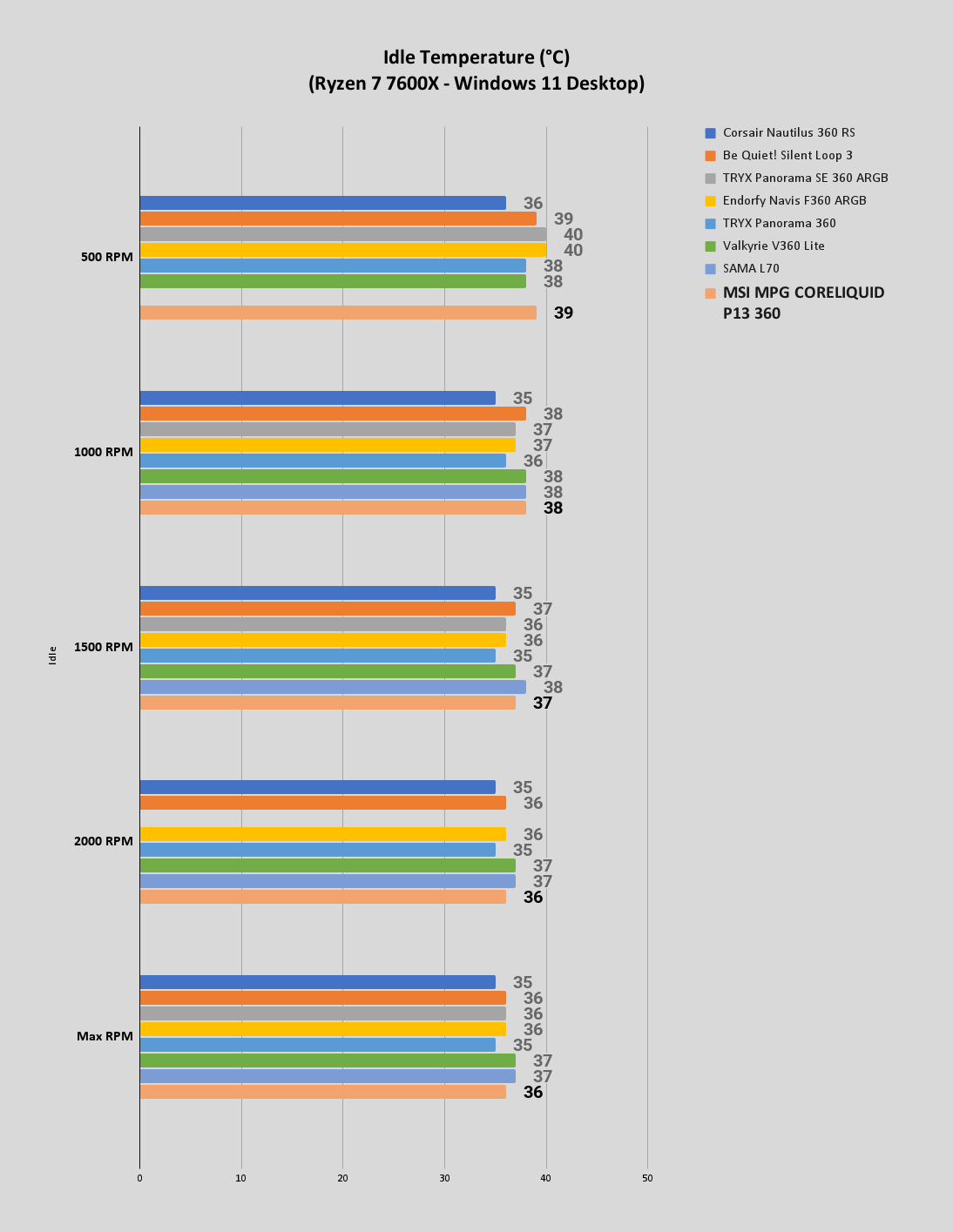
For performance testing we will first test idle temperatures. These are taken on the Windows 11 desktop an hour after the system has been turned on.
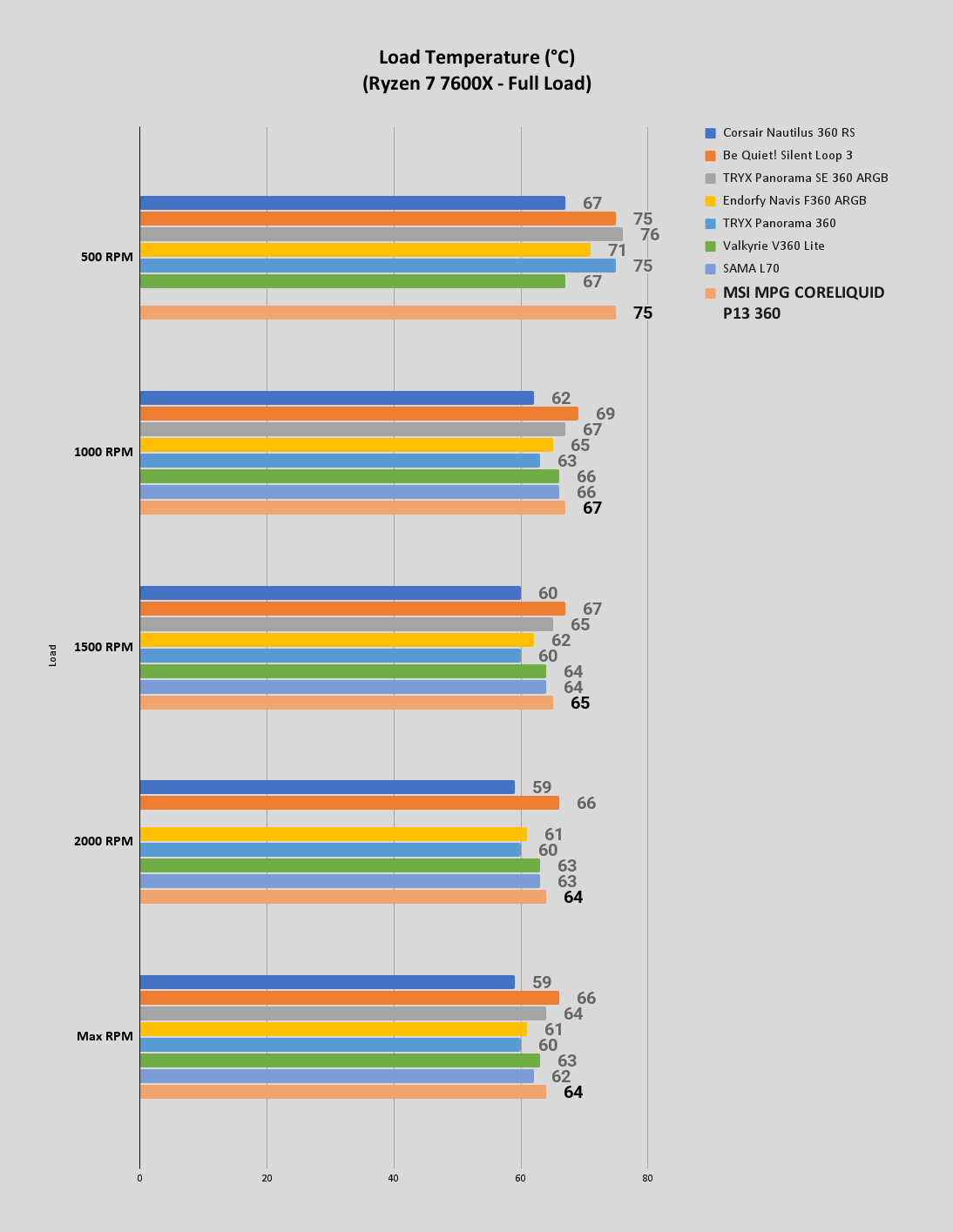
For load testing we will be running the AIDA64 system stability test with the CPU only checked. This puts a full load on our CPU. We run this test for 1 hour and record the highest temperature throughout the test.
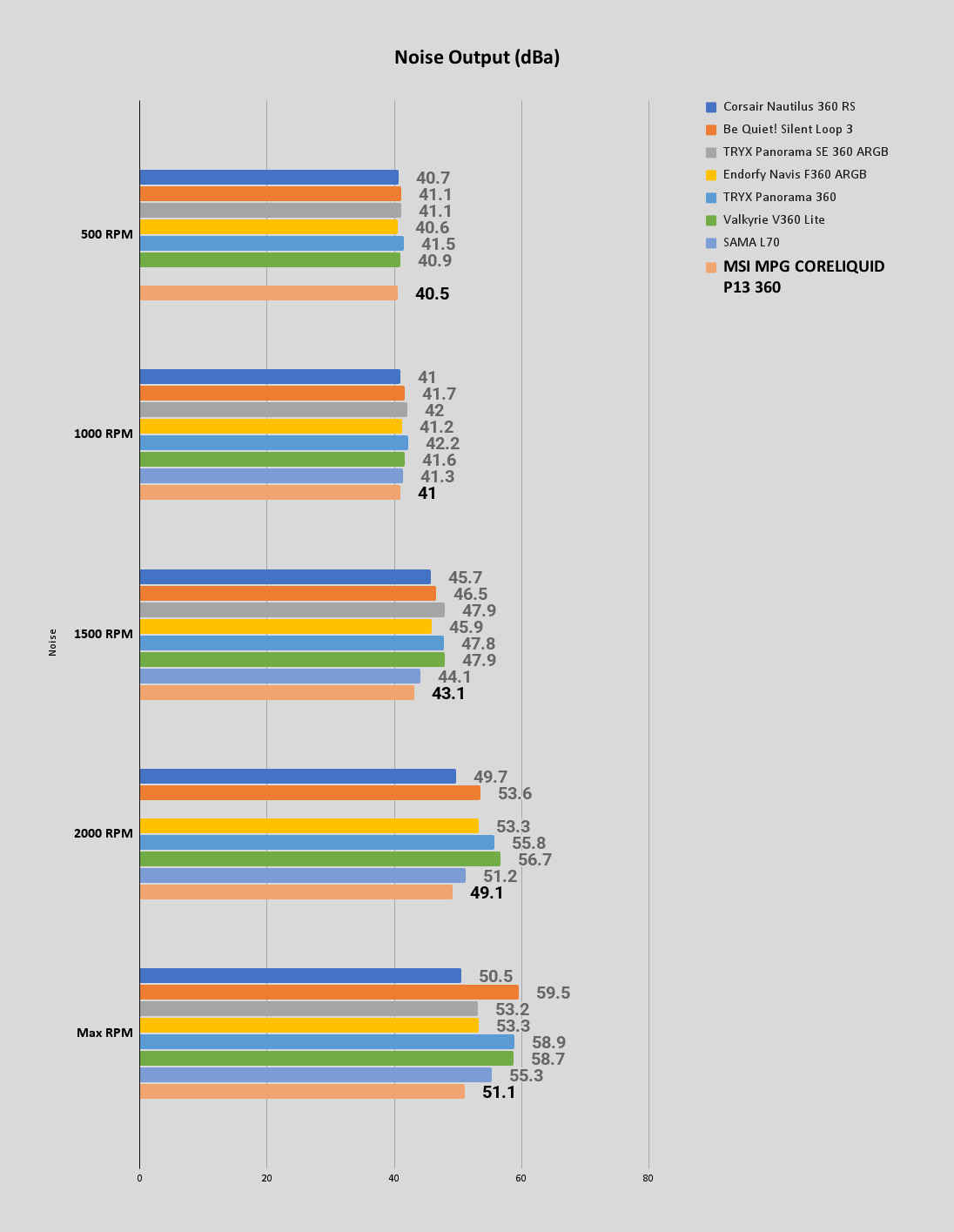
In addition to the different temperature readings across the various fan speeds, we are now also including noise output readings as well. This is important information that can help you find a nice balance of performance to noise output for your system.
Software
As the MPG CORELIQUID P13 includes an LCD screen on the pump housing, it only makes sense that there would be an associated software application to control it. That is where MSI Center comes into play, offering a variety of options for the content shown on the screen. Aside from the control of the LCD, controlling the rest of the components of this cooler, namely the fan speeds and lighting, will unfortunately require the use of an external controller for software solution. The control of what is shown on the screen is broken down into four main sections: Hardware Monitor, Video, System Clock, and Extended Display. There are also options for setting the screen brightness, orientation, and even disabling the screen when the CPU goes above a certain usage level.
One note is that you have to launch the MSI Control application in order for anything to be shown on the screen. Just booting up into Windows and having the application running in the system tray isn’t enough – you have to start the full application in order for the screen to kick on. This sounds like it has been an issue for the life of the product, as there were many posts online complaining about this requirement. Hopefully MSI can fix this in later software or firmware releases for the cooler.
Hardware Monitor
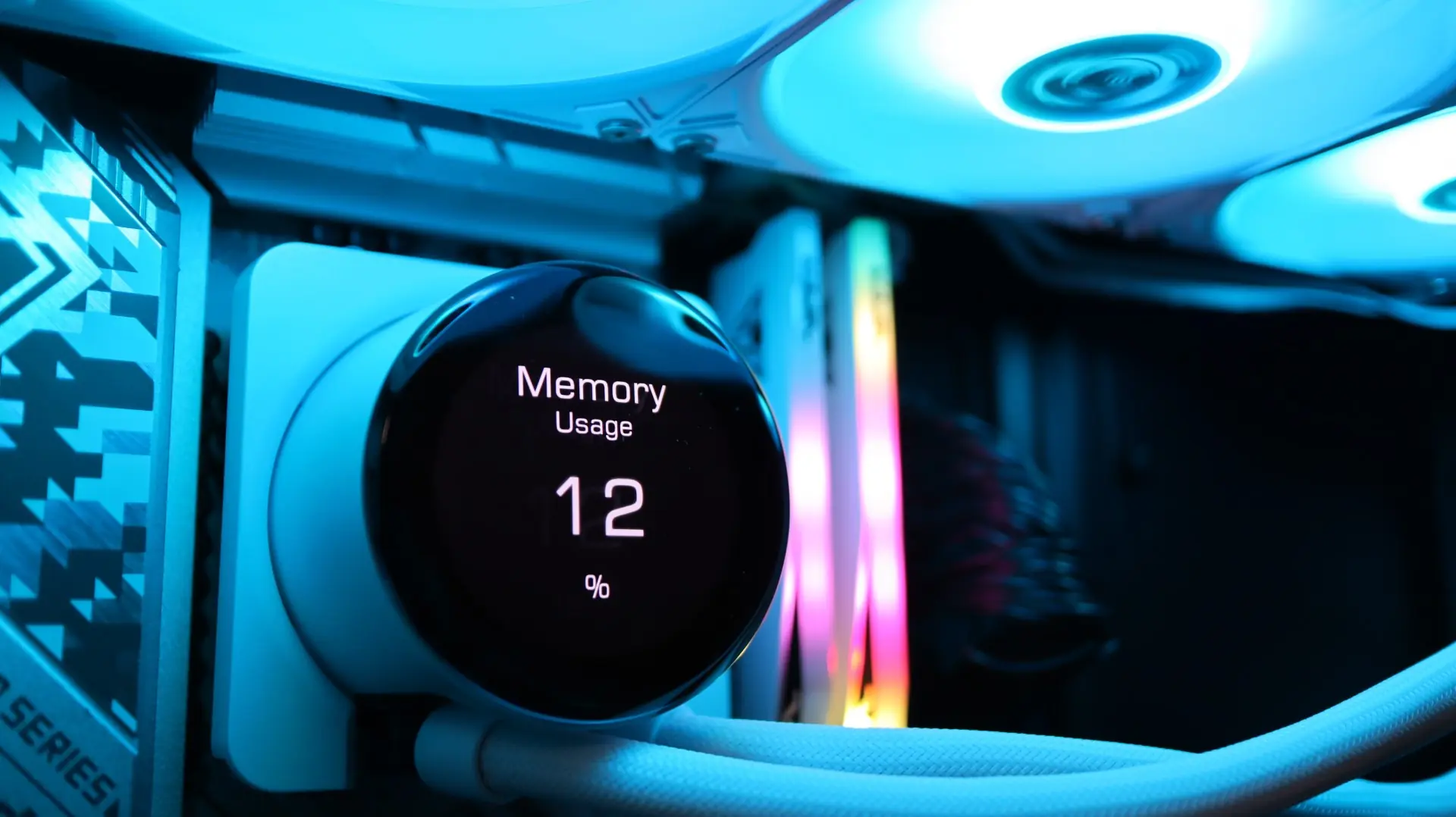
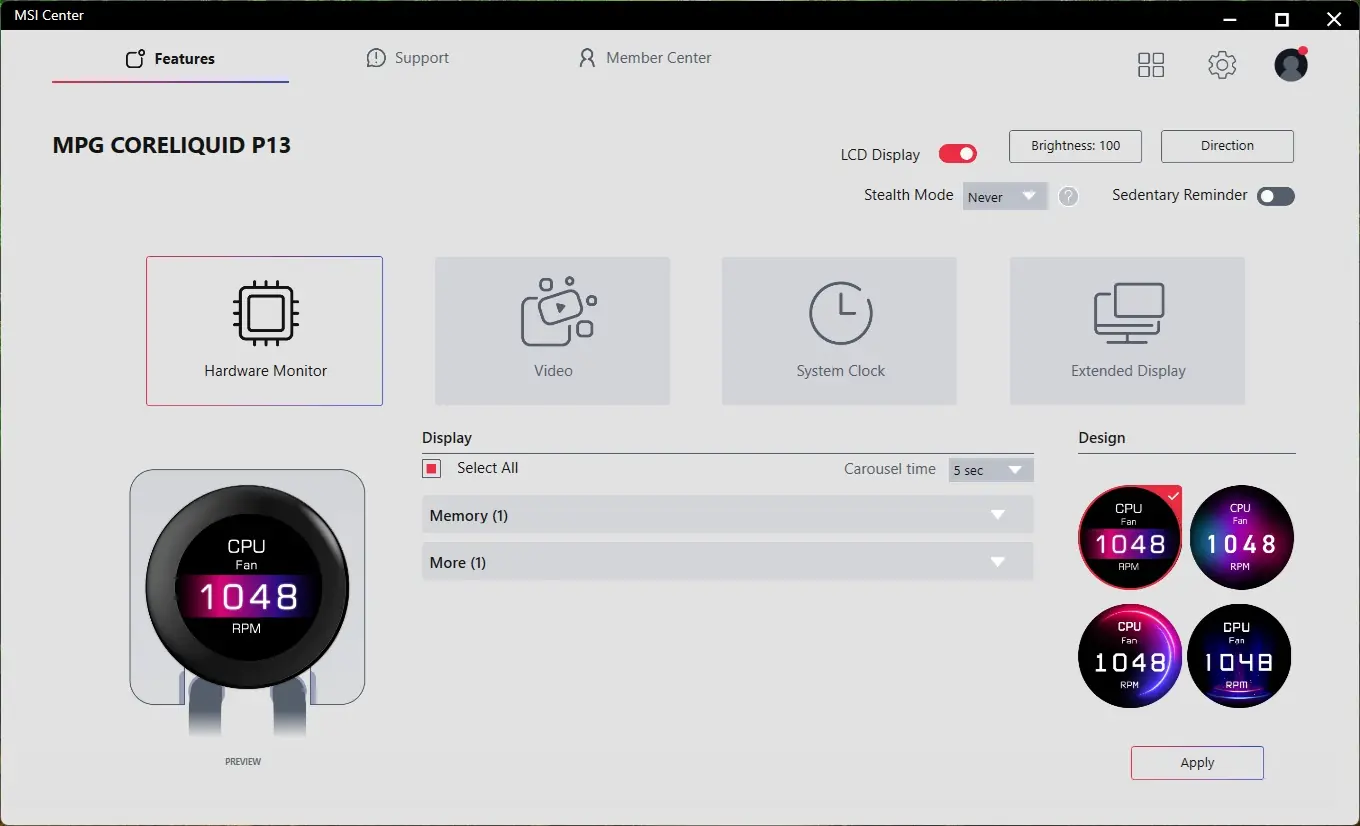
This section is pretty straightforward, giving users the option to choose exactly which hardware system readings whey want to show on the display. This is executed via a rotating carousel of readings on the screen, and there are four very similar designs available for the visual look. I was really disappointed to see that all of the designs have a very similar look and color scheme, with no way to adjust any of those colors or layouts. I was also unable to show some of the most common readings like CPU temperature or GPU temperature. The only options available to me was Memory Usage and GPU Frame Rate.
Video
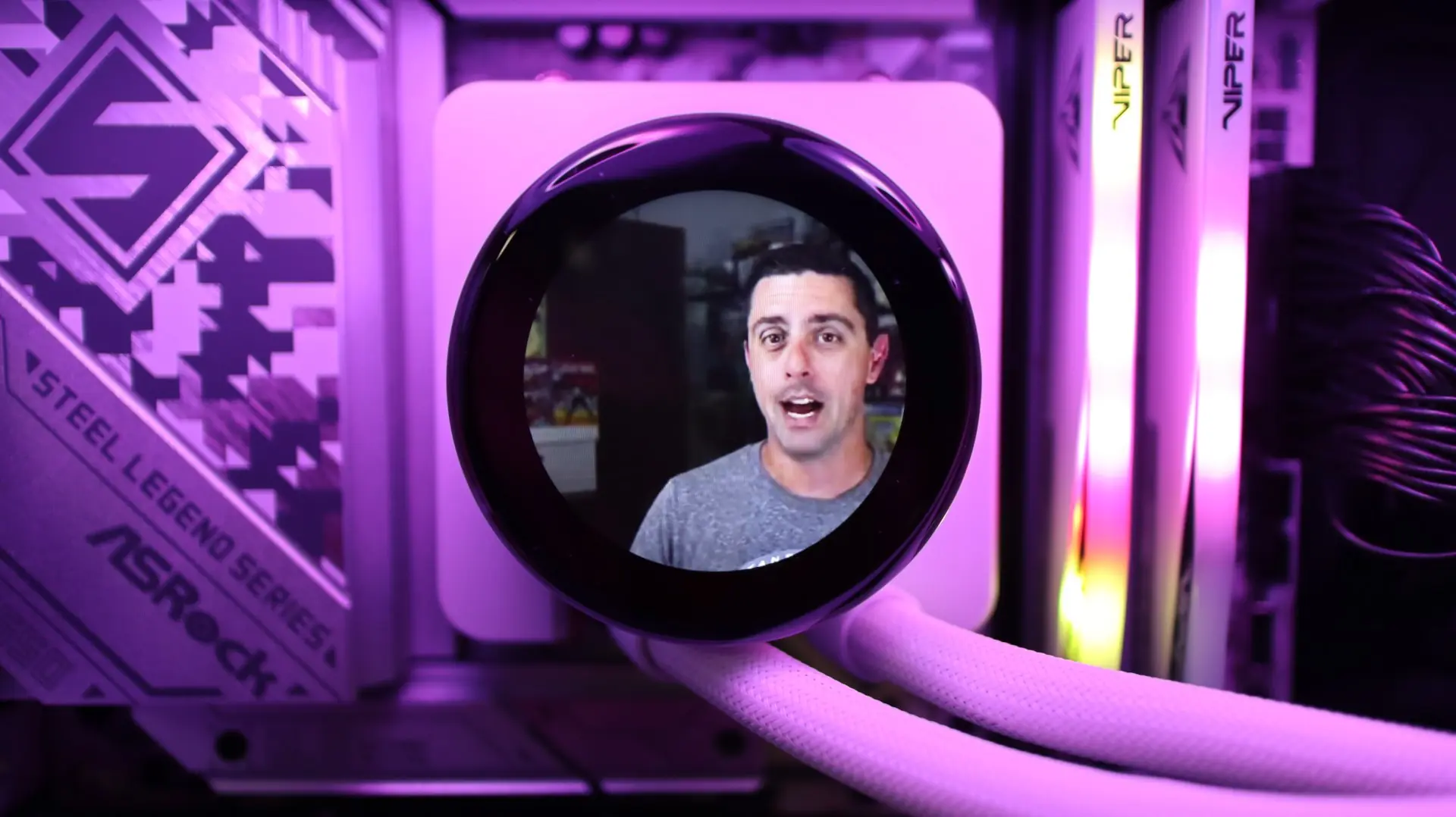
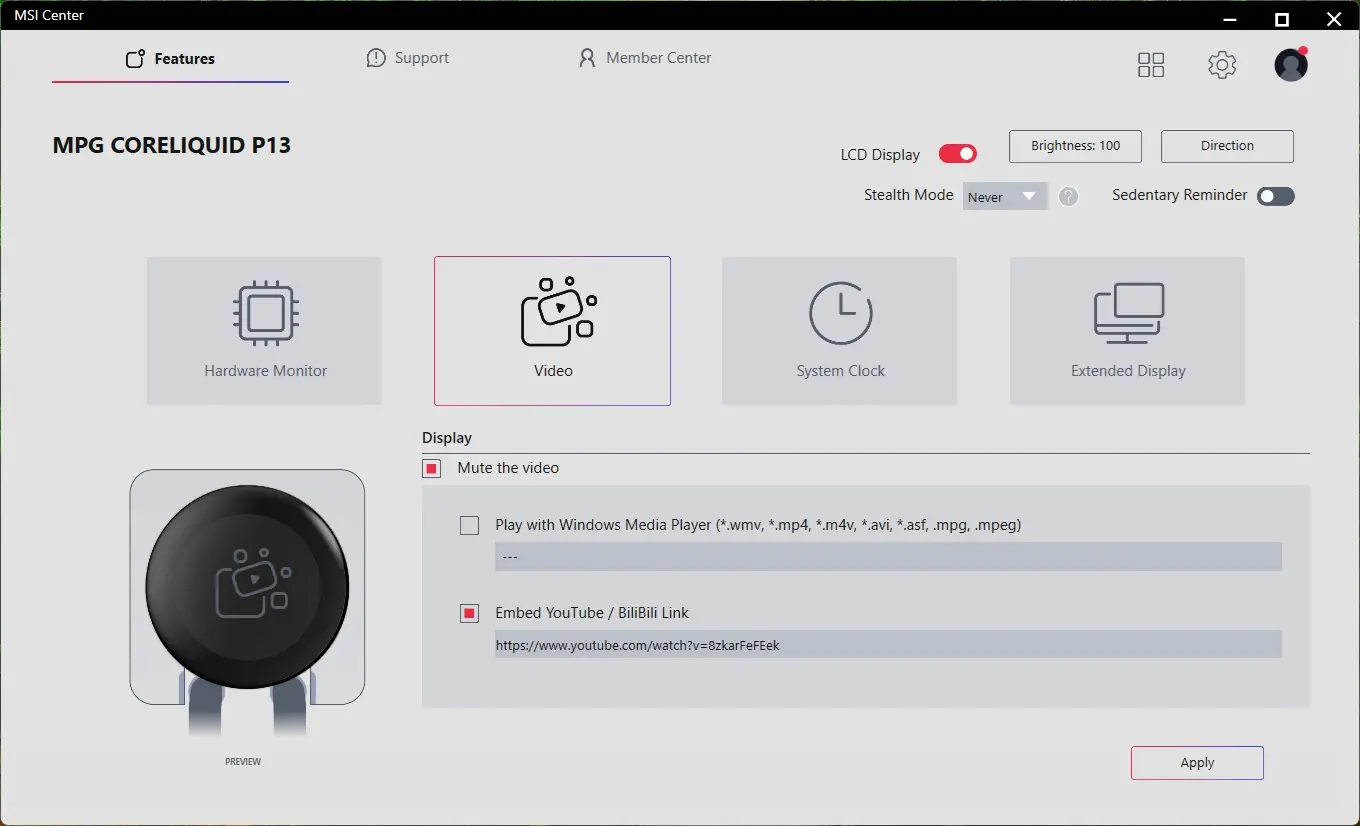
The Video section allows you to play a specific video via Windows Media Player and have the content show on the LCD screen. The same can be done with showing a video that is hosted either on YouTube or BiliBili. While this is a neat feature, the circular LCD really limits your options as far as what part of the video is displayed. You also have no control over the video when it is playing, but it is nice that it puts the video on loop.
System Clock
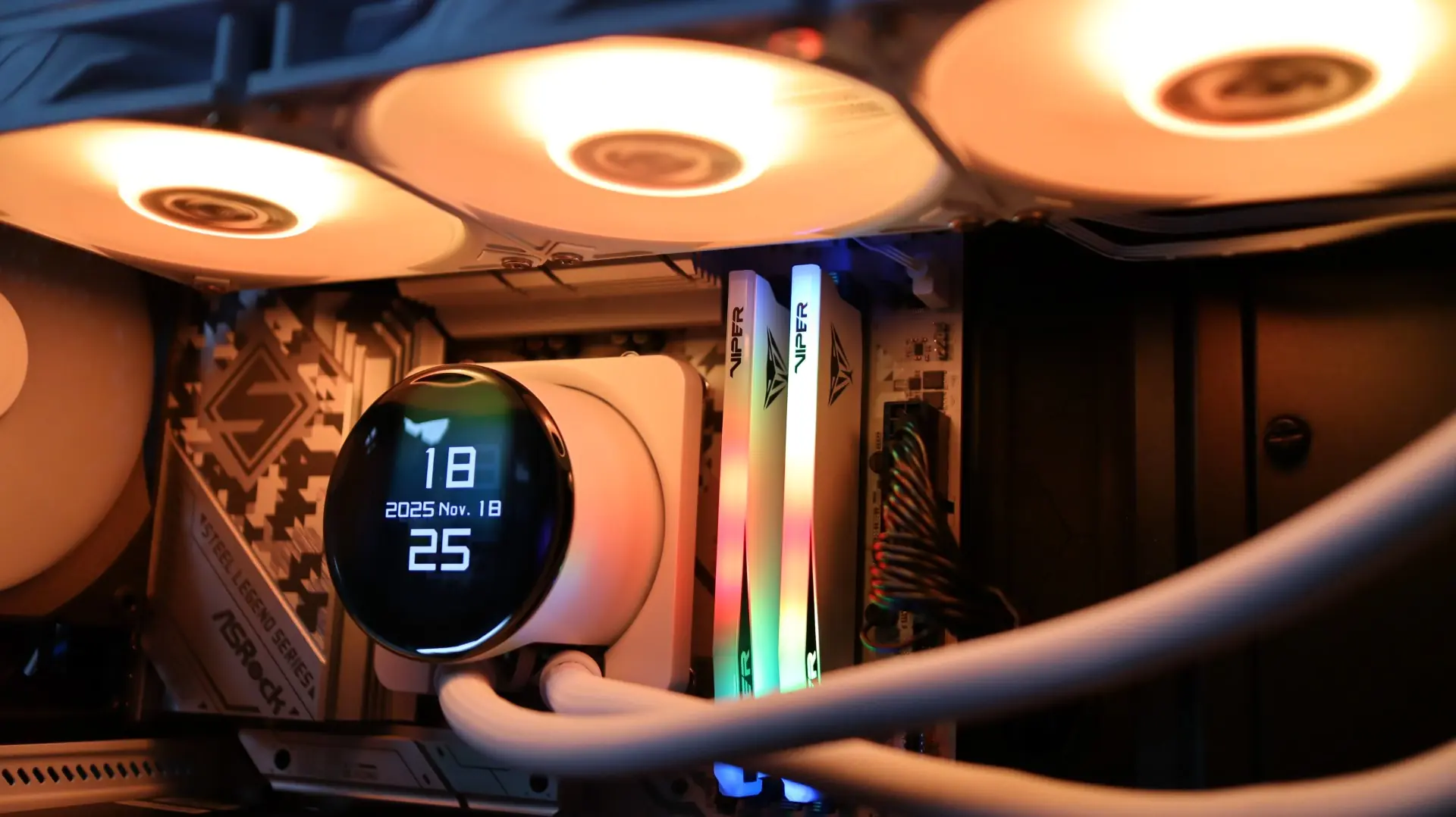
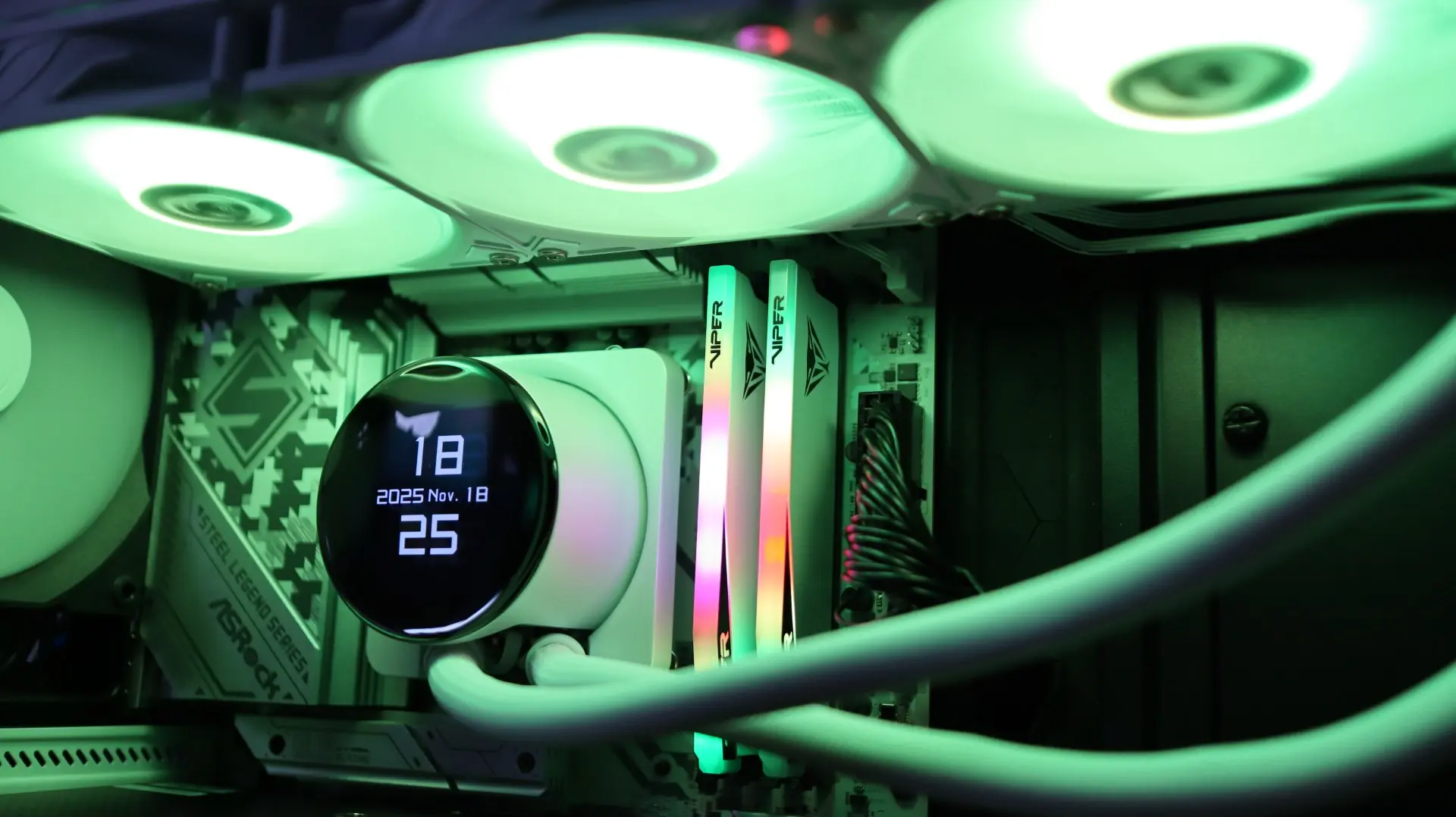
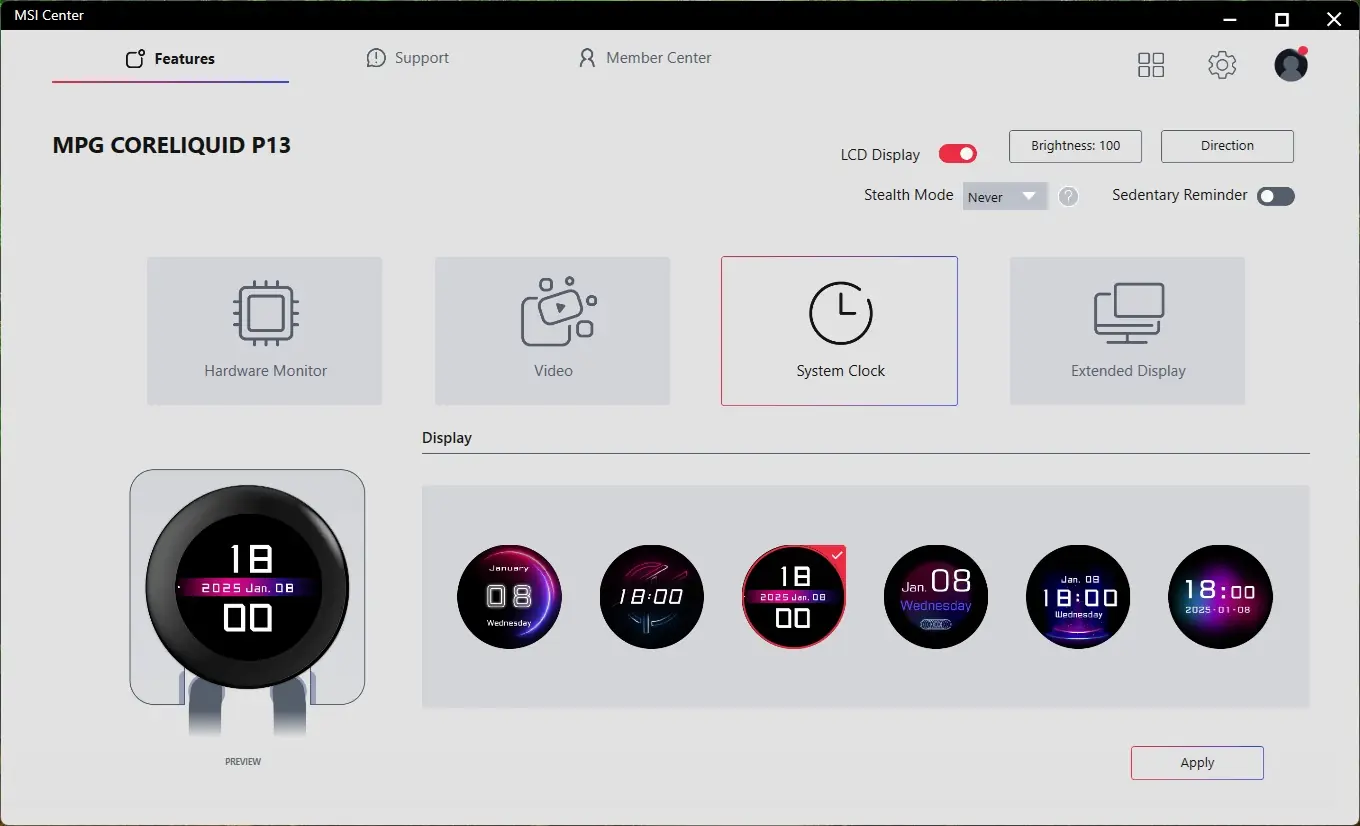
As you would expect, this menu lets you configure the look and feel of how you would like your clock and date to show up on the display.
Extended Display
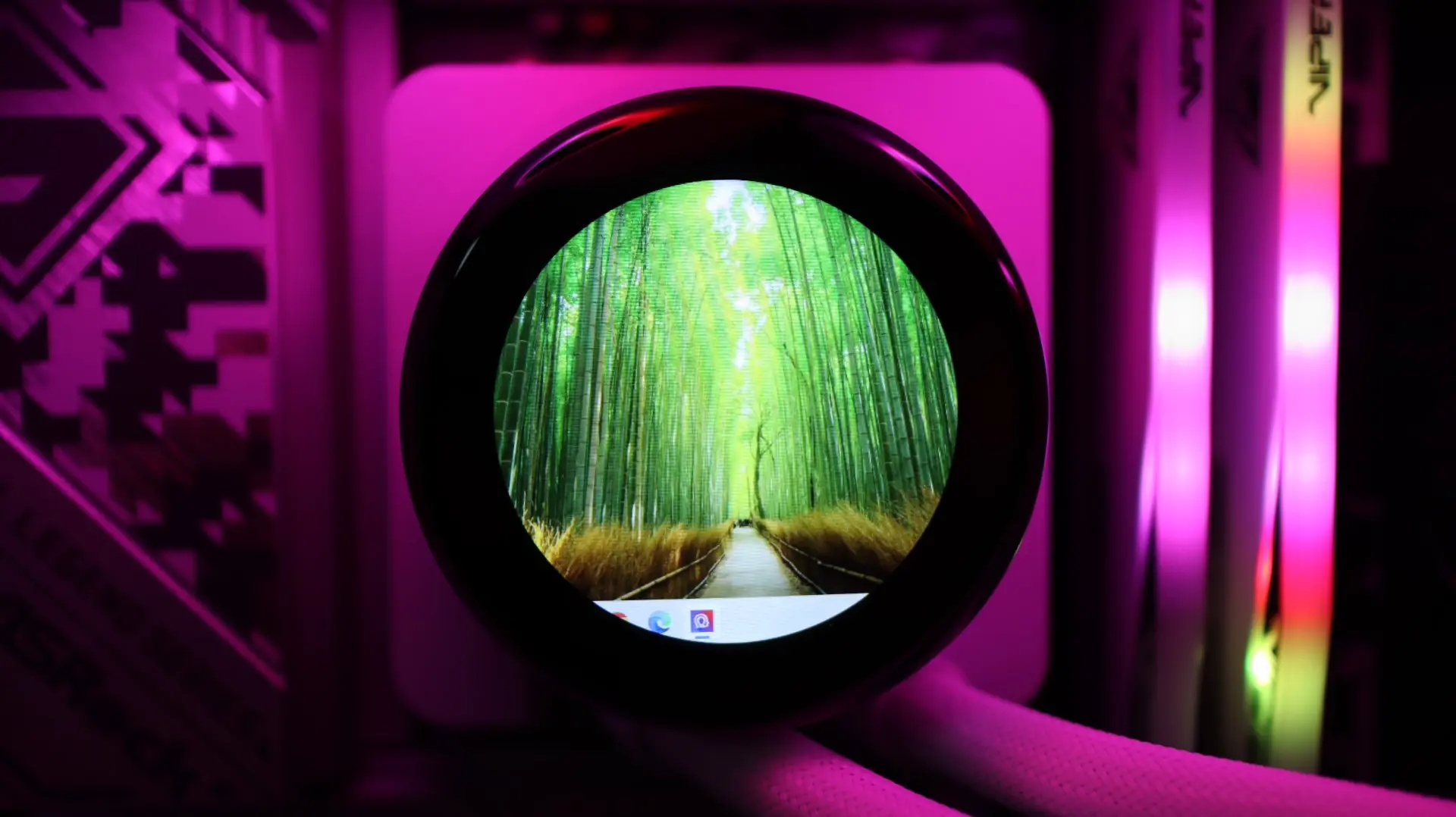
The Extended Display enables you to use the 2.1″ 480 x 480 resolution screen as an additional monitor for your system. You could then display whatever content you would like on the screen, even using it to play games on if you want to punish yourself like that.
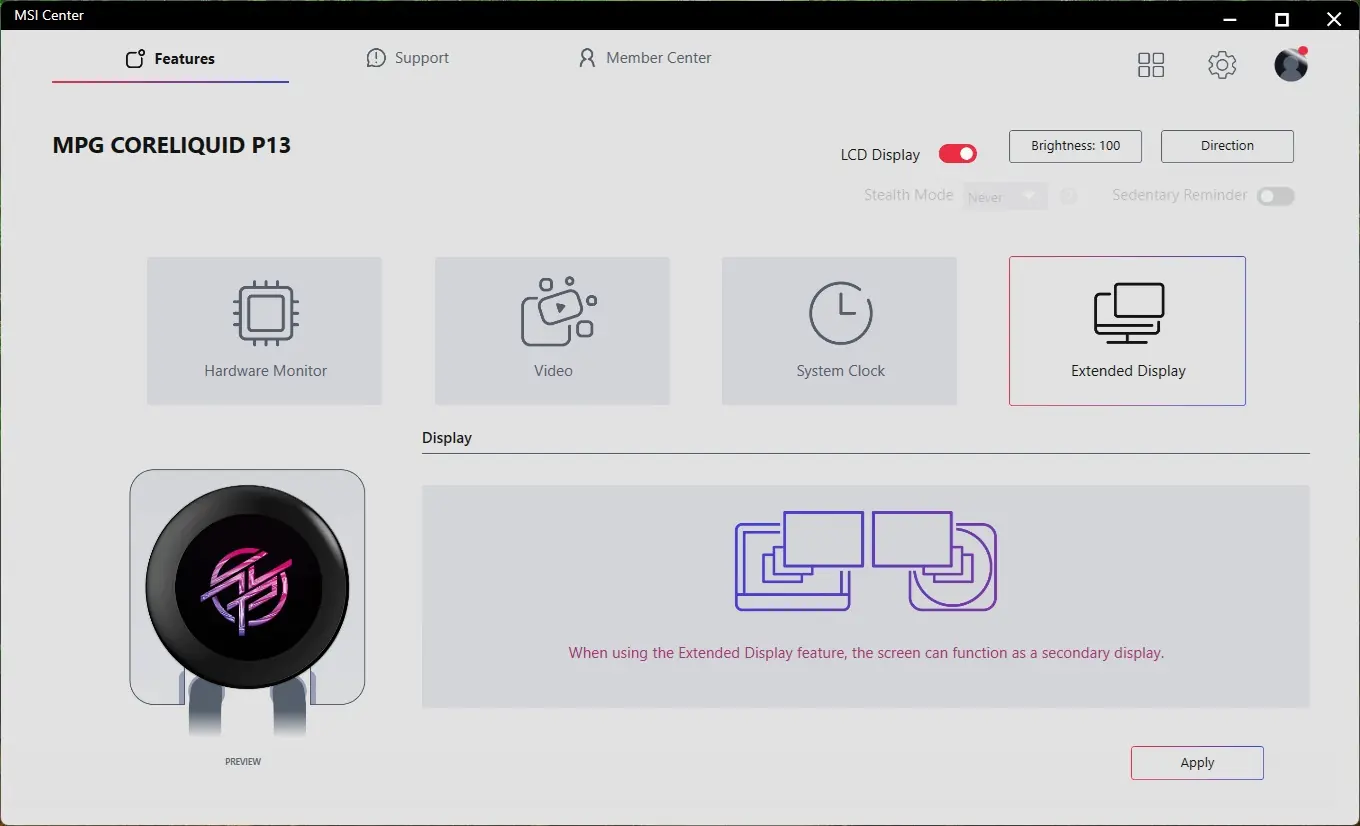
One very noticeable option missing is the ability to directly display a static or animated image on the screen of the MPG CORELIQUID P13. This is, in my opinion, a major miss on MSI’s part for what is a very standard feature for LCD-equipped AIOs. Sure, you can use the Extended Display option, but that can introduce some additional headaches compared to an integrated solution.
Gallery
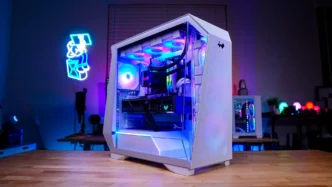
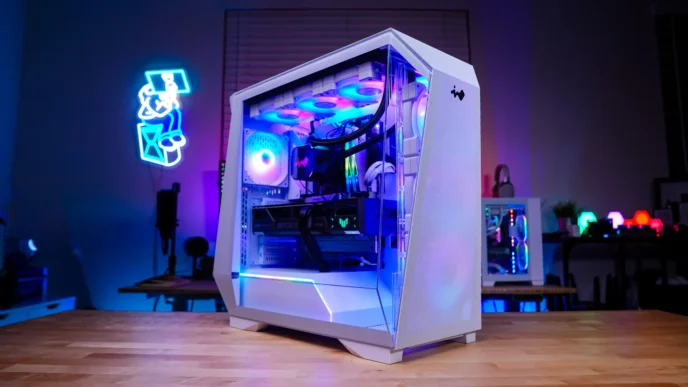
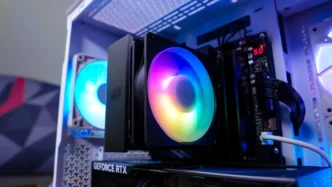
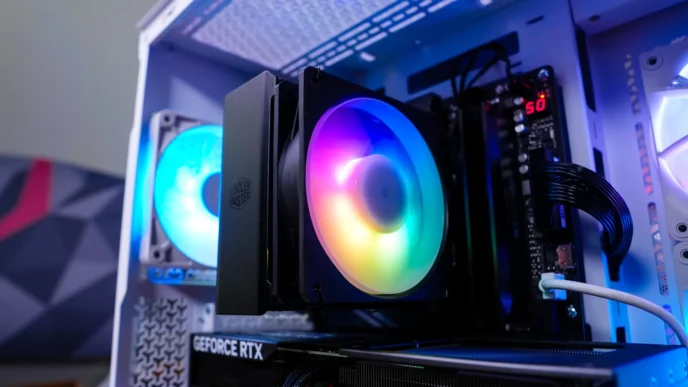
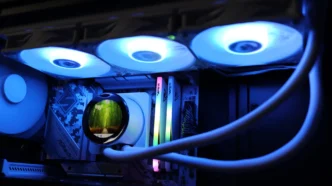
Below are a few shots of the MPG CORELIQUID P13 in use.