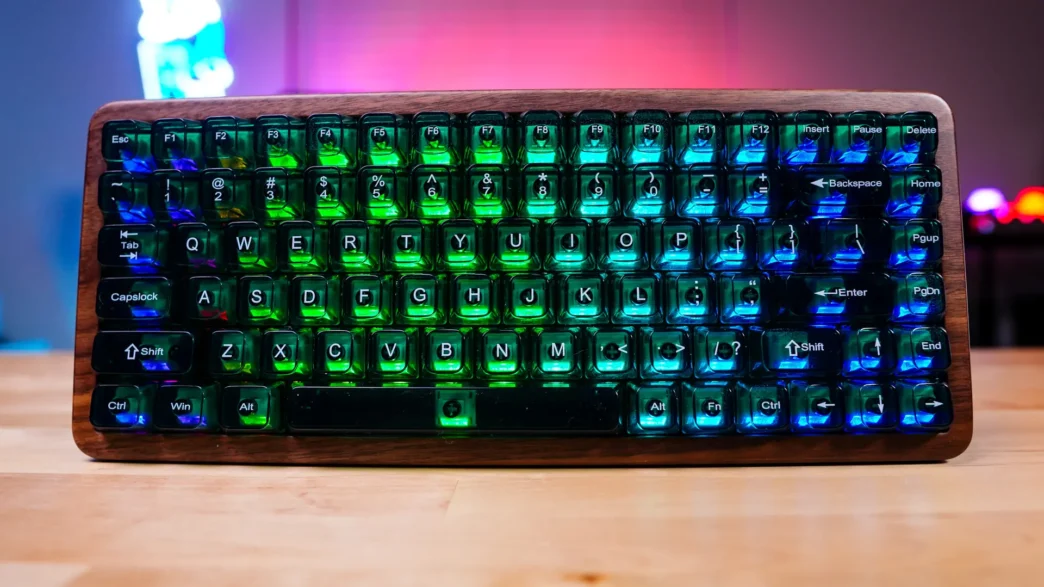
Setup & Usage on the Womier WD75 Mechanical Keyboard
To get the Womier WD75 setup and ready to use is simple. You either plug it directly into your PC with the included USB cable or plug in the 2.4 GHz dongle to your PC and switch the mode button on top-edge of the keyboard to 2.4 GHz mode. I tested all 3 modes (including Bluetooth) and they all worked flawlessly.
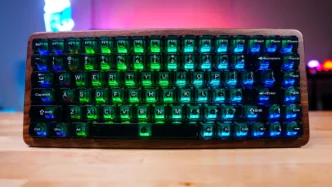
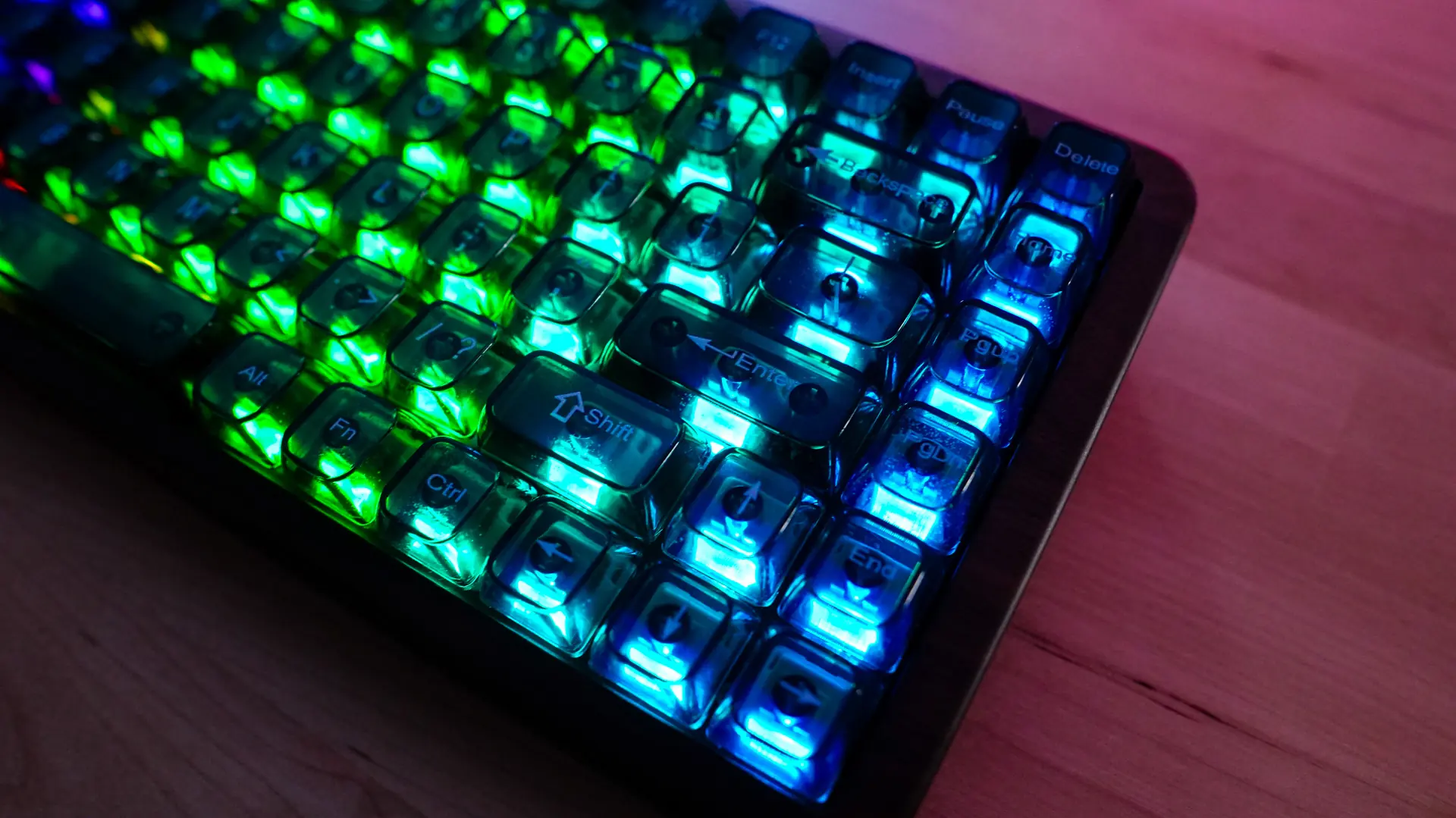
When you do turn the keyboard on you will notice it light up with RGB lighting. The switches have south-facing RGBs which look great with the translucent keycaps. You can switch between different RGB effects by pressing “FN + \|”.
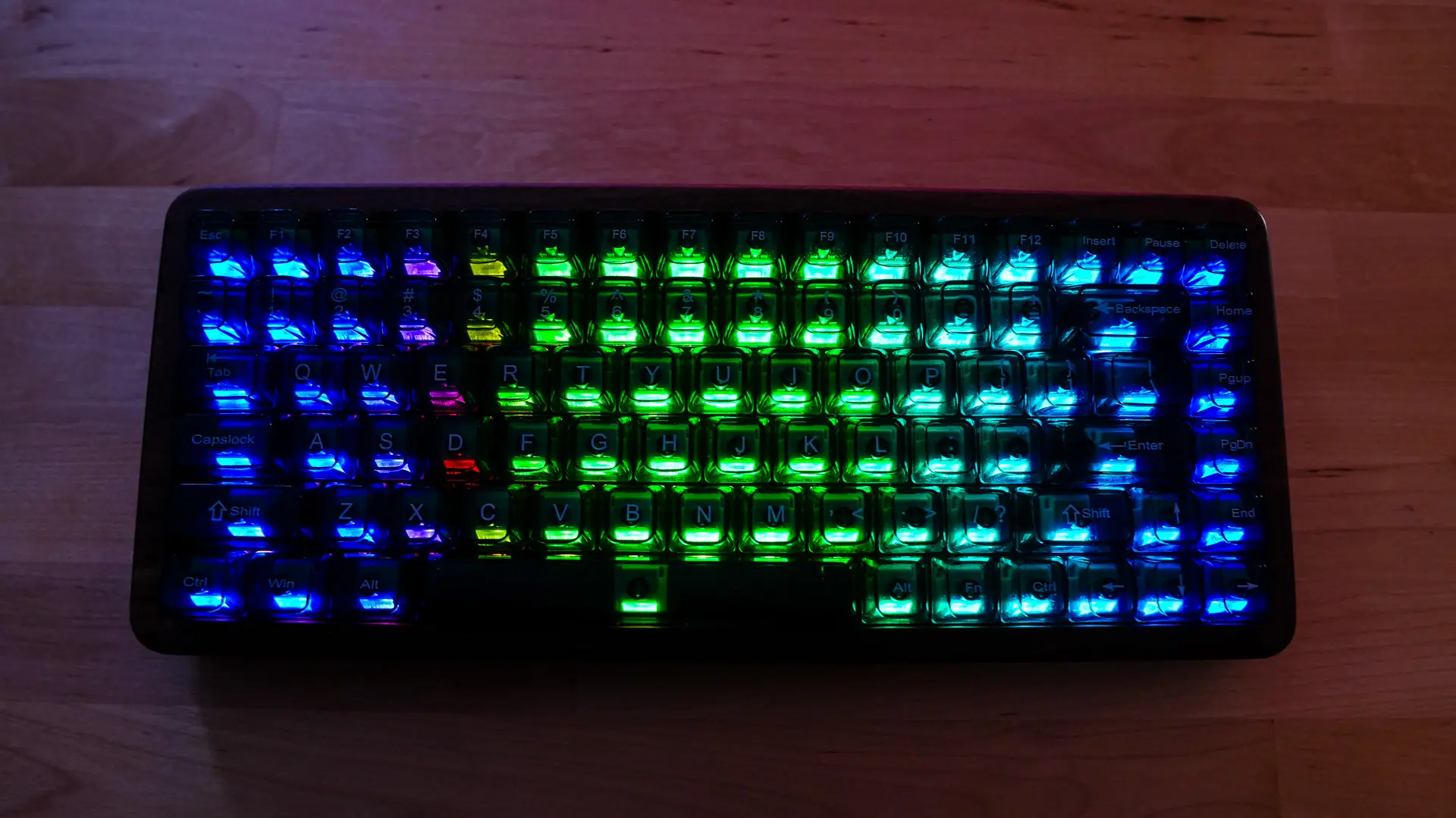
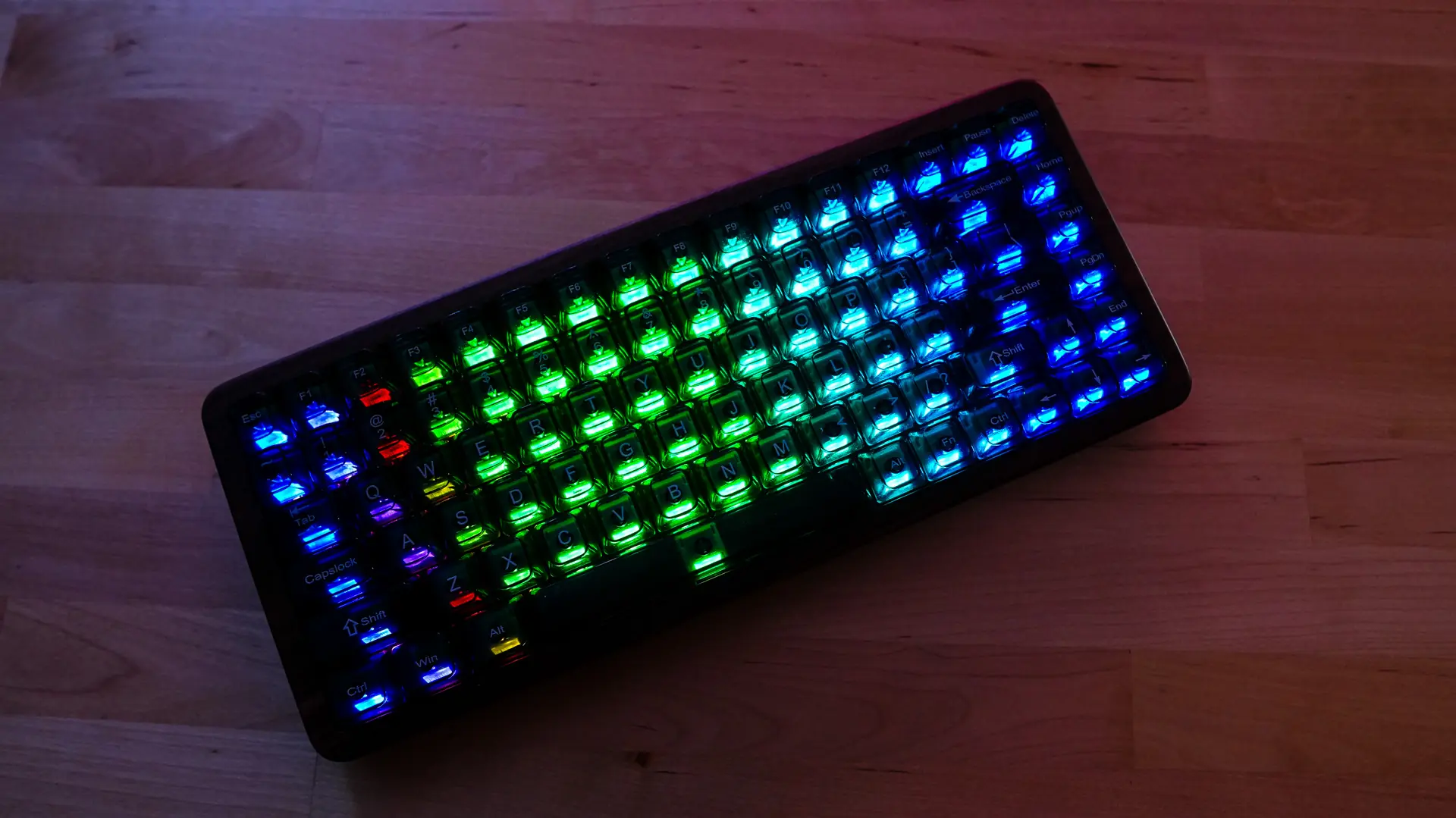
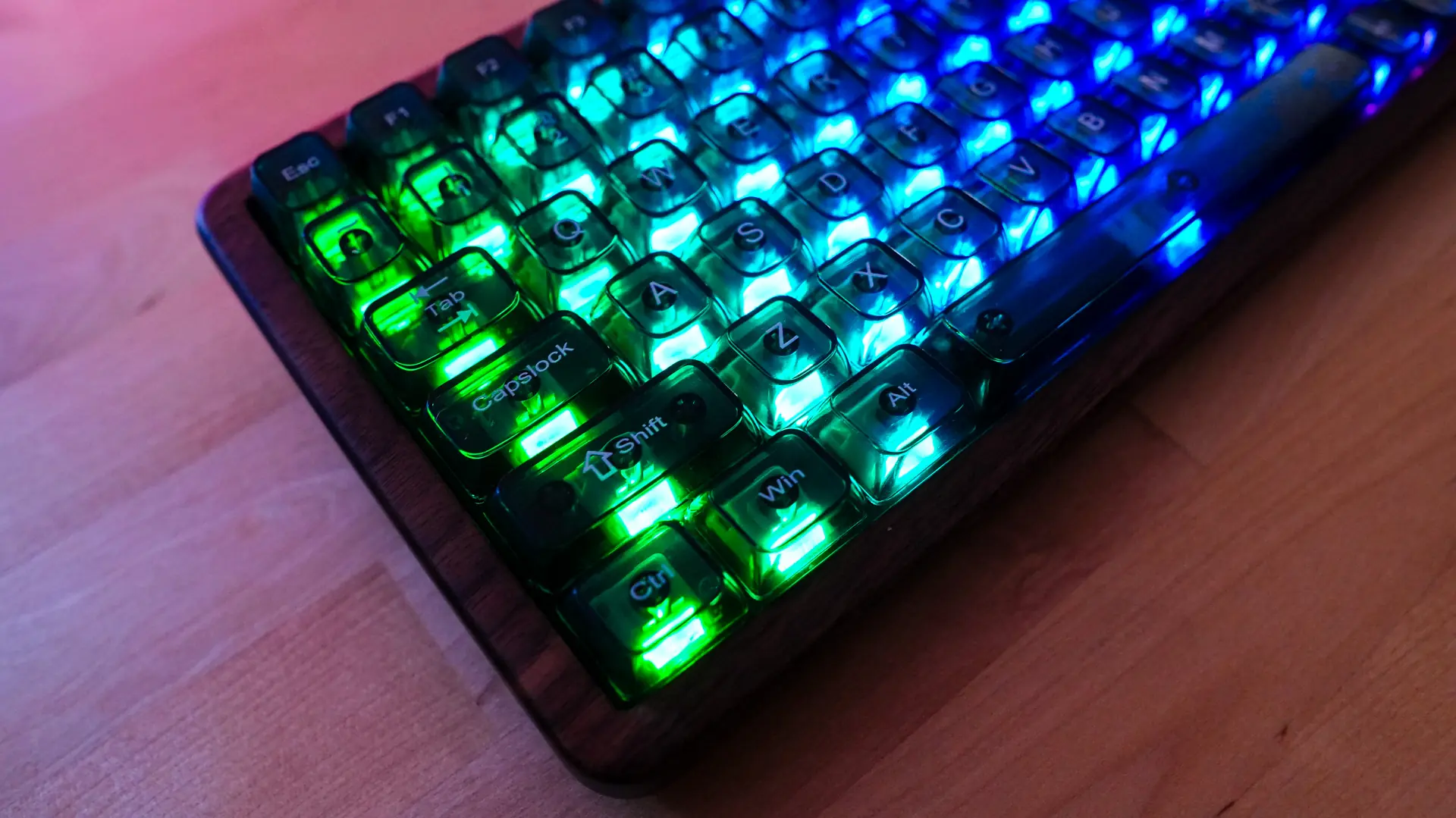
Now Womier says that this keyboard is compatible with VIA for further customization, but I was never able to get it to work with VIA at all. This seems to be a persistent problem with many keyboards that are supposed to be compatible with VIA. I followed the instructions given by Womier, loaded the JSON file, and I can even use the key tester within VIA, but I can’t configure the keyboard at all. I even tried the standalone version of VIA (not web-based), and it still didn’t work. I have tried this on 3 different PCs, no luck.
This is where I do not like keyboards that simply rely on VIA for customization. For whatever reason this keyboard on all 3 of the systems I have here does not work with VIA, so I can not reprogram it at all. This is why I feel all brands need to have their own configuration software or web app.
When it comes to using this keyboard the keys have a very nice thock sound to them. Below is our sound test.