


As you may know I have recently added a Kindle Fire HD to my gadget list. I actually really like the device. You can read my lengthy review on it here. Amazon tries to keep you in their ecosystem with the Kindle Fire HD. As such you can only download apps that are in Amazon’s App store. This really does limit you. Amazon’s silk browser is alright, but there are plenty of better browsers available for Android. Amazon blocks them from their app store, but you are still able to install them. In this guide we will show you how to easily install Google Chrome on your Amazon Kindle Fire HD. This process shouldn’t take that long and the best part you do not even have to root your Kindle Fire HD! Let’s get started!
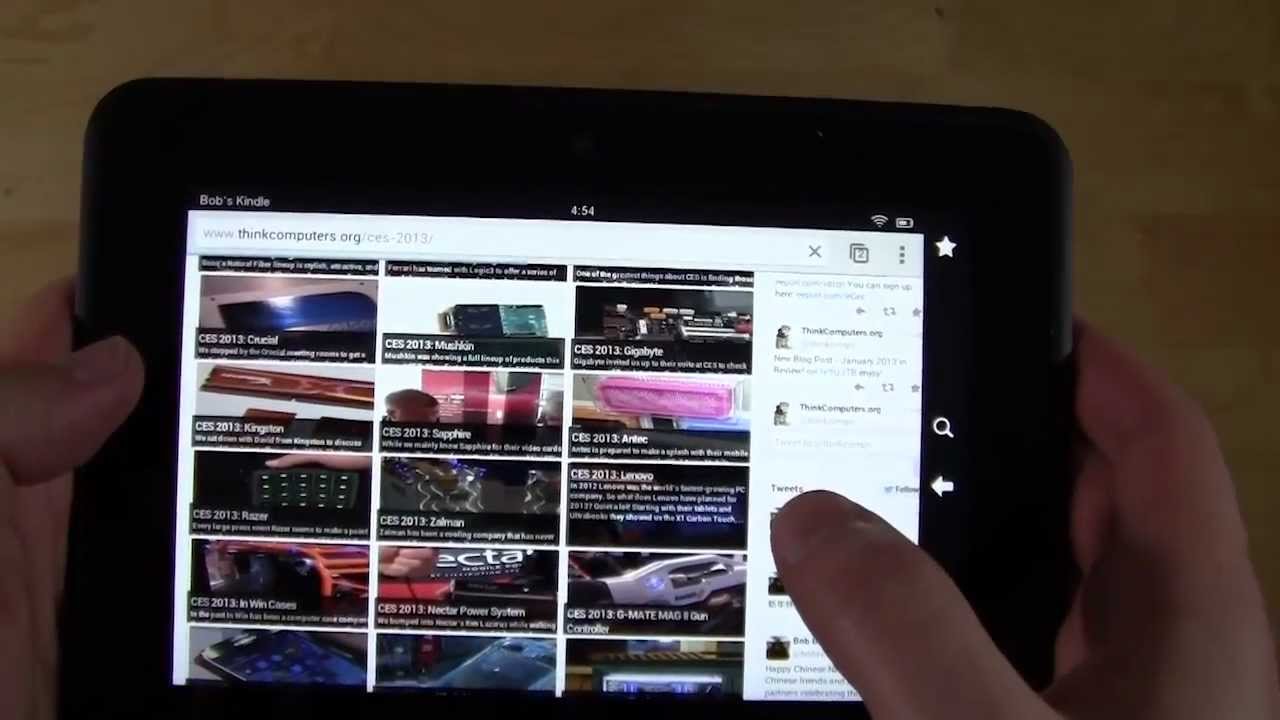
For a full overview on how to install Google Chrome on your Amazon Kindle Fire HD check out our video below.
Here are the step by step instructions:
1. Go into Settings → Device and scroll down to “Allow Installation of Applications” and make sure that is turned ON.
2. Download the ES File Explorer (link) – this makes it easier to find your downloaded files.
3. Download the Google Chrome APK File (link 1 | backup link).
4. Open up ES File Explorer and navigate to the “Downloads” folder. There you will find your downloaded APK file. Tap it to install.
There you go now you have Google Chrome running on your Kindle Fire HD! It really is that easy! Now off to better browsing and of course the ability to run websites with flash.

If you have any questions about installing Google Chrome on your Kindle Fire HD leave them below.


Works as advertised but chrome does not appear with the other apps so the only way to start chrome is go back to downloads, reinstall and hit open. Help. Thanks.
Bruce, are you sure? Are you looking at the apps on your device, not the cloud apps? If you follow our directions it should appear in your apps list
works really well.
will it get updates like a normal Android Chrome installation or will we have to come back here for updates (will there be some sort of alert)?
only problem I’ve found is because there’s no Google account service on the device I can’t log in to sync things, but that’s no huge issue
I followed the video and now cannot find the es file in my app library so that I can continue to install google chrome. can you please help?
Cheryl have you sucessfully installed the ES File Explorer app?
Cheryl, have you successfully installed the ES File Explorer app?
what reason could there be for a website that has flash aspects to have those areas still not be viewable on chrome on my kindle hd after successfully following your instructions? It doesn’t make sense to me why these areas would need flash since they just contain text but I still can’t view the information in these areas 🙁 … any ideas? please and thank you !
Your writeups refer to several links BUT all I get is the following ……….
2. Download the ES File Explorer (link) – this makes it easier to find your downloaded files.
3. Download the Google Chrome APK File (link 1 | backup link).
Could you please fill in the actual links? Thanks ……… Jeff M
All of the links are in the article:
Link 1: http://amzn.to/XxMEYR
Link 2: http://bit.ly/VMSV1y
Once you get Google Chrome on the Kindle fire hd, are we able to see our favorites/bookmarks that are on our laptop?
downloaded and running but i cant sign in. any suggestions?
downloaded and running but i cant sign in. any suggestions?
downloaded and running but i cant sign in. any suggestions?
downloaded and running but i cant sign in. any suggestions?
downloaded and running but i cant sign in. any suggestions?
downloaded and running but i cant sign in. any suggestions?
downloaded and running but i cant sign in. any suggestions?
I am getting a “Unable to parse” error on the apk – what’s that about?
I get a cannot open file error.
I downloaded the app, but it won’t let me sign into Google Chrome.
Thank-you that was very easy, even for me…Is there any way to make Chrome my default browser now?
I am so excited for this. I love my kindle fire and use it a lot to manage my amazon and ebay online stores, now i can easily use it to manage my Teapplix Inventory System(www.teapplix.com). Thanks for once again helping me save time.
True, it’s really that simple. One thing: ES File Explorer is really good for all kinds of things – an essential tool, like Windows Explorer. But to have easier access to a newly downloaded apk install file, you can use the also-free Easy Installer, also in the Amazon store, as its only function is to look on the device for any and all apk install-files and show those to you. This is helpful if people don’t know where to look on their device (and EX File Explorer can be a little confusing to newcomers to Android).
Have Amazon stopped sideloaded apps installing? When I try to install apk files including the chrome one, the install “button” does nothing?
So I installed chrome and then it says the device doesn’t support flash and then when I go to install flash it tells me my device doesn’t support downloading flash ha
Thank you SO MUCH! I can now view videos that previously came up blank. I do not like the web browser that came with kindle fire and now look forward to opportunities missed using the old one.
It all worked fine but unfortunately it won’t let me sign in to chrome. So ultimately a waste of time.
Thanks Bob! Instructions were easy to follow. Nice to have a “real” web browser.
This is the exact same problem I am having.
thanks!!! My google chrome does show in the apps and appears to be working great. Thank you so much 🙂
Thanks for the work-around to load chrome. I also found a work-around to log into my Google account and sync my favorites Barr. However the flash player does not work. I have to go to my dolphin browser for flash for Facebook and youtube. Any suggestions? The work-around for chrome said flash would work…
bob m i download,it shows a white field with folders on screen what didnt i do
I downloaded Google Chrome and I still can’t view videos – says I need flash player. What’s up with that.
So what is.needed to allow ability to log into Chrome and sync?
I was able to get Chrome without a problem, but now I would like to know how to make Chromecast work on my Kindle fire HD. Any idea?
Just type in chrome on the library search bar. Comes up as an app and shows up on carousel.
Bruce you need to click apps at the top of the screen, then on the top right hand side click ‘on device’. You will then see chrome listed there. Now if you press and hold on the chrome icon you will see a list of options appear. Choose pin to home screen and voila you will see it there from now on
I just installed it and it keeps crashing, driving me up the wall, it also keeps telling me that I havent set up a google account on the device and I have. Help?
I go to device an there is not listing for “Allow Installation of Applications”
What to do?….I want to use chromecast with my Kindle fire HD
I had the same problem. Found it under Settings/Applications
Excellent advice and directions…. silk browser always used BING search engine, but now I have google back. Only one change in step 1 above: the “Allow installation of Applications” is no longer part of the “Device” menu but instead can be found in the installation menu.
I was able to download no problems and chrome is working but a site I’m at needs “Hook Player.” how do i get the “Hook Player” on my kindle fire HD?
Installing Chrome worked fine. And chrome works; however, the problem is that it won’t allow me to sign into chrome with my google account I.D. Anyone have a solution for that? I’ve heard amazon tries to block this.
thank for sharing it works perfectly…xxx
Had issue with email passwords being hacked just after I installed Chrome this way.
I checked out the APK that I had run (your second link, the one from 1mobile.com) and ran it past the scanner at http://apkscan.nviso.be/report/show/2975378ac805e47c04d44035e0dc7c76
and it suggested it was malicious. Are these links vetted? Should I have checked the md5 or something to confirm authenticity?
you don’t have to sign in to use the browser. works fine if you just don’t
Your directions led me right through to success. Thanks
Just watched your video. I have an 8 gb kindle fire hd; the allow outside applications was missing from my choices when I clicked on “device” in settings. Is this due to having 8 gb? Should I return this and upgrade to 16 gb?
Thank you for this information!!! I had to go to a youtube video (which had a walk-through on adding the app to my Kindle) to download ES File explorer. This is after I had purchased ES File Explorer in the Kindle store; for some reason it wouldn’t show in my purchased apps – even after syncing. By following the youtube directions it loaded easily. I didn’t have to go back to apps to download Google Chrome – when I clicked (your) link above, a screen opened asking which to use to download, Silk or ES File explorer.
ES File explorer is worth adding alone – but Google Chrome adds to it tremendously. Thank you so much. Hoping this allows me to use my Kindle. Silk has been constantly crashing, to the point my Kindle is useless except for off-line usage. Hoping this will save my wall from damage (as in, extreme frustration and a flying Kindle).